Customer Ratings & Reviews
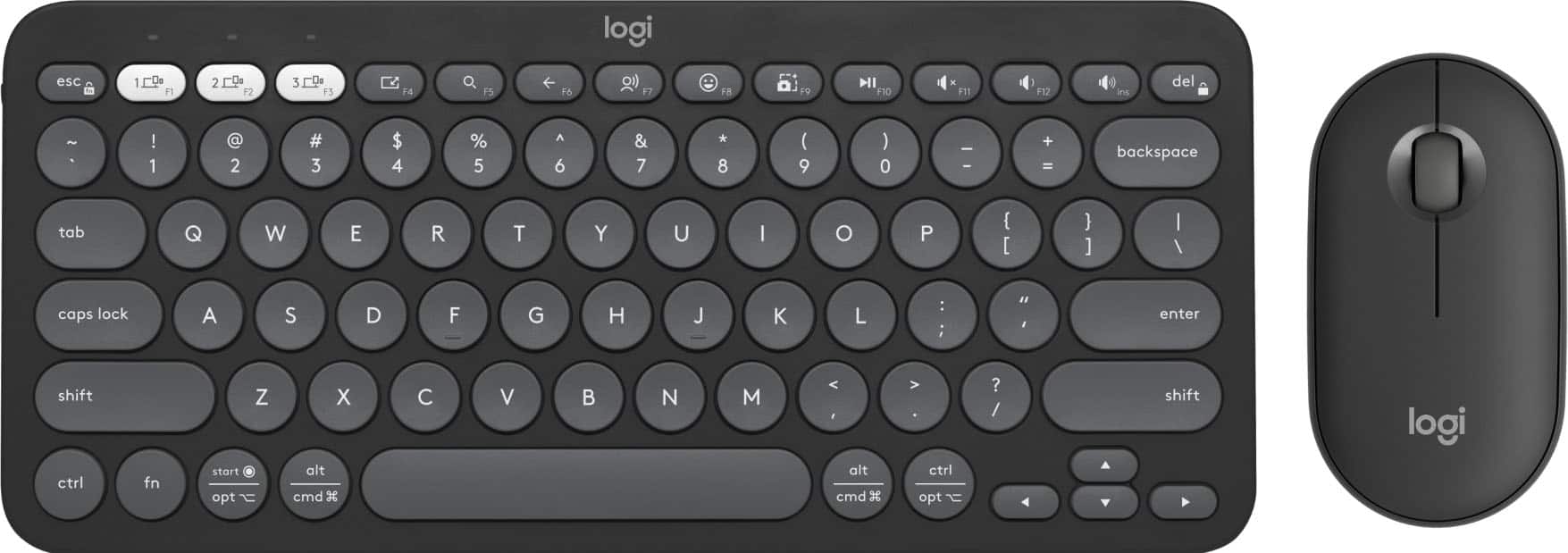

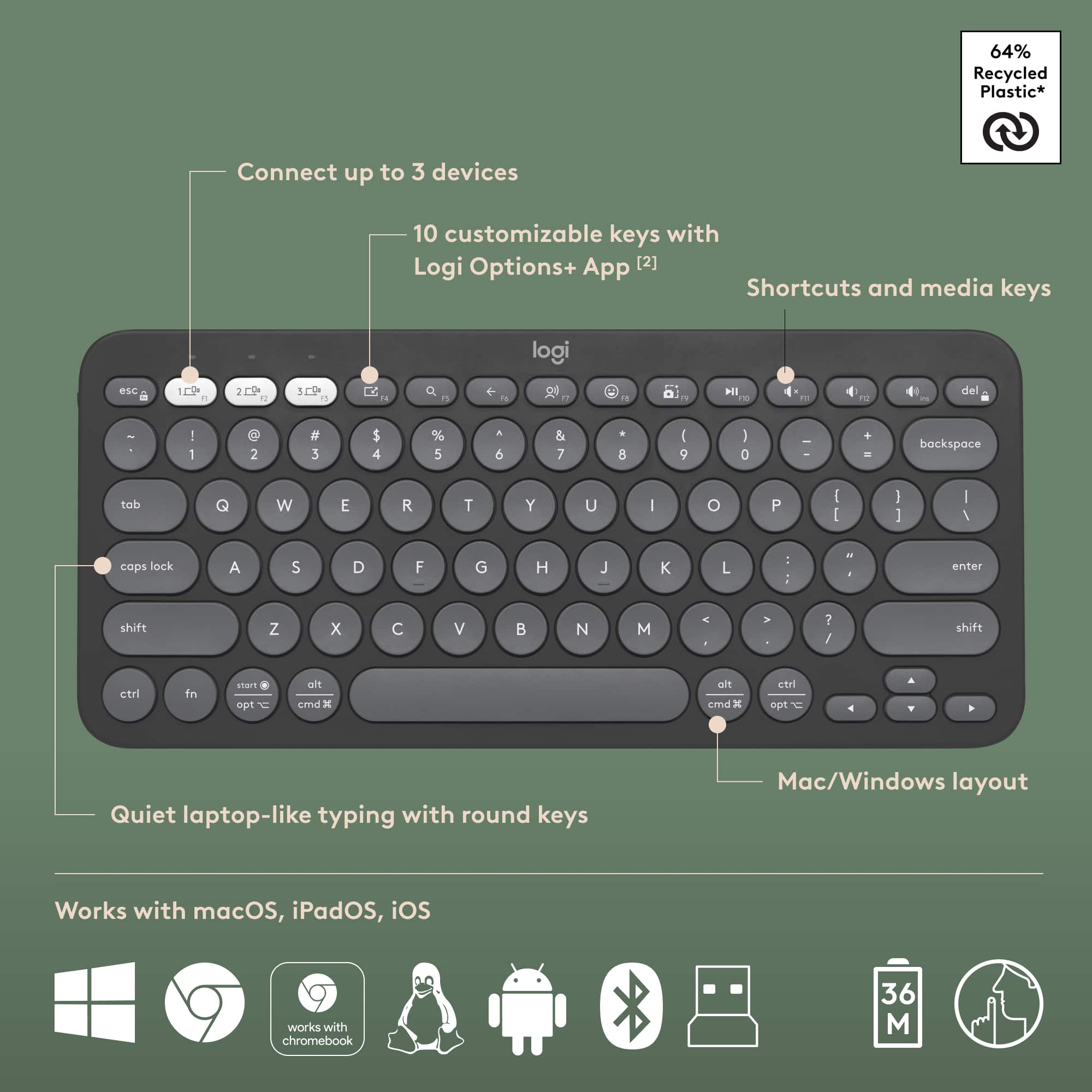
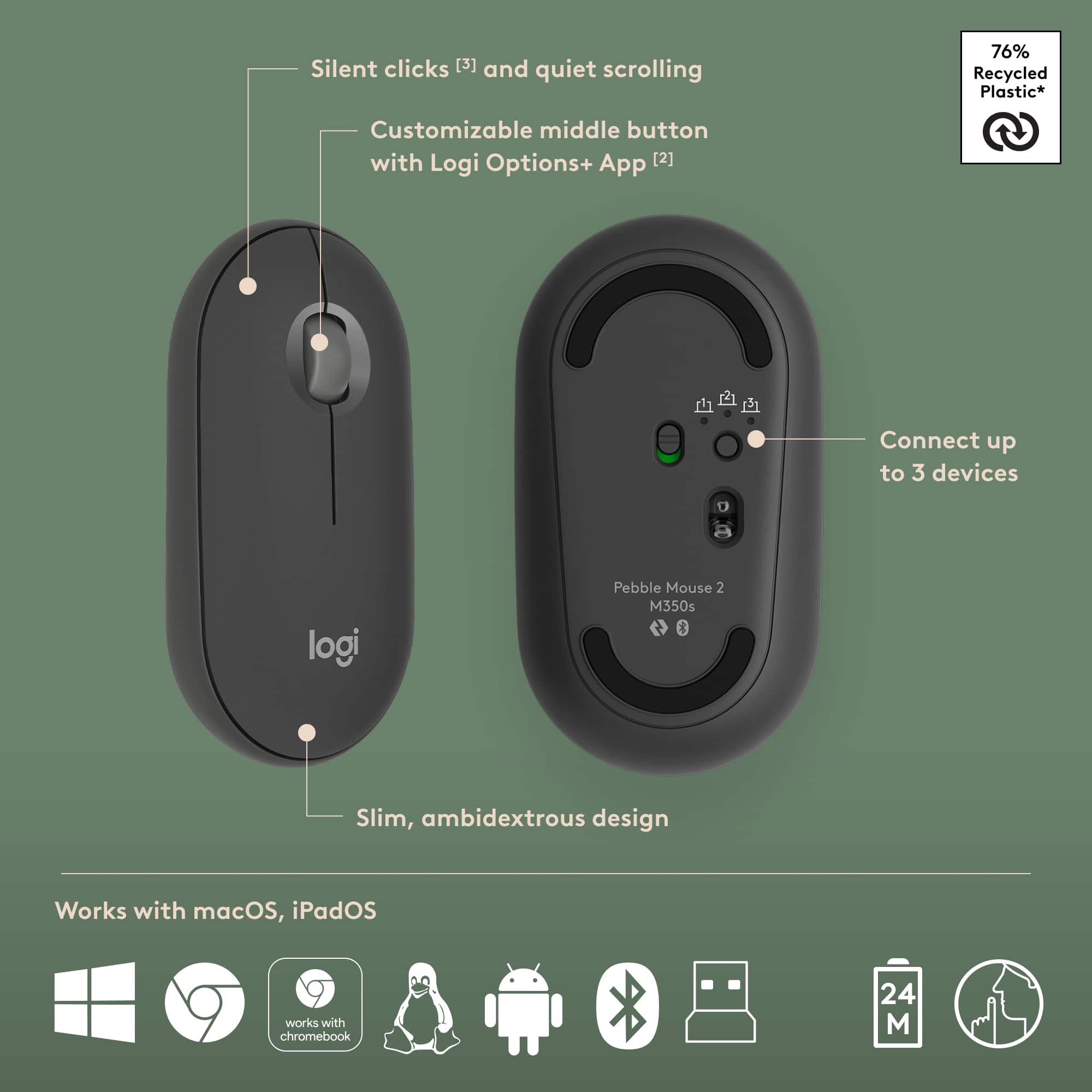
![A customizable pair ... I <3> - - - + d a - - a - . e - . - . - + d - - 1 1 O B a . . 1 I N CUSTOMIZABLE KEYS & BUTTON WITH LOGI OPTIONS+ APP [2]](https://pisces.bbystatic.com/image2/BestBuy_US/images/products/840917da-8639-4794-b1a0-6aed4b1b949c.png)



- Model:
- 920-012061
- SKU:
- 11978317
Rating by feature
- Value
Rating 4.6 out of 5 stars
- Quality
Rating 4.7 out of 5 stars
- Ease of Use
Rating 4.7 out of 5 stars
Love it!
||Posted .This reviewer received promo considerations or sweepstakes entry for writing a review.Awesome mouse, upgraded from previous model. Feels premium and this one is so smooth! Highly recommend.
I would recommend this to a friendBrand response from Logitech
Posted .It’s great to hear your experience has been positive. Your feedback helps us refine and improve our products. Thanks for choosing Logitech!

Amazing keyboard
||Posted . Owned for 3 weeks when reviewed.This reviewer received promo considerations or sweepstakes entry for writing a review.Very amazing, connects a far distance, sensitive to the touch.
I would recommend this to a friendBrand response from Logitech
Posted .It's great to hear the Pebble 2 Combo's range and sensitivity are working well. Feedback like this helps us understand what users appreciate most. Enjoy your setup!
Logi MX Master 4 - Mac
||Posted .This reviewer received promo considerations or sweepstakes entry for writing a review.love the functional improvements over the 3S. Aesthetically subtle upgrade, but appreciated.
I would recommend this to a friendBrand response from Logitech
Posted .It’s fantastic to hear that you’re satisfied with your Logitech product. We strive to deliver quality and reliability, and your feedback reassures us that we’re on the right path. Thanks for your continued support—we’re lucky to have you with us.
Decent
||Posted . Owned for 1 month when reviewed.This reviewer received promo considerations or sweepstakes entry for writing a review.Very good although it’s a little confusing to set up. The mouse is not the highest quality but it’s ok for the amount I paid for. The circular keyboard keys take a bit getting use to.
I would recommend this to a friendBrand response from Logitech
Posted .Thanks for the honest feedback on the Pebble 2 Combo! We're glad you find it a good value and appreciate you letting us know about the setup process and mouse. We're always looking for ways to improve. Happy typing!

Best professional mouse
|Posted .This reviewer received promo considerations or sweepstakes entry for writing a review.Besides specific gaming scenarios, this is un my opinion the best computer mouse. I'm already using an MX series keyboard and had a travel MX mouse on my work computer. Already had experience with the MX Master series at my home computer so I'm happy to add the MX Master 4 to my workflow. I used an ergonomic mouse before and this is a happy middle ground. While it doesn't fit the hand in a handshake position, it still works in a slight angle, very similar to a typing position and not flat like a traditional mouse. While older MX Master series mouse are as good as it gets, this takes it to a whole new level. Let me explain: All the touch surfaces have been redesigned: the body of the mouse is now a hard plastic that is more resistant to oils. The buttons are now of a thick clear plastic with a dark background. This material is meant to prevent the 'polished' look that other Logitech products develop after a while, so it's expected to look like new for longer. The bottom of the mouse has more sliding surfaces, and adds a ring around the sensor. It now has exposed screws on the bottom so it should be easier to service/clean inside. There is no longer a need to peel off the sliding material, as it's all exposed on the bottom of the mouse (Not visible while in use). The charging USB-C port remains on the front and can be used while charging. However the USB-C port, like in other models, cannot be used for data, so the mouse is always connected via wireless. The main scrolling wheel is all metal, and can dynamically switch between step and freewheeling modes. This is configurable via the Options software or from the button in front of the wheel. The purpose for that button is also configurable. On the right side there is a separate wheel that is normally configured for horizontal scrolling. This wheel does provide some friction so it can only scroll when intentionally pushed. Behind this wheel there are three buttons. Two are close together are usually used as Back and Forward keys. The third button is meant to use with Expose or Control Center. The surface where the thumb rests is now a large button that also provides haptic feedback. This is all new. The default function for this button is to launch the Logitech Action Ring, that can be configured via their Options+ software and it's intended as application-specific ring with shortcuts. This was originally introduced with the MX Creative Console, which I'm also using, so I'm familiar with the action ring. This can be configured per application but there a are very few applications that are pre-defined, and mostly includes creative suites, conferencing and music applications, but for the most part you might have to build your own actions, and it's fairly straightforward to do so. The haptic feedback is currently very limited, it works when using the action ring and in a handful of other cases that can be configured. I expect that the number of scenarios where haptic feedback works would increase. The amount of feedback force can be configured and I left it at it's lowest setting. It can pack a punch in higher settings that did not find comfortable. Like other MX series devices, it can connect to three different devices (computers, phones, etc) and if the computers have the Logitech flow configured, can directly see each other on the local network (as in, not in a VPN), and the keyboard is also an MX series device, Flow can seamlessly switch control between computers when crossing the edge of the screen, as configured. This is a great way to share the same keyboard and mouse. It worked great for me, but doesn't work when my work laptop is on VPN, and this is a VPN-specific restriction. Normally this works very well in a desktop with two or three computers. One can manually switch the mouse by pressing the pairing button on the bottom, which has a device indicator light as well. Recent Logitech devices, besides Bluetooth, support the 'Logitech Bolt' USB adapter. When using the adapter, the computer sees it as an USB device, and the computer's Bluetooth is not involved. I like this better on my macs, because I leave the adapter in their docking hub, and can use the keyboard and mouse during the boot password (FileVault), otherwise macOS no longer allows 3rd party Bluetooth devices at this stage until macOS started. It's important to me when using the laptop with its lid closed. However, the MX Master 4 for Mac does not include the Bolt adapter, while the PC version (not Mac) is exactly the same hardware, with slight color variations, and does not include the adapter in the box and has to be purchased separately, while costing the same. I find this quite disingenuous. Because I already use an MX keyboard, I could pair it with my existing bolt adapter. Overall, it's as good as it gets. Currently the best professional mouse bar none, although I'd argue that the PC version is better because it includes the Bolt adapter at the same price. Note that the USB-C cable for charging is also not included. I can use the same cable that I use to charge my phone however and that's fine.
I would recommend this to a friendBrand response from Logitech
Posted .Hey! We’re pleased to hear that our product is serving you well. Your feedback helps us grow and evolve. Thanks for being part of our journey.
Great mouse; most features require the software
|Posted .This reviewer received promo considerations or sweepstakes entry for writing a review.## What's new in version 4? Many of the new features in the MX Master 4 are software driven, but there are some new hardware tweaks as well. The MX Master 4 has some new haptic feedback hardware that, in a similar fashion to your phone, can provide subtle vibrations in your hand. You'll notice this when the mouse powers on, but you can customize additional haptic feedback through the Logi Options+ software. There is also a new "Actions Ring" feature that brings customizable shortcuts to where your cursor is. By pressing the new button near your thumb, a ring of customizable options pops up. Additionally, you'll find a new "Gesture" button by the back/forward buttons. Holding it while moving the mouse allows you to perform different gestures such as moving the left virtual desktop or going into Task View. This can be customized in the Options+ software. Most of these features require the Logi Options+ software to be installed, which looks like a simple 40MB download, but it then downloads an additional 250MB while installing. Seems somewhat bloated for customizing a mouse, but you can use the MX Master 4 without the download (you just won't have the haptic feedback and Action Ring features). Connectivity is also improved with up to 2x stronger wireless signal strength thanks to a new antenna. On the exterior, the MX Master 4 features a new stain-resistant coating and larger thumb rest area. It's important to note that this mouse does not come with a charging cable (it uses a standard USB-C connection). It also does not come with a Logi Bolt dongle. ## Design As I've said before, the Logi MX Master 3 is one of the most comfortable mice I have used, and the MX Master 4 feels slightly different but still just as comfortable. Even after long work sessions, my hand doesn't seem to fatigue as easily as it does with a standard mouse. The larger thumb rest is appreciated, and all of the buttons and the scroll wheels work smoothly. On the bottom is the power switch as well as the device switching button, which lets you switch between 3 different Bluetooth devices. ## Performance One of the coolest new features is the "Action Rings" that you can access with the new thumb button. You'll need the Logi Options+ software to take advantage of these "Action Rings," which can do things like open the emoji picker, play/pause your media, and access the website for AI agents like ChatGPT and Perplexity. The mouse also provides new haptic feedback as you hover over each option. It's a handy new feature and the haptics add a definite "cool factor" to using this mouse. There's even a "marketplace" of plugins that add Action Rings for popular applications such as Photoshop and Zoom. For example, you can add a "Mute" option to the Action Rings and then easily access with the thumb button during a Zoom meeting. Browsing the marketplace requires a Logi account which is a bit of an inconvenience (an account to use my mouse?!), but that seems to be the norm with modern hardware. The new "gesture" button is cool, but the button is just a bit too far from my thumb and I really need to reach for it. You press and hold the button while moving your mouse up, down, left or right to do things like maximize windows, show your desktop, or switch between virtual desktops. These can of course be customized with the software. The mouse itself is great to use, and I find the tracking to be very accurate, even when I use my couch cushions as a mouse pad. ## Battery Life The mouse can last up to 70 days on a single charge and is easily recharged with a standard USB-C cable (not included). Logitech also states that a quick one-minute charge can get you up to 3 hours of usage, which is handy if you forgot to charge it. ## Summary The Logi MX Master 4 adds haptic feedback, new thumb and gesture buttons, as well as some cool new software features with Activity Rings. It still retains the comfort, smoothness and long battery life of the MX Master 3s, but does not come with a dongle nor charging cable
I would recommend this to a friendBrand response from Logitech
Posted .Thank you so much for your detailed feedback on Logitech - MX Master 4 for Mac! We’re thrilled to know it’s meeting your expectations. We truly appreciate you taking the time to share your experience! Your support means a lot to us.
Comfort, Precision, and Control in One Device
|Posted .This reviewer received promo considerations or sweepstakes entry for writing a review.One of the things I love about peripherals is how they can be customized. I’ve always had an affinity for keyboards, but now I have to say, I have a new appreciation for mice, too. I’ve been using standard mice for quite some time. In my opinion, the simpler the better, and too many buttons get confusing. Logitech does a great job of creating an easy-to-use application that not only explains the default button structure but also gives users many ways to customize their device. I’ve been using Logitech mice for years. One of my favorites has been the Logitech Anywhere series, but I’ve also found a strong draw towards gaming mice lately due to their robust build quality. That said, too many buttons get intimidating, which is why I really like this MX Master 4. Even though it has a lot of I/O options, it’s not overwhelming because the Logi Options app helps you learn how to control them in a way that works best for you. There are a lot of mice out there that are not designed for macOS first. Mac users often get left out when it comes to advanced peripheral design. But the MX Master 4 is designed for Mac users. I used the MX Master 3 for a while, but I really love what Logitech has done to upgrade this premium mouse. To me, the mouse is very comfortable to use. The shape and size fit my hand very well, and all the inputs are in easy-to-reach places. The main scroll wheel is made of metal, and there are little teeth in place for gripping on your finger. It spins very easily, and I’ve found movements to be smooth and even. I love that the mode button helps you switch with one click between the two scrolling modes. The buttons have a soft feel to them. They aren’t mechanically ‘clicky’ and an easy tap registers an input. There are several programmable buttons all on the thumb side of the mouse. While I’m on that subject, this is a right-hand only mouse. There is no option to switch which hand you use it with based on how it was designed. I mentioned the app that you use with the mouse. Well, you can use the mouse without it, but you will only get the left and right click buttons and regular scroll functionality from the mouse without the app. It’s unfortunate that you are required to run a utility app, but the Logi Options app is much better than other utility apps I’ve seen. You can connect the MX Master 4 with a USB-C cable (not provided), the Logi Bolt receiver (not included), or Bluetooth. I connected via Bluetooth first and then used the Logi Bolt, which I already had. Being connected via the receiver was a little problematic because of other device interference. So, my experience was much better connected as Bluetooth. The connection was smooth, and I didn’t have any issues with jittering. One of the features of this mouse that is really helpful is the gestures button. Logitech has a software feature called the Action Ring. This is a customizable set of actions that you can program as global settings or per application. The MX Master 4 has a Haptic Button that calls up the Action Ring with a simple click. This has completely changed how I interact with my system. I use a lot of shortcut keys most of the time, but now I can just use the action menu through the Haptic button on the mouse. In case you can’t tell, I’m a fan of this mouse. It delivers a comfortable, customizable experience that fits really well into my workflow.
I would recommend this to a friendBrand response from Logitech
Posted .Hey! We’re pleased to hear that our product is serving you well. Your feedback helps us grow and evolve. Thanks for being part of our journey.
Built for utility
||Posted . Owned for 1 week when reviewed.This reviewer received promo considerations or sweepstakes entry for writing a review.I grew tired of the “Mech keyboard trend” A simple, light, travel friendly, low profile keyboard. This fills all those rolls. The downside is it runs on batteries and has no back light. Not a big deal but at this day and age and for this price I don’t think a keyboard should exist without backlight options. Mouse is fine does what it needs to do, Wouldn’t use it as a daily driver.
I would recommend this to a friendBrand response from Logitech
Posted .Thank you for your feedback on the Pebble 2 Combo Compact Wireless Scissor Keyboard and Mouse Bundle. We appreciate your insights on the keyboard's design and features. We're also glad to hear that you find the mouse suitable for your needs.
Powerhouse Mac Mouse
|Posted .This reviewer received promo considerations or sweepstakes entry for writing a review.Mouses are largely our main way of interacting with computers and having a quality one matters. Logitech has been the best in the business for some time now, but continues to improve with the MX Master 4! PROS: - Unboxing, I really like the look of this! It’s a sleek black but the left and right clickers have more of a transparent look to them. And nothing about this feels cheap, it’s very premium, has legit metal in the scrollers, and the buttons feel sturdy with an overall nice weight to it. - The clicks are also very satisfying! It’s not loud, and just feels very smooth while using. - Now the big upgrade to this is the haptic feedback via the action ring button, and it’s definitely fun to use and changes the way you use your mouse! Clicking it gives you quick access to some commands you can chose for yourself. It can be system settings, finder, open Chat GPT, calculator, screenshot, etc. It’s a nice quick feature to use and brings a lot of functionality I think. - The mouse also has more buttons on the top and side that can be customized in the Logi Options+ app (which is fantastic and a must have app) so either quick things like copy and paste or even opening up command center view! - It’s also really easy to switch from MacBook, to iPad, and back with this either through their eligible flow options or just through Bluetooth controls which is super quick. CONS: - The “Mx Master 4” comes with a USB C dongle, the “MX Master 4 for Mac” does not come with a USB C dongle. Obviously it works on Bluetooth but it’s just a nice to have thing I didn’t think they needed to exclude. - The action ring needs some software updates. Right now it’s focused a lot on things Logitech can do or things Logitech’s marketplace apps can do. Yes there are tasks it can do specific to your computer like open apps or function commands, but I find those ones to be hit or miss at times. However, these are all software based things and easily fixed in my view! - I’d also like to see the haptic feedback available for more interactions instead of just the action ring, but again this is a software based fix! BOTTOM LINE: - As someone who uses a mouse many hours a day, it really does matter to have one that is high end and makes work or creation easier. The MX Master 4 for Mac does just that. It’s exceptionally made, has loads of features, improves my workflow, and is packed with tech. I’ve been very happy as this mouse being my daily driver and I think everyone else is gonna love it too.
I would recommend this to a friendBrand response from Logitech
Posted .Hey! We’re thankful for your review. It’s rewarding to know our product is meeting your expectations. Thanks for being part of our community.
Logitech Combo
||Posted . Owned for 3 weeks when reviewed.This reviewer received promo considerations or sweepstakes entry for writing a review.Working Great !! Exceeded all expectations. Would recommend to anyone !!
I would recommend this to a friendBrand response from Logitech
Posted .We're absolutely delighted to hear your Logitech Pebble 2 Combo is working great and has exceeded all your expectations! It's fantastic to know you'd recommend it so highly. Thank you for sharing your wonderful feedback!
Outstanding on Mac but iPad needs serious help
|Posted .This reviewer received promo considerations or sweepstakes entry for writing a review.I’ve been hearing every tech personality on the planet rave about this line of mice it seems like, so it was nice to actually get one in my hands and see what all the fuss is about. For starters, I’ll just state the obvious for any other folks who may be new to this one: it has lots of buttons and darn near everything is customizable. (*unless you’re on iPad. More on that below.) It’s the latter that is so impressive to me and Logi’s software on the Mac works really well and gives so many options to this customization that I haven’t even really explored half of it yet. BUT maybe more importantly is that I’m not even sure I want to because everything worked right out of the box and I like the default settings quite a lot. Because I have a Logitech mechanical keyboard I already had the Logi Options software downloaded and installed on my computer. So, literally I just turned the mouse on, went to Bluetooth settings and was up and running in two minutes tops. It was charged and ready to rock. The one thing I was a little uncertain about was the shape and feel. I have a vertical mouse that has definitely helped with some wrist pain, so the concern isn’t just trivial. And I will say that upon first use I wasn’t entirely sure I was going to find the MX Master 4 comfortable to use. But those concerns have all but gone away. I’m experiencing no discomfort and furthermore, I find this design to be the most comfortable on my thumb of any mouse that I’ve ever used. Ever. It rests on the side there in a spot that has some nice texture to it to go along with where there is now a haptic engine and the action ring button. I love this button. A) the haptics feel cool B) it’s of course customizable to all ends and C) the default setting is a REALLY good starting point. I’ll share a screen shot but essentially it allows you to open up a context menu anywhere on your Mac’s screen, giving you shortcuts to things like Finder, a whole suite of AI tools, copy/paste, Logi Options, and more. The only negative here is that having never had such a button before I’m having to force myself a little to remember it’s there. But I do expect it will become 2nd nature in no time. It’s a really, really cool bit of productivity design. (And looks good, too.) The other buttons I think are probably familiar to anyone who’s likely looking at this mouse. Again, I’ve never owned any in this series so they’re new to me and they are fantastic. The side scroll is super useful on iPad, and I love that I can change how the vertical scroll wheel works just by pressing that little button beneath it. Everything clicks extremely quietly, it all feels soft and comfortable, and I haven’t noticed any fingerprint/oil issues. Also, this mouse is heavy! And I love that. Okay, so the negatives are really just limited to one simple thing but it’s a big one in my opinion: the iPad app is garbage. It recognizes the mouse but shows a picture of a Logitech keyboard. Huh?? While basic pointer functions work, none of the side buttons (including thumb) do and there is zero way to customize anything because again, the iPad app is either broken or so painfully lacking in features compared to what’s on the Mac that you’d almost think it was made by a different company. Maybe things will get better with an app update, but looking at the reviews I’m not hopeful. It’s a shame; I don’t understand why they didn’t go the extra mile. All in all, if you’re looking for a new powerful mouse for your Mac I have a hard time you’ll be disappointed with the MX4. I understand the fuss!
I would recommend this to a friendBrand response from Logitech
Posted .Thank you for sharing your thoughts on the Logitech - MX Master 4 for Mac. We’re glad to hear what you liked, and we’ll definitely work on the areas you mentioned.
Great Compact Keyboard and Mouse
||Posted . Owned for less than 1 week when reviewed.This reviewer received promo considerations or sweepstakes entry for writing a review.Got this combo keyboard and mouse to use with a laptop and external monitor … very happy with it so far … keyboard is very responsive and mouse is smooth and good size. I would recommend this.
I would recommend this to a friendBrand response from Logitech
Posted .We're thrilled to hear that the Logitech Pebble 2 Combo is meeting your expectations! Your positive feedback on its responsiveness, size, and compatibility with your laptop setup is appreciated. Thank you for recommending this product.
Perfect!!
||Posted . Owned for 1 month when reviewed.This reviewer received promo considerations or sweepstakes entry for writing a review.Worked great! The team at Best Buy Round Rock helped me choose the best fit for me!
I would recommend this to a friendBrand response from Logitech
Posted .Hey! That's fantastic to hear! We appreciate you letting us know you love the Logitech Pebble 2 Combo. It's always rewarding to hear customers are having a positive experience with our products. Sounds like the team at Best Buy Round Rock did a great job helping you find the perfect fit! Thanks for your feedback!
I like switching devices function
||Posted . Owned for 2 weeks when reviewed.This reviewer received promo considerations or sweepstakes entry for writing a review.Its osm i can switch devices with is keyboard &mouse
I would recommend this to a friendBrand response from Logitech
Posted .The Logitech Pebble 2 Combo sounds like a great fit for you! It's a popular wireless keyboard and mouse combo known for its portability, quiet typing, and ability to work across multiple devices. It's a great value!
Portable, quiet, and minimalistic
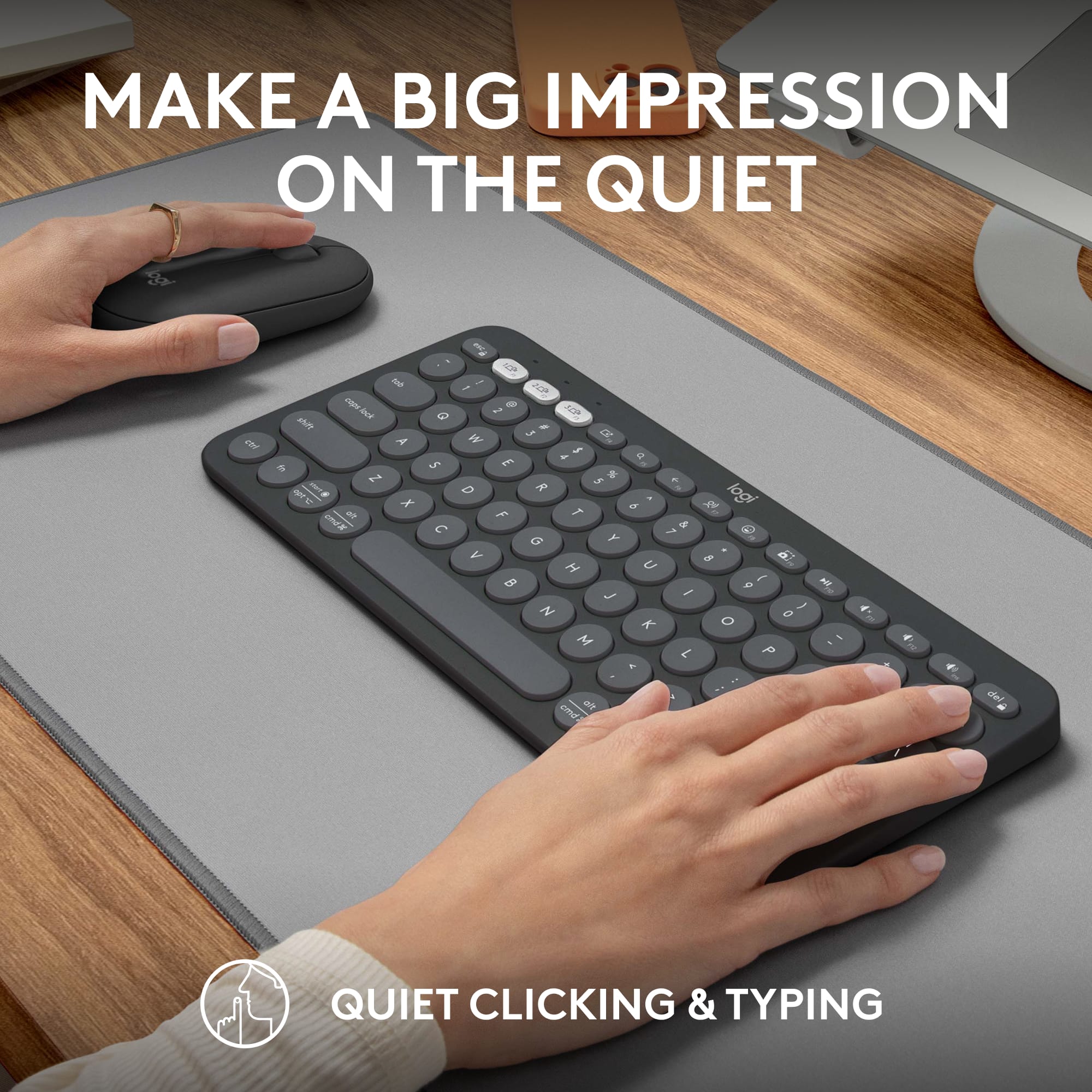
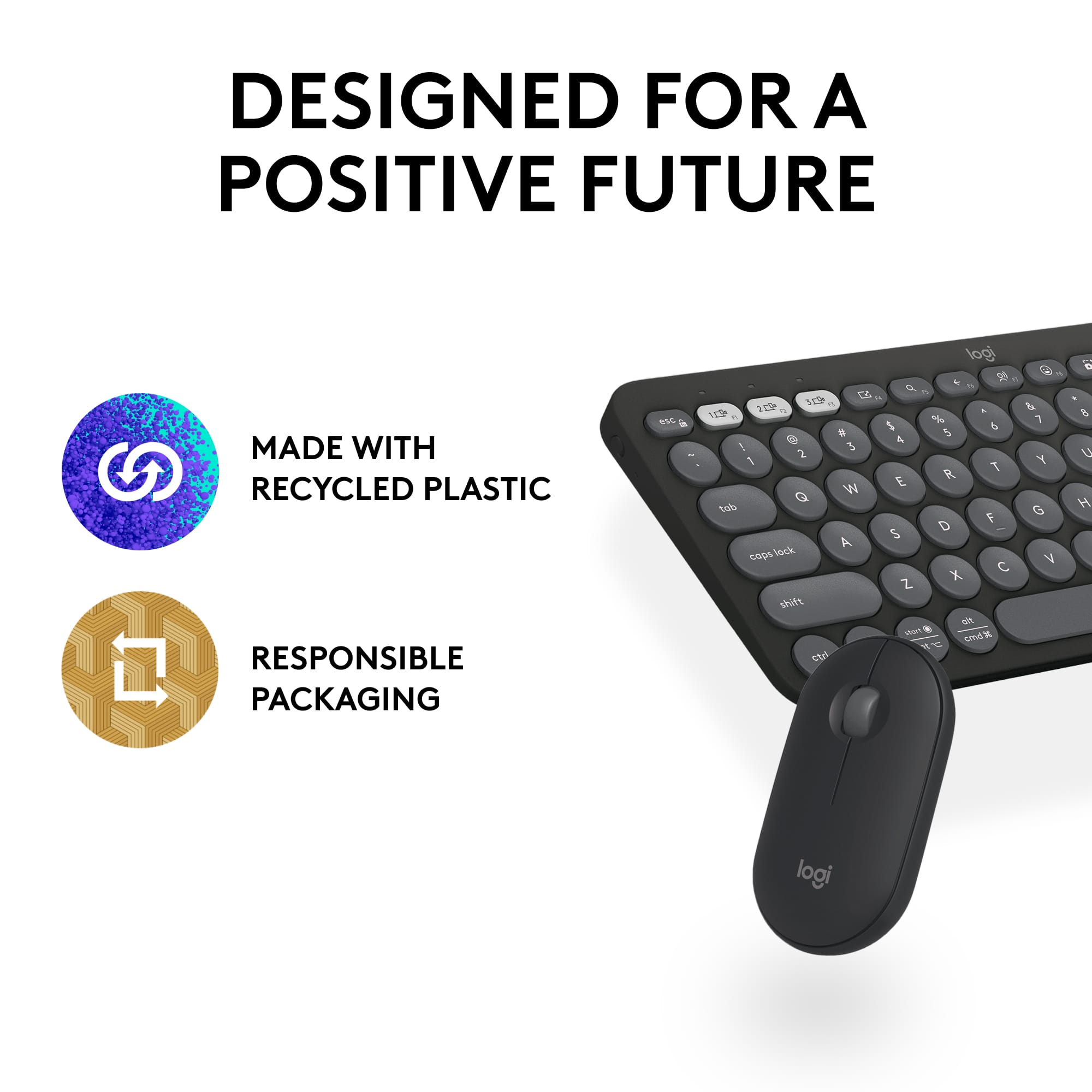
|Posted .This reviewer received promo considerations or sweepstakes entry for writing a review.The Pebble 2 Combo is a perfect addition to any laptop or desktop setup. This minimalist keyboard has a small footprint and is easy to use for multitasking. In my opinion it’s a must have for anyone that is on the go and needs a keyboard and mouse. My take on this after using it for a few days is that it’s slim, minimalist, and quiet. Perfect for multitasking with multiple devices. This keyboard and mouse combo can switch between 3 devices of mine with the press of the East Switch button. This allows for compatibility with Windows, Mac, iPad, and Android. Silent touch technology is a very nice addition for my usage. Perfect for situations when I’m wanting to be quiet and cause less of a disturbance to my surroundings, such as working in the library or working late at night at home. The keyboard has a nice addition of modern buttons that allow for shortcut keys such as emojis and screen grabs. You’ll want to download the software to modify your mouse as well. The Logi Options app will allow you to make your mouse a bit more user friendly. This keyboard and mouse combo should sip on the battery power and give you up to 36 months of battery life which seems to be hassle free and convenient. This combo is ultra portable and easy to slide into a backpack or purse. They are also made with recycled plastic so I know I’m doing my part to be using an eco friendly product.
I would recommend this to a friendBrand response from Logitech
Posted .We are honored by your wonderful review. Your satisfaction is our ultimate goal, and we are thrilled that we hit the mark for you. Thanks so much and have a great day! 😃
MX master 4 for Mac is UNRIVALED!
||Posted .This reviewer received promo considerations or sweepstakes entry for writing a review.I'm a huge fan of Logitech Mice and I was using the MX Master 3 for the last few years. When it was time to get a new mouse, I only considered the newest MX Master 4 for Mac. The MX Master mice has, for me, the best ergonomics of any mouse I've ever used. They feel great in your hand, and the customization options are awesome. In particular, the newly released 4 is a major upgrade over the 3 I was using. the materials feel higher quality. There are more customization options, including a haptic feedback button, with multiple options for controlling an application when pressed. Using the Logi Options Application, you have the ability to control so many features on the mouse, for pointer speed to scroll speed, to volume and many other other options. The battery is rechargeable and a single charge whould last about 70 days, which is awesome. And just a couple minutes plugged in will give you a few hours use. You can also use the mouse while it's plugged in to charge. With the MX Master 4, Logitech took everything that was great about the previous generations and made it even better, which is no easy feat. But they did it and I can't recommend this mouse enough!
I would recommend this to a friendBrand response from Logitech
Posted .It’s fantastic to hear you’re enjoying the Logitech - MX Master 4 for Mac. We truly appreciate you taking the time to share your experience!
Feels cheap but it has nice features..
||Posted . Owned for 3 weeks when reviewed.This reviewer received promo considerations or sweepstakes entry for writing a review.Older gen keyboard from logitech are much much better. This feels cheap and all plastic. Logitech features such as Chatgpt and AI tools is neat but its not something i would use all the time. Still having a hard time adjusting to the flatness of the keyboard and mouse..
No, I would not recommend this to a friendBrand response from Logitech
Posted .Hey! Thanks for your feedback on the Logitech Pebble 2 Combo. We appreciate you acknowledging the convenient features like Chatgpt and AI tools. We understand your preference for the feel of older Logitech keyboards. We apologize that the all-plastic design feels cheap to you. We constantly strive to improve our products, and your feedback about the keyboard and mouse flatness is valuable. We'll share this with our product development team.
EXCELENT
||Posted . Owned for 1 month when reviewed.This reviewer received promo considerations or sweepstakes entry for writing a review.The Logitech Pebble 2 Combo delivers sleek design, quiet typing, and smooth mouse performance. Compact yet comfortable, it’s perfect for portability and small workspaces. Compatible with Windows, macOS, and iPadOS, it offers reliable wireless connectivity. Battery life is impressive, making this bundle an excellent value for everyday productivity.
I would recommend this to a friendBrand response from Logitech
Posted .Thank you so much for the glowing review! We're thrilled to hear the Pebble 2 Combo is hitting all the right notes—from its sleek design and quiet keys to its reliable wireless performance. It’s great to know it’s fitting seamlessly into your workspace and daily routine. We truly appreciate your kind words and recommendation!
Super Mouse with ENDLESS Options! THE MASTER!
|Posted .This reviewer received promo considerations or sweepstakes entry for writing a review.Not sure what else a mouse can do! Logitech has put every possible option into this mouse. It can truly do it all, and do it well. Came packaged for easy access and everything you need to get started. The first impression is quality. Super quality build and great feel in your hand. I have big hands and this things fits perfect. You can tell right away that the components are well made and well designed. The software that you download is so EASY to use and navigate through. It really customizes the mouse to exactly how you want it and what you want all the buttons to do. And it does it really well! This is the best software for a mouse I have ever used. A breeze to use and understand. Click, Spin, and Boom....everything just as you want it. Movement of the mouse was simple. The buttons are all super responsive and just the right amount of pressure is needed to get them to function. I used this on macOS and it works perfect. They call this the MASTER SERIES and it truly lives up to its name. Even the "Action Ring" is a home run. It lets you access your favorite shortcuts right on the mouse. If I had to summarize the mouse with one word, it would be "precision". The mouse works and works beyond well. Grab the MX Master by Logitech. You will NOT be disappointed! Highly recommended.
I would recommend this to a friendBrand response from Logitech
Posted .Hey! Thanks so much for your detailed and enthusiastic review! We're thrilled to hear how much you're enjoying the MX Master 4 and all its features. Your feedback is incredibly valuable to us.
Good budget keyboard
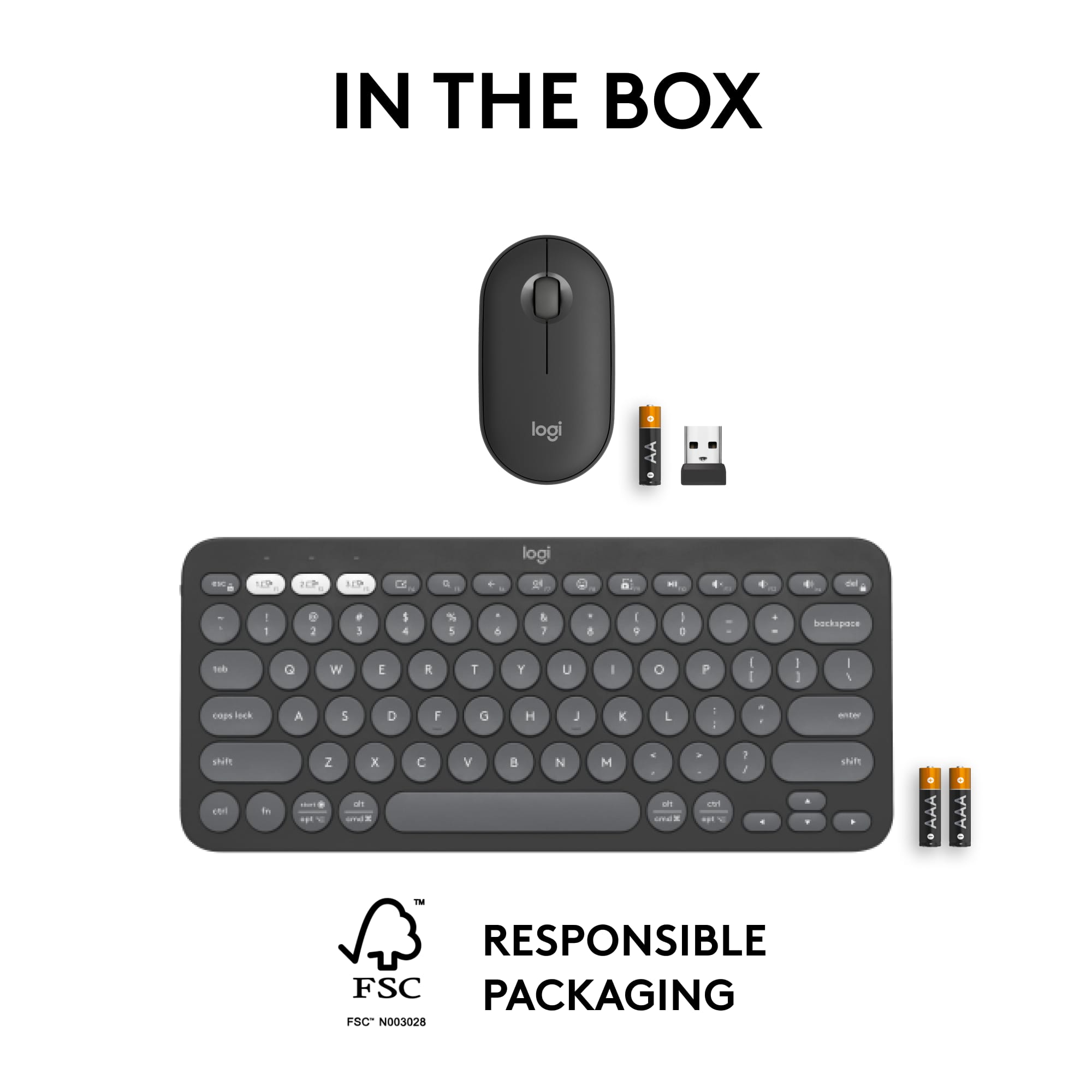
|Posted .This reviewer received promo considerations or sweepstakes entry for writing a review.I was prepping for an international trip for work and regularly use the MX series, but they’re a bit too big for travel. When I got the opportunity to review this product at no cost for my usage resulting in a real-world review, I jumped at the chance. TL;DR for my frequent readers and details below on the combo - mouse + keyboard set Good: Battery life (both) Connectivity Options (Bluetooth v. Bolt) - for both Supportability with Options+ Quiet Bad: Key press depth Meh: Options+ software / customization Mouse flatness No keyboard height adjustment (ala Apple) On shipping, the packaging is super minimalistic; what I’d call a biodegradable wrap for the mouse & keyboard is pretty environmentally conscious and given a few other things, makes me believe that Logitech has the world in mind when making products and packaging - but I digress …. Having a XPS 9530 with only USB-C ports made using the Bolt adapter a bit challenging as it’s only a USB-A adapter; I was able to use a USB-C to A adapter to get it going. I’d hope for a ‘bender’ to make A-C or vice-versa soon (think the extender that Logic used to include with their other combo sets). Now, onto the software. For the first week or so, this keyboard/mouse set wasn’t recognizable in the Options+ software but given how new it was - I’m not holding it against them. However I must say that the release date for supportability was spot on - kudos! Onto the software - something that may be confusing is using Bluetooth vs the USB Bolt adapter; the software doesn’t know the devices are the same if you connect them via each method. As soon as I turned on my devices (meaning, removed the battery tab), a pop-up appeared on my Windows 11, Dell XPS 9530 to get started via Bluetooth and it worked flawlessly. As a techie, the first thing I want to do is update firmware, but without software (Options+), you can’t and after installing the software it didn’t recognize the new keyboard/mouse; bummer. Waiting a few days (end of the first week of Sept, 2023), Options+ got an update and after a reboot - BAM - I had 2 of each device!? The reason is (stupidly), because it sees the Bluetooth connection and the Bolt connection are seen as different devices, vs a single device accessing via two different protocols (of sorts). I used the keyboard & mouse pretty exclusively with my laptop raised up via some Ama-zoninan product so I could get the full feel for using it as a primary input device and I found it to be a bit too small for my clunky typing; typing tests also revealed that my MX Keys gave me, on average, an 11 wpm advantage over the Pebble keyboard. I have a feeling that most of it is due to how far the key presses have to go to register a click; most times I think I’ve moved along but I have missed a key or two. Lastly, there isn’t a height adjustment so you get what you get, ala: Apple’s keyboard. This mouse has little contour and is pretty flat, albeit pitched forward. In trying not to sound like a broken record, other Logitech mice available (Anywhere 2S, 3) have a better hand-fit, so this came across as unusual, given how flat it is. This review would be pretty invalid if I didn’t note the cost difference in the items referenced (because it’s substantial), so most comparisons are from a guy that uses all Logitech gear and this one feels the price. When diving into the Options+ software, there are a bunch of customizations available for the keyboard but not all that many for the mouse, because all you have is the middle scroll ball as a possible click that’s not right or left. If you’re looking for a quiet touch, it’s very quiet. Even though the press depth is long (thing Porsche’s clutch vs Toyota’s) nobody is going to know you’re typing away. Now lastly - the battery life; each device is supposedly a 2-3 year runtime. Using the combo for the past few weeks, resetting and re-pairing has them both at 100% - no change in remaining life. Overall, if I had to recommend this set, I’d have to say there are a few factors: Yes if: You are on a budget and/or need a keyboard mouse keyboard and don’t want to spend No if: If you’re typing a lot and are someone that can fly on the keyboard Used to a curvier mouse So it stinks that I have to say yes or no, but overall I’d say - Yes - have at it.
I would recommend this to a friend