Customer Ratings & Reviews

![A customizable pair ... I <3> - - - + d a - - a - . e - . - . - + d - - 1 1 O B a . . 1 I N CUSTOMIZABLE KEYS & BUTTON WITH LOGI OPTIONS+ APP [2]](https://pisces.bbystatic.com/image2/BestBuy_US/images/products/840917da-8639-4794-b1a0-6aed4b1b949c.png)


- Model:
- 920-012061
- SKU:
- 11980870
Rating by feature
- Value
Rating 4.6 out of 5 stars
- Quality
Rating 4.7 out of 5 stars
- Ease of Use
Rating 4.7 out of 5 stars
Best mouse I've used.
||Posted .This reviewer received promo considerations or sweepstakes entry for writing a review.The quality and feel of this mouse is amazing. The battery life is also outstanding, charged it Christmas Day, and even with the kids on school vacation and the computer constantly being used, it's been a few days and still at 80%. It's extremely comfortable to use and the extra programable buttons makes multitasking very easy. I have it paired to both my iMac and my Lenovo work laptop and it works seamlessly with both.
I would recommend this to a friendBrand response from Logitech
Posted .We truly appreciate you sharing your thoughts. It’s fantastic to hear the product is delivering as expected. Your feedback helps us grow and refine what we do. Thanks for choosing Logitech!


Small but does the job!
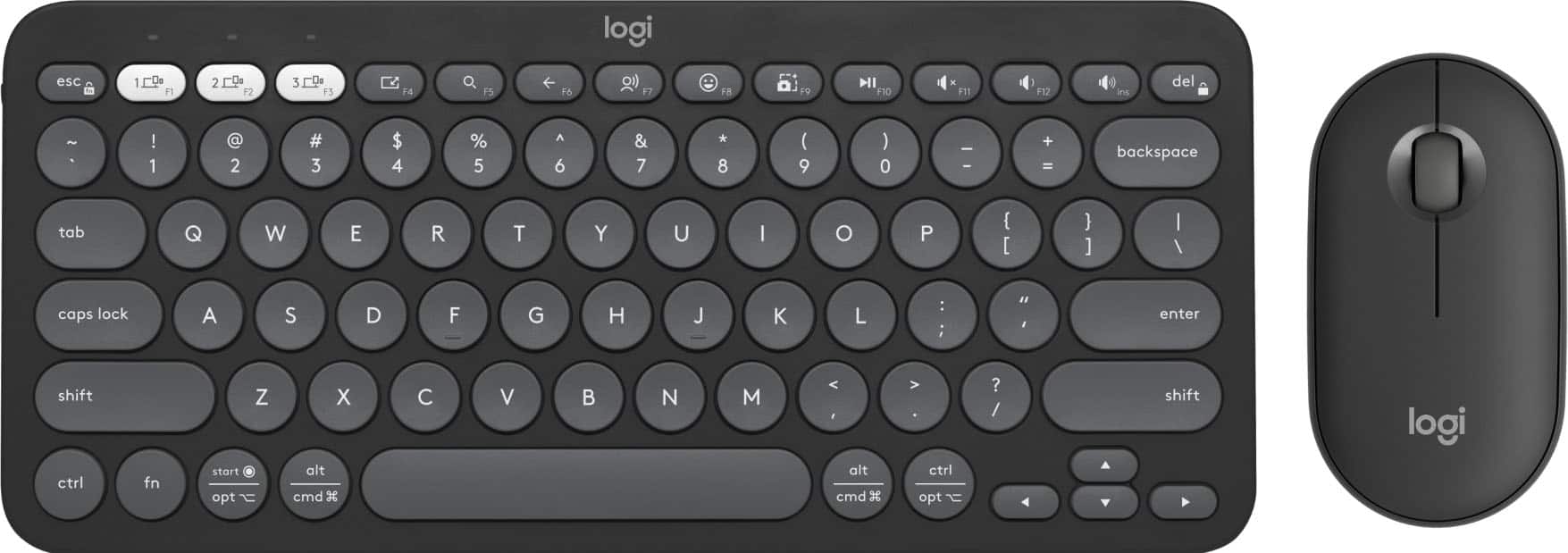
|Posted .This reviewer received promo considerations or sweepstakes entry for writing a review.The Pebble 2 Combo with the Pebble Keys K380S and Pebble Mouse 2M350S from Logitech is their latest wireless keyboard. This combination provides the user with the ability to use this keyboard and mouse with multiple devices. You can use the included USB dongle to plug into one computer and use the Bluetooth connections to two other devices. Once you complete the firmware update you are off to the races. Why is something like this a good idea? You can keep this combo in a laptop bag for travel and when you return home you can connect it to your home pc or mobile device such as an iPad. This is a very easy and seamless process to set up and use. The function of the keys when typing is very easy and smooth. The keys are round and are not square as traditional keyboards, but that doesn’t impact my typing with the Logitech keyboard. The keyboard has all the usual keys that a standard keyboard would have, minus the number keypad to the right side of the keyboard. The size is that of a standard 13” laptop keyboard, though my fingers sit comfortably on the keys and the f and J keys have the usual dimple to locate the proper position for your hands. When you download the Logitech windows app you can really dive into configuring your keyboard and mouse. On the keyboard you can manage your function button, wireless connectivity between devices and create short cuts for frequently used commands or apps. There is so much that you can configure on this keyboard, it is amazing. The Mouse fits nicely in my hand and is very configurable as well. Like the keyboard, the mouse can be connected to three different devices and the three buttons and scroll wheel can be configured to command different functions or launch applications. The Pebble 2 Combo is an excellent addition to anyone looking for a versatile keyboard that can be used with a variety of devices!
I would recommend this to a friendTrash
||Posted . Owned for 1 week when reviewed.This reviewer received promo considerations or sweepstakes entry for writing a review.The only keyboard doesn't want to connect to my ROG Ally X, the mouse works fine but the keyboard is a piece of junk and i dont know how to fix it, and ive tired to reset it but still nothing, i bought due to logitech always making solid equipment but this started acting up 2 weeks after i bought it.
No, I would not recommend this to a friendBrand response from Logitech
Posted .We apologize for the inconvenience caused by the Logitech Pebble 2 Combo keyboard not connecting to your ROG Ally X. To address this issue, we recommend reaching out to our social care team via email at [email protected] with your
- Name:
- Email Address:
- Country:
- Product Name:
- Brief description of issue:
Great for power-users, those with disabilities
|Posted .This reviewer received promo considerations or sweepstakes entry for writing a review.As computer mice go, you have the left-click button, the right-click button, and the scroll wheel. Many people don’t even realize that the scroll wheel can be pressed on some mice. For a basic mouse, this functionality is not customizable and the wheel press is rarely needed. As more of a power-user, I won’t use a mouse unless it has the back button on the side of it, which I use heavily in web browsers and file explorers on the computer. I’m too used to that functionality that it will actually drive me nuts to not have it. Of course, then you have the Logitech MX Master 4 mouse, with literally a half-dozen more buttons than a standard mouse. The increased productivity in this mouse makes it comparable to a keyboard with dedicated customizable buttons. It’s both exciting and overwhelming at the same time. I've included a couple of screenshots to show you examples of what all can be done. Before beginning, if you are accustomed to using a mouse with your left hand, this is not designed in any way for you. Nothing to see here. Another note - if you are considering this mouse for yourself or someone who has mobility issues, read on. There are some helpful features but also some caveats. Finally, this mouse can be paired with up to 3 devices. ———————————————————————————— First off, if the only thing you use your computer for is browsing the internet, email, and maybe typing up an occasional document, this mouse may very well be overdoing it for you, depending on your needs. If you use your computer for any type of production (graphics, video, even programming), there are a lot of advantages to this device. Be prepared, thought, if you have never used a device like this, as there is a learning curve, especially in muscle memory. As mentioned, anyone with certain mobility issues may find this mouse quite useful as well. I will cover the basics of this mouse and then the extra buttons and features. ————————————————————— OVERALL ————————————————————— This mouse is big and rather heavy. I have small to medium size hands and long fingers. While the mouse is ergonomic for me to use, it took me getting used to it as a gravitate toward a smaller mouse. Because of this, and also because I occasionally will get spasms in my hands that cause unintended movements, in the short time I have used this mouse, I have still not gotten the muscles trained to use it easily, although that is coming along quickly, as it’s just a muscular learning curve. Since it is also heavy, it will require more deliberate movements to move it around, but this also helps with the resistance to use the other buttons on it. Anyone with mobility issues in their hands may struggle with this, but arm or shoulder issue sufferers may actually benefit. The sides have a grippy rubber feel with an added texture that feels good to hold. I imagine that it will take frequent wiping to keep it clean though. The left and right buttons are very quiet, as the weight of the device likely absorbs a lot of the noise produced by clicking them. They are definitely not a disturbance compared to lower-quality mice. ———————————————————————————— As mentioned, there are 6 additional buttons on this mouse that may be new to you. Nearly every button on this mouse can be programmed using the Logi Options+ application that can be downloaded from Logi’s website (Windows and Mac, unfortunately not Linux although there is a community-driven program). In many cases, the buttons can be further customized by application, so if you use graphic design software, office applications, video editing software, or really any application on your computer (there is a selector to choose the application), you are able to create profiles specific to that application that will allow you to customize the behavior of the mouse buttons. This is where it’s both exciting and overwhelming since there are SO many possibilities. ————————————————————— 1 & 2. - The back and forward buttons ————————————————————— As I mentioned, I basically cannot use a mouse without these buttons, as they have been part of my computer usage for as long as I can remember. Basically, they are the Back and Forward buttons that exist in your web browser and your file explorer. Press the back button to go back a page, press forward to go forward a page. These are on the side of the mouse very near where your thumb rests, making it easy for your thumb to control. Of course, these buttons are programmable for other features. Ironically, the back button does not perform as expected in the Logi Options+ app! ————————————————————— 3. The Soft Wheel Mode button ————————————————————— Located on the top of the mouse, this is a button that changes the scroll of the mouse wheel from a “click” feel as you move it to a perfectly smooth scroll. This is easily just a user preference, but there are instances where one might be better than the other, such as smooth scrolling for extremely precise control, or click scrolling to keep scrolling consistent. There is intelligence built into the mouse (called SmartShift) that will sense when you are scrolling rapidly, such as in a long web page, so that even when smooth scrolling is not on, the mouse will briefly switch to smooth scrolling to allow faster and less janky scrolling, similar to a smart phone. This can be turned off in the settings if not desired. You can also program this button to perform other functions if you don’t want to use that feature. ————————————————————— 4. A Gestures button ————————————————————— Located on the side of the mouse just a little further from your thumb as the Forward button, this button can be used in conjunction with specific mouse movements to perform gestures in much the same way you might use multiple fingers and dragging motions on a trackpad. One of the default settings is to switch desktops if you use that feature in your operating system. While I like the idea of this feature, I found it hard to use as the button is harder to press than I think it should be, and with the weight of the mouse requiring more effort to move, I had difficulty using this feature without accidentally pressing other mouse buttons that I didn’t mean to. The functions are highly customizable though, so you can build the gestures to do all sorts of actions. The default on my Mac uses features like desktop switching and Mission Control. I made this my switch application button - far more useful to me. ————————————————————— 5. A side scroll wheel ————————————————————— Another one for your thumb. This wheel can be used to scroll sideways in a document that you might otherwise use a click-and-drag panning feature. This wheel is customizable like the other buttons, and one that I see as a candidate for programming in different application profiles. For example, a large PDF document would benefit from the side scrolling, while a photo editing app benefits from this button being programmed to zoom in and out (yes, that’s an option), and as someone who regularly has 18 tabs open in my browser, the ability to scroll through them with this wheel (yes, that’s an option too!). This is my favorite feature in this mouse overall! ————————————————————— 6. The Show Action Button ————————————————————— The side grip of the mouse where your thumb rests has a button that can be pressed as though you are squeezing the sides of the mouse. Like the others, it can be programmed for other functions, but the default will bring up a visual on your screen.- a circle of 8 visual buttons that each can be programmed to perform different actions, from copy and paste to opening an application to visiting a specific webpage and countless more. This is another button that can add significantly to productivity with application profiles, since you can build this wheel based on the application. It’s customization paradise. One feature I’m very grateful for with this button is to adjust it’s sensitivity. When I first started to use this mouse, I found it WAY too sensitive and was accidentally pressing it all the time, especially with the other ergonomic factors I was getting use to. While the sensitivity levels are not all that different, I was at least able to make it require a firmer press to work. In this same region is a haptic feedback feature. When using this for the Show Action visual, the mouse will vibrate to indicate when your screen cursor is hovering over one of the on-screen buttons. Even better, the haptic feedback can be disabled or customized to varying levels. The combination of these two features in this mouse can be a huge aid to anyone with mobility issues. This makes it possible to perform functions that might otherwise be better done with a keyboard, while instead only requiring very slight mouse movements. The ability to program them per application makes it possible to tailor the shortcuts created in this feature to the specific application. Finally, the haptic feedback can also help with visual impairments. ———————————————————————————— Overall, the customization offered by this mouse is a dream-come-true for power users who want to balance keyboard shortcuts with mouse usage, as well as anyone with certain mobility or visual limitations. However, those with small hands may have some difficulty using it, and it is heavier than many mice on the market. Be prepared to spend some time setting it up, customizing it to your needs, changing those customizations a dozen times, and retraining everything your hand muscles know, but afterwards, you may find this mouse as indispensable as the back button is to me.
I would recommend this to a friendBrand response from Logitech
Posted .Hey! We’re grateful for your insight. Knowing our product is helping you motivates us to keep improving. Thanks for being a loyal customer.
Now this Mouse is a Best Buy!
||Posted . Owned for 3 weeks when reviewed.This reviewer received promo considerations or sweepstakes entry for writing a review.I absolutely love the Logitech MX Master 4 for Mac. From the moment I started using it, the comfort and ergonomics stood out. It fits perfectly in my hand and makes long editing sessions and daily work feel effortless with no hand fatigue. The build quality feels premium and solid, exactly what you’d expect from a top-tier productivity mouse. The features are next level. The customizable buttons, ultra-smooth MagSpeed scroll wheel, and seamless multi-device switching make my workflow faster and more efficient. I especially love how easy it is to tailor the controls for different apps, which is a huge bonus for creative work and multitasking. Overall, the MX Master 4 for Mac delivers on every level: comfort, performance, and usability. It’s easily one of the best mice I’ve ever used and has become an essential part of my daily setup. Highly recommended for anyone who values productivity and premium design.
I would recommend this to a friendBrand response from Logitech
Posted .Hey! We appreciate your kind words and the time you took to share them. Your feedback helps us build better solutions. Thank you for your support.
Excellent portable and very quiet keyboard/mouse
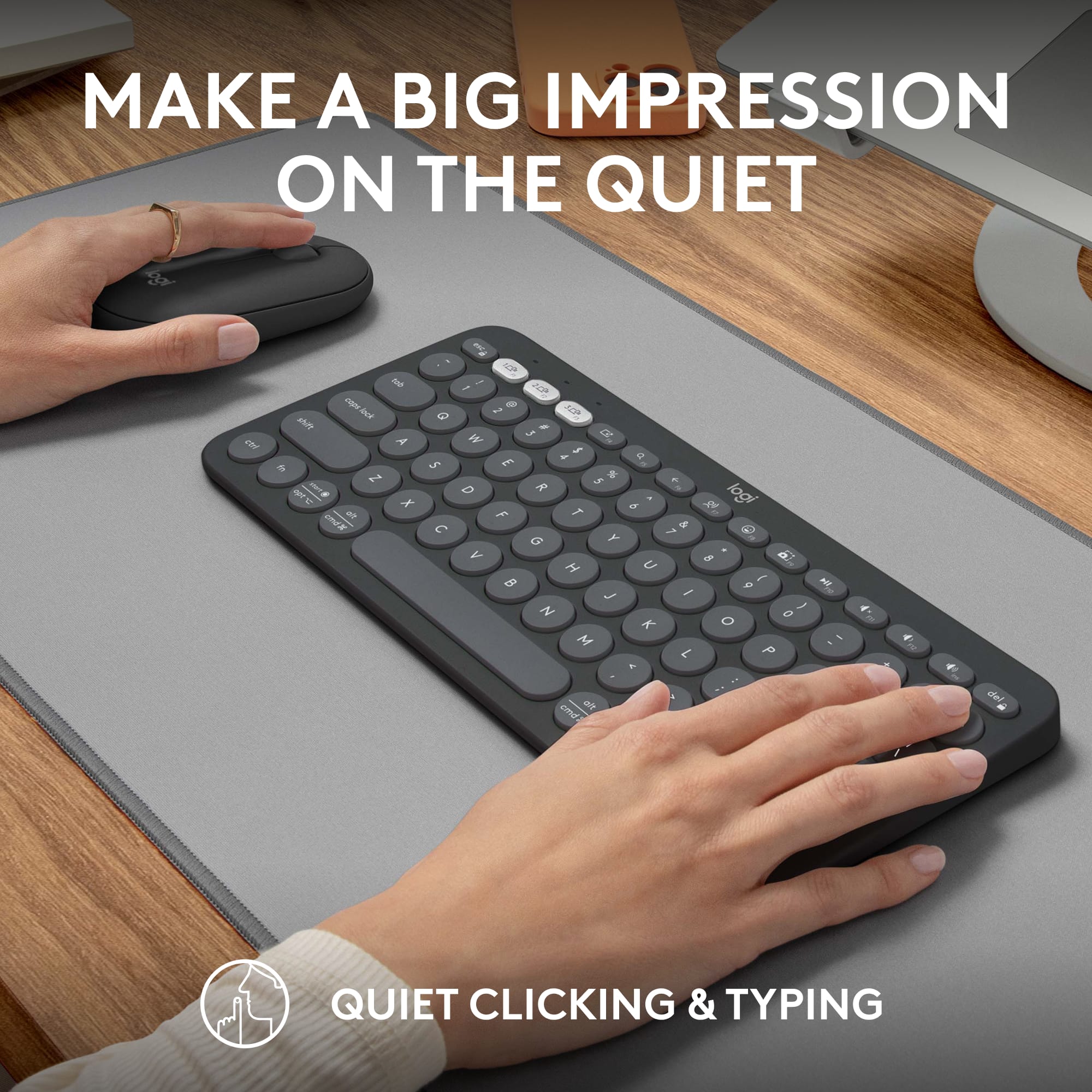
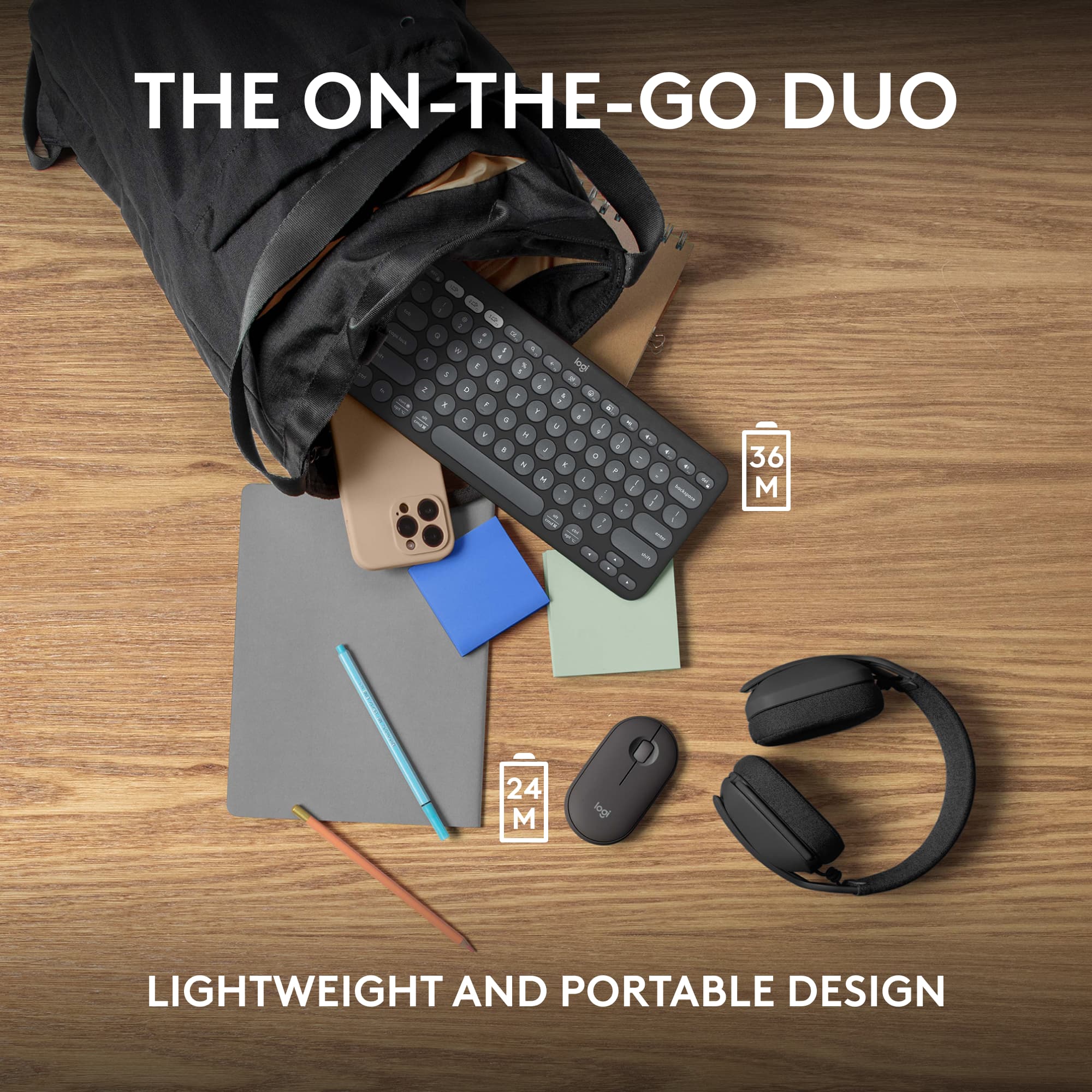
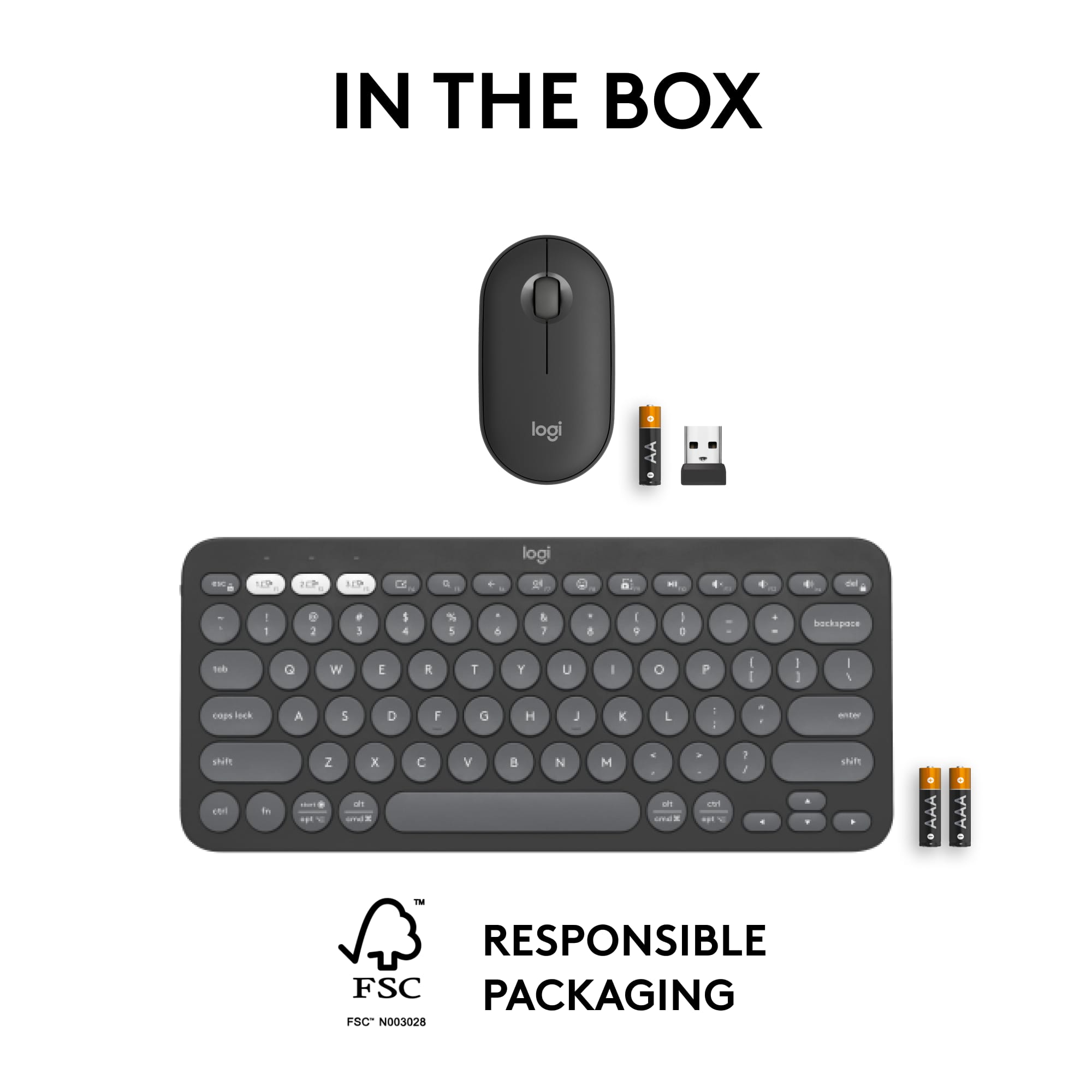
|Posted .This reviewer received promo considerations or sweepstakes entry for writing a review.This combo keyboard and mouse is excellent for portability and office desk use. It can pair with up to 3 devices, which is great for users needing multiple devices (laptop, tablet, and even smartphones). I use it a lot with my double-screen foldable smartphone. There are two ways to connect: via Bluetooth or the included Logi Bolt USB receiver/dongle. With both keyboard and mouse, you can select which device (laptop/tablet/etc..) to connect to and switch seamlessly from one to another. The slim, lightweight, and compact design makes this an excellent portable accessory. Also, if used at a permanent desk, the small size will take up less space. They feel very comfortable when typing and using the mouse. The keyboard keys are impressively quiet when typing. Both devices include preinstalled batteries, and battery life is excellent; the keyboard uses two AAA, and the mouse uses one A battery. Overall, I am delighted with my new Logitech Pebble 2 Combo product. It is excellent for portability and multi-device connectivity and is comfortable to use.
I would recommend this to a friendAwesome Blue Tooth Keyboard and Mouse
|Posted .This reviewer received promo considerations or sweepstakes entry for writing a review.I love this Logitech keyboard and mouse. I have used many and few are worthy of a positive review. First, I wanted Blue Tooth connection. I’m not a fan of the USB dongle connections and you don’t have to plug anything in for it to work. It lets you connect his to three different computers. Connection is easy. My computer recognized it, I clicked a few prompts and entered a code. Just like that it worked. Changing to different devices is easy. The keyboard is quiet. No clunky noises. The keyboard is easy to type on. The mouse is really smooth too. Works really well with no lagging. The batteries are advertised to last up to three years too. Really great feature. You can customize keys and the mouse buttons too. Its small enough to be portable as well. I could not find anything negative about this. Many great features makes this a great device. Im very happy with this projuct and would not hesitate to recommend, If you are looking for a portable keyboard and mouse, this is a great option.
I would recommend this to a friend★★★★★ Logitech MX Master 4 for Mac — A Perfect Upg
||Posted . Owned for 2 weeks when reviewed.This reviewer received promo considerations or sweepstakes entry for writing a review.I am an Apple user (MacBook Pro, iPad Pro, etc.) I upgraded from the MX Master 3. The new MX Master 4 for Mac feels like a thoughtful evolution rather than a complete redesign — and that’s a good thing. Design & Feel: The MX Master 4 matches my MacBook Pro and Logitech MX Keys for Mac beautifully. The “Space” color blends seamlessly into my Apple setup. The build quality and ergonomics remain top-tier — comfortable for all-day use with a satisfying premium feel. Performance & Features: One of my favorite tweaks is the extra side button. I reconfigured it from the default gesture button to activate the Show Actions Ring, and it feels more natural here. While this feature isn’t new, its placement and responsiveness make it far more enjoyable to use compared to my MX Master 3. Quiet & Smooth: The left and right clicks are noticeably quieter — a subtle but welcome change that makes a difference in a quiet workspace. Multi-Device Use: I love being able to pair it with multiple devices, like my MacBook Pro and iPad, via Bluetooth. Switching between devices is seamless and fast. Minor Drawback: There’s no USB-C charging cable included in the box, which is disappointing for a premium device — but I already had one, so it wasn’t a big issue. Final Thoughts: The MX Master 4 feels refined, responsive, and perfectly tuned for the Mac ecosystem. My old MX Master 3 is now my travel mouse — the 4 has earned a permanent spot on my desk.
I would recommend this to a friendBrand response from Logitech
Posted .Hey! We appreciate your thoughtful feedback. It’s great to hear our product is meeting your expectations. Thanks for being a valued user.
A great portable set up for multi-device users!
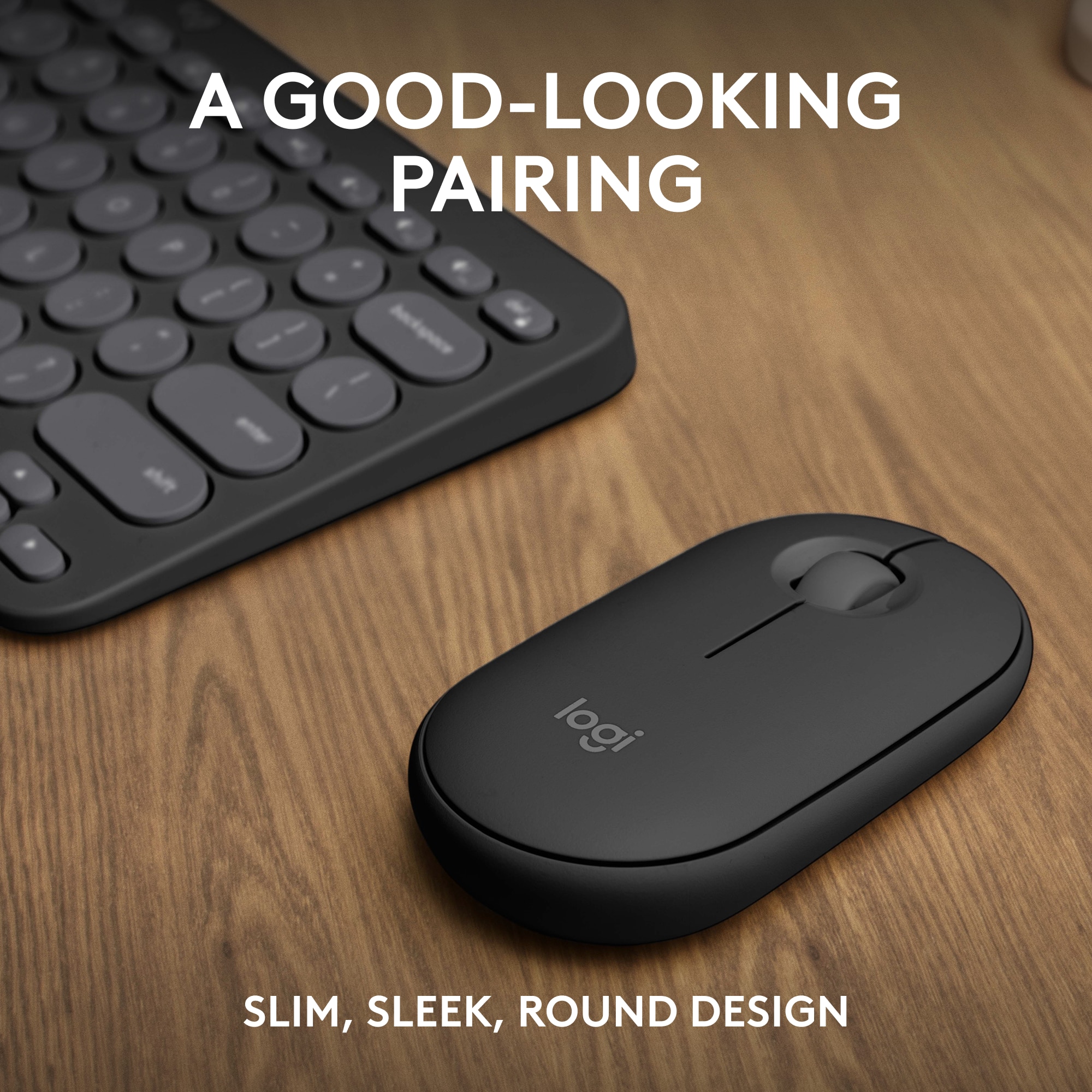
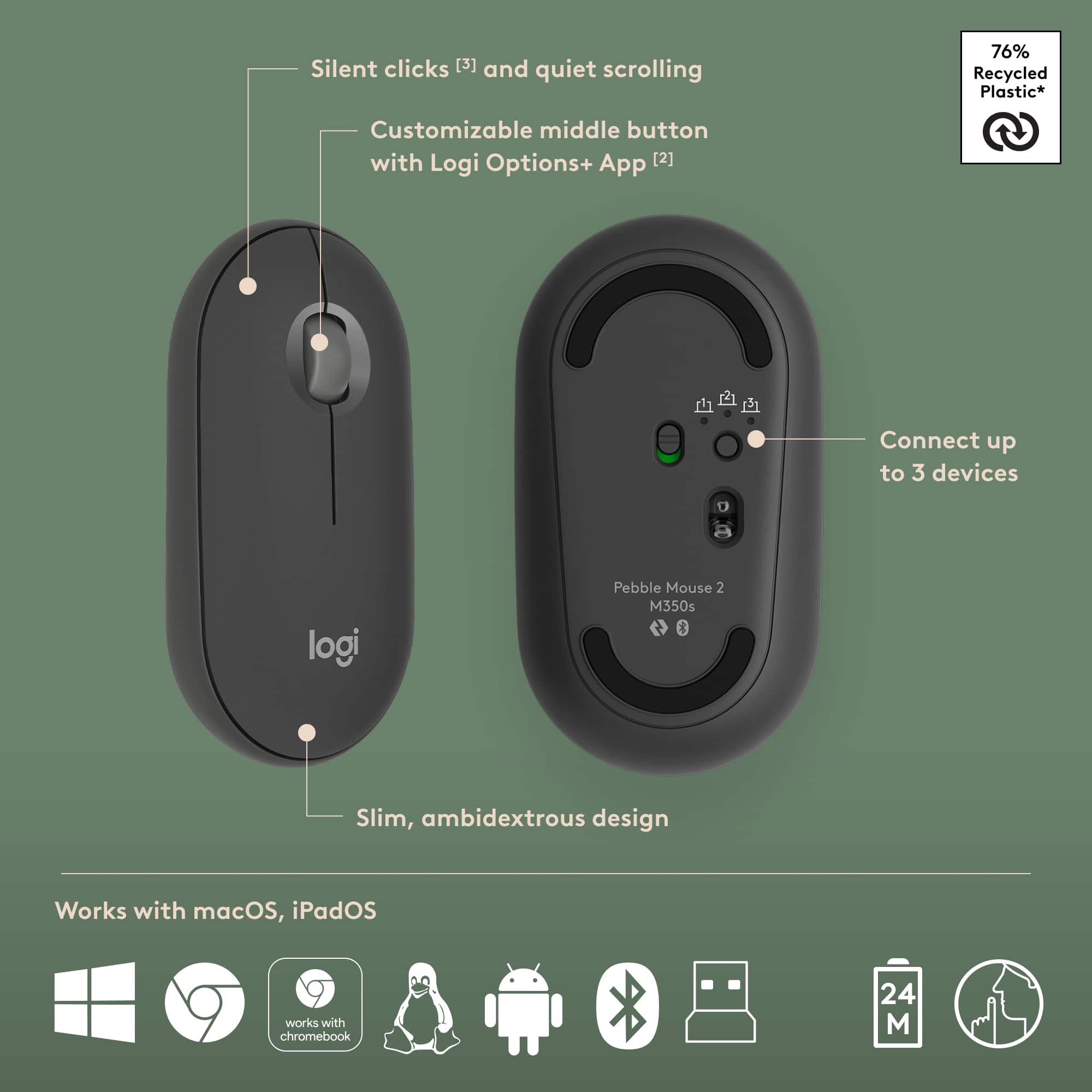
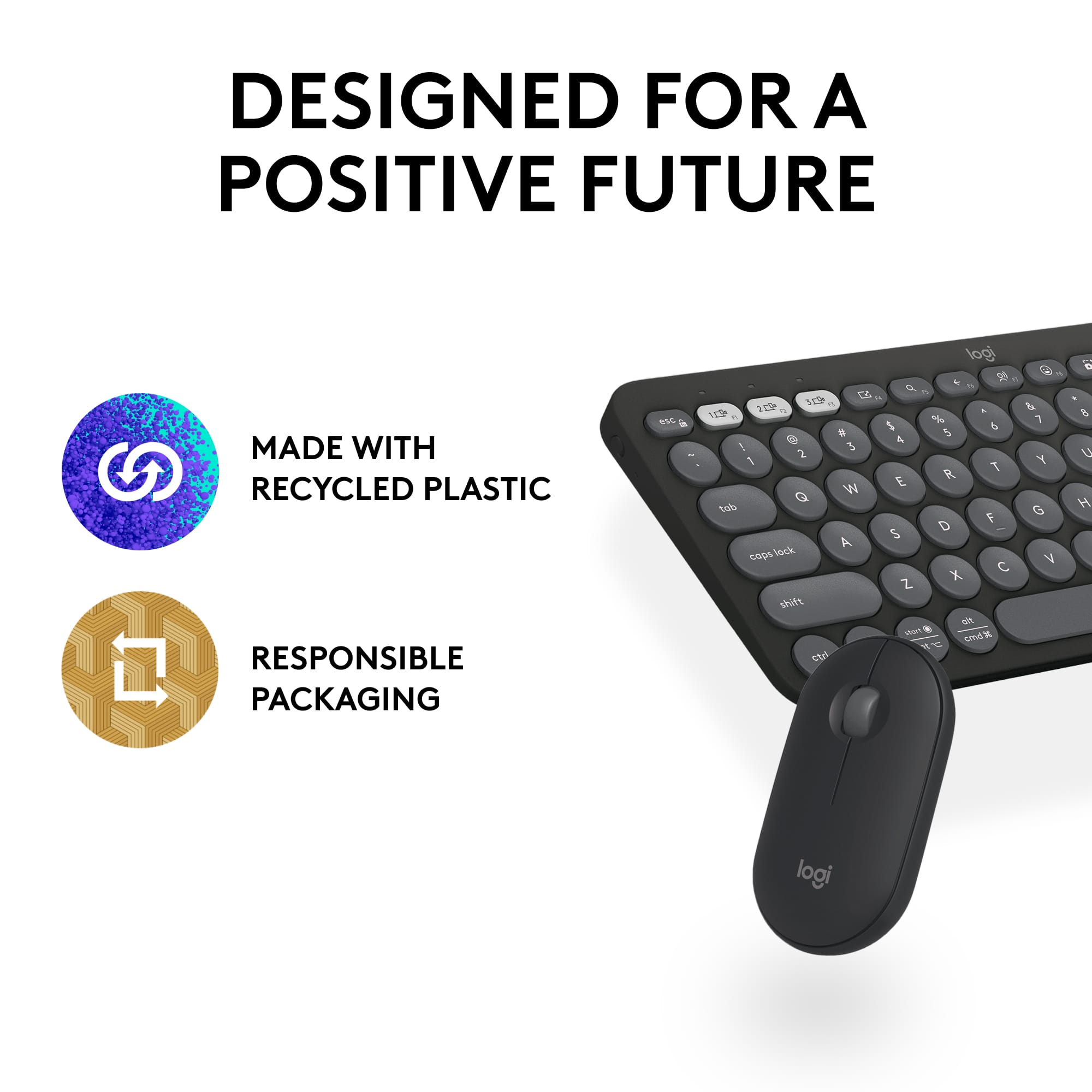
|Posted .This reviewer received promo considerations or sweepstakes entry for writing a review.Logitech made similar products in their keyboard/mouse combo offerings, but with the Pebble 2 Combo, they've made a nice, easy-to-use combo that is compact yet great for multiple devices. Quick Overview ================================= There are tons of choices when you're shopping for a mouse/keyboard - as separates or as a combo. Going with one manufacturer helps with unified drivers (if you need special features) and a more unified experience, but even within the same manufacturer there are a lot of choices: Gaming, business, portability, mechanical? This Logitech Pebble 2 Combo is aimed at users that need to connect multiple devices often and may need to transport this set with them as they move from home to office. They're also targeted at users that may want a quiet setup - no clicky mechanical switches here! Lastly, they're made out of partially recycled material, so that's better for the environment. Overall build ================================= Logitech has been making keyboards and accessories for decades and it shows. This slim, lightweight combo is easily portable and quiet. The keys are nice and firm, similar to a good laptop's keyboard and definitely not mechanical. At first, I thought the rounded keys might be more aesthetically pleasing than actually functional, but it turns out they're fine. If you've typed on laptops often or other slim keyboards, you'll feel right at home. Obviously this is a TKL (Ten Key-less) set up without a dedicated number pad for portability. It's slim and light enough to throw into your bag and take with you. The mouse has a similarly slim profile that's raised at the rear and is comfortable but perhaps not the greatest "hand feel" if you're used to palming a larger ergonomic mouse. Stil, it gets the job done and has to sacrifice a bit of size/heft for portability. Both devices can switch between up to 3 other devices via dedicated buttons at the top of the keyboard or a button on the underside of the mouse. You'll also get a Logi Bolt USB (USB type A) receiver to plug into your device. Performance ================================= I like this keyboard a lot more than I thought I would. I am a mild keyboard "snob" that prefers a clicky blue-switch mechanical keyboard or worst-case, a brown tactile switch for quieter environments. For flat keyboards, I prefer the Lenovo/Thinkpad style with their large, flat keys and dedicated trackpoint. Lenovo makes great keyboards for their Thinkpads. After a quick install of the Logi Options+ software and making some initial choices (do I want to assign the middle mouse to emojis? No, no I do not), I was ready to go! Typing was a much better experience than I thought! Yes, it's a slim keyboard, but the non-slip feet and a bit of heft make it stable. The keys were actually firmer than I expected which led to some good extended typing runs. Switching devices was as easy as pushing one of the top buttons. In my use-case, I switched between a home PC and a business MacBook Pro instantly. The mouse is as functional as expected, but don't expect a dual-mode (rachet or free-spin) or tilting scroll wheel. You won't find them here due the simplicity/portability. I think that's fine, though. This isn't a gaming setup, nor is it a full-blown productivity setup (for that, you may want a number pad and a larger mouse with more buttons and features). This setup allows you to be consistent if you're moving from your home office to a work office or even to another location inside your home. The overall experience is quiet - what you could feel safe using in a library if you wanted to work from there! The keys are quiet and the mouse was specifically designed so the right/left clicks are quiet as well. Even the racheting scroll wheel is dampened! Battery life is tremendous and I had no chance to fully test this. The keyboard should last for nearly 36 months on battery (2x AA) and 24 months for the mouse (AA)! Conclusion ================================= This is a great setup for users that need multi-device connectivity. I'm using this with a home PC and work PC and can instantly swap after hours (or anytime in-between). If and when I need to travel for work, I can bring the same setup with me and stay 100% familiar and comfortable with my set up. At the current price, I think this is a great deal for a portable, quiet, multi-device set up!
I would recommend this to a friendLots of bigs hits and a few misses.
|Posted .This reviewer received promo considerations or sweepstakes entry for writing a review.Being no stranger to the Logitech MX mouse collection, and having worn out my previous MX’s, when the MX 4 was released, I needed to get my hands on it. Logitech had never let me down with the upgrades before, so I had very high expectations going in. Maybe a bit too high. Here are some things that I found were a fantastic upgrade to the 3 and 3s (yes, I have both, seems like it’s fitting I upgrade every 3 years): * Superrrr quiet clicking. Nothing was worse than the loud clicking in the office, especially as a designer going through different designs and workflows. I was always hyper-aware when I had rage-clicked for certain tasks. * The material upgrade is a chef’s kiss. The soft-touch rubber from previous editions became quite sticky over time, so much so that after being well-loved, I needed to add some gripe tape over it. Though some may see the plastic as a downgrade, I saw this as a big welcome! Much easier to clean and more comfortable. * Ergonomics. At first, it was a bit difficult to get used to almost 6 years of using the MX3 and MX3S, but after a few hours, it was pretty simple. The horizontal wheel (I can’t live without it!), is larger and positioned higher, which felt more natural to use. * Easy connection. Can’t get any easier. Bluetooth connection as easy as 1,2,3. Optimize features by downloading the Logi Options app. * Action ring button switched. One thing I hardly used on the previous versions was the tab/menu switching button from the thumb because it was difficult to press. But the upgrade made it much simpler and easier to press. Plus the hepatics was a nice addition for those seeking some feedback. Things that were a miss for me: * As much I loved the plastic body upgrade...the right side (pinky side) silicone material was a miss for me. In the previous editions, I was able to rest my pinky and ring finger with a good grip or on the plastic edge. Because of the material, I found my pinky and ring finger slipping more often than I liked. For that I'm knocking down 1 star. * The higher body of the upgrade changed the resting comfort for my hand, which is small to medium in size. The previous version's lower body allowed a more natural resting position, while the upgrade’s higher body required a greater hand tilt for comfort. * No USB-C dongle for the Mac version. Not surprised as it the previous one didn’t have it either, but it would’ve been nice to have just in case Bluetooth didn’t work. * Polling rate. For the price point and upgrades, I was expecting higher poll rates. * Haptic feedback is not enabled out-of-the-box. Although the Logi Option software is free to download, it is an additional required step. Final thoughts: There are some major updates from the previous version that made this a game-changer, but there are also updates that I was less impressed with. I will be keeping the 4 at home and the 3s/3 for traveling/work.
I would recommend this to a friendBrand response from Logitech
Posted .Thank you so much for your detailed feedback on Logitech - MX Master 4 for Mac! We’re thrilled to know it’s meeting your expectations. We truly appreciate you taking the time to share your experience! Your support means a lot to us.
One of the best keyboard/mouse combos ever!
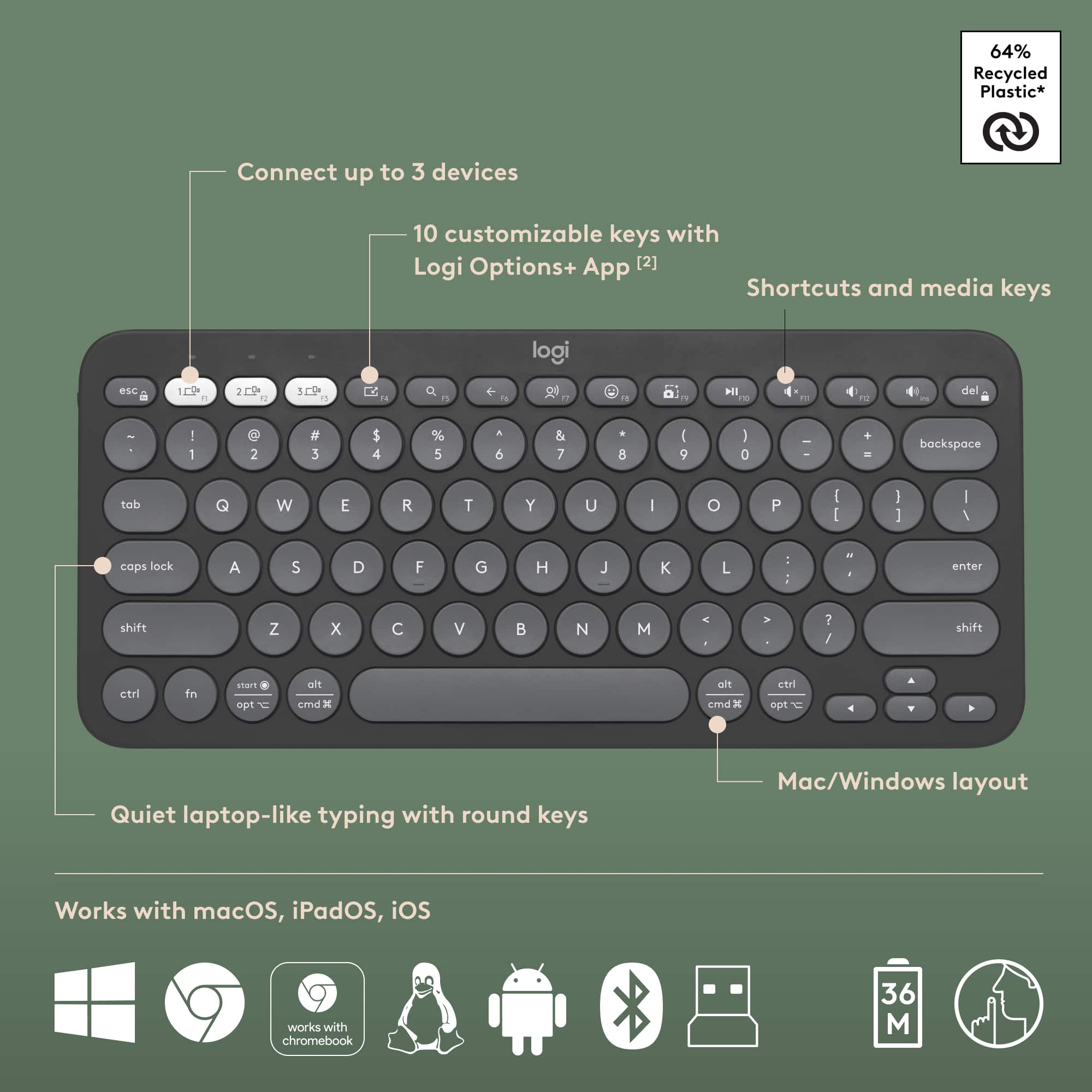
|Posted .This reviewer received promo considerations or sweepstakes entry for writing a review.These new Logitech keyboards are just the absolute best. This will be my forth one. I have one on my desktop machine, one at work, one on my wife's desktop and now one in my home theater room. These are by far the coolest keyboards I've ever used. This one also comes paired with a Pebble ambidextrous mouse. If you're like me and just want a nice small keyboard, this is the one to get. I have the MX Keys Mini on my desktop and it's very close in features to the Pebble. The Keys Mini has backlighting, where the Pebble does not, but a lot of the features are the same. I just wanted a small keyboard and mouse for my home theater. Surfing and entering passwords are a breeze now. I use a Bluetooth connection on my TV monitor for device 1. I set up my phone as device 2. This is great for typing emails or texts, and I set my tablet up as device 3. Pairing as always, was simple for each device. Hold down the device button you want to assign to put it in pairing mode, go into your Bluetooth settings and look for the K380S keyboard, select it, type in the pairing code on the keyboard and hit enter. Done. Do that for each of the other device buttons. If you load the Logi Options+ app on your device, you have another level of customization. Through the app, you're able to assign the middle mouse button to a command, and also assign each of the 10 function keys to whatever app you want them to open. Or, you can keep the standard function keys as they are. The keys on the keyboard have a very short throw, meaning they're very similar to a laptop keyboard. I like the round shape of the keys, and typing on it is so quiet and smooth. I personally hate a mechanical keyboard and all the clacking around. This has a nice feel to the keys, the action is not too stiff and not too mushy. The extremely thin design of the keyboard makes it a good size to put in a bag or even just carry to another computer or room. The mouse is likewise very low and sleek. Easy to carry around or put in a bag. The buttons are easy to get used to and responsive. Mouse wheel works well but is not the type you can spin or freewheel. Which is totally fine for my application of a home theater mouse. This is a really nice (and inexpensive!) combo. I can't stress enough how easy it is to pair any computer, tablet, phone or even TV with. As an added benefit, both these devices are made from recycled materials. The battery life on each one is staggering. Logitech claims 24 months on the Pebble Mouse and 36 on the Pebble Keyboard. Obviously, I haven't exactly been able to put that to the test, but if it's half that good, it's pretty amazing. If you're worried about the battery running down prematurely, there's also a power switch on the left hand side of the keyboard. So the function keys are dual duty keys. Each one has the standard function numbers on them from 1 to 12, but it's the alternate functions that each key has that really make this an interesting keyboard. Next to the Easy-Switch keys, you have a Show/Hide Desktop key. After that, a Search key followed by a Back key. After that is where things get fun. The next key is a dictation key. Yep, you can hit that button and just start talking into your mic and it will type out the text in any text entry window. After that, there's an emoji key and then the snip tool, screen capture key. Finally, you come to the mute, volume up and volume down keys. These keys are all great as their default assignments, but you can assign any of them to a different pre-defined function (there's 54 different actions to choose from), or you can create a Smart Action. This is basically a macro function where you can go through a series of button clicks and assign the whole series to one of the function keys. These assignments will require you to download the Logi Options+ application, but it's a small and easy app. These keyboards are so configurable, you wonder how you ever got along without them. They're comfortable to use, you can configure them any way you want and they just look cool. This one has a dark gray deck with slightly lighter gray keys. Just enough contrast to easily see the keys. This is a really great combination at an unbelievably inexpensive price.
I would recommend this to a friendPebbles keys: are they your fit?
|Posted .This reviewer received promo considerations or sweepstakes entry for writing a review.The good: this little Bluetooth keyboard works quite nicely, is very compact, and is pretty easy to get going. The mouse is also easy to hook up, though the keyboard and mouse seem capable of functioning separately as well. Battery life seems strong (at least in testing mode, for a few days) and the build quality is high. The tech qualities: I’ll admit, I tested the logibolt, which does seem to work ok and is a good option for some setups, but I don’t have much to say about it. It’s a USB-a receiver wirelessly compatible with the hardware. My main attraction here is the Bluetooth multi-point action. I love being able to easily switch between my two computers and setups at my desk space. Before, I was always limited to whatever computer had the dongle and usb receiver, and if I wanted to use the other computer and keep my desk setup, I’d have to disconnect the dongle, replug and hope the computer recognized the receiver again. Plus, using my mac with the pc keyboard was never perfect. Now, however, I can leave this keyboard and mouse on the desk top, click a button on the keyboard and one on the mouse, and, voila, the keyboard and the mouse are ready to go on the next machine. It takes a second to figure out how it is going to work. Logtiech includes a little diagram inside the box that explains the procedure for setting up the multipoint and the logi-bolt. Honestly, a few more words might be nice. But, it does work and the Bluetooth switching is pretty simple, though again, a couple words in addition to a very minimal set of diagrams would help. Be aware, however, that the mouse and the keyboard are separate devices. So, I accidentally have one computer that sees the keyboard as device 1 and the mouse on its device 2 setting; and I have one computer that sees the keyboard as device 2 and the mouse on its device 1 setting. This is not a big deal, but it’s a little goofy on my part not to have them synced. Also, the little button on the back of the mouse (for switching between machines) is *VERY* small and it can be a little tricky to tap it just right. That’s especially because of the size and shape of the mouse, in my opinion, but it would never be perfect given the constraints of the size of the mouse and the need to keep the button from interfering with anything else. I LOVE that this keyboard works with mac and with pc and has the right keys and setup to make those both work properly. It's great not to have to “make do” with a keyboard that doesn’t quite work 100% with one of the machines. While it’s just a little alpha keyboard (no number pad), it works perfectly for the mac with the special command keys, and it works perfectly for the pc, switching to the standard windows functions for the special keys next to the spacebar. To me, these features really enhance my ability to get my work done as I split my emphasis between the two machines. It’s very easy to move the keyboard to wherever you need it to be and to get on the right Bluetooth page with the machine in question. I think this would work reasonably well as a travel keyboard, although it is fairly heavy for its size. Why only 4 stars? Because whether one loves or hates this setup may well depend on the feel and honestly, individual preferences of the user. While I like the feel and the action of the keys on the keyboard, and I have gotten pretty used to their size and shape after a few days, this is definitely a small keyboard and room is pretty tight. Someone with bigger hands than mine really might feel cramped. That seems odd to say, because side by side, the keyboard is really about the same as a 13” laptop keyboard. However, it does feel to me more cramped. When typing away, my thumbs are touching at the space bar. While this happens on my regular laptop keyboard too, I think I’m much more conscious of it while using the pebble keys. That might be because the pebbles have a little less area themselves, so maybe my fingers/hands are staying more in the same place. I don’t know. Maybe it’s just a mental thing—I think the keyboard is smaller so it feels smaller. Regardless, the shape and feel of the pebbles is great, and because they are isolated from each other, I think I am a more accurate typist using this keyboard. So—that said, for what it’s supposed to do, it works extremely well and has really good action on the keys. Full disclosure: I am not a fan of the mouse shape, either. This again is going to be about personal preference—this is a very compact, light, sensitive mouse. It does not cradle to your hand the way a standard mouse does, and it’s much smaller than some of the newer, side-oriented ergonomic mice. I have both a standard mouse and an ergo mouse, and I would probably choose either over the pebble if I could. However, it is a good, basic mouse and would probably work well for folks with quite small hands. It's also smaller and very portable because it's so light, thin, and unshaped. I also find it just a little slippery. It’s incredibly light, and that’s quite nice. But, because it doesn’t really fill your hand, I find that my third fourth and fifth fingers (ring and pinky finger) are just always sliding off the side of the mouse and feel like they are awkwardly dragging along. Bottom line: for the money, this is a really good setup. It might not be what one wants to work on all the time and in every situation for the aesthetics I mentioned. But it has great functionality and really solved a problem for me in making it very easy to go back and forth between my machines without have to hook or unhook bits of hardware.
I would recommend this to a friendPerfect Mouse for Productivity and Comfort
||Posted .This reviewer received promo considerations or sweepstakes entry for writing a review.I’ve been using this mouse for a few weeks, and it’s easily one of the best I’ve ever owned. The ergonomic design fits perfectly in the hand, and the build quality feels premium. The scroll wheel is super smooth and automatically switches between ratchet and free-spin modes — great for long documents or spreadsheets. Battery life is outstanding; I’ve charged it once and it’s still going strong. Bluetooth pairing was quick, and the ability to switch between multiple devices with one click is a huge plus for my setup. Highly recommend it for anyone who works long hours on a computer or values precision and comfort.
I would recommend this to a friendBrand response from Logitech
Posted .Thank you for sharing your positive experience with the Logitech MX Master 4! We're delighted to hear it's improved your productivity and comfort.
Excellent Mac Mouse
||Posted . Owned for 2 weeks when reviewed.This reviewer received promo considerations or sweepstakes entry for writing a review.The Logitech MX Master 4 for Mac is incredibly smooth and precise — perfect for creative work and everyday use. The ergonomic design feels great all day, and the customizable buttons and gestures boost productivity. Battery life is impressive, and it pairs seamlessly with Mac devices. A top-tier mouse worth every penny.
I would recommend this to a friendBrand response from Logitech
Posted .Thank you so much for sharing your wonderful feedback! We’re thrilled to hear the MX Master 4 for Mac is enhancing your creativity and productivity, and we truly appreciate your support.
Quiet and sleek portable keyboard and mouse
|Posted .This reviewer received promo considerations or sweepstakes entry for writing a review.Paired quickly via Bluetooth to both my laptop and my tablet. Also comes with a USB dongle that instantly connects as well. This could be very handy while traveling especially if on a modern plane that let’s you put your tablet in the holder up at eye level on the seat. This keyboard mouse combo will easily fit on a plane tray table. Both the keyboard and mouse are very quiet. They both run on double AA’s and are projected to last 2-3 years, so shouldn’t have to replace them often. The mouse has a flat form factor that takes a little bit to get used to, but makes it ideal for travel. Easily switch from using with 3 devices (I connected laptop, phone, and tablet). You just select the device you want to type/mouse on. Note that you’ll need to select the corresponding device (1,2,3) on both the keyboard (F1, F2, F3) and cycle through 1-2-3 on the mouse on a button on the bottom. Mouse has an off switch to prevent battery draining from clicks while backed in your bag. The lid on the mouse is magnetic and easily pops off for storage of the USB dongle. The mouse works well on phone and tablet and gives you a little gray circle to see where you are tracking/clicking. There’s also some nice prebuilt shortcuts on the keyboard that have using a phone/tablet in mind, like a voice button, screen grab button, emoji button, etc. Very minimalist, but well thought out.
I would recommend this to a friendCompact, Easy to use set
|Posted .This reviewer received promo considerations or sweepstakes entry for writing a review.I have been an avid fan of Logitech products for many years and I’ve always found their keyboards to be well-built and widely compatible across many different devices. This particular set is designed for portability. It’s very compact and because both the mouse and keyboard have power switches, you can easily transport them in a laptop bag. There are two options for connection to your device - using the Logi Bolt (USB adapter) or using Bluetooth. I used both with my MacBook Air and have mixed feelings about it. I typically prefer to use a USB adapter because the connection is consistent even when I switch between computers. The issue I had this time around was that the mouse and keyboard didn’t want to connect to the Logi Bolt at the same time even though they should have been able to. I’m not sure if this is a macOS issue or a Logitech issue, but I was never able to connect the keyboard to the USB adapter — only through Bluetooth. The connection was solid for the keyboard and it remained responsive while I was using it. The mouse, however, was a little jittery. I was never able to find a reason for that either. Both devices are powered via battery and they are not rechargeable. This is a big minus in my book. In addition to not being rechargeable, the mouse and keyboard use different sizes of batteries. The keyboard uses 2 AAA batteries and the mouse uses 1 AA battery. This ends up being a little inconvenient because you have to keep both sizes with you. Aside from the battery issue, I am also not a big fan of the mouse shape. I’ve been using the Logitech MX Anywhere 2S mouse for several years now so the flat nature of the Pebble mouse is very different from what I am used to. If you were using an Apple Magic Mouse, it would feel very similar. I feel like there is a place for this keyboard but it’s not for my everyday use. It works just fine, but I prefer something a bit larger for work.
I would recommend this to a friendSome issues connecting, overall great product
||Posted .This reviewer received promo considerations or sweepstakes entry for writing a review.I bought this keyboard and mouse combo to fit into a drawer in my ELLOVEN monitor stand from IKEA. It fits perfectly! I wanted to pair my laptop to slot 1 (using Bluetooth) and my desktop to slot 2 (using USB because it doesn't have BT capability). It was a bit confusing. I didn't want to make a Logitech account, but I had to because there isn't a way to re-assign the slots otherwise. I was able to pair my desktop to slot 2 but the mouse was paired to slot 3. What ended up working for me was downloading LogiOptions+ from Logitech and logging in to Logi Web Connect on Google Chrome (doesn't like Firefox for some reason). Anyway, it ended up working the way I wanted it to. I'm able to switch between using my mouse and keyboard with either my laptop or desktop computer. I can rebind the other F keys using LogiOptions+ and I changed the Dictate (F7) and Emoji (F8) keys because I don't care about those features. I changed them to increase and decrease brightness. There are many options, which is nice. Also, the instructions are very simple and are just pictures. It didn't point out that there is a power button on the left side of the keyboard. You also have to hold F1 or whatever key you want to bind to connect via Bluetooth. When I opened my product, I noticed that the keyboard switch was on, and the F1 button was blinking. I think it was supposed to be off.
I would recommend this to a friendBrand response from Logitech
Posted .We appreciate your detailed feedback on the Logitech Pebble 2 Combo! We're glad it fits perfectly in your IKEA monitor stand and that you were ultimately able to achieve your desired multi-device setup. We understand the initial confusion with pairing and appreciate you outlining the steps you took, including using Logi Options+ and Logi Web Connect. We also appreciate your feedback regarding the instructions and the pre-activated keyboard. We'll take this into account for future improvements to our products and documentation.
Amazing premium mouse
|Posted .This reviewer received promo considerations or sweepstakes entry for writing a review.This is a pretty amazing mouse. It likely has some features that most people will never need but add some wow factor (haptics). If you can train yourself to use all the features, this can be one great mouse for power users. Pros: - Ergonomics - Style - Haptics - Button options - Customizability Cons: - Almost too many features! - No Unifying receiver included Setup: As this mouse does not come with a unifying receiver, which I found weird for it being their flagship mouse, you will need to set it up via bluetooth unless you have a unifying receiver already. This is not hard at all, just pick your device assignment on the bottom of the mouse (1, 2, or 3) and use the bluetooth pairing on your Mac or PC (it will work fine with both even though it is the “For Mac” version). You are not required to download any software but I do recommend you download the Logi Options+ software if you want full customizability, firmware updates and more. Usage: I tested this mouse out with my Mac Mini M1. It worked great with no issues. I had my options set up to default settings most of the review period. I have a 49” Ultrawide Monitor but I found 1200 DPI to be the best for getting around this large monitor without being too fast or slow. It can go up to 8000 DPI if you wish though. I loved the high quality movement and feel of all the buttons and the horizontal/vertical scroll wheels. You can switch the vertical wheel to smooth or a more intermittent scrolling feel. The horizontal wheel is perfect for books, websites and magazines and is a good replacement for touch scrolling on a trackpad. The buttons all operate quietly and have a great feel. The coolest features are also the ones you might need to find a use case for which is haptics and the Haptic Sense Panel button. When you press it, it will show a ring of options depending on the program you are running and how you customized it. Some options might include screenshots, finder, AI rephrase, notes, play/pause, emojis. In zoom it can include shortcuts such as video on/off, mic on/off, raise hand and so on. You can customize these in the Logi Options+ software. The shortcuts work very well but take a lot of getting used to since I am used to just doing it the way I know how already and had to retrain my brain to use the shortcuts. It can be quicker if you know what is on the menu. The haptics are amazing and feel as good as what you might find in an iPhone or a Google Pixel. They only work in the shortcuts menus as far as I can tell and haven’t found any other use for it yet but it has potential. Supposedly it should be able to be used with feedback on scrolling, snapping onto grids, switching desktops and so on but I have not noticed it anywhere outside of built-in Logitech menu items as I assume it needs to be integrated via APIs into other software by 3rd parties. I can see a lot of use for this for creatives with the menu and haptics in editing software. Build quality: Premium… that is the best way to describe this mouse. Every item on here is high quality rubber, metal or plastic. It has a heavy weight which helps with the ergonomics and movement while still gliding easily. Battery: I received mine with a 50% charge. I have yet to charge it and have used it for 3-4 days so far and it still shows at 50%. I assume it will last a very good while with its included 650 mAh battery, but Logitech quotes it at 70 days of use on their website. Charging is via USB-C.
I would recommend this to a friendBrand response from Logitech
Posted .Hey! Thank you for your review. It’s great to know our product is serving you effectively. We appreciate your insight and support.
Perfect!
||Posted . Owned for 3 weeks when reviewed.This reviewer received promo considerations or sweepstakes entry for writing a review.Excellent product and perfect size! Nice design and perfect to take on the go. Definitely recommend.
I would recommend this to a friendGreat, portable combo for hybrid work
|Posted .This reviewer received promo considerations or sweepstakes entry for writing a review.## Design Both the Pebble 2 keyboard and Pebble 2 mouse are flat and compact, making them easy to slip into your bag and transport between and home, work and the coffee shop if you're a hybrid worker. The keyboard has a sort of "retro" look to it with it's rounded keys. The top row of keys have some notable new functions that weren't always included in previous Logitech keyboards: a dedicated emoji key, a dictation key, and a screenshot key. You can also configure the keyboard shortcuts in the Logi Options+ app, available for Windows and Mac. If you don't want to install the software, you can switch the keyboard between different operating systems as follows: - Mac: hold down fn + O (the letter O) for 3 seconds - Windows: hold down fn + P for 3 seconds - ChromeOS: hold down fn + C for 3 seconds One item to note is that the keys are NOT backlit. ## Performance The Pebble 2 keyboard and mouse combo can be paired with up to 3 devices at the same time: first, with the Logi Bolt USB receiver (included) and then 2 additional devices via Bluetooth. I was hoping that switching between devices on the keyboard would also automatically switch the mouse, but it does not. You need to press the "Easy" (well, somewhat-easy) Switch button on both the keyboard and the mouse to switch between, say, your laptop and your iPad. Using the keyboard is comfortable, but if you're used to the sharp "click" of a mechanical key, you'll notice that the Pebble 2 keyboard has more of a "squishy" feel to it. It's still nice to type, and a lot quieter than a mechanical keyboard. The Pebble 2 mouse is also comfortable to use, but if you have larger hands, it might feel a little cramped, as is typical with a portable mouse. The wireless connection to the Logi Bolt dongle can sometimes get interrupted if the USB port on your computer happens to be near the built-in Wi-Fi antennae, but I've found that using a USB 2.0 extension cable for the dongle typically fixes any interference issues. Connecting over Bluetooth seems to be fairly stable as well, but if you experience issues with dropped characters or jerky mouse movements, you'll probably want to switch to the Logi Bolt dongle if you can. ## Features - Easy switch between 3 devices: It's simple to switch between 3 devices by pressing the Easy Switch button, but please note that you must switch both the keyboard and the mouse separately. - Quiet typing and clicking: Both the keyboard and mouse make minimal noise when in use, making it ideal for those times when you need to work without distracting others. - New function keys: New features like an emoji key, as well as dictation and screenshot functions. You can further customize with the Logi Options+ application for Windows and Mac. ## Battery Life The keyboard takes 2 AAA batteries, while the mouse takes a single AA battery. Logitech states that the batteries can last up to 3 years (which probably explains why there is no backlight for the keyboard). ## Logi Bolt vs Unifying Receiver If you have older wireless Logitech devices, please note that older devices use the "Unifying Receiver" while new Logitech devices like this Pebble 2 combo use the "Bolt" receiver. Unfortunately, they're not compatible with each other, so you can't pair a "Unifying Receiver" device to a "Bolt" receiver or vice versa. ## Summary If you're a hybrid worker who would like to transport their own keyboard and mouse between the office and home, and you want something that is compact and easy to pack, the Pebble 2 combo from Logitech should fit the bill. Just be aware that if you'll be switching between devices, you'll need to press the Easy Switch button on both the keyboard and mouse.
I would recommend this to a friend