Customer Ratings & Reviews
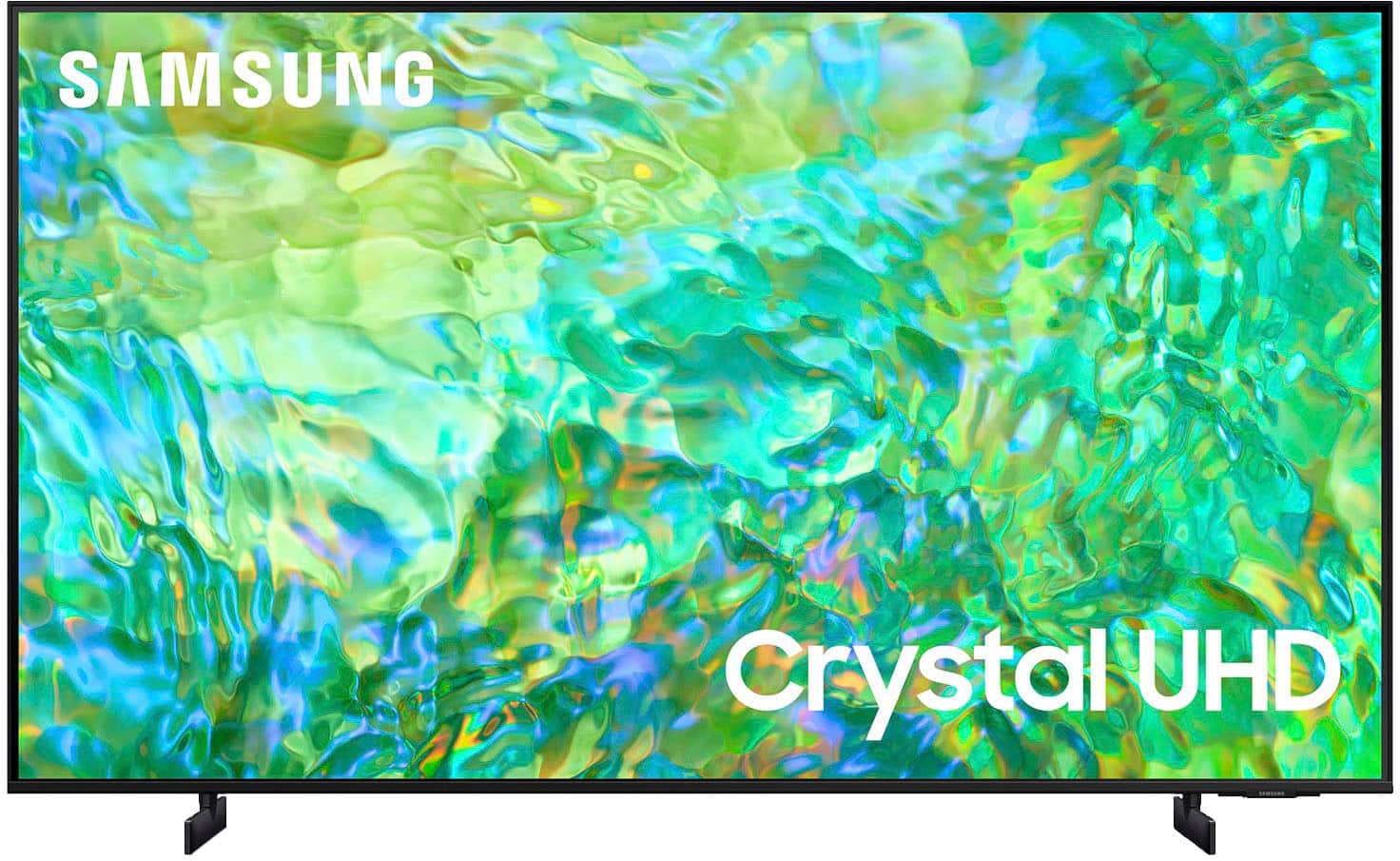
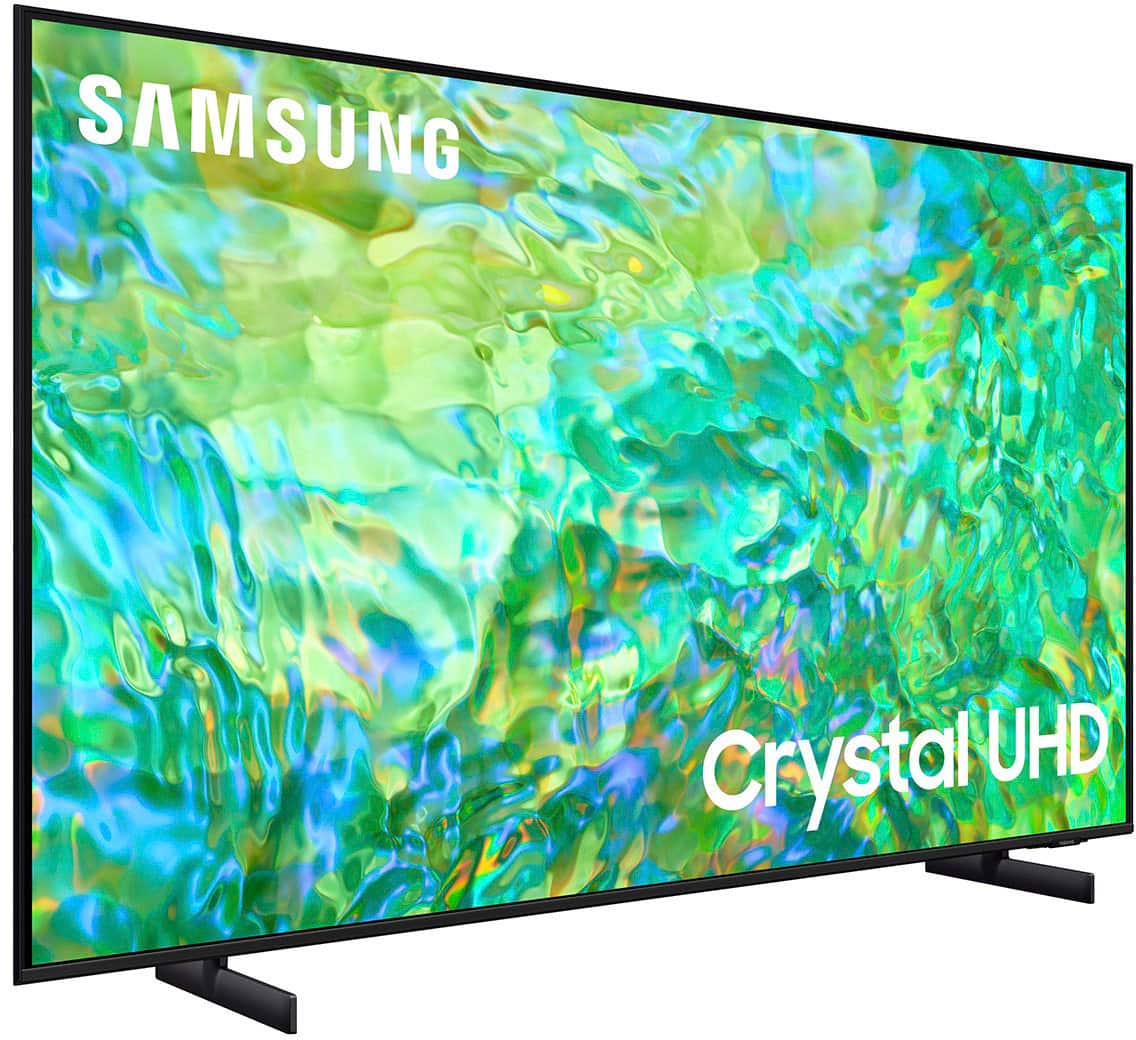
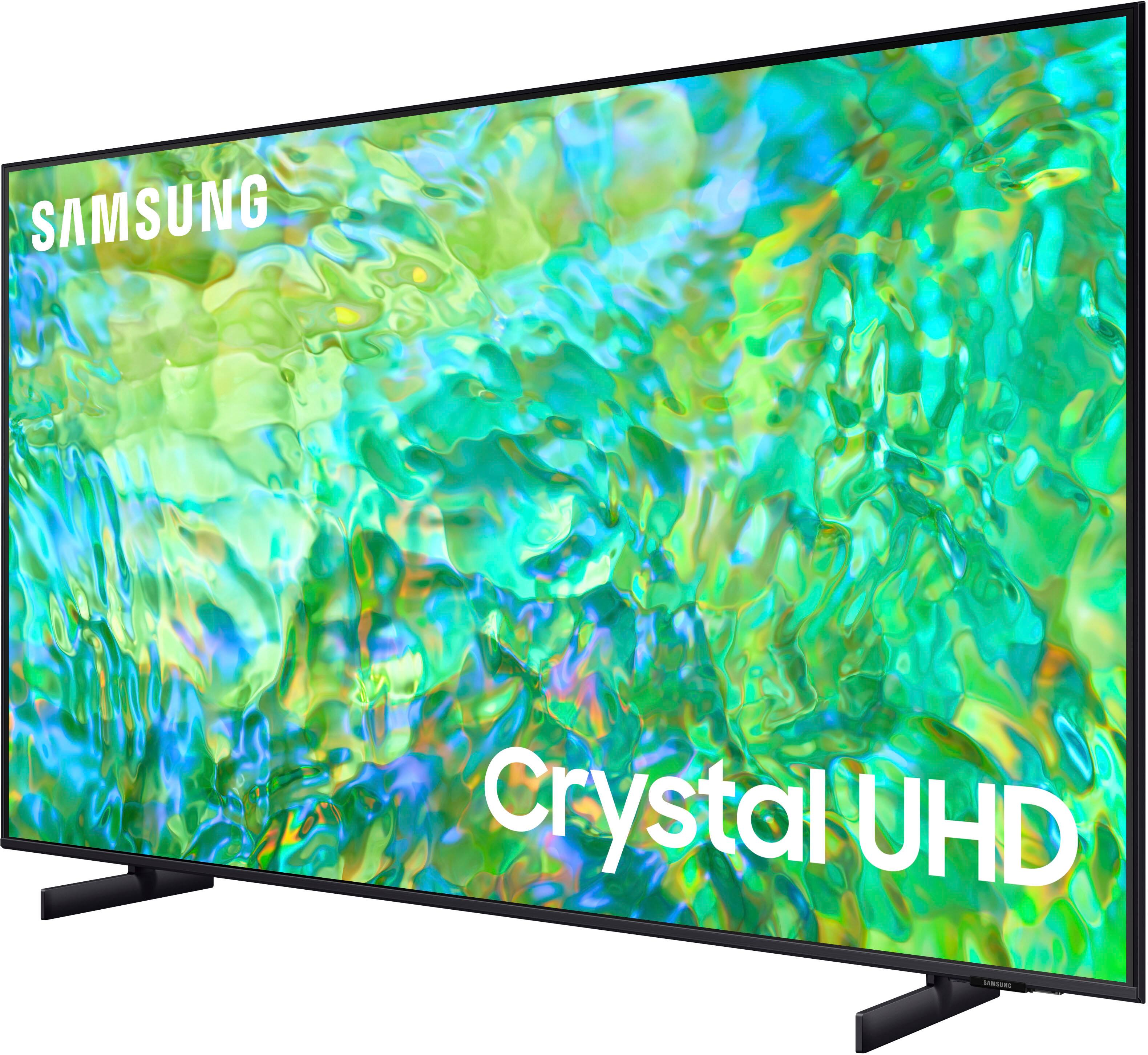



- Model:
- UN55CU8000FXZA
- SKU:
- 6537378
Rating by feature
- Picture Quality
Rating 4.7 out of 5 stars
- Sound Quality
Rating 4.5 out of 5 stars
- Brightness
Rating 4.6 out of 5 stars
Customers are saying
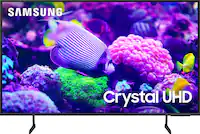
Customers highly value the excellent picture quality, ease of use, and vibrant colors of the 55" Class CU8000 Crystal UHD 4K Smart Tizen TV (2023). Many also appreciate the user-friendly remote control and consider the TV to be a good value for its price. While some users noted minor issues with volume control and software responsiveness, the positive feedback on picture quality and ease of use overwhelmingly outweighs these concerns. The convenient setup process was also frequently praised.
This summary was generated by AI based on customer reviews.
Tv
||Posted . Owned for 1 month when reviewed.This reviewer received promo considerations or sweepstakes entry for writing a review.Good audio and video quality. Fully satisfied with this purchase.
I would recommend this to a friend55in
||Posted . Owned for 3 weeks when reviewed.This reviewer received promo considerations or sweepstakes entry for writing a review.Best price*****************************************
I would recommend this to a friendViewing angle suffers
||Posted . Owned for 1 month when reviewed.This reviewer received promo considerations or sweepstakes entry for writing a review.Color saturation diminishes when beyond 45 degrees to the side.
I would recommend this to a friendUnhappy
||Posted . Owned for 3 weeks when reviewed.This reviewer received promo considerations or sweepstakes entry for writing a review.I was very unhappy when I purchased this TV. I turn it on in the morning and it takes me five minutes to find my cable channels to come on. I came with no user manuel. I wsh I would have purchased a different TV.
No, I would not recommend this to a friendBrand response from Samsung
Posted .Hi DianaO,
I'm very sorry to hear that you are not satisfied with your Samsung CU8000 TV. Please know we are available and always happy to help with any issues or questions you may have.
To access your Cable, go to the gear icon on your Remote, scroll to Source > Sources, and then select the HDMI input that your Cable box is connected to.
To learn more about your TV with our step-by-step guides, go to https://www.samsung.com/us/support/answer/ANS00062199/, where you can find more information on setting up your TV, connecting external devices. and more!
If you ever have questions or need help, Samsung is here for you! Give us a call at 1-800-SAMSUNG, 8 AM - 12 AM EST, seven days a week. Our LiveChat agents are also available by clicking on the ‘Support’ link on our website.
Thanks for being a part of the Samsung family!
~ Samsung Advisor
Hmmmmmm
||Posted . Owned for 3 weeks when reviewed.This reviewer received promo considerations or sweepstakes entry for writing a review.Ok for the money I guess. Doesn't match up to my old tv.
No, I would not recommend this to a friendBrand response from Samsung
Posted .Hi RandallY,
We appreciate your feedback on the CU8000 TV; please know it will be shared with our internal design teams. I have a few recommendations that may improve your visual and audio experience:
Go to Home > Settings > All Settings > Picture > Picture Mode and select the mode that best fits your usage:
1) Standard: Default mode suitable for general viewing environments.
2) Natural: Reduces eye strain for a comfortable viewing experience.
3) Movie: Most suitable for watching TV or movies in a dark room.
4) Dynamic: Makes the picture brighter and clearer in bright viewing environments.
5) Filmmaker Mode: You can watch the source content (e.g., movie) as it is. If the image is defined as Filmmaker Mode, it will automatically switch to Filmmaker Mode while watching.
You can also go to Settings > All Settings> Picture > Expert Settings > to manually fine-tune your image.
Next, I recommend adjusting the Sound Settings to improve your experience. You can change the Sound Mode by going to Settings > All Settings> Sound > Sound Mode.
You can also customize the sound with Expert Settings by going to Settings > Sound > Expert Settings.
I hope this helps improve your overall experience. Should you need further assistance or have any questions, please contact Samsung Customer Support at 1-800-SAMSUNG, 8 AM - 12 AM EST, seven days a week. Our LiveChat agents are also available by clicking on the ‘Support’ link on our website.
~ Samsung Advisor
Not a smart TV.
||Posted . Owned for 1 month when reviewed.This reviewer received promo considerations or sweepstakes entry for writing a review.I purchased this Samsung TV recently with the HW 550B sound bar. This is the worse TV I purchased in a long time. I had a lot of trouble with the user interface. The default settings are terrible. The first use of it was viewing a 4K series on Disney Plus. The visual quality was noisy, low contrast, off-color, and it looked worse than the lowest quality DVD. Ever since then I have been working with the picture settings, and when I get it somewhat presentable, the TV changes it, and I have to start all over again. There is no way to save custom settings. Also, the settings should change when switching from Game mode to Media mode, but this would not always happen and when I try to fix it, there would be several settings greyed out that I could not access. The remote is also a problem. It relies on a toggle switch to change volume level. But this same toggle switch is also used to mute the audio by pressing down on it. So every time I want to raise and lower the volume, I put a little pressure on the switch and it mutes the audio instead. Subtitles automatically come on and it is difficult to find how to select it to turn them off. And there is no setting I can find to make subtitles stay off as a default. With the sound bar, there is a slight out-of-sync problem between audio and visual. This problem is much worse when using a bluetooth wireless headset. I could not find a way to fix this. Until Samsung has better quality control, I am not purchasing anything else from them, and I will not recommend buying this TV.
No, I would not recommend this to a friendBrand response from Samsung
Posted .Hi RobertC,
Thank you for reaching out and letting us know about the issues you are experiencing with your CU8000 TV. It's possible your TV is not in Home Mode. Please ensure that your TV is in Home Mode by going to Settings> All Settings >General & Privacy System> Manager Usage Mode> Home Mode.
Next, let's ensure your TV is up to date with the latest Firmware. Go to Settings> Support> Software Update.
If you continue to have issues, please give us a call at 1-800-SAMSUNG, 8 AM – 12 AM EST, seven days a week, or Chat with us on Samsung.com: https://www.samsung.com/us/support/contact/
~Samsung Advisor
Disappointed
||Posted . Owned for 1 month when reviewed.This reviewer received promo considerations or sweepstakes entry for writing a review.Disappointed - not as good a picture as expected - color off - older 720 pixel sharp tv with much better picture. Salesman advised this tv over others, bad choice. Should have known as Samsung sucks!
No, I would not recommend this to a friendBrand response from Samsung
Posted .Hi MichaeldS,
Thank you for sharing your thoughts on the picture quality of your CU8000 TV. I have a few recommendations that may improve your visual experience:
Go to Home > Settings > All Settings > Picture > Picture Mode and select the mode that best fits your usage:
1) Standard: Default mode suitable for general viewing environments.
2) Natural: Reduces eye strain for a comfortable viewing experience.
3) Movie: Most suitable for watching TV or movies in a dark room.
4) Dynamic: Makes the picture brighter and clearer in bright viewing environments.
5) Filmmaker Mode: You can watch the source content (e.g., movie) as it is. If the image is defined as Filmmaker Mode, it will automatically switch to Filmmaker Mode while watching.
You can also go to Settings > All Settings> Picture > Expert Settings > to manually fine-tune your image.
If you need more help, Samsung is here for you. Call us at 1-800-SAMSUNG, 8 AM - 12 AM EST, seven days a week. Our LiveChat agents are also available by clicking on the ‘Support’ link on our website.
~ Samsung Advisor
Sound issues
||Posted . Owned for 3 weeks when reviewed.This reviewer received promo considerations or sweepstakes entry for writing a review.From day 1 the sound keeps tripping from the sound bar I connected with it. The built-in sound is meh. The TV is mounted and I cant take it back to Best Buy. Im stuck with it now.
No, I would not recommend this to a friendlasted 13 months
||Posted . Owned for 2 months when reviewed.This reviewer received promo considerations or sweepstakes entry for writing a review.This TV is replacing a 13 month and 12 day old TV with the same model #. After 12 months Samsung will sweet talk you but offer no warranty coverage or assistance. I did an online search of "Samsung 8000 series won't turn on red light on power button flashes" and this seems like a problematic model. I'd suggest Best Buy's extended warranty. I realize these are 25% of the cost they were just a few years ago but their durability is in question.
No, I would not recommend this to a friendBrand response from Samsung
Posted .Hi ScottJ,
I'm sorry to hear about your experience. Please know the Samsung CU8000 was released in 2023 and should still be under a 1-year limited manufacturer's warranty. If it is a different model or if you wish to troubleshoot, please try the below recommendations:
Check the red standby light, a little red light at the edge of the TV that you aim the remote at. If it is on, it means that your TV is receiving power, and the culprit is likely the remote. Please try to power the TV on through the button below the Samsung logo. If it powers on, I recommend changing the batteries on the remote and possibly replacing the remote.
If the red light below the TV is not on, please try the following:
1) Unplug the TV from its power source for 30 seconds. Then try to power it on again.
2) Try a different outlet that you have confirmed works properly
3) Press the Menu button on your remote. If the Menu appears, then this confirms your TV is powered on. Next, follow these steps:
・Confirm that the TV is set to the same source as the external device.
・Test the HDMI cable. Go to Settings > Support > Self Diagnosis > Signal Information > HDMI Cable Test > Start Test. If the test says, the cable is bad, replace the cable. Service is not required.
・Test different external devices. The final thing to rule out is the external device you're using. Try connecting a different device or using a different source port.
If the TV can display a picture in any other setup, then you've ruled the TV out as the cause of the issue. Keep trying various setups until you identify the device or cable that is not working and troubleshoot or replace it.
Finally, if the red standby light is blinking, please try unplugging the TV for 30 seconds and then try again. Also, confirm that the outlet you are using works with other devices.
If you have a different mode and your TV is out of the 1-year Manufacturer's Warranty, you can locate a service center in your area on Samsung's website. Go to Support (upper right corner) and select Schedule a Service Appointment. This will allow you to find a location nearest you to help you with your repair.
Should you have additional questions or wish to troubleshoot the issue, please call us at 1-800-SAMSUNG, 8 AM - 12 AM EST, seven days a week. Our LiveChat agents are also available by clicking on the ‘Support’ link on our website.
~ Samsung Advisor
Samsung U8000 Crystal UHD
||Posted . Owned for 3 weeks when reviewed.This reviewer received promo considerations or sweepstakes entry for writing a review.Don't care for the remote, cannot see or feel the odd buttons. Picture quality is ok but not fantastic with motion smoothness. Concider a better model with atleast 120hz refresh rate.
No, I would not recommend this to a friendBrand response from Samsung
Posted .Hi MichaelE,
Thank you for your feedback on the CU8000 TV. Please know your review will be shared with our internal teams.
I have a few recommendations that may improve your visual experience:
Go to Home > Settings > All Settings > Picture > Picture Mode and select the mode that best fits your usage:
1) Standard: Default mode suitable for general viewing environments.
2) Natural: Reduces eye strain for a comfortable viewing experience.
3) Movie: Most suitable for watching TV or movies in a dark room.
4) Dynamic: Makes the picture brighter and clearer in bright viewing environments.
5) Filmmaker Mode: You can watch the source content (e.g., movie) as it is. If the image is defined as Filmmaker Mode, it will automatically switch to Filmmaker Mode while watching.
You can also go to Settings > All Settings> Picture > Expert Settings > to manually fine-tune your image.
If you ever have questions or need help, Samsung is here for you! Give us a call at 1-800-SAMSUNG, 8 AM - 12 AM EST, seven days a week. Our LiveChat agents are also available by clicking on the ‘Support’ link on our website.
Thanks for being a part of the Samsung family!
~ Samsung Advisor
Good TV for the price.
||Posted . Owned for 2 months when reviewed.This reviewer received promo considerations or sweepstakes entry for writing a review.Its a good TV for the price. But there definitely are better TVs in the market if you want better picture quality.
I would recommend this to a friendBrand response from Samsung
Posted .Hi PulkitK,
I’m sorry to hear the picture quality of Samsung’s CU8000 TV did not meet your expectations. I have a few recommendations that may improve your visual experience:
Go to Home > Settings > All Settings > Picture > Picture Mode and select the mode that best fits your usage:
1) Standard: Default mode suitable for general viewing environments.
2) Natural: Reduces eye strain for a comfortable viewing experience.
3) Movie: Most suitable for watching TV or movies in a dark room.
4) Dynamic: Makes the picture brighter and clearer in bright viewing environments.
5) Filmmaker Mode: You can watch the source content (e.g., movie) as it is. If the image is defined as Filmmaker Mode, it will automatically switch to Filmmaker Mode while watching.
You can also go to Settings > All Settings> Picture > Expert Settings > to manually fine-tune your image.
If you need more help, Samsung is here for you. Call us at 1-800-SAMSUNG, 8 AM - 12 AM EST, seven days a week. Our LiveChat agents are also available by clicking on the ‘Support’ link on our website.
~ Samsung Advisor
Samsung TV and Sound Bar
||Posted . Owned for 1 month when reviewed.This reviewer received promo considerations or sweepstakes entry for writing a review.We bought this product as our other tv was having issues. The sound on the tv was horrible. We came in and per one of your customer support people we bought a matching Samsung Soundbar. Soundbar goes loud on commercials and not liking it either. Horrible sound. Also the remotes are tiny for both and they don’t work together as the employee stated.
No, I would not recommend this to a friendI wanted to like it.
||Posted . Owned for 3 weeks when reviewed.This reviewer received promo considerations or sweepstakes entry for writing a review.Everything is great EXCEPT the settings will not hold the Wi-Fi password for my home for more than 2 days. I am trying to figure out if I can take it back or if I can just add a Roku to it. AND it may not be fast enough to stream videos from the web. On apps- it’s fine, but it can’t keep up with live feed.
No, I would not recommend this to a friendBrand response from Samsung
Posted .Hi Ck01,
Thank you for sharing your experience with Internet connectivity. If you’re experiencing issues with the Wi-Fi connection, we suggest you try the following:
1. Use 5Ghz Wi-Fi if possible
2. Try wired LAN if available
3. Try repositioning the router, so there are no obstacles between your TV and the router
4. Try running a cold boot on your TV. To do so, hold down the Power button on the Samsung TV remote until the TV turns off and then on again. This should take about 5 seconds.
Please also be sure you are running the latest firmware. You can check to see what software version your TV is using and if there is an available update through the settings on your TV. Go to: Settings > Support > Software Update.
You can enable automatic updates for convenience. Go to Settings > Support > Software Update, then select Auto Update.
I hope these tips help resolve your concerns.
If you continue to have issues, please call us at at 1-800-SAMSUNG, 8 AM - 12 AM EST, seven days a week. Our LiveChat agents are also available by clicking on the ‘Support’ link on our website.
~ Samsung Advisor
Remote is a deal breaker
||Posted . Owned for less than 1 week when reviewed.This reviewer received promo considerations or sweepstakes entry for writing a review.TV picture was OK, just OK. Interface was not the best but I could have lived with it. The remote is a disaster. A solar powered remote? Really?? Because I always sit in the sun when watching tv. It's TINY! And the controls are ridiculous. It's a deal breaker! Returned it all after two days.
No, I would not recommend this to a friendBrand response from Samsung
Posted .Hi Jimp,
Thank you for taking the time to provide feedback on your CU8000 TV. Please know that your feedback will be shared with our internal product teams. We take pride in our products and are sorry to hear that your experience was not up to our high standards.
We do hope you will give Samsung another chance when purchasing your next TV. If there’s anything we can ever help with, please call us at 1-800-SAMSUNG, 8 AM - 12 AM EST, seven days a week. Or visit us on the Samsung website and click on the ‘Support’ link for:
1) LiveChat
2) Manuals, Software, & Warranty Info
~ Samsung Advisor
First time TV should have work.
||Posted . Owned for 1 month when reviewed.This reviewer received promo considerations or sweepstakes entry for writing a review.Bought the TV at the store but would not work at home. The online staff could not help. I called the store where I receive help. Not sure why the first TV did not work. Best Buy replaced the Samsung 55 but it should have worked the first time. I would like to thank the manager of the Best Buy Cary store in fixing this situation.
No, I would not recommend this to a friendBrand response from Samsung
Posted .Hi Doingthisforthemoney,
Thank you for letting us know about your experience with the CU7000 TV. We are sorry for the hassle of having to exchange the first TV you purchased. If you need any help with your new TV or have any questions, please do not hesitate to reach out to us at 1-800-SAMSUNG, 8 AM - 12 AM EST, seven days a week. Our LiveChat agents are also available by clicking on the ‘Support’ link on our website.
~ Samsung Advisor
Disappointed
||Posted . Owned for 1 month when reviewed.This reviewer received promo considerations or sweepstakes entry for writing a review.Picture quality is never the same …have had to play with settings several times depending on the program
No, I would not recommend this to a friendBrand response from Samsung
Posted .Hello LeslieL,
Thank you for purchasing the new 55" CU8000 Samsung TV. I am sorry to see that your out-of-box experience has been less than ideal. Your feedback regarding image quality is essential to us and will be shared with our internal teams. If the image you’re seeing isn’t to your liking, there are several picture settings you may want to adjust.
Go to Home > left direction button > Settings > All Settings > Picture > Picture Mode and select the mode that best fits your usage:
1. Standard: Is the default mode suitable for general viewing environments
2. Dynamic: Makes the picture brighter and clearer in bright viewing environments
3. Eco: Provided to save energy
4. Movie: Suitable for watching TV or movies in a dark room
5. Filmmaker Mode: Provides source content just as the creators intended. If the image is defined as Filmmaker Mode, it’ll automatically switch to Filmmaker Mode while watching.
You can also fine-tune your picture with expert settings such as brightness, contrast, sharpness and more (All Settings > Picture > Expert Settings).
If you need more help, Samsung is here for you. Please call us at 1-800-SAMSUNG, 8 AM - 12 AM EST, seven days a week. Our LiveChat agents are also available by clicking on the ‘Support’ link on our website.
~ Samsung Advisor
Disappointed with Samsung TV
||Posted . Owned for 1 month when reviewed.This reviewer received promo considerations or sweepstakes entry for writing a review.Too big for my small room. Also, the picture isn’t that clear. My smaller Samsung had a clearer picture. Samsung wanted me to set up an account with the newer TV. Had difficultly setting up an acount. They were not helpful. Sadly, I returned the 55" TV.
No, I would not recommend this to a friendMr
||Posted . Owned for 1 month when reviewed.This reviewer received promo considerations or sweepstakes entry for writing a review.The 60htz didn't meet my expectation. Picture clarity was lacking.
No, I would not recommend this to a friendBrand response from Samsung
Posted .Hi RobertE,
Thank you for sharing your thoughts on your CU8000 TV’s image quality. The TV will upscale as best as possible any content sent to it. The closer your content is to 4K, the better the image will look on the screen.
Here are some tips to help improve picture clarity:
1) HDMI cables are recommended for optimal HD viewing.
2) If you have an analog cable box or satellite box, upgrade to a digital cable box or satellite box.
3) Change the output resolution of your devices, such as digital broadcast receivers, IPTV, and set-top boxes, to UHD or HD.
4) You can further adjust your sharpness, brightness, contrast, color, and more by going to Settings > All Settings> Picture > Expert Settings
5) Choose a Picture Mode by going to Settings > All Settings> Picture > Picture Mode and choose from Dynamic, Standard, Natural, Movie, or Filmmaker Mode.
Should you ever have questions or need help with TV features, specs, or operations, we are here to help. You can call us at 1-800-SAMSUNG, 8 AM - 12 AM EST, seven days a week. Our LiveChat agents are also available by clicking on the ‘Support’ link on our website.
~ Samsung Advisor
Tv
||Posted . Owned for 3 weeks when reviewed.This reviewer received promo considerations or sweepstakes entry for writing a review.Ok got brightness as high as it will go and it still not as bright as my husband wants
No, I would not recommend this to a friendBrand response from Samsung
Posted .Hi ShirleyK,
It’s unfortunate to hear you’re not fully satisfied with the brightness of your CU8000 TV’s picture. Please know that we are here to help you.
First, let’s ensure you are running the latest Firmware Update. Go to Settings> Support> Software Update.
Next, If the colors on your TV are correct but just a little too dark or bright, you can try adjusting Picture Modes, Contrast, Brightness, or Sharpness settings.
For darker scenes, I recommend Dynamic Picture Mode, which makes pictures brighter and clearer in bright viewing environments. Go to Settings > All Settings> Picture > Picture Mode > Dynamic.
Or you can manually adjust the Brightness by pressing the HOME button on your remote, then navigating to Settings > All Settings> Picture > Expert Settings.
You may also want to disable Power Saving Mode, which automatically adjusts the brightness to reduce the TV’s power consumption. Go to: Settings > All Settings> General > Eco Solution> Power Saving Mode.
I hope this helps to improve your picture. Should you need further assistance, please contact us at 1-800-SAMSUNG, 8 AM - 12 AM EST, seven days a week. Our LiveChat agents are also available by clicking on the ‘Support’ link on our website.
~ Samsung Advisor
So so
||Posted . Owned for 1 month when reviewed.This reviewer received promo considerations or sweepstakes entry for writing a review.I’m testing right now but it’s not too much thank you
No, I would not recommend this to a friendBrand response from Samsung
Posted .Hi Cristian,
Thanks for reviewing Samsung’s CU8000 TV. If you’re experiencing specific issues that prevented this TV from receiving a higher star rating, please know Samsung Customer Support is here to help. You can call us at 1-800-SAMSUNG, 8 AM - 12 AM EST, seven days a week. Our LiveChat agents are also available by clicking on the ‘Support’ link on our website.
~ Samsung Advisor