Customer Ratings & Reviews
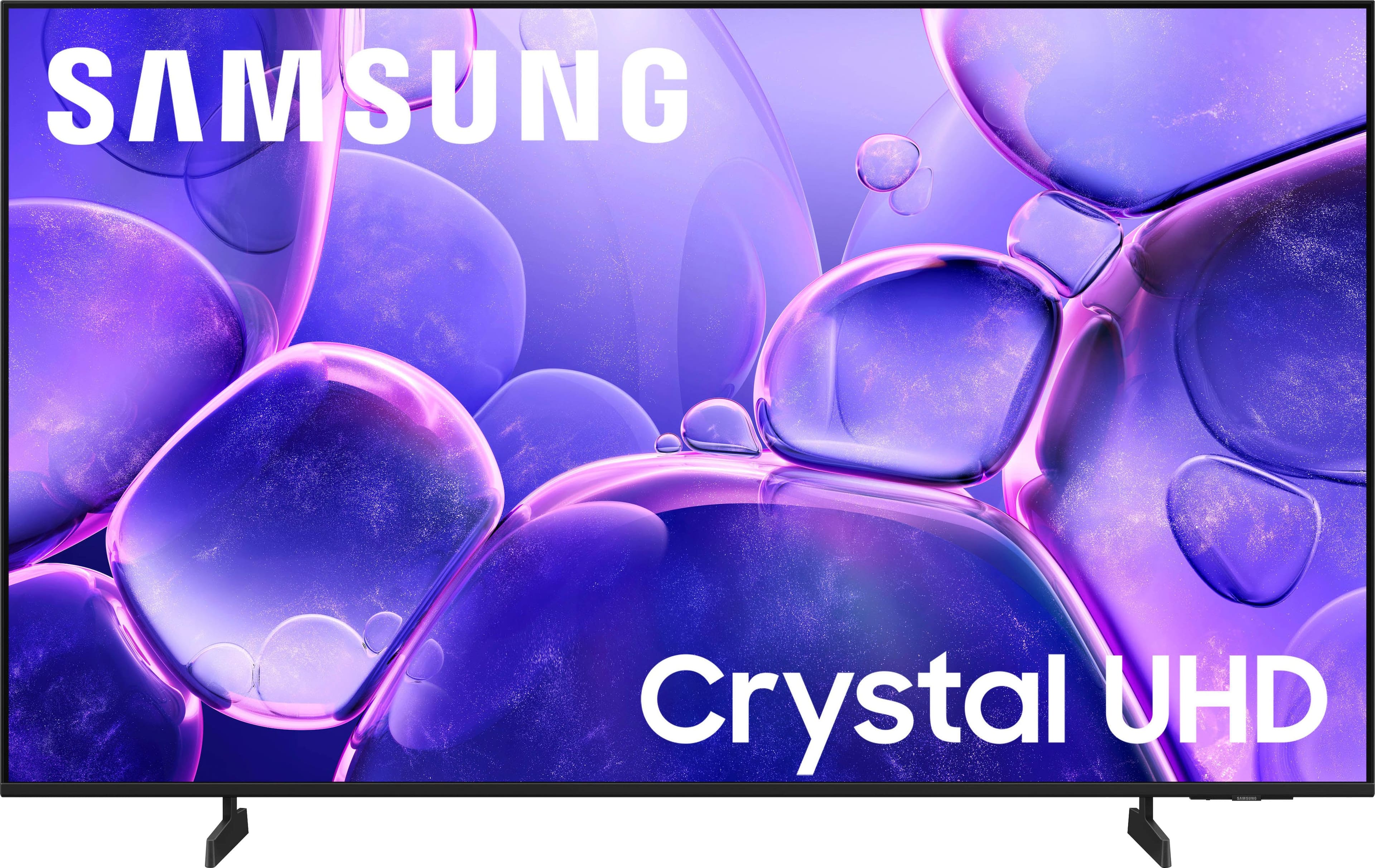
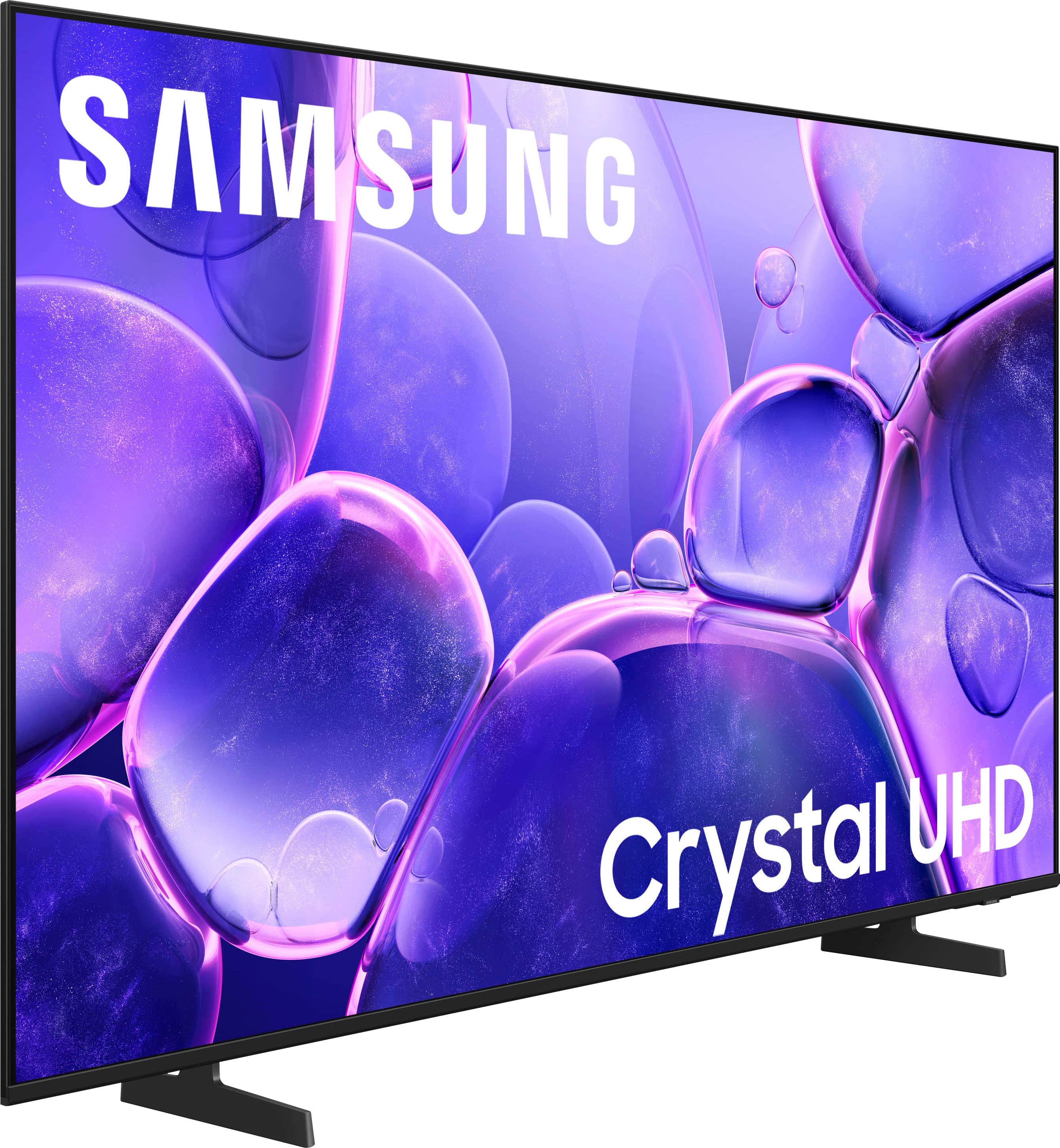
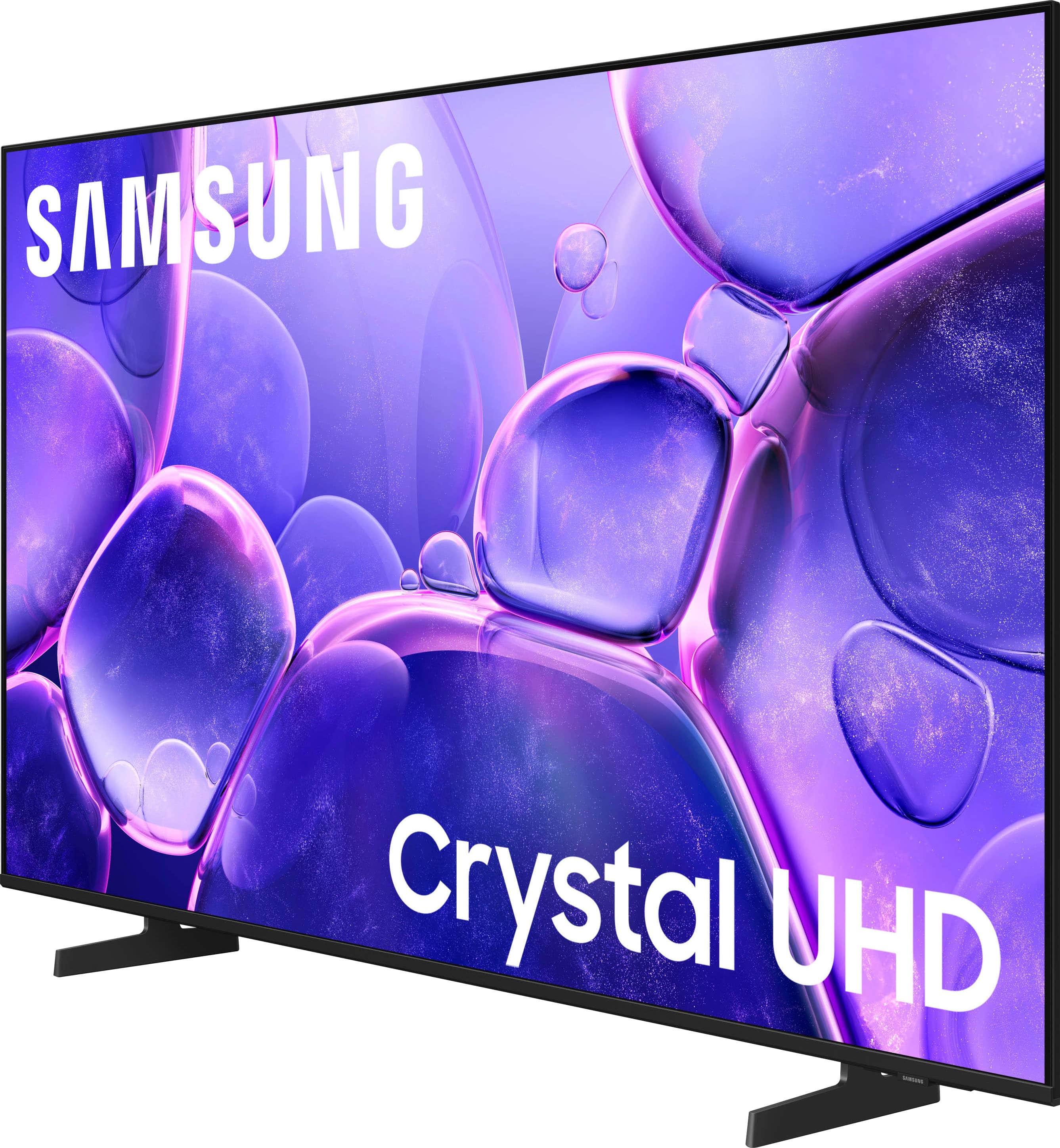
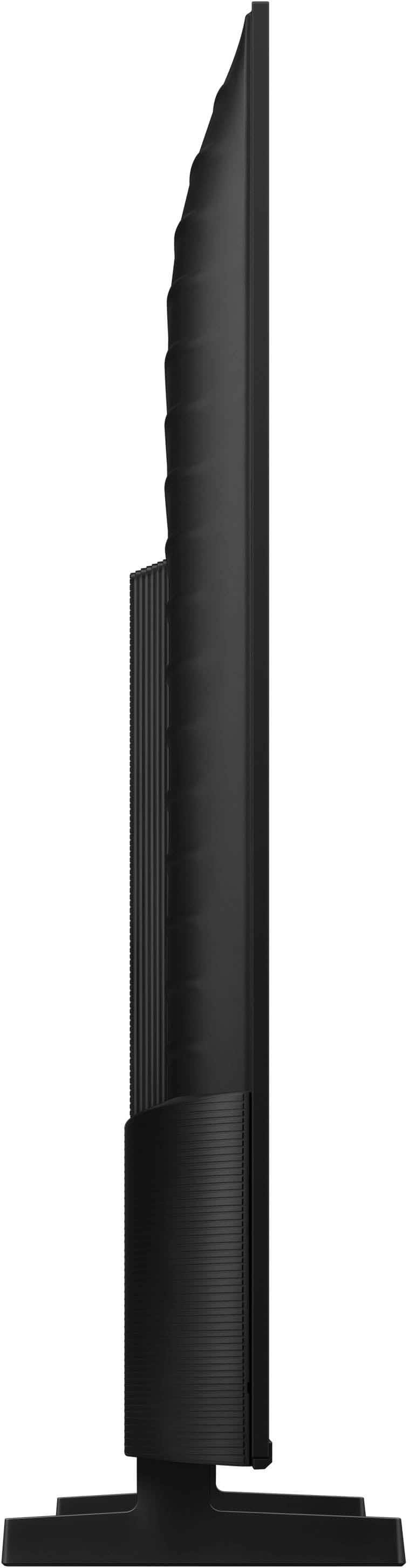
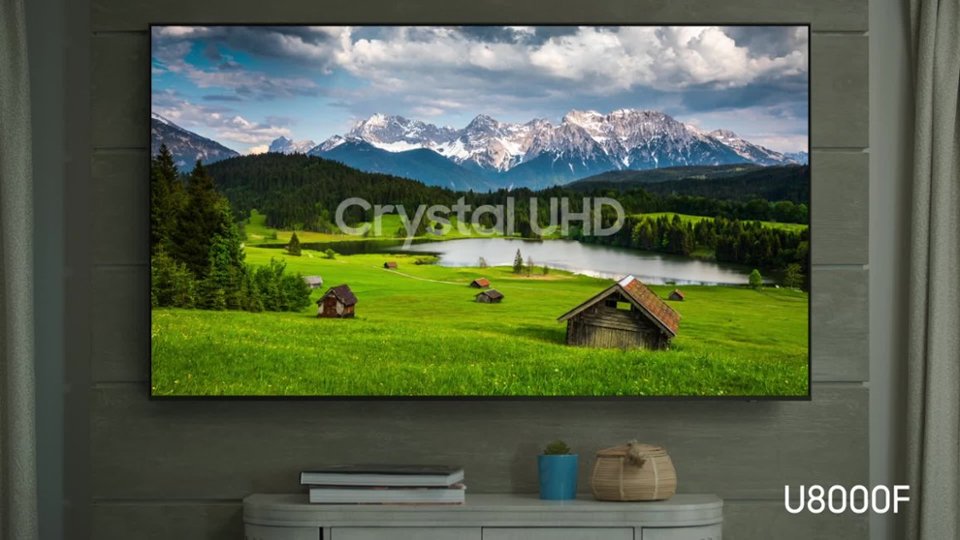


- Model:
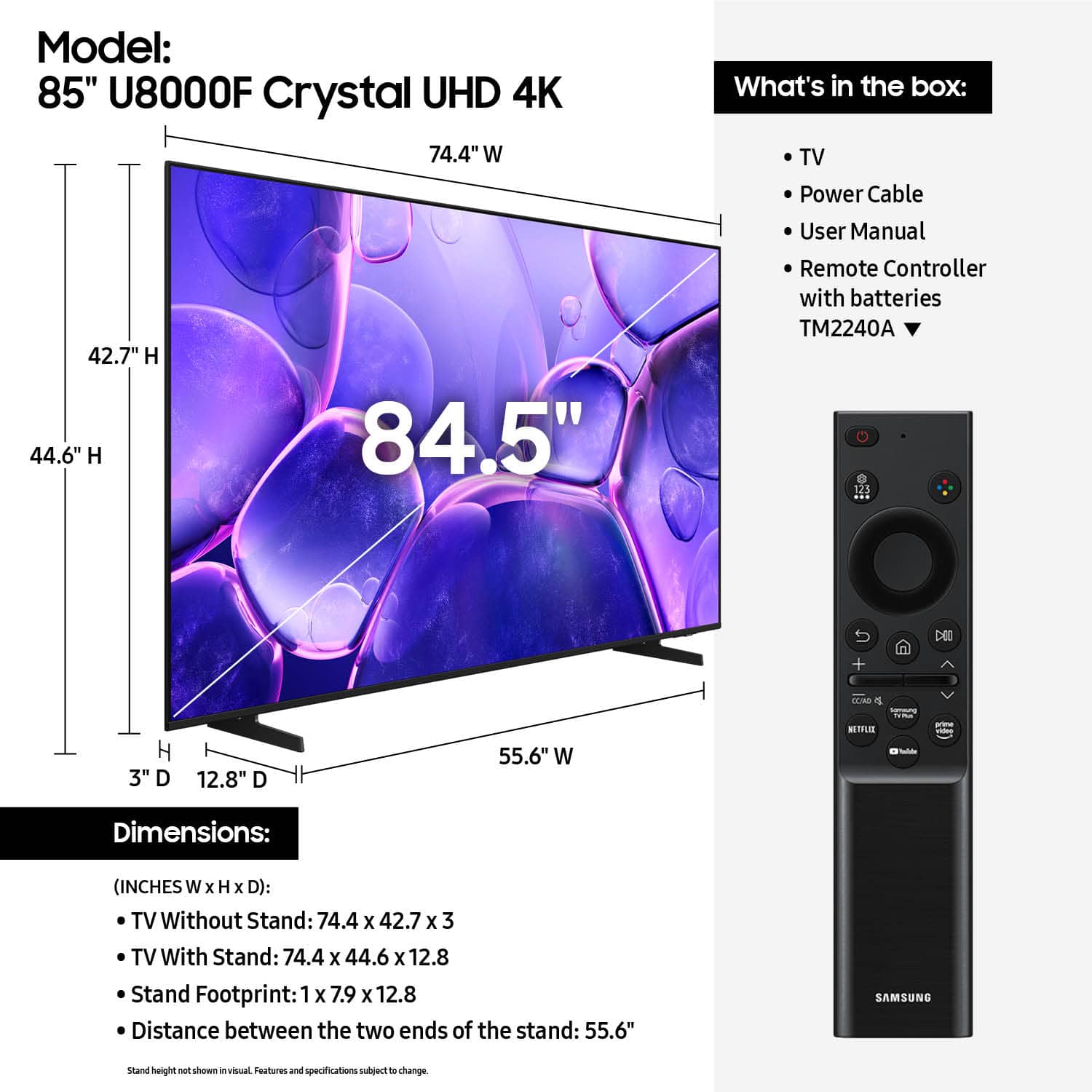
- UN85U8000FFXZA
- SKU:
- 10818478
Rating by feature
- Picture Quality
Rating 4.8 out of 5 stars
- Sound Quality
Rating 4.6 out of 5 stars
- Brightness
Rating 4.8 out of 5 stars
Tv samsung
||Posted . Owned for 2 weeks when reviewed.This reviewer received promo considerations or sweepstakes entry for writing a review.Excellent product good quality easy to use delivery was very fast and efficient
I would recommend this to a friendFootball time
||Posted . Owned for 2 weeks when reviewed.This reviewer received promo considerations or sweepstakes entry for writing a review.Very happy with the choice we made! A simple and easy process
I would recommend this to a friendMike Miller
||Posted . Owned for 2 weeks when reviewed.This reviewer received promo considerations or sweepstakes entry for writing a review.From the time I walked in they greeted me got a sales person and I was out the door I have nothing but good things to say
I would recommend this to a friendMy new Samsung TV
||Posted .This reviewer received promo considerations or sweepstakes entry for writing a review.I had this tv before but my grandson cracked the screen. I purchased the sane tv but 2025 model
I would recommend this to a friend85” Samsung Tv
||Posted . Owned for 1 month when reviewed.This reviewer received promo considerations or sweepstakes entry for writing a review.Great TV. It was easy to set up, responsive and adaptable. I had a 98” but it was too big for the wall. This looks great in my living room
I would recommend this to a friendAmazing
||Posted . Owned for 1 month when reviewed.This reviewer received promo considerations or sweepstakes entry for writing a review.I loved the great customer service they showed us they went above and beyond to help us find the perfect tv for our new home. Thenk you best buy
I would recommend this to a friendTV Amazing!
||Posted .This reviewer received promo considerations or sweepstakes entry for writing a review.Really enjoyed the TV. Size is amazing and TV worked well on my room
I would recommend this to a friendGreat
||Posted .This reviewer received promo considerations or sweepstakes entry for writing a review.Nice tv Good Thank you perfectly Thank you so murch
I would recommend this to a friendBest bang for buck!
||Posted . Owned for 1 month when reviewed.This reviewer received promo considerations or sweepstakes entry for writing a review.Great TV…easy setup.. everything works through remote
I would recommend this to a friend- Cons mentioned:Connectivity
Some issues
||Posted . Owned for 3 months when reviewed.This reviewer received promo considerations or sweepstakes entry for writing a review.About 3 months at rhe time of this review Price is good for an 85" Samsung TV but unfortunately there are some issues one is that sometimes (almost every time) when tv is turned on i got an ERROR message TV is not connected to the internet i have a very fast and reliable Internet connection and all tje other tvs are working fine no problems Second issue is the tv sometimes is very slow in the main menu I don't recommend it
No, I would not recommend this to a friendBrand response from Samsung
Posted .Hi JorgeG,
Thank you for sharing your experience with Wi-Fi connectivity. If your TV is having trouble connecting to the network, the following steps may help resolve the issue:
Signal & Setup Tips:
1. Check TV-to-router distance – Your TV should be within 50 feet of the modem or access point for reliable signal strength.
2. Minimize interference – Turn off nearby wireless devices and make sure there are no physical barriers (stone walls, fireplaces, appliances) between the TV and router.
Power Cycle Devices:
3. Restart both your TV and router – Unplug both devices for at least 30 seconds, then plug them back in and allow them to reboot fully.
Connection Type:
4. Evaluate your connection method –
o If using Wi-Fi, move your router closer to the TV and eliminate any obstructions.
o For a more stable connection, we strongly recommend using a wired Ethernet cable.
o If already using Ethernet, verify the cable is working by testing it with another device.
Run Built-In Diagnostic Tools:
5. Network Test: Settings > Support > Device Care > Self Diagnosis > Smart Hub Connection Test
6. Wi-Fi Check: Settings > Support > Device Care > Self Diagnosis > Wi-Fi
Last Resort:
7. Perform a Factory Reset (if issues persist): Settings > All Settings > General & Privacy > Reset > Factory Data Reset. Note that this will return all settings to their original defaults.
If these steps don’t resolve the issue, please reach out to Samsung Support at 1-800-SAMSUNG, available 8AM – 12AM EST, 7 days a week. LiveChat support and additional help are available at the ‘Support’ link on our website.
~ Samsung Advisor
Samsung Tv
||Posted . Owned for 3 weeks when reviewed.This reviewer received promo considerations or sweepstakes entry for writing a review.Good i like that it was Simple and easy intalation
I would recommend this to a friendGreat value
||Posted . Owned for 2 weeks when reviewed.This reviewer received promo considerations or sweepstakes entry for writing a review.Very impressed with the quality of the TV! And the pricing was great as well.
I would recommend this to a friendSamsung tv
||Posted .This reviewer received promo considerations or sweepstakes entry for writing a review.Great service and the guys that did the set up was great
I would recommend this to a friendRemote is small
||Posted .This reviewer received promo considerations or sweepstakes entry for writing a review.It's a great TV but if you have bigger hands the remote is tiny...
I would recommend this to a friendDisappointed in customer service
||Posted . Owned for 1 week when reviewed.This reviewer received promo considerations or sweepstakes entry for writing a review.Product was delivered damaged and Best Buy cannot deliver a replacement for 2 weeks .not very pleased with the customer service level for replacement.
No, I would not recommend this to a friendBrand response from Samsung
Posted .Hi JeffreyL,
We appreciate your review and patience while awaiting your replacement TV. If there’s anything we can assist with, please don’t hesitate to call us at 1-800-SAMSUNG, available daily from 8AM - 12AM EST. You can also visit the Samsung website and click on ‘Support’ for:
• Live Chat
• Manuals, Software, & Warranty Info
~ Samsung Advisor
Discontented customer.
||Posted . Owned for 3 weeks when reviewed.This reviewer received promo considerations or sweepstakes entry for writing a review.The TV is great. Getting Best Buy to replace a damaged item, not so much. I called customer service virtually every day after we realized the TV was damaged. The replacement was finally delivered early this week, only after I sent an email to the CEO of Best Buy. I'm very frustrated with the lack of response from Best Buy and will likely not purchase anything from you in the future.
I would recommend this to a friendBrand response from Samsung
Posted .Hi MikeM,
Thank you for your feedback and patience while dealing with the hassle of an exchange. Please know Samsung is here for you if you ever have product questions or need help. You can reach us at 1-800-SAMSUNG (8AM – 12AM EST, 7 days a week), or connect with a LiveChat agent by selecting ‘Support’ on our website.
~ Samsung Advisor
Dont buy
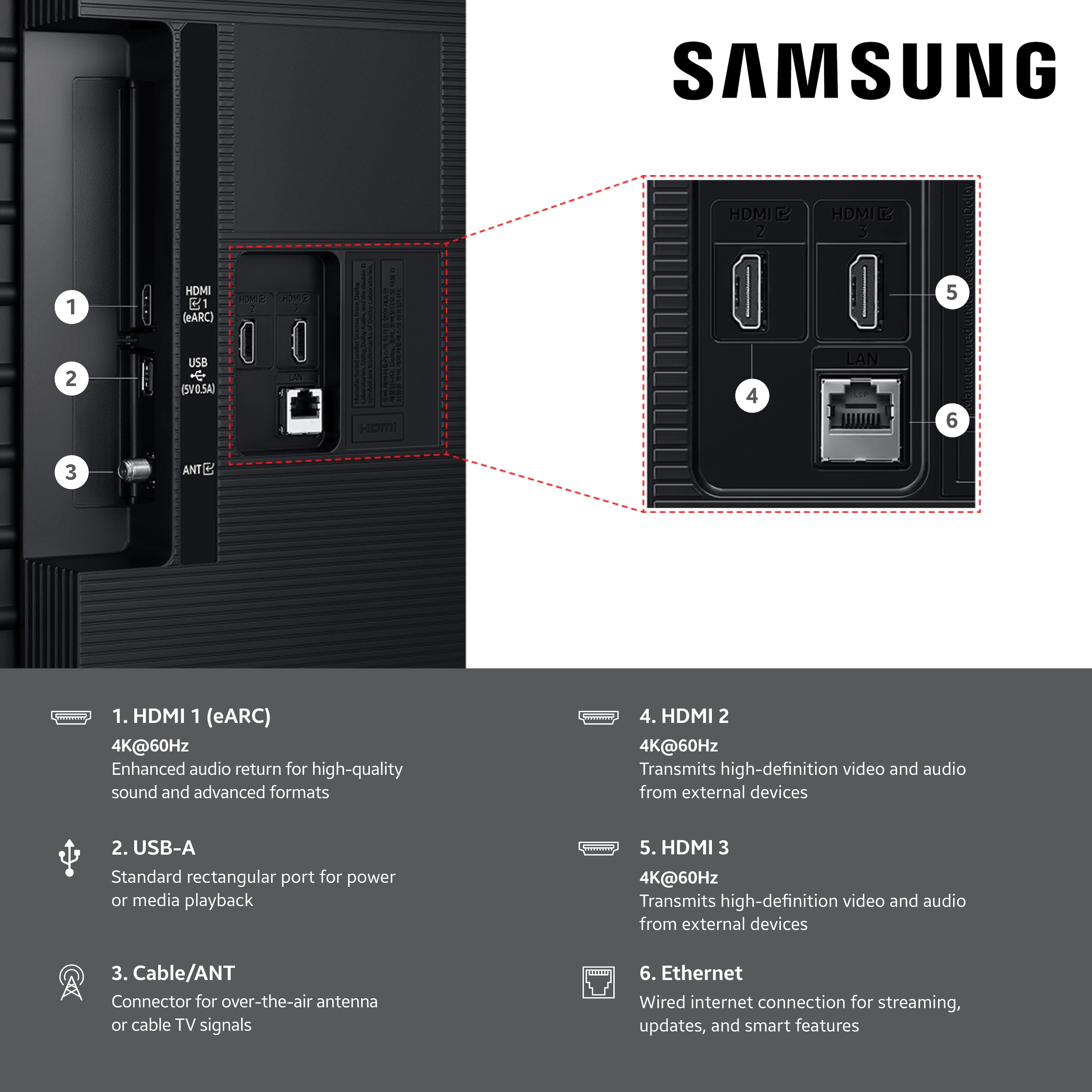
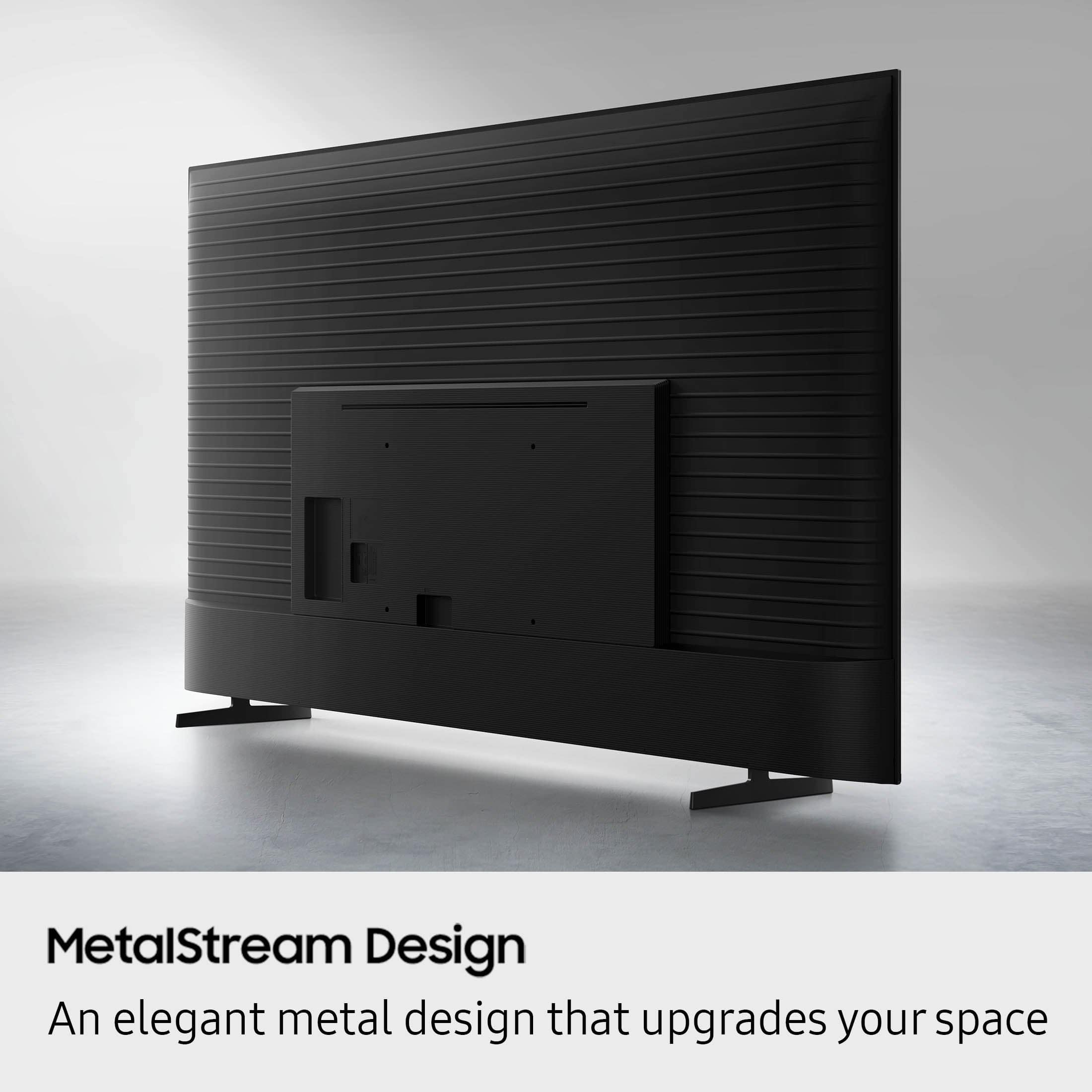
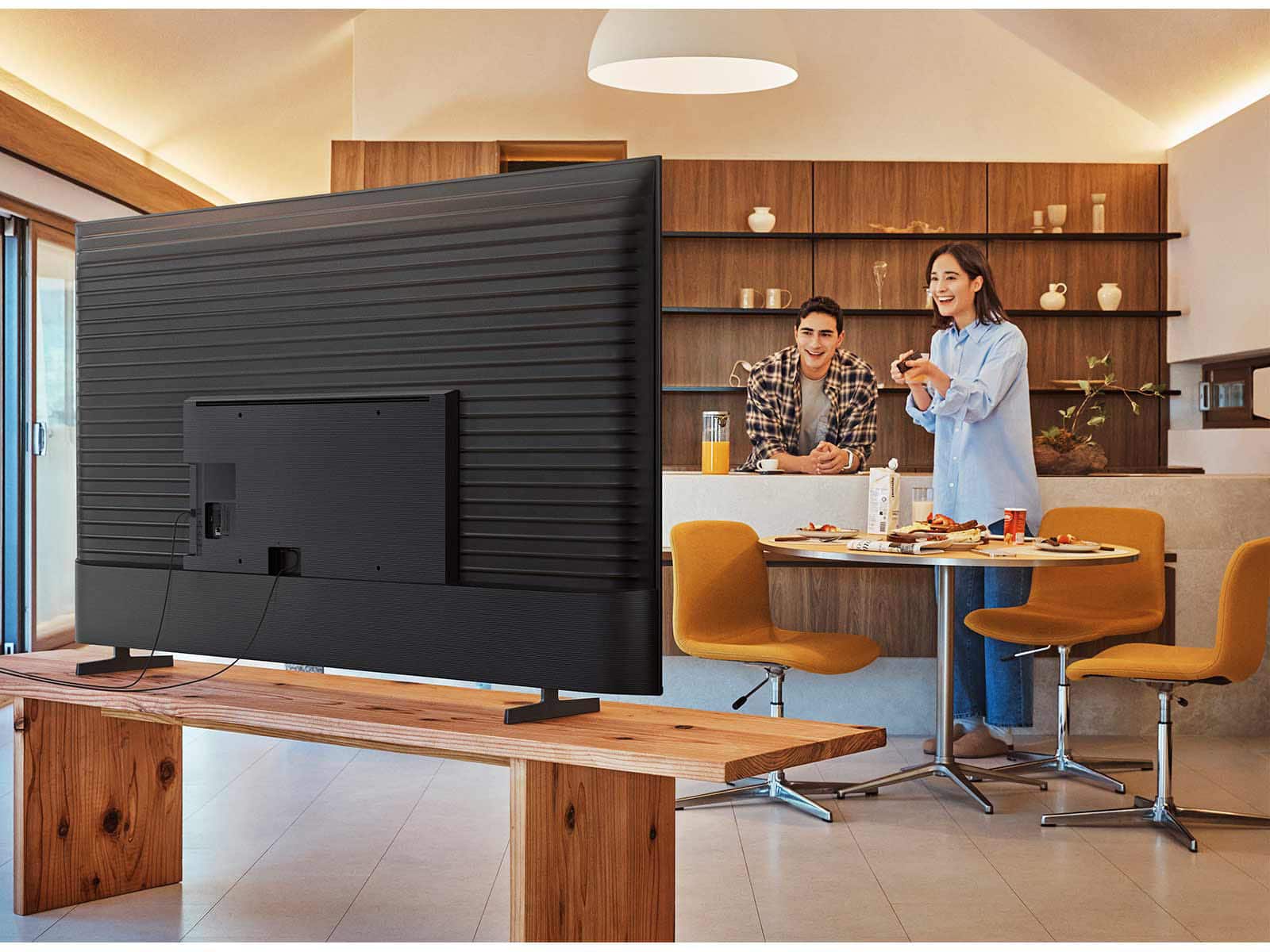
||Posted .This reviewer received promo considerations or sweepstakes entry for writing a review.Ok picture picture. The remote feels like it wont last long. The hdmi ports are right inline with the mounting bracket which makes zero sense. The power cable inlet was pushed in farther then it should be. Very disappointing
No, I would not recommend this to a friendBrand response from Samsung
Posted .Hi user332497,
To better assist you, please contact us at 1-800-SAMSUNG (8AM – 12AM EST daily) or LiveChat with an agent through the ‘Support’ section on our website.
~ Samsung Advisor
Broke within a month
||Posted . Owned for 1 month when reviewed.This reviewer received promo considerations or sweepstakes entry for writing a review.Received TV on December 15, 2025. January 14, 2026 TV would not power on. Contacted BestBuy through chat feature. Representative gave two options: 1) Bring into local store to troubleshoot, but would void warranty. 2) Contact Samsung. Ridiculous. Where's the support? Spent good money!
No, I would not recommend this to a friendBrand response from Samsung
Posted .Hi Kolbstergurl,
We're very sorry to hear that your TV will not power on. Please try these steps:
1. Power cord check: Ensure the TV’s power cord is securely connected at both ends and not visibly damaged.
2. Wall outlet check: Plug the TV directly into a working wall outlet (not a surge protector or power strip) and look for the red standby light near the bottom edge of the TV.
o Solid red light: Press the power button on the TV (underneath the Samsung logo) or use the remote.
o No light: The TV isn’t getting power.
o Blinking light: The TV may require service.
3. Test the remote: If the standby light is on but the TV won’t power on with the remote, try using the power button on the TV itself.
4. If the TV turns on but there’s no picture, try pressing the Home button. If the menu appears, check for correct source selection or potential external device issues.
If the issue continues, please reach out so we can help with further diagnostics or service. Call Samsung Support at 1-800-SAMSUNG, 8AM – 12AM EST, or chat with us online via the ‘Support’ link on our website.
~Samsung Advisor
Didn't care for this particular Samsung
||Posted . Owned for 3 weeks when reviewed.This reviewer received promo considerations or sweepstakes entry for writing a review.I wasn't satisfied with this television, the color quality wasn't as brilliant as the older Samsung's. I returned mine for a full refund, I'll just wait around until they come out with some better technology.
No, I would not recommend this to a friendBrand response from Samsung
Posted .Hi DarenH,
Thank you for your feedback. Should you ever decide to give Samsung TVs another try and have questions or need help with settings, setup, or features, please know we’re here to help. Call us at 1-800-SAMSUNG, 8AM - 12AM EST, 7 days a week.
LiveChat with an agent as well as manuals, software, and warranty info can be found at the ‘Support’ link on our Samsung website.
We hope to regain you as a customer in the future.
~Samsung Advisor
Not happy
||Posted . Owned for 2 weeks when reviewed.This reviewer received promo considerations or sweepstakes entry for writing a review.For and 85 it blurs in motion it defeats the reason i got it, not to happy
No, I would not recommend this to a friendBrand response from Samsung
Posted .Hi RobertB,
Thank you for your feedback on the Samsung U8000F TV and your experience when watching fast-motion content. If the picture appears blurry or unnatural during high-speed scenes, there are several settings you can adjust to improve motion clarity.
Go to: Home > left directional key > Settings > All Settings > Picture > Expert Settings, and review these key settings:
Picture Clarity Settings
• Off: Disables all motion enhancement
• Auto: Automatically adjusts motion clarity based on content
• Custom: Enables manual control of:
o Judder Reduction: Smooths motion in film-based content
o LED Clear Motion: Increases sharpness during fast movement
o Noise Reduction: Helps reduce distortion in lower-quality sources
Additional Picture Controls
• Brightness – Adjust overall image brightness
• Contrast – Controls the difference between light and dark areas
• Sharpness – Enhances the definition of object edges
• Color – Adjusts color intensity for more natural or vivid tones
We hope these settings help improve your viewing experience, especially with fast-moving content. If you'd like further assistance, feel free to reach out to Samsung Support at 1-800-SAMSUNG, 8AM – 12AM EST, 7 days a week. LiveChat is also available via the ‘Support’ link on our website.
~ Samsung Advisor