Customer Ratings & Reviews
- Model:
- MZ-77Q4T0B/AM
- SKU:
- 6422329
Rating by feature
- Value
Rating 4.5 out of 5 stars
- Quality
Rating 4.8 out of 5 stars
- Ease of Use
Rating 4.7 out of 5 stars
Customers are saying
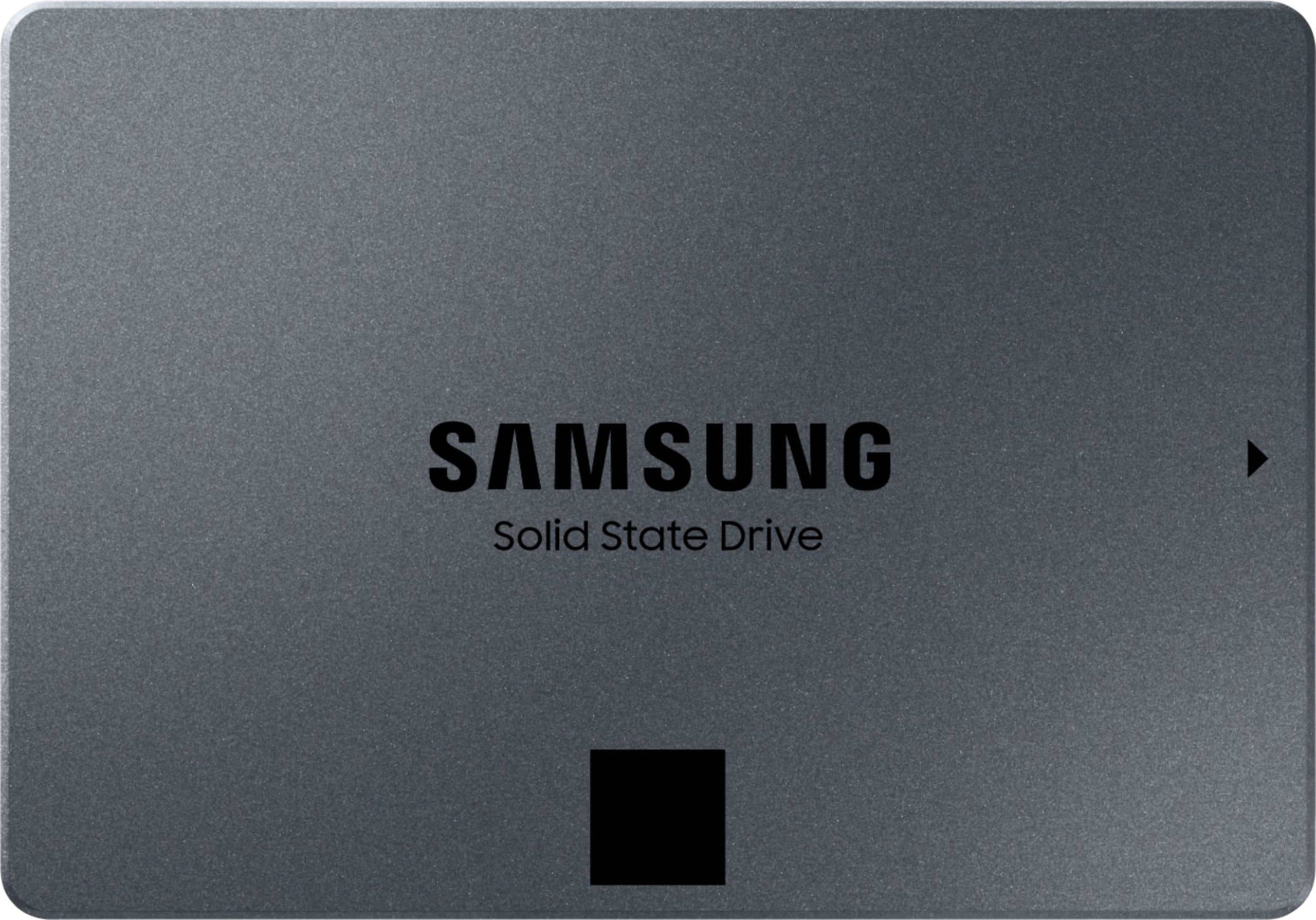
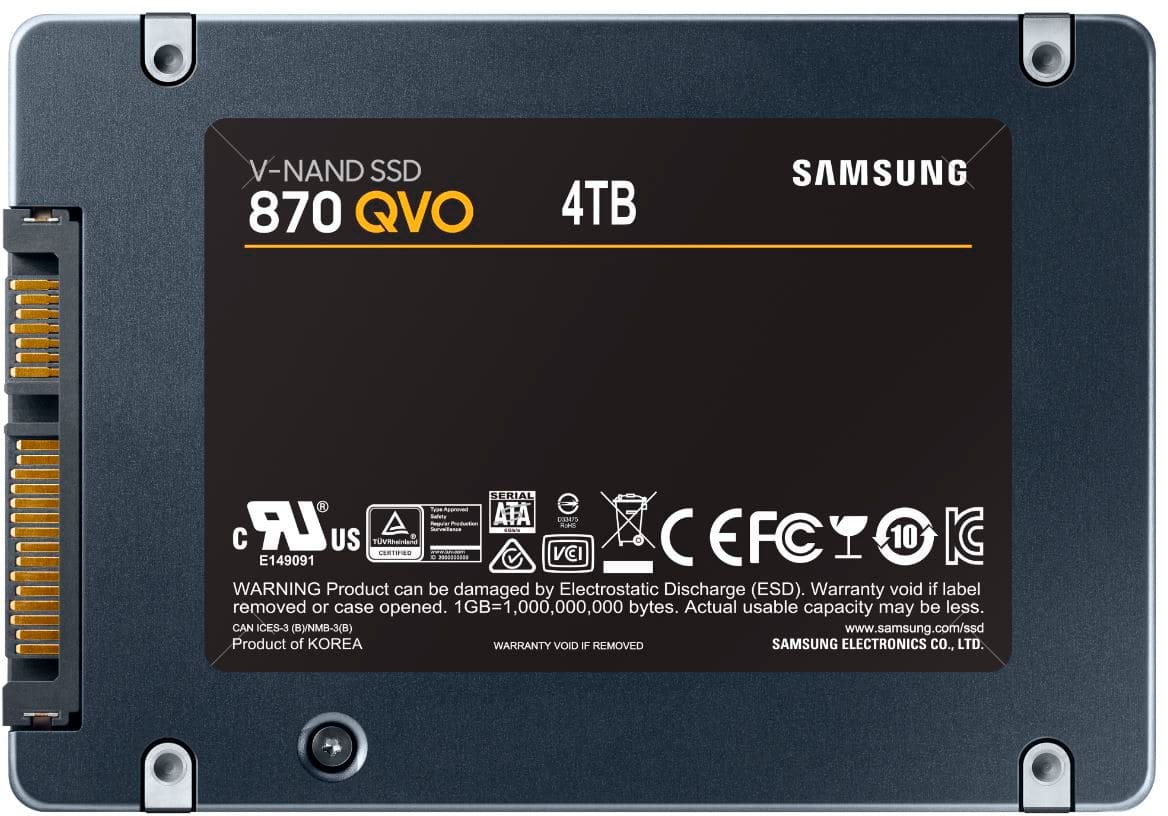
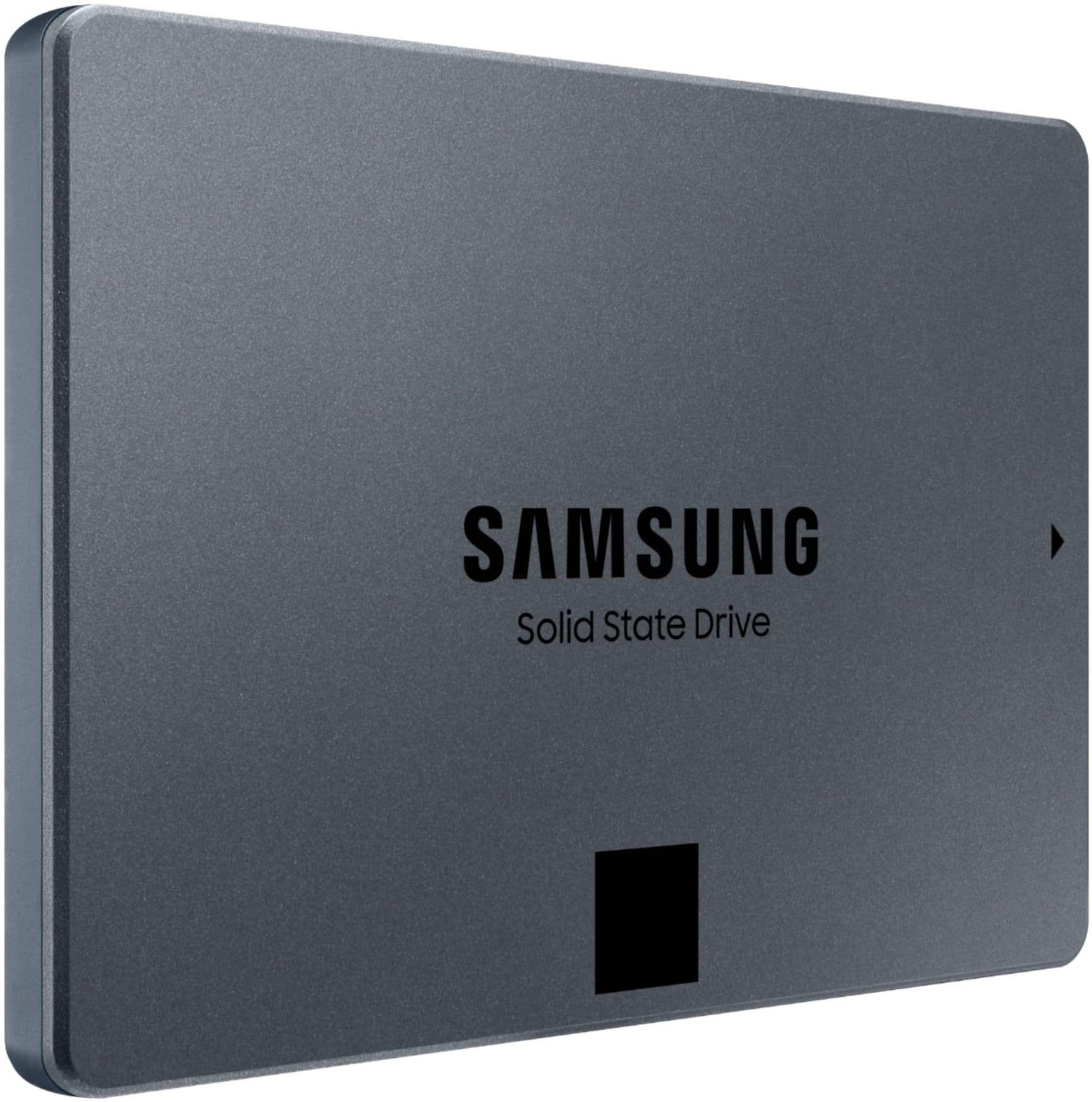
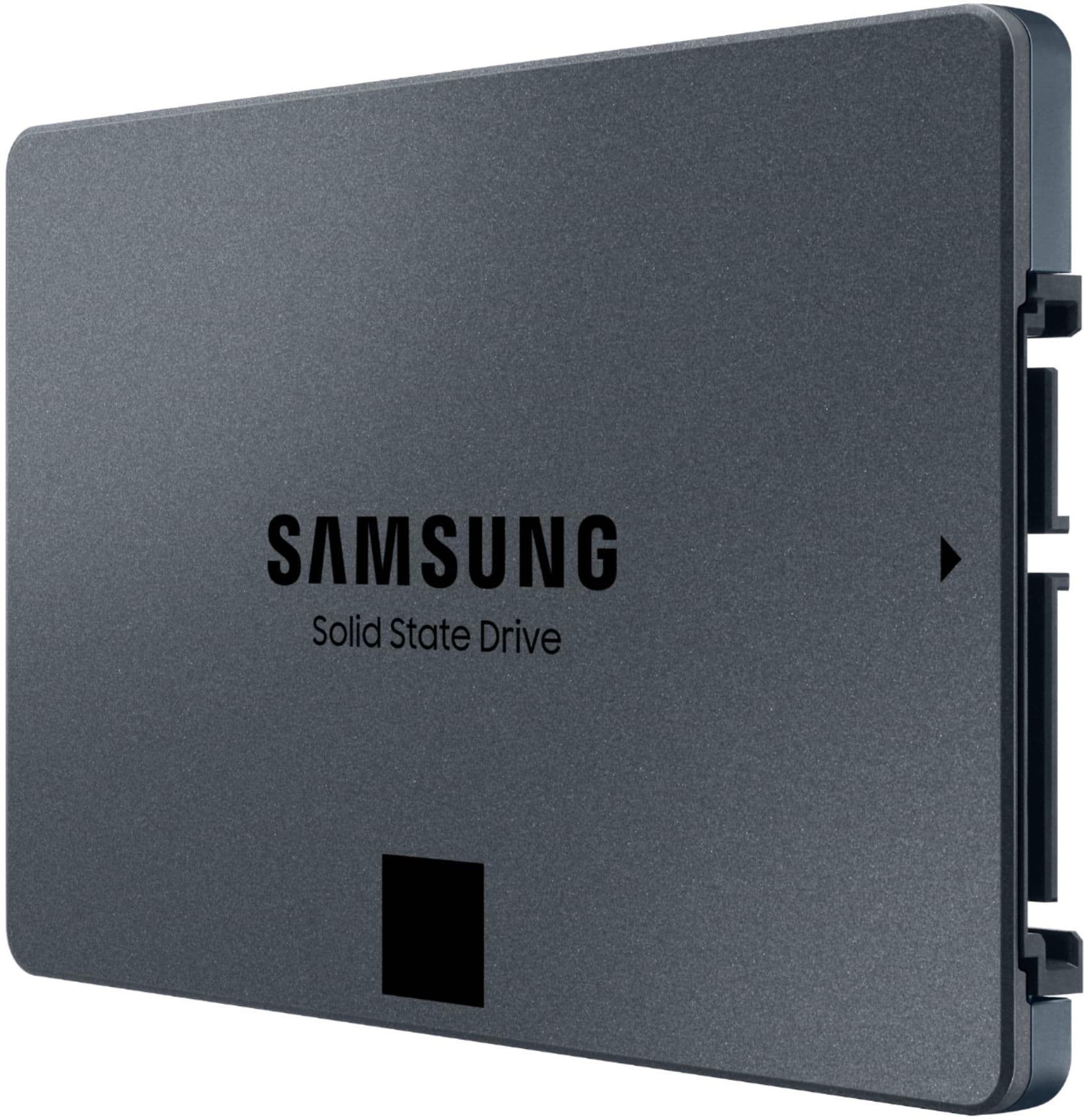
Customers admire the 870 QVO 4TB Internal SSD SATA for its substantial storage capacity, enabling them to store large amounts of data and extensive game libraries. The drive's performance is also frequently praised, with users noting improvements in system speed and reliability. Furthermore, customers find the installation process straightforward and the price reasonable for the storage space provided. Overall, the positive feedback highlights the drive's value proposition in terms of performance, capacity, and ease of use.
This summary was generated by AI based on customer reviews.
Good price.
Posted .This reviewer received promo considerations or sweepstakes entry for writing a review.I have not installed it yet but I believe I got it for a good price.
I would recommend this to a friendSSD not appearing
Posted .This reviewer received promo considerations or sweepstakes entry for writing a review.Already have the 1TB version of this product; expected this 4TB to perform as a plug in External harddrive as the 1TB --It does Not. Tried to use with a dock, only the 1TB was ever recognized. Changed ports and short of trying a reformat it continues to find No drive.
No, I would not recommend this to a friendBrand response from Samsung
Posted .user127736:
I’m sorry for the difficulties you’ve experienced with your 870 QVO SSD. We completely understand your frustrations, and we are here to help.
There are a few things you can check.
1) Disconnect the SATA cable and try again, making sure it is properly connected
2) Make sure the SATA connector on the board does not contain any debris, or is not damaged,
3) Replace the SATA cable and try again,
4) Connect the SSD to a different SATA port - either a regular port or expansion port,
5) If the SSD is properly connected, but does not show in the drive selection, try these steps - right click My Computer > select Manage > select Storage > click Disk Management > make sure that the disk is set up properly. Also make sure that the disk is enabled and set as a Dynamic Disk,
6) Lastly, connect the SSD to a different computer to check if there is a problem with the SSD itself.
Should you need further assistance with your drive, please contact Samsung Customer Support, and a representative will gladly assist you with a solution or warranty service.
1) Call: 1-800-SAMSUNG (ask for Memory or press #, then 6 for Memory products)
Available 9AM – 9PM EST (Mon-Fri)
2) Email: [email protected]
3) Or visit us on the Samsung website and click on the SUPPORT link in the upper right corner of the homepage for:
a) Chat with Us/Product Help: To begin a chat or find solutions, choose ‘Computing – Memory & Storage’ and select your model & topic.
b) Manuals & Software
c) Warranty Info
d) Contact Us
Samsung is committed to providing the best possible product experience, quality, and value, and we are always here to help with any of your questions or concerns.
~ Samsung Memory