Customer Ratings & Reviews
- Model:
- ARCHER C5
- |
- SKU:
- 7644059
Customer reviews
Rating 4.2 out of 5 stars with 30 reviews
(30 customer reviews)to a friend
Customers are saying
Customers appreciate the Archer C5 AC1200 Dual-Band Wi-Fi Router's ease of use and strong, reliable WiFi signal. Many found setup to be quick and straightforward. Positive feedback highlights the router's ability to handle heavy internet traffic and provide a wide range. There were no reported negative comments.
This summary was generated by AI based on customer reviews.
- Pros mentioned:Ease of use
Rated 5 out of 5 stars
Excellent streaming
||Posted .This reviewer received promo considerations or sweepstakes entry for writing a review.Came with great directions. Easy set up; works great!
I would recommend this to a friend - Pros mentioned:Setup
Rated 5 out of 5 stars
Easy setup left plenty of energy
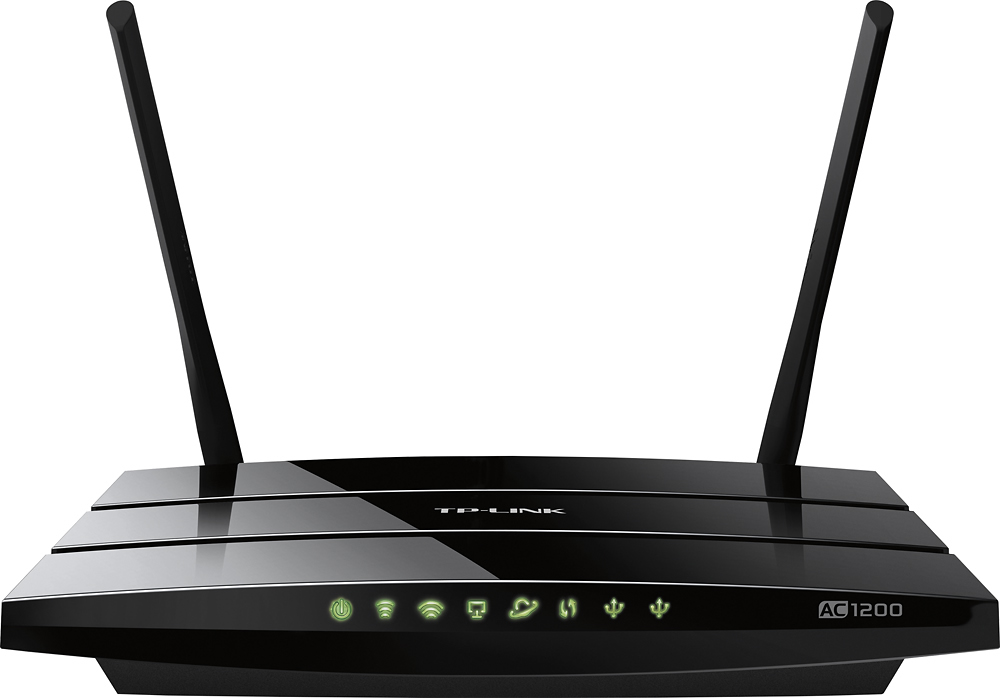
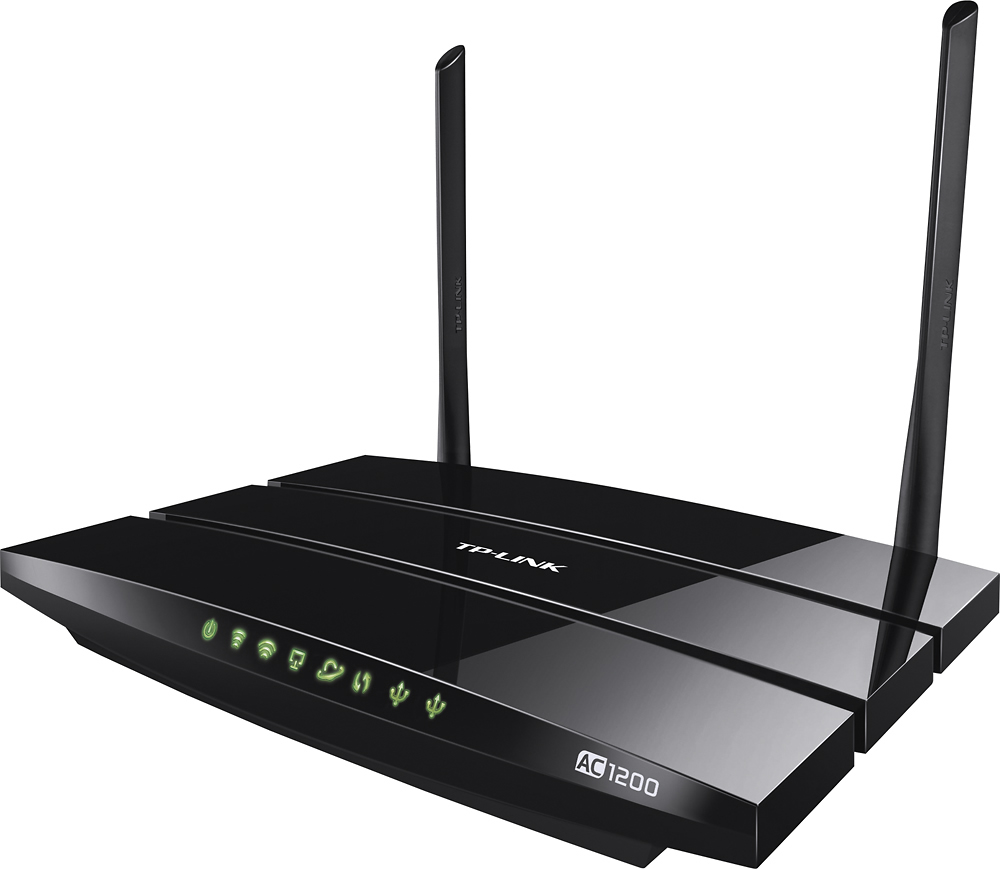
Posted .This reviewer received promo considerations or sweepstakes entry for writing a review.We have had issues with "dead zones" since moving into our condo eight years ago. It has been maddening. We've tried a variety of routers (D-Link, Netgear, Linksys, & TP-LINK) to solve the problem and made very little headway. Prior to the TP-LINK Archer C5 AC1200 we were using the TP-LINK TD-W8960N which is a modem/router with two antennas. It was a vast improvement over the wireless D-Link router sold by AT&T but the "dead zones" were still a big problem. So, we added two TP-LINK AV500 Range Extenders. They partially solved our issues but not entirely. When the TD-W8960N began frequently dropping the signal we were torn between changing over to cable or trying yet another set-up with our current DSL service. We decided to give the TP-LINK Archer C AC1200 a try based on the specifications alone. There were no active reviews at the time. But we felt that, at the very least, it would pair well with the range extenders on hand. We purchased the TP-LINK ADSL2+ Modem/Router ($25) to use with the TP-LINK C5 AC1200. Initial impressions: --Easiest setup ever! (and believe me when I say that we've set-up many routers spanning most of the brands) --Great range-we are now getting reception in every room of our 2,200 sq. foot condo, without using the extenders, for the very first time in eight years --Lots of features-3 external antennas, 4 gigabyte wired ports, 2 usb ports for back-up and file sharing, guest network, TP-LINK Tether app (Apple & Android), Dual bands (2.4 Ghz & 5 Ghz) --Nice sleek look We used the quick installation guide which made getting this router up and running a breeze. It took less than 15 minutes total. There is a mini CD for those who might choose to use it. Not only does it include the Easy Setup Assistant, it has instructions on setting up an FTP server to access your files remotely. (We don't plan to use this function but some might be interested) You'll want to keep the quick guide on hand as it has answers to FAQ along with instructions on how to restore the router to factory default settings which could be necessary if ever you forget your password or have other complex issues. Although we haven't had need of it yet, TP-LINK offers 24/7 unlimited technical support. On the box you'll find a toll-free number and email address. It appears that this router comes with a 2 year warranty which is something that we hope we'll never need but will keep in the back of our minds. You'll need the user name and password (used to set up the network) to sign in to the TP-LINK Tether app which can be downloaded in the Apple or Google store depending on your mobile platform. It allows you to see all of the devices connected to your network. You can block any that aren't welcome as well as set up safety settings for children. We don't currently have any kids in the house but using the app will still come in handy for checking up on the network. For now we are using this router just as it came out of the box. We've connected every device that we own with no issue. That, in and of itself, was a great feeling. It is possible that in time we will change a channel to further tweak things if the need arises. Our speed tests on multiple computers provide evidence that the TP-LINK Archer C5 has been a serious upgrade for our household. It will obviously only work as fast at your DSL connection but for us the change, not only in speed but signal strength, has been noteworthy. We are happy to now be able to stream Netflix and Amazon videos in HD without buffering and or low connectivity messages. And, I'm delighted to finally be able to use my laptop in my office after years of trying many other products to bring connectivity upstairs unsuccessfully. Adios "dead zones", you won't be missed!
I would recommend this to a friend Rated 4 out of 5 stars
Works Well
||Posted .This reviewer received promo considerations or sweepstakes entry for writing a review.Bought this router for my home. I Read reviews for it and decided to give it a try. It's been a good router so far. No problems!
I would recommend this to a friendRated 5 out of 5 stars
TP Link Archer Wireless Router
||Posted .This reviewer received promo considerations or sweepstakes entry for writing a review.Set up easy; dual band network; works well; good penetration
I would recommend this to a friendRated 5 out of 5 stars
Solid mid-range access point that's nearly perfect
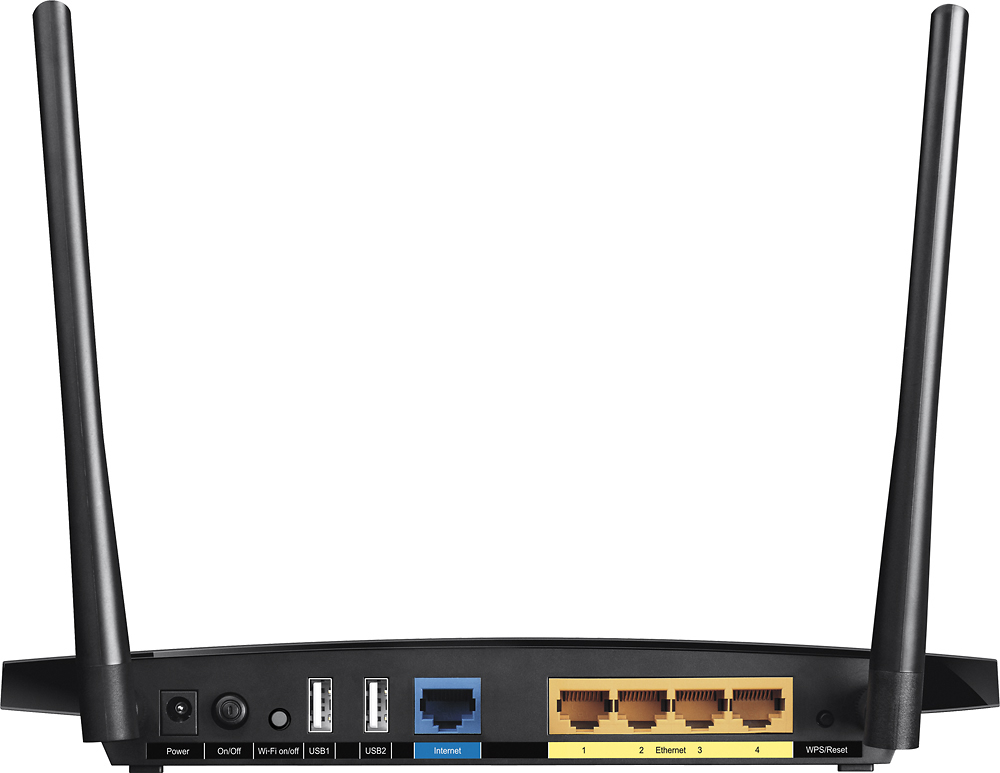
Posted .This reviewer received promo considerations or sweepstakes entry for writing a review.PROS: + Relatively inexpensive for the specs + All Gigabit Ports + Six antennas (3 external, 3 internal) + Dual Band Support (2.4GHz + 5GHz) + Dual USB 2.0 Ports (For Printer/Storage) + FTP Server + Guest Mode + Easy Setup and Configuration + Fast AC speeds + Excellent range + 2 Year Warranty + Mobile App + Lots of Advanced Features CONS: - No "Access Point Only" Mode - Firmware Update Process - WPS Button Location I've owned countless Access Points from virtually every manufacture, except TP-Link. So I was eager to give it a try and see how it works in my hands. I'm currently using another Buffalo AC access point with nearly identical wireless specs as well. OUT OF THE BOX / SETUP The packaging is pretty much as you'd expect from an access point these days. You've got the Archer C5 router itself, power adapter, 3 ft network cable, mini-cd, quick start guide. The setup guide makes things even easier, if you choose to follow it, giving you multiple options. I choose the physical network connection option as I tend to find that easiest. Plug everything in, go to the setup website, and click the Quick Setup button as instructed. It'll take you through a few quick screens to setup wireless, which mode you want, and that's it. For the majority of folks connecting this to your Cable/DSL modem, you're done. Simply connect to your new Access Point or make use of the "WPS" button to easily pair devices that support this feature. Unfortunately the small WPS button is located on the back of the device, and also doubles a reset button if you hold it down too long. ADVANCED FEATURES If you want to take it further, there are several nicely laid out menu options. I'm a big fan of this type of menu as it has everything in one column on the left. The middle column is where you make actual changes. Right column has a detailed explanation of what everything done. It's simple and very effective. No more digging through layers of menus just to find a hidden setting. This is where you can play with things that require anywhere from beginner to advanced technical skills. The most common will be Guest Network, USB Settings, and Parental Controls. Guest works as it usually does, with a few extra features in the Archer C5. You can select exact day/time for it to be available as well as limit bandwidth, if you'd like. Most interesting is the USB settings, with regards to folder sharing. You can actually setup an externally accessible FTP server by simply checking a box. Basically, this allows you to remotely access the files you choose from virtually anywhere that has network access. And that's about as easy as it's going to get to do this. There are countless other advanced features for those who are both technically inclined and even have a use for them. Need Dynamic DNS, remote web management, Access Controls, static routing, or port forwarding? Not a problem. This router can handle it. ACCESS POINT MODE Basically, it's missing. Most modern access points are setup in "bridge mode" by default, as that's how most folks are going to use it. Connected to a Cable/DSL modem. But what if you already have a good router or a server that handles things like DNS, DHCP, and other similar stuff? For that, you'd want to enable "Access Point Only" mode. It turns off all of the extra stuff on your router and makes it work as a Wireless Access Point only. It's like a "wireless network hub." The work-around is to simply NOT use the WAN port and plug your existing network into one of the 4 LAN ports. Turn off DHCP, setup the LAN with a static IP, and that's it. You could technically not do any of this and it would work; but then you're Wireless network will be on a separate subnet with different IP range, etc. Which would further complicate things. And yes, we are in fact getting technical here, but the point is that it should be easier. FIRMWARE UPDATE & BUGS I always suggest updating the firmware on any router. Most these days allow you to easily do this via the web interface by the simple click of a button. This router requires you to go to the TP-Link website, download a file, extract it, and then you can go back to the web interface to select and perform the upgrade. While hardly complicated, it is something you're average user may decide to avoid. Which could be problematic as the firmware update noted several improvements & fixes, especially for Xbox and PS console where it resolves connectivity issues. Another negative was that the firmware update resulted in a factory reset. Not a big deal if you have a simple setup or did a backup first (another bonus feature). I also noted a random message indicating it was updating the RT-N56U firmware, not TP-Link AC1200. It's just a cosmetic bug that was never seen again; but does indicate I'm probably seeing left-over ASUS code. Just interesting at the very least as they may even be using some ASUS hardware in there. ASUS makes excellent routers as well. PERFORMANCE I mostly focus my testing on the 5GHz band as there is far less interference and it has the best performance. If you want anywhere near advertised speeds, you'd better make sure you have an AC-capable device running on 5GHz, not 2.4. I tested multiple devices, but I'm mostly focusing on my Microsoft Surface Pro 3 and Galaxy Note 3 phone. The Surface was able to maintain max "867Mbps" connection speed (not transfer rate) within about 6ft or so of the device. Any further and the connection speed will start to drop. Obviously connection speeds aren't super relevant as actual use is considerably lower. Not to mention, your results WILL vary. So for my real-world testing I basically just copied large files (MKV's) while walking around the house with my SP3 in hand. File transfer speeds varied anywhere from 15MB/s to nearly 40MB/s at it's peak transfer rate. Keeping in mind the lowest transfer speed was nearly 100ft away with multiple walls and doors in the way. For my phone I simply ran the Speedtest.net app and it quickly hit 150Mbps on a 200Mpbs connection. The phone only supports 802.11n, so it's going to be slower. But for my uses, that's more than fast enough. NOTE: If you have devices that support faster AC speeds (as well as a need for such a thing), check out the more expensive Archer C7 and C8 routers. They both will handle a max of 1300Mbps connection speed. Although this device has been more than fast enough to handle 1080p MKV HD video streaming to my TV's, Mobile Devices, & Media Centers. CONCLUSION Overall I've found both the speed and distance to be noticeably faster and more reliable than the Buffalo access point. The setup is about as straight forward as it gets. And it has a ton of advanced features for those who want to use it in bridge mode. Since there is an obvious work-around for missing "Access Point Only" mode and the firmware issue tends to be a "one time" issue, I'm really considering them relatively minor cons. I've decided that for the first time, I can finally give an AC router a passing grade. Although I still hope a firmware update addresses those issues. Overall, I'm going to give this 4.8 stars and consider it highly recommended.
I would recommend this to a friendRated 1 out of 5 stars
No working good!
||Posted .This reviewer received promo considerations or sweepstakes entry for writing a review.When I'm at the room the route Signal not good at all. If got the wall behind!
No, I would not recommend this to a friendBrand response from TPLinkSupport
Posted .Hello Marcus,
Thank you for your review and feedback.
Due to the symptoms described, you may be experiencing Wi-Fi congestion.
To remedy this, we typically recommend adjusting the Wi-Fi channel settings on your router, which can be done within the router's management interface.
Our Support Team is always available and we'd be delighted to help you. Please feel free to e-mail us anytime using the address below, and we'll gladly follow up with you.
Best Regards,
TP-Link Support Team
(866) 225-8139
[email protected]
Rated 1 out of 5 stars
very low distance range
Posted .This reviewer received promo considerations or sweepstakes entry for writing a review.I'm no network guru, so when I was having poor performance when I installed this router, I called Tech Support. They walked me through changing my channel and I did an Oookla speed test with my laptop right next to the router and was getting over 40MBs download speed. When I walked 2 rooms over (about 50 ft from the router, response time was so bad I timed out. When I did get it to work it was 1-2 MBs. This was considerably less than the router I was trying to replace. Tech Support said this is common with routers to lose speed with distance and there was nothing they could do for me. Of course I know throughput decreases with distance, but this was unacceptable. I was disappointed after reading the good reviews. Returning it.
No, I would not recommend this to a friendBrand response from TPLinkSupport
Posted .Dear Chasman55,
Thank you for taking the time to review our product.
We are sorry to hear that you are experiencing these persistent issues with our router.
At this time, we would appreciate the opportunity to follow up with you to discuss further details regarding your case.
Once you have a moment, please send us an email including your contact information along with a copy and paste of your review to the email address provided below and one of our support agents will happily reach out for further assistance.
We look forward to working with you soon.
Best Regards!
TP-LINK Support Team
866) 225-8139
[email protected]
Rated 4 out of 5 stars
Solid router for a small space
Posted .This reviewer received promo considerations or sweepstakes entry for writing a review.This worked for me in my older junior 1-bedroom studio but as I upgraded to a new home it didn't quite work out that well.
No, I would not recommend this to a friendRated 1 out of 5 stars
Not good at all, No reliable
Posted .This reviewer received promo considerations or sweepstakes entry for writing a review.My son and I reviewed all details, then he bought and gave me as Gift in new year. This router is not reliable at all. continuously wi fi disconnecting and Im really tried of pushing on/off bottom. Also, there is no "Direction" in User Guide how to fix the problem. Also, the User Guide is USELESS because it is 133 PAGES, who really have time to read it, when simple Problem Soinng are not given
No, I would not recommend this to a friendBrand response from TPLinkSupport
Posted .Hello Kevin,
Thank you for your review and feedback.
Due to the symptoms described, our Support Team would appreciate the opportunity to follow up with you in order to properly address this concern.
At your earliest convenience, please send an e-mail including your contact details to our Support Team at the address below so we may have a Support Agent follow up with you for assistance.
Please reference case number 170124-057267.
We thank you again for your feedback and hope you’ll continue to consider TP-Link for your future network needs.
Best Regards,
TP-Link Customer Support
(866) 225-8139
[email protected]
Rated 1 out of 5 stars
Don't do it
Posted .This reviewer received promo considerations or sweepstakes entry for writing a review.Garbage. Constantly losing connection. Got a Netgear after this one and I'm a happy camper.
No, I would not recommend this to a friendBrand response from TPLinkSupport
Posted .Hello,
Thank you for providing feedback regarding your recent experience with our router.
Our Support Team is always available, and we would've appreciated the opportunity to address any questions or concerns you had about our product.
For future reference, please feel free to contact our Support Team toll-free at the number or e-mail address below, and we'll gladly assist you.
Best Regards,
TP-Link Support Team
(866) 225-8139
[email protected]