Voicemail AT&T iPhone
-
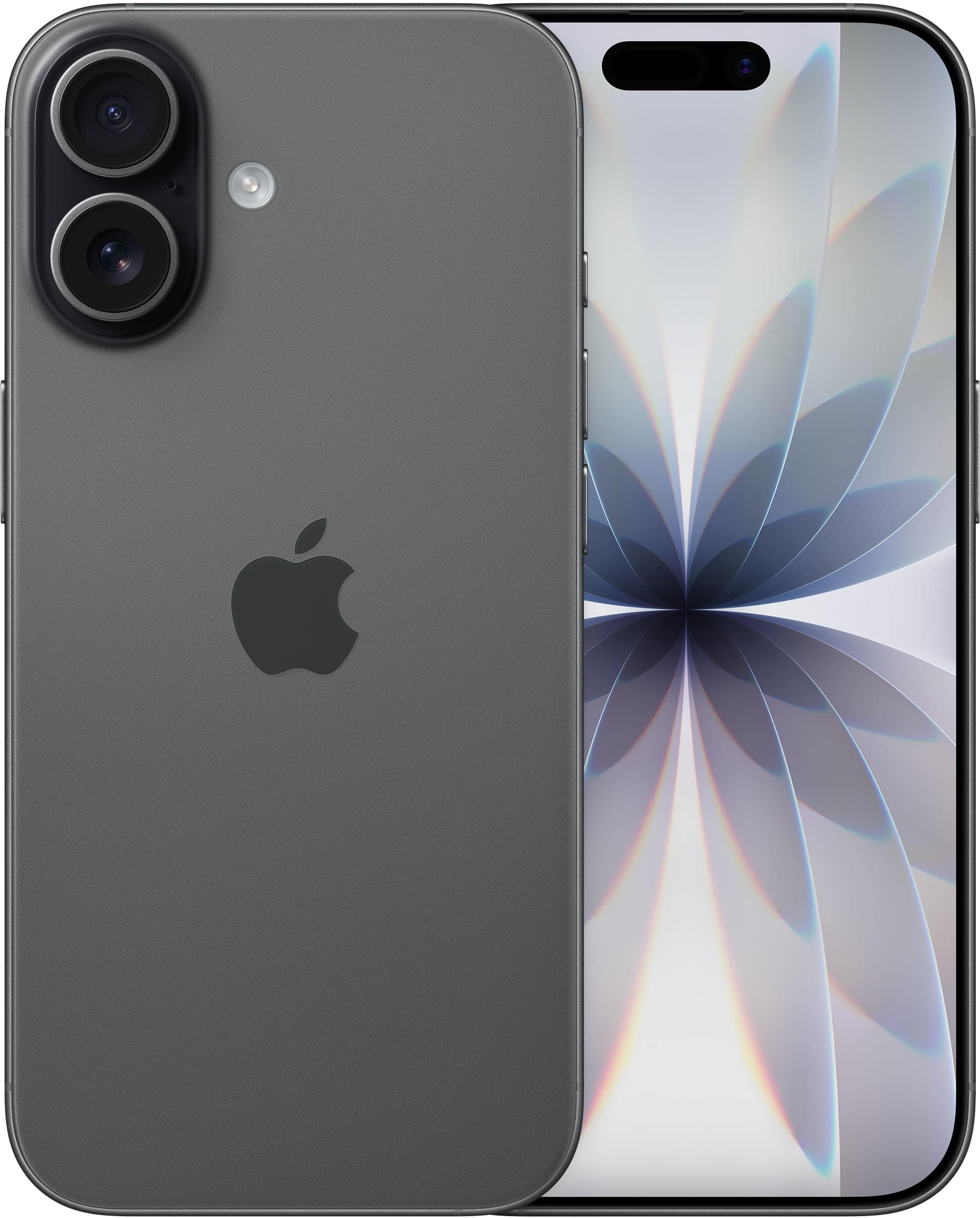
Apple - iPhone 17 512GB - Black (AT&T)
SKU: JCQ6HRG653Runs smooth, works great, love how they increased the refresh rate to 120hz.
See all All Cell Phones with PlansProduct Description
A sleek black smartphone featuring a 6.3-inch ProMotion display, 48MP cameras, and 512GB storage.Your price for this item is $1,129.99 -
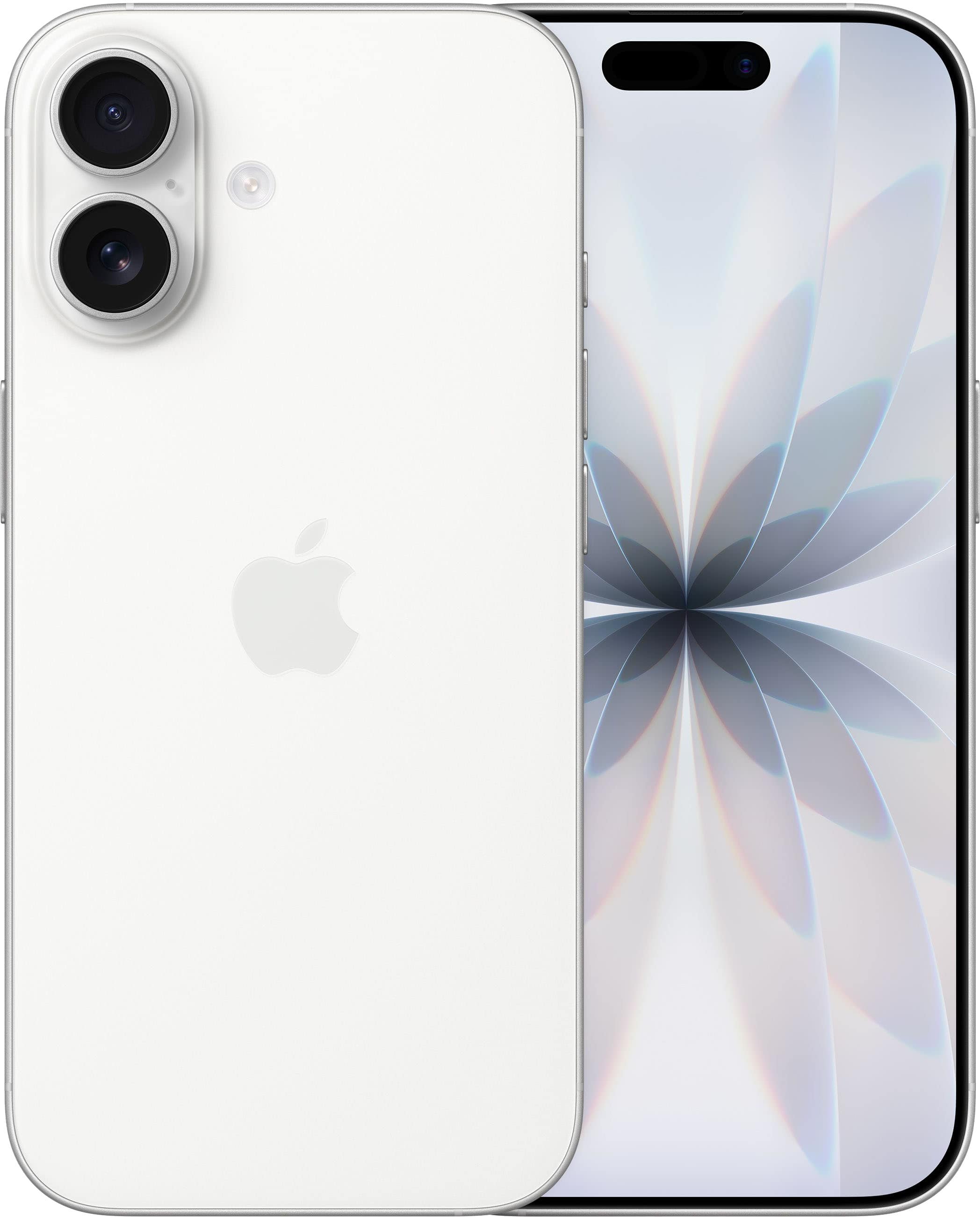
Apple - iPhone 17 512GB - White (AT&T)
SKU: JCQ6HRG659Great phone...Ordered the IPhone 17 from Best Buy because it was in stock available to ship where as ATT wouldn’t been...I love my new phone and very pleased with the purchase so far.
See all All Cell Phones with PlansProduct Description
A white smartphone featuring a 6.3-inch ProMotion display, 48MP cameras, A19 chip, and 512GB storage.Your price for this item is $1,129.99 -
Apple - iPhone 17 512GB - Sage (AT&T)
SKU: JCQ6HRG6VYGreat First Iphone
See all All Cell Phones with PlansProduct Description
A sage green smartphone featuring a 6.3-inch ProMotion display, 48MP cameras, and 512GB storage.Your price for this item is $1,129.99 -
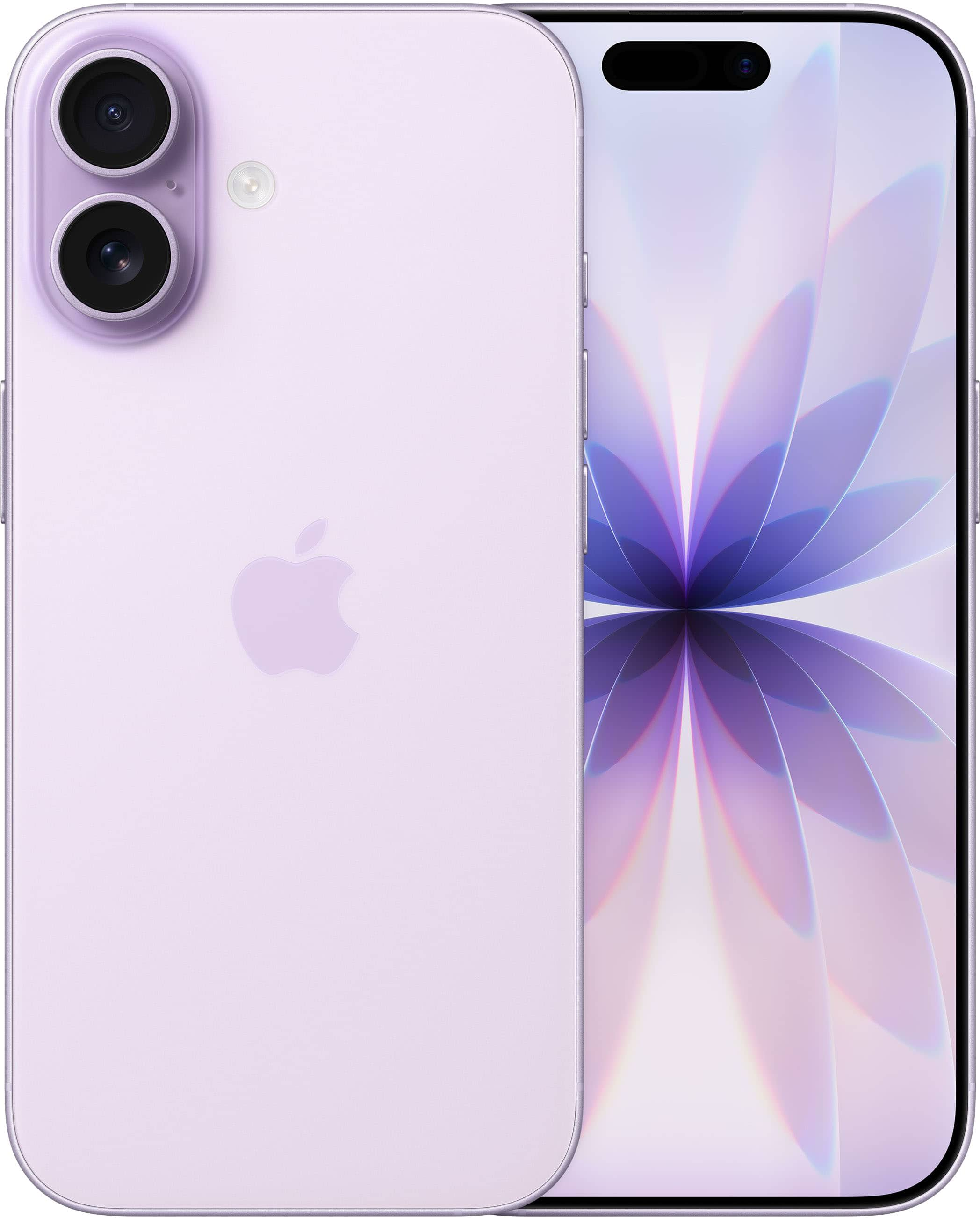
Apple - iPhone 17 512GB - Lavender (AT&T)
SKU: JCQ6HRG6FWSee all All Cell Phones with PlansProduct Description
A lavender smartphone featuring a 6.3-inch ProMotion display, 48MP cameras, A19 chip, and 512GB storage.Your price for this item is $1,129.99 -
Apple - iPhone 17 256GB - White (AT&T)
SKU: JCQ6HRG6Z7Great phone...Love this phone. Nice big screen, great battery life and picture quality is wonderful....Love it...Great phone! Would buy again Easy to uss. Fifty cbRact
See all All Cell Phones with PlansProduct Description
A white smartphone featuring a 6.3-inch ProMotion display, 48MP cameras, A19 chip, and iOS.Your price for this item is $929.99

Best Sellers






Related Pages




FAQ
To set up voicemail on your AT&T iPhone, open the Phone app and tap 'Voicemail'. Follow the on-screen prompts to create a password and record your greeting. If you need help, contact AT&T customer support or visit the AT&T website for step-by-step instructions.
Yes, Visual Voicemail is supported on most AT&T iPhones. This feature lets you view, listen to, and manage your voicemails directly from the Phone app. Make sure your device is running the latest iOS version and that Visual Voicemail is enabled in your AT&T plan.
To change your voicemail greeting, open the Phone app, tap 'Voicemail', then 'Greeting'. Choose 'Custom' to record a new greeting or 'Default' to use the standard greeting. Save your changes when finished.
If you're not receiving voicemail notifications, check that your iPhone has a strong signal and that Do Not Disturb is turned off. Also, ensure your iOS software is up to date. If the issue persists, try restarting your device or contacting AT&T support for assistance.
Yes, you can access your AT&T iPhone voicemail from another phone by calling your mobile number, pressing the star (*) key during your greeting, and entering your voicemail password when prompted.