How to choose the right HDMI cable length for your setup
Best Selling Products carousel(6 Items)
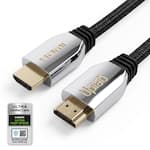
Your HDMI cable length actually matters
An HDMI cable is a digital audio‑video cable that connects devices like TVs, consoles, Blu‑ray players, pcs and soundbars. All HDMI cables use the same plug shape, but they differ in speed rating (i.e., how much data they can carry) and build quality.
For most buyers, the confusion is not “will it fit?” but rather, “will it handle 4K, HDR and my refresh rate?” Knowing the differences between 4K and 8K HDMI cables is just the beginning. There are many other nuances and factors in distinguishing different types of HDMI cables, including length.
Cables are often marketed as “HDMI 2.0” or “HDMI 2.1,” but technically cables are defined by speed, not version. The good news: HDMI 2.0 and HDMI 2.1 cables are interchangeable in terms of plug and basic compatibility, with 4K HDMI 2.0 offering a solid bandwidth and refresh rate for standard HDR resolution, and 8K HDMI 2.1 cables providing a boost for ultrasharp resolution while maintaining a smooth picture for 4K. An Ultra High Speed cable will work in older HDMI ports; you just won’t get new features unless the devices support them.
How cable length affects performance
HDMI is digital, so the signal is either clean, or it starts to break up with sparkles, dropouts or no picture at all. HDMI cable length matters because longer runs weaken the signal, especially at higher resolutions and refresh rates.
Shorter cables (1–3 m) are generally very reliable for 4K and HDR. As the run gets longer, some common issues can appear:
- The display may randomly lose signal
- The source may fall back from 4K to 1080p
- HDR might not engage properly
- High refresh rates like 4K 60Hz or 120Hz may fail
To choose the right HDMI cable length for your TV setup, measure the full route the cords will take — not just the straight-line distance. Start at the HDMI port on your source device, then trace the path to the TV, including any turns around furniture, behind the TV or through wall channels/raceways. If you’re routing through cable management best practices like using clips, wall trays, cable concealers or an under-desk organizer, measure along those guides as well.
Next, add a small buffer — about 20–30 cm — so the cable isn’t stretched tight and you can comfortably connect or disconnect devices. Finally, double-check that the cable will reach with slack for cable management and safe routing (especially if you’re avoiding sharp bends near the connectors).
- Map the path the cable must take (around furniture, behind TVs and along walls)
- Measure that path, not just the straight‑line distance
- Add a small buffer (typically 20–30 cm) so the cable is not stretched tight
Avoid buying an unnecessarily long HDMI cable “just in case.” Extra length increases clutter and can make it harder to maintain a strong signal at 4K, especially over 60Hz.
When cable management matters
Cable Management is more than aesthetics. Neatly routed HDMI cables and cords:
- Prevent strain on ports, reducing the chance of damage
- Make it easier to troubleshoot and swap devices
- Keep power and data cables separated where needed
- Reduce trip hazards and clutter around TVs and desks
Cable management especially matters when:
- You’re wall‑mounting a TV and need to hide a 4K HDMI cable behind or inside the wall
- You have multiple HDMI cables behind a gaming setup or home office
- You’re using longer runs to a projector or across a room
The closer you buy to the “right” length, the easier everything is to route cleanly
What HDMI cable you’ll need for 4K or 8K
Standard vs high speed vs premium high speed
Modern HDMI cables are grouped by speed. For reference, you should also know their optimal use case scenarios:
- Standard HDMI: designed for older 720p/1080i content. Not recommended for 4K setups
- High speed HDMI: suitable for 1080p, 3D, and in many cases basic 4K at 30Hz. Many older “high speed HDMI cables” will struggle with 4K 60Hz plus HDR
- Premium high speed HDMI: tested to handle 4K 60Hz with HDR and wider color. Look for Certified Premium High Speed HDMI labels or QR codes. This is the safest choice for most 4K TVs, streaming boxes and consoles running at 4K 60Hz
When Ultra High Speed HDMI 2.1 is necessary
Ultra High Speed HDMI cables are designed for the latest HDMI 2.1 features, including:
- 4K at 120Hz (ideal for next‑gen gaming)
- 8K resolutions (often up to 8K 60Hz)
- Variable Refresh Rate (VRR), Auto Low Latency Mode (ALLM)
- Enhanced audio return channel (eARC) features
You should choose a Certified Ultra High Speed HDMI cable when:
- You have a PS5, XBOX Series X|S or a high‑end gaming PC and a TV/monitor that supports 4K 120Hz
- You’re connecting an 8K HDMI display or planning ahead for 8K
- You want full HDMI 2.1 feature support between your AV receiver and TV
Again, the plugs are the same, and Ultra High Speed cables work fine with older HDMI devices. You don’t need Ultra High Speed just to watch 4K 60Hz streaming on an ordinary TV, but it can be a smart “future‑proof” buy if cable length is short and price is reasonable.
Common device examples: TV, console or monitor
For most everyday setups, here’s what typically works well:
4K TV + streaming box / Blu‑ray player
Use a Certified Premium High Speed HDMI cable. Length: as short as comfortably reaches (often 1–2 m if devices sit under the TV).
4K TV + PS5 / XBOX Series X|S (gaming at 120Hz)
Use a Certified Ultra High Speed HDMI. Length: 1–3 m if console is in the same cabinet or stand.
PC to 4K monitor
For 4K 60Hz, a Certified Premium High Speed or Ultra High Speed cable 1–3 m long is usually ideal. For higher refresh rates (144Hz), many users prefer DisplayPort, but high‑quality Ultra High Speed HDMI can also work if both devices support it.
AV receiver or soundbar to TV (ARC/eARC)
Use the best cable in your system here—usually a short Certified Premium High Speed or Ultra High Speed cable—since this link carries both audio and video.
Projector across the room
If the run is more than about 5–7 m, consider an active HDMI cable or fiber solution rather than a standard passive one.
How HDMI cable length affects signal quality
Short runs and passive copper cables
For short distances, a simple passive copper HDMI cable is all you need. Typical guidance:
- For up to about 3 m, even modest High Speed HDMI cables can often manage 4K 60Hz
- For 3–5 m, choose a good‑quality Certified Premium High Speed HDMI cable for reliable 4K HDR
To avoid trouble, don’t push passive cables to the limit. If you’re close to 5 m and running 4K 60Hz with HDR, lean toward a higher‑quality or Premium/Ultra High Speed option rather than a generic untested cable.
When longer runs need active HDMI
As HDMI cable length gets longer, especially beyond roughly 5–7 m for 4K, passive copper cables can struggle. This is where active HDMI cables and extenders come in.
An active HDMI cable has built‑in electronics that boost the signal:
- Better for longer distances, often 7–15 m or more, depending on quality and specification
- Usually directional (marked “source” and “display”), so install them the right way around
- Thinner and more flexible options exist, which help with routing through tight spaces
If your long run still causes problems, or you need to go much farther (for example, to another room), you can use HDMI extenders that run over network cables or via fiber, with transmitter/receiver boxes at each end.
Why fiber optic HDMI works for very long distances
For very long runs, especially where you need 4K or even 8K HDMI, fiber optic HDMI cables shine:
- They convert the HDMI signal to light inside the cable, greatly reducing signal loss
- Distances can extend far beyond standard copper—tens of meters in length are common
- The cable is often thinner and more flexible, ideal for tight routes to a projector or through conduits
Things to know:
- Fiber HDMI is usually directional—pay attention to “Source” and “Display” ends
- It costs more than basic copper, so it’s best reserved for genuinely long runs or in‑wall / ceiling installations where you want a one‑time, reliable solution
If you’re planning a permanent long route (for example, from an AV rack to a ceiling‑mounted projector), fiber HDMI or an HDMI‑over‑fiber extender is often the most robust approach.
Cable management tips for cleaner HDMI runs
Avoiding tight bends and strain
Good cable management starts with how you physically treat the cable. Some tips:
- Don’t bend HDMI cables sharply; aim for gentle curves rather than tight 90° angles
- Avoid pulling or hanging heavy devices directly from the HDMI port—this can damage both the port and the cable
- Leave slack so devices can move slightly without tugging on the connectors
A general rule is to keep the bend radius at least a couple of times the cable’s thickness. For very stiff or active/fiber HDMI cables, be especially careful not to kink them.
Routing cables near walls, desks and TVs
When you plan HDMI cable length, think in detail about the route:
- For wall‑mounted TVs, measure from the TV down to the equipment shelf, including any turns into wall channels or raceways
- Use cable raceways, wall clips, or under‑desk trays to guide cords neatly along walls and furniture
- If possible, cross power cables at right angles rather than running them tightly parallel for long distances
If you’re running HDMI cables in-wall or through ceilings, choose an in-wall rated HDMI cable (or a solution specifically approved for in-wall use). Plan the route so you can access or replace the cable later — use a conduit, raceway, or an access point where possible for future upgrades.
For easier troubleshooting, label both ends of every HDMI cable (source side and TV/receiver side) so you always know which device each connection belongs to.
Keeping Excess Length Organized
If you must buy a slightly longer cable, avoid leaving a tangled mess behind your TV or desk:
- Coil the excess cable loosely (no tight loops) and secure it with soft hook‑and‑loop ties
- Use a small cable box or organizer behind your TV stand to hide coils and connectors
- Don’t tightly wrap HDMI cables around power bricks or surge protectors; keep some distance to reduce clutter and potential interference
In many cases, buying the next size down and planning the route carefully will reduce the amount of excess length you need to hide.
FAQ about HDMI cable length and compatibility
How long is the longest HDMI cable?
There is no single official maximum length, because it depends on:
- Cable quality and construction
- Resolution and refresh rate (1080p vs 4K 60Hz vs 8K)
- Whether the cable is passive, active, or fiber
For 1080p, many passive cables can work reliably beyond 5–10 m. For 4K 60Hz with HDR, runs beyond roughly 5 m are more sensitive. Many people find 3–5 m to be a safe zone for passive cables and turn to active or fiber cable solutions beyond that.
If you need to run HDMI more than several meters, plan for either a high‑quality active cable, a fiber HDMI cable or HDMI extenders rather than relying on a very long, cheap passive copper cable.
Does HDMI Cable Length Impact Picture Quality?
Length doesn’t gradually “soften” the image like old analog cables; instead, with HDMI you can get a perfect digital picture if the signal is strong enough. If it’s not, you can see sparkles, random dropouts, audio cuts or total loss of signal. In some cases, devices may fall back to a lower resolution or disable HDR to maintain a stable connection over a long HDMI cable.
So while there’s no “slightly worse” digital picture, too much HDMI cable length can prevent you from getting 4K, HDR or high refresh rates reliably.
Should I Choose Active or Fiber Optic HDMI?
To help with the decision about active HDMI vs. fiber optic HDMI vs. passive copper HDMI cables, reference this simple guide:
Passive copper HDMI
Best for short runs (up to a few meters) for 4K 60Hz. Inexpensive and reliable if you buy a Certified High Speed or Premium High Speed cable.
Active HDMI
Good for medium‑long runs where passive cables begin to fail. Ideal when you need a more flexible long HDMI cable without investing in fiber. Pay attention to direction markings.
Fiber optic HDMI
Best for very long distances, in‑wall or ceiling installations, and when you need the highest resolutions (4K HDMI 2.0 or 8K HDMI 2.1) over long runs. More expensive, but very robust if installed correctly.
In any case, choosing the best HDMI cable for the connection you’re trying to set up is less about getting the best price point and more about the right specs, ensuring that the cable’s build, materials and length matches your required speed and performance outcomes.