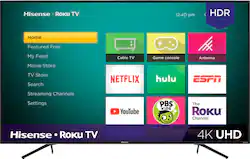
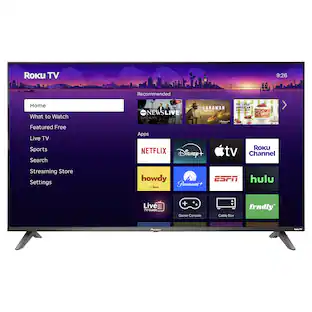
Hisense - 75" Class R7E Series LED 4K UHD Smart Roku TV
- Key Specs
- Display Type: LED
- Resolution: 4K (2160p) (Refers to the number of pixels, both horizontally and vertically, used to capture video/images. The higher the resolution the finer the detail that can be seen.)
- Screen Size Class: 75 inches (The group size measurement of a screen. This differs from a screen size measured diagonally from corner to corner.)
- High Dynamic Range (HDR): true (An HDR-compatible 4K TV or other HDR-compatible product displays HDR video content when it's available from sources like 4K Ultra HD Blu-ray Discs and 4K streaming services.)
- High Dynamic Range Format: HDR 10 (There are a few HDR formats that tell the TV or other HDR-compatible product how to best utilize its capabilities to display HDR content. HDR technology can support one or multiple formats, each with various benefits to picture quality.)
- LED Panel Type: Standard LED
- Backlight Type: Direct Lit (Edge-lit: lights are on the edges of the display with ~10 zones of vertical LEDs. Direct-lit: lights are on the edges and behind the screen for more light uniformity than Edge-lit. Full array: direct-lit with local dimming for greater contrast with up to 100 zones of LEDs.)
- Refresh Rate: 60Hz (The number of frames per second the device can produce natively without enhancement. Higher rates help produce smooth, seamless pictures.)
- Motion Enhancement Technology: Motion Rate 120 (Proprietary technologies produced in addition to the Refresh Rate that smooth out faster moving pictures to reduce blur and pixelation.)
- Specific Manufacturer Technologies: 4K Upscaling, Noise Reduction (This is technology that's specific to a TV brand (sometimes called proprietary technology). Here you'll see terms related to picture quality, brightness, processors and more.)
- Smart Platform: Roku TV (Just like a computer, a smart TV needs an operating system (also called a smart platform) in order to access the Internet, connect with entertainment apps, and play streaming content. Some common TV smart platforms are; Roku TV, Android TV, and Chromecast.)
- Featured Streaming Services: Apple TV+, Disney+, Hulu, Netflix, Prime Video, Sling TV, YouTube (Streaming services and other programs are available on this device. Keep in mind, there may be more services supported than just those shown here.)
- Number of HDMI Inputs (Total): 3
- Works With: Amazon Alexa, Google Assistant (Compatible with or able to be connected to other smart devices or applications.)
- Voice Assistant Built-in: No (A digital assistant built into the device that uses voice commands to answer questions and control smart devices.)
- General
- Brand: Hisense
- Model Number: 75R7E2
- Product Name: 75" Class R7E Series LED 4K UHD Smart Roku TV
- Color: Black
- Series: R7E Series (Part of a group of the same product type with similar features.)
- Model Year: 2018
- Dimensions
- Product Height With Stand: 40.9 inches
- Product Width: 66.1 inches (The out of box width of the item. Width is measured as the horizontal distance from one side of the item to the other as it would be primarily used or placed.)
- Product Depth With Stand: 13.5 inches
- Product Height Without Stand: 38 inches
- Product Depth Without Stand: 3 inches
- Product Weight With Stand: 57.1 pounds
- Product Weight Without Stand: 55.8 pounds
- Adjustable Stand Width: false (Whether the stand can adjust to have more than one measurement either between the legs or the base itself.)
- Display
- Display Type: LED
- Resolution: 4K (2160p) (Refers to the number of pixels, both horizontally and vertically, used to capture video/images. The higher the resolution the finer the detail that can be seen.)
- Screen Size: 74.5 inches (Size of the screen, measured diagonally from corner to corner.)
- Screen Size Class: 75 inches (The group size measurement of a screen. This differs from a screen size measured diagonally from corner to corner.)
- High Dynamic Range (HDR): true (An HDR-compatible 4K TV or other HDR-compatible product displays HDR video content when it's available from sources like 4K Ultra HD Blu-ray Discs and 4K streaming services.)
- High Dynamic Range Format: HDR 10 (There are a few HDR formats that tell the TV or other HDR-compatible product how to best utilize its capabilities to display HDR content. HDR technology can support one or multiple formats, each with various benefits to picture quality.)
- Picture Quality Enhancement Technology: HDR Compatible
- LED Panel Type: Standard LED
- Backlight Type: Direct Lit (Edge-lit: lights are on the edges of the display with ~10 zones of vertical LEDs. Direct-lit: lights are on the edges and behind the screen for more light uniformity than Edge-lit. Full array: direct-lit with local dimming for greater contrast with up to 100 zones of LEDs.)
- Curved Screen: false
- Refresh Rate: 60Hz (The number of frames per second the device can produce natively without enhancement. Higher rates help produce smooth, seamless pictures.)
- Motion Enhancement Technology: Motion Rate 120 (Proprietary technologies produced in addition to the Refresh Rate that smooth out faster moving pictures to reduce blur and pixelation.)
- Language(s) Displayed: English, French, Spanish (The available language options for displayed text or captions.)
- Features
- Remote Control Type: Standard
- Specific Manufacturer Technologies: 4K Upscaling, Noise Reduction (This is technology that's specific to a TV brand (sometimes called proprietary technology). Here you'll see terms related to picture quality, brightness, processors and more.)
- Smart Capable: true (Smart, or smart-capable devices are able to connect directly to your home network in order to stream content from the Internet, run Internet-based apps, or connect to other smart devices.)
- Smart Platform: Roku TV (Just like a computer, a smart TV needs an operating system (also called a smart platform) in order to access the Internet, connect with entertainment apps, and play streaming content. Some common TV smart platforms are; Roku TV, Android TV, and Chromecast.)
- Featured Streaming Services: Apple TV+, Disney+, Hulu, Netflix, Prime Video, Sling TV, YouTube (Streaming services and other programs are available on this device. Keep in mind, there may be more services supported than just those shown here.)
- TV Tuner: Digital (The ATSC TV Tuner is a component built into conventional TV sets or other devices for receiving over-the-air broadcast TV without a cable/satellite box. Digital tuners may be purchased separately and connected to a device if it does not have one built in.)
- Connectivity
- Number of HDMI Inputs (Total): 3
- RF Antenna Input: true (This input is used to connect devices such as antennas or cable boxes to a TV via a coaxial cable.)
- Number Of USB Port(s) (Total): 1 (The total number of USB ports including all generations and versions.)
- Headphone Jack: true (The device features an interface that allows for the connection of headphones.)
- Compatibility
- VESA Wall Mount Standard: 400mm x 300mm (VESA wall mount standards refer to the spacing of screw holes built into a TV in order to fit with standard TV wall mounts. These standards are implemented into most TVs and monitors.)
- Works With: Amazon Alexa, Google Assistant (Compatible with or able to be connected to other smart devices or applications.)
- Voice Assistant Built-in: No (A digital assistant built into the device that uses voice commands to answer questions and control smart devices.)
- Audio
- Built-In Speakers: true
- Speaker Output: 30 watts
- Power
- ENERGY STAR Certified: false (Devices carrying the ENERGY STAR service mark, such as computer products and peripherals, kitchen appliances, and other products, generally use 20% to 30% less energy than required by federal standards.)
- EPEAT Qualified: false (The Electronic Product Environmental Assessment Tool (EPEAT) was designed to provide an environmental assessment tool for purchasers. In order to qualify for EPEAT, a product must meet all 23 required criteria.)
- Estimated Annual Operating Cost: 61 United States dollars (Predicted cost of operating the product under average conditions for one year.)
- Estimated Annual Electricity Use: 508 kilowatt hours (Predicted amount of electricity needed to operate the product under average conditions for one year.)
- Rechargeable Battery (Remote Control): false
- Included
- Stand Included: true
- Box Dimension
- Height: 38 inches
- Width: 66 inches
- Depth: 3 inches
- CubicDimension: 7524 inches
- Other
- UPC: 819130025551
Explore multiple streaming applications for limitless entertainment with this 75-inch Hisense 4K UHD smart Roku TV. The HDR-compatible technology boosts color and contrast for stunning definition, while the voice-controlled remote offers simple operation. This Hisense 4K UHD smart Roku TV features Motion Rate 120 technology for smooth visuals during fast-paced scenes.

- 74.5" screen: Large enough to provide an immersive experience for everyone in the room.
- 2160p resolution for breathtaking HD images: Watch 4K movies and TV shows at 4x the resolution of Full HD, and upscale your current HD content to gorgeous, Ultra HD-level picture quality.
- Watch high dynamic range (HDR) content on your TV: With an HDR-compatible 4K TV, you can enjoy HDR movies and TV shows, in addition to all your current content.
- Smart TV with access to streaming services for countless entertainment options: Stream shows, movies, games and more with the TV's built-in Wi-Fi and integrated apps.
- Built-in Roku smart platform delivers access to a world of entertainment: Stream from Disney+, Apple TV+, Netflix, Hulu, YouTube, Prime Video, or choose from more than 4,000 other streaming channels.
- LED TVs perform well in all lighting conditions: They also deliver plasma-like deep blacks and rich colors.
- 120 Motion Rate: Enjoy fast-moving movies, sports and video games with a minimum of motion blur.
- Advanced TV sound: Two 15W main channel speakers.
- 3 HDMI inputs for the best home theater connection: High-speed HDMI delivers picture and digital surround sound in one convenient cable. HDMI cable not included.
- 1 USB input: Easily connect your digital camera, camcorder or other USB device.
Whats Included
- Hisense 75R7E2
- Remote control
- Stand
Documents
- Energy_Guide_PDF
Q: Does anyone know if this tv can pair with a Bluetooth speaker?
A: Hello Ryan, Thank you for your interest in the 75R7E2. No you would not be able to pair this unit to a Bluetooth speaker as this television does not support Bluetooth connectivity. If you have any further questions please give us a call at 1-888-935-8880 or email us at service@hisense-usa.com. Thanks Again, We look forward to hearing from you! Harley with the Hisense Support Team
A: I would put it as equivalent to TCL/Vizio. but I know they also made Sharp and Hitachi TV's. These TV's are made in Mexico in a Sharp Factory.
Q: Will this TV pair with my iPhone and iPads AirPlay?
A: Hello Hisense Customer, Thank you for your interest in the 75R7E2. Yes, you are able to cast from your iPhone and iPad to this television. If you have any further questions please give us a call at 1-888-935-8880 or email us at service@hisense-usa.com. Thanks Again, We look forward to hearing from you! Harley with the Hisense Support Team
A: Thank you for your interest in the Hisense 75R7E2. You can connect your surround sound system two ways, either by HDMI or coaxial. We take pride in making sure we produce high-quality, reliable televisions and based on the details explained about having issues with connecting your surround system to the television, please reach out directly to our support team at 1-888-935-8880 or email us at Service@Hisense-usa.com. Thanks Again, Harley with the Hisense Support Team
A: Hello There! This is a great question, as the ROKU OS does not use the term 'default' in the options, so it may not be obvious right away. The good news is that you can do it, no problem. It's under the 'Power On' options in the settings. Follow these steps: - From the Roku home screen, select the "Settings" menu. - Enter the "System" menu. - Select "Power" and then "Power On". - Choose the input you want to be the default when the TV turns on. And that's it. You'll now have your Hisense Roku TV boot to something other than the Roku home screen. It could go straight to an Apple TV, or an Xbox or even OTA/Antenna — Whatever you'd like!
A: You will be happy to know that this tv offers two differnt ways to attach the legs!...21 inches apart (from center of tv)...4 feet apart (from center of tv). I don't know where I placed the exact measurements after (making and instaling) differnt legs...so those are the measurements of my tv with the new legs. *The (original) legs are 14 inches deep (front to back)...my tv stand is also 14 inches deep (front to back),,,this ment that if the legs shifted only 1 inch forward or backwards the tv would fall off the stand...(the design of my new legs are 14 inches deep BUT completly flat) to allow for any slight movements. *(another thing to keep in mind is)..when the original legs are instaled...you will notice that they are slightly (pigeon toed).at the back...so the front measurent is wider than the back measurement...(this is by design). *Your 57 inch wide stand should be ok for the (4 feet) set up...and definetly ok for the (21 inch) set up...but you should also check your depth measurement.
Q: Does this tv have an internet browser to access the internet?
A: No, it does not have an internet browser.
Q: Can you control the volume without a remote?
A: undefined
People also viewed
 $899.99The price was $1,299.99
 $24,999.99The price was $26,999.99
- $399.99The price was $799.99
 $499.99The price was $899.99
 $649.99The price was $999.99


Today's top picks
 $499.99The price was $749.99
 $199.99The price was $249.99
 $789.99The price was $1,049.99