Rating 4.3 out of 5 stars with 72 reviews
4.3- Print Quality (39)
- Ease of use (18)
- Size (7)
Customer Images
The vast majority of our reviews come from verified purchases. Reviews from customers may include My Best Buy members, employees, and Tech Insider Network members (as tagged). Select reviewers may receive discounted products, promotional considerations or entries into drawings for honest, helpful reviews.
- Rated 5 out of 5 stars
HP Sprocket printer
Easy to follow instructions for setup be it IOS or android. Easy to print from phone and supper good looking 4 x 6 prints. Color and finish are excellent. Yes I would recommend this to a friend.
This review is from HP - Sprocket Studio 4x6” Instant Photo Printer - White
Posted by Papa
- Rated 5 out of 5 stars
Compact, prints w/bright colors & sharp detail
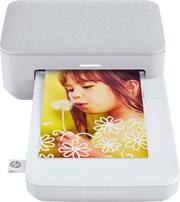
While the HP Sprocket Studio is not the first dye sublimation photo printer that I’ve used, it’s the first one that I’ve owned that prints full-size 4x6 photo prints. Even so, this printer still manages to have a pretty small form-factor and has a footprint smaller than a sheet of printer paper (10.5”L x 6.75”W x 2.5”H). The paper tray is even detachable, making it even more compact for travel, and there is an option to use a portable battery unit with it (sold separately). For setup, simply load the included paper and cartridge, download the HP Sprocket mobile app, and pair the printer via Bluetooth to an Android or iOS mobile device. The whole process takes about 5 minutes. However, if you’re looking to print photos from a computer, unfortunately the Sprocket Studio does not support this type of connectivity. Using the app for straight up printing is fairly easy. You can select photos from your phone’s camera gallery, connect various social media accounts like Facebook, Instagram, or Google Photos, and print pictures directly from those services. However, for anything beyond that, the experience was a bit more frustrating. For me, app navigation was initially confusing with ambiguous icons for the various tools and no helpful hover hints at their function. The photo editor itself had some major hiccups. For example, if you added stickers, text, and filters to your image, but subsequently tried to add a pre-set overlay template, it would wipe out all your previous additions and changes, but not vice versa. Also, it wasn’t easy to distinguish when you were committing just the most recent edit or all edits in your session; with the former you could use the undo button to back out of the change, but with the latter, undo isn’t available and you would have to discard your draft and start all over again. After editing your photo you can print it, of course, but also save or share directly to online storage accounts and social media. There are also a few of other fun and useful photo modes in the app like photobooth for a quick succession of 4 photos, a tiles print mode that lets you assemble 9 prints into a single larger image, and ‘ID card’ which allows you to quickly and easily snap and print a set of 2x2 inch passport photos at home. As for the printing process itself, it was quick and straightforward. Once you have an image edited, cropped, positioned, and sized how you want it, tap the printer icon in the app, and the image will be sent to the printer queue, which takes roughly 35 seconds. After the printer receives the data, it starts printing immediately, though a single print takes about 2 minutes to complete. During this time the paper passes in and out of the printer, from both the front and back of the unit, so be sure to leave at least 5 inches behind the machine clear as to not interfere with the paper. Other print jobs waiting in the queue can be deleted from the queue via the app while a photo is printing. Also, keep in mind the printer can only fit 10 photo sheets at a time, so you’ll have to reload the tray after every 10 prints. One feature that I was very interested to try was the augmented reality Reveal, which is supposed to invisibly watermark your photo, then bring up additional content like location data and related photos and videos when the print is scanned by the app later. Although I turned on the Reveal feature for several of my prints, and the app indicated Reveal content was being added prior to printing, subsequent scanning of my prints revealed… well nothing. The app simply said “No Reveal content found,” however, it did correctly recognize the printer itself and would show the next photo in its queue floating above the machine, which I thought was pretty neat. The quality of the prints is very good. I found the colors to be bright, though perhaps slightly undersaturated and on the cooler side than what I saw on my mobile device. The details in the prints were pretty sharp. If you looked closely enough at fine lines, you might see a bit of a soft edge, but not enough that I would consider the print quality compromised. The color range is actually quite impressive for such a small printer that doesn’t use any ink, which also allows you to go long stretches between printing and not have to worry about dried up or clogged ink cartridges. Printing at home with the Sprocket Studio won’t get you the lowest price per print, but for the convenience of printing at home and having the prints ready in-hand in just a few minutes, might be worth the extra few cents. Overall, the HP Sprocket Studio delivers high-quality, full-sized, glossy photo prints that are durable and at a reasonable cost. While you're limited to mobile device connectivity, and the app could use a few tweaks, the zero ink cartridges mean you can print as frequently or infrequently as you need and not worry about the hassles ink. Prints come off the machine quickly, and the unit is small enough to keep on your desk or travel with for on-the-go printing.
Posted by ReviewedByPhil
- Rated 5 out of 5 stars
Great for Must Have Instant “Real” Prints.
REVIEW HP SPROCKET STUDIO Best Buy Tech Insider Network Review Program SUMMARY: Great for Must Have Instant “Real” Prints. Table must be 2X length of Printer. UNBOXING IMPRESSION: Easy to unbox, simple packaging. For the most part it is already assembled just install the paper and dye cartridge. The only very minor complaint I had was that there are no included instructions, but I guess that goes with the minimalist packaging, so it was not a big deal. Like most HP products you only get a starter set of supplies (10 prints). For the price I would have appreciated a full cartridge. EASE OF USE: It was easy to go to the URL included in the packaging to load the app on the phone and follow the step by step instructions. I then gave the app permission to view my photos on the phone and I selected one to print. TIP: Make sure you have enough room on your table that is twice the length of the printer. The photo paper moves out the back and then gets pulled back in, multiple times in the printing process. At first, I kept getting errors. It turned out that because I had it on the edge desk, once it pushed the paper out the back (with the paper hanging over the edge), it did not have enough strength to pull the paper back in again. I was about to call tech support when I decided to put it in the center of the desk, so that the paper was fully supported on the way out/back in. If the mechanism is so weak, they really should have a support tray in the back. OVERALL PERFORMANCE: I was skeptical that something so small could really deliver a quality 4x6 photo grade prints. Now, I am convinced, as it works very well. We used it to make Passport Photos, without any problems, or the hassle of finding a place to make them and driving there waiting in line etc. It prints rather quickly (much faster than an ink jet), and I would call these photo grade prints no problem. The price per print (about 50 cents) is certainly more than the corner store (7 cents). But if you are only printing a few prints then this is of course cheaper than driving to the store and back. The APP is only OK. I’ve not explored the app in depth, but I was not able to find a simple crop command for example. It just means that I have to edit my pics on the phone before selecting them on the app. Maybe there is a crop somewhere, but it did not jump out at me. Pressing EDIT only allowed for simple color correction for example. CONCLUSION: It is the best I have seen for quality due to dye sublimation technology. It is relatively compact, and I could see this being used at parties or when you just want a quick print to give to the grandparents or maybe even instant security badges. I would recommend this for occasional uses as mentioned above. If I had a bunch of prints to make, then I would just upload them to my local photo processor and pick them up there.
Posted by TheOffice1234
- Rated 5 out of 5 stars
Snap It On Your Phone – Print It A Minute Later
After going through several highly touted photo printers only to be disappointed by the expensive costs of ink cartridges, photo paper, and not so great color, photo reproduction. I was intrigued reading about this HP Sprocket Studio Printer and the superior color of its printed photos. So when I had an opportunity to select this Sprocket Studio for an honest review in exchange for the printer I was anxious to evaluate it on quality of photos and costs. I am a Grandfather with six photogenic Grand Kids, and I take tons of photos. This Sprocket Studio Printer has an easy learning curve and the more I use it, the more I find all the innovative ways to enhance my photo treasures. After a week of using this little baby to print out some of my most favorite photos – I am thoroughly impressed: ** Quality Of Photos – This is the most important reason for purchasing a photo printer in the first place. As I unboxed this unit I was very skeptical of its size, weight, and build to make quality, brilliant color photos at its price point. However, I soon realized that this HP Sprocket Studio prints out magnificent, 4” x 6” (102 x 152 mm) full-spectrum, detailed photos in vivid color. It is absolutely awesome how a little printer like this Sprocket Studio can produce such photo realism and color splendor given its small size and simplicity. When I select a photo to print on my phone I access this printer through the HP Sprocket App. The Sprocket Studio Printer then draws a 4' x 6” photo paper from the photo-paper housing into the front printer slot. The photo paper slides back and forth from front to the back of the printer until the final, finished print is gently placed onto the top of the photo paper housing. The printed photo actually develops in front of my own eyes through the Sprocket Printer process – Amazing! The finished photo exceeds my expectations for color elegance and superior quality. Yipee! ** Photo Paper – What really makes this Sprocket Printer unique is that the available photo paper prints out beautiful, colored photos that HP claims will last 100 years, durable, and are resistant from fading, too. WoW! From HP - “Tests conducted by Wilhelm Imaging Research, Inc. indicate that photos printed with Original HP inks on HP Advanced Photo Paper Glossy are rated for longer than 100 years in dark storage.” Also from HP - “Durable: Using Original HP inks with HP Advanced Photo Paper and HP Premium Plus Photo Paper enables your photos to withstand rain and water spills, and dry quickly, so you can share them immediately without the fear of smudging or smearing.” Astonishing! The photo paper housing of this Sprocket Studio has a maximum capacity of 20 sheets. That is a lot of printer photos before I have to reload. Since I plan to use this FUN printer an awful lot these coming holidays, I purchased Two, HP, Sprocket Studio 2-Pack Standard Capacity with Color Ink Cartridges + Photo Paper (80 sheets each) from my local Best Buy (see pics). I now have up to 160 photos I can print out and share with my family and friends at our celebrations. WooHoo! ** Cost Per Photo – Replacement photo paper and cartridges average out to approximately $.43 cents per a generously-sized, 4” x 6” photo. Considering the outstanding color photo caliber, this HP Sprocket Studio Photo Paper is a bargain. ** Bluetooth Connectivity - HP Sprocket uses 5.0 Bluetooth technology. It is so easy to connect and pair. And, I can pair up to three of my separate devices in its registry. However to be able to utilize the Sprocket App on another device I have to unpair from the device I am currently connected too. When my Sprocket Studio is powered OFF, I have to re-select pairing again in my BT settings on my cell phone to take advantage of the Sprocket App. ** HP Sprocket App – Here is where the FUN begins. This Free App can be downloaded at the Apple or Google Play Stores. It was easy to install and set-up my Studio Sprocket Printer. The App prompted me through the process. It provides exciting enhancements to photos from my existing gallery, allows me to take and also edit photos, add embedded contents using 'Reveal', and print my photos using the Sprocket Studio Printer. At the Home Screen of this App I can sign-in to any of my popular Social Services by swiping to the Left of the screen, which allows me to access my social media account photos. Pretty Neat! Photos cannot be printed manually, you must use this Sprocket App from your phone. Be aware for all these App features to work 'Permissions' must be given to access your photo gallery, location, and camera and microphone. The Sprocket App will request them the first time App is launched. What can I do that is so special with this App? By clicking on the Pencil Icon in the right-hand corner of my selected and previewed photo I open up a host of editing features: * Auto-Fix; Adjustments for Brightness, Contrast, Saturation & Reset. * Filters for various Lighting Effects I choose to set a mood or atmosphere. * Quick Action Edits, which add pre-created artwork for Happy Birthday, Congratulation, etc. * Frames with seasonal touches, Birthday & Congratulations , and decorative borders. * Numerous FUN Stickers and Banners for almost every occasion. * Text, which allows me to personalize my pics with my own words (see attached fishing pic). * Brush, which can add colors and shades of colors to my photos. * Crop/Rotate, which allows me to edit my photos any way I so choose. ** Additional App Features – In Print Preview I can swipe to Tiles, which is pretty unique. Even though each printed photo size is 4” x 6” I can use any one of my favorite photos and create an 8” x 12” tiled photo by selecting the four-tile icon, or, create a 12” x 18” tiled photo selecting the nine-tile icon. How cool is that? Photos in the Queue can always be deleted if I change my mind to not print them, or, add enhancements, stickers, and texts, etc. ** Take It Anywhere – HP Sprocket Studio Printer is approximately 6.65” W x 10.75” D x 2.68” H in) and weighs approximately 2.06 pounds. It has a small footprint and is lightweight so I can take it anywhere. It uses 120V power and has a three-pronged grounding electrical plug. There is an optional Power Bank available for sale at my local Best Buy, which has enough power to allow for up to 80 photos to be printed. It is ON my 'to-buy' list. It can even re-charge my cell phone with its built in USB Port. This little baby can be the 'life' of a party, at family events, or any group get-together. My teenage nephew would love to have this Sprocket to take to his friends' Birthday Party, Tailgating, and informal meet-ups with his circle of friends. ** Summary – I love this little HP Sprocket Studio Printer. It takes great photos of my Grand Kids and family, but more important for me and Grandma it creates fantastic, visual memories. YooHoo! It is a great replacement for those 'Instant Cameras', because the prints last almost indefinitely, take a little moisture, and are smear resistant. The printer is not expensive, nor are the cartridges, and photo papers. I highly recommend the purchase of this HP Sprocket Studio Printer. You won't be disappointed.
Posted by pauldar
- Rated 4 out of 5 stars
Great prints and looks, phone app needs work
When i got this photo printer I was very excited! It is compact, looks aesthetically pleasing, and the prints it yields are actually of fantastic quality for being churned out in about a minute or so. Upon initial set up, I was able to get up and connected very quickly on my phone using the user friendly software. In no time at all I had printed out some pictures on the included photo paper and I was happily surprised by how nice the prints turned out! The loss of the star on this review though comes from the fact that when I returned to come back to print more photos the next day, I could NOT get connected back to the printer through my phone despite following all of the HP troubleshooting guides online. I am sure they will tweak this bug out and it still works with my computer, so I am not giving up on the printer or telling anyone not to buy it. The prints are great and software can always be improved.
Posted by Bren