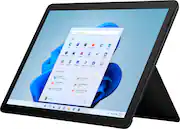
Rating 4.3 out of 5 stars with 327 reviews
4.3- Ease of use (61)
- Size (48)
- Processor Speed (27)
- Performance (24)
- Screen Quality (23)
- Battery Life (33)
- Storage (6)
- Heat (5)
- Price (5)
- Operating System (4)
Customer Images
The vast majority of our reviews come from verified purchases. Reviews from customers may include My Best Buy members, employees, and Tech Insider Network members (as tagged). Select reviewers may receive discounted products, promotional considerations or entries into drawings for honest, helpful reviews.
- Rated 5 out of 5 stars
Good Choice
Best thing about it is the size, easy to handle even with an attached keyboard. I also purchased a pen. It's fast & battery keeps a pretty good charge. Color is great! Only problem I've come across so far is, I have a sublimation printer & it's not letting me install the right driver for it. I'll have to call someone to get this corrected. But so far everything else is working fine. Yea, I got rid of the s mode! All my programs need Google to install.
Posted by Summer
- Rated 4 out of 5 stars
Quality tablet
I had this tablet for a few years. Pretty good for general productivity, using Microsoft word, stuff like that. Gets a little laggy sometimes but overall it’s a really good quality item
This review is from Microsoft - Surface Go 3 - 10.5” Touch-Screen - Intel Pentium Gold - 8GB Memory - 128GB SSD - Device Only (Latest Model) - Platinum
Posted by MicahK
- Rated 5 out of 5 stars
Microsoft Surface Go 3
Microsoft surface go 3- best product ever at a great affordable price. Good for students, very user friendly. Battery life is good. Very adaptable to classroom user.
Posted by ArreyT
- Rated 3 out of 5 stars
Where is the bang for the buck?
Over the years I have owned dozens of desktops, laptops, 2 in 1, all in one as well as helping friends choose a computer for their needs. Out of all of these computers there is only 1 that, after using, I didn’t recommend, and it was the Google Slate I tested for BB 2 years ago (and has been discontinued since). I now have a 2nd computer to add to my do not recommend list, and it is this Surface Go 3. And I don’t recommend it for basically the same reason I didn’t recommend the Slate - I just don’t feel that you get enough for its price. Considering its entry level processor and addons which increase the “real” cost quickly – such as keyboard ($80 – 130), pen ($66) and maybe mouse ($35 on up) – all prices from Microsoft website. Also, with only 1 USB-C you might need a port multiplier and/or a USB-C to USB 3.0 connector to allow using any non-USB-C component., all at additional cost. So where is the bang for the buck? Out of the box, this unit is more suited for streaming, light productivity and surfing – than for work or gaming – all with an eye on anything stored being mostly done in the cloud. If you must have a Windows 11 Surface tablet and not being able to upgrade/replace any component isn’t a concern, then I suggest you spring for the more costly units with more powerful I series processors, more USB connections, more/better memory, etc. giving better performance and utility. See attachments with my performance comparisons and speed tests for this device. This unit has the following specs; Power button on top. Nice position so you don’t accidentally turn it on/off. Also takes a tad bit of pressure to use, which is good. 10.5-inch 1080P 60Hz LED touchscreen with pen support. I believe it’s a 3:2 aspect ratio which I found fine for watching wide screen movies. Pretty wide bezel though. Intel Pentium 1.10 Ghz Kaby Lake 6500Y processor. doesn’t use much power and will run Windows 11 - which is about all the good I can say about it. 8GB DDR3 2400 MHz memory. DDR4 is better with DDR5 now being the best. Microsoft U3E1 motherboard Intel UHD Graphics 615 (1920X1080@60Hz) KIOXIA 128GB KBG40ZPZ128G BG4A NVMe hard drive. Pretty fast too. Intel Wi-Fi 6 AX200 160MHz. No hardwire option. Bluetooth 5.0 Studio Microphone built in. Front facing 5-megapixel 1080P camera. Realtek HD Audio. Built in stereo speakers sound okay. Couldn’t find wattage specs. Volume control is on top as well. 1 USB-C connection 1 Surface Connect port. Used to charge and can buy additional dongle to add additional ports/functionality. Power cord is about 6 feet long and plugs in using Connect Port. Nice that connection is magnetic in case you pick it up to take and forget it is plugged in - it will just unhook without damaging device. Also, can be plugged in up or down. Headphone jack Micro SD card reader Windows 11 S – I changed to 11 home so I could use apps I wanted to install. But I get why others may see this as a positive. Dimensions are 0.33” depth, 9.7” width, 6.9” height at just 1.2 lbs. Positives; It was nicely packaged and was fairly easy to setup. Plug it in, start it up and it walks you thru Windows 11 setup which took a while. It is very nice looking with the brushed aluminum case and seems well built. Built in Kick stand is nice. Screen is bright with vibrant colors. Touchscreen worked well. On-screen keyboard is nice size with normal sized keyboard/functionality easily selected. No “bloat” software to get rid of. Boots reasonably fast – but I have most everything turned off at startup. Apps open okay but having multiple windows open with different things running slows it down a tad. 1080P screen resolution/color is great for me with nice viewing angle, but a tad “shiny/reflective” screen. I turned power to performance mode and got about 4 hours of use before it shut down after reaching 20% left. I was doing a lot of downloading/installing/running of apps for my performance tests and they take several minutes and a lot of processing power to run so, 4 hours was decent. I got a little over 6 hours run time playing a 1080P movie from micro-sd with Bluetooth off, power set to “recommended” and Wi-Fi and HDR on. I had external keyboard dis-connected too. The USB port is fast – especially if you have a true USB-C SSD drive/connected device. Having Micro-sd slot is nice to be able to easily add storage and having it underneath the kickstand helps protect it. But it is slow (see speed attachment). Super quiet while running and size makes it very portable, even if screen size makes it a tad hard to see/read sometimes (old eyes). 1-year warranty Negatives; Only 128GB SSD and, as far as I could research, no way to upgrade. Windows takes up almost 40GB by itself. Screen is pretty reflective. No keyboard included (additional cost). Initially this didn’t seem too much of an issue. But as I continued to use it, I found that having a keyboard is a must, at least for me, to give it some semblance to a true laptop. I happened to have a USB 3.0 external keyboard as well as a USB-C to USB 3.0 conversion connector laying around so just connected it with no real additional cost to me. But I would not travel with this keyboard, and it uses up the 1 USB-C connector. No pen included (additional cost). Only 1 USB-C connection (duplicator additional cost). Can add a Microsoft dongle to the Surface Connect port for more flexibility – but again additional cost. Adding Micro-sd – additional cost. Back got hot while charging. So much so I had to set it on table as to warm on legs. This is not a situation where the device doesn’t work. It is nicely engineered, light weight, etc. – and what it does it does well, and it may grow on me. But with its entry level processor, limited storage, I can’t help but feel it is too pricey for what you get. And with that in mind I would not recommend as there are better options out there for the price.
This review is from Microsoft - Surface Go 3 - 10.5” Touch-Screen - Intel Pentium Gold - 8GB Memory - 128GB SSD - Device Only (Latest Model) - Platinum
Posted by mkcar1
- Rated 4 out of 5 stars
Wake Me Up Before You Go-Go
Once the world’s largest software company, Microsoft is as much a household name today as they were after Windows 95 revolutionized the home computer market by bringing both power and ease-of-use to the masses. Like other current software giants, it came as no surprise that Microsoft would follow their lead and introduce their own line of hardware devices to showcase the best that their software had to offer in a tailored package. The Surface Go 3 is the latest iteration of their smallest Windows device, promising the fully-featured Windows 11 experience in a compact and lightweight tablet. Visually similar to the Go 2 and packing updated hardware, the Surface Go 3 offers a familiar Windows environment in a highly mobile package, but with many compromises that make this difficult to unilaterally recommend.. - Unboxing and Setup Arriving in a simple, organized, and nearly fully recyclable package, Microsoft’s premium ambitions make a strong first impression. Documentation is limited to a quickstart guide showing off the port and key selection, and the only other included accessory is a 24 watt AC adapter (more on this in Performance & Battery Life). Setup is as straightforward as Microsoft’s previous Surface devices. With no preinstalled bloatware, just placeholder links to some recommended apps in the start menu after finishing setup, the only added delays to setup are downloading and installing system updates. At least one major update was needed at the time of my setup (Oct 20, 2021) which leads me to believe an early or pre-release variety of Windows was installed from the factory. - Windows 11 Microsoft’s 2021 Surface line serves as flagships for their latest operating system, Windows 11. Users coming from Windows 10 will be very familiar with the new OS, as many of the same features are present with some enhancements and fresh coats of paint. The new OS doesn’t feel particularly revolutionary, but that’s a good thing - updating the formula rather than starting over was a wise decision to make after some particularly jarring attempts over the years (as was the case with the short-lived Windows 8). As a tablet OS, Windows 11 is not well suited to the environment. The on-screen keyboard and touch gestures are serviceable but clunky. Windows has trouble picking up when to show the on-screen keyboard, and window management is poor. Even official apps from the Microsoft Store will get occluded by the on-screen keyboard as Windows fails to move, resize, or scroll to make text entry boxes visible. I found that using the Surface Go 3 more as a laptop (by attaching the excellent Surface Go Type Cover) made the experience immensely better, though it does sacrifice the portable tablet form factor for a traditional laptop one. The Surface Go 3 ships with Windows 11 in “S Mode,” which only allows installation of apps from the Microsoft Store. While there are thousands of great applications on the storefront, the majority of users will want to run their familiar apps. S Mode can be disabled relatively easily from system settings after several warnings about risking security and privacy by switching. I suspect most users will switch out of S Mode on day one. My only major complaint against Windows 11 otherwise is that a Microsoft account is now required to complete setup. You can convert your user account from a Microsoft one to a local one in the Control Panel, but the need to complete setup with an internet connection and Microsoft account without seeking convoluted workarounds is a major annoyance. Windows 11 Pro allows you to bypass this requirement, but this version of the OS is not commonly included in products below professional or prosumer level devices. - Portability & Quality Having a computer with desktop-like capabilities in a tablet form factor is likely the key selling point for the Go over the regular Surface line, and indeed, having this familiarity in a 10-inch device is phenomenal. At many points in my testing I reminisced on the “netbook” form factor of years past, as the Surface Go feels like what netbooks wanted to be. As a tablet, the device will need to be propped up to use while it sits on a table, and Microsoft’s choice to integrate a large folding kickstand into the body is still as brilliant today as it was when the Surface line first debuted. The ultra wide kickstand is sturdy with a strong hinge, and rotates up to a 170 degree angle so you can position it virtually any way you want without the hinge moving. I found the maximum angle was great for drawing and sketching using a Surface-compatible pen, and the screen and OS’s palm rejection is very good. The body of the Surface Go includes some metal attachment points for the magnets integrated in the Type Cover and Surface Pen, keeping these somewhat secure and ready for use. The mixed aluminum and plastic body is clean and wraps around the edges of the glass to provide some corner protection by default. I did notice right out of the box that the paint finish was poor at the corners of the screen, however, which makes me curious to see how quality control stacks up across a larger sample size. - Screen, Sound, Connectivity The screen on the Surface Go 3 is excellent. An IPS panel with very high brightness (though it’s non-HDR), nearly ”retina” level pixel density, and great color depth makes for a pleasant viewing experience that has no noticeable ghosting or smearing even in high-motion scenes. The panel runs at 60Hz by default but also has a 48Hz option, great for movies (24FPS) or just extending the battery life through less GPU usage. The front and rear integrated cameras are plenty serviceable, with the front-facing webcam delivering good color for video calls, while the rear blows out under lighting a bit easily but still looks good to take quick photos to share. The device’s front-facing speakers are clear and crisp, but they don’t get particularly loud. A proper combination headphone & microphone jack picks up the slack for private listening, and of course you can pair a Bluetooth headset. Bluetooth is well-integrated here with no perceptible sound delay as I’ve experienced on some other devices. Connectivity is pretty limited. A single USB-C port and a microSDXC slot are your only options to expand peripherals or storage, so a USB-C hub is highly recommended. The 128GB onboard SSD is somewhat small but users who use Microsoft OneDrive or similar cloud storage services won’t be terribly limited. - Performance & Battery Life This configuration of the Surface Go 3 uses the Pentium Gold 6500Y (2 cores, 4 threads) processor with 8GB of RAM, which delivers reasonably good performance for most tasks in its full power mode; i.e. with Battery Saver turned off. The Pentium shares nearly the same specifications as the higher-spec Core i3-10100Y model, which is an equal chip in all ways except for higher boost clock speeds (3.9GHz vs 3.4GHz). All models include Intel HD 615 integrated graphics, which do a decent enough job to run Windows 11 with some flair but don’t expect good gaming performance on anything but older or eSports-class titles at low settings. Turning on Battery Saver limits the CPU’s speed to reduce its power draw, which results in a significant performance drop that makes Windows 11 just tolerable enough to use. Sadly, enabling Battery Saver isn’t the only thing you’ll need to do to see close to the 11 hour estimate that Microsoft touts for this device. At full power and medium screen brightness I was seeing about 4 hours of runtime under casual use (web browsing, videos) before reaching critically low levels. Enabling Battery Saver and letting the OS manage the settings only did so much - the runtime extended to about 7 hours. To see double digit estimates I had to turn the screen down to very dim (about 25% brightness) levels, disable bluetooth and WiFi, and play back locally-stored video. While this technically let me hit the estimate, the compromises are not worth the trade-off and certainly require more effort and planning than simply toggling Battery Saver on as a casual user may expect to extend the battery life up to this oversold estimate. Fortunately, the short battery life is countered by the ability to recharge either via the Surface charging port or through the USB-C port (with at least a 5V, 2A charger). The included power brick is the worst part of the whole package as it’s a non-modular unit that uses the proprietary Surface power connector...and as such is essentially e-waste. I would have strongly preferred to see Microsoft bundle a USB-C power delivery charger instead, as leaving the Surface power port on the device makes sense for users upgrading from prior models, but not users who are buying in for the first time and likely have other devices capable of USB-C charging. I certainly prefer carrying one power brick and a couple ubiquitous and easy-to-replace cables for all my devices in my luggage rather than proprietary ones. - Bottom Line The Surface Go 3 makes for a great travel or secondary PC. It works plenty well for streaming media or catching up on the web while you’re on the go, and the compromises are much less impactful when it doesn’t act as your primary PC - you could potentially make it work, but I believe you’d tire of it quickly. The last thing to address then is the value proposition, which is a very tough sell. The $549 MSRP for this middle-tier model should be lesser, or the Type Cover should be bundled as this is a must-have accessory to make the Surface Go 3 a proper travel device. Sadly, this asking price is just not competitive against other tablets that offer more tailored mobile experiences. If you must have a Windows tablet then the Go 3 is a good choice, but better tablet experiences are available for equal or less money. Not recommended.
This review is from Microsoft - Surface Go 3 - 10.5” Touch-Screen - Intel Pentium Gold - 8GB Memory - 128GB SSD - Device Only (Latest Model) - Platinum
Posted by Turbolence