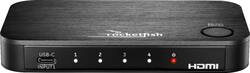
Rocketfish™ - 4-Port 4K HDMI Switch with USB-C - Black
- General
- Brand: Rocketfish™
- Model Number: RF-G1480
- Product Name: 4-Port 4K HDMI Switch with USB-C
- Color: Black
- Features
- Maximum Video Resolution: 2160p (4K) (Maximum resolution refers to the highest number of pixels that a screen can process and display. Higher resolution signals produce more detailed video.)
- Powered: true
- Connectivity
- Wireless: false
- Dimensions
- Product Height: 0.8 inches (The out of box height of the item. Height is measured as the vertical distance from the bottom of the item to the top as it would be primarily used or placed.)
- Product Width: 5.3 inches (The out of box width of the item. Width is measured as the horizontal distance from one side of the item to the other as it would be primarily used or placed.)
- Product Depth: 2.9 inches (The out of box depth of the item. Depth is measured as the distance from the front of the item to the back as it would be primarily used or placed.)
- Other
- UPC: 600603266423
Not having enough inputs on your TV is a headache. So stop reaching behind the TV and fighting to find the right input source after rearranging the cables. The Rocketfish RF-G1480 4-Port 4K HDMI Switch with USB-C adds three extra HDMI ports and a USB-C port to your TV. Now you can connect a wide variety of devices: cable/satellite boxes, Blu-ray players, game consoles and even USB-C devices like smartphones and tablets. Watch in 4K Ultra HD with 18 Gbps HDMI bandwidth, providing superior video quality for all to enjoy. Switching between devices? Auto-switch detects when a new device has been turned on and automatically changes to it. Or, if multiple devices are turned on, you can seamlessly switch between devices using the included remote. Whether it’s your TV, monitor or projector, connect all your devices at once—without disconnecting and reconnecting cables devices ever again.
- Access extra ports: Connect multiple devices to a single HDMI input on your TV, monitor or projector—never run out of ports again.
- 3 HDMI ports: Watch video in stunning 4K quality from Blu-ray or DVD players, cable or satellite boxes, gaming consoles and more. Just connect your devices to the three HDMI inputs.
- USB-C port: Watch content from devices using USB-C that support video output format (DP ALT mode), including smartphones, tablets, MacBook and Chromebook.
- Impressive picture quality: Supports 4K at 60 Hz and HDR compatibility with 18 Gbps HDMI bandwidth.
- Auto switch: Detects when an HDMI source is turned on and automatically changes to it.
- Effortlessly change inputs: Manually change sources with the button on the HDMI switch itself or with the included remote control (battery included).
- HDCP v2.2 compatibility: Prevents copying of digital audio and video content as it travels across connections.
- LED indicator: Shows the selected input so you know which device is in use.
- High quality construction: The solid aluminum top plate looks great alongside premium home theater accessories.
- AC adapter: Connect to the power jack to deliver reliable power.
Whats Included
- Rocketfish 4-Port 4K HDMI Switch with USB-C
- Remote Control with battery
- 6ft. (1.8m) AC Adapter
- Quick Setup Guide
Q: What type of HDMI does this specific product support? (ex. HDMI 1.4, 2.0, 2.1, etc.)
A: This product supports HDMI 2.0
Q: Arethe hdmi in the back where you plug in the monitor hdmi or your laptop hdmi?
A: This product has 1 HDMI output and 3 HDMI inputs on the back.
A: You are looking for a splitter not a switch
A: I have my PS5, 4K Blu-ray player and sound bar all running through mine. Works perfectly, extremely easy to hook up and switch between its inputs.
Q: can you connect 2 computers and 2 monitors to this device?
A: No. Not exactly. Though it is made to switch beteen all 4 inputs, there is only one hdmi output. So, at best 4 computers (or any mix of 3 hdmi and one usbc sources) to one monitor. But not several monitors.
Q: What is the point of the USB-C connector in the front, since there is only one?
A: Use the USB-C port to watch content from devices using USB-C that support video output format (DP ALT mode), including smartphones, tablets, MacBook and Chromebook.
A: Hi ComputerHelp, To SET UP YOUR HDMI SWITCH 1 Please connect up to three HDMI cables and one USB-C cable from your source devices to the switch’s INPUT ports. 2 Please connect an HDMI cable* from your TV (or projector) to the switch’s OUTPUT port. 3 Please connect the power adapter from the DC 5V port to a power outlet. The power LED ( ) and an input LED light up. NOTE:To fully support 4K resolution, connect the input and output channels using HDMI PREMIUM certified cables (within 9.8 ft. (3 m)). Renee, Insignia Support
People also viewed
 $89.99The price was $139.99
 $44.99The price was $169.99

Today's top picks
 $2,129.99The price was $2,149.99
 $19.99The price was $29.99
 $1,899.99The price was $2,199.99
 $39.99The price was $69.99
 $199.99The price was $249.99
 $519.99The price was $999.99
 $269.99The price was $1,079.99