A:AnswerWhile Acer cannot guarantee best results using adapters, you might also post your question on the Acer Community where there are many users that post questions and offer help and advice on Acer products. The link is: https://community.acer.com/
A:AnswerI had the same issue, I was using it for my PC so I did some tests to see what it could be. I made sure all connections were secure and fit. I had it on HDMI, so on regular screen use it was fine but when it came to gaming it would turn on and off at times. I can’t tell if it’s cause of the refresh rate but I tested 144 Hz and 120 and even 60Hz and it still flickered. The other test I did was use a different HDMI cable and nothing, then I used a different monitor to see if my GPU was incorrectly installed possibly and the other monitor ran smoothly. What finally solved the issue was using the Display Port and not the HDMI. I would’ve stayed with the monitor because the quality and design was great especially the stand, but I didn’t want to keep it since I considered it defective.
A:AnswerHDMI splitters can help you break HDCP crimes. Learn how to resolve an HDMI signal and which HDMI splitters are worth getting.
HDMI splitters (and plates cards) can shoot a single videotape signal to two HDMI observers at the same time. But not just any splitter will do; you need one that works well for the least quantum of plutocrat.
We will first bandy why chancing the right splitter is so hard and also recommend the three stylish HDMI splitters, plus an HDMI-splitter volition, and HDMI string.
An HDMI splitter takes an HDMI videotape affair from a device, like a and splits it into two separate audio and videotape aqueducts. Once split, you can also shoot videotape to two separate observers from a single source.
https://kvmswitchtech
A:AnswerWhen I first got this monitor I was using it with my Dell XPS 15 9570, which has a 1650 or a 1660 and I used a HDMI cable to connect it to the monitor I don't think the monitor has a mini display port, I can't see one. But you can definitely use a HDMI cable which is what I used and bought a USB port hub and used that to add my mouse and keyboard etc.
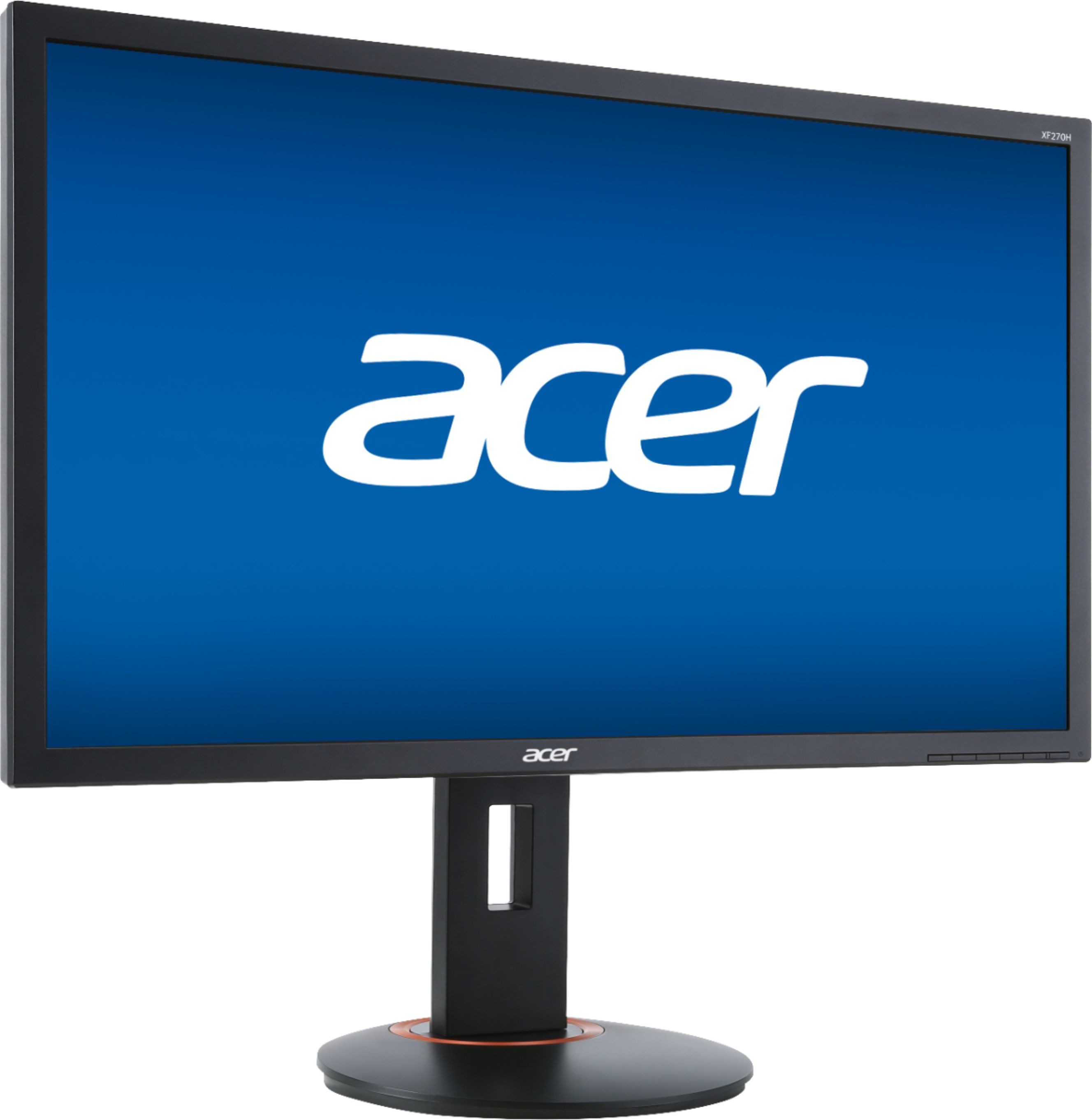
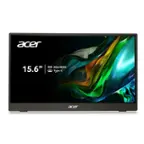
A:AnswerThere should be a blue power LED light at the furthest right from the left most menu button. If it is not lighting up or the monitor is not working, please contact Acer support for assistance with your monitor. They can be reached at 866-695-2237 and are available 24/7 for in-warranty products.
A:AnswerThe power button is located furthest right, at the bottom right corner of the monitor. When pressed the light will be blue or orange if it is in sleep mode. If you cannot get this powered on, please contact Acer support at 866-695-2237 for assistance.