A:AnswerHi Livw,
Unfortunately, the screen lock turns off the screen, there is no way to lock it in the on position so that it can play uninterrupted. Hope this info helps. Have a great day.
A:AnswerMy 3 year old has been using this for 2 years now he is a pro they learn so fast but he only had limited time so it definitely takes some time I only download educational apps and he has learned so much .. he has known his abc colors shapes numbers to 20 for quite some time now
A:Answer"Hello! Yes, the Netflix app can be downloaded to your Fire Tablet. You can download games and apps and use them on the go by following these steps:
1. Select Games & Apps or open the Apps or Games app.
2. Select an app from your Library to download it or search for a new app in the Store.
Have a great day!
A:AnswerHi Sreenadh,
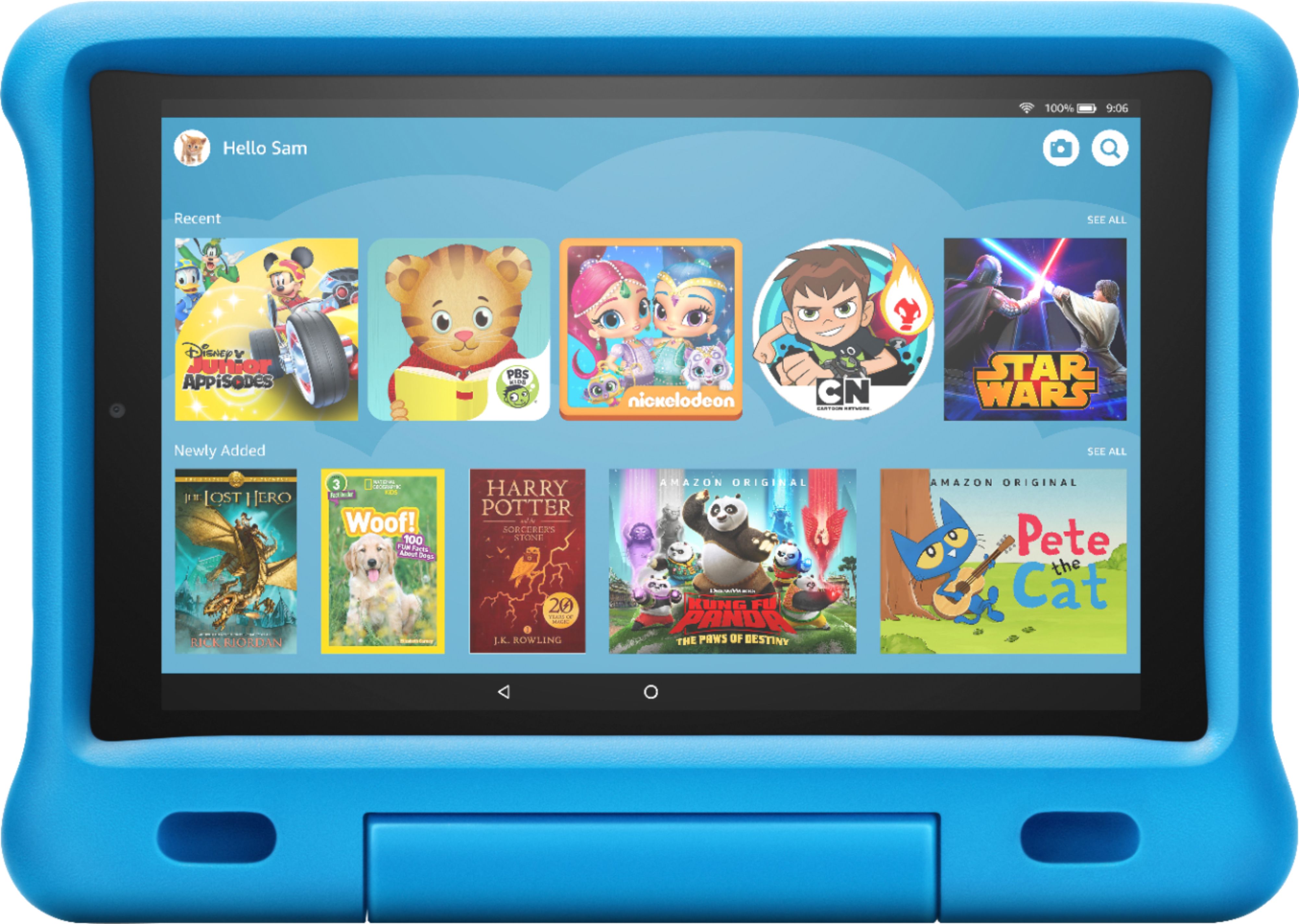
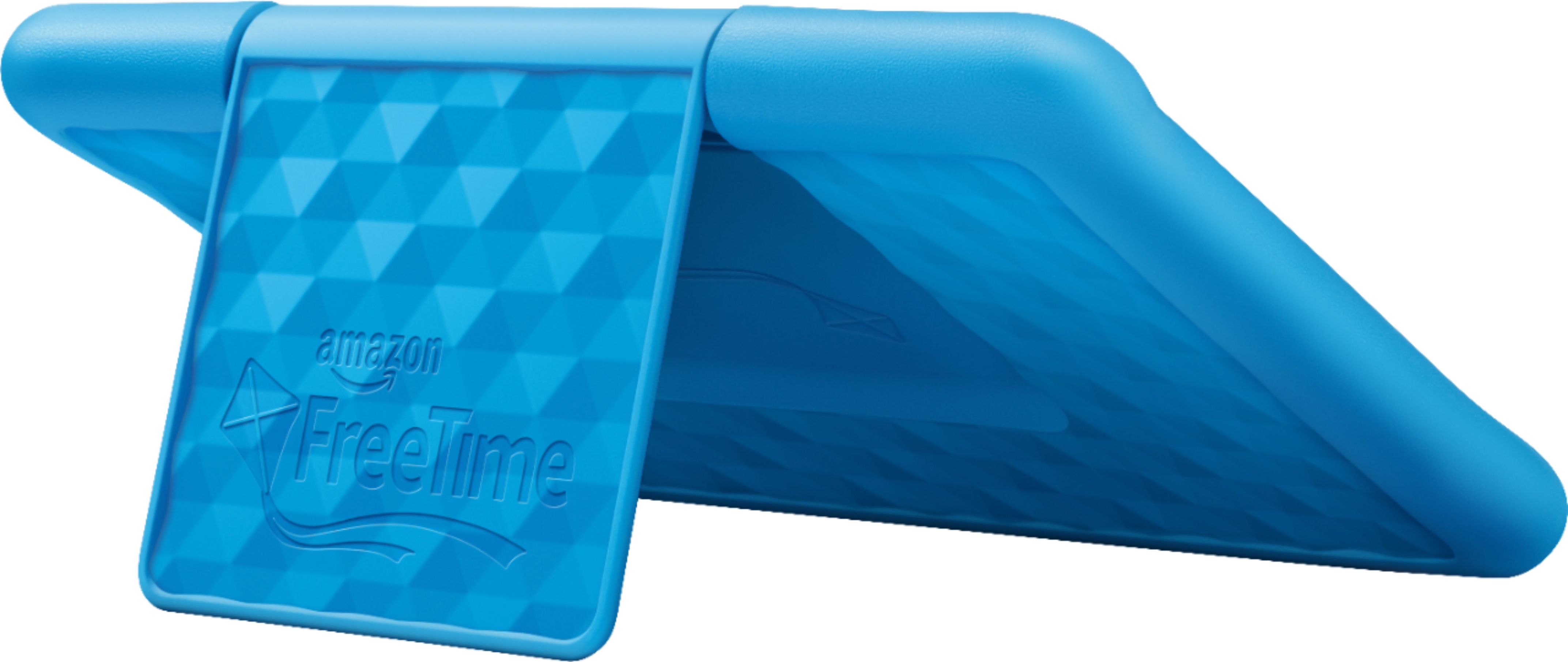
The Fire HD 10 Kids Edition tablet does come one year of Amazon Kids+ (FreeTime Unlimited). You will be able to create up to four child profiles, so the kids in your family can share the device and enjoy personalized experiences.
After a year, your subscription will automatically renew each month at the applicable rate. Currently, the pricing is:
A) 1-Year Family Family Plan: Unlimited access for up to 4 children; 1 Year of Children's Content; $69.00/year as a Prime customer or $99.00/year as a non-Prime customer
B) 3-Month Family Plan: Unlimited access for up to four children; 3 months of children's content; $29.99
I hope this information was helpful!
A:AnswerHI mbatterslife,
The battery will last up to 12 hours of reading, browsing the web, watching video, and listening to music. Battery life will vary based on device settings, usage, and other factors such as web browsing and downloading content. Certain software features or apps may reduce battery life. I hope this info helps. Unfortunately this is a questions with no solid answer or number, as each app you use could change the time the battery has left before it needs to be charged. Have a great day.
A:AnswerHello! Sorry to hear you are having trouble with your tablet. To help resolve it, you can follow these troubleshooting steps to help resolve the issue:
1. Before restarting, charge your device for at least 30 minutes with an Amazon-branded power adapter.
2. Hold the power button down for 40 seconds or until your device shuts off. If a pop-up appears with the option to restart, keep holding down the power button until it shuts off.
3. After your device is powered off, press the power button for two seconds to turn it back on.
If that does not work, please reach out to Amazon Customer Support for help with the warranty on the device.
I hope that helps! Have a great day!
A:AnswerHi Libra99,
You can use the Alexa app to video chat with another Echo device, or with someone who has the Alexa app as well. You can also use Zoom (via the app or browser) or Skype. All of these options are available as long as you give permission in the parental controls. Hope this info helps. Have a good day!
A:Answer"Hello! With parental controls, you can help keep your child from accessing certain things, avoiding accidental purchases, and set time limits with on-device controls. Here are the things the parental controls let you restrict access to:
-Web browsing
-Email, Contacts, and Calendar apps
-Purchasing from the Amazon Store or Amazon Shop app
-Playing titles from Prime Video
-Specific content types or titles (for example, books or apps)
-Wireless connectivity
-The camera
-Location-based Services
You can also use the daily curfew option to schedule when your child can use the device. Enabling Parental Controls does not remove Mature or Adult-rated content from the device. You may encounter such content in Apps and Games, Music, and Books, or in Amazon store search results. To restrict the content available on the device, you can:
-Create an Amazon FreeTime child profile and select which apps and content are available to that profile.
-Block access to content on the device (for example, ""Apps and Games,"" ""Books,"" and ""Music"") by going to Amazon Content and Apps menu under Parental Controls and selecting the button next to each category to say Blocked.
I hope that information helps! Have a great day!
A:AnswerHello,
Yes, it does. As long as you physically have the tablet, it will be covered for the Kids Edition for 2 years from activation. You would contact Amazon directly. As far as a screen protector, there are universal ones that are available.
A:AnswerNo I don’t repair the screen. There are places in the mall that will repair the screen. You should also by the insurance so you can replace it.
A:AnswerHello, lllh! The tablet would be covered under the 2 year worry-free guarantee! There are terms and conditions available on Amazon's website if you would like to view the full conditions. The statement on the website is "If it breaks, return it and we'll replace it for free", so most things are covered under it. I hope that helps. Have a great day!
A:AnswerYes, it is. If you have the tablet in 'Kid's Mode', you'd have to temporarily disable that feature. Once you do that, it will take you to the normal tablet mode and you can download Minecraft from the app store. After it's downloaded and you sign in with your account, enable 'Kid's Mode' and go to the parental controls where you can give permission for Minecraft to be used.
A:AnswerIt does, it's included free for one year. If you'd like to continue the subscription after a year, it's as low as $2.99/month (with prime membership).