A:AnswerHi Kait,
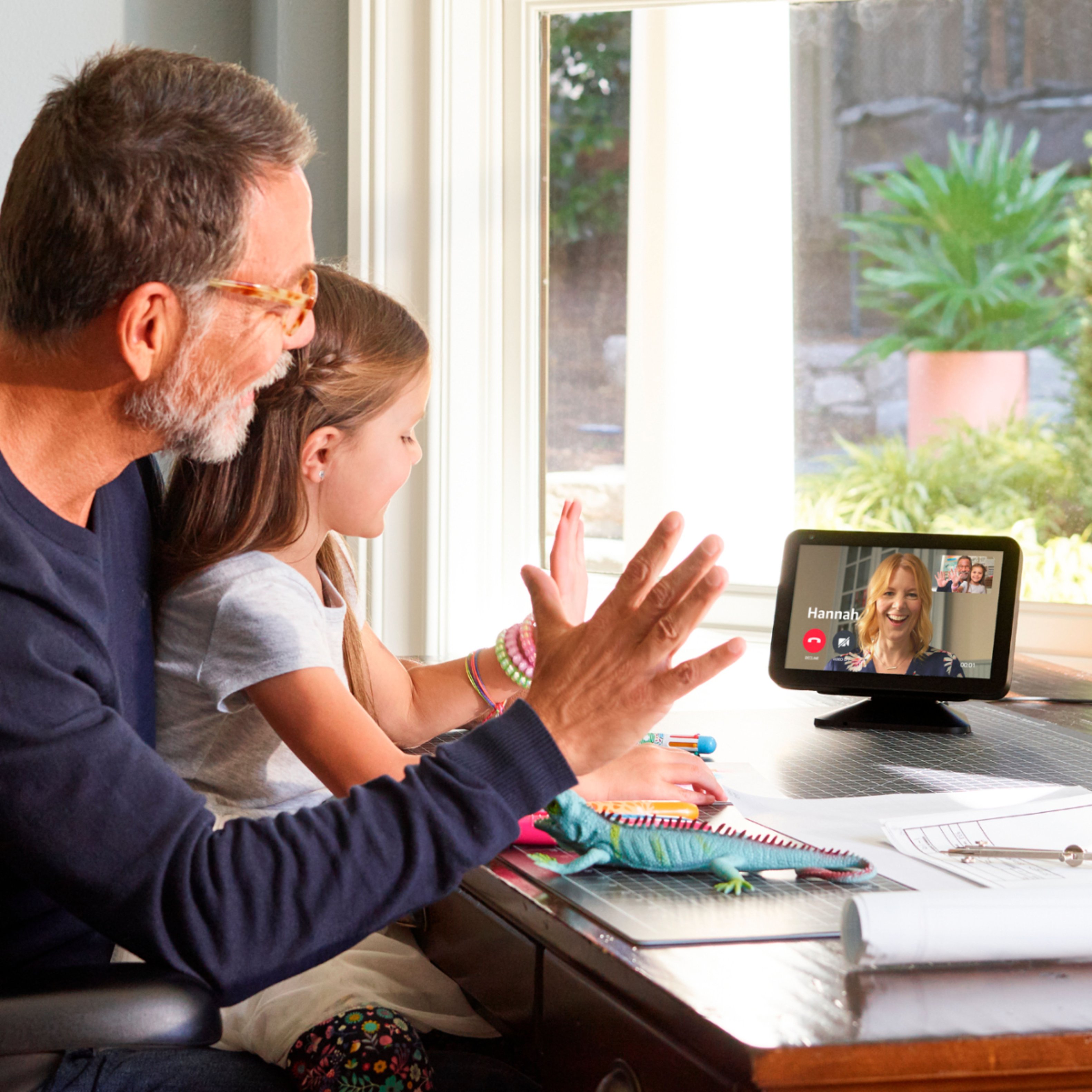
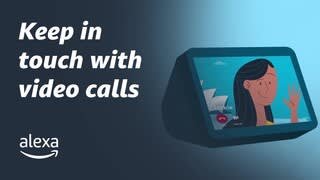
I just submitted a review less than an hour ago for my very similar situation. The answer is yes, it should be very easy for your great grandma to use. She should be able to use it pretty much with voice commands. If she's gonna make the calls herself, she can still do that with voice commands only, as long as she knows how you set up the contact list of names in her phone directory. That's what Alexa will use to make the calls. Or, if she knows the person's phone number, she can spell it out to Alexa. Either way, she shouldn't need to do much on the touchscreen, unless she wants to. If Alexa gets lost in the process, which Alexa does sometimes, all your great grandma will need to say is "Alexa, home" and she can start over.
My setup for my mom's Echo Show 8 was a little complicated because she doesn't have a smartphone that I could link to the Amazon and Alexa accounts (both free) that had to be created. I just read several articles and watched some YouTube videos to figure out what to do. If your great grandma has a smart phone, then the setup process should be a whole lot easier than what I describe in my review.
Good Luck!
PS - the optional stand will probably be worthwhile for your great grandma so that she can tilt the display to suit her desired viewing angle
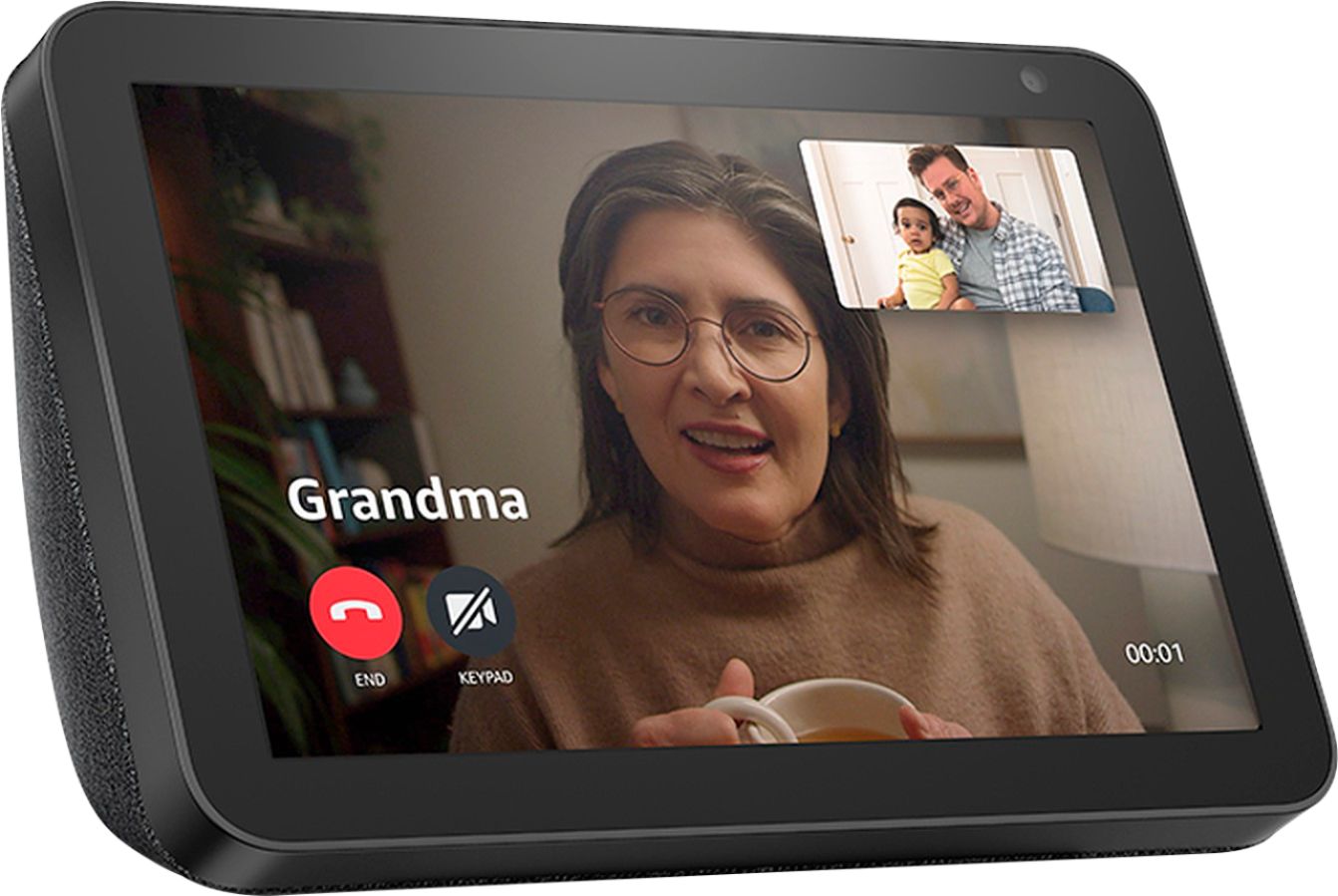
A:AnswerHello Britt1985, yes you can. Do so by swiping down from the top of the device and navigating to Settings > Home Content > Toggle off all switches except for "Weather Forecast" > Toggle off "Rotate Continuously"

A:AnswerHello Michippewa,
Thank you for your question.
From the main screen, swipe down from the top. Click on Settings, then scroll down to Clock & Photo Display and click on it. Scroll to the bottom and you will see the option for 24-hour clock. Click on it to turn it off and go to a 12h clock.
Have a great day!
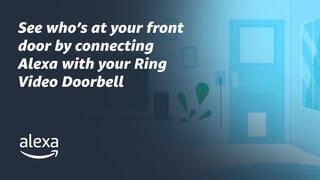
A:AnswerYes you can. First you need to go into the Skills section of your Alexa App and enable the Ring Skill. Once that is done, all you have to do is say; "Alexa, show me the [camera name]."
Have a great day!
A:AnswerHello Quincy, you want to know if the Amazon Echo Show 8 Smart Display with Alexa will work with the Ring Doorbell Pro as well as what is the difference between the Amazon Echo Show 5 and Amazon Echo Show 8. The Amazon Echo Show 8 Smart Display with Alexa will work with the Ring Doorbell Pro. The difference between the Amazon Echo Show 5 and Amazon Echo Show 8 is the screen size as well as the speaker size. The Amazon Echo Show 8 also has a built in Zigbee hub that will allow you to connect to smart home devices which require Zigbee hub. Hope this has answered your questions. Have a great day!
A:AnswerHello CBC25, I understand you want to set multiple reminders on your Amazon Echo Show 8 Smart Display without doing it daily. Yes you are able to set multiple. The process is as follows in your Alexa App select the "More" option->select "Reminders"->Create the reminders and select repeat. Hope this has answered your question. Have an amazing day!
A:AnswerHello, Mel!
If you are wanting to walk around more than one space, this will not work for you. The Echo Show 8 must be plugged into a wall outlet in order to function. However, if you are wanting to walk around one space/room, this would be a great option as long as you are still within view of the Echo Show. I hope that helps, and have a great day!
A:AnswerHi Diane,
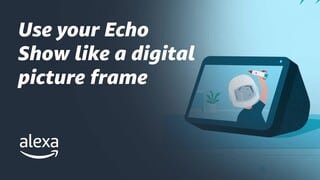
The Echo Show devices do not come with a slot for an SD Card, but you can link your Facebook account or your Amazon Photos account and have it scroll through pictures like a digital frame. ... This would allow you to link either of the accounts to use like a digital frame. Hope this helps, have a great day!
A:AnswerHello, Jane! As long as you have WiFi you will be able to set up your Echo Show 8". To set up your Echo Show device, plug it in and follow the on-screen prompts. The prompts will walk you through each stage of the set up including:
1. Select a language.
2. Connect to your Wi-Fi network.
3. Log into your Amazon account.
4. Confirm your time zone.
5. Confirm your address.
6. Confirm the location of your device.
7. Choose a name for your device.
8. Choose a wallpaper for your device.
9. Follow the on-screen steps to review your available offers.
When you see the home screen with rotating pages, your device is ready to use. Have a great day!
A:AnswerHi CMD,
There are no limits, as the cameras are not connected to the Show 8 itself, the show 8 just has the capability if you have the skill for that camera in the Alexa app to show you the feed of those specific cameras. Hope that info helps. Have a great day.
A:AnswerYes absolutely. I have an android and use the echo and from my android download the Alexa app and add the device. I added the plug light bulbs the ring and its all on the on one app. Can be seen and used on your phone and/or on the echo show!
A:AnswerHello,
Its so hard to say what is going on with the others. Could be the Wifi, could be that they are not synced to device for calling, your best bet would be to seek Amazon support via their web page under the "contact us" section of the main menu.