A:AnswerThis is android based technology, but I have 3 Fire tablets, one older and 2 newer. I buy them because they're a good price, a good product, and my friend's 3 kids have never managed to destroy them. Hardy, affordable and powerful. They have never failed to deliver.
A:Answerany apps that have content previously downloaded can be used without WIFI. If you dont have any content downloaded then you will not be able to see streamed content. The other thing you can do is make your phone a hot spot, connect to it.
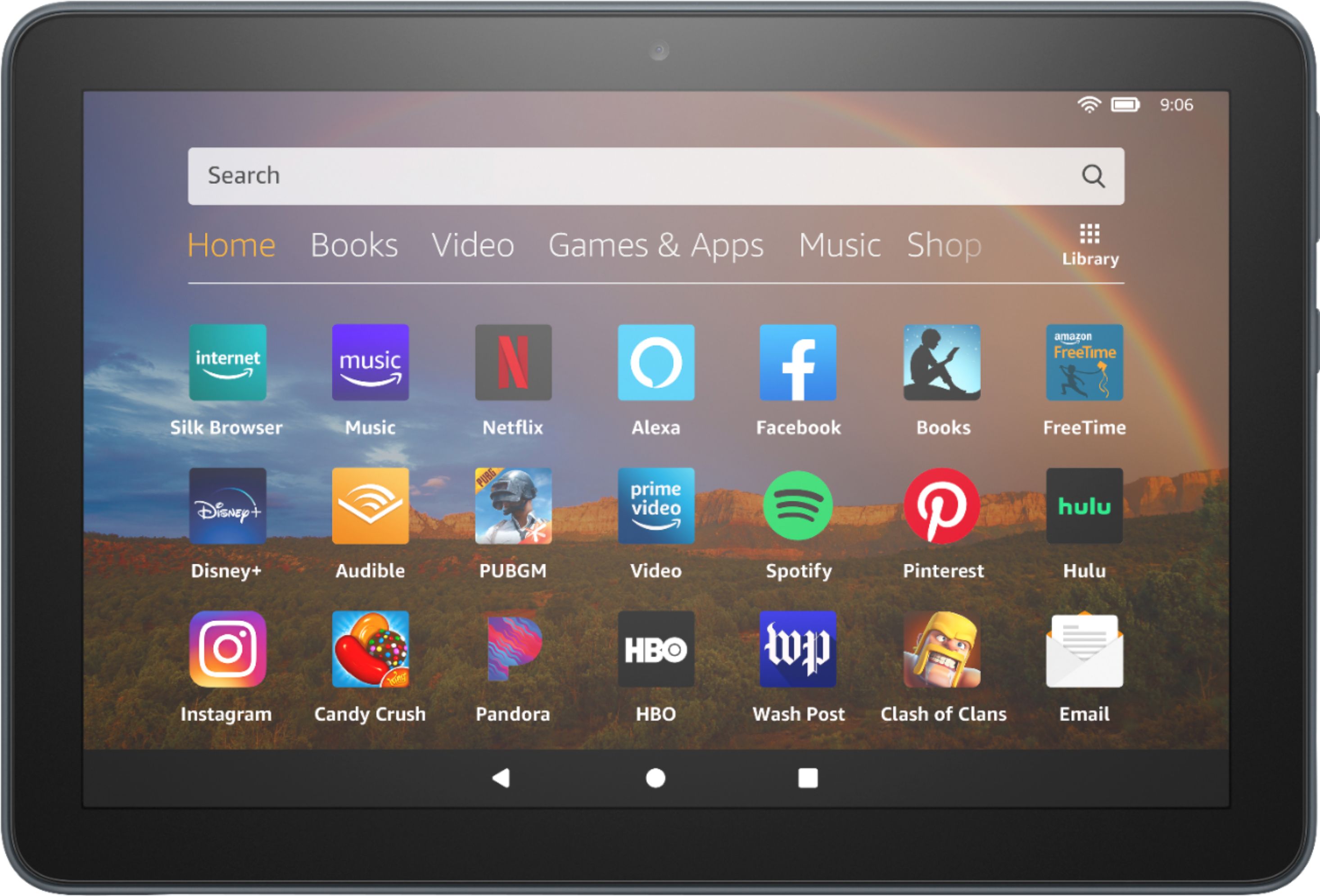
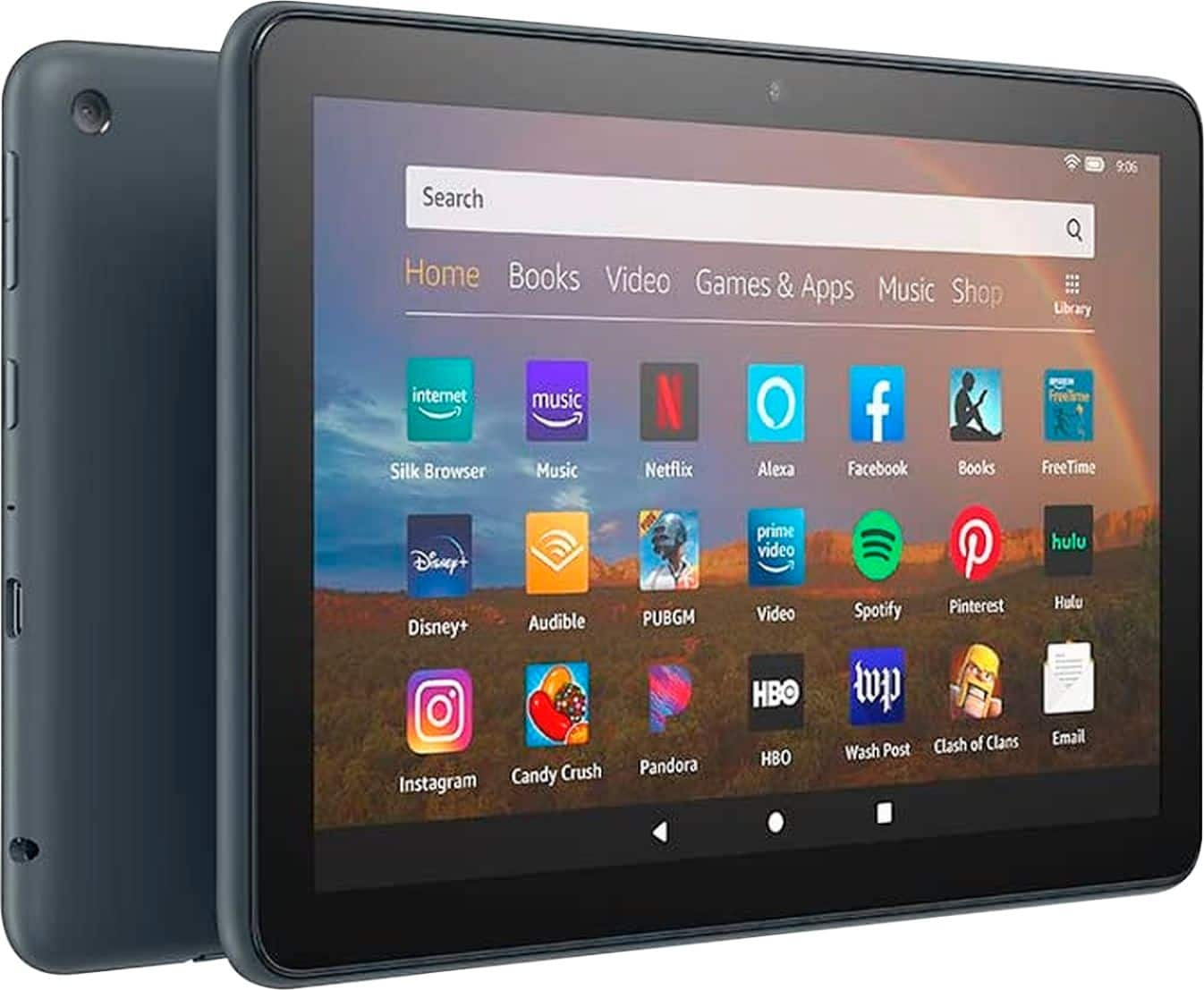
A:AnswerHi BlueJeans! The Fire HD 8 10th Generation tablet has access to the Amazon App store, where there are multiple apps like word puzzles, coloring apps, etc. The tablet also has expandable storage up to 1 TB via the micro SD card slot. I hope this helps! Have an amazing day!!
A:AnswerHello, stac!
Sorry to hear about the issues you are having with connecting to Wi-Fi. Here are the normal steps to take to connect your tablet to Wi-Fi:
1. Open the Settings menu.
2. Set Airplane Mode to Off.
3. Set the toggle next to Wi-Fi Mode to On.
4. Select the network you want to connect to.
5. A lock icon means that you need a Wi-Fi password: enter your Wi-Fi password then select Connect.
If this does not work, I would try the following:
Make sure that:
• Other devices in your home can connect to your network. If they can't connect, you may need to contact your Internet service provider for additional help.
• Airplane Mode is off. To check, swipe down from the top of the screen and tap Wireless. If Airplane Mode is On, tap Off to enable wireless connectivity.
• You know your Wi-Fi password. If you've forgotten or don't know your Wi-Fi password, you may need to refer to your router manufacturer or Internet service provider.
• Your device is on the latest software version. You can install the latest software version wirelessly if you're able to connect to a more stable network, or download and transfer the software update to your device via USB.
Next Steps:
1. Restart your Wi-Fi connection on your device. Swipe down from the top of the screen and tap Wireless, and then tap Wi-Fi. Next to Wi-Fi, tap Off, then tap On.
2. Restart your device. Press and hold the Power button for 40 seconds or until the device restarts automatically. If your device restarts automatically before 40 seconds has passed, release the Power button. If your device does not automatically restart after 40 seconds, press the Power button to turn it on.
3. Move closer to your router. From your device, check if you can connect to your Wi-Fi network. If your network doesn't appear in the list, tap Scan from the Wi-Fi menu. If you still don't see your preferred network, you can add it manually to your device. 4. Use Channel 1-11. Check that your wireless router is set to use a Wi-Fi channel from 1 to 11. Please refer to your Internet service provider, if they provided your wireless router, or the router manufacturer, for additional help.
5. Restart your router and modem. Unplug your modem and router, wait a full 30 seconds, and then plug the modem in. After your modem turns on, plug in your router and wait for it to turn on.
If this still does not work, please reach out to Amazon Customer Support for more assistance. I hope that helps, and have a great day!
A:AnswerWhile the FireHD does have an Android based app system, the power of the processor and RAM is not equitable to other tablets. Really would advise for only streaming video content, Kindle books and light web browsing. For Zoom, Google classroom, Google apps as well as office apps you will be better suited with a chrome book or MS Surface.
A:AnswerHi there! Yes, you can zoom in and out while recording video on this tablet. You simply place two fingers on the screen and spread in/out to zoom. Hope this helps and have a great day!
A:AnswerHello DAM1! This device is solely stereo sound through the dual speakers in the device. It does not have Dolby Atmos support at this time. I hope this answers your question and you have a terrific day!
A:AnswerHello Pappa, yes you can view MP4 videos on this tablet. I typically save them to my "Downloads" folder. When I want to view them, I use the "Files" Application and navigate to where I saved the videos. When you click on the saved video, it opens right up. Everything you need is already loaded on the tablet.
Hope that helps, have a great day!
A:AnswerHello Mike! Currently this device does not support display mirroring. There are numerous apps that allow you to utilize display mirroring directly within the app to select compatible devices such as in the Netflix app but full device mirroring is not currently available. I hope this answers your question and that you have a tremendous day!
A:AnswerHello, Sue!
The Fire Tablets use the Amazon app store which is a little different than the Apple app store or the Google Play store. There are hundreds of thousands of apps in the Amazon app store, but if there is something you see missing, please reach out to the app creator to see if they will add their app to the app store. I hope that helps! Have a great day!
A:AnswerHello, Mari!
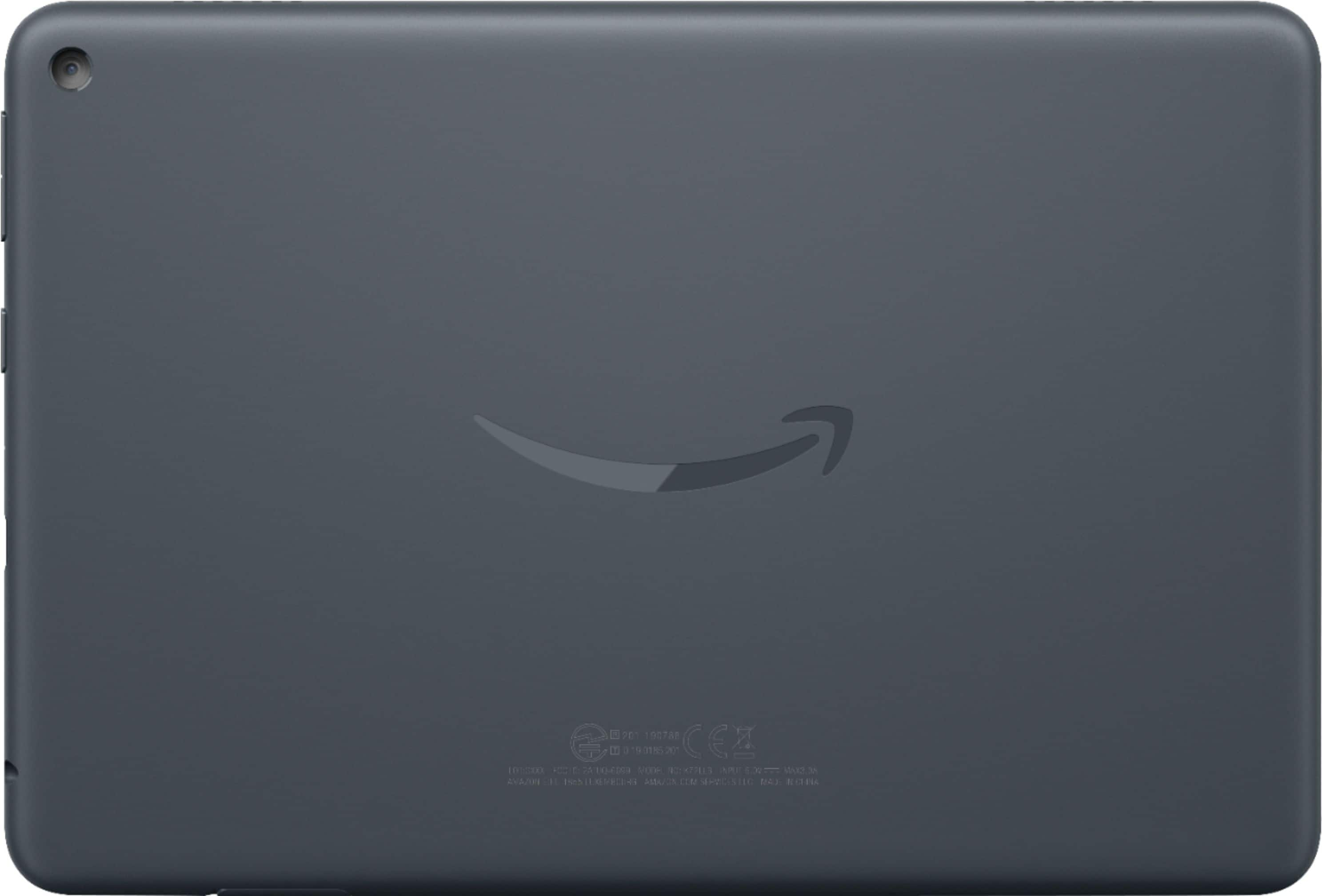
Yes! The Fire HD 8 tablet has a front and rear facing camera. This would allow you to take videos of any length and play them back whenever you want. Have a great day!
A:AnswerHi there,
Yes, You Tube is available on this device. You can access the app by navigating to the Amazon App store, and searching for the app you want, and clicking download. Hope this information helps. Have a great day!
A:AnswerHello Egilsaga and thanks so much for your question regarding Apple TV availability on the Fire HD 8! At this time, Apple TV or the Apple TV+ apps are not available in the Amazon AppStore for this device. I hope this answers your question and that you have an amazing day!