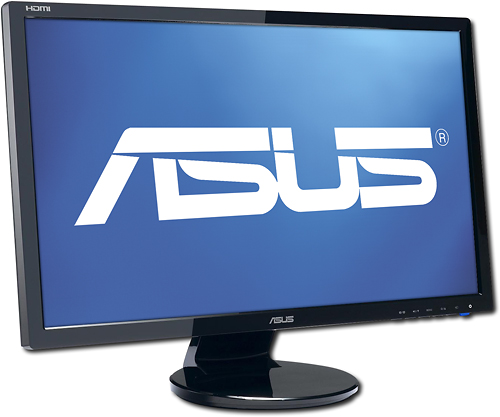
A:AnswerThis monitor can output in 1080p with a response time of 2ms so it is quite capable of being using for your gaming device. This monitor does have built-in speakers.
A:AnswerHit the volume button that has a slash (/) and along side it has the down button, then there is another button about one or two spaces to the right, and this button has settings sign and an up button. you want to just hit the volume button AND THEN hit the button two spaces over that has the up button sign.
A:AnswerYes, right click the speaker icon on the bottom right hand side of your screen (assuming you are using Windows 7+) and you can manually select which audio output device(s) you want to set as default and/or enable/disable.
A:AnswerThe difference between a response rate of 2ms and 5ms is not significant and you shouldn't experience any ghosting on this LCD even when used as a display for a console system.
A:AnswerYou have to make sure the monitor input is the same as your output. Since you said you are using an hdmi cable, you have to press the button with the monitor icon on the bottom right of the monitor (where the power button is located) until you are on hdmi. If you are using vga or dvi, it’s the same concept. It’s been a while since this question was asked but I hope it helps someone else with a similar issue.