A:AnswerRight click on your desktop.
Click "Display Setings"
On the bottom of the page click " Advanced Display settings"
You should see your monitor and on the bottom it should have a link "Display Adapter Properties" Cick that.
go to monitor tab and chooke 144hz refresh rate
I hope this helps :)
A:AnswerIt wont.... It does not display 120 Hz on the PS5 as the HDMI port is limited to 60 Hz only. Unfortunately I am stuck with this monitor and am super disappointed
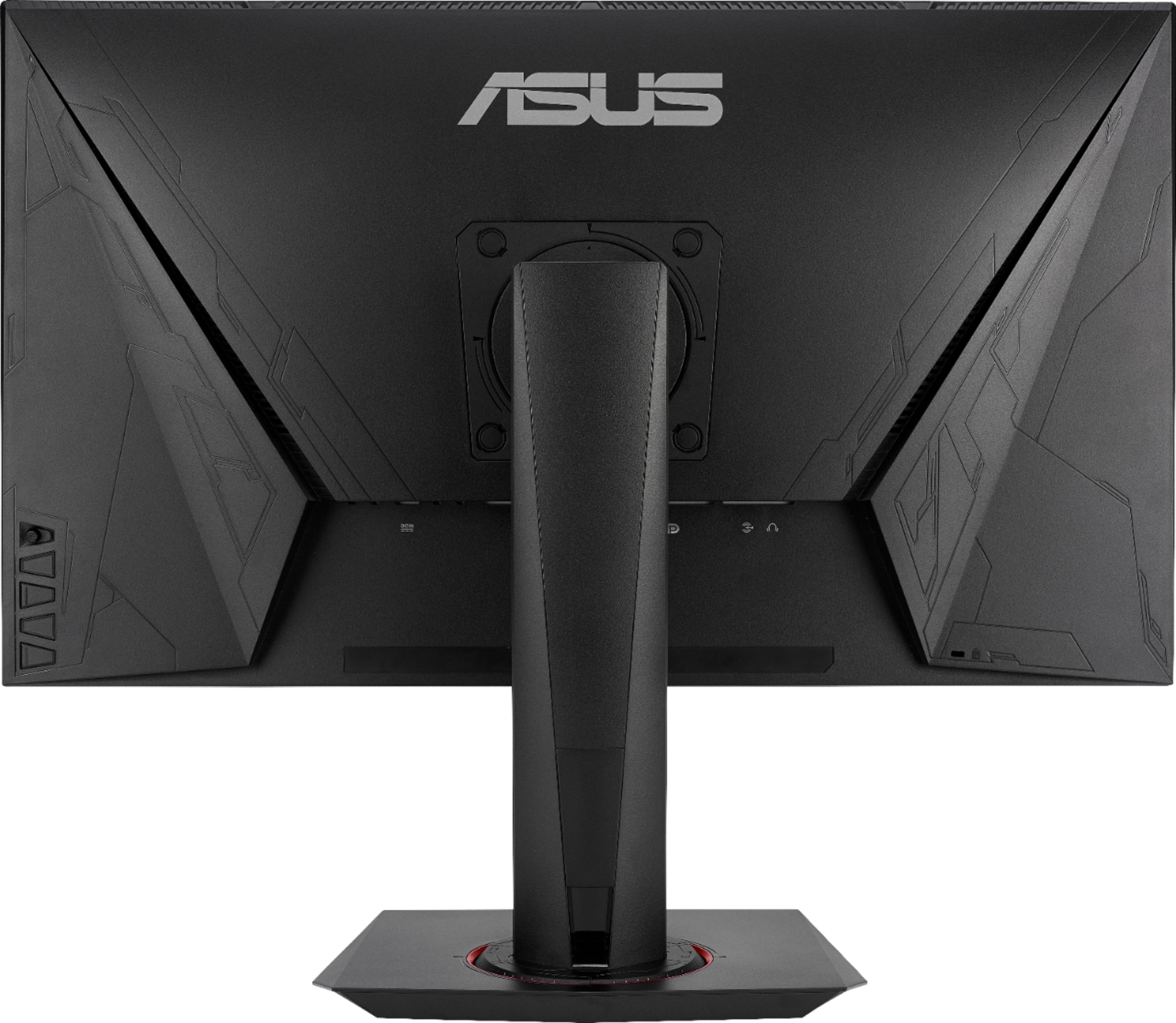
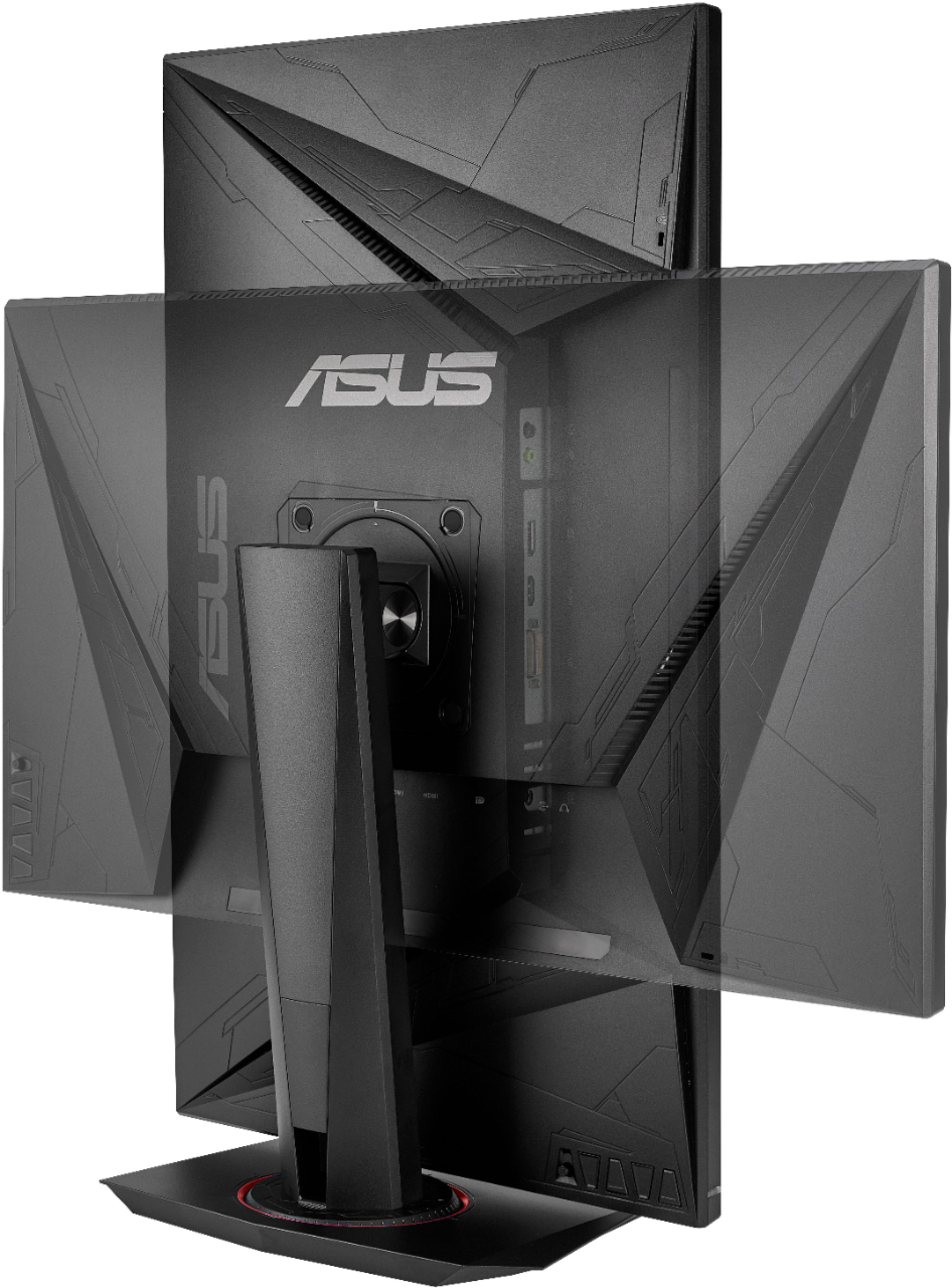
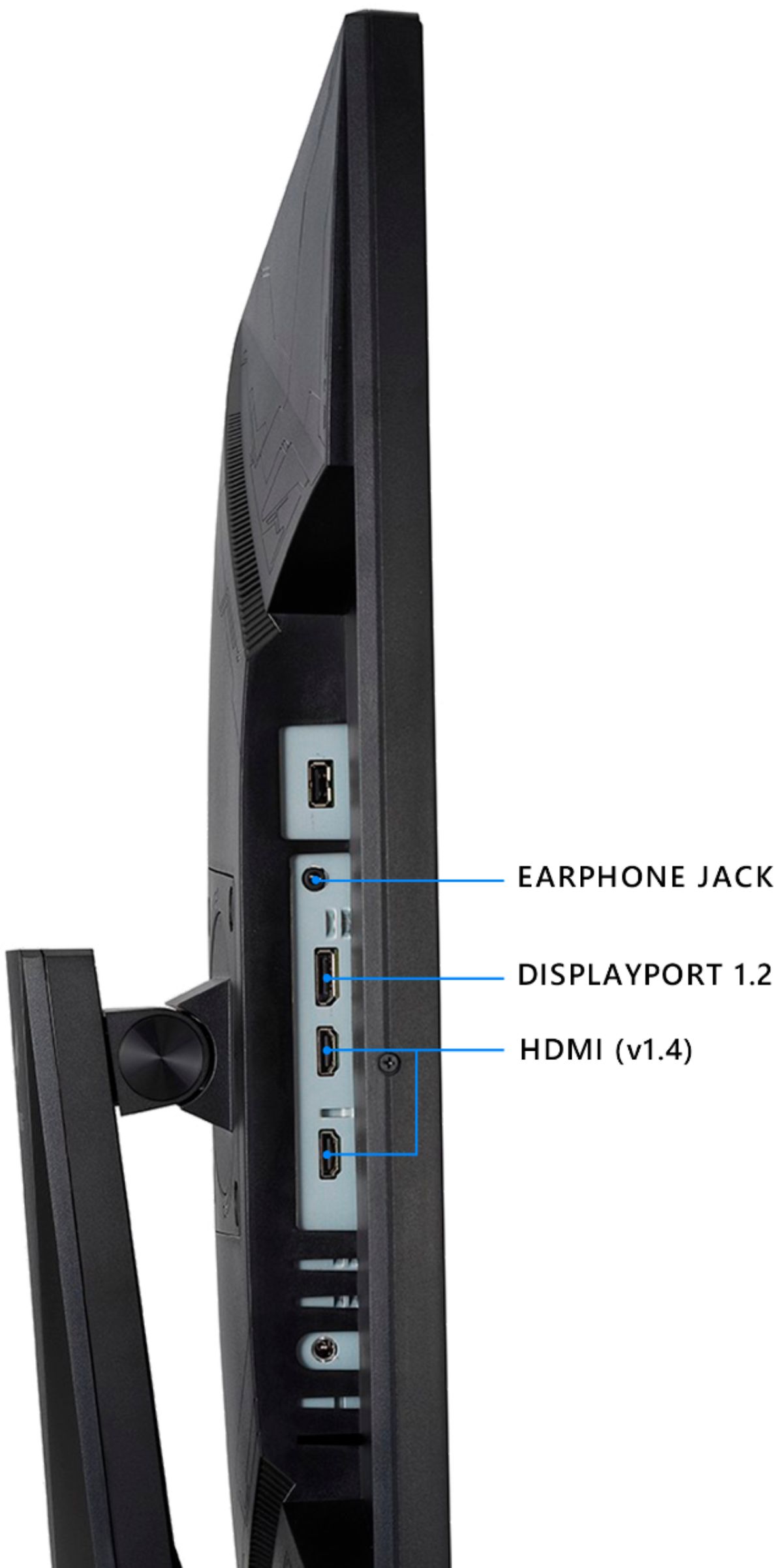
A:AnswerYes you can connect speakers to this monitor. If you are looking at the back of the monitor there is a headphone port on the right hand side, where the HDMI port is located towards the left hand side. Plug an audio jack "male" into the monitor "headphone symbol" port and that will silence the monitor speakers while sending the audio signal to the your headphones or external speakers that you want to use, as long as the external speakers have an audio "male" jack and not a usb cable. You may have to go to the audio app in the settings of Windows 10 to make the speakers that you are plugging into the headphone jack as the default (checked "green") to get the speakers to play from the headphone jack port.
A:AnswerThis monitor supports FreeSync/Adaptive Sync, and the official product page is listed here. https://www.asus.com/us/Monitors/VG279Q/ It is not a part of the TUF Gaming series. There are also no drivers required to use the device.
A:AnswerYes, 144hz via HDMI. I played on my Acer Predator Helios 300 and hit 144hz via HDMI. Xbox one x has variable refresh rate, but nothing hits 144hz on xbox.