A:AnswerTo be able to see the tab line and the bookmark line, you need to adjust Display Scaling inside the Display Settings. For helpful tips, please visit the Microsoft Knowledge Base at: https://support.microsoft.com/en-us/windows/change-your-screen-resolution-and-layout-in-windows-5effefe3-2eac-e306-0b5d-2073b765876b .
A:AnswerIf your screen is just black but you can hear the game, check if your PC meets the system requirements of this monitor. If does meet requirements, check if it was selected inside the Display Properties and check in the monitor's OSD menu if the correct input source was selected, also.
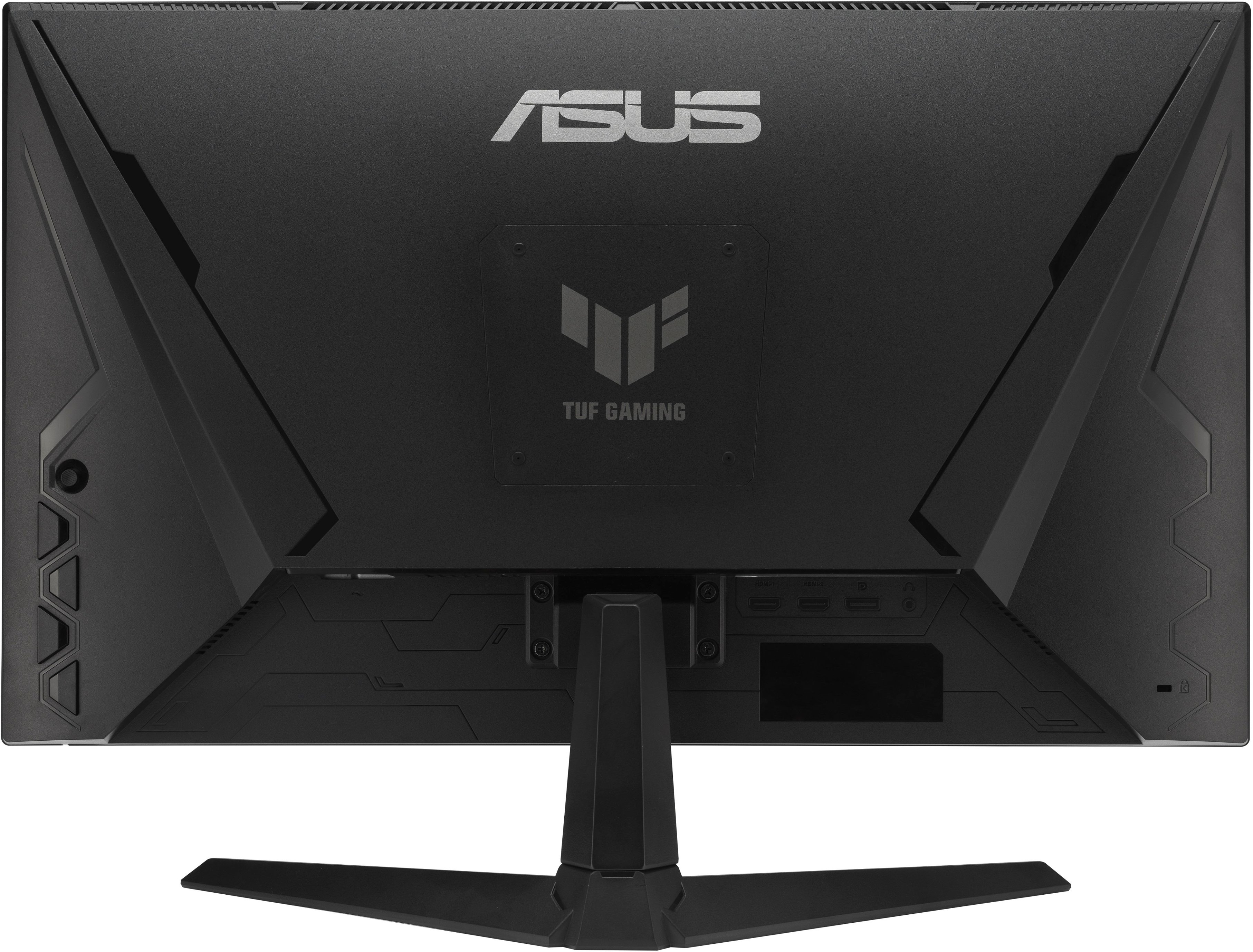
A:AnswerBehind the right side of the monitor there’s a little joystick, move it any direction and the menu will pop up. From there, go to gaming -> gameplus -> crosshair and choose any of the crosshairs to your choice
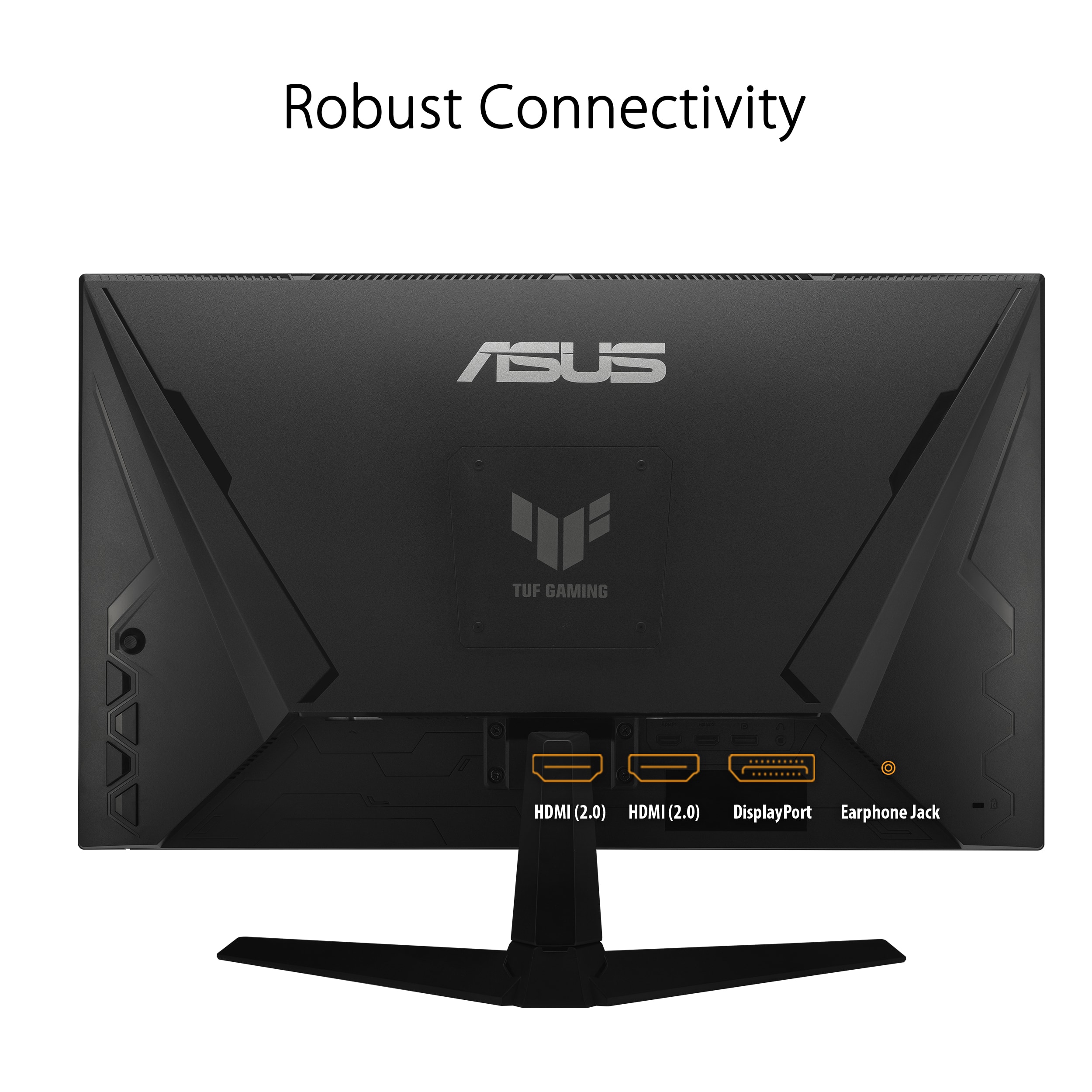
A:AnswerFor the ASUS VG249Q3A monitor, you'll need a DisplayPort 1.2 cable. This monitor features a DisplayPort 1.2 input, so using a compatible cable will ensure you get the best performance and resolution.