A:AnswerWe are sorry that you are experiencing connection issues with your Brother DCPL2550DW machine and we understand your frustration. We'll be happy to help you. Here is an FAQ that will help you:
https://help.brother-usa.com/app/answers/detail/a_id/151955
https://help.brother-usa.com/app/answers/detail/a_id/151954
If you continue to have issues, our Brother Customer Support Team is available to assist you direct: www.brother-usa.com/brother-support
A:AnswerThis Brother DCP-L2550DW has the capability to duplex print (double sided print). You can enable this feature through the printer driver settings on your computer. For more information, fee free to contact us via chat, email or phone by using the link below:
https://www.brother-usa.com/brother-support
A:AnswerWe understand you are experiencing light printing issues with your Brother DCPL2550DW. We'll be happy to assist you. Below is a FAQ that will help you:
https://help.brother-usa.com/app/answers/detail/a_id/152396
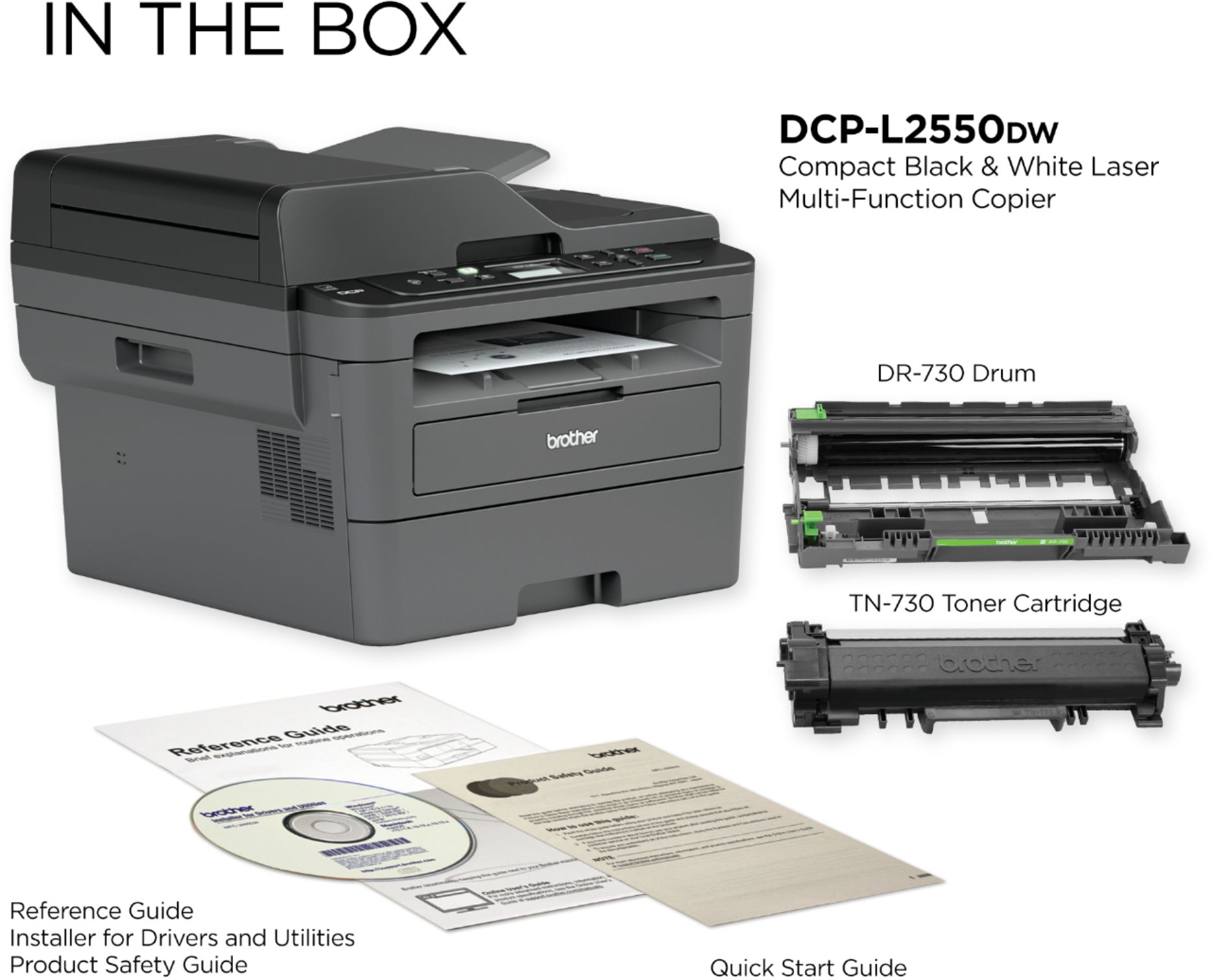
A:AnswerA USB cable is not included with the purchase of your Brother machine. A list of components included with the machine is printed on the outside of the carton.
Brother doesn't include USB cables with its printers, fax machines, or Multifunction Centers (MFC) because there are often multiple ways to connect these machines to a computer or network, and we are unable to anticipate which of these connection methods you will use. Including multiple cables for multiple connection types would unnecessarily contribute to environmental waste. Brother is committed to conserving the global environment.
If your Brother machine is wireless-capable and you require a USB cable to initially connect the machine to a wireless network, you may be able to 'borrow' a USB cable from another device, use it to connect your machine to the network, and then reconnect the cable to the original device. The Brother machine has a Standard-B USB port, so you must use type A/B USB cable. We recommend the cable be 6 feet or less.
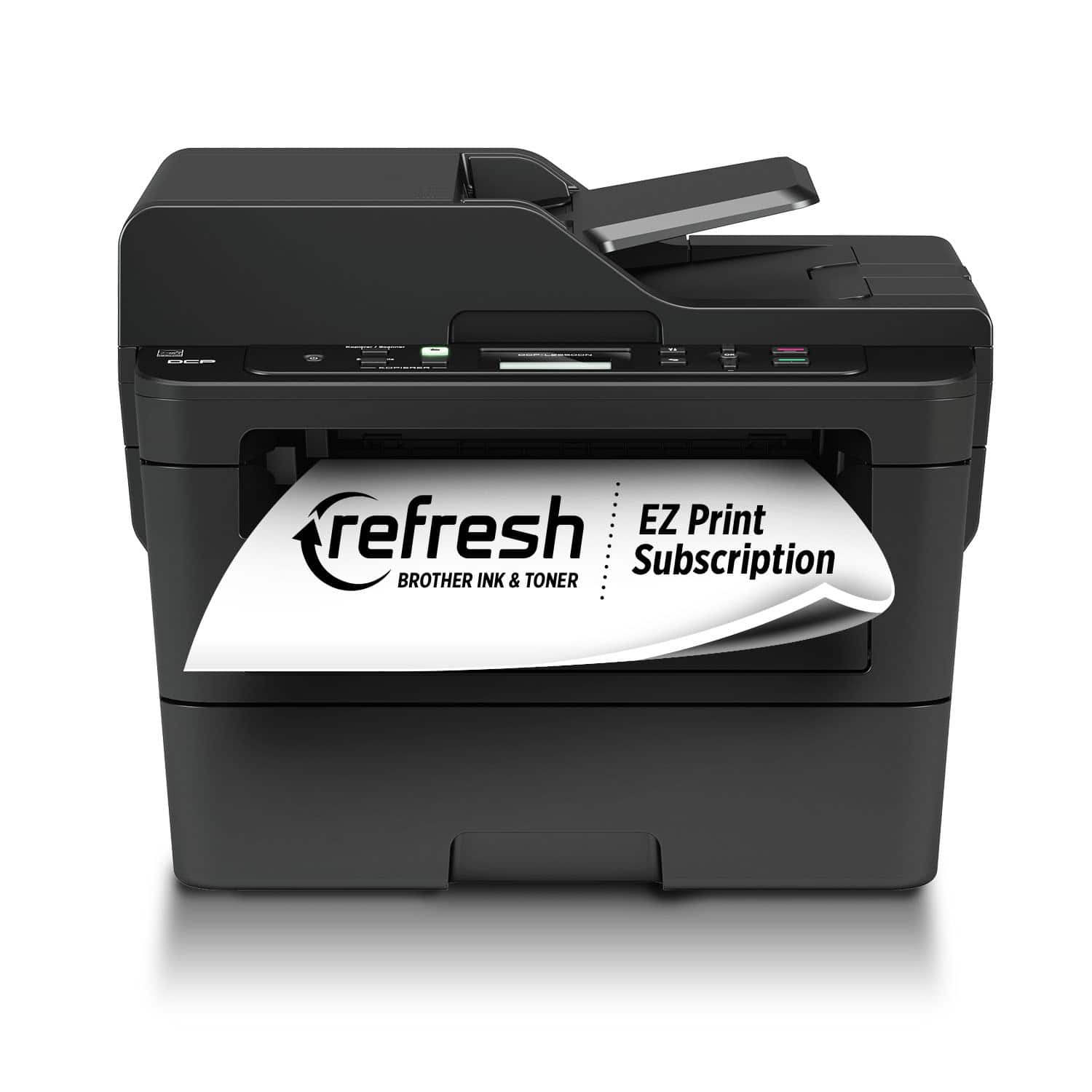
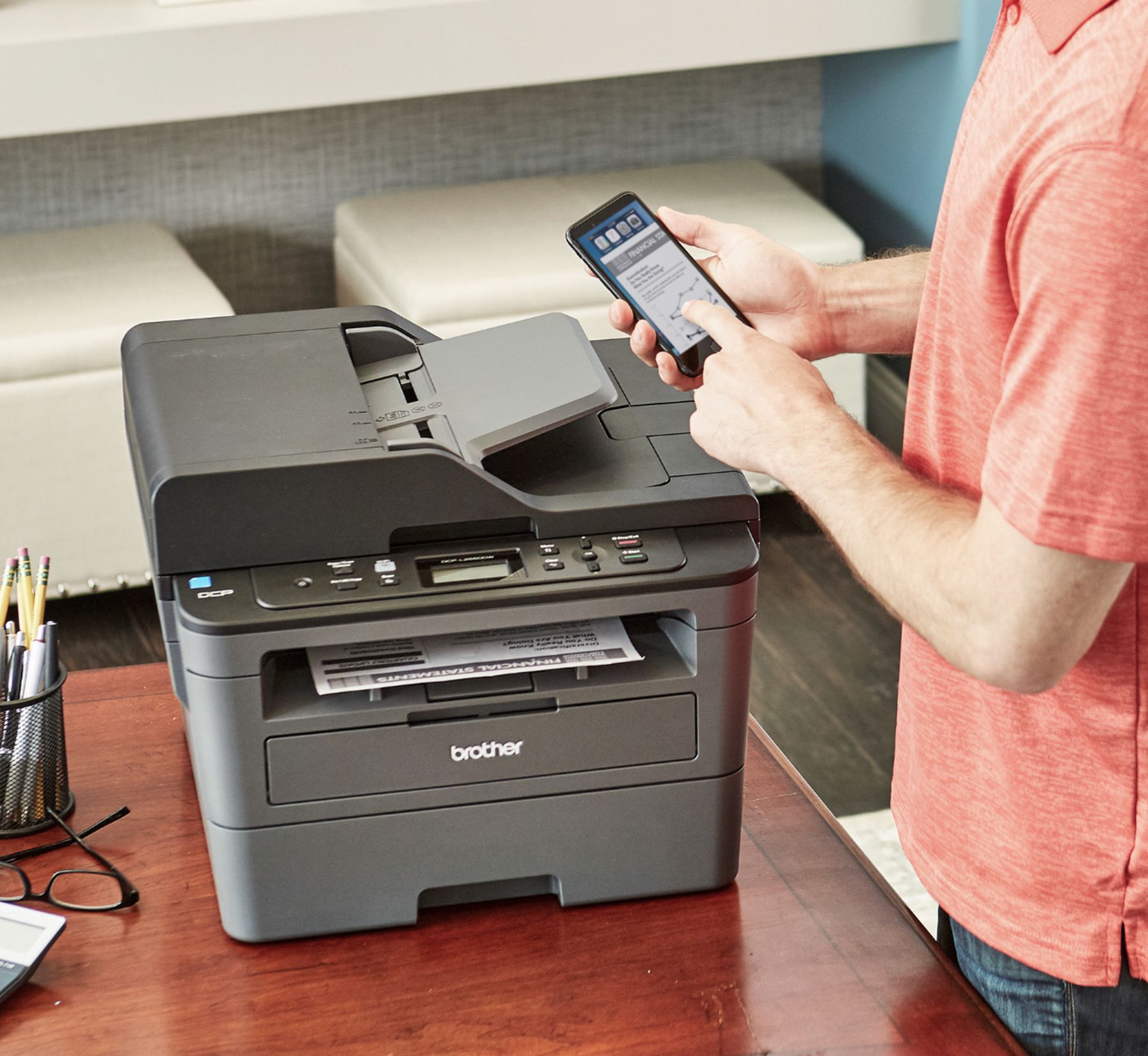
A:AnswerThe Brother DCP-L2550DW would use Brother iPrint&Scan, connect your mobile device to the machine using one of the following connection methods: Wi-Fi, Wi-Fi Direct, Wireless Direct and Remote Print (Google Cloud Print.