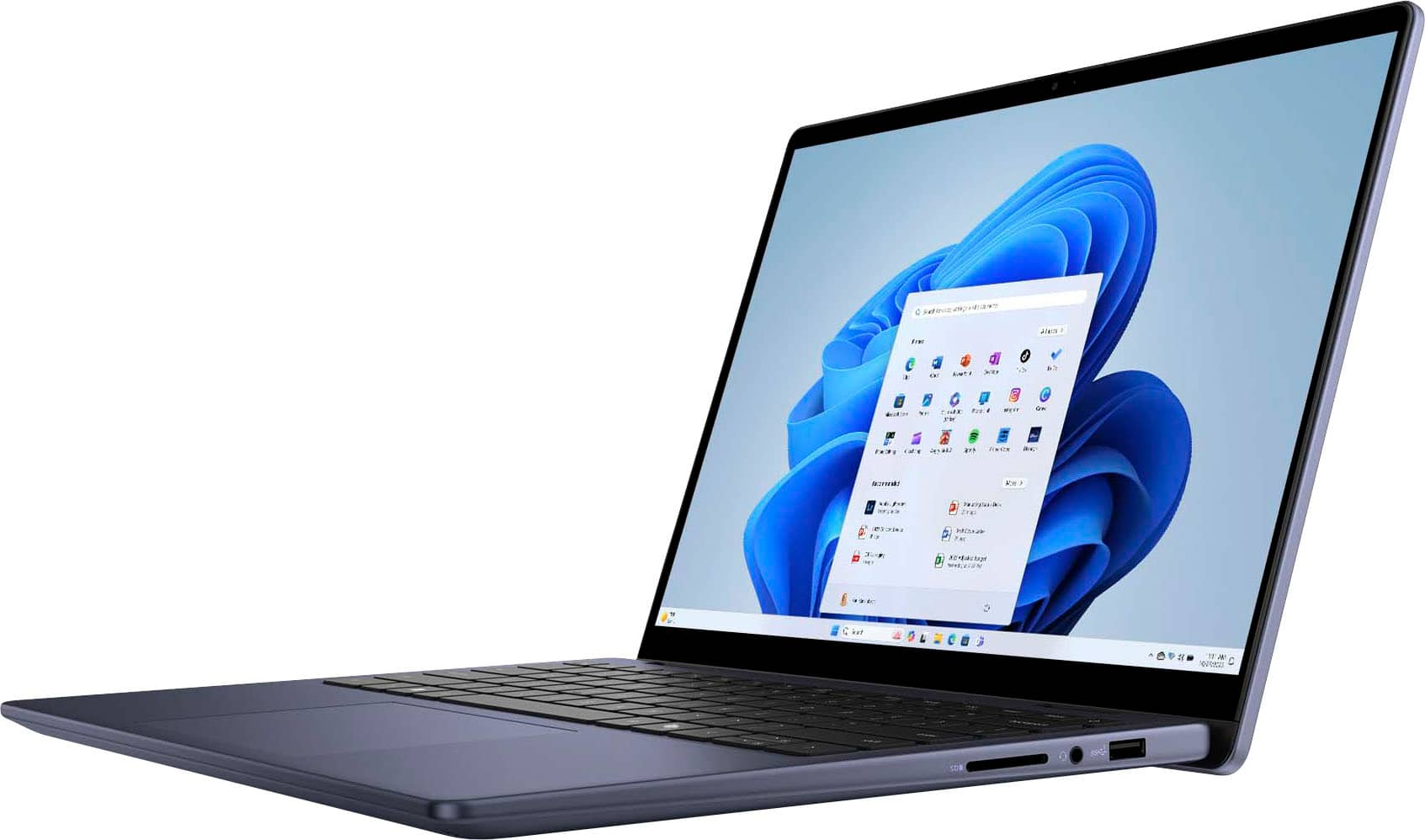
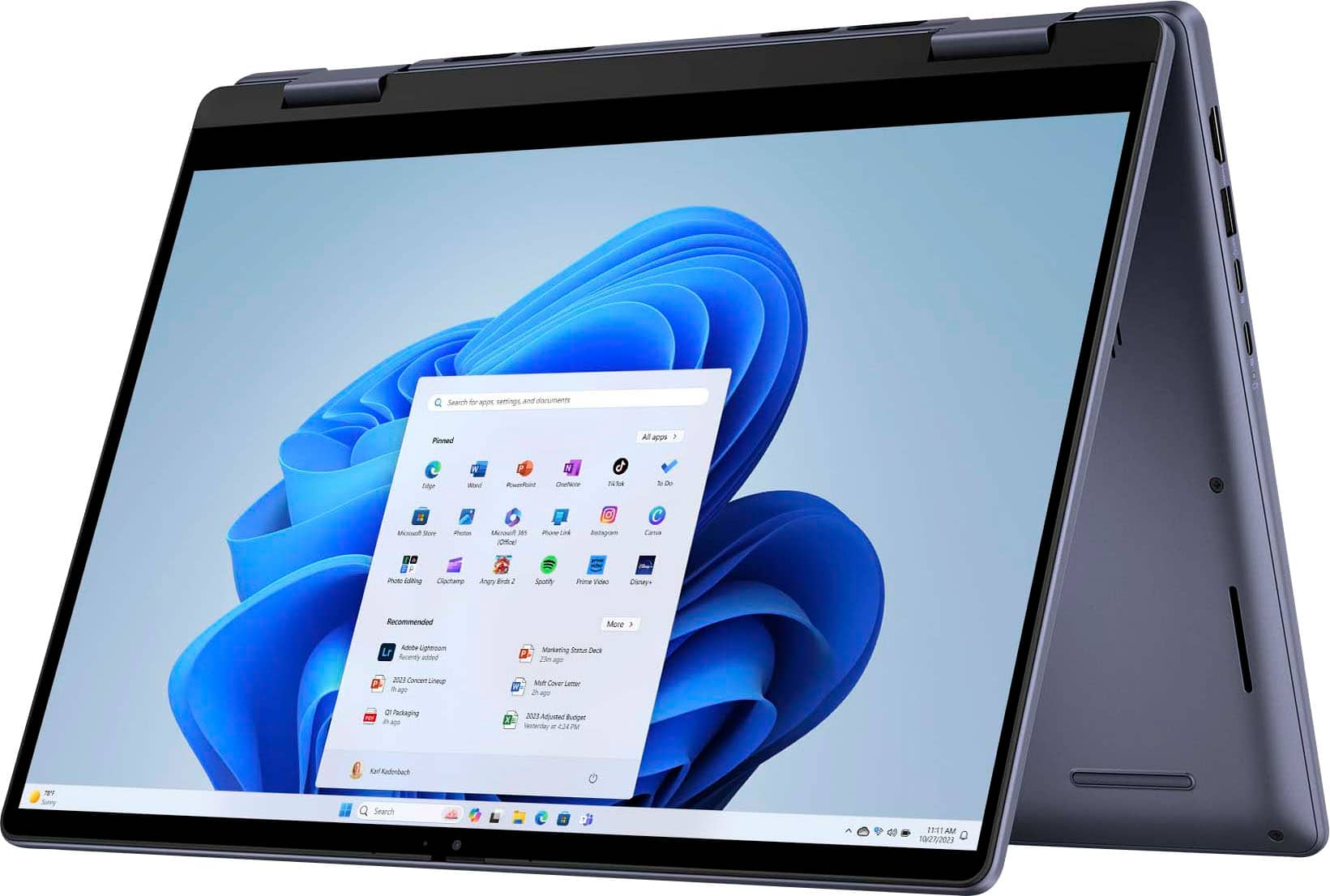
A:AnswerThis laptop is compatible with the Dell Active Pen (PN350M). Or if you're looking for more advanced features, the Dell Premium Active Pen (PN579X) as well.
A:AnswerThe refresh rate on this laptop is 60hz not 600hz. Thank you for bringing this to our attention & we will get this information corrected as soon as possible.
A:AnswerWe apologize for the inconvenience caused. Please perform the steps in the following link: https://url.dell.com/db9b60. If the issue still persists, please contact Dell Tech Support Team.
A:AnswerPlease follow the steps to resolve the Webcam issue.
Ensure that you check the box next to Enable Camera in the BIOS.
Install the latest Intel 2D Imaging, MCU, Visual Sensing Controller Driver for Camera from the Dell Website by running the executable file.
Note: Dell Technologies recommends installing the latest drivers from the Dell website in this order to improve compatibility.
Intel Graphics or Arc Graphics Driver.
Intel Integrated Sensor Solution Driver (Related to the Intel Visual Sensing Controller (Intel Clover Falls (CVF)) or User Presence Detection (UPD).).
Intel Serial I/O Driver.
Intel 2D Imaging MCU Visual Sensing Controller.
Intel Management Engine Components Installer.
Update to the latest version of the BIOS that is available.
Reboot your laptop when you have installed all the drivers to confirm if you have resolved the problem.
If the problem is not resolved. Follow the steps below to uninstall and reinstall the drivers manually. Two different sets of instructions are provided for Windows 11 and Windows 10 below.
Uninstall the camera manually for the Windows 11 Operating System.
Go to Device Manager and change the view to Drivers by device.
Click the arrow next to Camera to expand it, then expand AVStream camera.
Right-click each file ending in .inf and select Remove driver.
Check the "Attempt to force removal of this device while it is still in use by devices" and click Remove.
Repeat this process until all .inf files under AVStream Camera are removed.
Expand System devices.
Expand each Camera sensor and remove all .inf files using the same process as the previous step.
Under system devices, expand each Intel Control Logic and Intel Imaging Signal Processor device.
Control logic and Imaging Signal Processer.
Remove all .inf files for each Intel Control Logic device and Intel Imaging Signal Processor.
Reinstall the latest Intel 2D Imaging MCU Visual Sensing Controller Driver for Camera from the Dell Website by running the executable file.
A:AnswerYou cannot uninstall the Copilot feature. You can only disable it by editing system settings, group policies, the Windows Registry, or firewall rules.