A:AnswerHello Thtsweetchick. Unfortunately, there is not a wireless USB accessory available for the VS260 projector as it does not include Wi-Fi functionality. Regards, Kevin - The Epson Team.
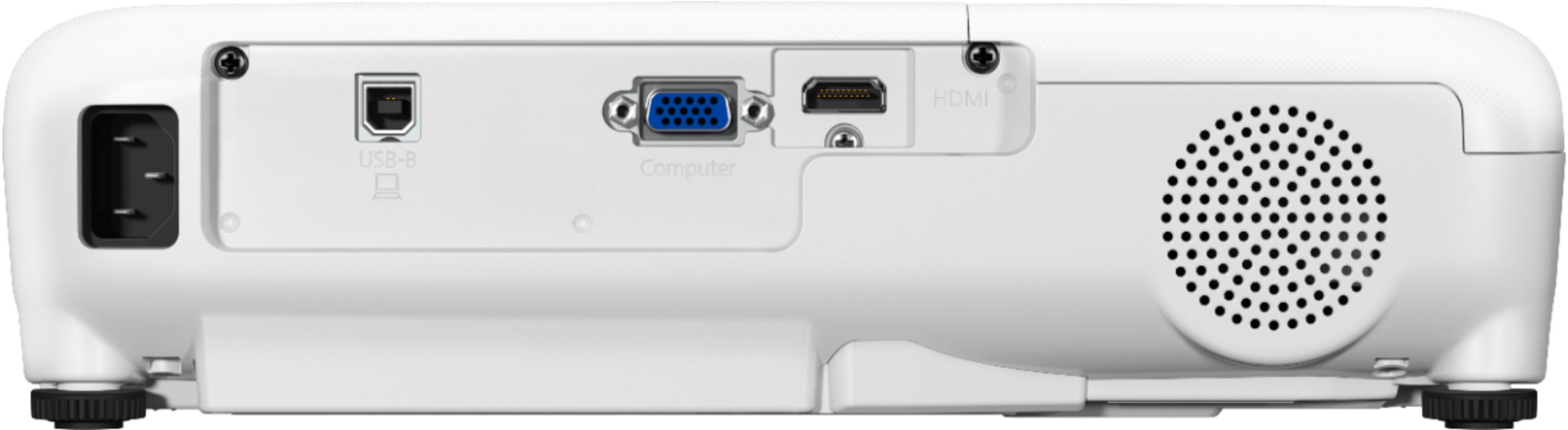
A:AnswerHi Doug808, The VS260 is not wireless or Miracast capable. You can connect a computer directly to it using the built-in HDMI and VGA ports. If your goal is to stream content, the Epson - EpiqVision™ Mini EF12 Smart Streaming Laser Projector includes an Android TV device and is ready to stream over Wi-Fi. The EF12 is currently available at Bestbuy.com, but Inventory levels may vary. Regards, Mark - The Epson Team.
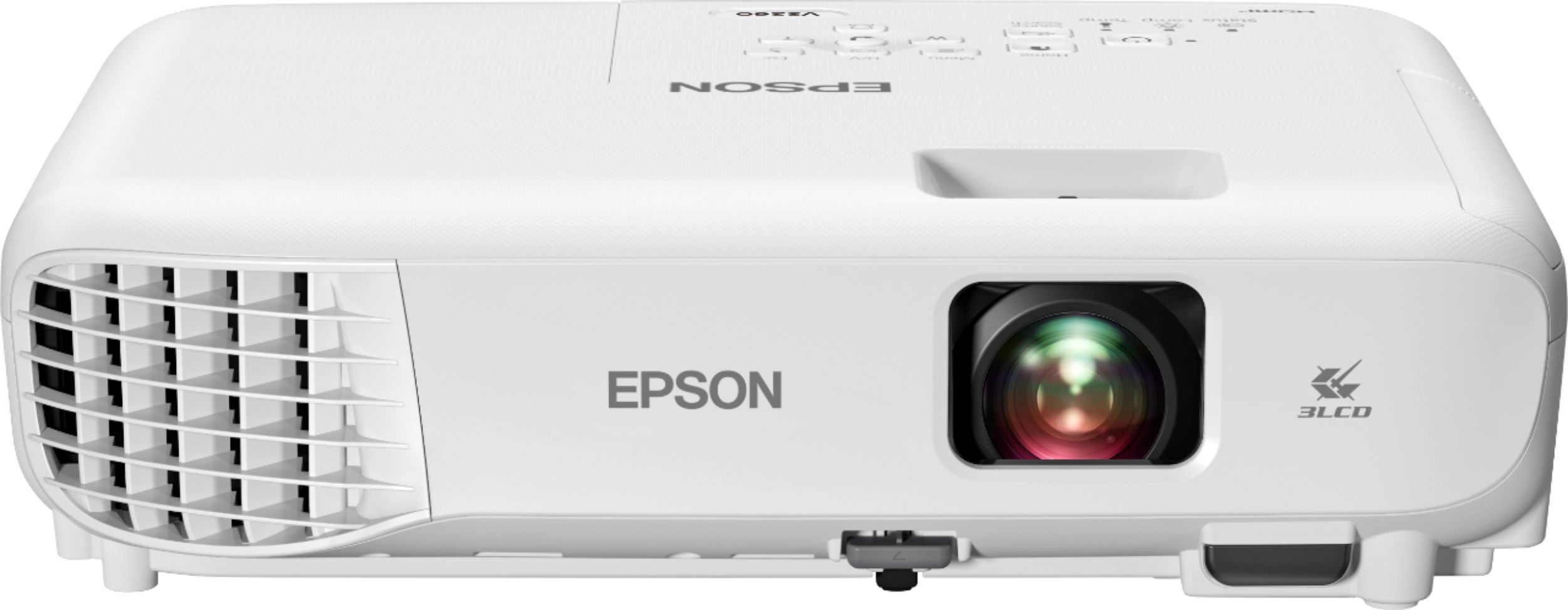
A:AnswerHello Troy. Unfortunately, the VS260 does not include an audio out port. If it permits, you can try to set up audio directly from the source to your speaker or audio receiver and video to the projector using the HDMI port. Regards, Kevin - The Epson Team.
A:AnswerHi Beth, the VS260 has an HDMI port for connections. Please check to see if your cable box has an HDMI port. The VS260 does not include an HDMI cord in the box. Regards, Mark - The Epson Team.

A:AnswerHello. The VS260 has an HDMI port. If your Android device can be connected via an HDMI port and mirror the screen on your phone, then you should be able to project photos from your device. We recommend confirming with your Android device manufacturer to be 100% sure. Regards, Kevin - The Epson Team.
A:AnswerHello Smiley. Yes, the projector lamp is considered a user-replaceable part for the VS260. If you're looking for the lamp, the correct part number is V13H010L97. Regards, Kevin - The Epson Team.
A:AnswerHello Tayers. If your projector is placed approximately 18ft from a screen, you can expect to get a projection that would fit a 150-inch screen. Regards, Kevin - The Epson Team.
A:AnswerHello. Unfortunately, Epson does not have a heavy-duty case for the VS260 projector. We only make a soft carrying case for that model. If you are interested in it, the product SKU is V12H001K69. Regards, Kevin - The Epson Team.
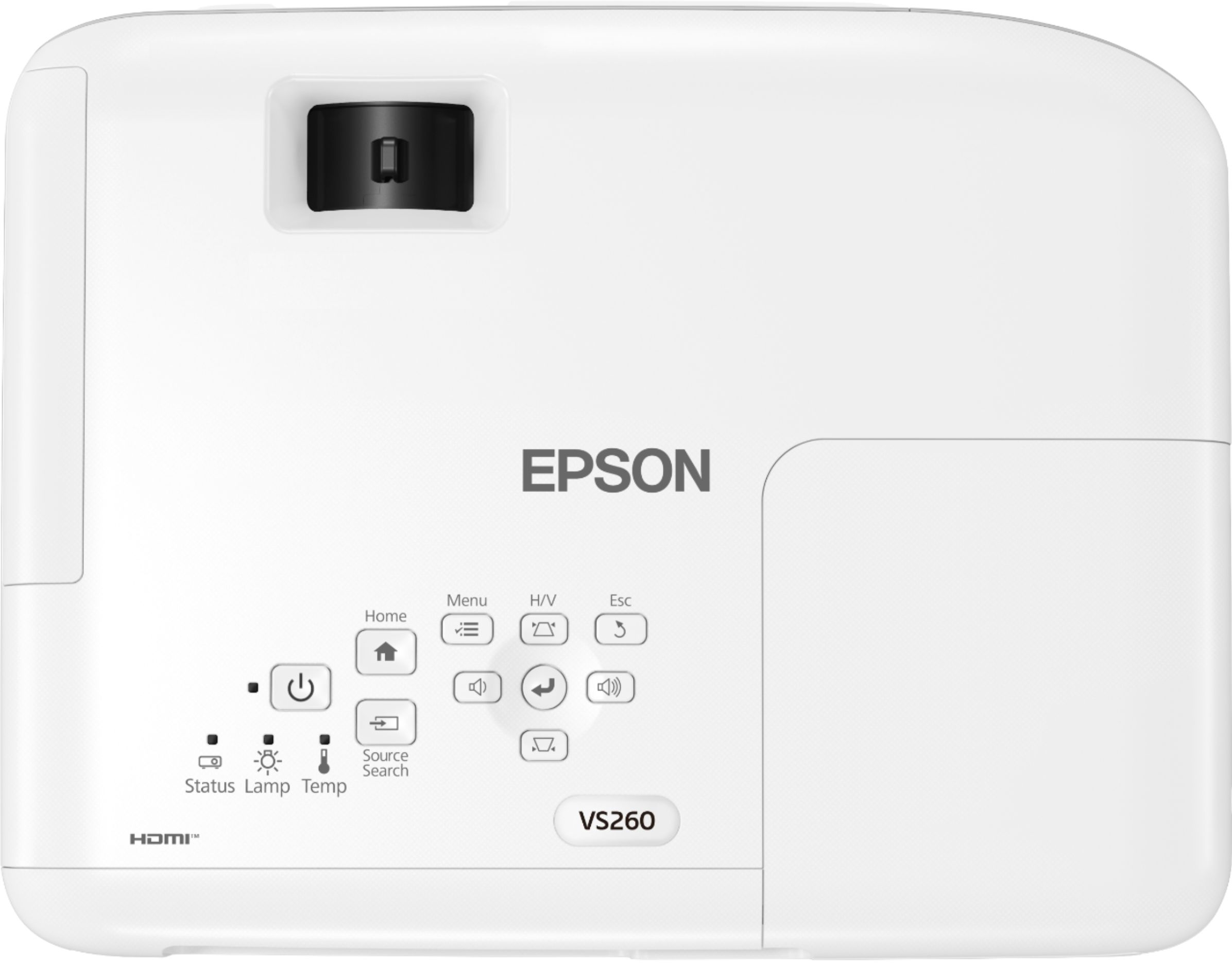
A:AnswerHello Jesse. The keystone adjustment function for the VS260 includes both horizontal and vertical adjustment buttons. Regards, Kevin - The Epson Team.
A:AnswerHello coachjerry. We recommend taking a look at the Epson EX-5280 Projector. It includes a USB port for a PC-Free experience that supports connecting a USB memory device. For more information on this feature, please visit our official Epson Support page. Regards, Kevin - The Epson Team.
A:AnswerHello Halloweendecs. Unfortunately, it is not recommended to place the VS260 projector on its side. We recommend placing the projector parallel to the screen. For more information on projector placement, please see the User's Guide, which can be found on our official Epson Support page. Regards, Kevin - The Epson Team.
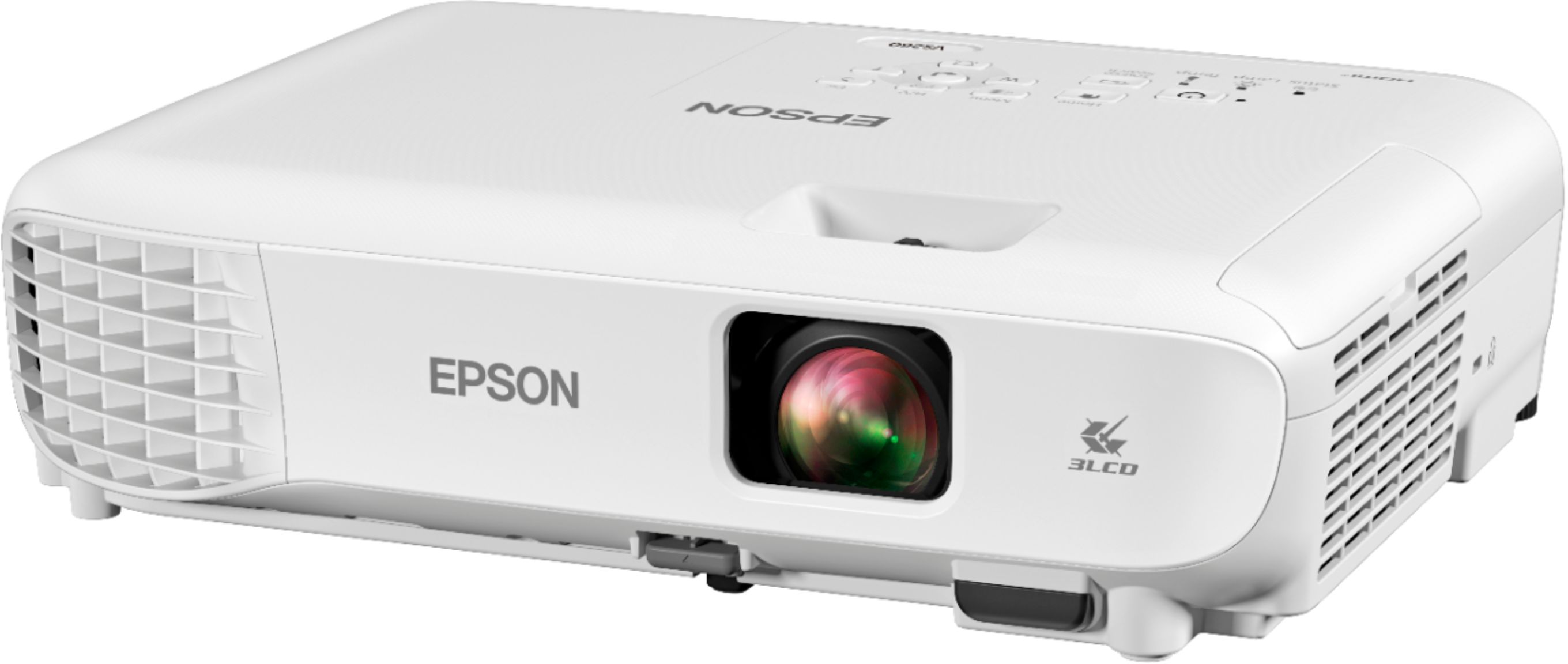
A:AnswerHi Mounting, The Epson VS260 has holes for connecting a standard ceiling projector mount. It does not have a tripod socket. Regards, Mark - The Epson Team.
A:AnswerHello Jamesj. To help identify if it is an issue with the VS260 or your streaming device, we recommend temporarily plugging in a different HDMI device to see if the picture still goes away. There are many different factors that can cause this. Therefore, if the issue continues, please visit our official Epson Support page to contact our Technical Support team. Regards, Kevin - The Epson Team.
A:AnswerHi Kathleen, The VS260 XGA projector does not have a mount point for a tripod, only for standard ceiling mounts. Regards, Mark - The Epson Team.
A:AnswerHello Heather. If your Chromebook has an HDMI port, you should be able to connect your device to the VS260 via an HDMI connection. For more information, please see the User's Guide on our official Epson Support page. Regards, Kevin - The Epson Team.
A:AnswerHi twensko, You can ceiling mount the VS260 using the Epson Universal Projector Mount or a similar mount that can support over 5.3 lbs. If you use a ceiling mount, please also use a safety cable. There is a menu setting which will flip the image so it will be right-side up. Regards, Mark - The Epson Team.