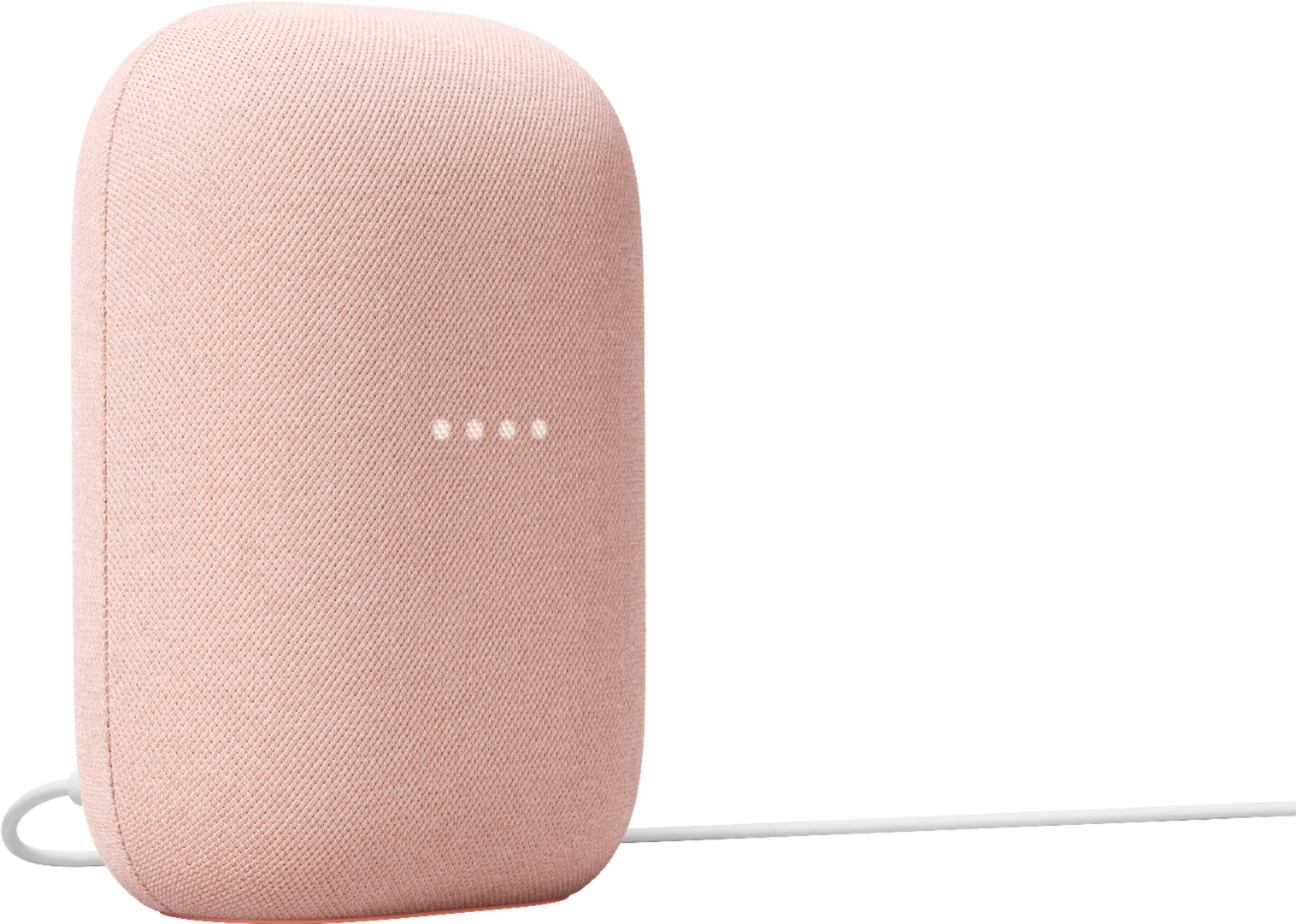
A:AnswerYou can play it through Spotify using vocal commands as long as you set up your Spotify account through the Google Home app to link it to the speaker. You can also adjust the volume via phone as you would normally.
A:AnswerDefinitely! You can listen to your favorite internet radio stations such as iHeartRadio, TuneIn, Radio.com, etc. using Nest Mini. Just say ¨Hey Google! Play <radio station name>¨ command on your Nest Mini. You can learn more about other commands you can use to listen to radio stations with Nest Mini here: https://support.google.com/googlenest/answer/7071793
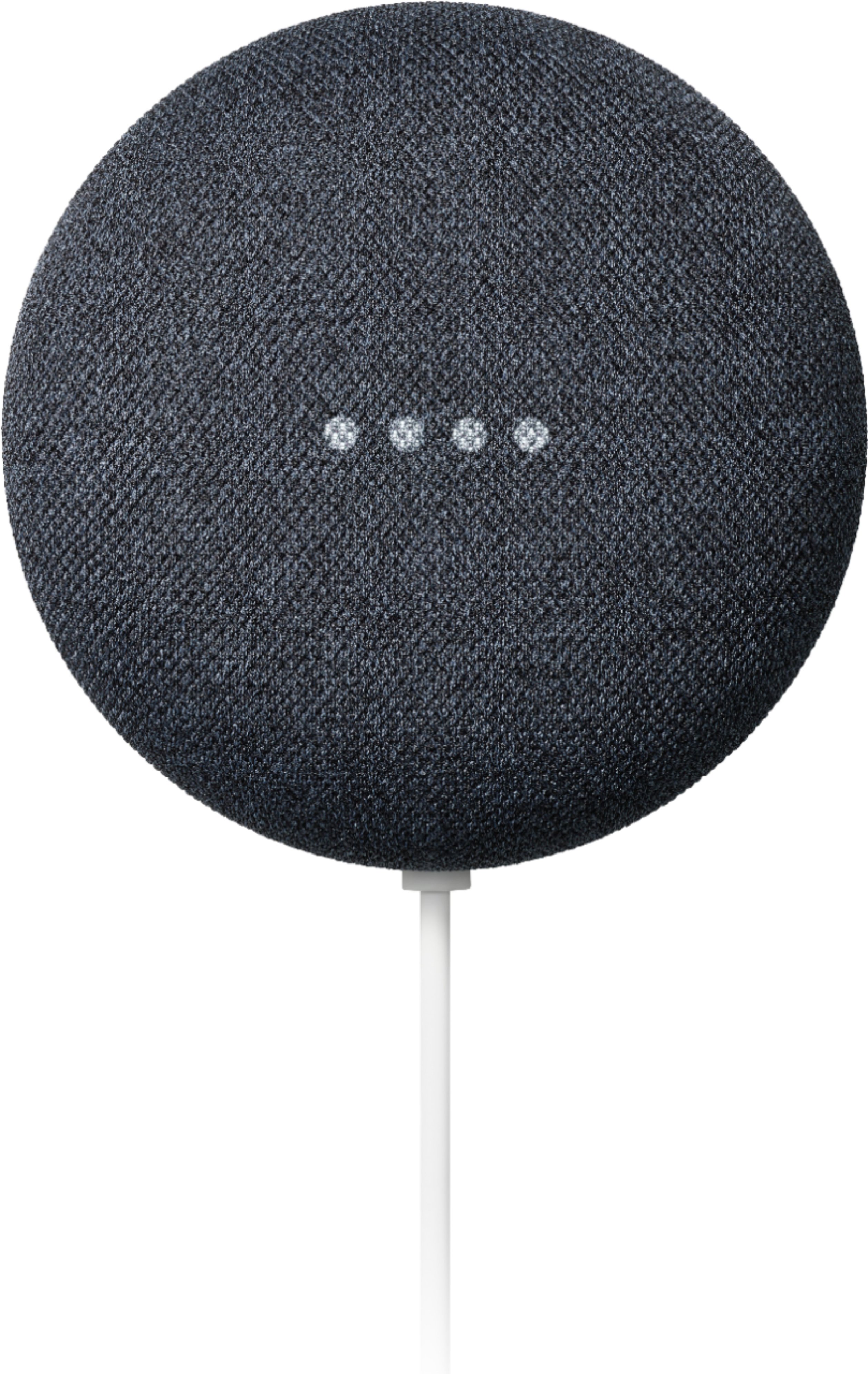
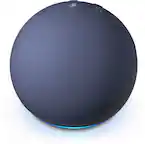
A:AnswerHi James, there is no difference in the smarts between the Nest Mini and the Nest Audio. They can do the same things, including broadcast. The only difference is the size and sound quality.
If you are looking for great sound, get the Nest Audio. If you are looking for decent quality sound in every room, get the Nest Mini. Also, note that the Nest Mini frequently goes on sale for $30.
Hope this helps!
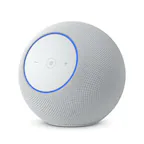
A:AnswerAbsolutely! You can control the volume of Nest Audio via touch controls.You can tap the right side of the Nest Audio to increase and tap on the left side to decrease the volume. Find out more information here: https://support.google.com/googlenest/answer/7072489
A:AnswerI think this is a speaker just to do commands as assistant, not much of a Bluetooth speaker. I would reccomend JBL for sure if you want a Bluetooth speaker and to have more base and more in volume. This can only do so much and it’s really to just talk to it and for it to do things for you as in like turning off tv , making phone calls and etc..
A:AnswerGreat question, Lola. Yes, you can listen to the radio stations of your choice on the Nest Audio. Though, premium online radio streaming requires a subscription. It will also respond to voice commands. Here’s a guide with more details: https://support.google.com/googlenest/answer/7071793
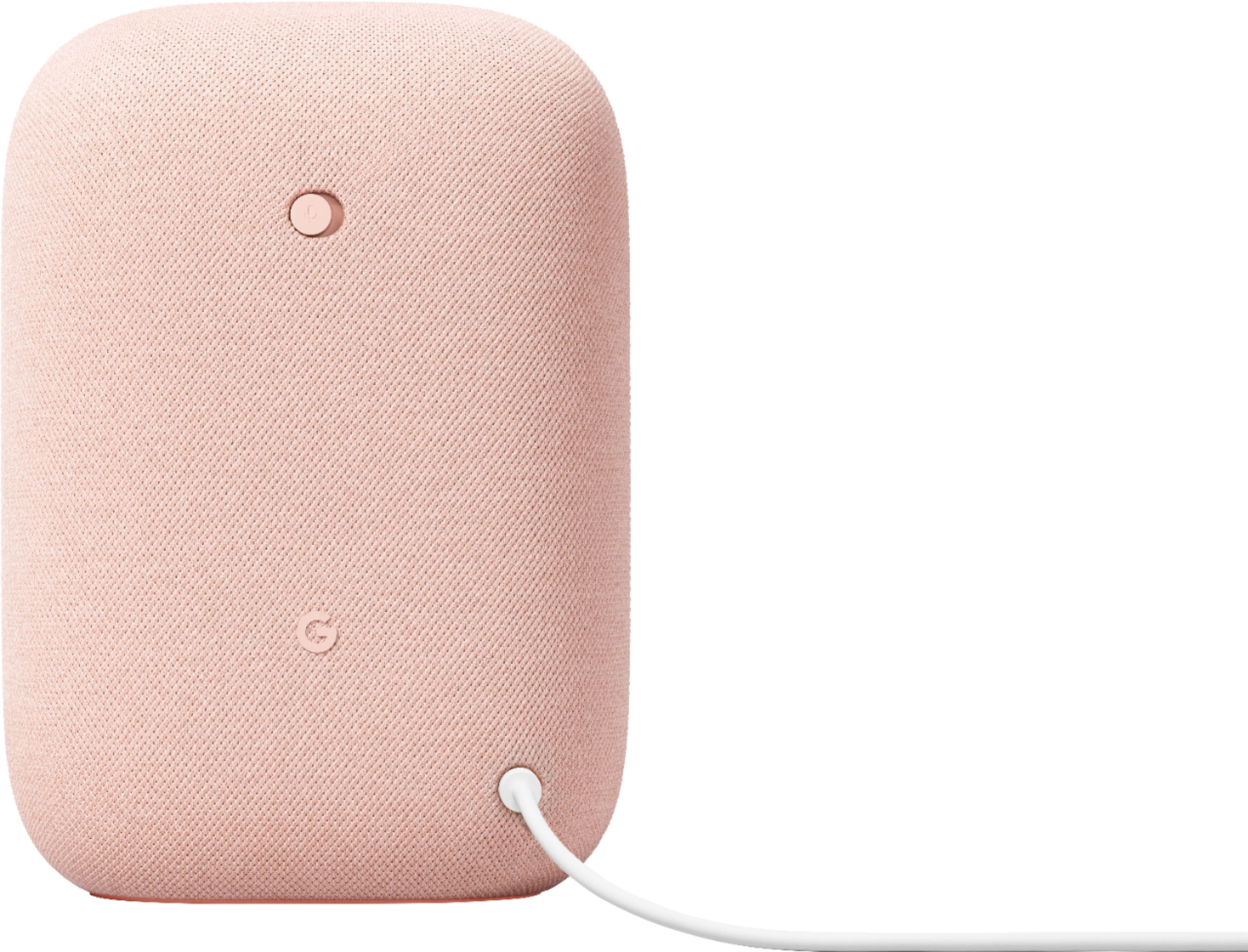
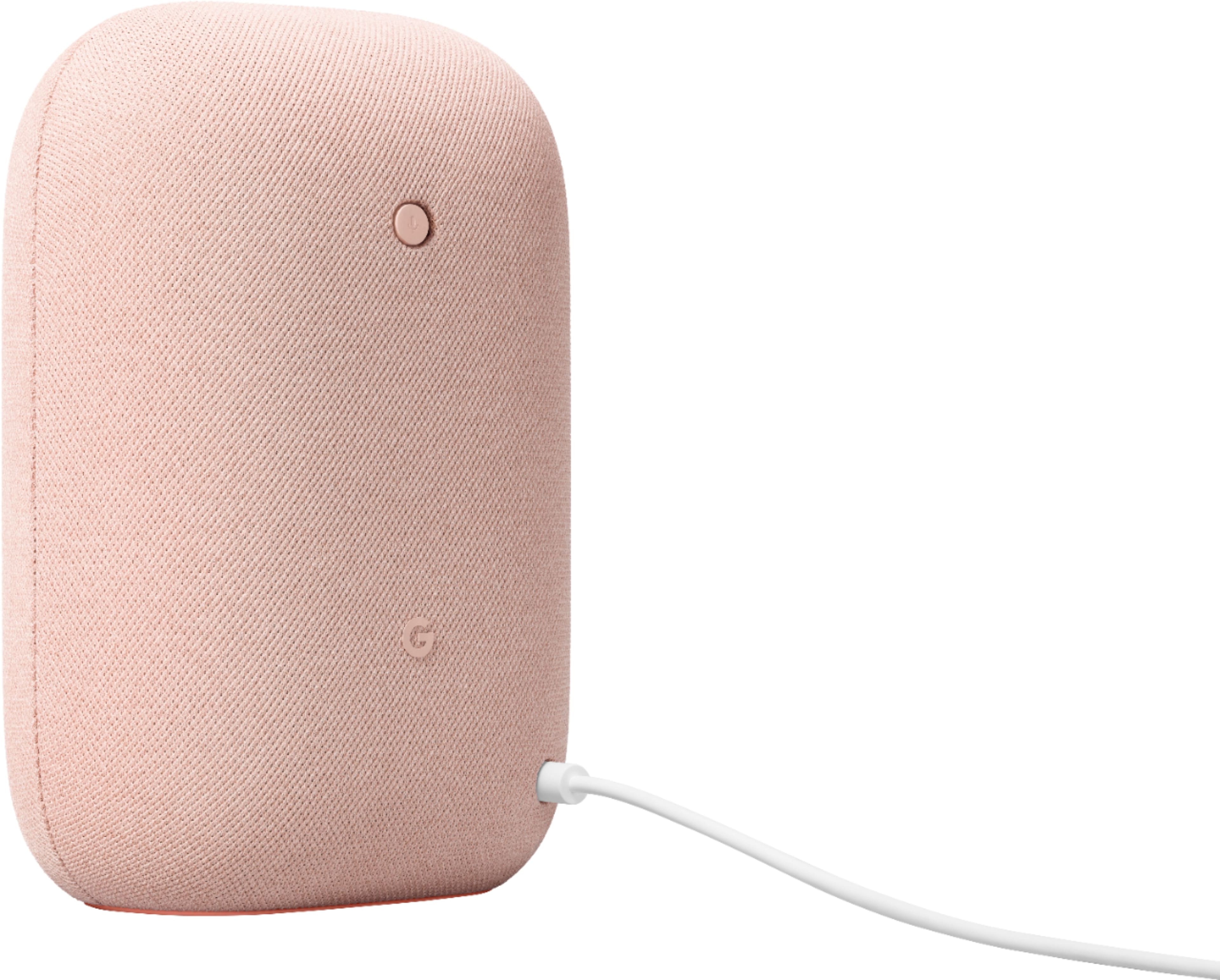
A:AnswerYes, you can. On the back of the Nest Audio, next to the power cord, you can toggle the mic switch on or off. Your Assistant will say whether the microphone is muted. Please note that Google Assistant will not respond to your voice commands if the microphone is on mute.
A:AnswerYes. Make sure to be specific on which speaker or display you want to stream or play content. (For example, "Hey Google, play podcast on living room speaker.") If you have multiple devices and you did not give specific command to which speaker to stream, it will play content to the last speaker you gave command to. For further assistance, feel free to contact us here: https://support.google.com/googlenest/gethelp
A:AnswerI just found mine in the front corner of the lot after the hurricane hit. It was buried in saltwater. I plugged it in and it powered right up. It's a little scuffed and the mesh on the top is gone.
A:AnswerUnfortunately, this feature is not supported. While you can pair your Nest Audio with your laptop and turn it to a Bluetooth speaker, the microphone is designed to allow you to talk to Google Assistant, make audio calls, and detect sounds (with a Nest Aware subscription in certain regions, and if you have enabled this feature).
A:AnswerThey can be used as Bluetooth speakers (say "Hey google, turn on bluetooth") and work as expected. I don't think the speakers can transmit anything to a BT device. Your audio source (phone, mic, whatever) would have to be the device sending to BT earpieces.
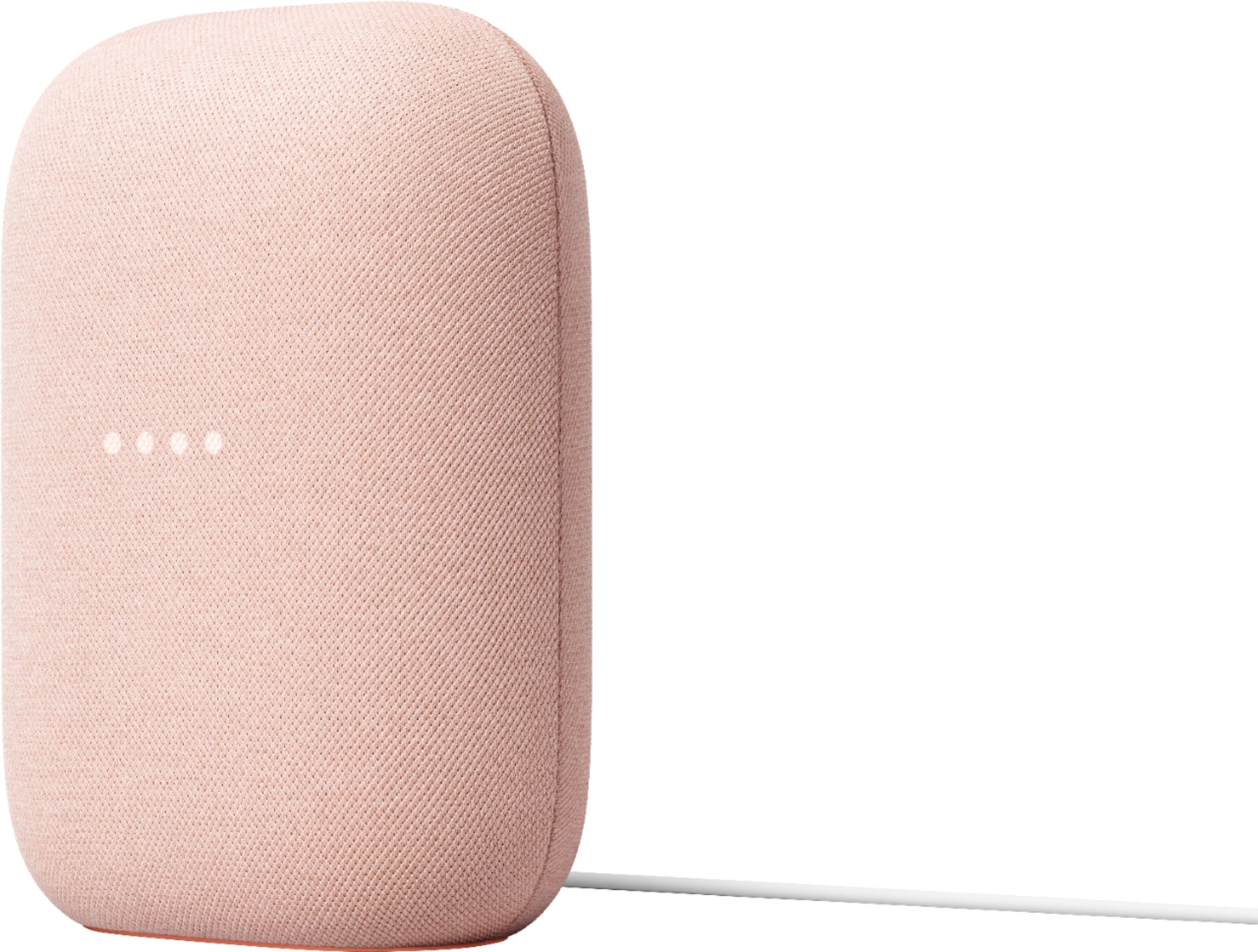
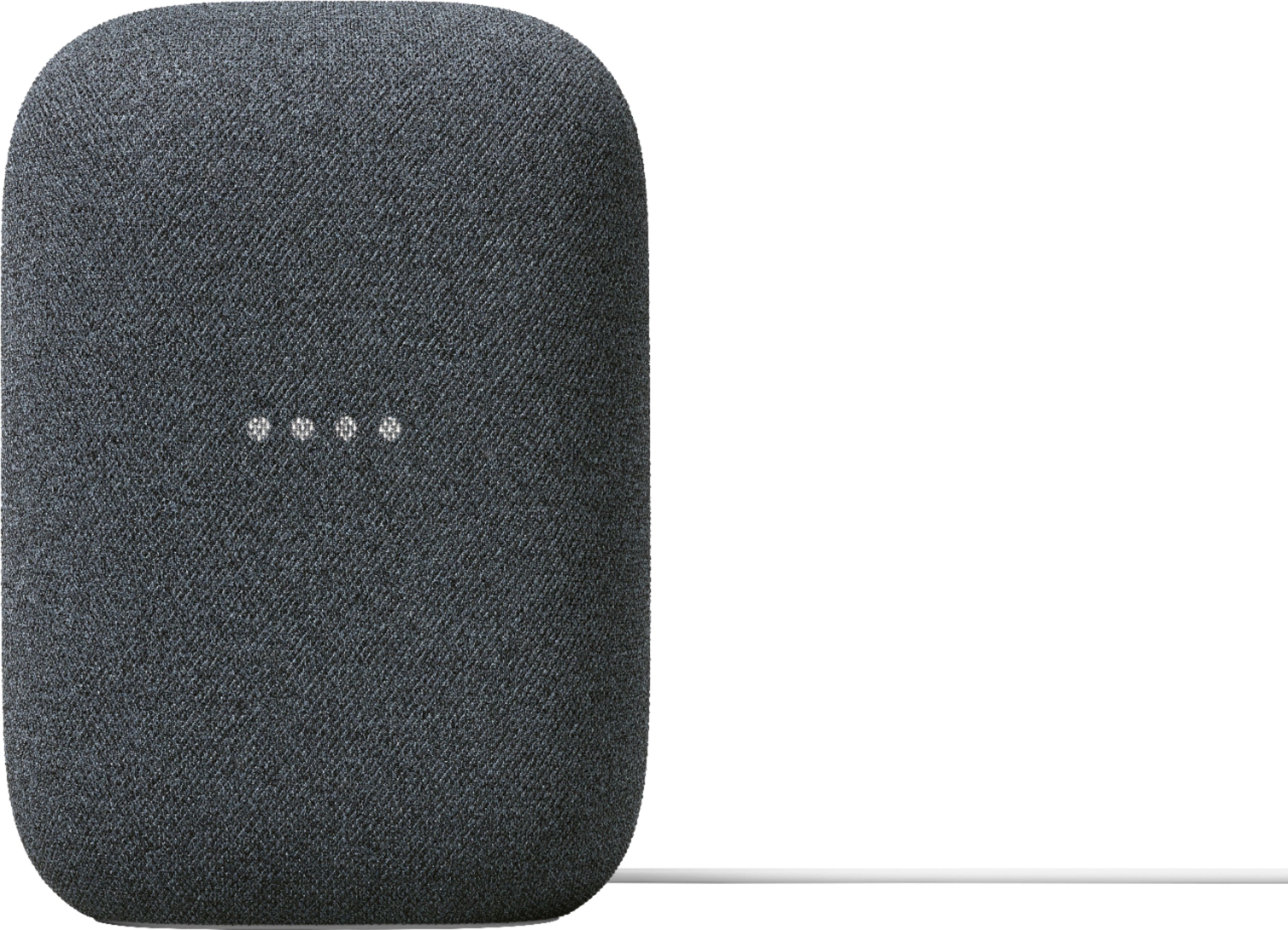
A:AnswerThe Nest Audio like other Google Home speakers and displays, have no internal battery. They must be plugged into a wall outlet using the included power adapter and cable.
A:AnswerYou can change the sound of Google Assistant’s voice. You can choose from male or female voice too. Check this link for more info: https://support.google.com/googlenest/answer/7550431
A:AnswerYes. You can pair Nest Audio Speakers to multiple Bluetooth enabled speakers or headphones, like Polk Mini, using Bluetooth connection. However, it will only connect to the most recently connected device which will either be your Polk Mini or Vizio TV.
A:AnswerNo. I also have the Note 8 with about 6000 songs on it. The app I use, from the Google Play Store, is Hi-Fi Cast. It's free. Once downloaded and installed you answer yes to allowing it to access your media files and the rest is history. Your phone and speakers have to be on the same wi-fi network, which I guess they are, but other than that it is a simple process. If you are buying two to allow for stereo sound you first download the Google Home app. Then just plug in the first speaker. The app will locate the speaker, a couple taps to connect it to your network, plus your networks password. Then plug in the second one, The app's settings scroll down will ask which speaker you want to pair, the first one will already be highlighted. Just tap on the second one and go from there.
The Hi-Fi cast app works just like Samsung music. Artists, Songs, Albums, Genre, etc. Could not be more pleased with the setup. You can also YouTube Nest Audio pairing. I watched several.
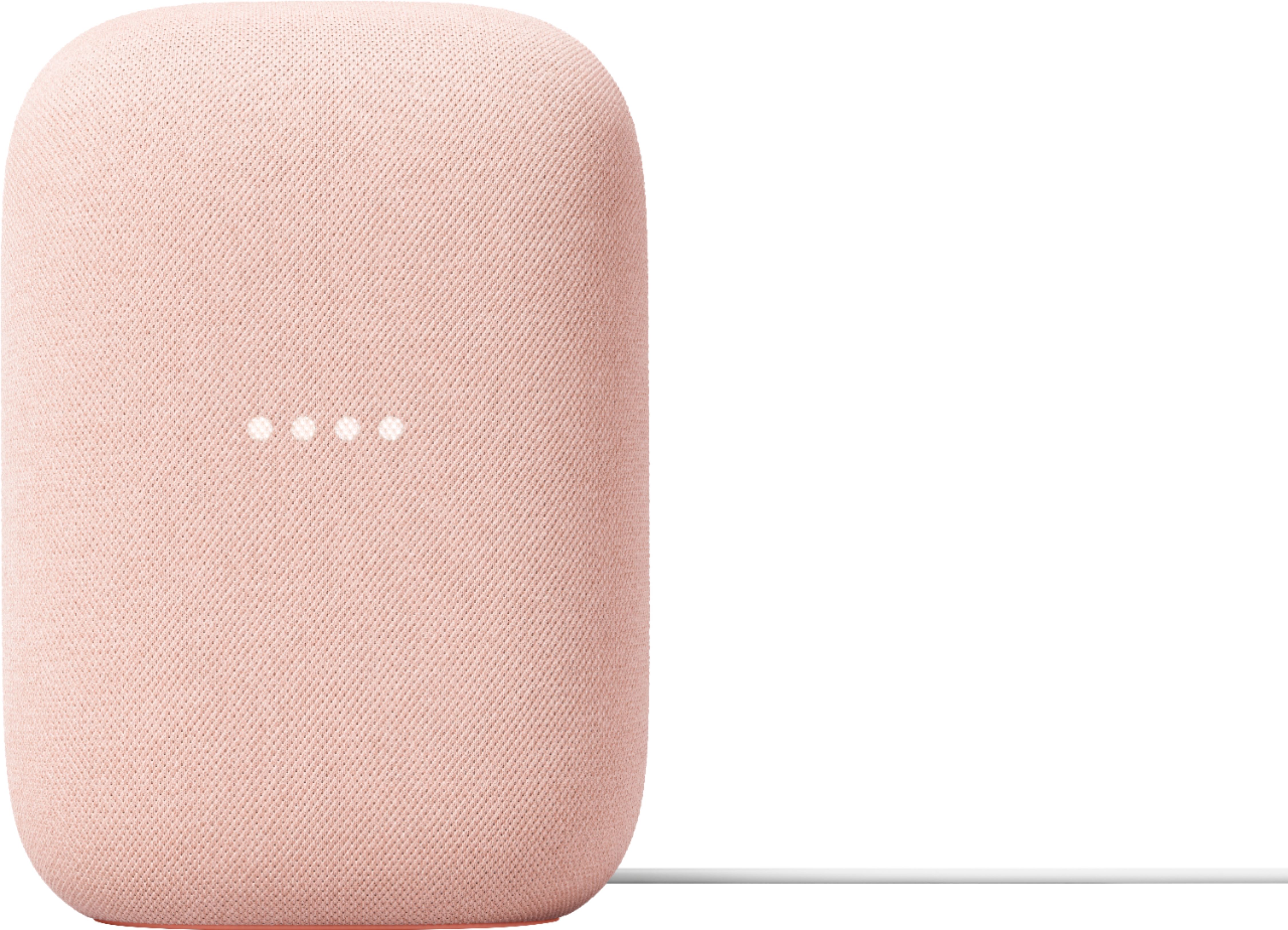
A:AnswerYou can connect the Nest Audio Speaker via Bluetooth to your device as long as it supports Bluetooth® 5.0. Check this link for more details: https://support.google.com/googlenest/answer/7381505
A:AnswerYes. Nest Audio Speaker is a premium smart speaker with Google Assistant that provides whole home audio in a compact system. Learn more about Google Nest devices here: https://support.google.com/googlenest/answer/7029281
A:AnswerWifi is all you need to be up an running. If you don't already have a google account, you will need to setup an account using the Google Home app in Android or iOS. During the setup, you can choose your default streaming services like Spotify, Pandora, Deezer, etc. No accessories are needed, and all you'll get in the box is the speaker, power cable, and literature.