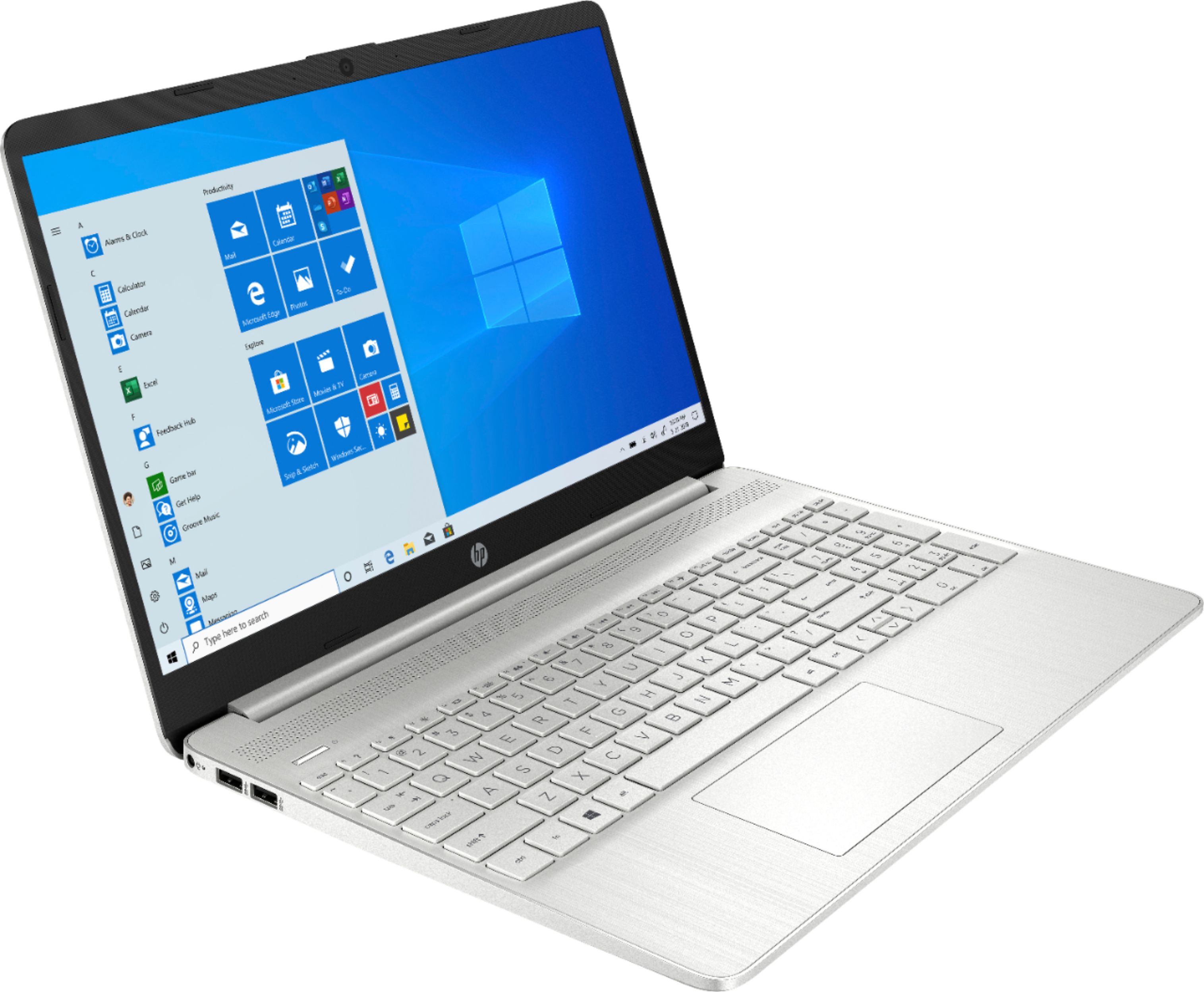
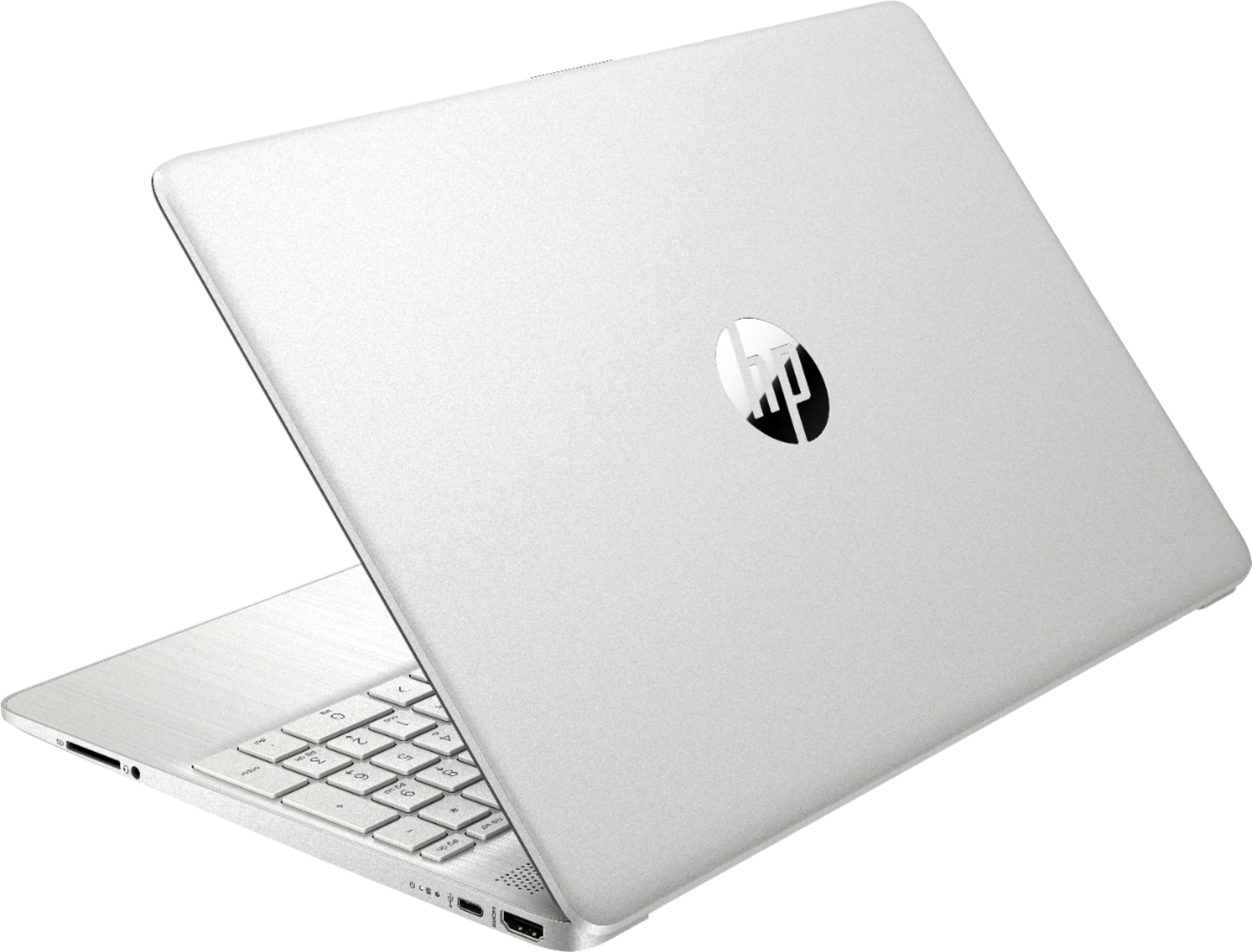
A:AnswerFor those that didn't read the specifications of this computer... it ships with "Windows 10 Home in S Mode".
S Mode is a somewhat simplified version of Windows 10 Home. It requires that all applications are purchased via the Microsoft Store (similar to the Apple App Store or Android Google Play Store), and that means you can not directly install apps that you may have purchased elsewhere. They promote this as a security measure to help prevent the installation of malware. Also S Mode exclusively uses the Microsoft Edge browser and the Bing search engine and you can not change it. Again they say this is to enhance security. I can see it arguably desirable on a very low powered machine but they purport it is for school systems and the like to control what is installed (which is absurd as that can be controlled with existing Windows technologies used in business called Active Directory). It can be switched out of S mode, but i suspect there will be lots of unhappy people buying this and finding that they need to purchase new version of the application software which they thought they already had bought. Good luck!
A:AnswerYes it is powerful enough for photo editing but note that it ships with Windows 10 Home is S Mode which means you have to purchase your apps from the Micsoft store unless you switch it out of S mode. I am saying that may find that the photo editing software that you may already own can not be installed unless you make the switch. Also note that it comes with a relatively small 256gb solid state disk drive. Fast, but small... what i would consider to be too small for most photo obsessed people... but of course you can always connect and external USB drive for additional storage or replace the internal with one that has more capacity. Good luck
A:AnswerThat performance warning is only there so that if you install something that hits performance you can't come back and say "this performs like crap." Well, they warned you, but take it with a grain of salt, they don't put heavy hitters in the app store. Switch out of Windows S, you'll be happy you can install things like Chrome, and there is a very small chance you will see any performance changes as a result.
A:AnswerYes, this computer can run Sims 4. I recently purchased it and have played Sims on it consistently for the 4 or 5 days with no issue. I don’t play Minecraft so I cannot verify that.
A:AnswerWhether you need to buy a cable to connect it is going to depend on what monitor you ordered. If it comes with an HDMI cable, then you're all set and you don't need to buy anything. If the monitor comes with a VGA cable, you'll need a VGA to HDMI adapter.
A:AnswerTouch screen means that you can use touch and even gestures on the screen as a control to select, move, and more. You can use the screen like a smartphone, or never use the touch feature at all and choose to primarily use the touchpad on the keyboard deck or even a separate mouse.
A:AnswerYou will need to switch the laptop to full Windows 10 Home in the settings. This can be done for free. By default this model comes with Windows 10 in S mode, which limits you to installing programs from the Windows app store.
A:AnswerTo clean smudges from the LCD screen, choose a non-abrasive cloth or towel. Turn off the computer and disconnect the power cable. Wipe the screen gently with a soft, dry cloth. If any marks remain, moisten the cloth with LCD cleaner, and then gently stroke the cloth across the display in one direction, moving from top to bottom.
If you are cleaning the screen of a notebook PC, be sure the LCD screen is dry before closing it or using the computer.
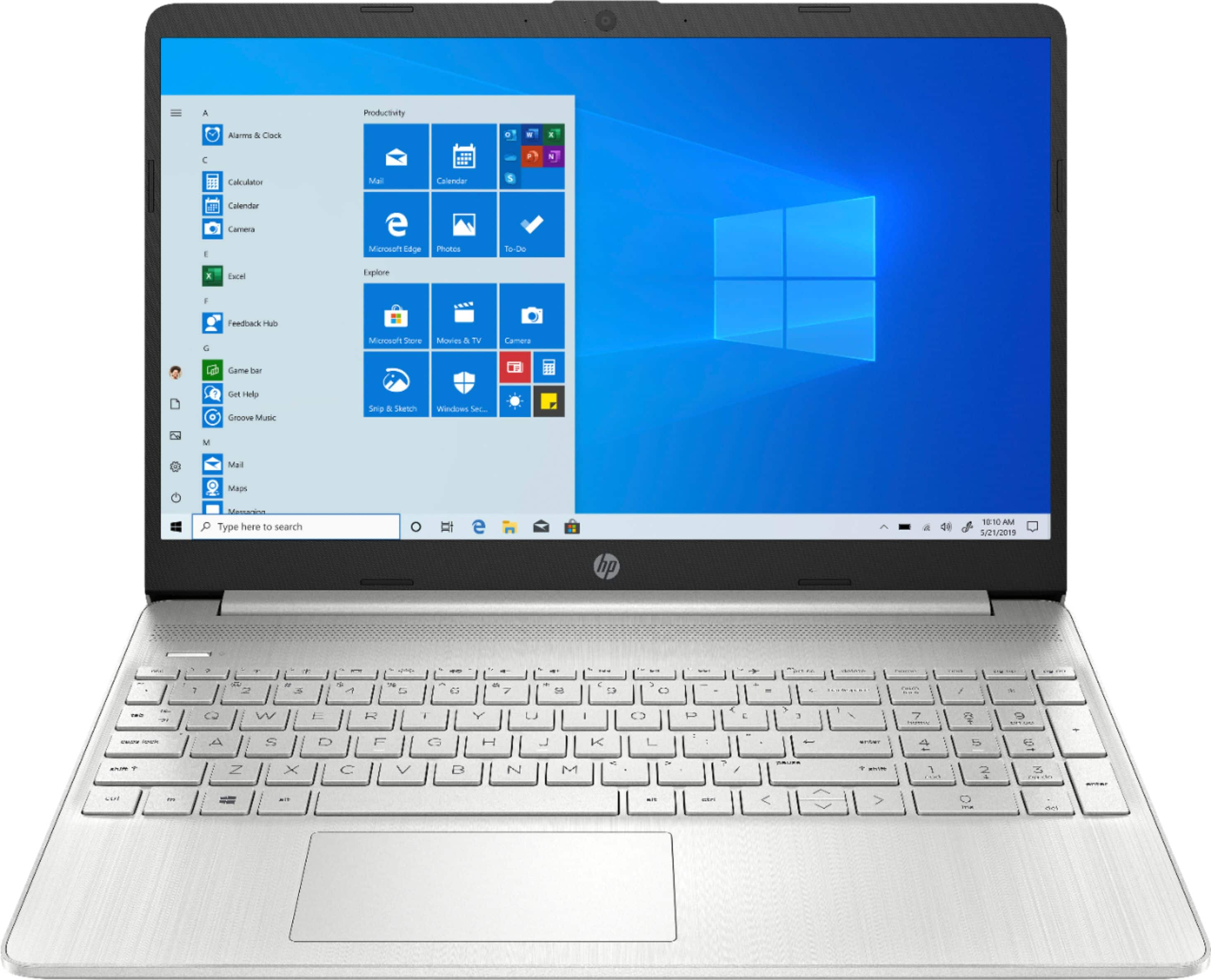
A:AnswerYes you can. Also you can easily switch out of S mode in Windows 10. Here's how do to it:
https://support.microsoft.com/en-us/help/4456067/windows-10-switch-out-of-s-mode