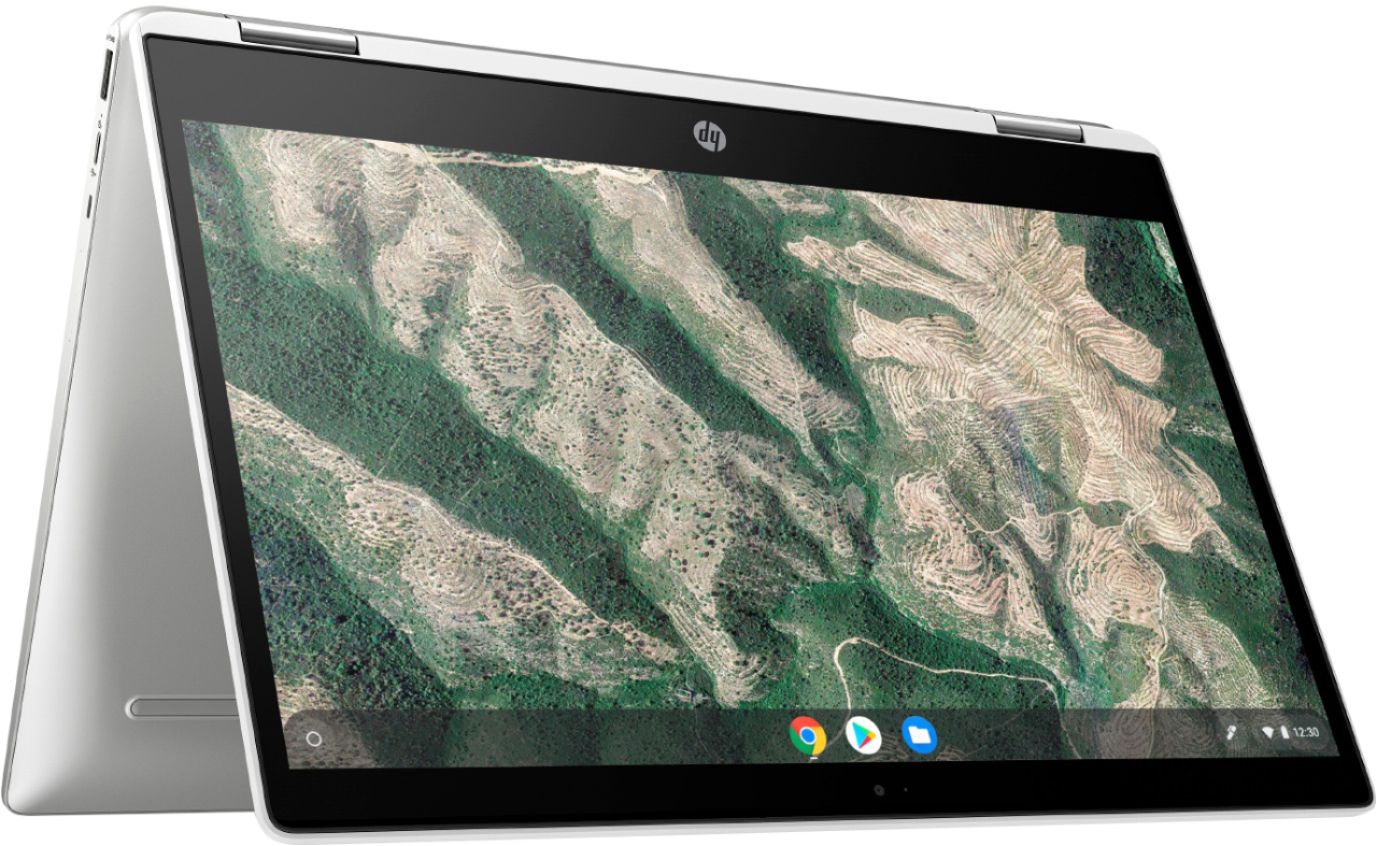
A:AnswerTry the hard reset this way. Turn off your Chromebook. Press and hold Refresh and Power.
When your Chromebook starts up, release Refresh. If you are still having issues, I would check the warranty status of your model at this link https://support.hp.com/us-en/checkwarranty
A:AnswerThe camera ships with a small piece of plastic film over the lens to protect it during assembly. If you've already removed it, you'll want to talk to the HP support team to see if there's an issue with the hardware, or how it's configured
A:AnswerYes, you can download math tutorials and edit pictures. Because it's a Chromebook, you'll need to download any apps from the Google Chrome store. I didn't see any card printing apps, but they may exist.
A:AnswerYes, the touchscreen can be used with your fingers. The touchscreen can also be used with a USI (Universal Stylus Initiative) compatible pen. It does not come with a stylus/pen. Yes, you can purchase any USI (Universal Stylus Initiative) compatible pen.