A:AnswerNo. FaceTime is proprietary and works only between Apple products. You can use Google Meet, Google Duo, and Zoom, for example. Both computers must be running the same program. My favorite entry-level video meeting program is Google Meet.
A:AnswerIf you read through the FAQs here, you'll see that several people have the same issue.
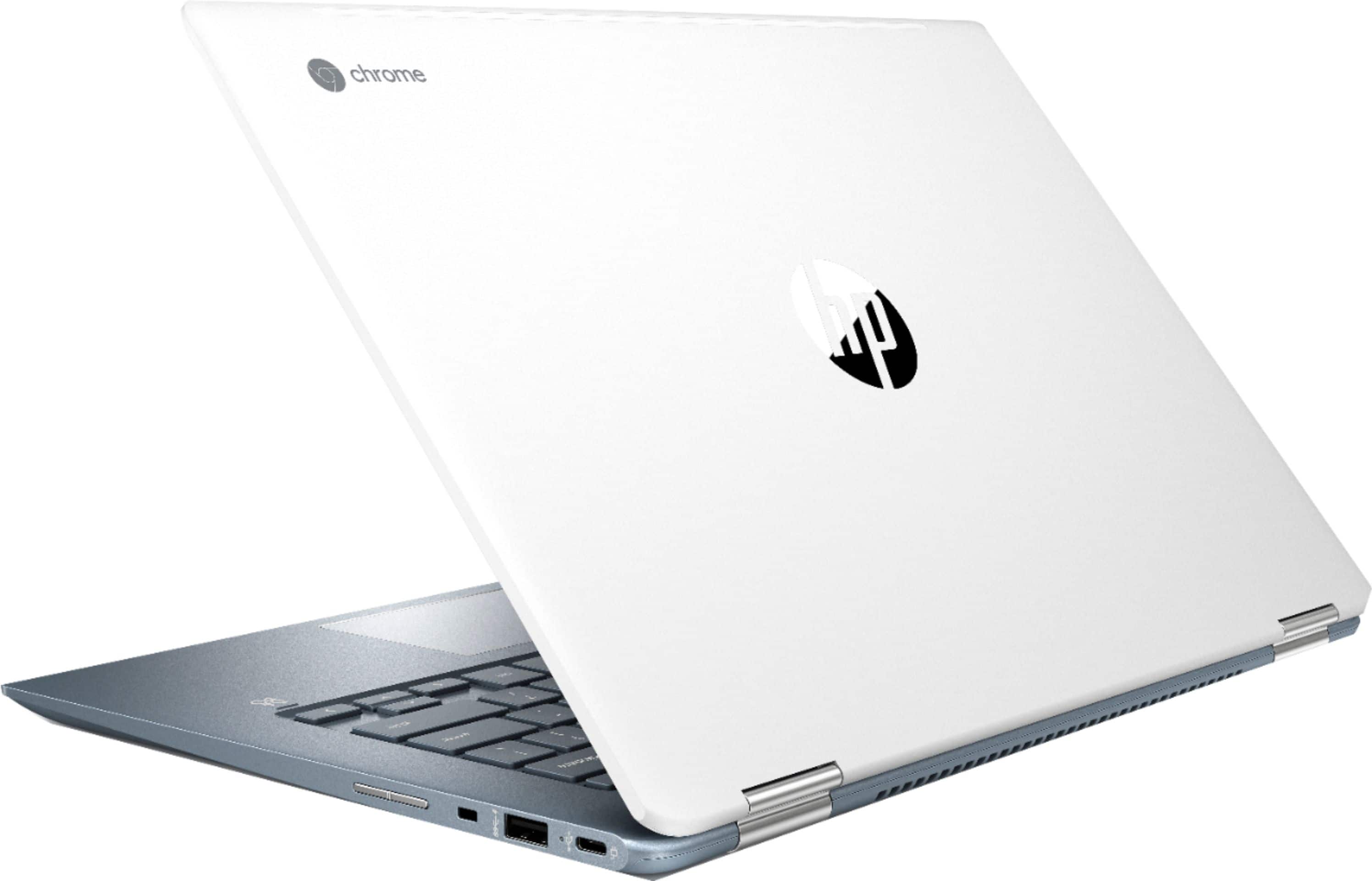
Fortunately, the solution is simple: just reach to the left side, over by the power and volume switches, and turn your camera on. :) That's right, there's a power (aka security) switch for the camera.
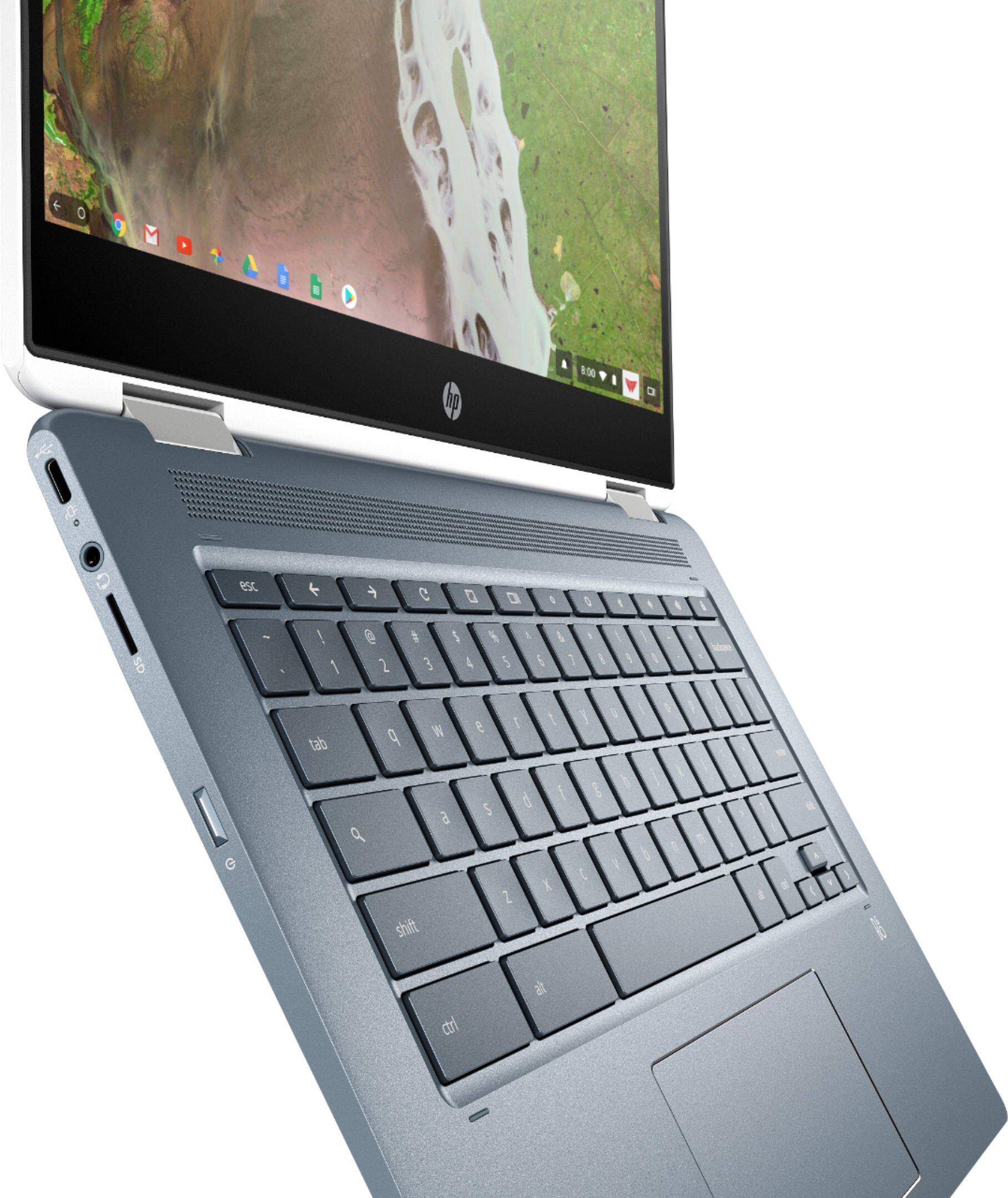
A:AnswerI've generally found that the Fingerprint scanner won't log you in initially, you need Password or PIN for the initial session. But if it goes to sleep during your session, the Fingerprint scan will indeed log you in. It isn't super consistent.
A:AnswerNot much HEAVY duty processing can be done here, but if you want just go to youtube theres a guy explaining how to edit videos with a Linux base software like charm, just do a little research before make any decision because this is a good machine for a lot of stuff , contrary to the people saying is just for students .
A:AnswerThe main difference between the Chromebooks and Windows laptops is the type of programs you can run. The Chromebooks will only run apps from the Chrome OS store. If you need to download programs from a website, you will need a windows laptop.
A:AnswerYes. However, you will need to purchase a USB-C to HDMI adapter - a cord and/or dongle that plugs into the USB-c port on this HP Chromebook on one end and plugs into the HDMI port on your external monitor on the other end.
A:AnswerI recommend you look up "Chromebook security" https://support.google.com/chromebook/answer/3438631?hl=en
Chromebook security
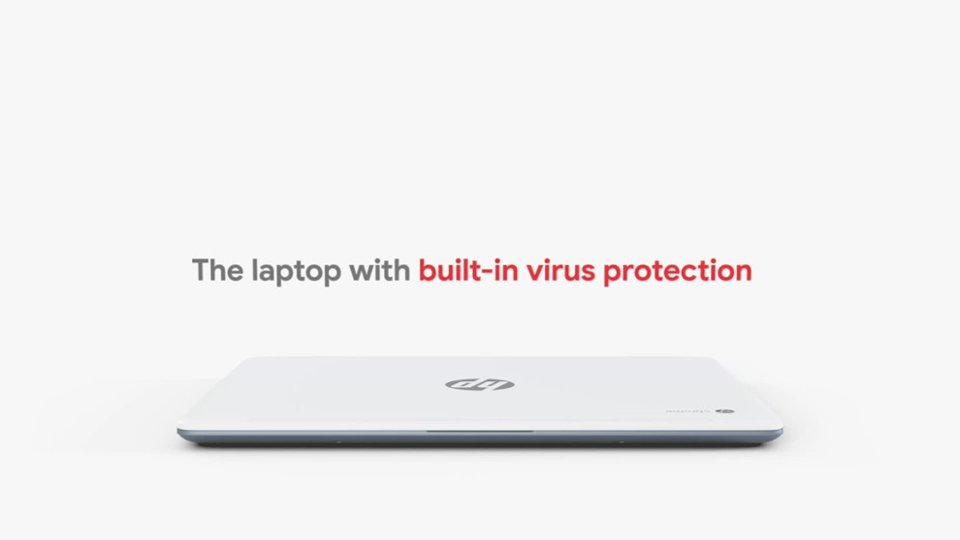
Chromebooks use the principle of "defense in depth" to provide multiple layers of protection, so if any one layer is bypassed, others are still in effect. So while it's still important to take precautions to protect your data, Chromebooks let you breathe just a little bit easier. Your Chromebook has the following security features built-in:
Automatic updates
The most effective way to protect against malware is to ensure all software is up-to-date and has the latest security fixes. This can be difficult to manage on traditional operating systems with many software components from many vendors all with different update mechanisms and user interfaces. Chromebooks manage updates automatically so Chromebooks are always running the latest and most secure version.
Sandboxing
On a Chromebook, each web page and application runs in a restricted environment called a "sandbox." If the Chromebook is directed to an infected page, it can’t affect the other tabs or apps on the computer, or anything else on the machine. The threat is contained.
Verified Boot
Even if malware manages to escape the sandbox, the Chromebook is still protected. Every time the Chromebook starts up, it does a self-check called "Verified Boot." If it detects that the system has been tampered with or corrupted in any way, typically it will repair itself without any effort, taking the Chromebook back to an operating system that’s as good as new.
Data Encryption
When using web apps on a Chromebook, all important data is stored safely in the cloud. Certain kinds of files, like downloads, cookies, and browser cache files, may still be present on the computer. The Chromebook encrypts this data using tamper-resistant hardware, making it very difficult for anyone to access those files.
Recovery Mode
If anything goes wrong with a Chromebook, you can simply push a button or use a quick keyboard combination to enter recovery mode and restore the operating system to a known good version.