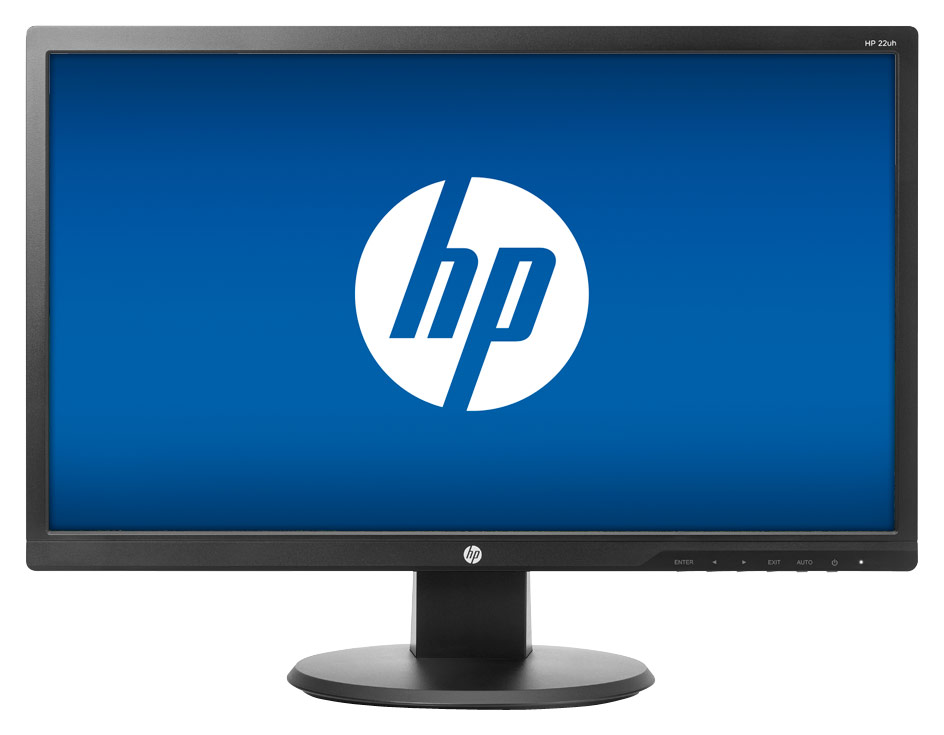
A:AnswerOn the bottom right of the monitor, you'll see little symbols on the black frame ... the corresponding buttons are on the underside of the monitor there. The first button on the right is the power button.
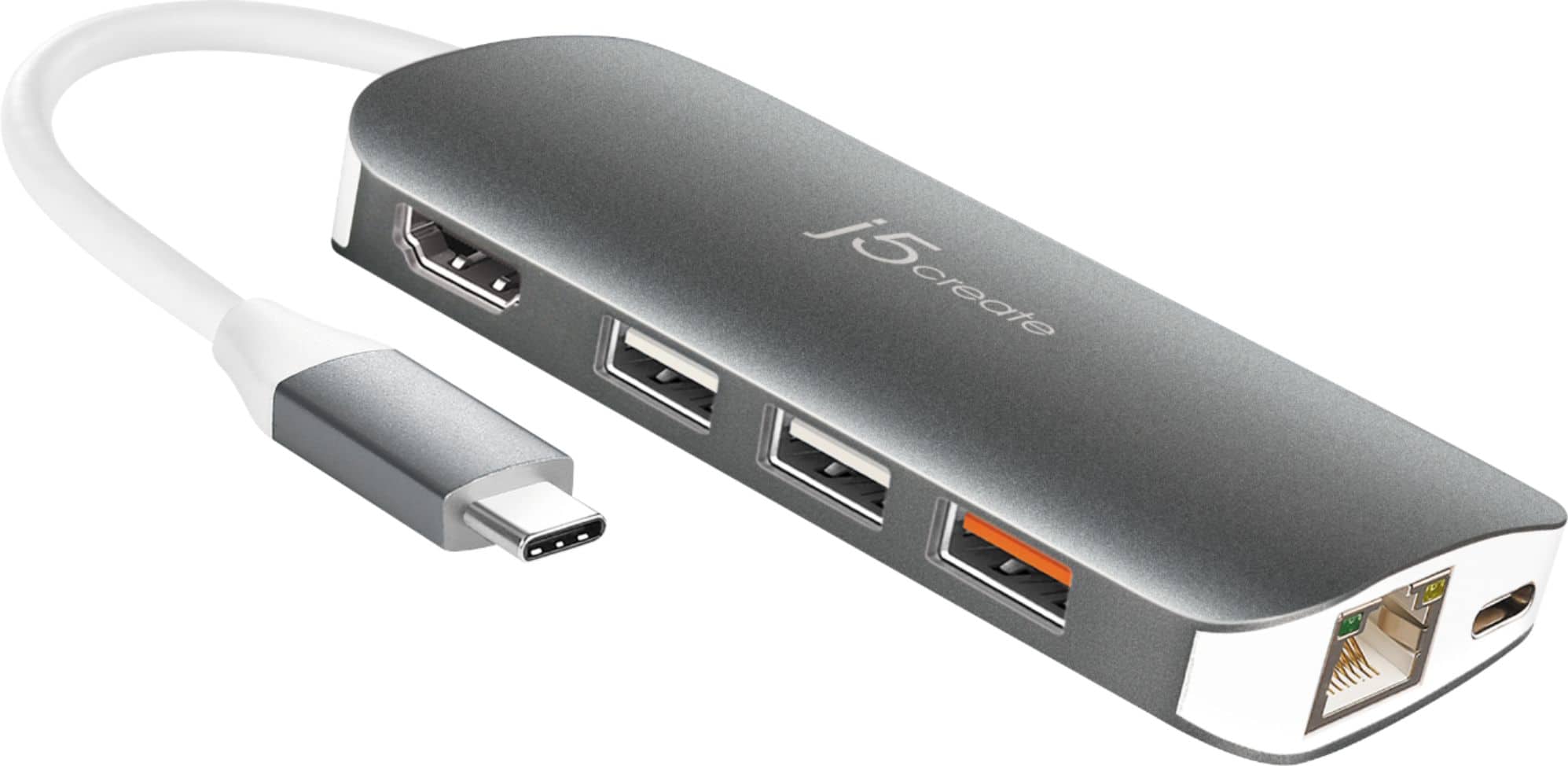
A:AnswerYes, this will work with the newest MacBook Pro if you have an HDMI adapter (similar to the one added to this recommendation). We use these monitors for the newest MacBook Pros at our office and have not had any issues.
A:AnswerI am connected to a wireless WiFi with my home computer. My deck top CPU has a built-in wireless WiFi. My internet is provided thru a Netgear wireless router. This routers sends the WiFI signal through out my home.
A:AnswerYou can configure this through your computer display settings. You can choose to extend the display (half on one screen, half on another) or duplicate the displays.