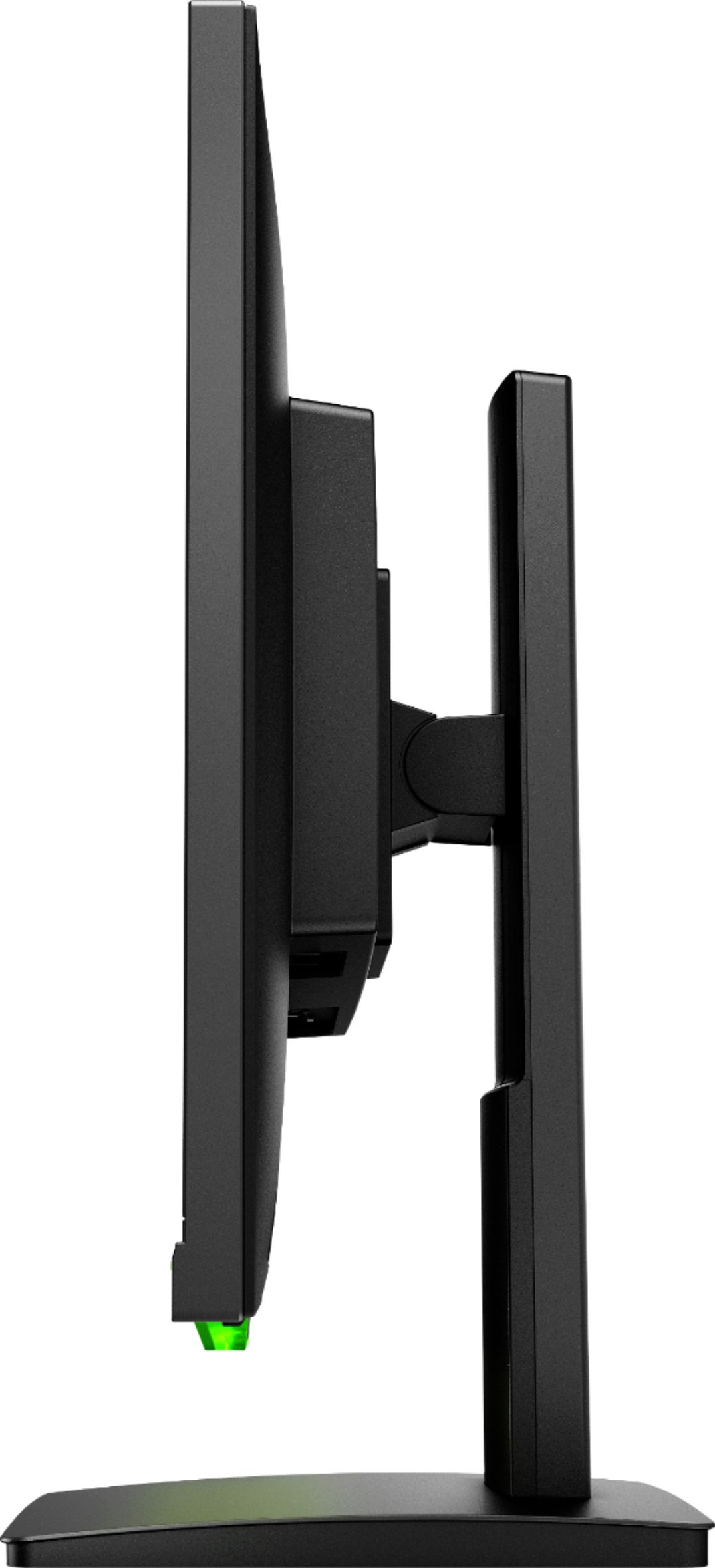
A:AnswerLike almost all standalone monitors, it does not have speakers built in. You can get a set of computer speakers and plug them into the computer.
A:AnswerIt's supposed have Freesync to but "Gaming-Freesync" doesn't show up in my on screen menu. It only says "Gaming". What's odd is I had this exact same monitor that did have Freesync in the menu (so I know it's supposed to be there and works with my video card) but had to return it because it would black out intermittently. Calls to HP are useless because they just tell you that Freesync is in the on screen menu. I have no idea why the menus would be different on the exact same monitor.
A:AnswerYou will not be able to connect those devices to this monitor directly. You will need to connect those devices to the computer you are using the monitor with.
A:AnswerI would recommend reaching out to HP Support or Best Buy's Geek Squad for further assistance. They have access to more tools to assist you. Here's the link to HP Support: http://support.hp.com/us-en . Click "Contact HP" at the bottom left of the page. Alternatively, you can reach them by phone at 1-800-474-6836. And for the Geek Squad: call 1-800-433-5778 or https://www.bestbuy.com/site/services/geek-squad/pcmcat138100050018.c?id=pcmcat138100050018
A:AnswerI ran into a similar issue and it was because I had G Sync enabled for my RTX 2070. Like you, I was using a display port cable because it’s required. Used multiple cables and still was occurring frequently. Only was happening when I started a game. Sometimes rebooting would resolve it but more often than not it wouldn’t.
Well turns out G Sync decided it wanted to start malfunctioning after a driver update and I turned it off. Fixed the problem. Honestly, couldn’t find anything when googling about G Sync causing this with our specific monitor but it resolved the problem after a bit of time troubleshooting and wasting time.