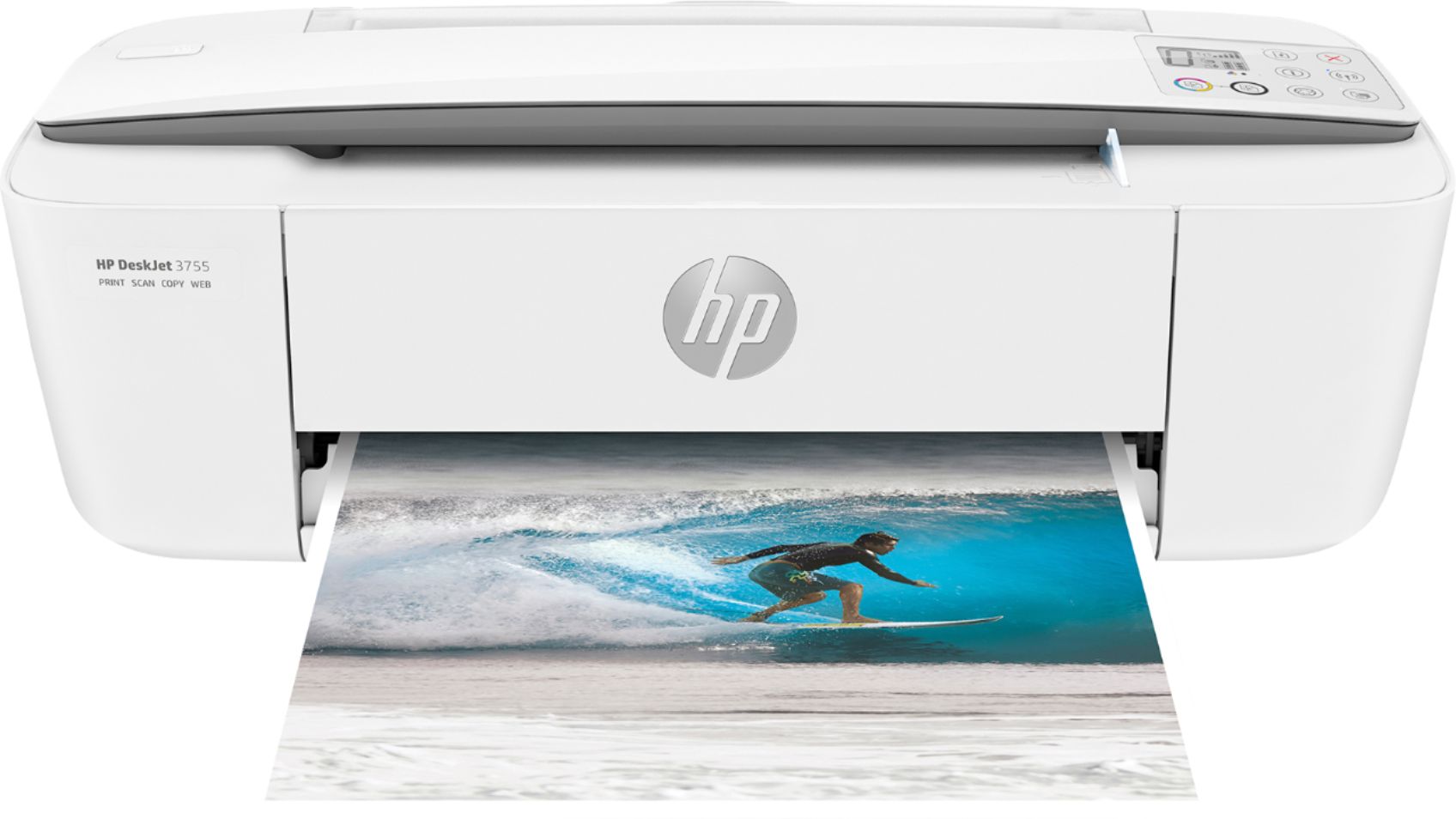
A:AnswerHello! Thank you for your question, Candy! This printer does not have a traditional fax option, which requires a landline phone. However, you can send faxes using the HP Smart App. Check out our HP OfficeJet series for models with traditional fax options.
A:AnswerApologies for what you're experiencing. A blinking power button light indicates that the printer is processing a job. To cancel the job, press the Cancel button. If the power button light is blinking fast then that means the cartridge access door is open, close it. If the cartridge access door is closed and the light is blinking fast, the printer is in an error state that you can resolve by following the onscreen messages from the computer. If you do not see any onscreen messages, try printing a document to generate an onscreen message.
A:AnswerYou need to manually reinsert the paper after the first side has printed. Two-sided printing of a multi-page document would be a chore but it could be done.
A:AnswerHello. Yes, this model is compatible with the iPad Pro. You can use Apple's Air Print or our HP Smart app to connect your iPad wirelessly to the DeskJet 3755.
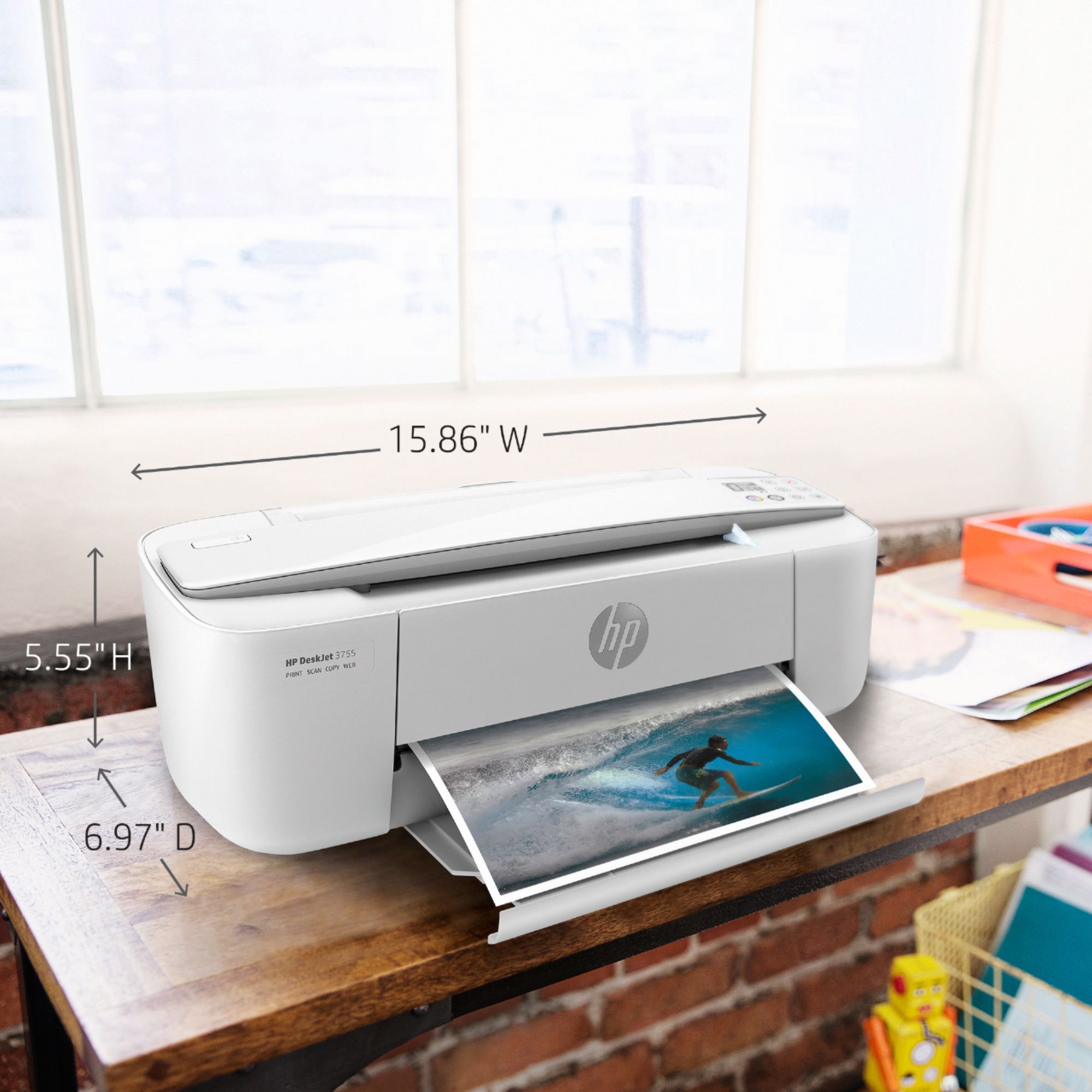
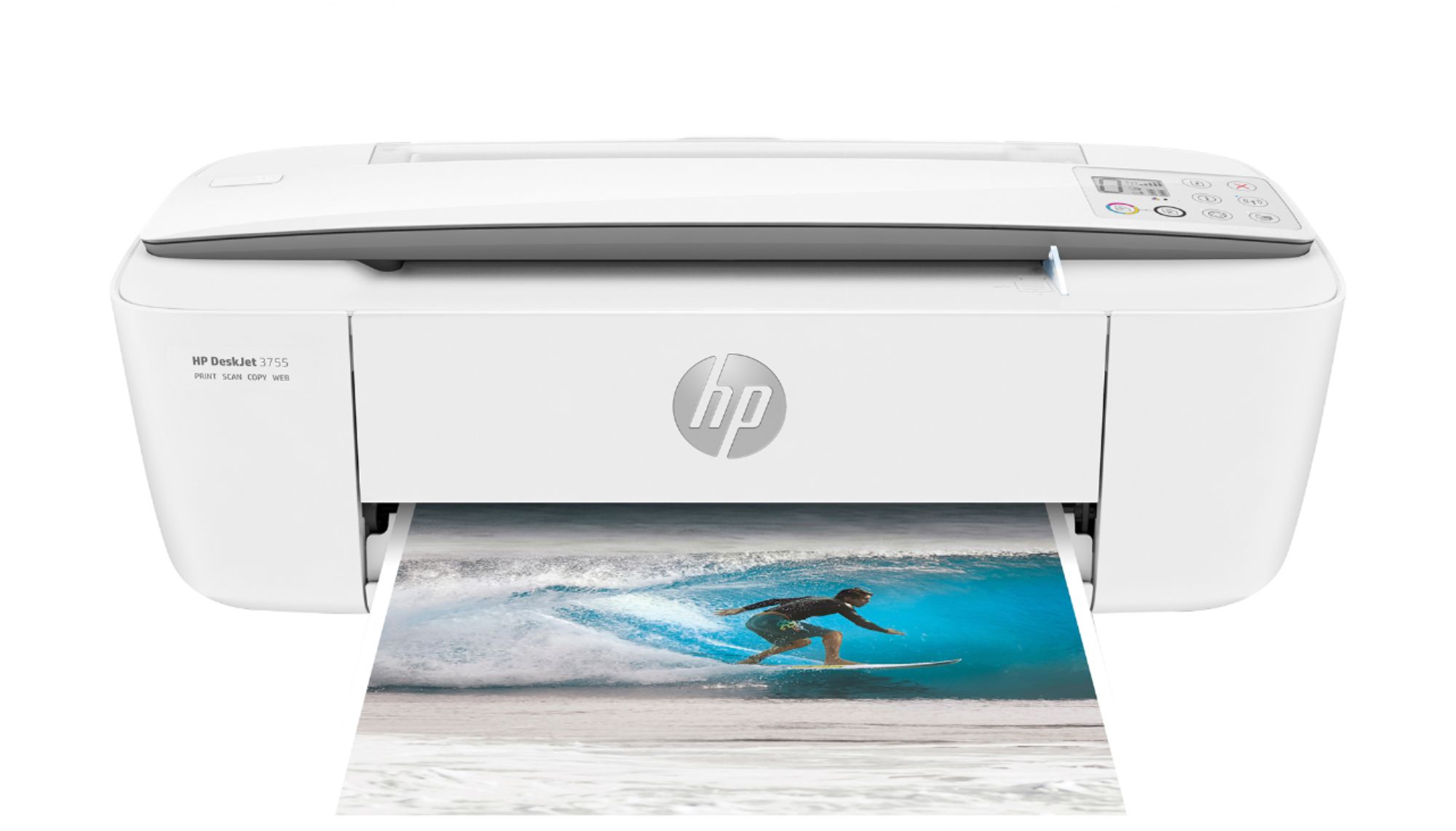
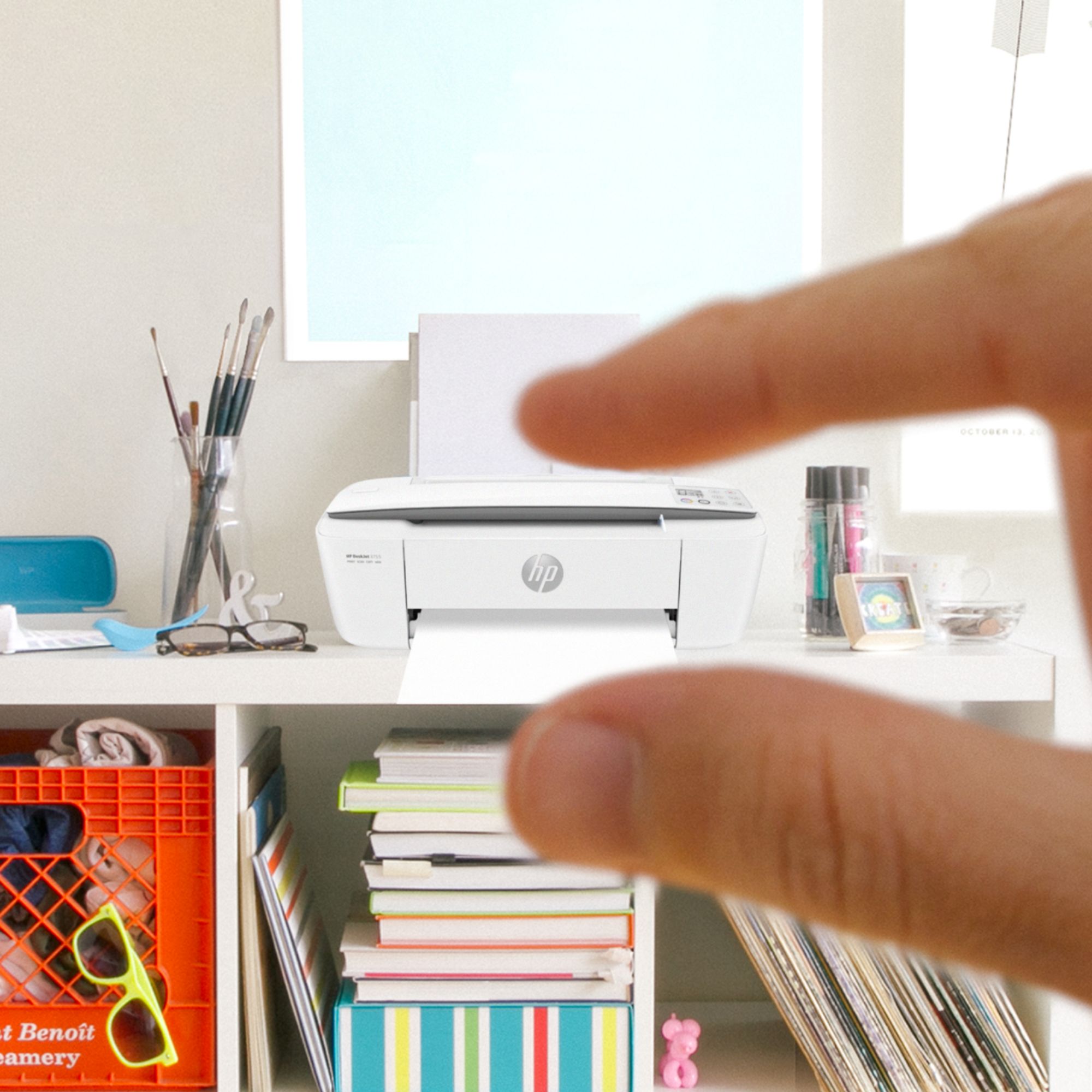
A:AnswerHello. Thanks for your question. The dimensions of the HP Deskjet 3755 printer are (W x D x H) 15.86 x 17.75 x 10.39 inches. These are the dimensions without the paper trays extended: (W x D x H) 15.86 x 6.97 x 5.55 inches.
A:AnswerI designed my own template and devised a technique for printing #10 envelopes. I print the envelopes one at a time. I load the feeder with a dozen sheets of paper and put the envelope on top. The envelope feeds with no problem and prints nicely. There may well be a better way to do this, but I'm OK for now with my method because it gets the job done!