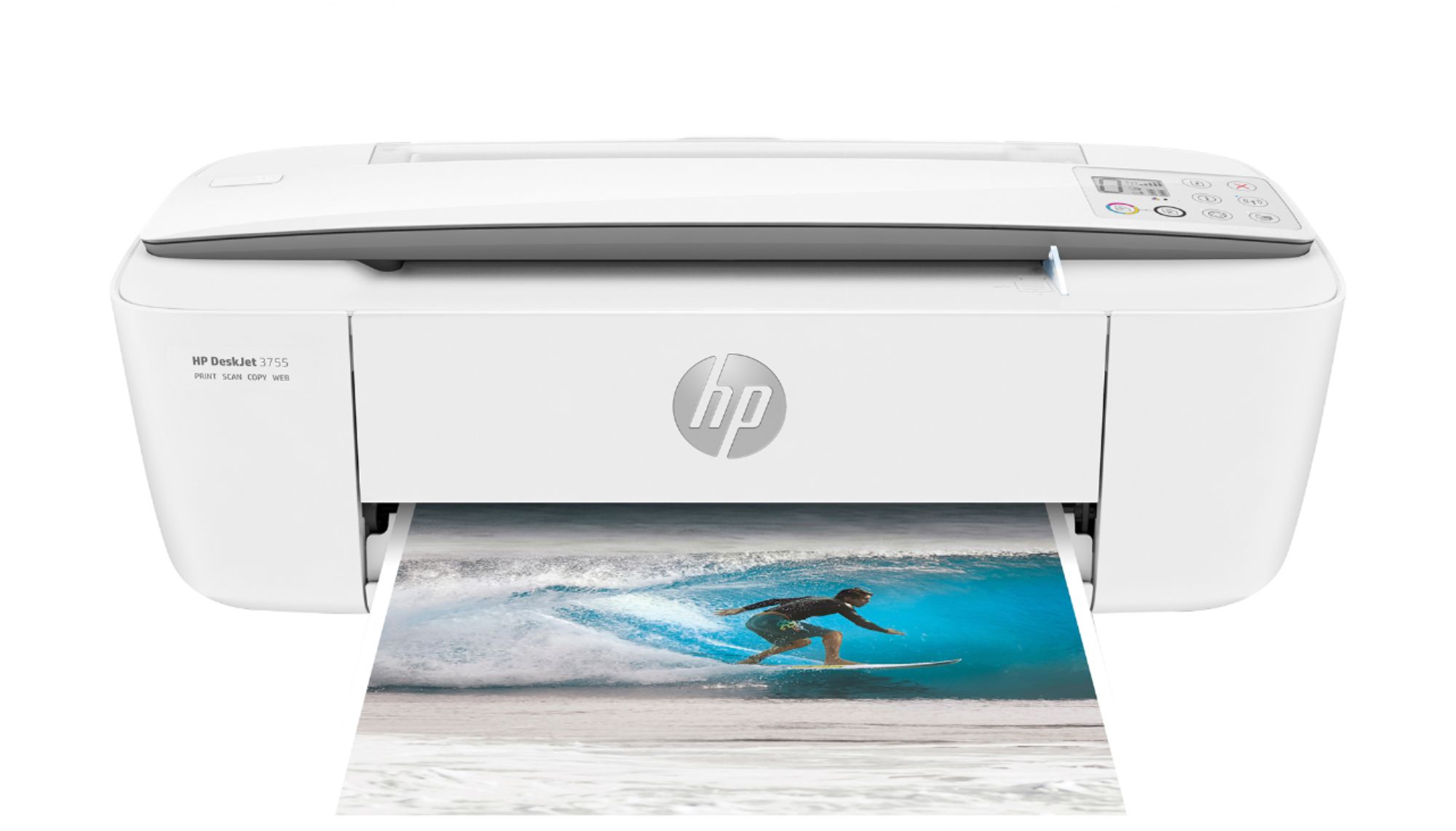
A:AnswerGreat question! This model doesn't have a "Scan-to-Email" feature on the printer itself, but you can set up a Shortcut through the HP Smart app on your computer or mobile device that can email your scanned files whenever the Shortcut is selected! You can learn more about this here: https://support.hp.com/th-en/document/c06211157
A:AnswerThank you for the question. I'm not sure what you are asking. The DeskJet 3755 has a scanner bar which paper goes through to copy or scan. Here is the user guide for the DeskJet 3755: http://h10032.www1.hp.com/ctg/Manual/c05152483.pdf
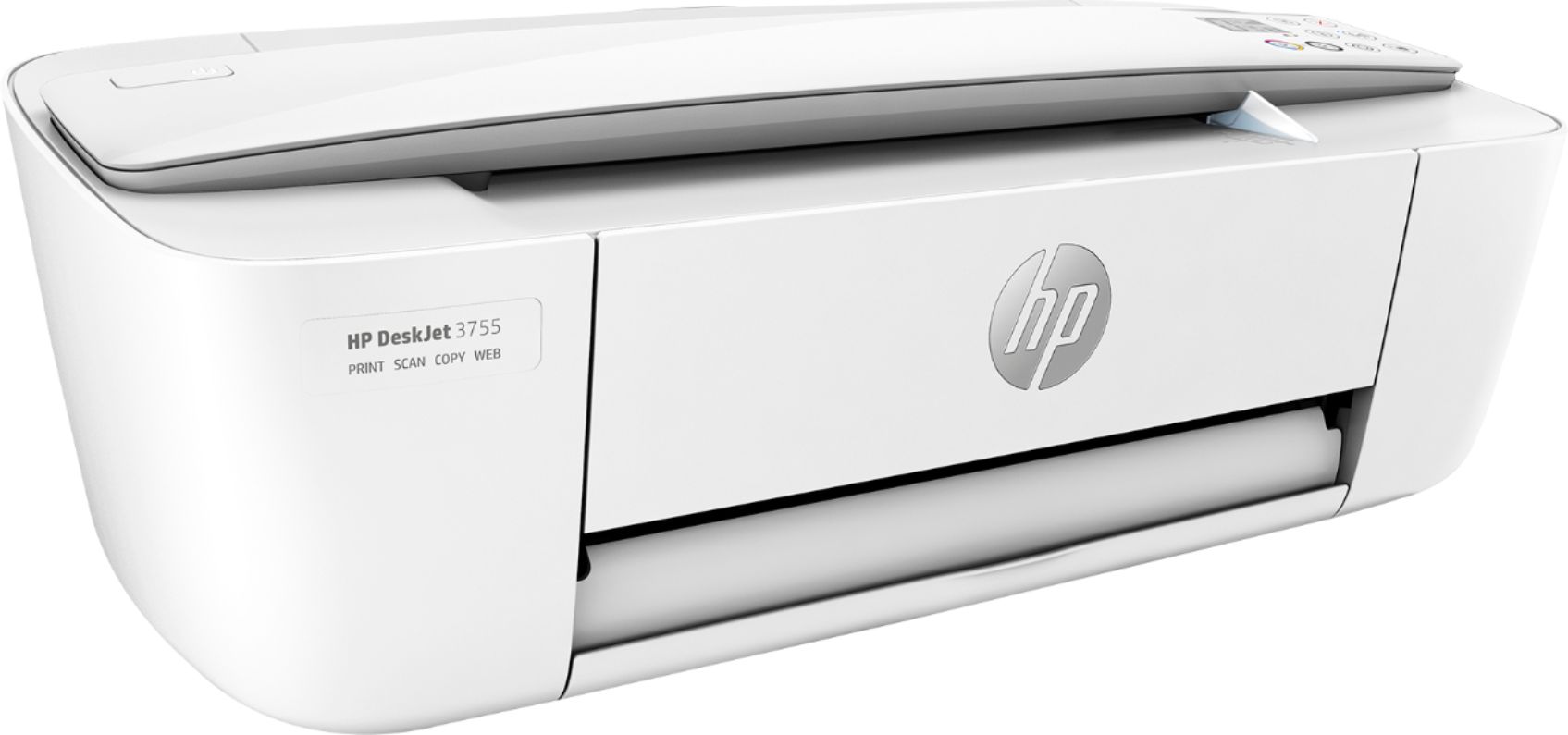
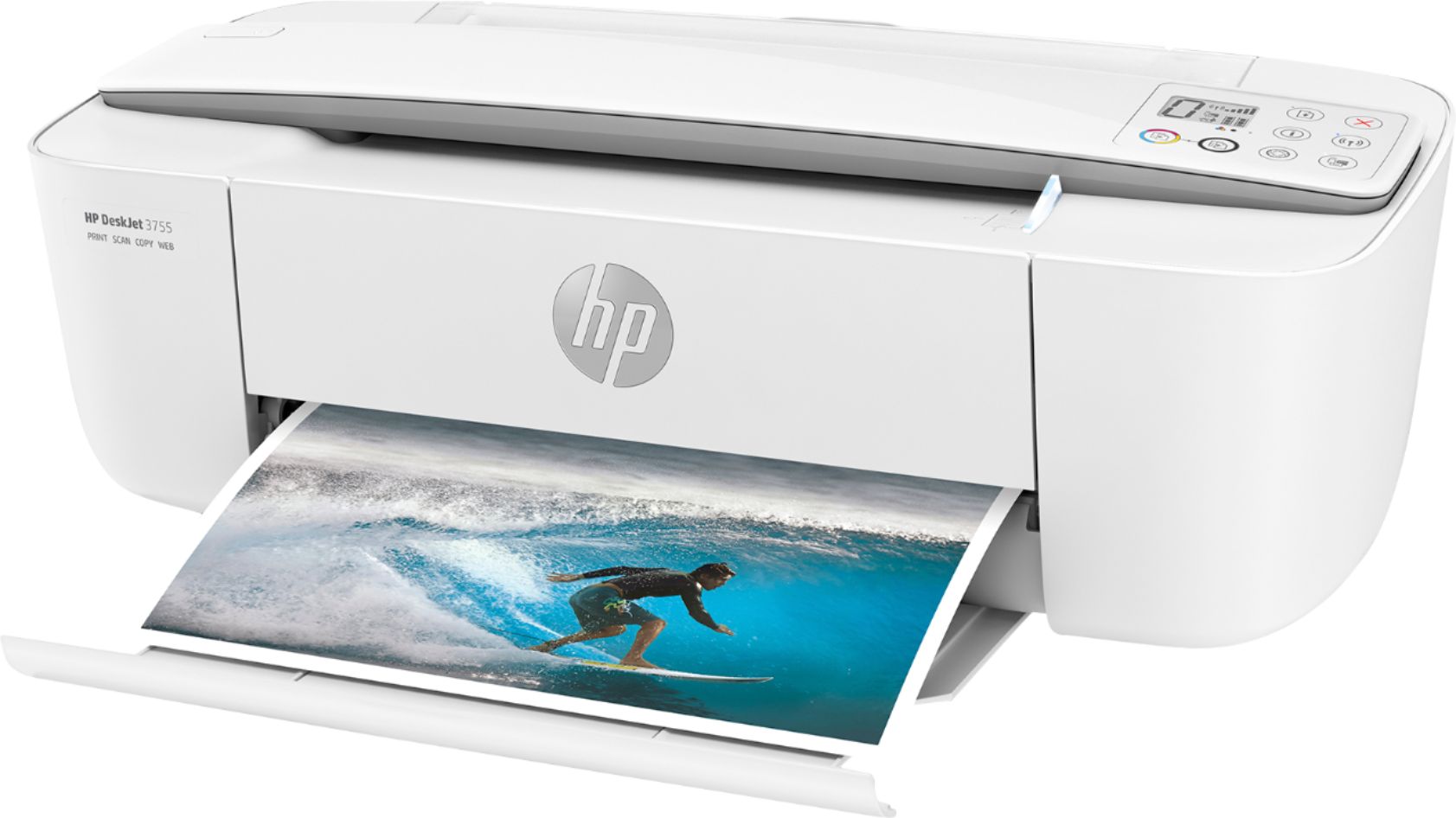
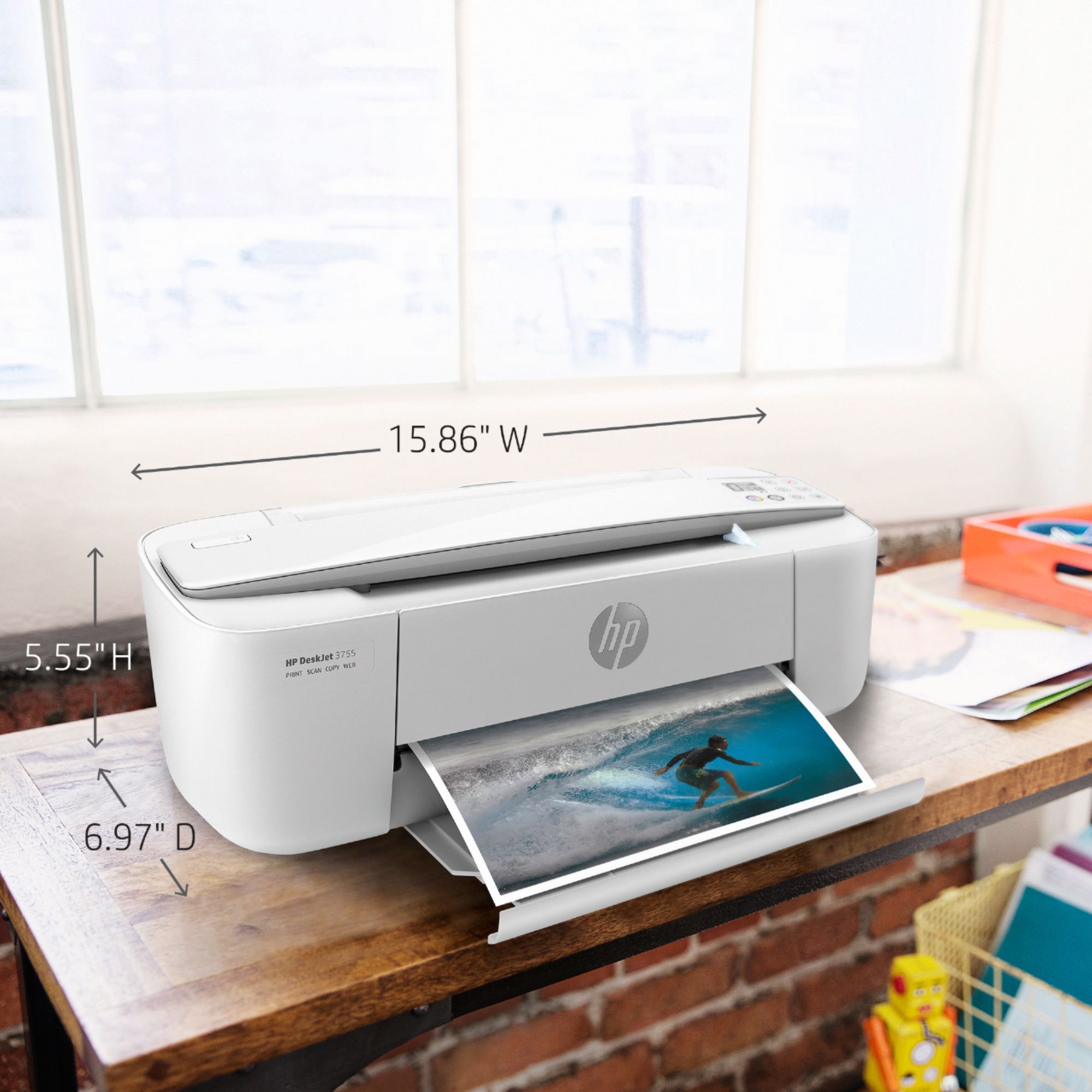
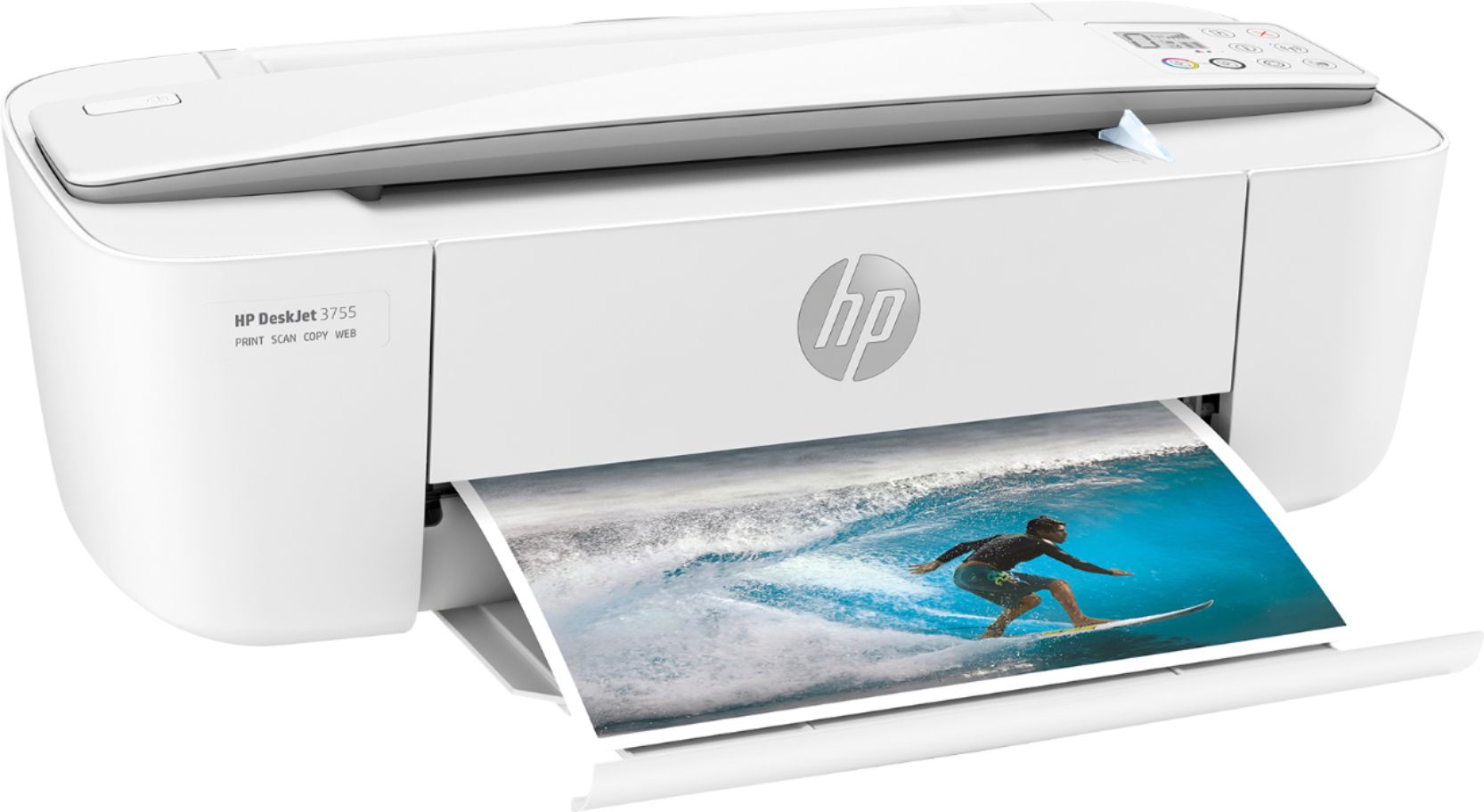
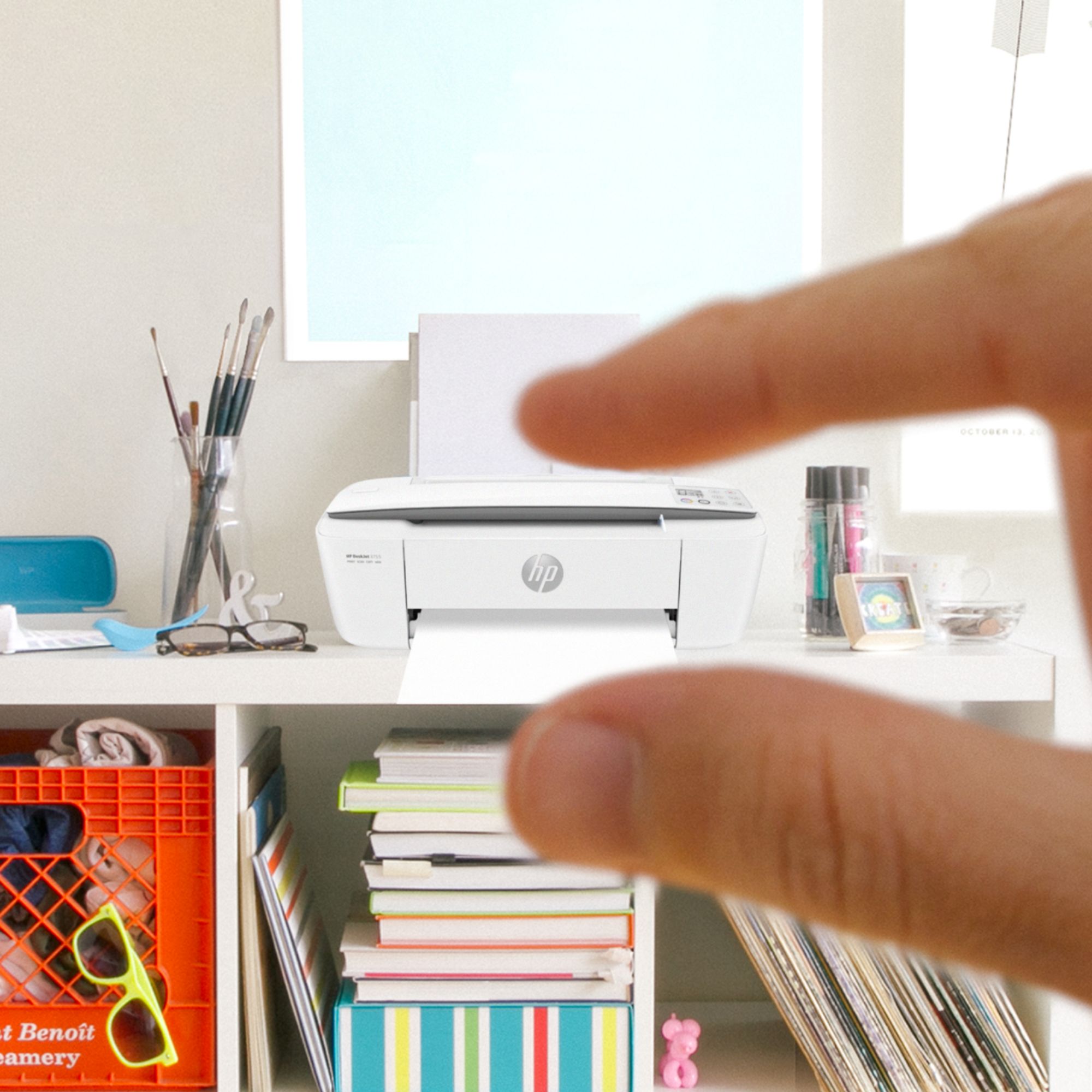

A:AnswerHi Richard. The biggest difference is that the DeskJet 2755 has a flatbed scanner, the 3755 has a bar scanner. The 3755 has a smaller footprint, being 5.6" high, 15.9" wide, and 7" deep, vs 6.1" x 16.7" x 12" for the 2755. All other features are mirrored, such as accepted media sizes, maximum resolution and dual-cartridge system. The 2755 uses HP 67 ink cartridges, and the 3755 uses HP 65 ink cartridges.
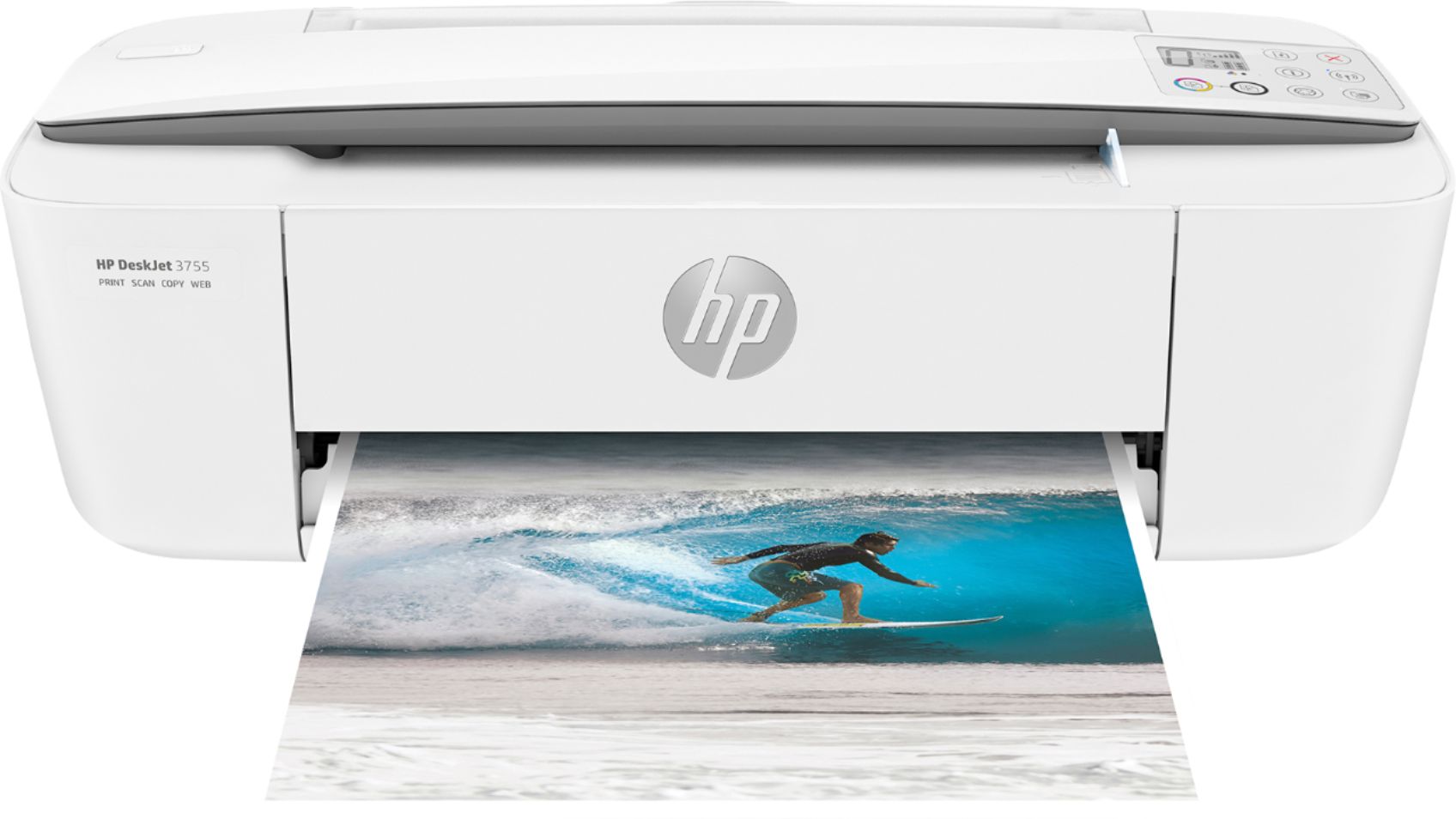
A:AnswerGreat question, Funnyewe! While the Deskjet 3755 does not have a dedicated line for sending a receiving fax, you are able to send fax by utilizing our eFax feature on the HP Smart App. For more information on how eFax works, please visit https://www.hpsmart.com/us/en. Thank you!
A:AnswerHi Ninna, thank you for the question. The DeskJet 3755 does not have a landline fax. Using the HP Smart App, you would be able to send a fax using your SmartPhone (this function is SEND only). If you require landline fax capability for standard sending and receiving, please see the OfficeJet Pro printer models, or the Envy Photo 7855.
A:AnswerHi Ken and thanks for your question. The HP DeskJet 3755 will be able to operate with Linux. We recommend visiting our HP Support Site for details.
A:AnswerHello! Thank you for your question. The HP DeskJet 3755 is Big Sur compatible. The HP Smart software will automatically install the driver. You can also manually install it by visiting the HP Support website.