A:AnswerYes, internet connection is not required on this product. As long as you have router that handles communication between the devices on the local network.
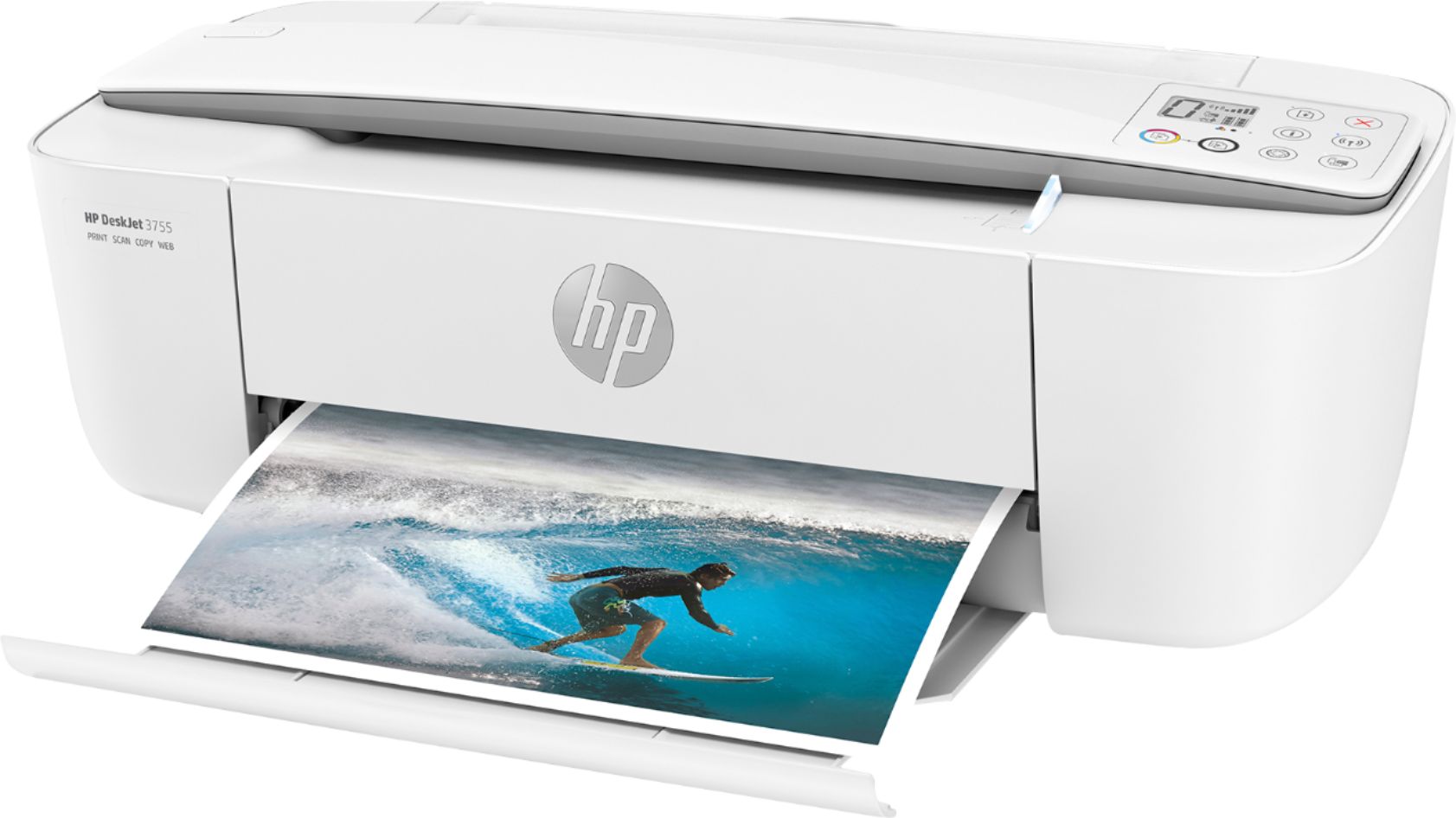
A:AnswerHello, well, the settings are on the top/right side of the printer. There is a diagram in the booklet that came with the Printer that has corresponding nos. and identifies each of the settings on the printer.....I hope this helps.
A:AnswerYes, you can. Assuming you're connecting everything wirelessly, you just need to make sure that the computer and printer are on the same wireless network.
A:AnswerYes, you can print UPS labels with 2 on one letter size sheet (8.5 x 11 inches). If you choose to use shipping labels, you would want to be sure they are made for inkjet printers.

A:AnswerThis printer comes with setup cartridges in the box. The yield of setup cartridges varies by model but tends to be enough to get the average user through setup and initial printing jobs. You can learn more about Ink and Toner by the model at www.hp.com/go/learnaboutsupplies
A:AnswerYes, you can scan to your laptop. We recommend using the HP Smart App: https://support.hp.com/us-en/product/hp-deskjet-2600-all-in-one-printer-series/12319824/model/21481524/document/c04675142
A:AnswerYes, you can. You can go to http://123.hp.com/setup to get the printer set up. Or you can use the HP Smart App: https://support.hp.com/us-en/product/hp-deskjet-2600-all-in-one-printer-series/12319824/model/21481524/document/c04675142
A:AnswerThis printer does not allow automatic 2 sided printing. The HP Envy, Envy Photo, Officejet 5255 and Officejet Pro printers do support automatic 2 sided printing