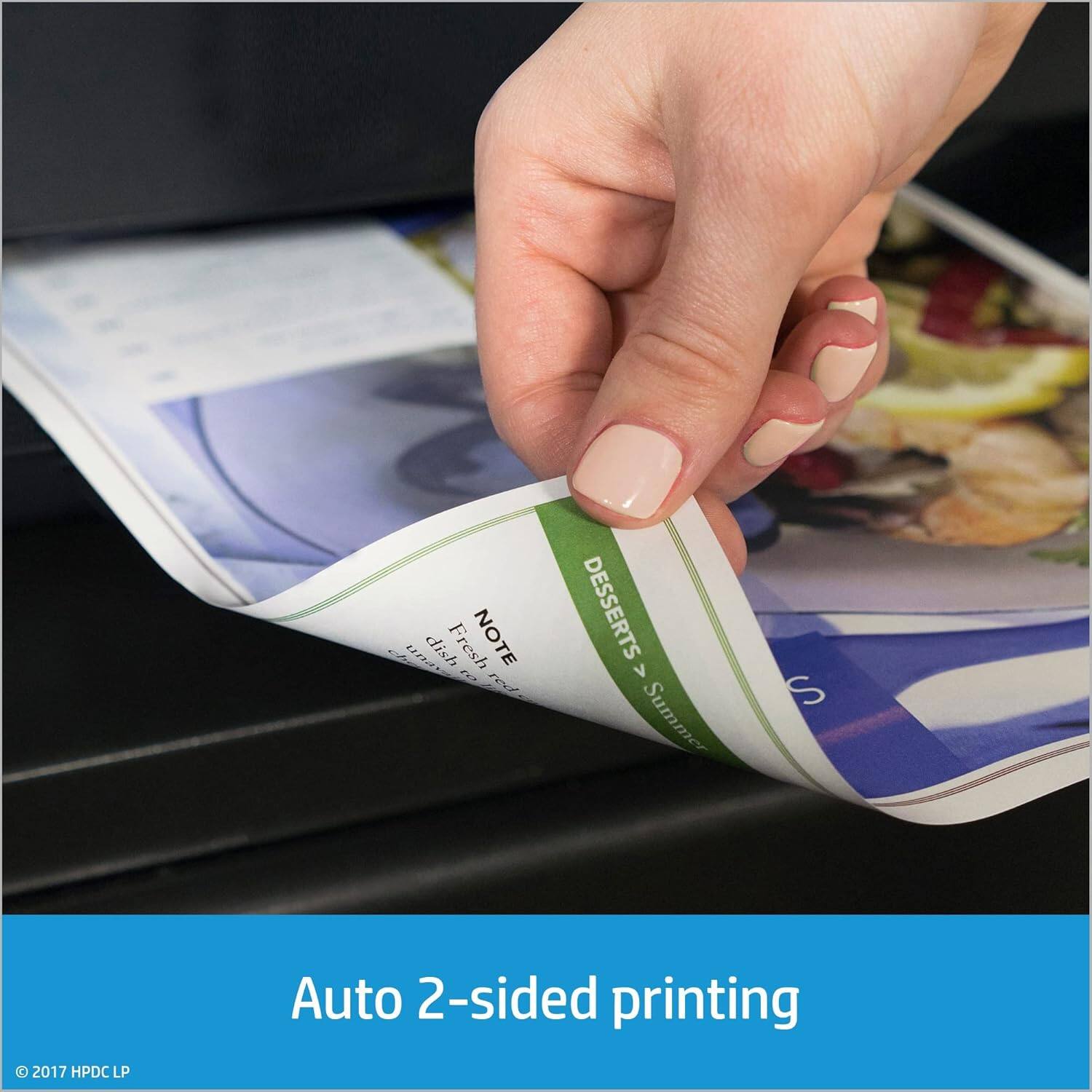
A:AnswerIt can handle either single or double sided. Just put the stack of papers in the document feeder and let it do the work. If you do the process via the Mac app (assume PC is similar), you can delete any blank pages when it's done and then save or share the final PDF. Works really well!
A:AnswerHi Scottie, this printer does not have a photo tray, but the Envy Inspire 7955e does. See it here: https://www.bestbuy.com/site/hp-envy-inspire-7955e-wireless-all-in-one-inkjet-photo-printer-with-6-months-of-instant-ink-included-with-hp-white-sandstone/6478251.p?skuId=6478251.
A:AnswerHello, Rick. Thanks for your question. This HP Officejet Pro 6978 printer cannot connect to the 5 GHz. The newer HP HP Officejet Pro 8025e, 8035e, 9015e, and 9025e printers can connect to the 5 GHz WiFi band.
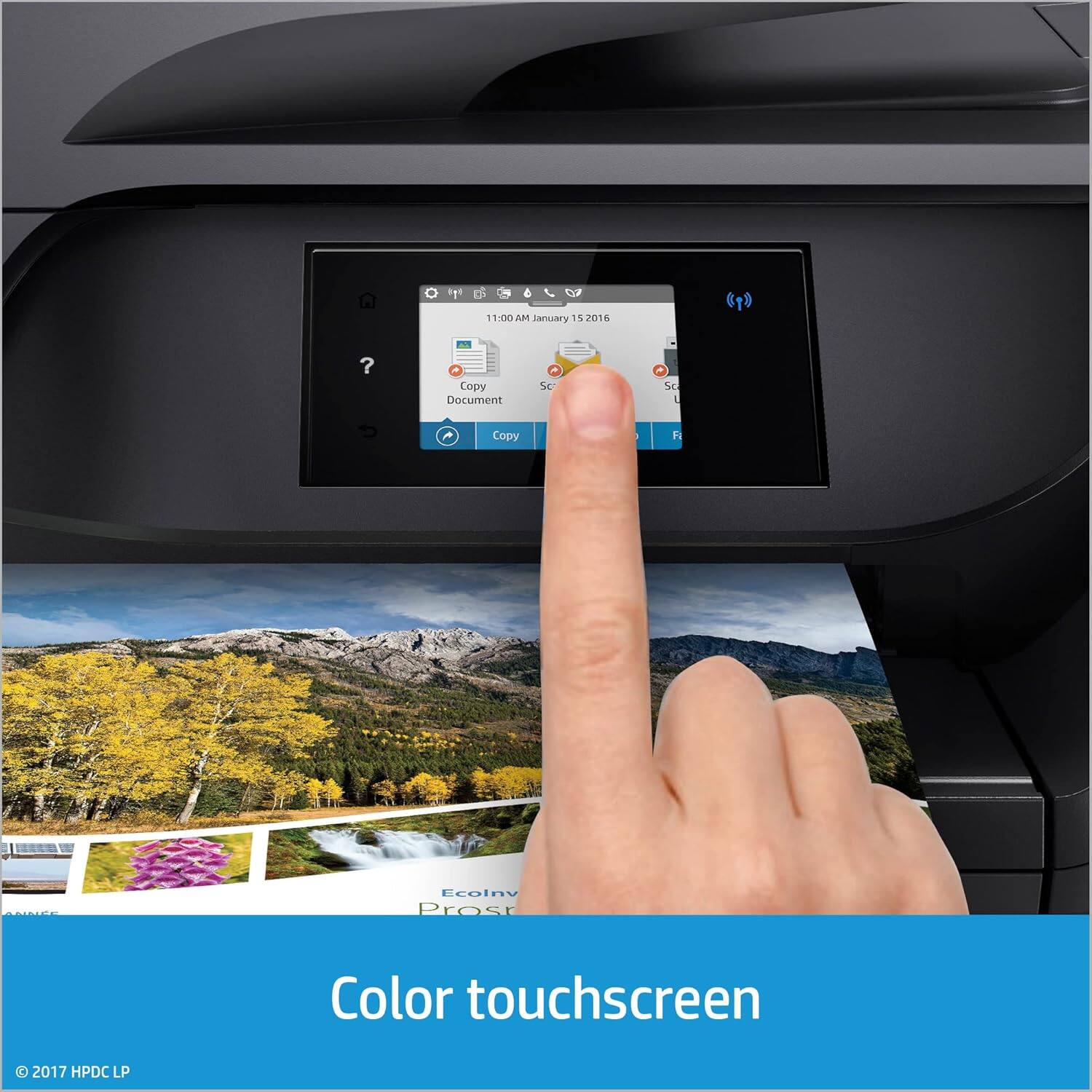
A:AnswerYes. When you select the Copy option, there is a little "gear" icon in the lower left hand corner of the screen. Selecting that will give you access to submenus for resizing the copy size, the paper size and darker/lighter options.
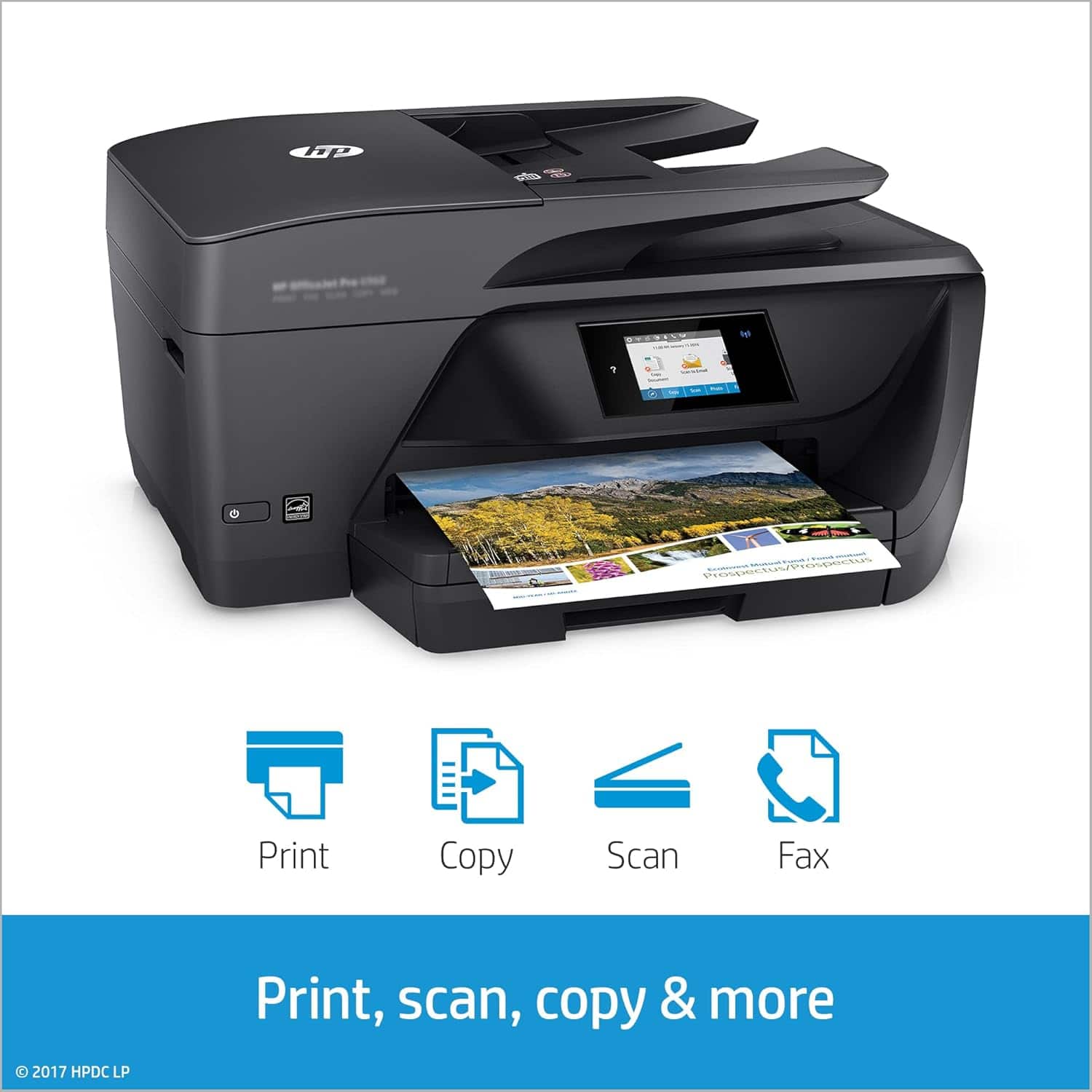
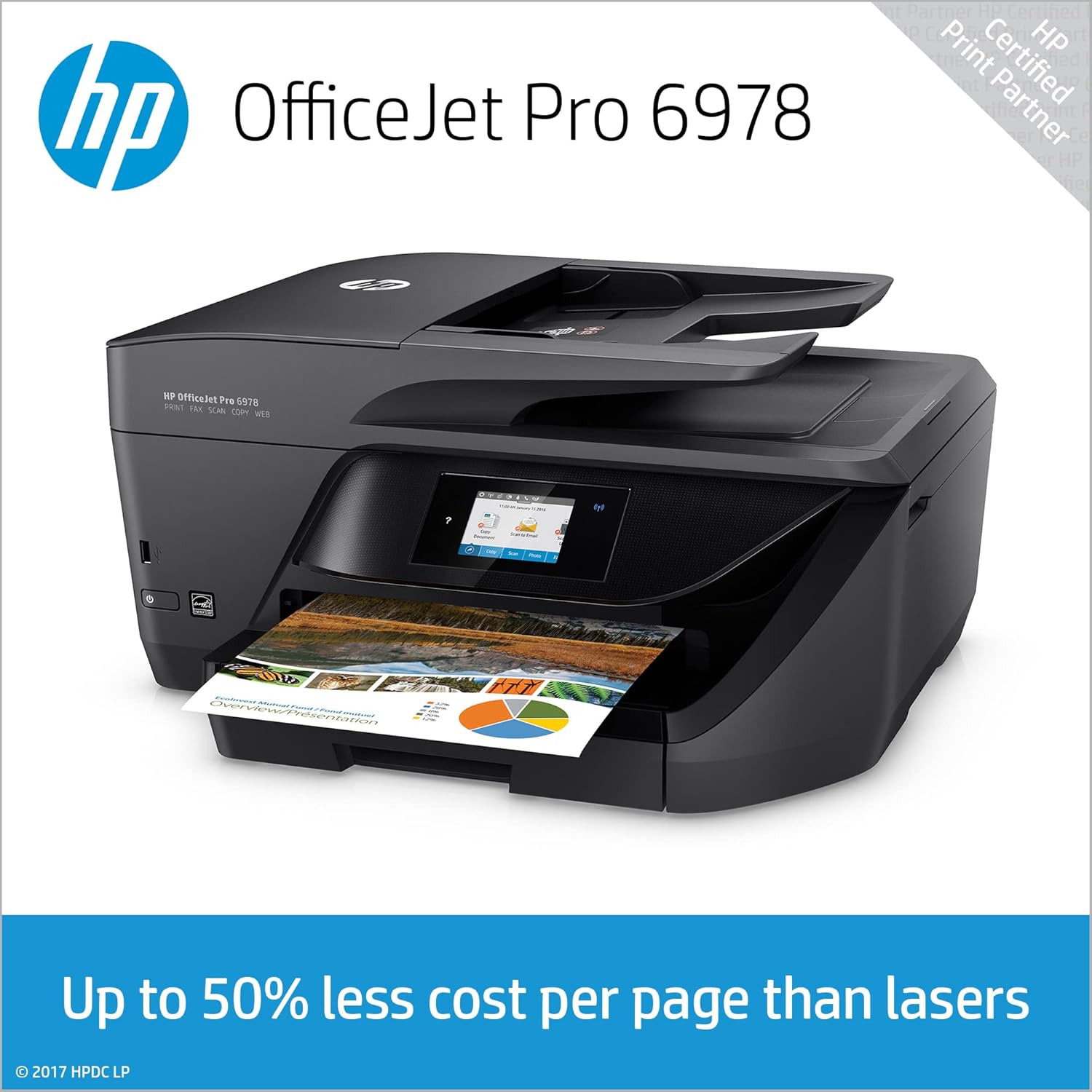
A:AnswerThe printer is 18 in. (46 cm) wide, 9 in. (23 cm) tall and 15.25 in. (39 cm) deep (front to back). That is with the document output tray closed. It pulls out from the front of the printer, extending the depth another 4.4 in. (11 cm).
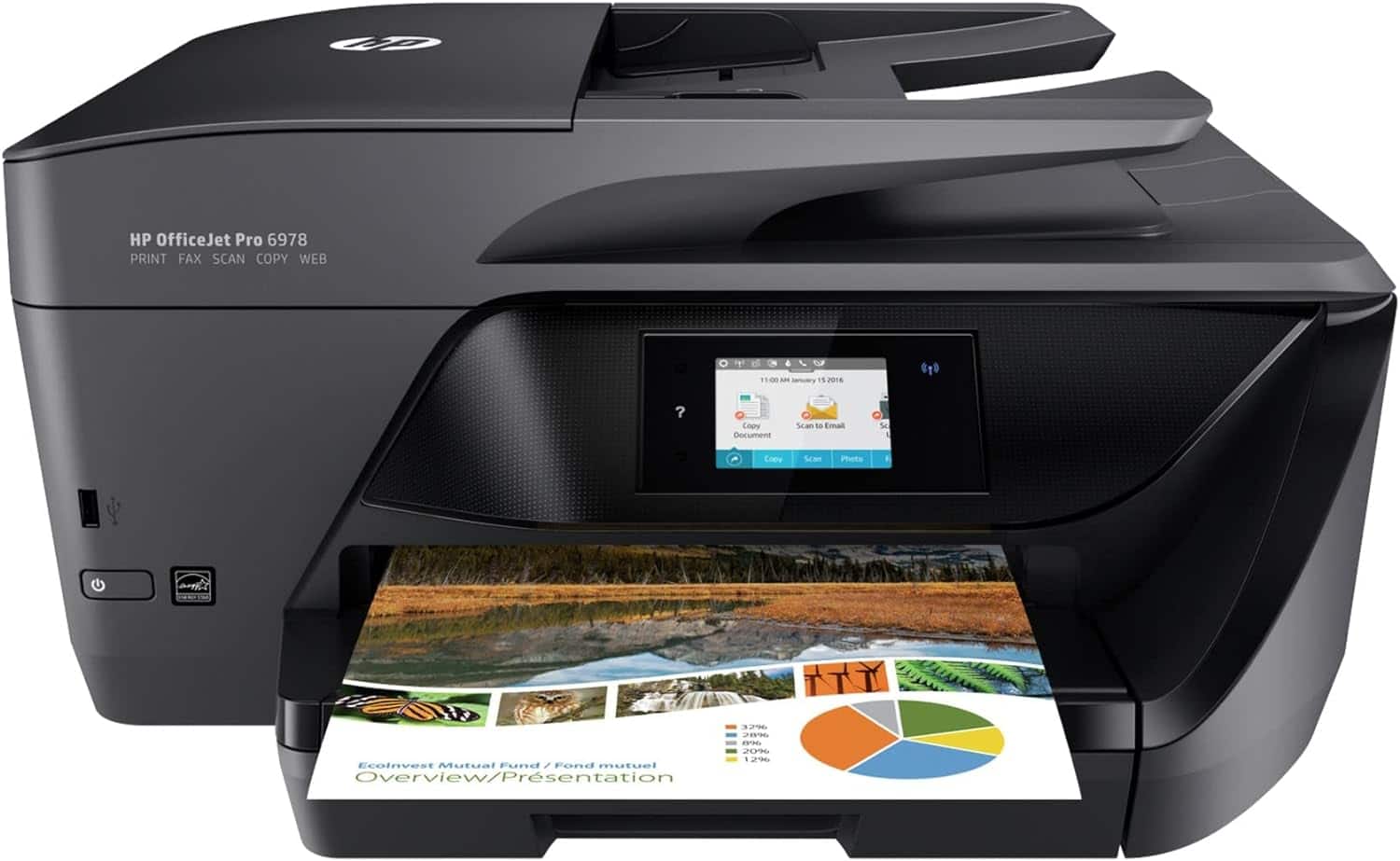
A:AnswerThe OfficeJet Pro 6978 dimensions are W x D x H: 18.26 x 15.35 x 9.0 in. A set of ink and a USB printer cable are two things that you can get to go with the printer. You would only need the USB cable if you plan not to use wireless. This model uses the HP 902 or 902 XL ink.
A:AnswerThis printer is a replacement for my HP 8600 all in one with wireless access, fax, copy,print and double sided printing. When I looked at all the options, this one has it all and at a very affordable price.. took less than 45 minutes from opening the box to get completely set up..
A:AnswerHello. Thank you for your question. You can put legal size paper in the paper tray of this HP Officejet Pro 6978 printer. You will need to pull out the paper tray to accommodate the legal size paper. Here are some instructions: https://support.hp.com/us-en/document/c05076941