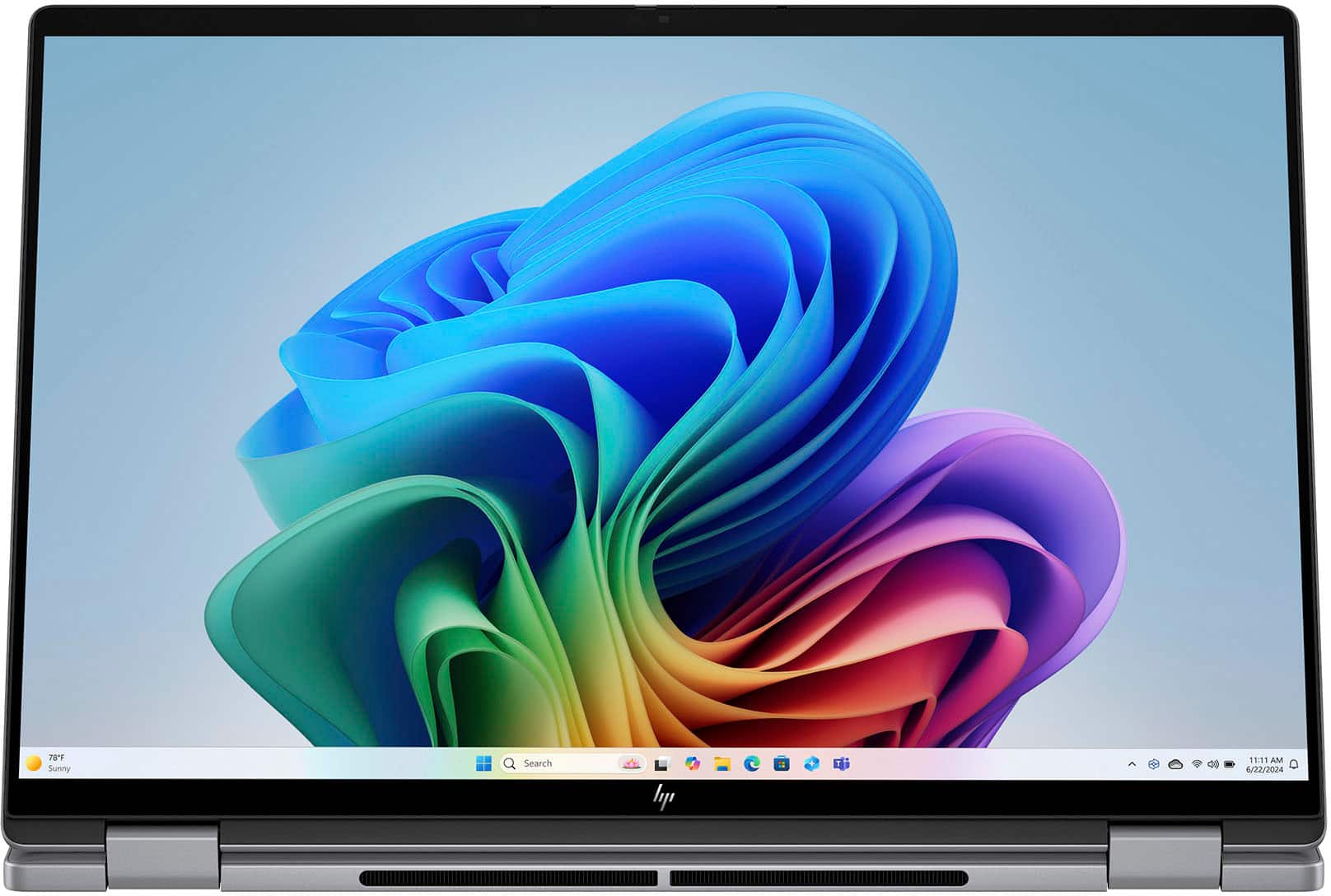
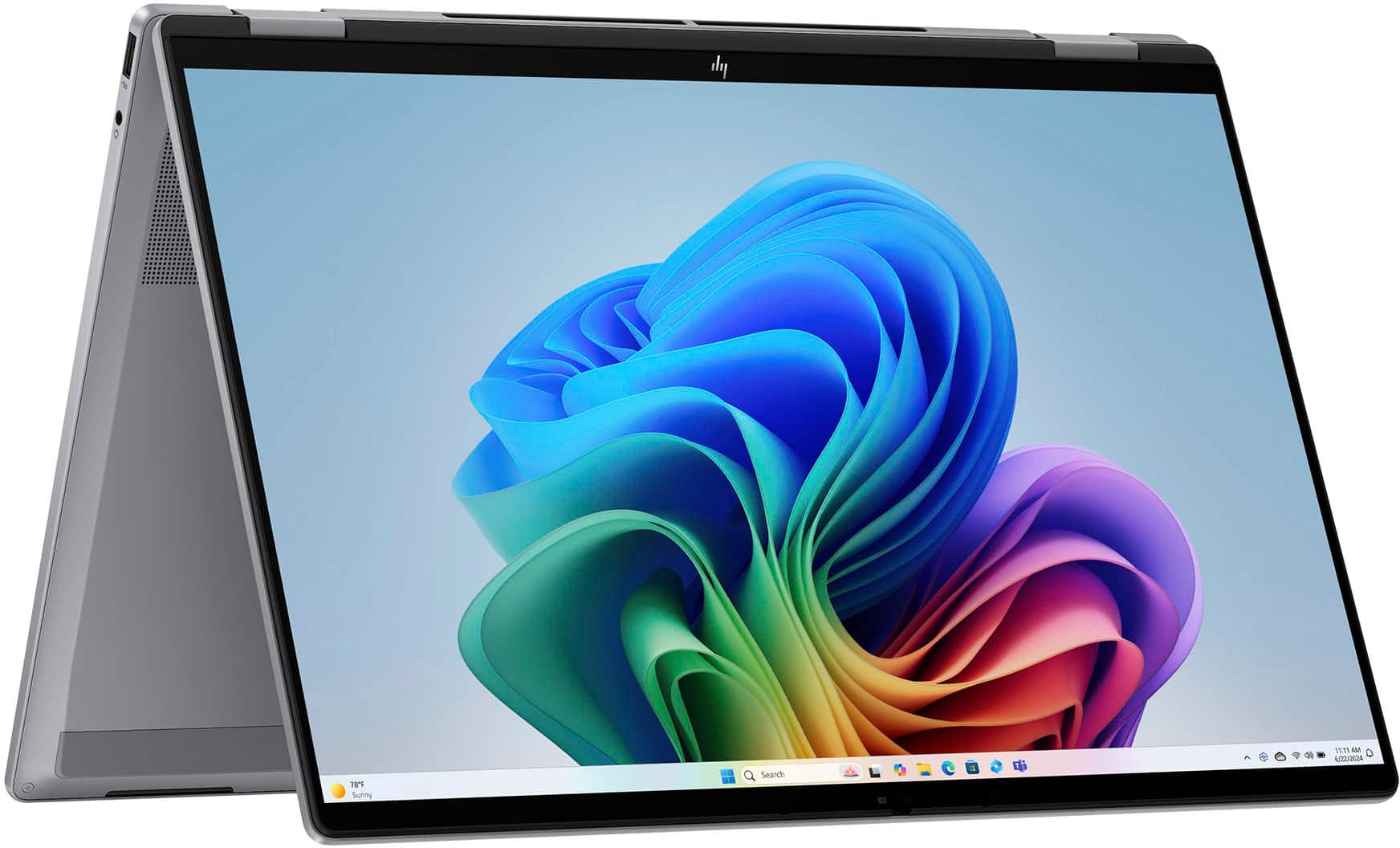
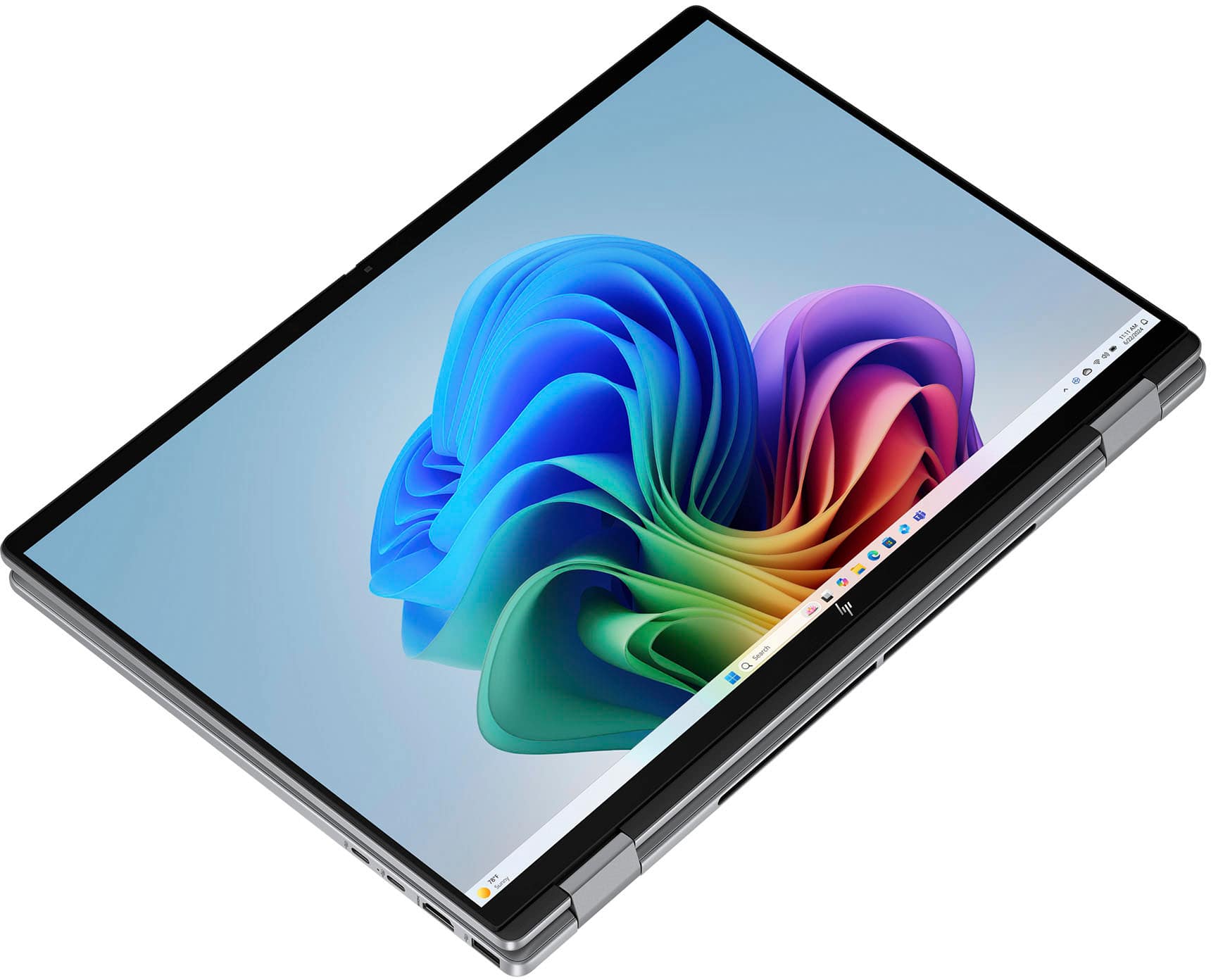
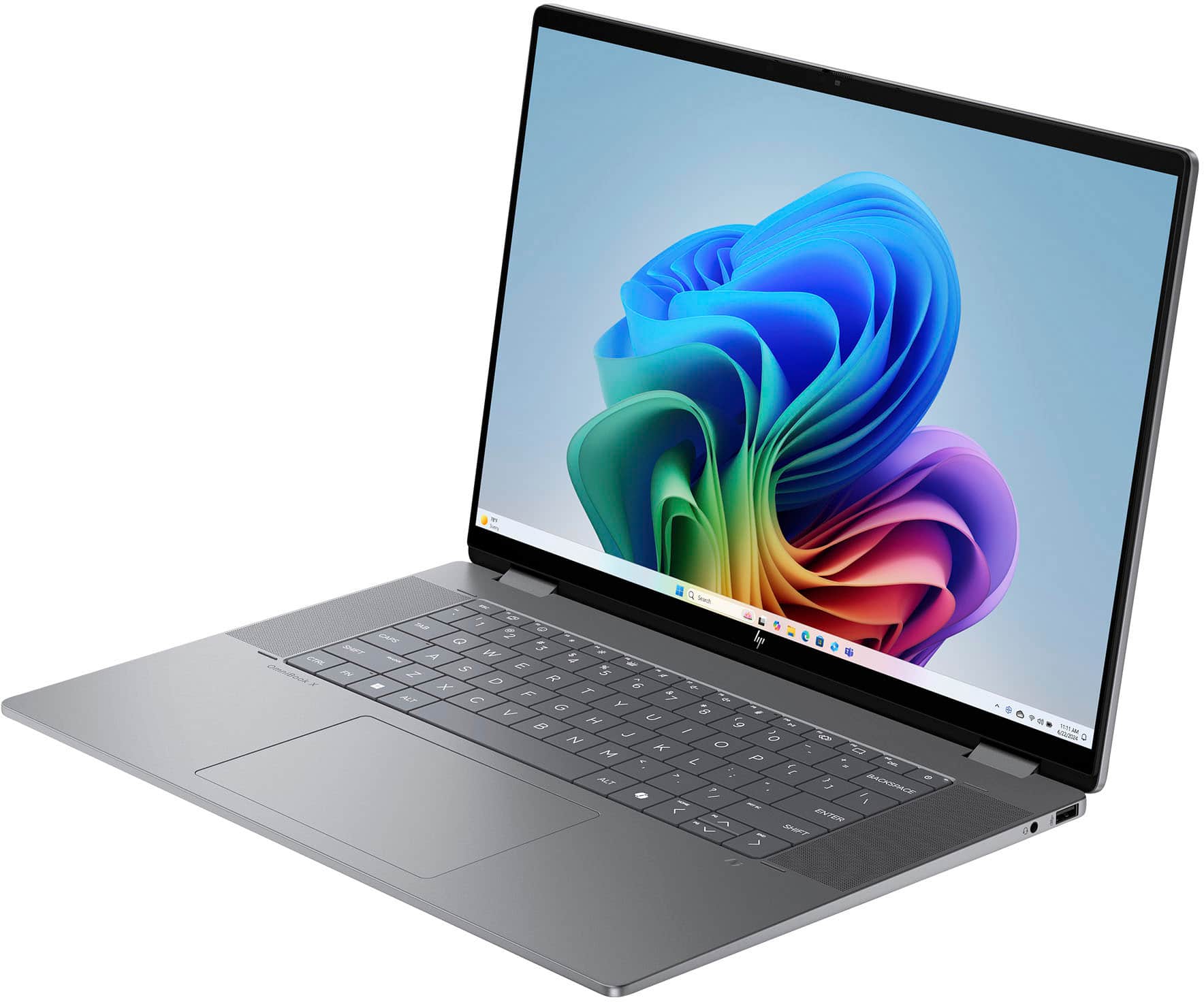
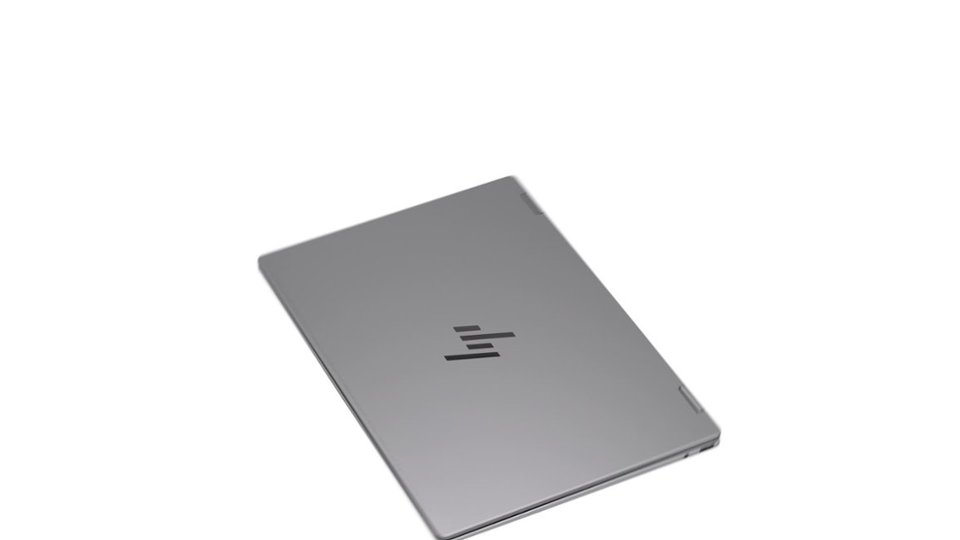
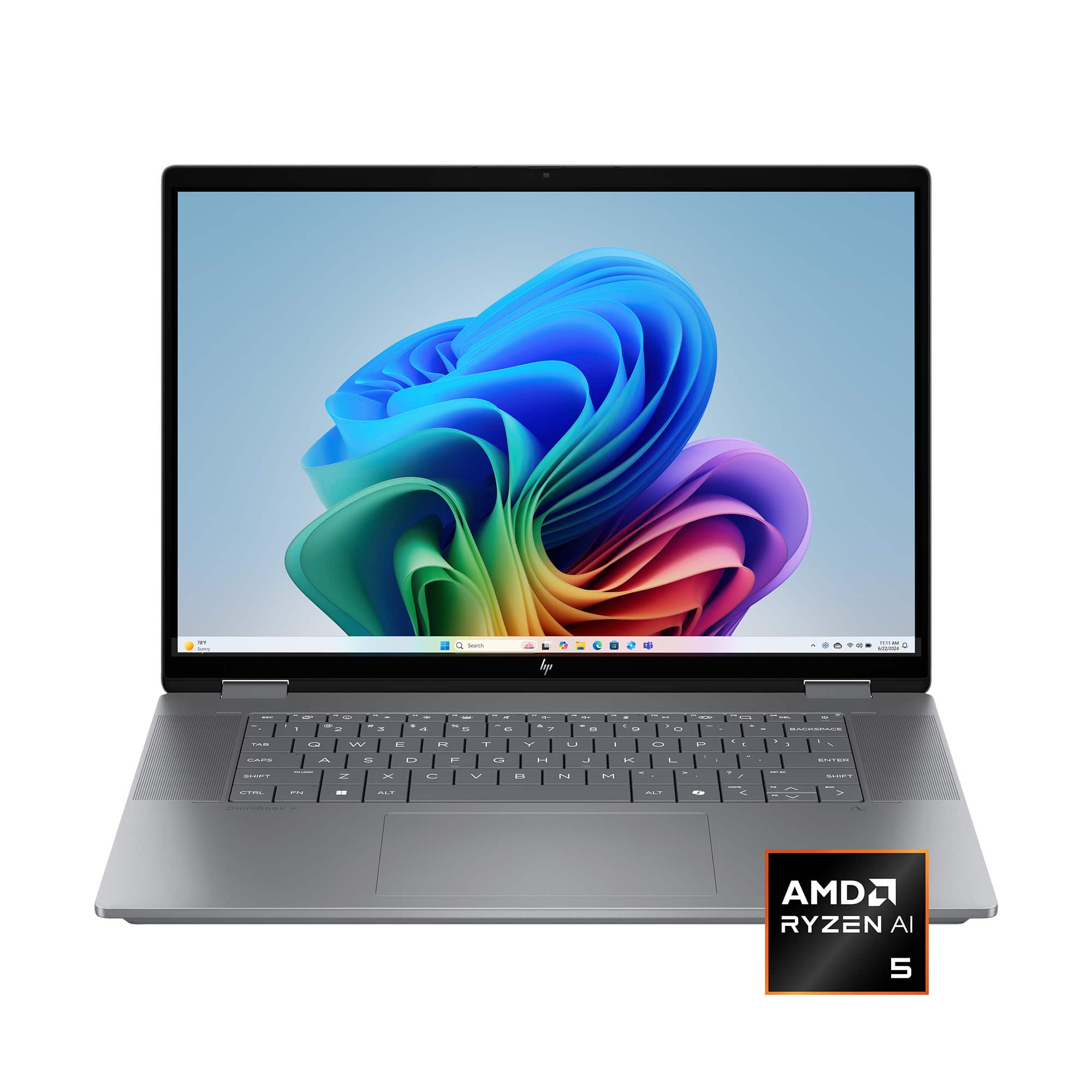
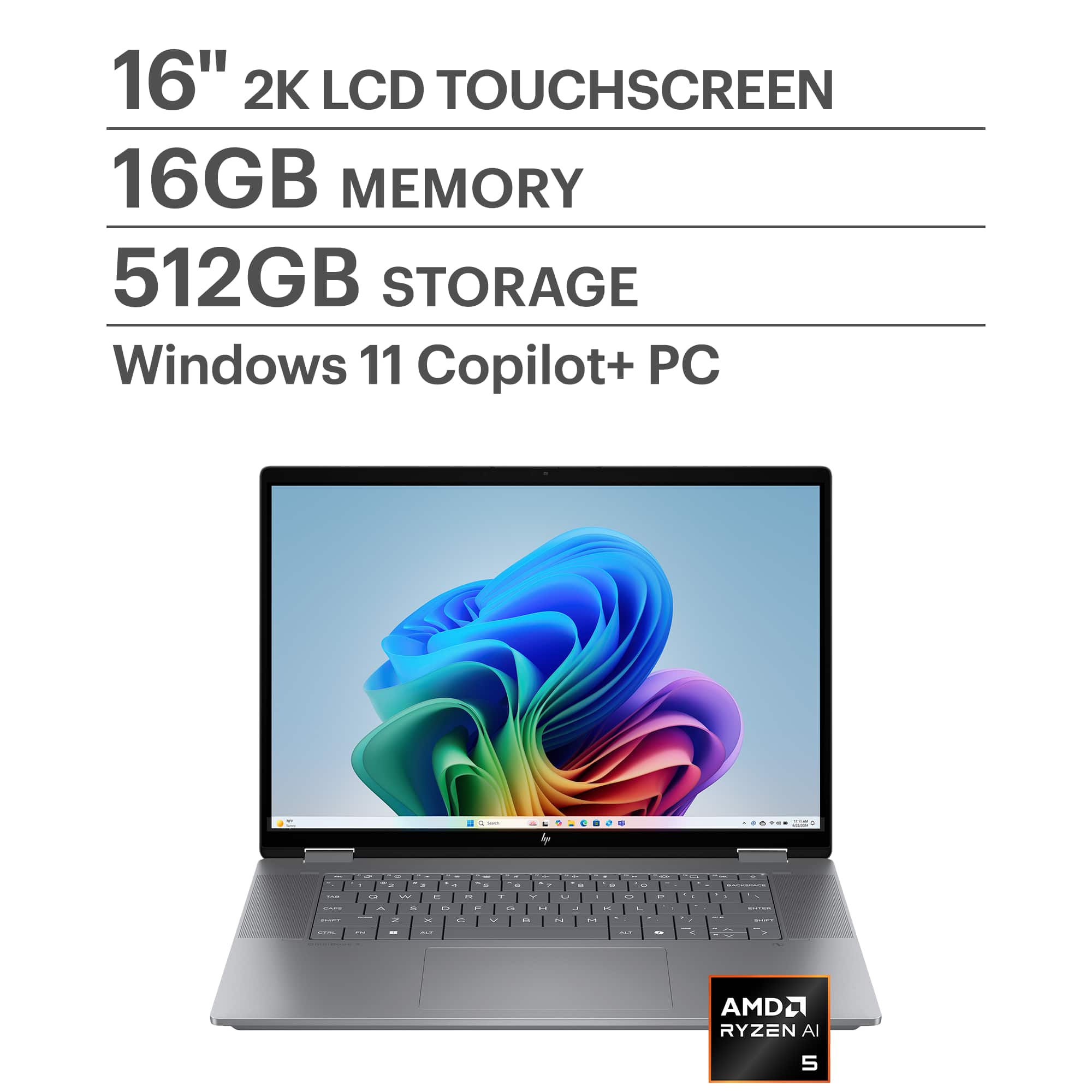
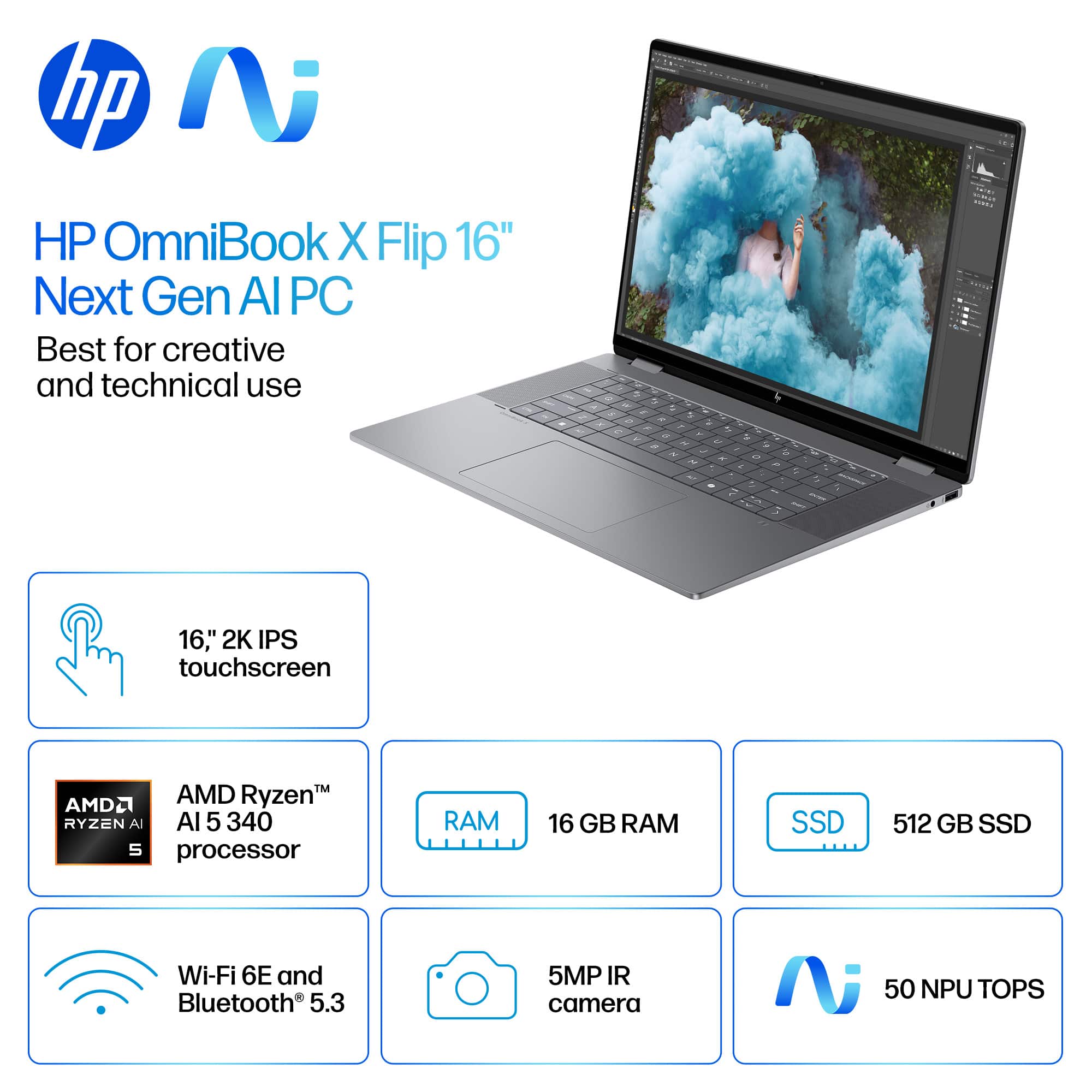
A:AnswerYes, the HP OmniBook X Flip 2-in-1 Copilot+ PC with an AMD Ryzen AI 5 340 processor can handle virtualization, but there are a few details to check:
Virtualization Support
The AMD Ryzen AI 5 series supports AMD-V (AMD Virtualization) technology, which is required for running virtual machines (VMs) in software like Hyper-V, VMware, or VirtualBox.
With 16GB RAM and 512GB SSD, your hardware is sufficient for most virtualization tasks, including running multiple lightweight VMs.
BIOS Settings
To enable virtualization:
Restart your laptop and enter BIOS/UEFI (usually by pressing Esc, F2, or Del during boot).
Look for:
SVM (Secure Virtual Machine) or Virtualization Technology under Advanced or CPU Configuration.
Enable the setting and save changes.
After reboot, confirm virtualization is active by:
Opening Task Manager → Performance → CPU (Windows) and checking if Virtualization: Enabled.
Additional Notes
If you plan to use Hyper-V, ensure you have Windows 11 Pro or Enterprise (Home edition does not include Hyper-V).
For AI workloads or GPU passthrough, check if BIOS also has IOMMU or SR-IOV options.
Do you want me to give you step-by-step instructions for enabling virtualization in BIOS for HP laptops, or a guide for setting up Hyper-V/VMware on Windows 11?
Provide your feedback on BizChatYou said: yesCopilot said: CopilotHere’s a clear guide for both steps you asked for:
Enable Virtualization in BIOS (HP OmniBook X Flip)
Restart your laptop.
As soon as the HP logo appears, press Esc repeatedly, then select F10 for BIOS Setup.
In BIOS:
Go to Advanced → System Options (or CPU Configuration).
Find Virtualization Technology (SVM).
Enable this option.
Press F10 to Save and Exit.
After reboot, confirm:
Open Task Manager → Performance → CPU.
Check Virtualization: Enabled.
Set Up Hyper-V on Windows 11
Check Edition:
Hyper-V is available on Windows 11 Pro/Enterprise (not Home).
To check: Settings → System → About → Edition.
Enable Hyper-V:
Press Win + R, type optionalfeatures, hit Enter.
In Windows Features, check:
Hyper-V Management Tools
Hyper-V Platform
Click OK, restart when prompted.
Create a Virtual Machine:
Open Hyper-V Manager (search in Start).
Click New → Virtual Machine.
Follow the wizard:
Assign memory (e.g., 4GB for light VMs).
Choose Generation 2 for modern OS.
Attach ISO for OS installation.
Start your VM and install the OS.
For VMware or VirtualBox:
After enabling virtualization in BIOS, just install the software and create VMs normally.
Hope this helps! Merry Christmas!
John A.
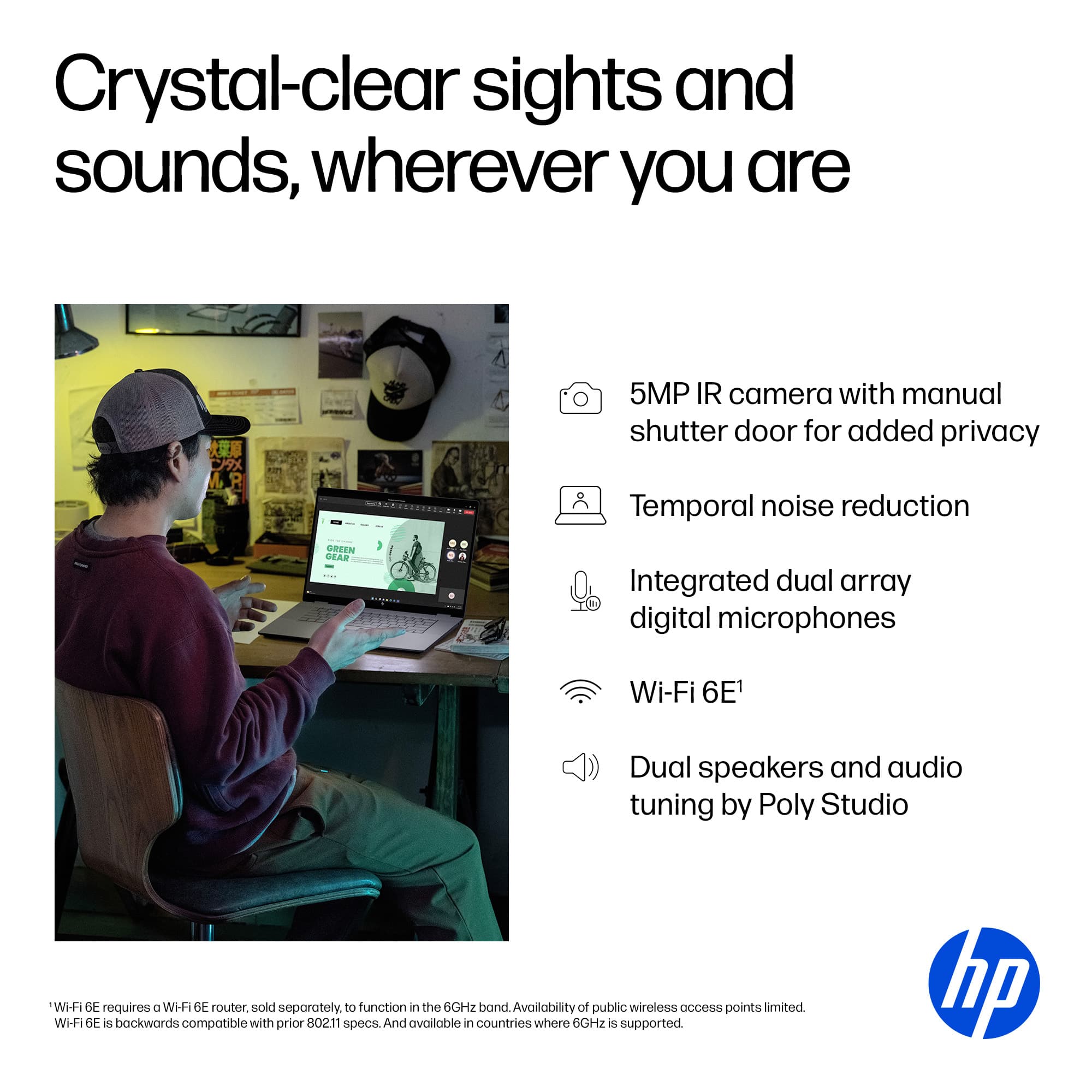
A:AnswerNo, it does not have a fingerprint reader built in. You could buy and use an external one, or you could log in with the facial recognition on the camera, but it does not come with a built in fingerprint reader.

 for registration status and tier levels by country. ENERGY STAR and the ENERGY STAR logo are registered trademarks of the US Environmental Protection Agency.](https://pisces.bbystatic.com/image2/BestBuy_US/images/products/528679fa-c5a1-4feb-bbc5-6eed3cb9cfad.jpg)