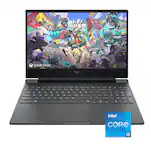
A:AnswerI am running Destiny 2 at highest settings (shadows at medium though) and I am getting 144 in open world, 114-144 in tower and 1% lows in the 89 range in tower if it is heavily populated. Please note that I have OC'ed the 1660 Core clock +165 and the memory clock +980. Also I added an NVMe SSD and upgraded the RAM to 16GB, so those play into my personal performance gains (NVMe loading gains only).
A:AnswerYour monitor might have a refresh rate lock on it or your game settings, but if this is not the case I recommend getting the ASUS tweak tool 2 (you can google it and download for free) and set the gpu to game mode this can definitely help. You can also check in your bios to make sure your cpu is enabled to boost up. If nothing else works on the in game settings you can try turning off g-sync or free-sync if it is enabled which locks frame rates I don't know why it would lock at 40 but it's worth a shot.
A:AnswerHonestly mine didn't either but it's a really easy setup you just turn it on and follow the prompts it's very easy to set up if you would like a manual you can always look on the actual website from iBuyPower they typically have a lot of the stuff that you need to know on there a lot of the time people post them so it's really easy but nevertheless I set mine up no problem without the owner's manual
A:AnswerYes. But it’ll be capped at whatever speed your other stick is operating at. You probably want to get the same speed/size and manufacturer if possible. Windows 10 home 64-bit supports a max of 128GB. This machine runs fine at 8GB, but if you feel the need to upgrade, 16GB is more than enough!
A:AnswerIt could honestly be a number of different things. Try and lower your graphics settings to see if that helps. Don’t rule out your internet speed either. Run a speed test and compare that to what your game recommends.