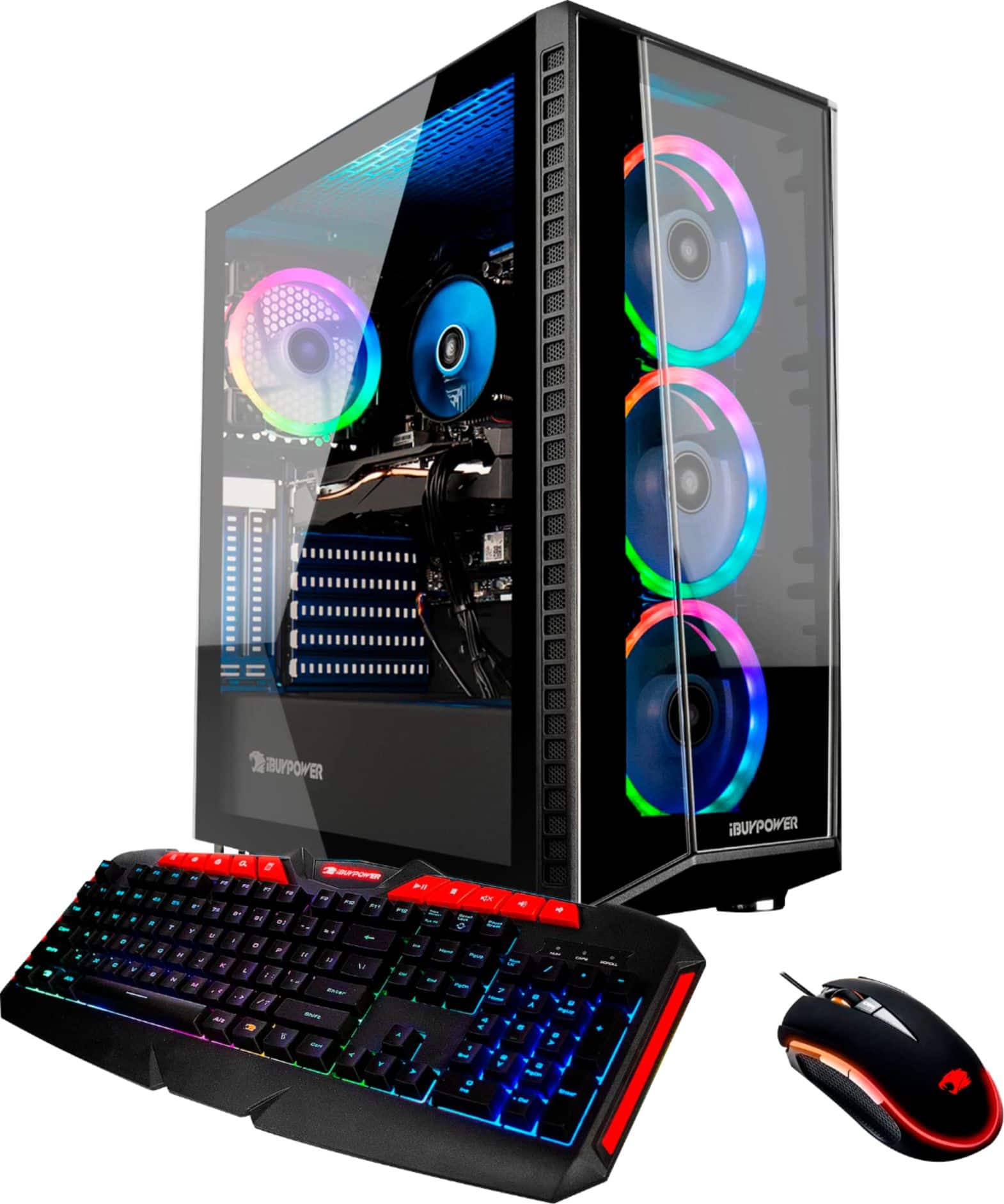
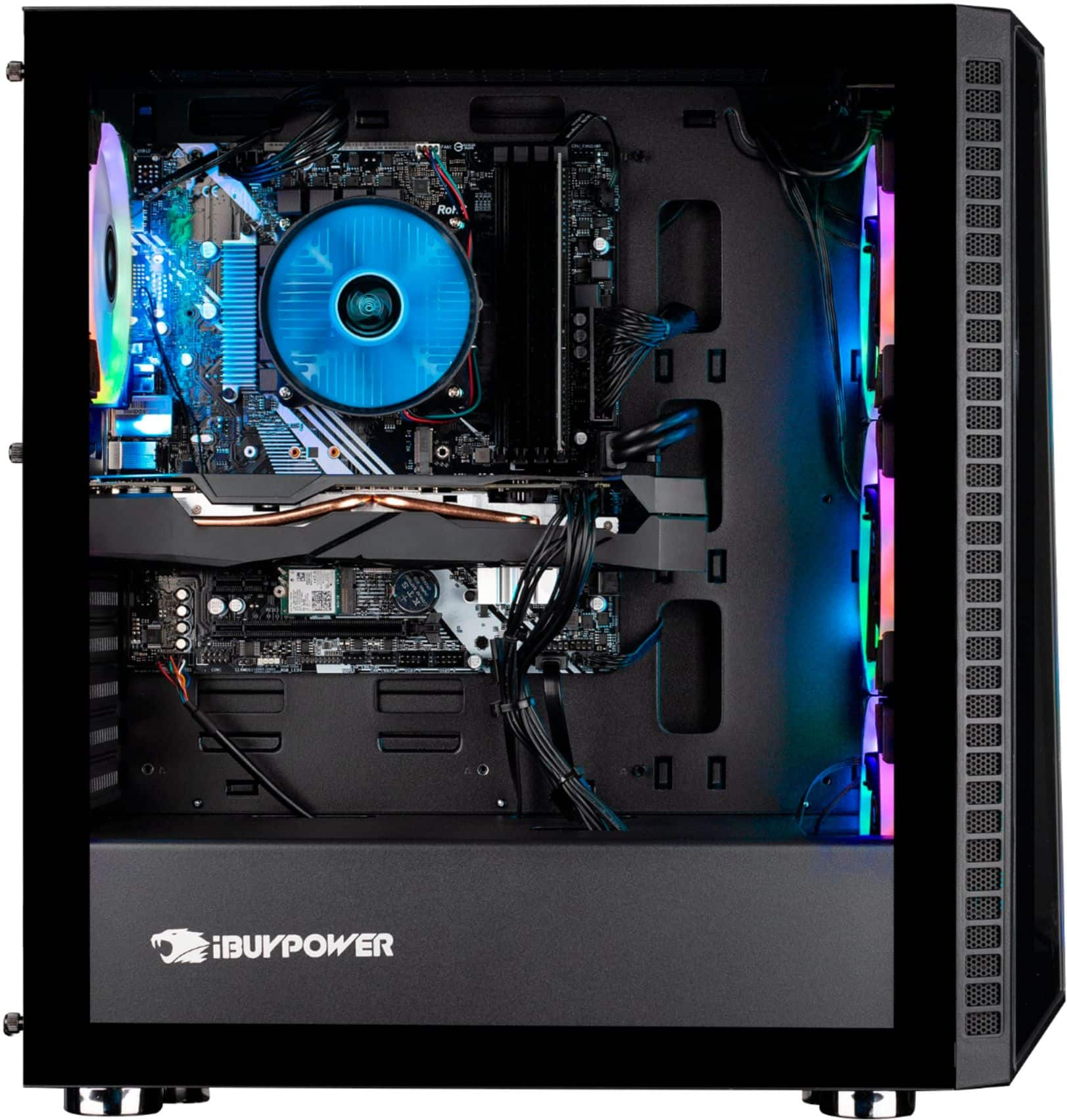
A:AnswerOpen left side non glass part of tower and connect the wires. You'll find them above or below the hard drive and ssd harness. Wires connect to each other and to circuit board on left side of tower. Hope this helps you.
A:AnswerMost likely the fan became unplugged.
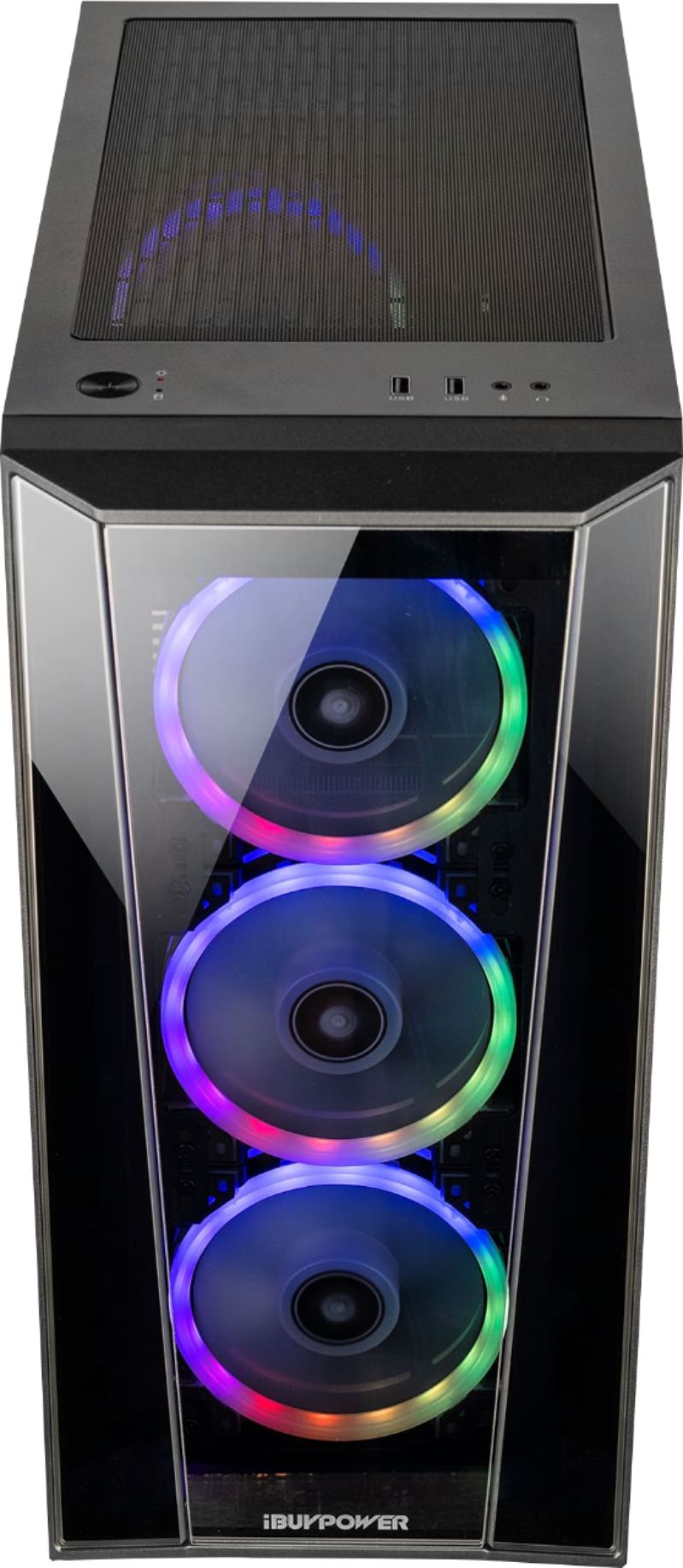
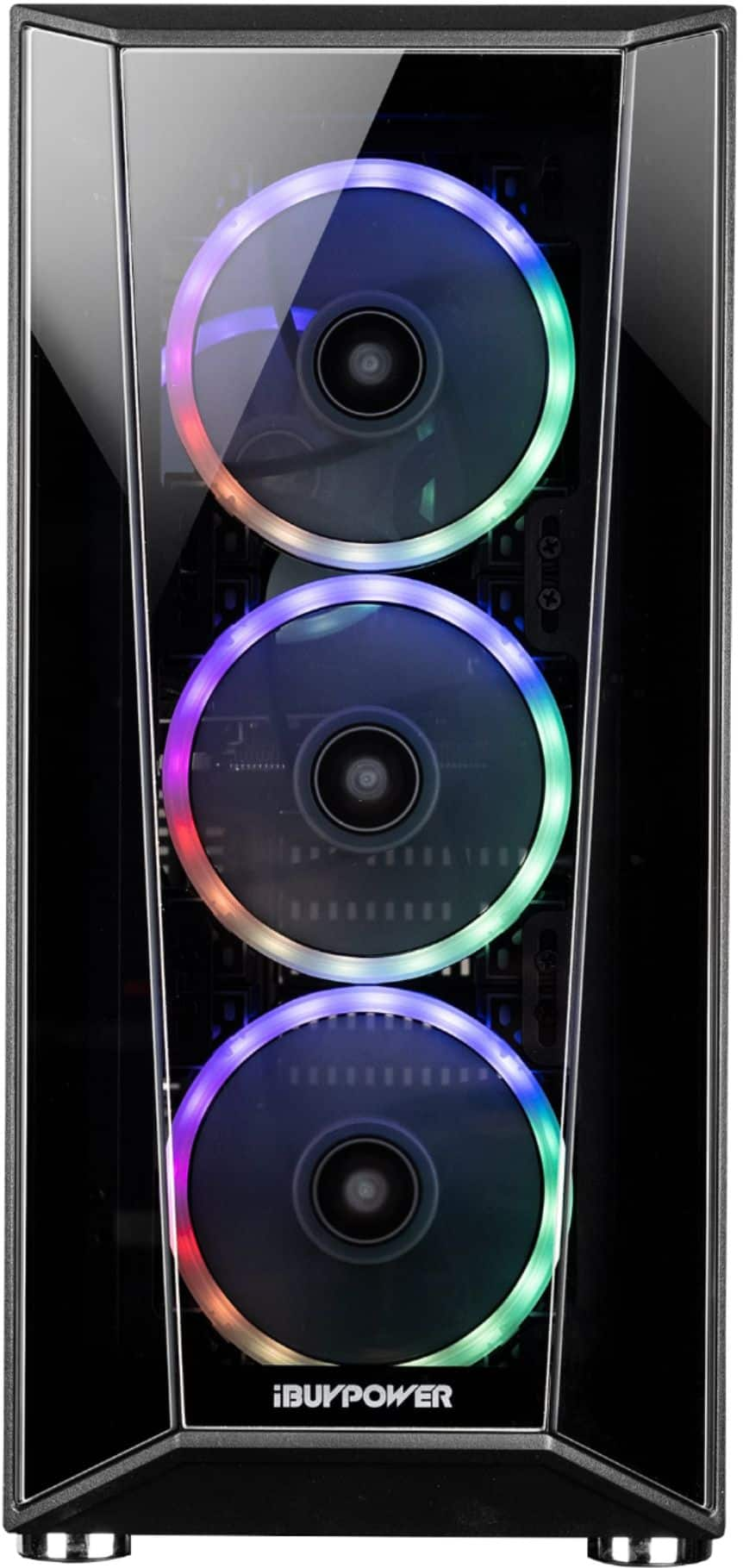
Each fan has a separate plug for the fan blades and another for it's lights. When I got mine all three front fans had been unplugged from the light control hub and the bottom fan's blade power was unplugged as well.
Take the front and back covers off.
Trace the wires for each fan. (they did a lousy job of keeping them separated and neat on mine)
Beneath the back cover is where you'll find the light control hub. For a reference.
I had a hard time locating the plug for the fan blade tho.
It's possible they used a control hub for your fans power plugs but it's also possible they used an adapter harness. That's what mine was. Three fans off one mother board slot SMH.. Anyhow, I'm pretty sure yours has the Aura ight system, So based off that I can tell you with 90 % surety that it's what's located in the center of the back cable management area. But like I said I'm not really all that sure of if they used a hub or a wiring harness adapter for the main blade's power wires. But I can tell you that those were connections bother light control and power are cheap and fall off easily.
A:AnswerHello,
If you are planning on switching from an Intel to AMD CPU, you would have to change the motherboard. You can upgrade to an i7 without changing anything. Thank you for your question!
A:AnswerI was curious of this myself at first you can play around with things in the bios, but it turns out boost is different than overclocked. The cpu runs only at a necessary speed for the task it is handling so if you're only internet browsing it may only be at 2.5GHz but if you're playing a cpu intensive game the cpu will boost its speed up to what it needs up to 4.1GHz I confirmed that speed is the max speed running cinebench so it will boost up to 4.1GHz just make sure in the bios that cpu boost is enabled.
A:AnswerYes it is supported to overclock the cpu you can do that in the bios (if you don't know what you're doing not recommended) and if you google ASUS tweak tool 2 it is free and comes with 3 preset overclocking settings and allows you to do custom overclocking as well but again don't do it if you don't know what you're doing.
Just keep in mind the cpu boosts its speeds to what is necessary at the time automatically so YouTube may be at 2.5GHz playing Tomb Raider with max everything may boost it up to the max 4.1GHz
A:AnswerRight click the sound icon in the bottom right of the task bar and select troubleshoot. Follow the steps and it should fix it. If not email me at [email protected] and I’ll go through a more-in-depth process.