A:AnswerHi! You can try resetting your TV. But for further assistance, please contact us on the link below, and we will gladly assist you.
Viridiana E.
Insignia Support.
https://www.insigniaproducts.com/contact-us
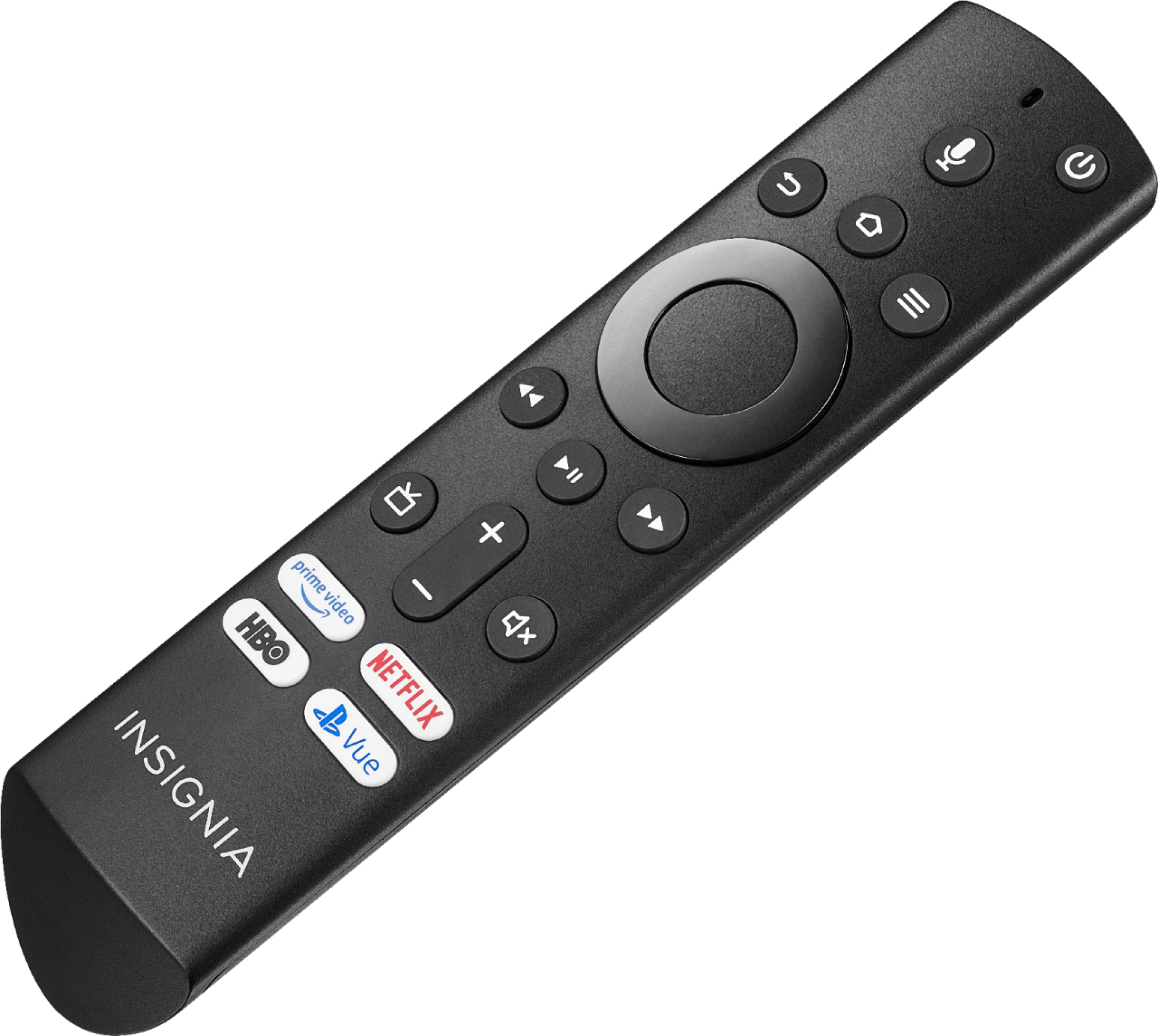
A:AnswerThe Bluetooth is for the Remote, it works using Bluetooth technology.
You cannot connect mobile devices to the TV using Bluetooth.
David M. - Insignia Support
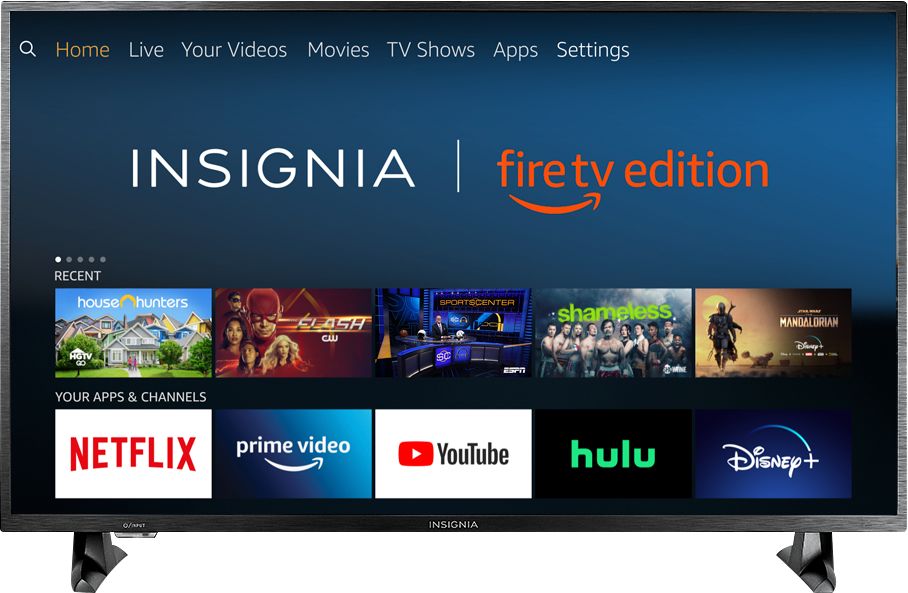
A:AnswerOnce you scan your antenna channels during initial setup, the channels will all show on the "LIVE" page and even show you what is on each channel at that time. "LIVE" is right next to "HOME" at the top of the screen, so you don't have to put in channel numbers. I find it's a lot easier than switching to antenna from apps like I have to do on my older smart tv.
A:AnswerTry to use the Amazon Photos app and upload your pictures to the cloud.
For more information, please visit amazon.com/photos
David M. - Insignia Support
A:AnswerYes, you can add new app to it, including Disney+. If you are familiar with the standard Amazon Fire Stick, it is basically the same just that it’s built in to the TV. You can add any app that is available for Fire Sticks. Hope this helps.
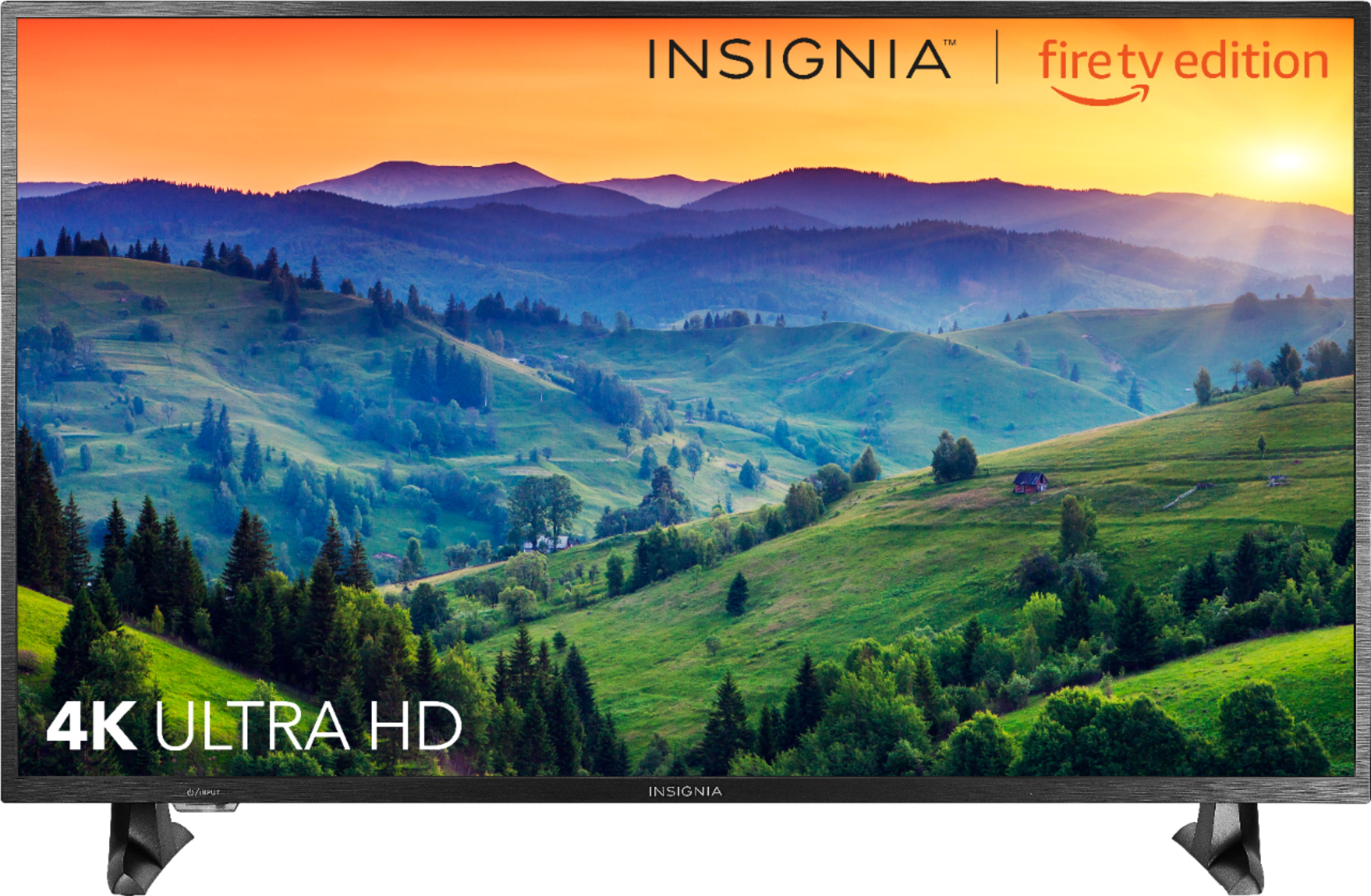
A:AnswerYes. It's a great TV for the money though the hd is not quite as sharp as I expected. Still, the picture is good and clear and the color is sharp. Totally worth the price
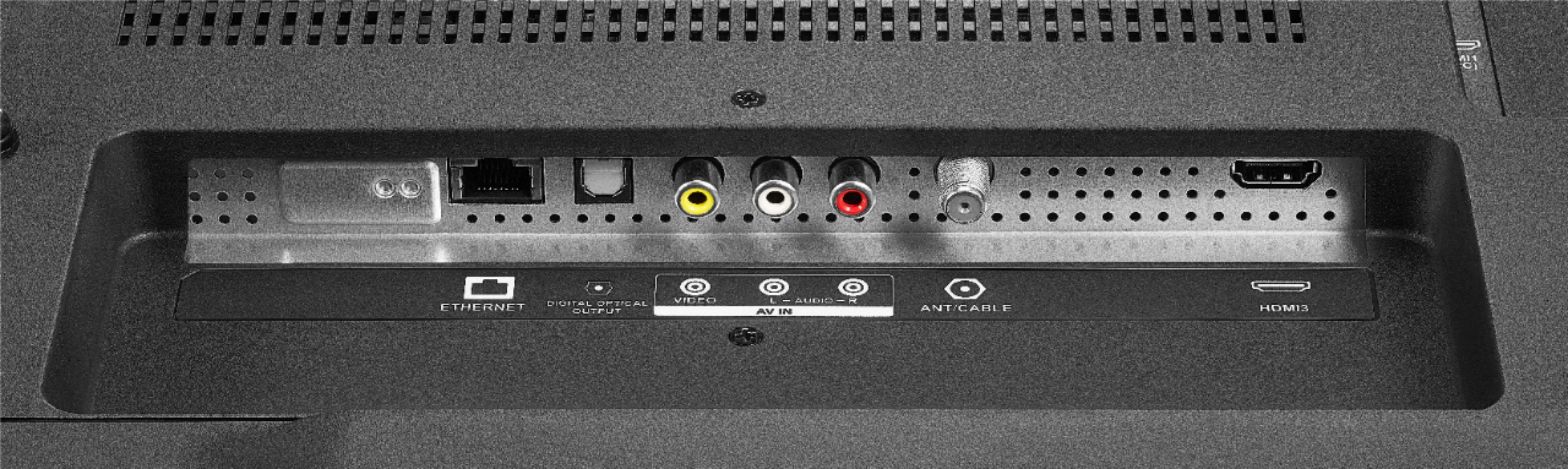
A:AnswerTry to use a Wi-Fi Extender to improve the signal strength or use an Ethernet cable for a direct and more stable connection.
If the issue persists, for personalized assistance, please call 1-877-467-4289 available from 8am to 9pm CT daily.
David M. - Insignia Support
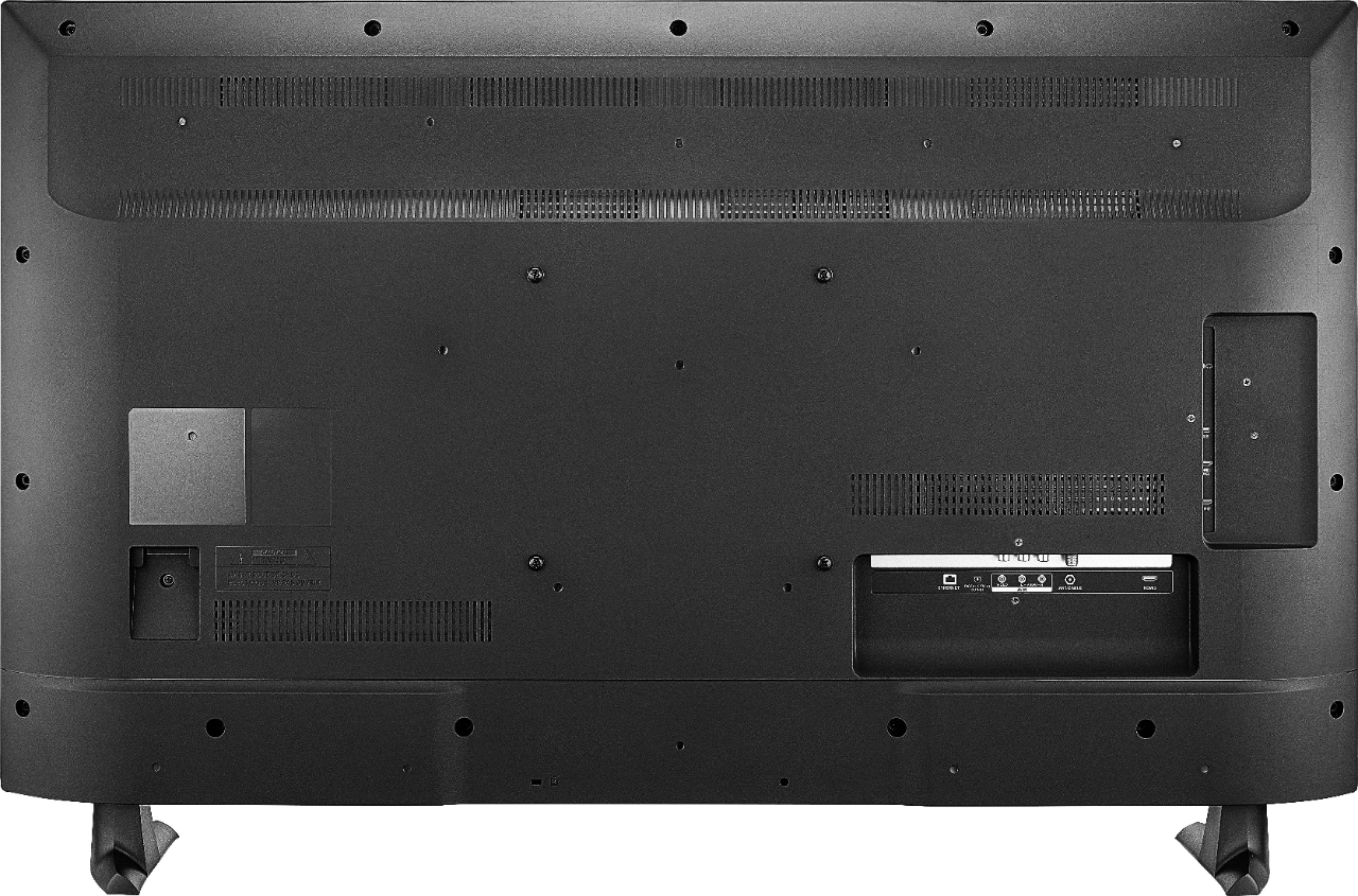
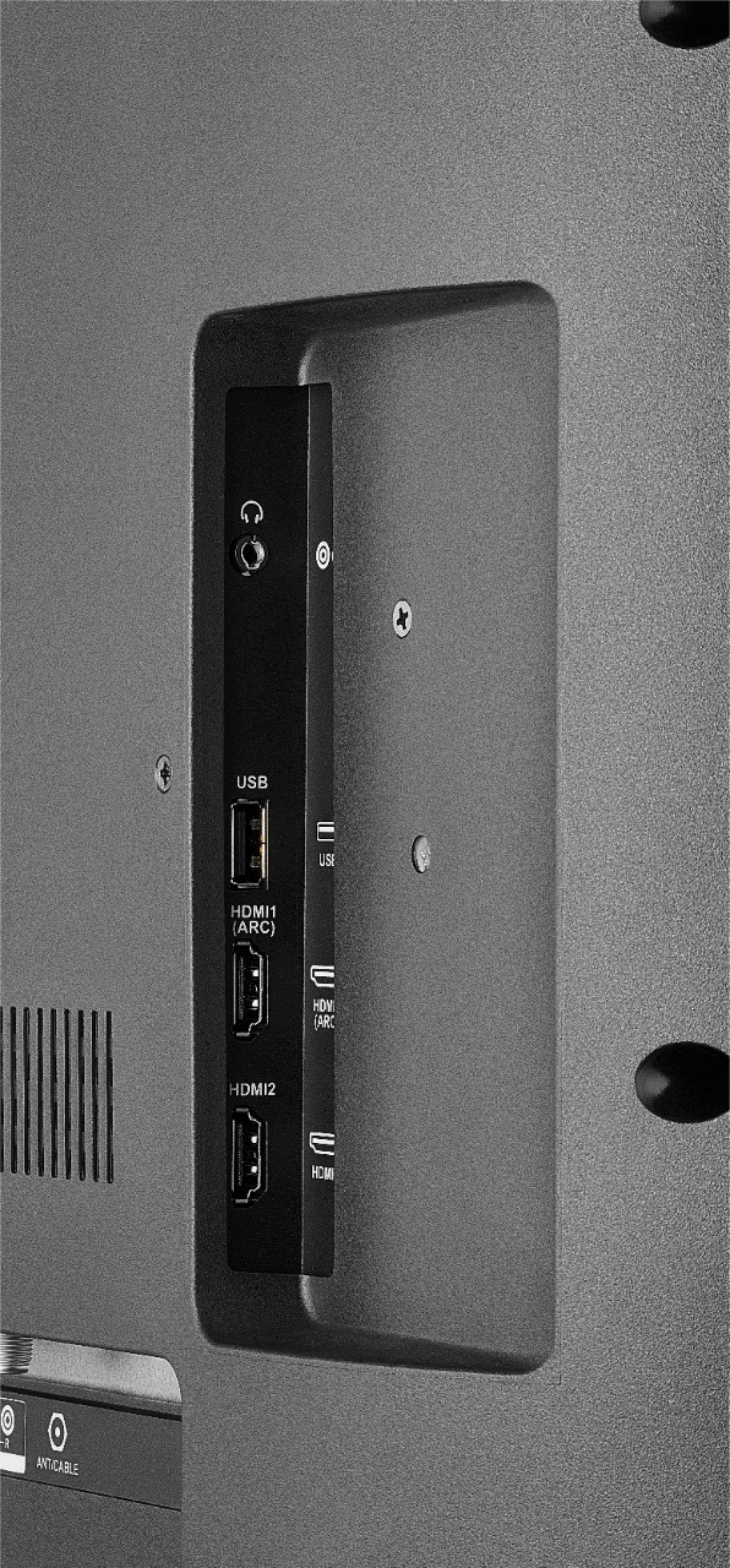
A:AnswerYou can connect an Apple TV box to the TV using an HDMI cable.
The Apple TV box supports AirPlay.
Another option is to use an AV adapter (Lightning to HDMI) to connect your iPhone to the TV.
David M. - Insignia Support