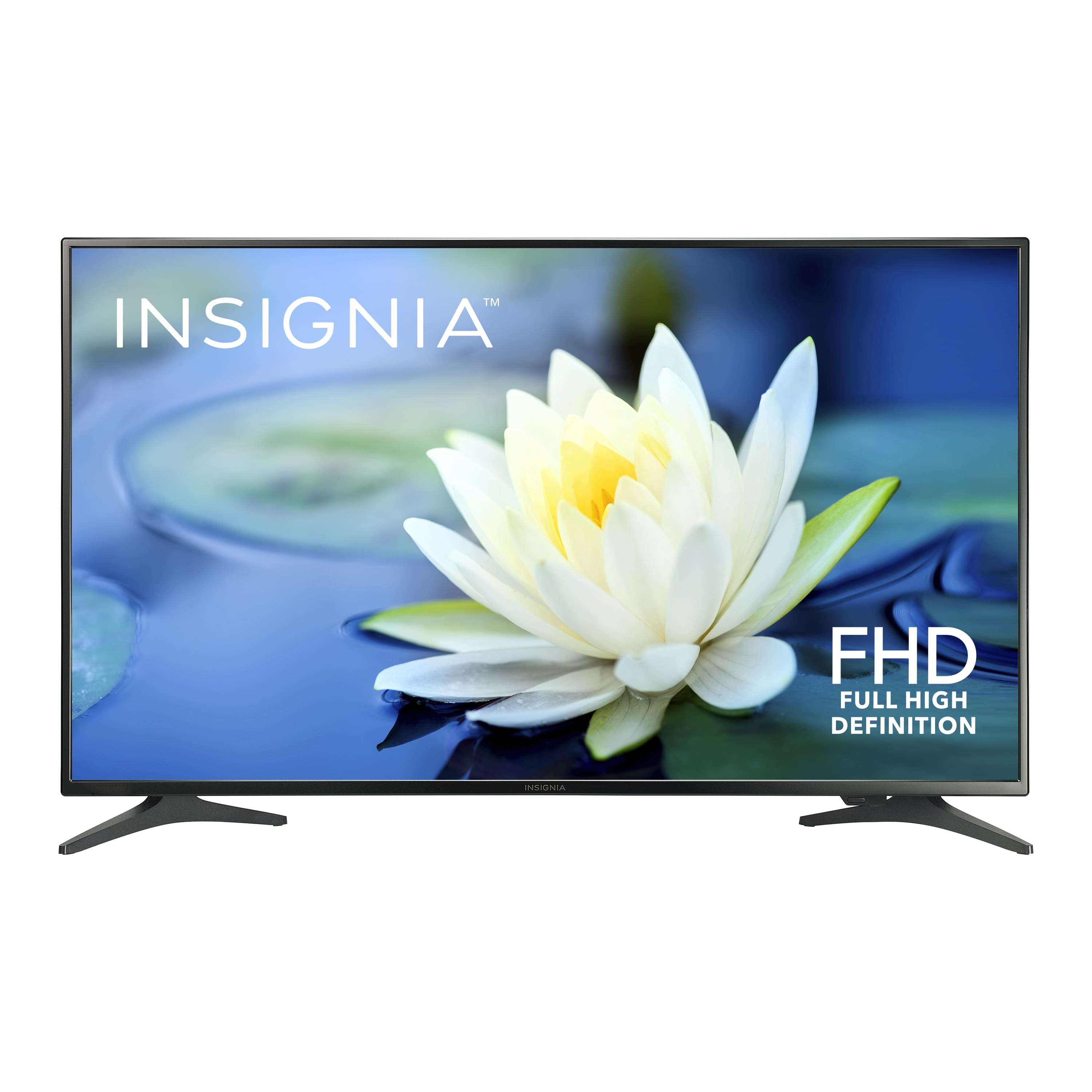
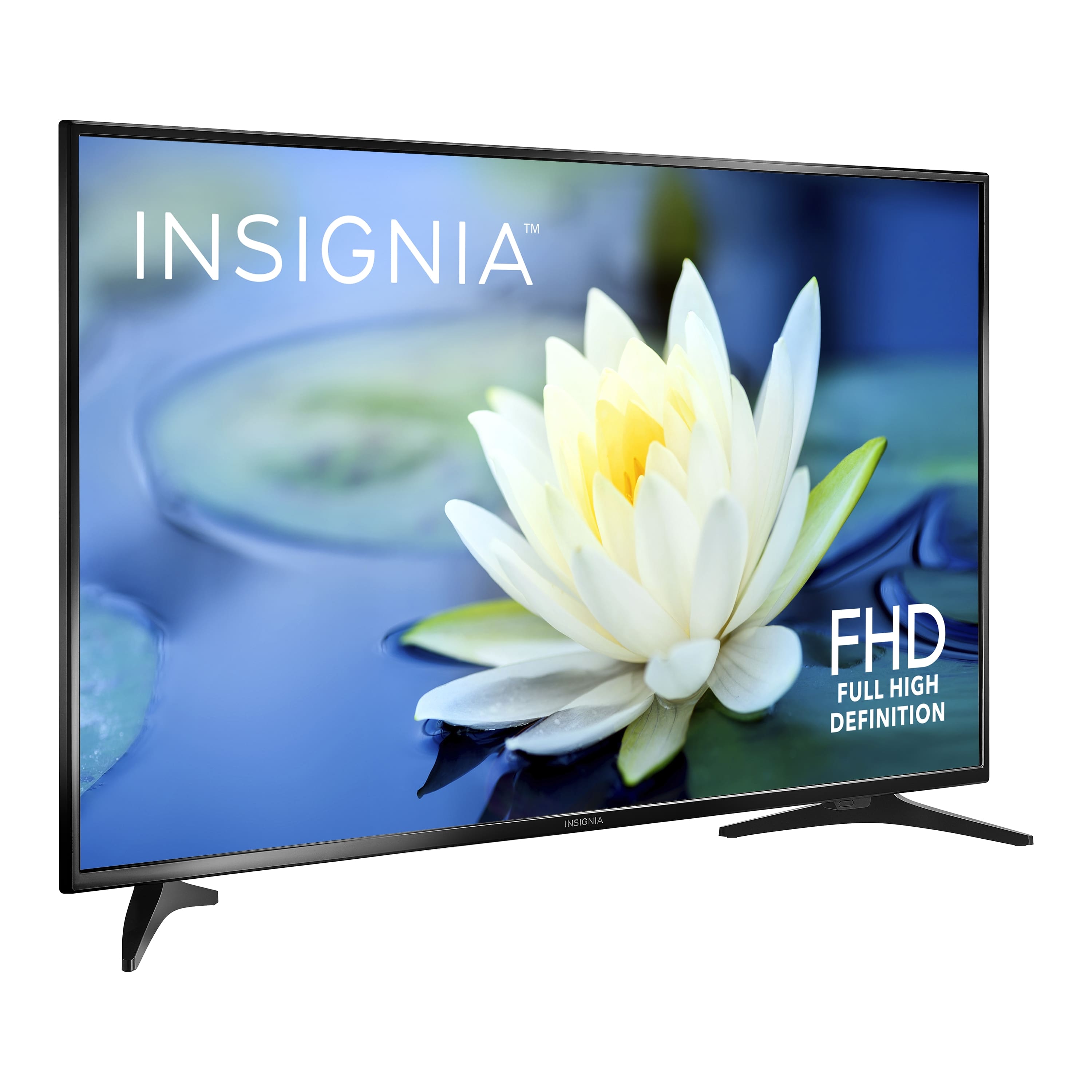
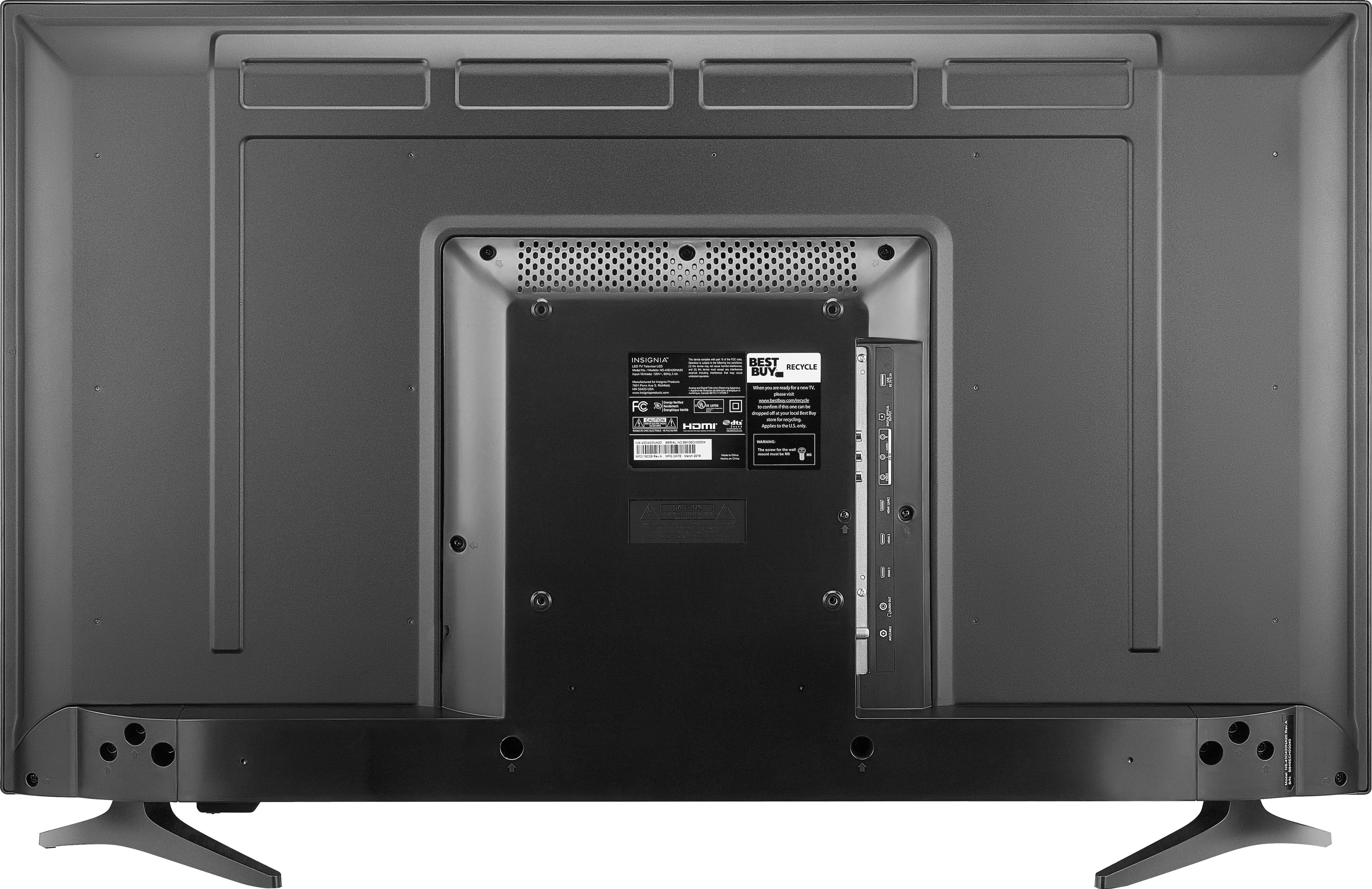
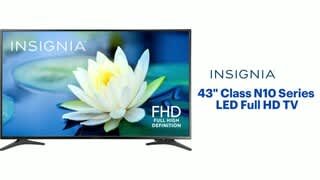
A:AnswerI am using it as a PC monitor and it works great! I use my own speakers so not sure on sound but picture is good for the price, I did have one small pixel that does not work. Look up my review to see picture.
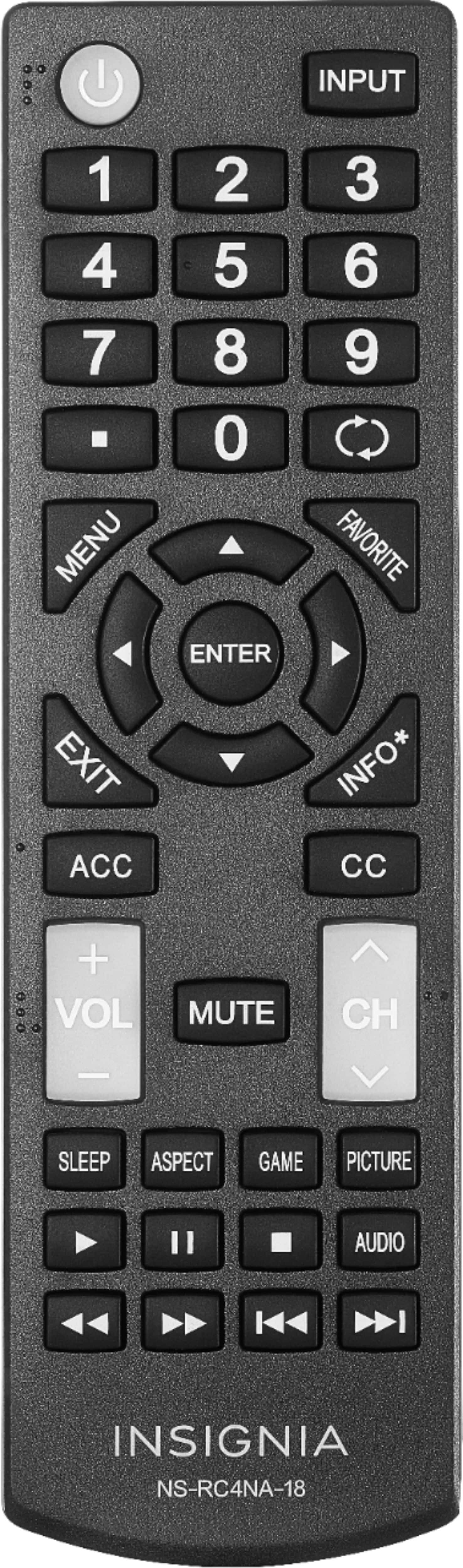
A:AnswerTry this: Menu > Settings > INlink Control > On and set TV Auto Power On > On
*If you connect an HDMI device that is not HDMI CEC-compatible, none of the INlink Control features work.
A:AnswerTry the Auto Input Sensing setting. When the Input Sensor feature is turned on, your TV automatically detects which video jacks have devices connected to them and turned on. Your TV uses this information to determine what options you can select on the INPUT SOURCE list when you press INPUT.
A:AnswerHello,
Thank you for your confidence. We assure you will get what you will get an accurate response.
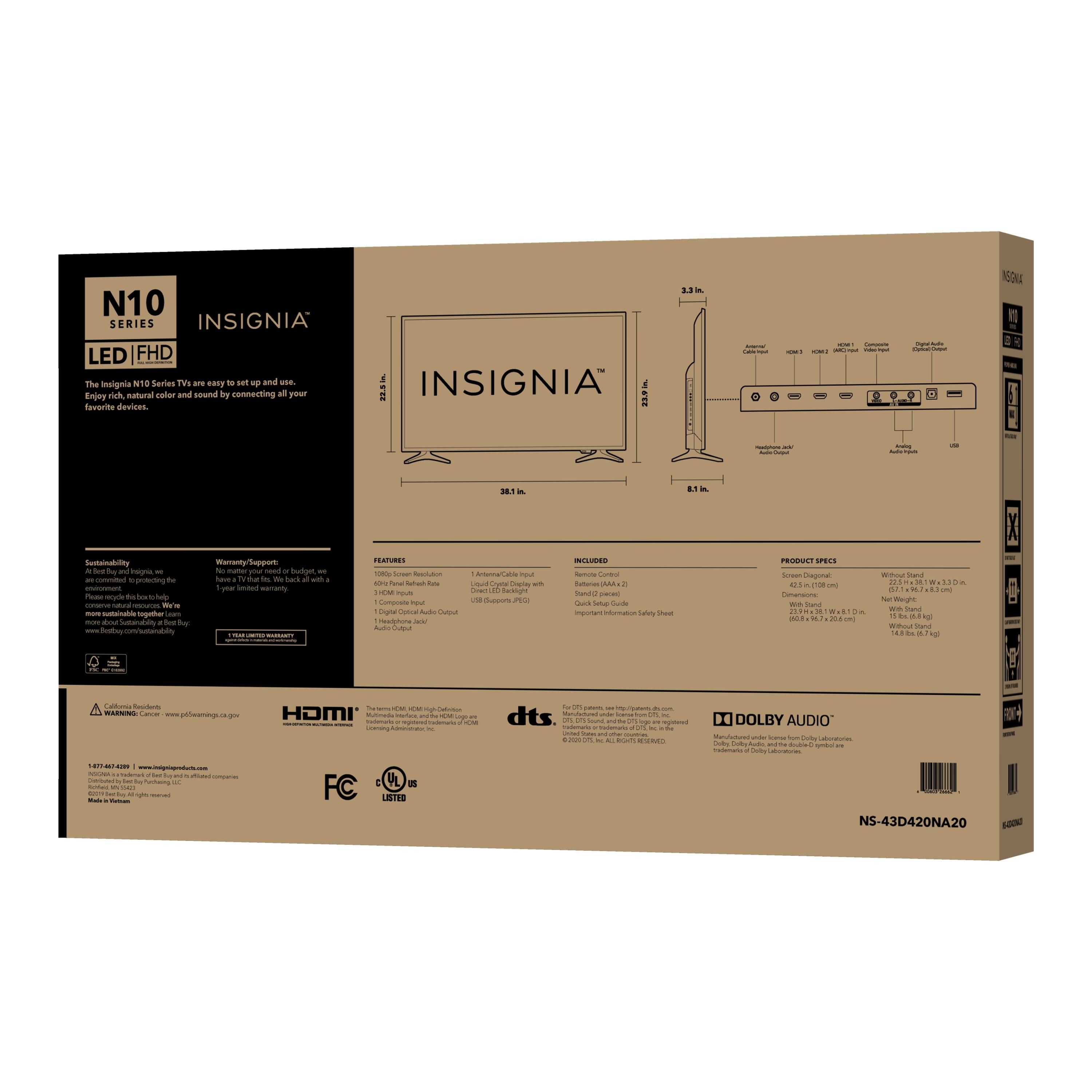
I know the importance of having the exact details. With it I was able to get the information you need and the dimensions without the stand are 22.5 x 38.1 x 3.3 (57.1 x 96.7 x 8.3 cm), with the stand 23.9 x 38.1 x 8.1 (60.8 x 96.7 x 20.6 cm) and screen size of 12.5 (108cm).
-Arin A.
Insignia Support
Contact us: https://www.insigniaproducts.com/contact-us
A:AnswerHi there,
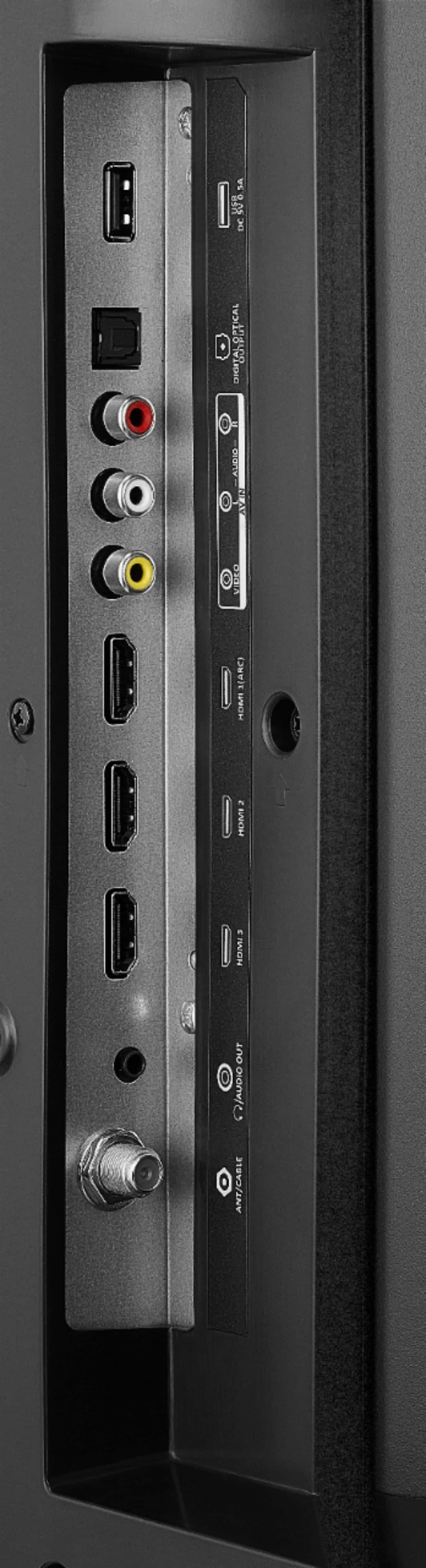
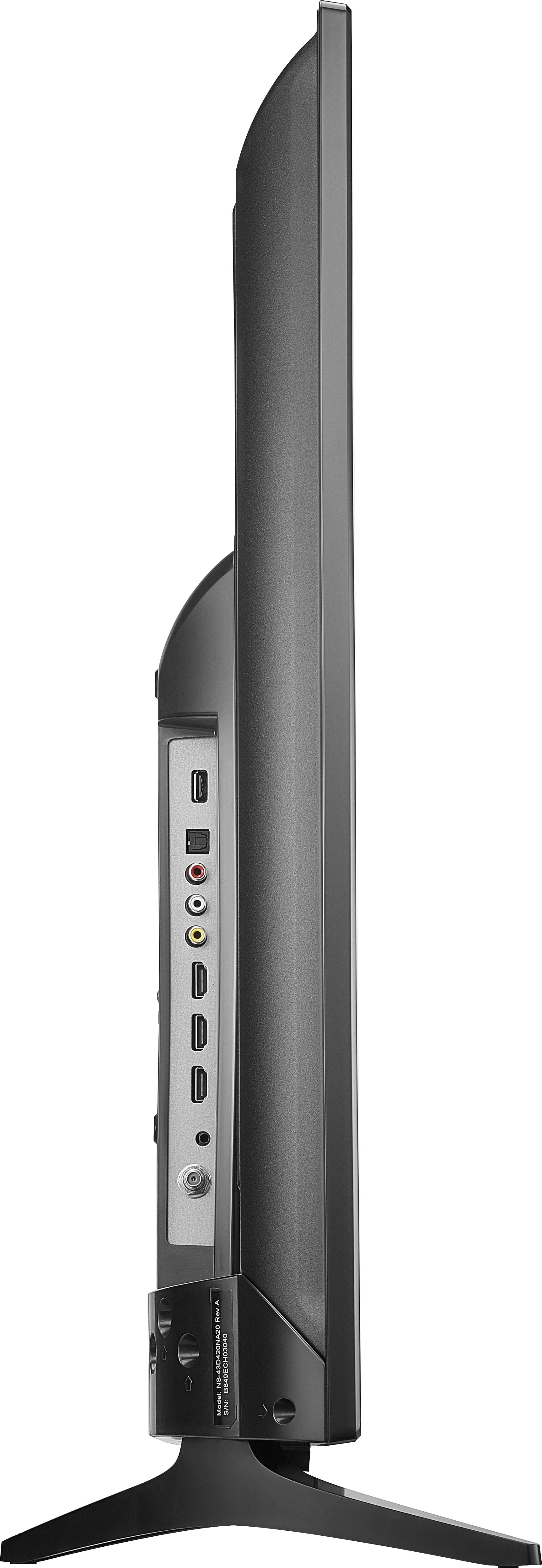
You can connect your speaker to the 3.5 mm headphone jack on the TV or hook up a Bluetooth transmitter to the 3.5mm headphone jack on the TV.
Gem
Insignia Products
A:AnswerYes , it also has a voice which tells you the channel you switched to and when you power on/off
I only used the tv one time for it is at a lake cabin location.
Hope this helped. For the money great tv,great deal
A:AnswerHello,
Thank you for taking the time to write us what's important for you to know. I know you want to know if this TV has close caption.
This unit has this feature available for you to adjust and you can do it by going into the Menu > Settings > Close Caption.
If you have any questions pleas get back to us at this link below.
- Arin A.
Insignia Support
Contact us: https://www.insigniaproducts.com/contact-us
A:AnswerI am not certain of what the question is, does the TV have Roku built in? no it does not. However it is easy changing the input via the remote by just plugging in a Roku to the set and use it. (this is what I do) That being said I am very satisfied with the TV its picture quality is great!
A:AnswerHi, Charles.
I appreciate you letting us know about your inquiry. You can turn off the Voice Guide following the next steps:
-Open the MENU.
-Go to ACCESSIBILITY.
-Select VOICE GUIDE.
-Turn it OFF.
Please do not hesitate in reaching us at https://www.insigniaproducts.com/contact-us in case any further assistance is required.
Alexander G. - Insignia Support