A:AnswerYes, the Pluto TV app shows as available for the Fire TV Edition experience.
To search for more available apps go to: amazon.com > Shop By Category > Fire TV > Fire TV Apps & Channels > Refine by Device Type select Fire TV Edition TV and search.
David M. - Insignia Support
A:AnswerAn Amazon account is required to watch Amazon Prime content.
Try to use the basic experience. Alexa is not included in the Basic Experience.
David M. - Insignia Support
A:AnswerTo link your Alexa enabled device (Echo) to the Fire TV Edition television use the Alexa app. If you are using the smartphone app, go Home > Menu > Settings > Video and TV > Fire TV and follow the on-screen instructions.
For more information about the Alexa commands please visit:
https://www.amazon.com/gp/help/customer/display.html?nodeId=202174250
David M. - Insignia Support
A:AnswerThe Fire TV Edition television does not support screen mirroring.
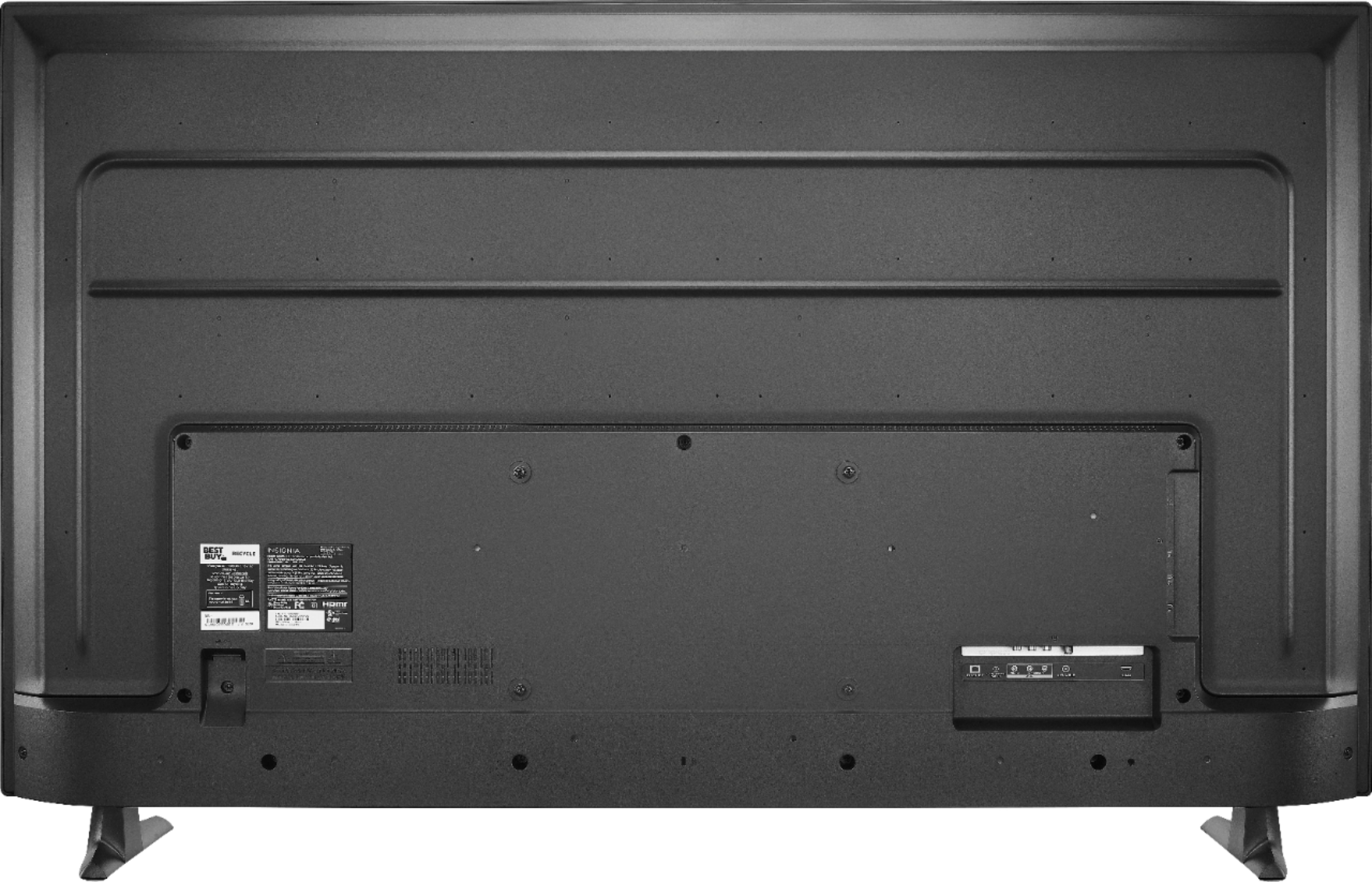
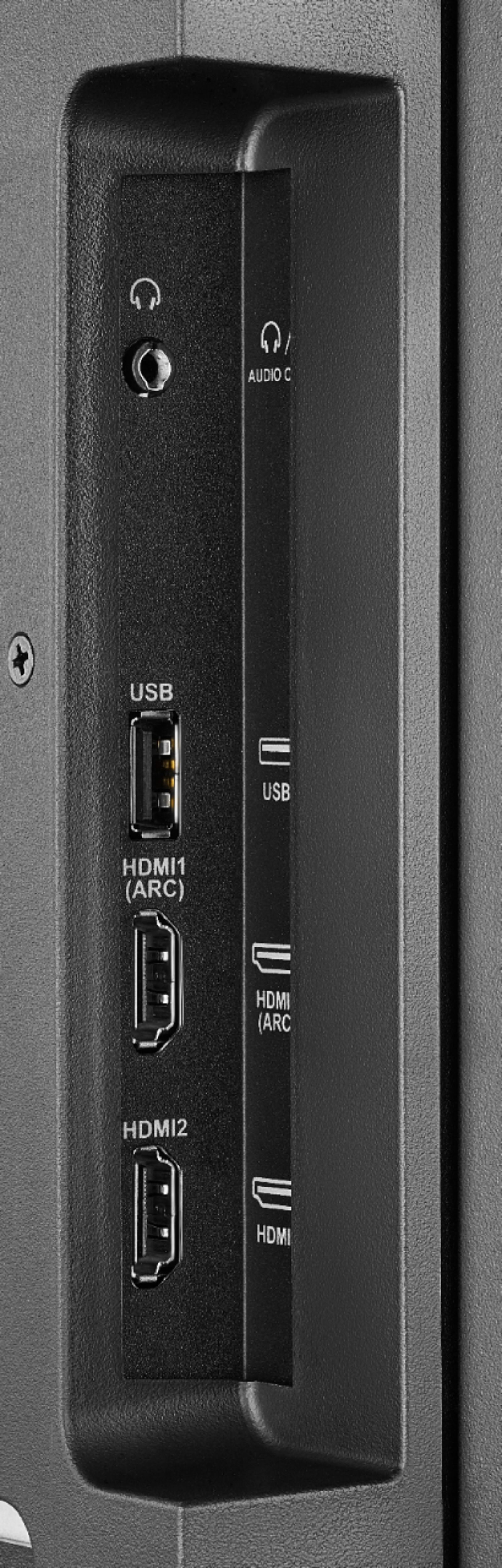
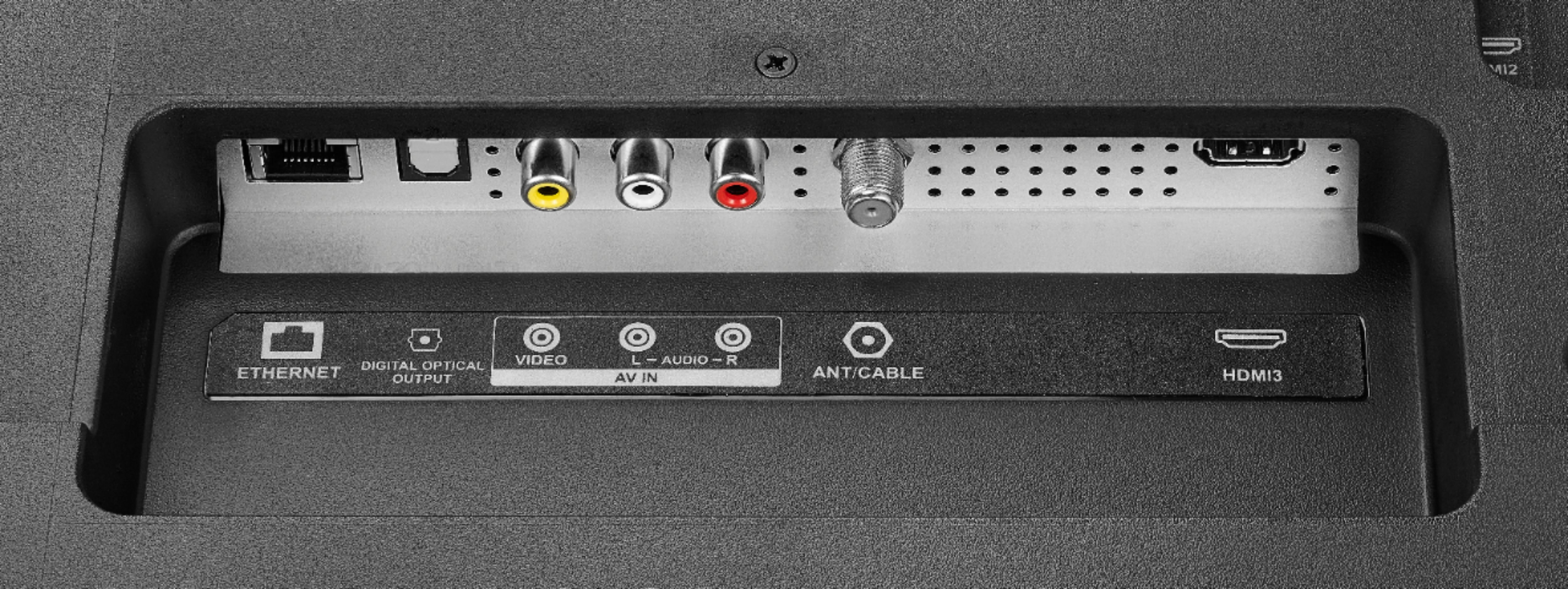
You can connect a streaming device (Chromecast) or adapter ( Microsoft - Wireless Display Adapter) using HDMI.
David M. - Insignia Support
A:AnswerTo deregister your Amazon account on the TV, go to Home > Settings > My Account.
By doing this Alexa will not work.
David M. - Insignia Support
A:AnswerThe TV requires a strong stable high-speed internet connection to stream content.
For example Netflix recommends an internet speed of 25 Mbps.
Also, you can connect your multimedia devices to the TV using HDMI.
David M. - Insignia Support
A:AnswerYou can connect your Roku device to the TV using HDMI.
To search for available apps to download, please visit:
amazon.com > Menu - Shop By Category > Fire TV > Fire TV Apps & Channels > Refine by Device Type select Fire TV Edition TV and search.
David M. - Insignia Support
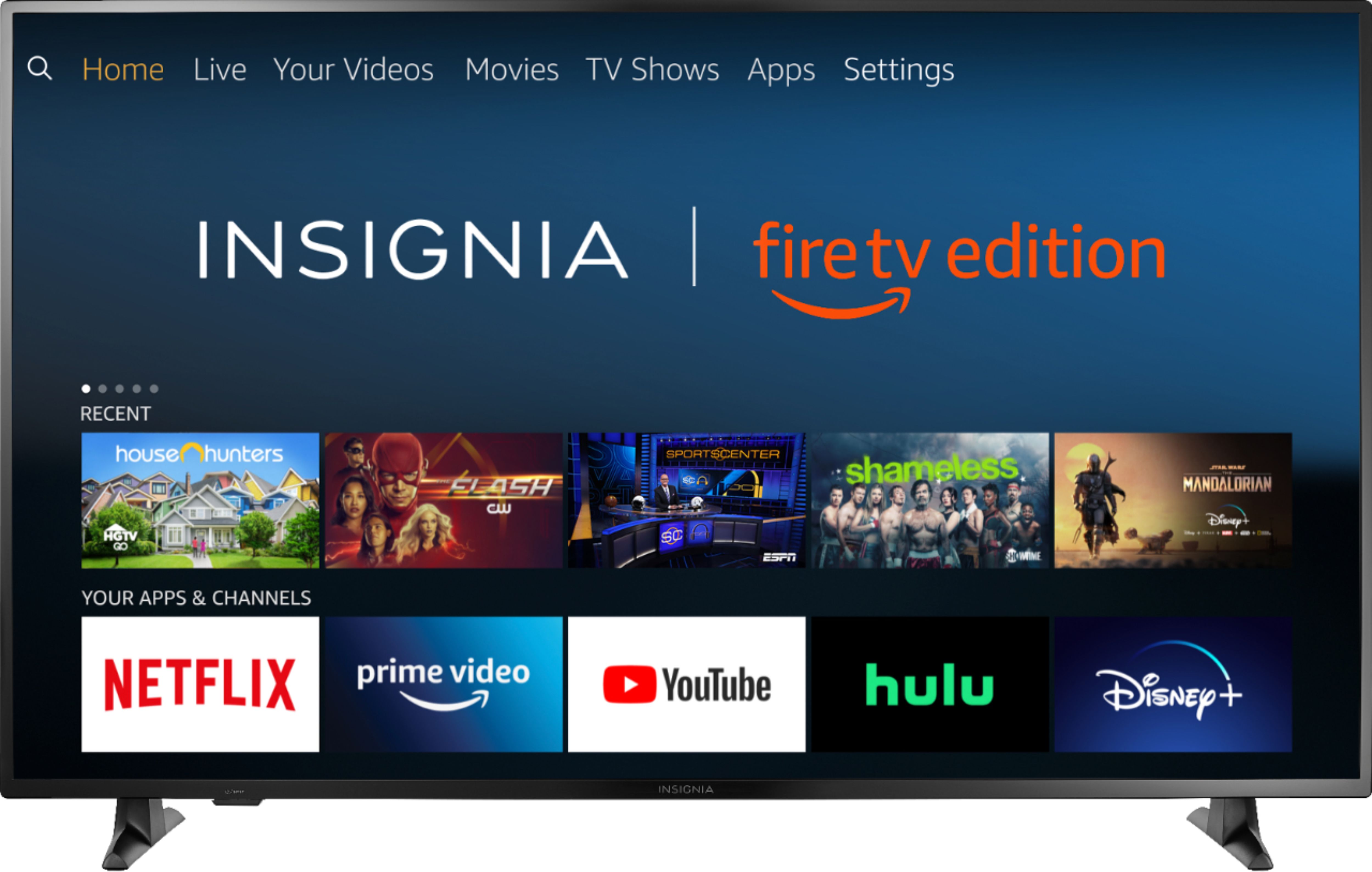
A:AnswerThe Disney + app shows as available for the Fire TV Edition experience.
To search for more apps, please visit: amazon.com > Shop By Category > Fire TV > Fire TV Apps & Channels > Refine by Device Type select Fire TV Edition TV and search.
David M. - Insignia Support