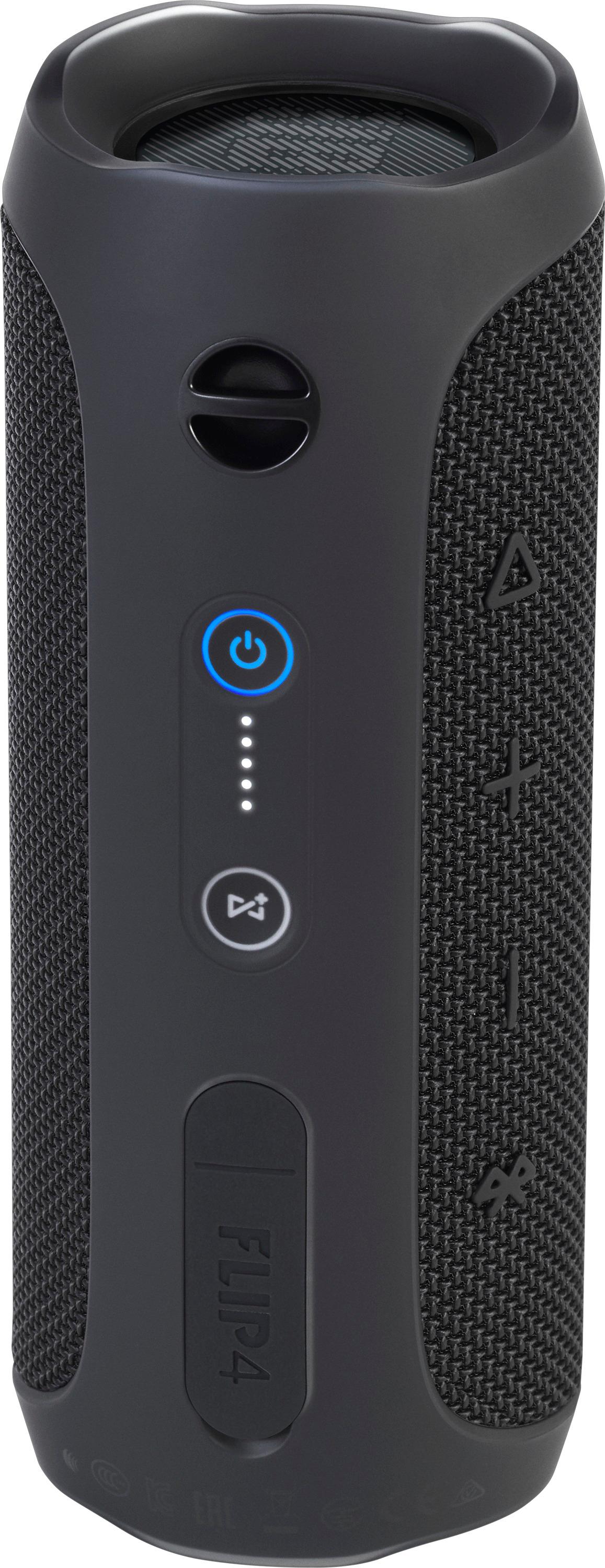
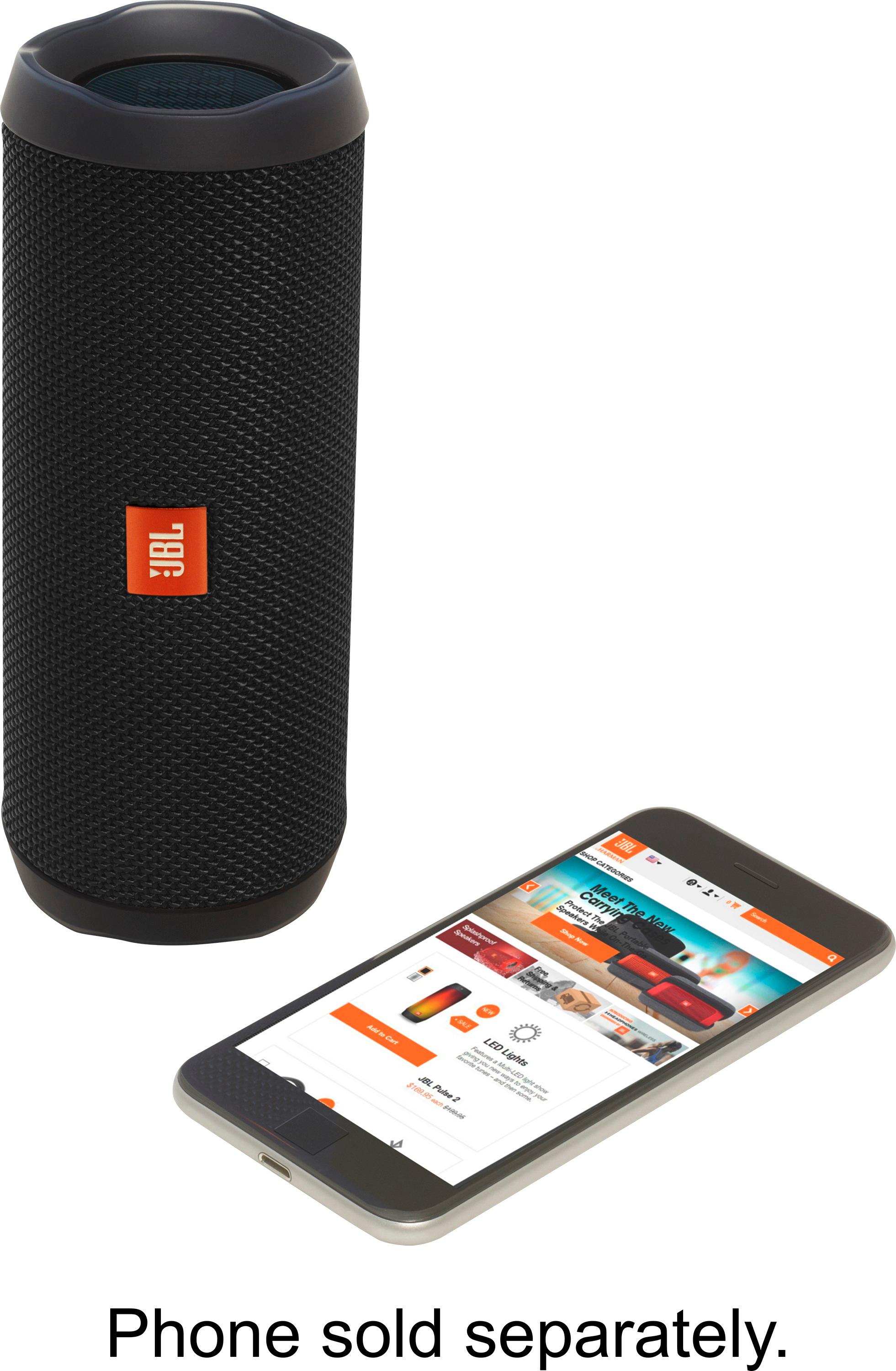
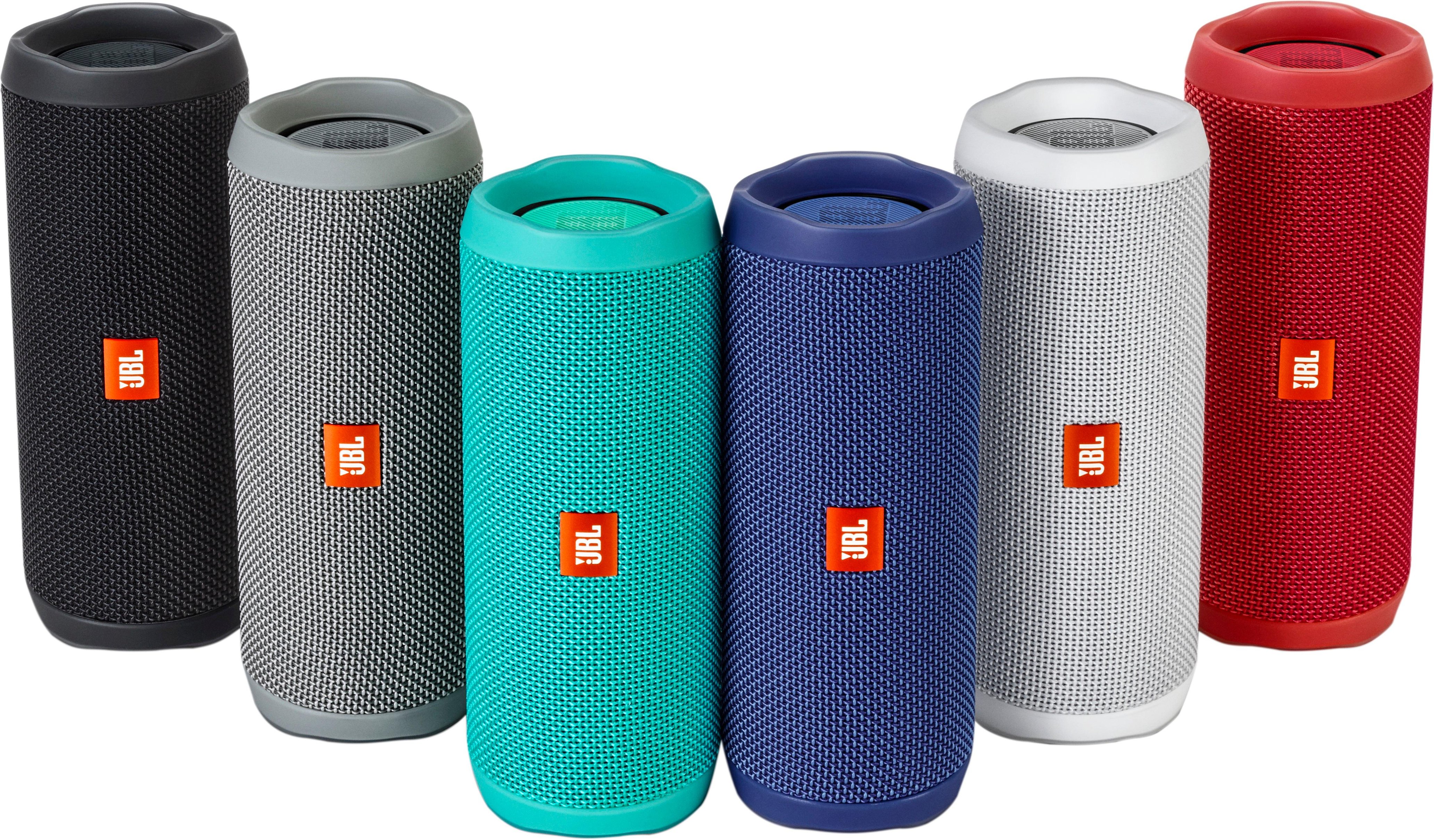
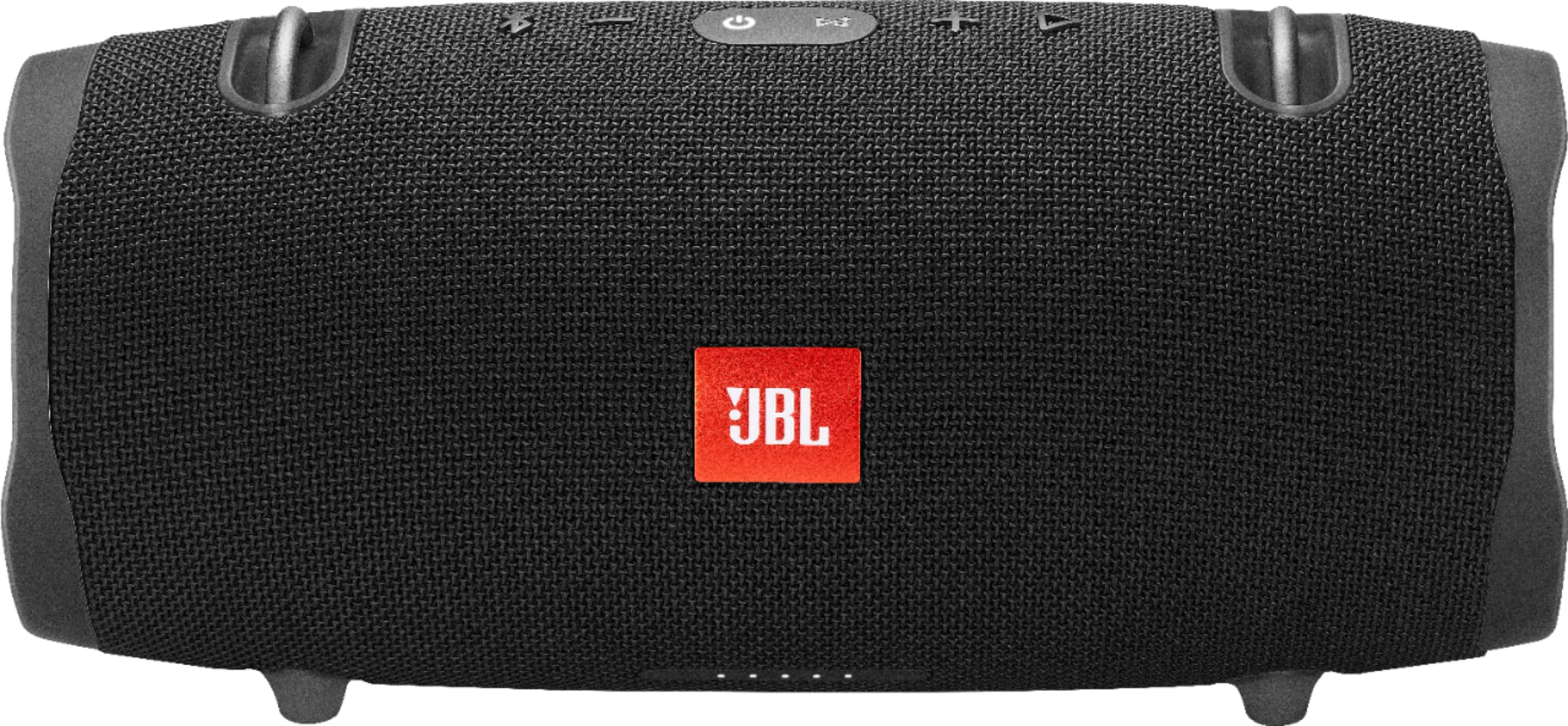
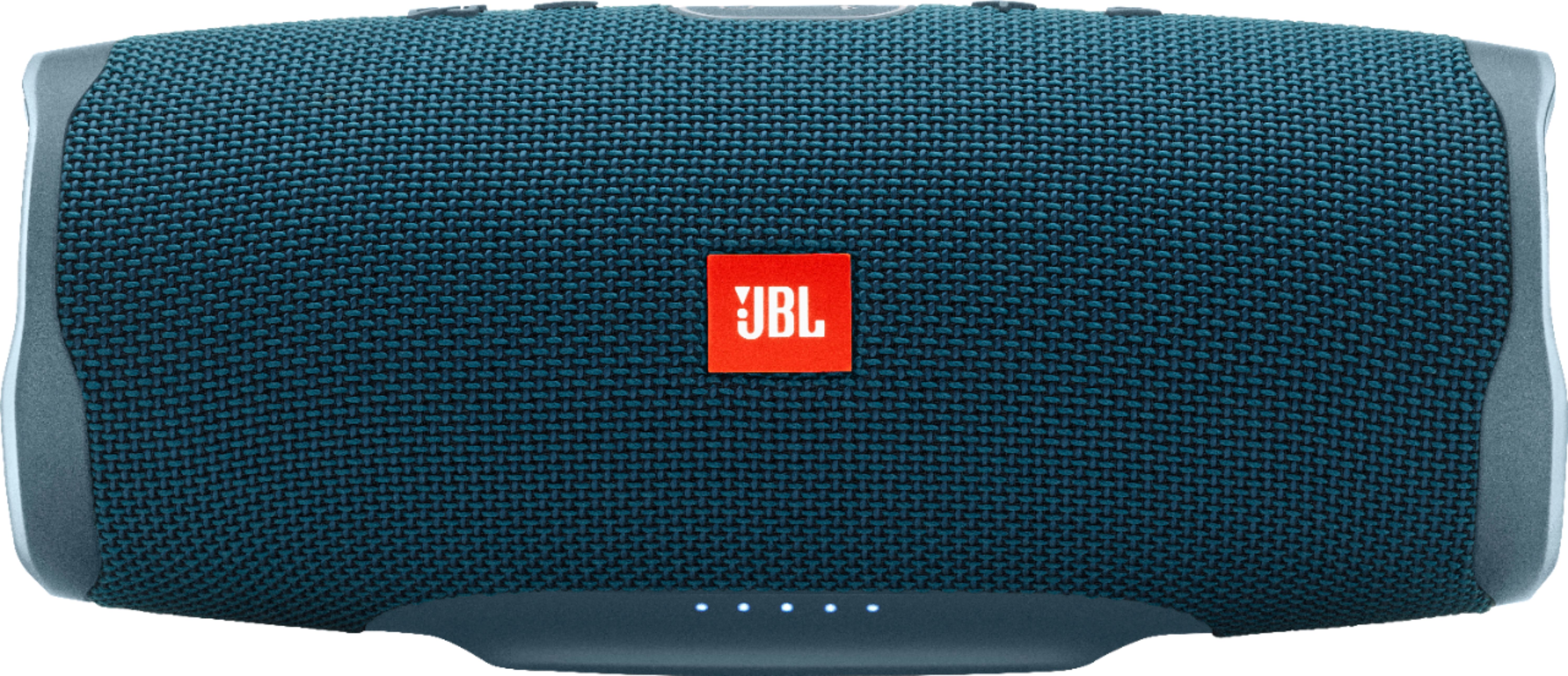
A:AnswerYes it's compatible with Siri and Google Assistant. It will accept commands from either. But not from Alexa. You also have to configure the play button to work as an assistant with the JBL connect app. Be sure to make sure your Flil is paired and connected to your phone before you open the JBL connect app. Otherwise that app will never discover your speaker.
A:AnswerTry a dedicated USB Charger first (maybe you can borrow one from a friend). Many computer ports do not supply sufficient energy to charge some of the larger batteries properly.
A:AnswerDonna, the other answer to your question was about earbuds. Odd. To answer your question about the Flip 4, you can advance to the next track by double pressing the play button (the sideways triangle). Each double press will advance one track. There is no way, unfortunately, to go back to previous tracks.
A:AnswerThanks for taking the time in asking. If the only way you can power it on is to connect it to the power outlet, then you can tell that there is an issue with the battery.
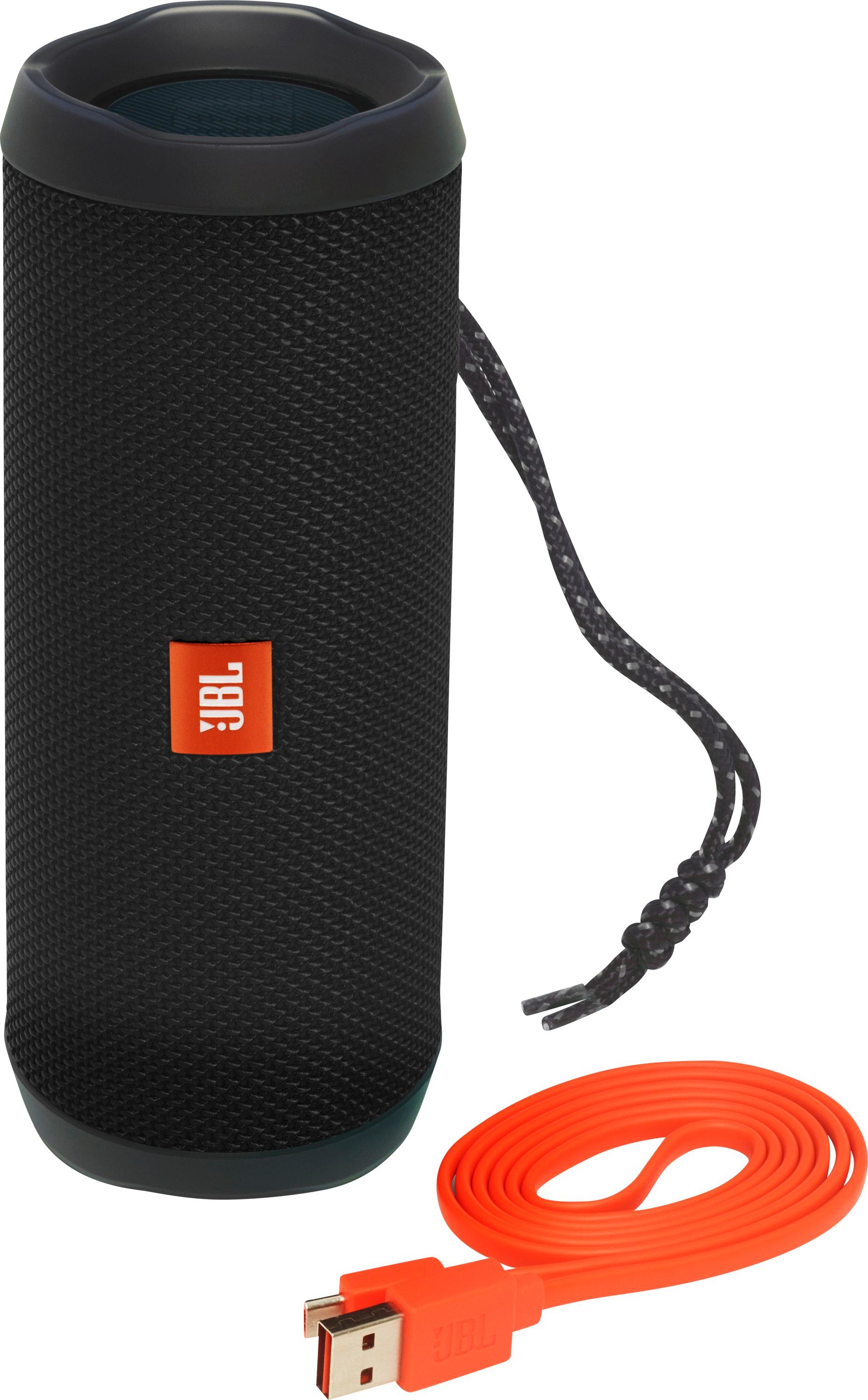
A:AnswerThe JBL Flip 4 comes with a USB charging cable for you to charge it through your phone's charging block or through the USB port of your computer.
A:AnswerWe would like to work with you directly to help you with your issue. Please submit a case request at https://www.jbl.com/support-contact.html and the Customer Service Team will be more than happy to assist you.