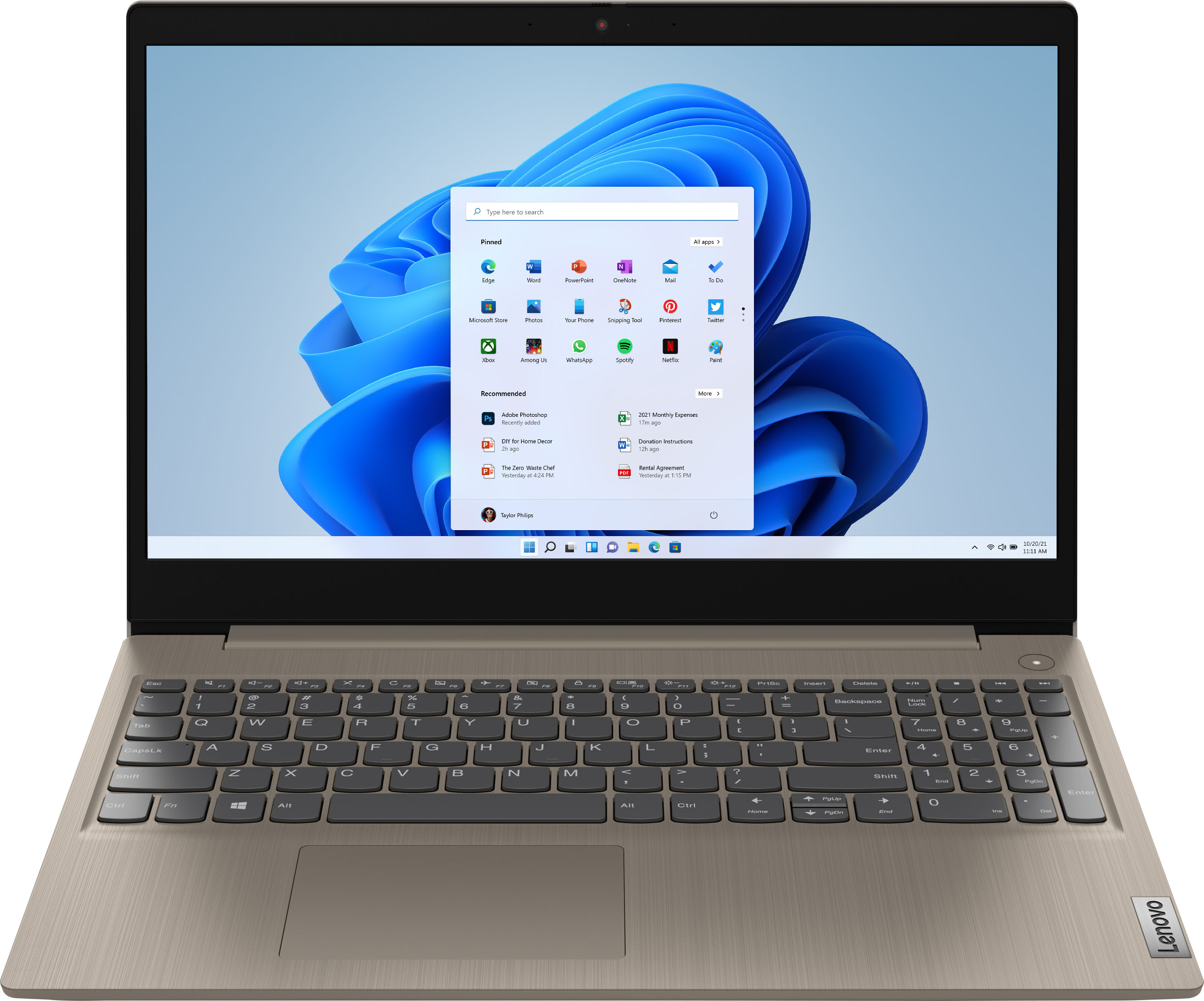
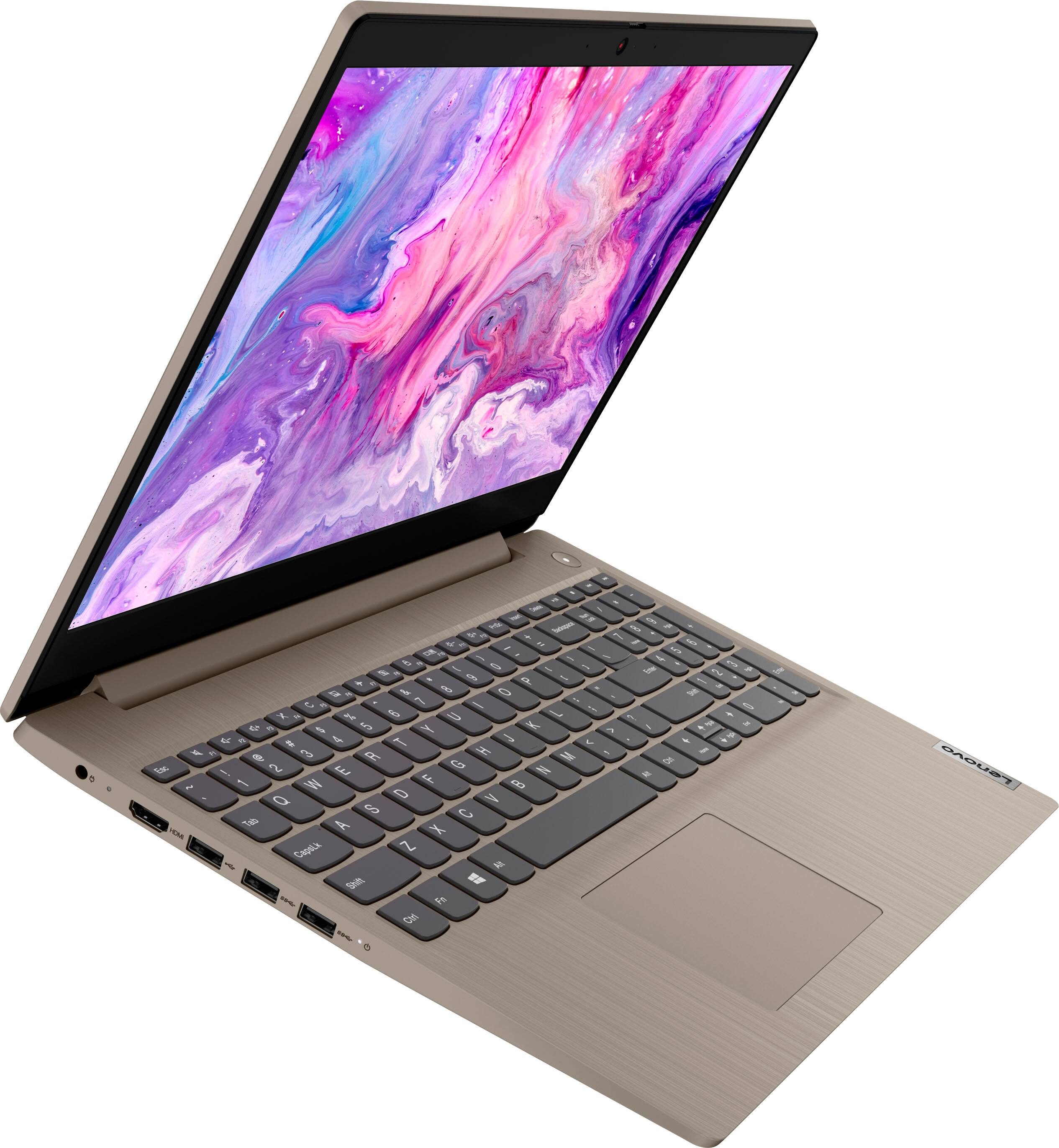
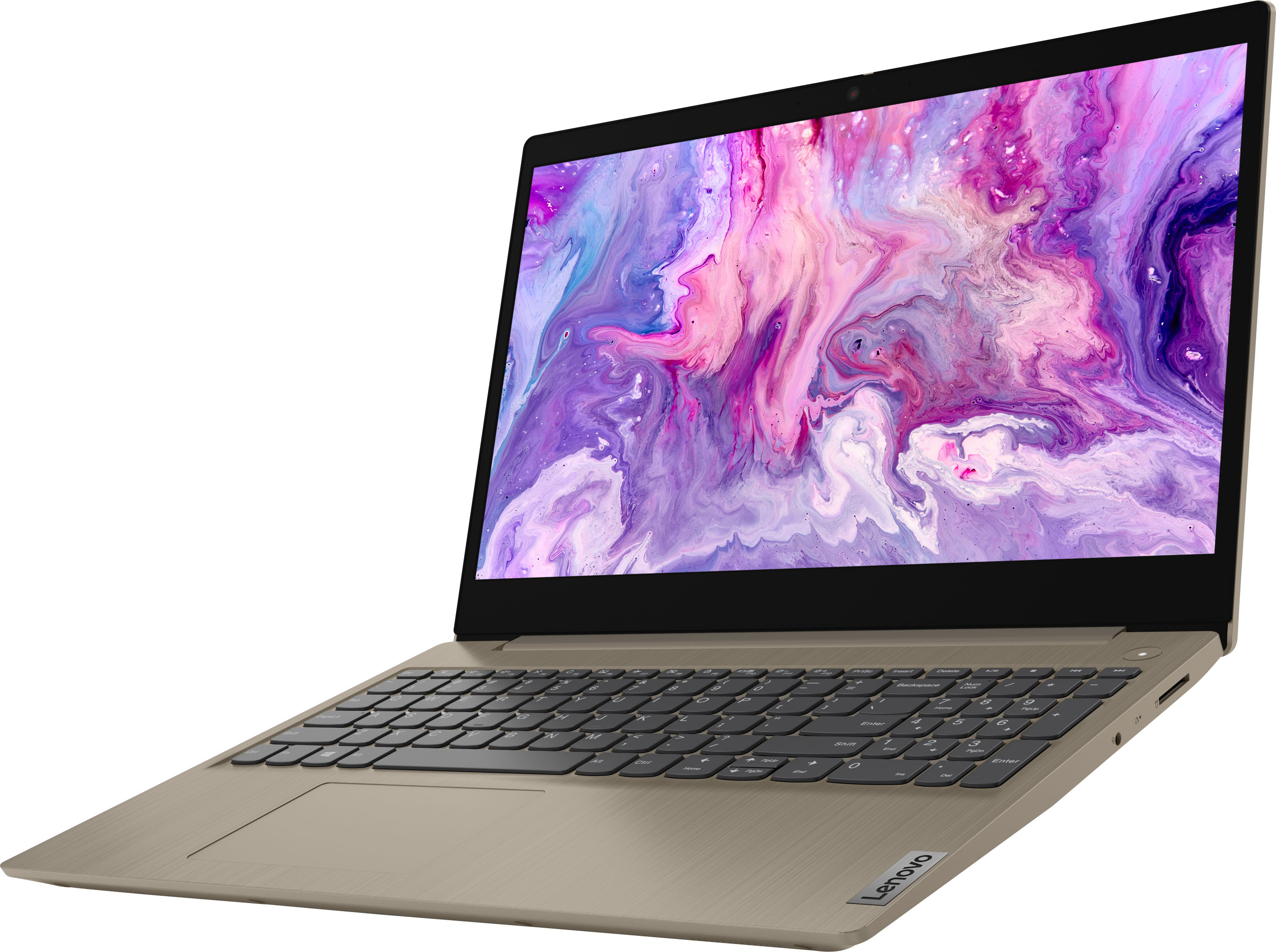
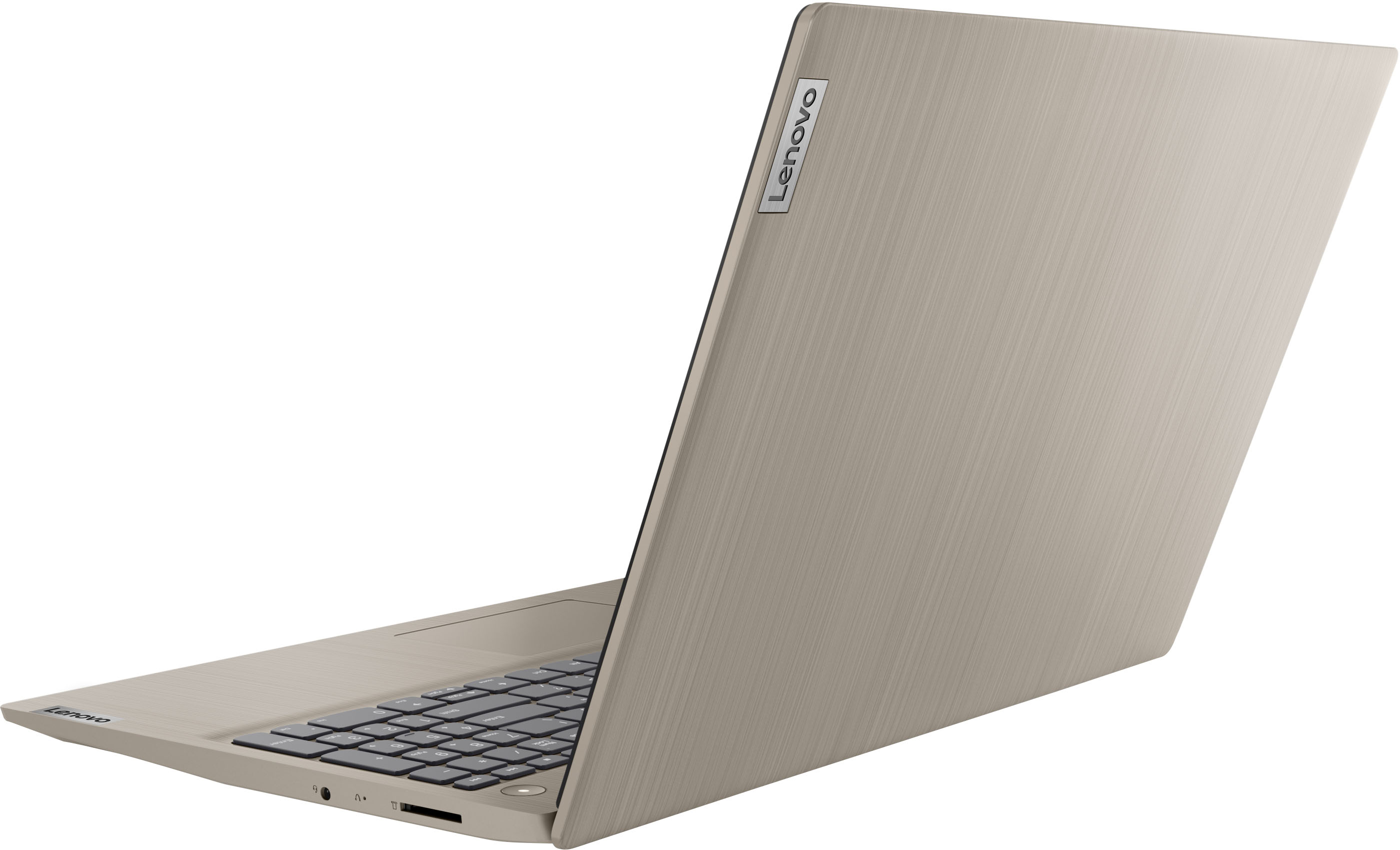
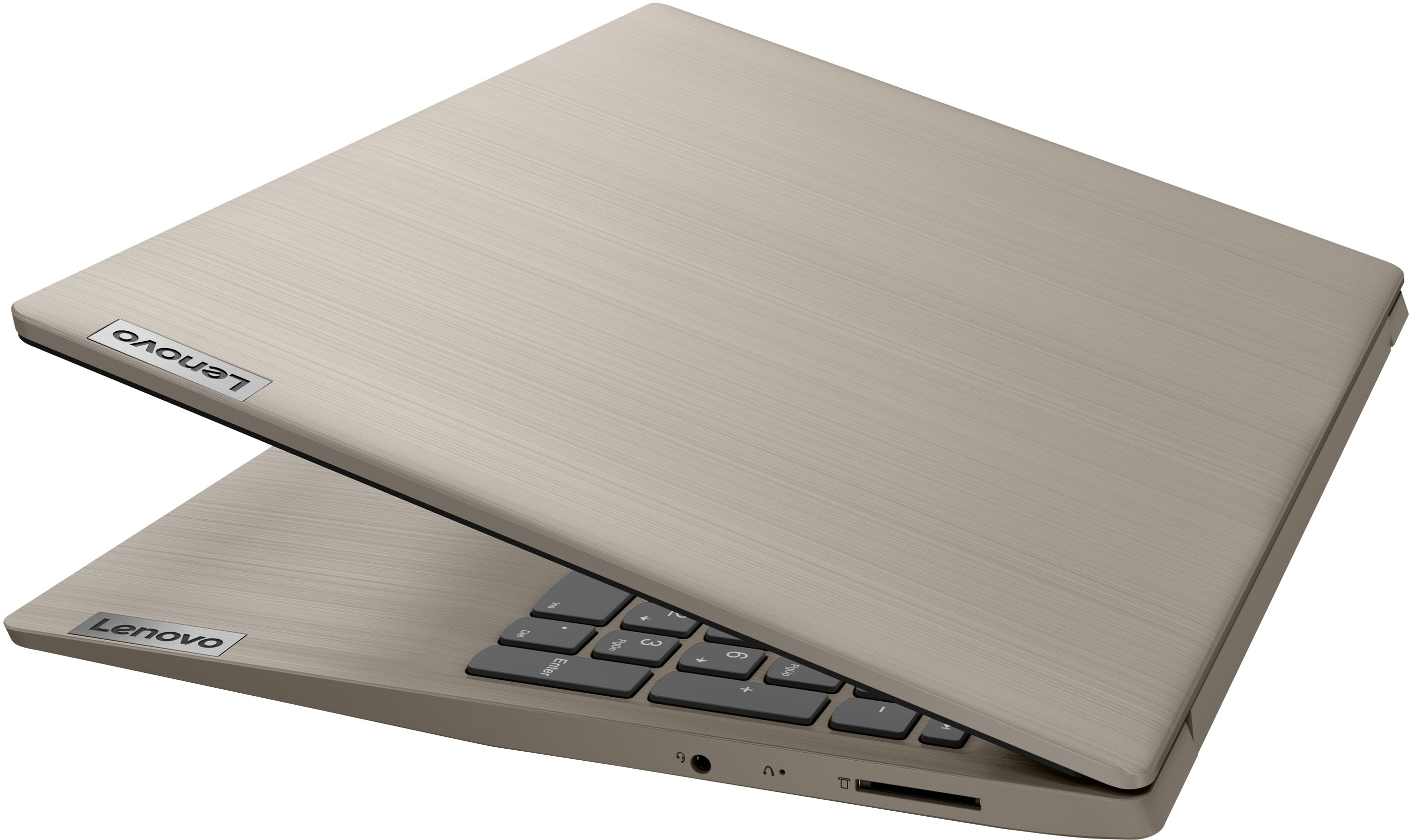
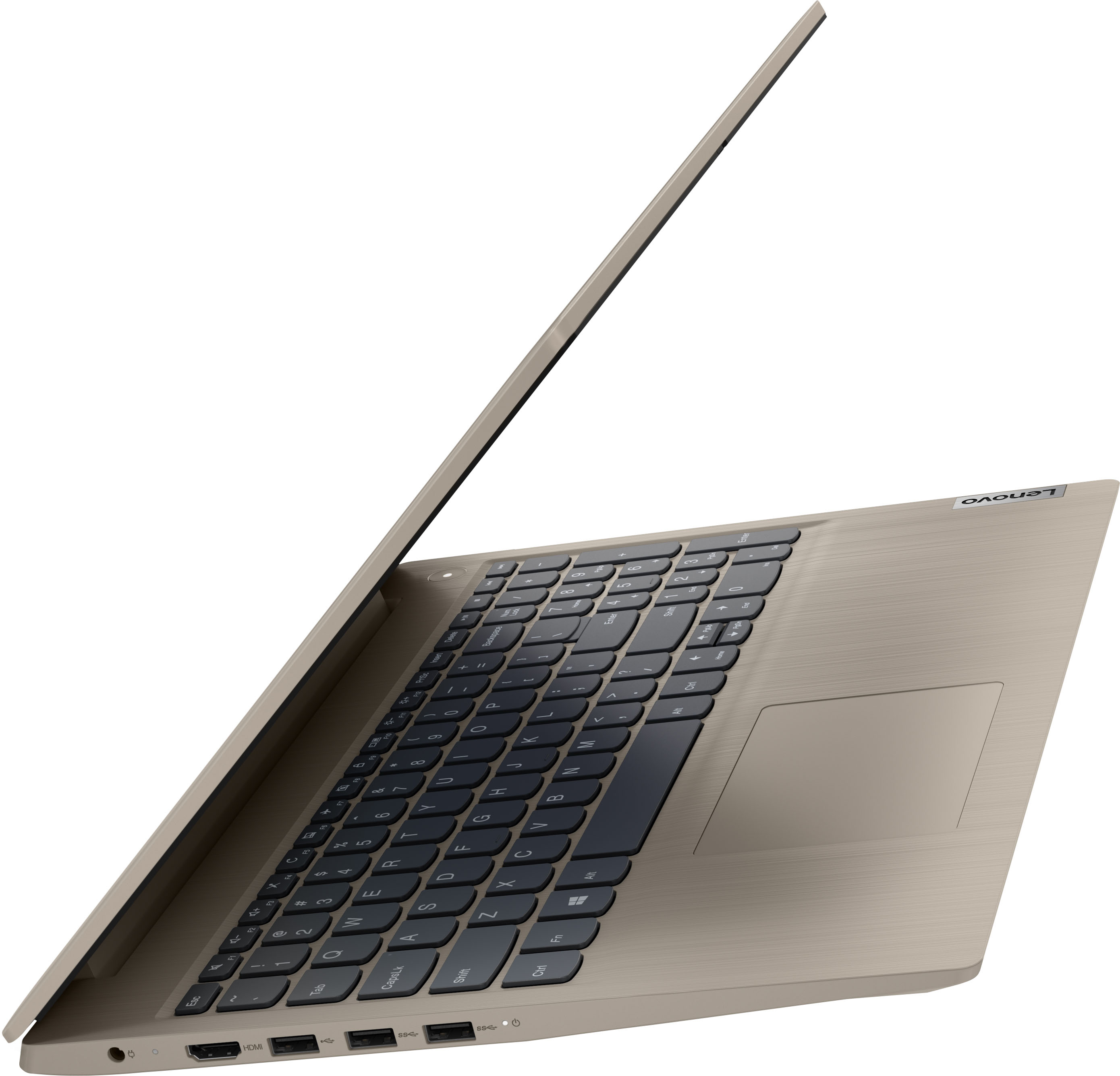
A:AnswerThere are at least 2 versions of this laptop that use the same manual; those with the fingerprint reader and those that don't. I had the same question.
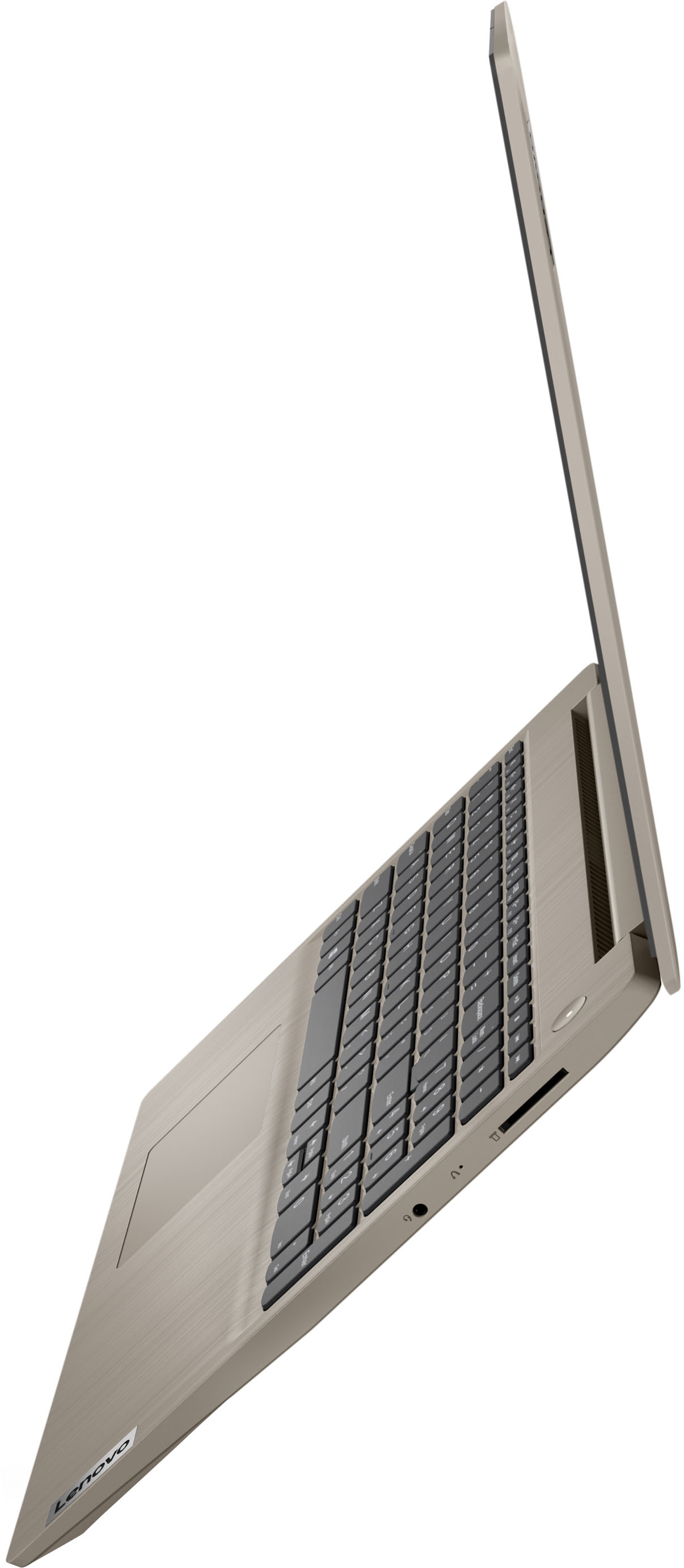
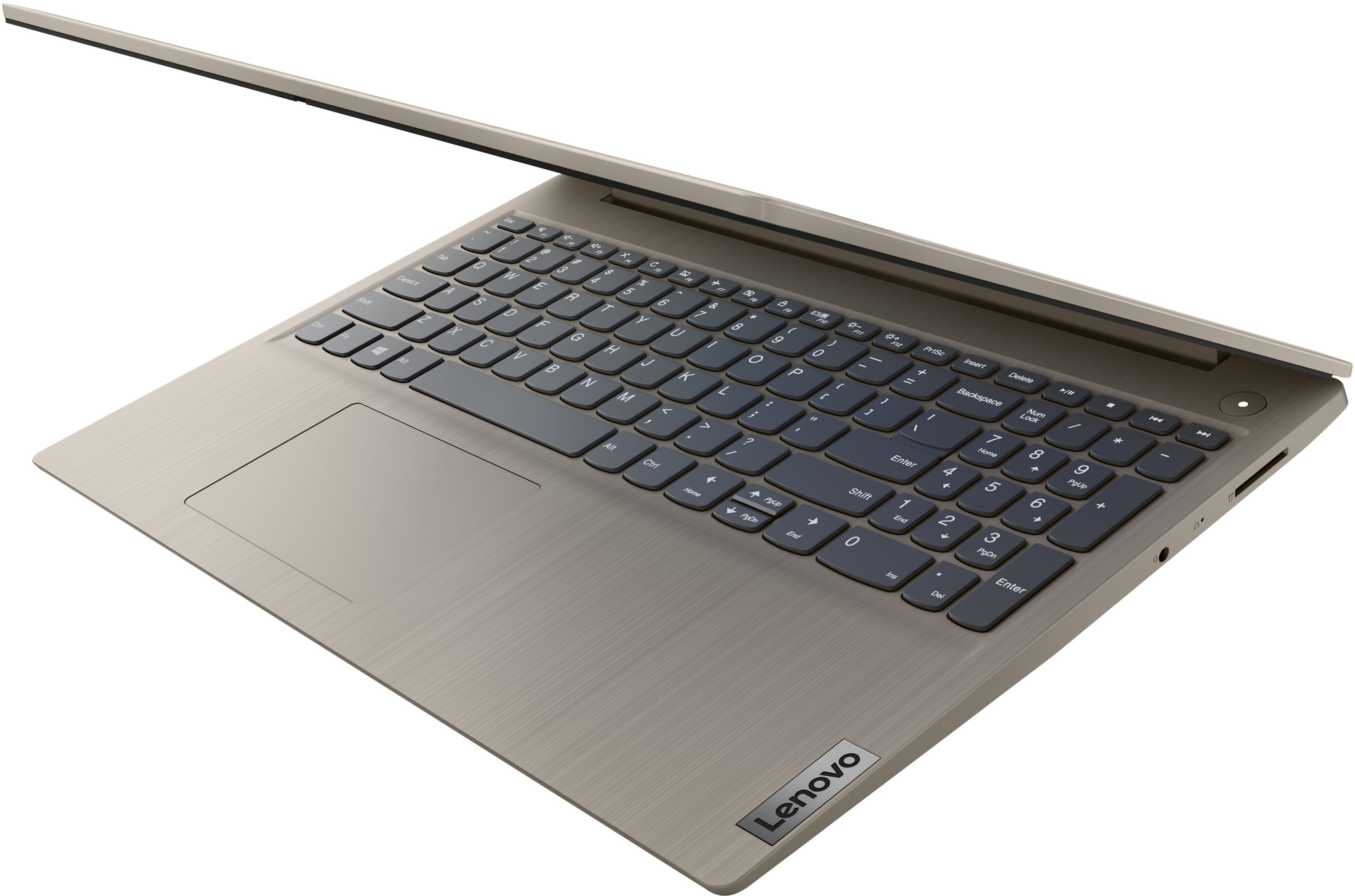
A:AnswerAlthough this Lenovo IdeaPad 3 15 Laptop, model number 81X800KLUS, does not have a built in RJ-45 port for connecting a network/ethernet cable, you can connect this IdeaPad 3 15 to a network/ethernet cable by using a USB to ethernet adapter, like this one: https://www.bestbuy.com/site/insignia-usb-to-ethernet-adapter-black/6483535.p?skuId=6483535
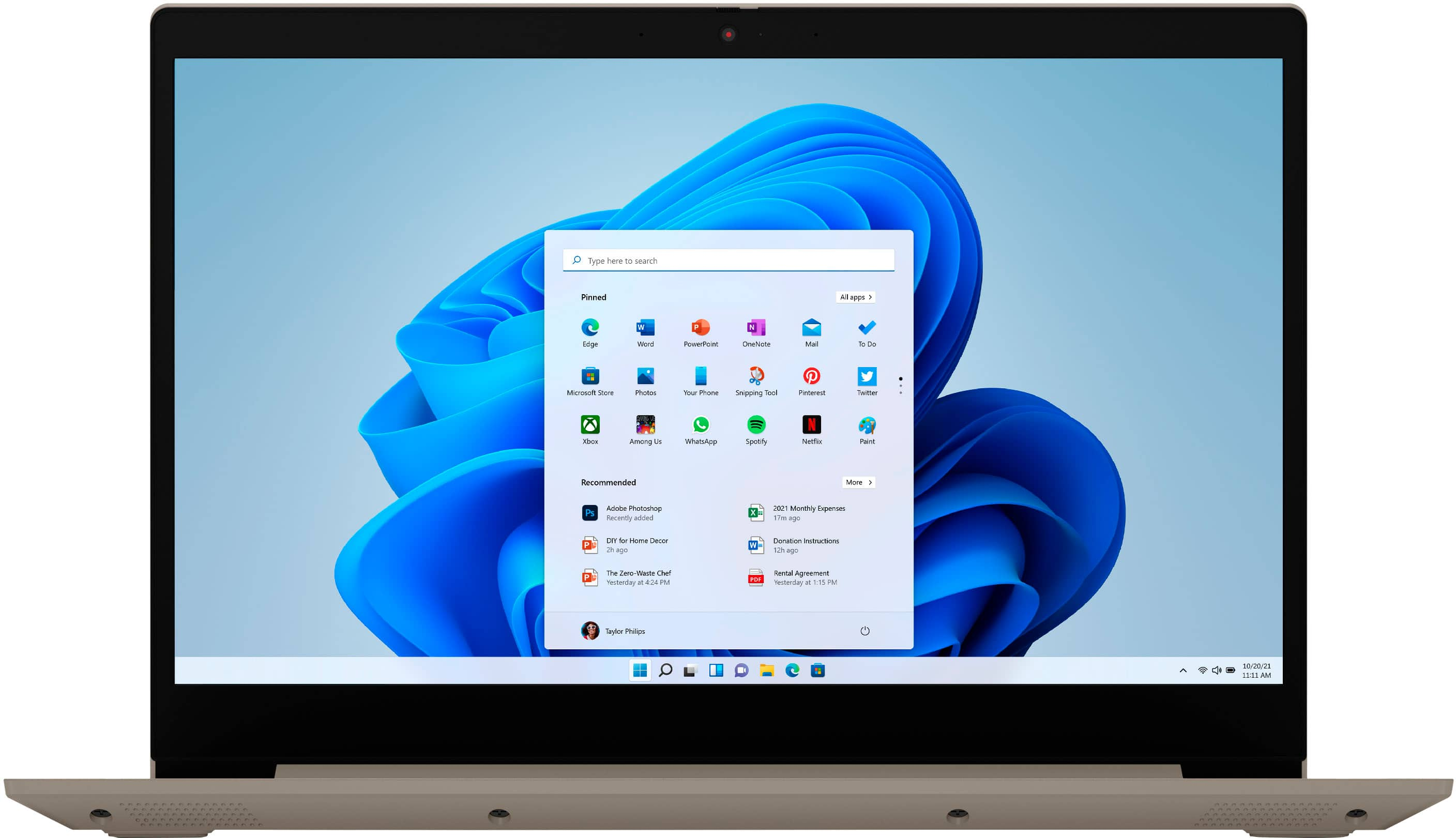
A:AnswerBe sure you have installed the required drivers for your specific model printer on to this Lenovo IdeaPad 3 15 Laptop. This Lenovo IdeaPad 3 15 Laptop, model number 81X800KLUS ships with Windows 11 S-Mode, 64-bit Operating System installed. Windows 11 S-Mode provides added security by only allowing APPs available ( and therefore certified by Microsoft) at the Microsoft Store. If you don't need the added security or you need to install APPs not available at the Microsoft Store, you can switch to standard Windows 11 Home 64-bit Operating System, at no additional cost. We recommend you check with your printer manufacturer's web site, for the compatibility of your specific printer model with Windows 11 S-Mode, 64-bit Operating System, then install all necessary drivers for your printer model, as directed by your printer manufacturer's web site. You may need to switch from S-Mode to Windows 11 Home, 64-bit Operating System to be able to install your printer's required drivers to be able to print properly in color. Here is a link to instructions for switching from Windows 11 S-Mode to Windows 11 Home: https://support.microsoft.com/en-us/windows/switching-out-of-s-mode-in-windows-4f56d9be-99ec-6983-119f-031bfb28a307#WindowsVersion=Windows_11. If you have all necessary drivers for your printer model installed but you still can not print in color, try the following troubleshooting suggestions: Verify if the Print in Gray Scale option is enabled. Reset Printer to default factory settings. Uninstall and fresh install the Printer software. Here is a link to more information: https://www.thewindowsclub.com/printer-not-printing-in-color-on-windows-10#:~:text=If%20Windows%2011%20or%20Windows,fresh%20install%20the%20Printer%20software. If the issue continues we recommend you contact your printer manufacturer for additional help.
A:AnswerThis Lenovo IdeaPad 3 15 Laptop, model number 81X800KLUS, ships with a 256GB M.2 2242 PCIe 3.0x4 NVMe solid state hard drive installed for storage, with approximately 200GB available to the user after factory installed Operating System software is installed. Whether this IdeaPad 3 15 can support photo editing, will depend on the requirements and compatibility of the specific photo editing software you will be using. This IdeaPad 3 15 ships with Windows 11 S-Mode, 64-bit Operating System installed. Windows 11 S-Mode provides added security by only allowing APPs available ( and therefore certified by Microsoft) at the Microsoft Store. If you don't need the added security or you need to install APPs not available at the Microsoft Store, you can switch to standard Windows 11 Home 64-bit Operating System, at no additional cost. We recommend you check with the editing software publisher's web site, of the specific version photo editing software you will be using, for their compatibility with Windows 11 S-Mode 64-bit operating system and the minimum/recommended hardware requirements (Is a Graphics card required, the processor speed and the minimum required system RAM and the minimum available hard drive space) to run their program, then compare those requirements to this system's configuration. If you choose to switch out of S-Mode for Windows 11 Home: Here is a link to instructions for switching from Windows 11 S-Mode to Windows 11 Home: https://support.microsoft.com/en-us/windows/switching-out-of-s-mode-in-windows-4f56d9be-99ec-6983-119f-031bfb28a307#WindowsVersion=Windows_11