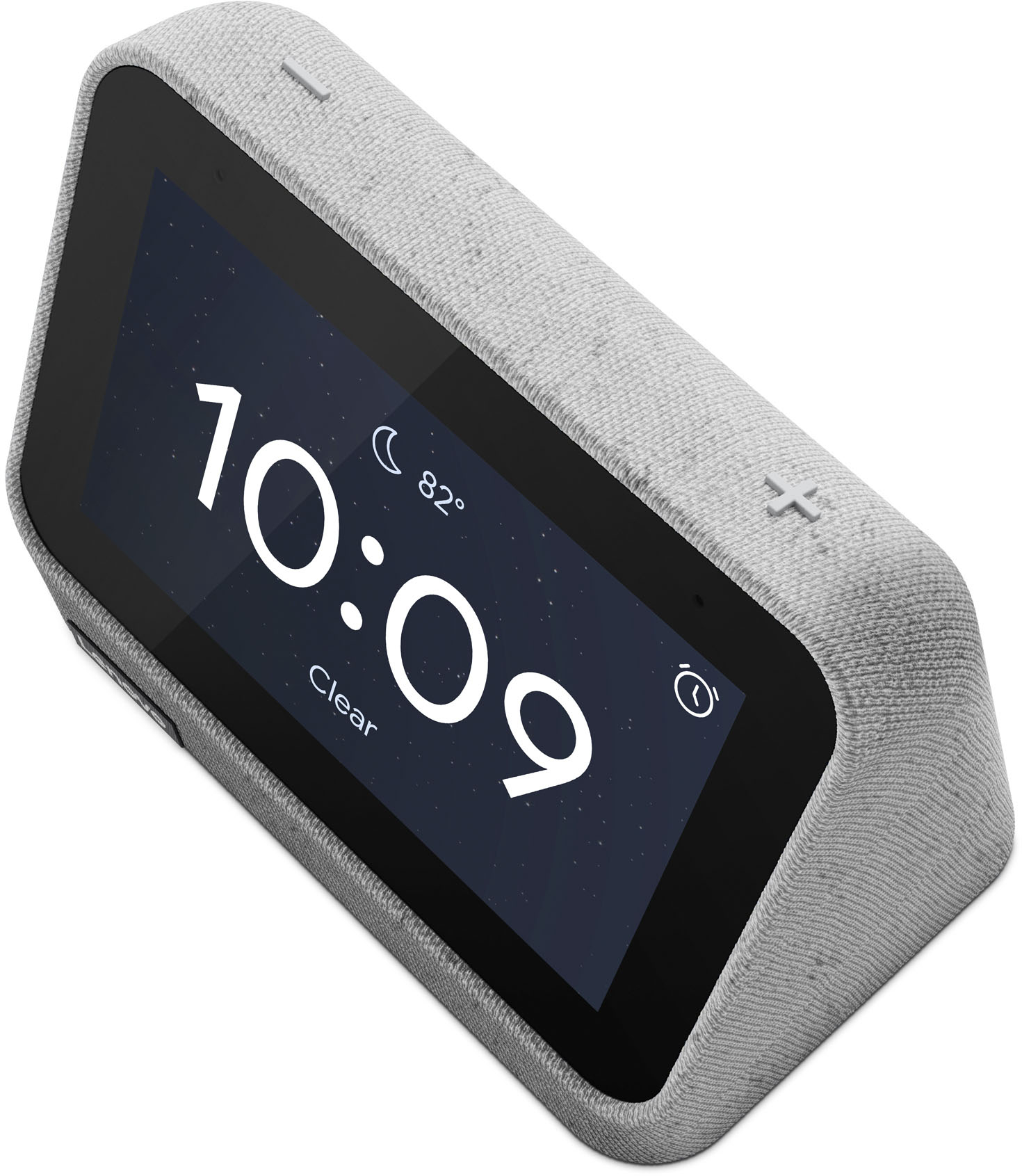
A:AnswerSimply say the phrase "OK Google", Set to Celsius. Thanks, I'll remember that you prefer Celsius. To set it back say... "OK Google", Set to Fahrenheit. Thanks, I'll remember that you prefer Fahrenheit.
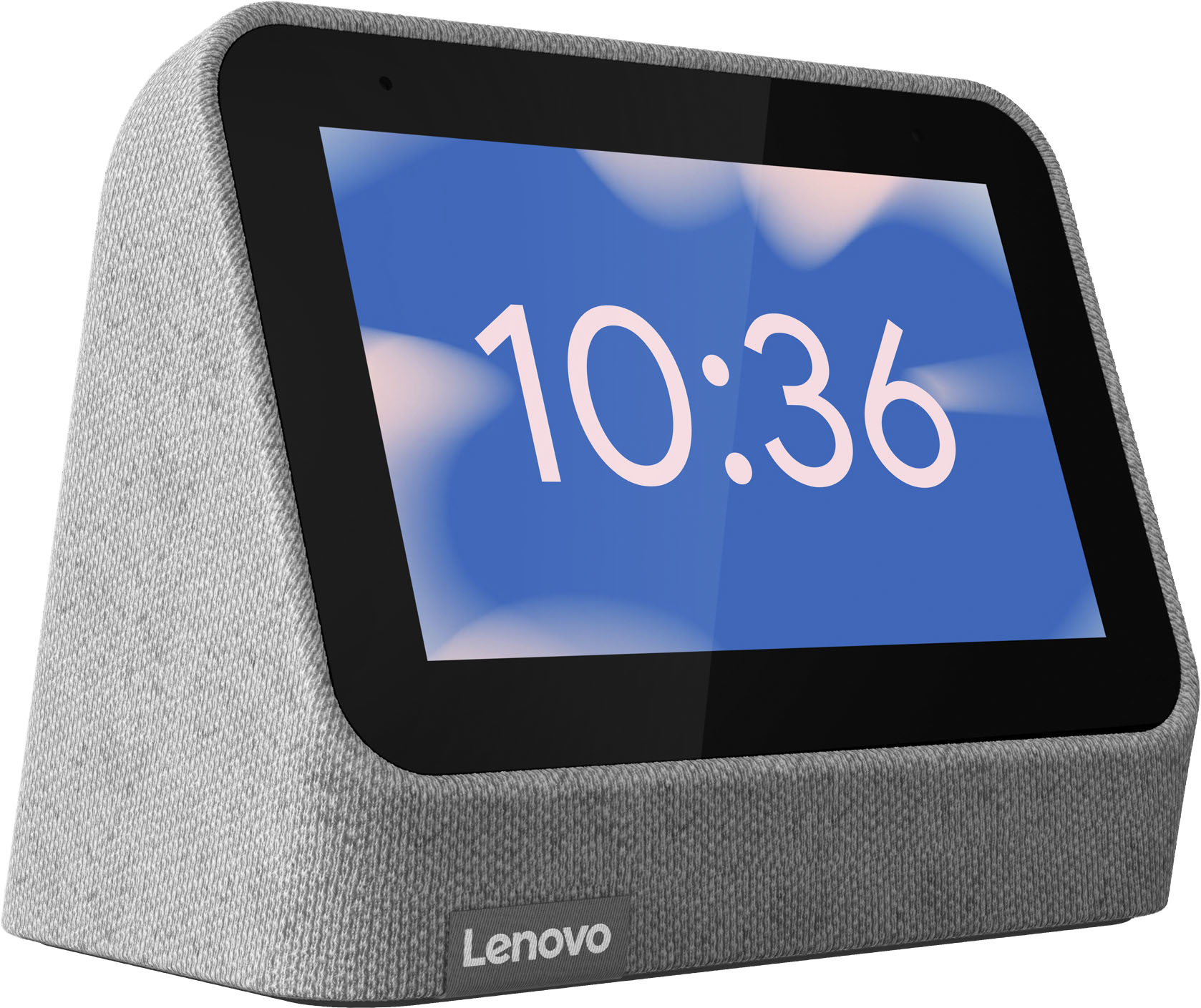
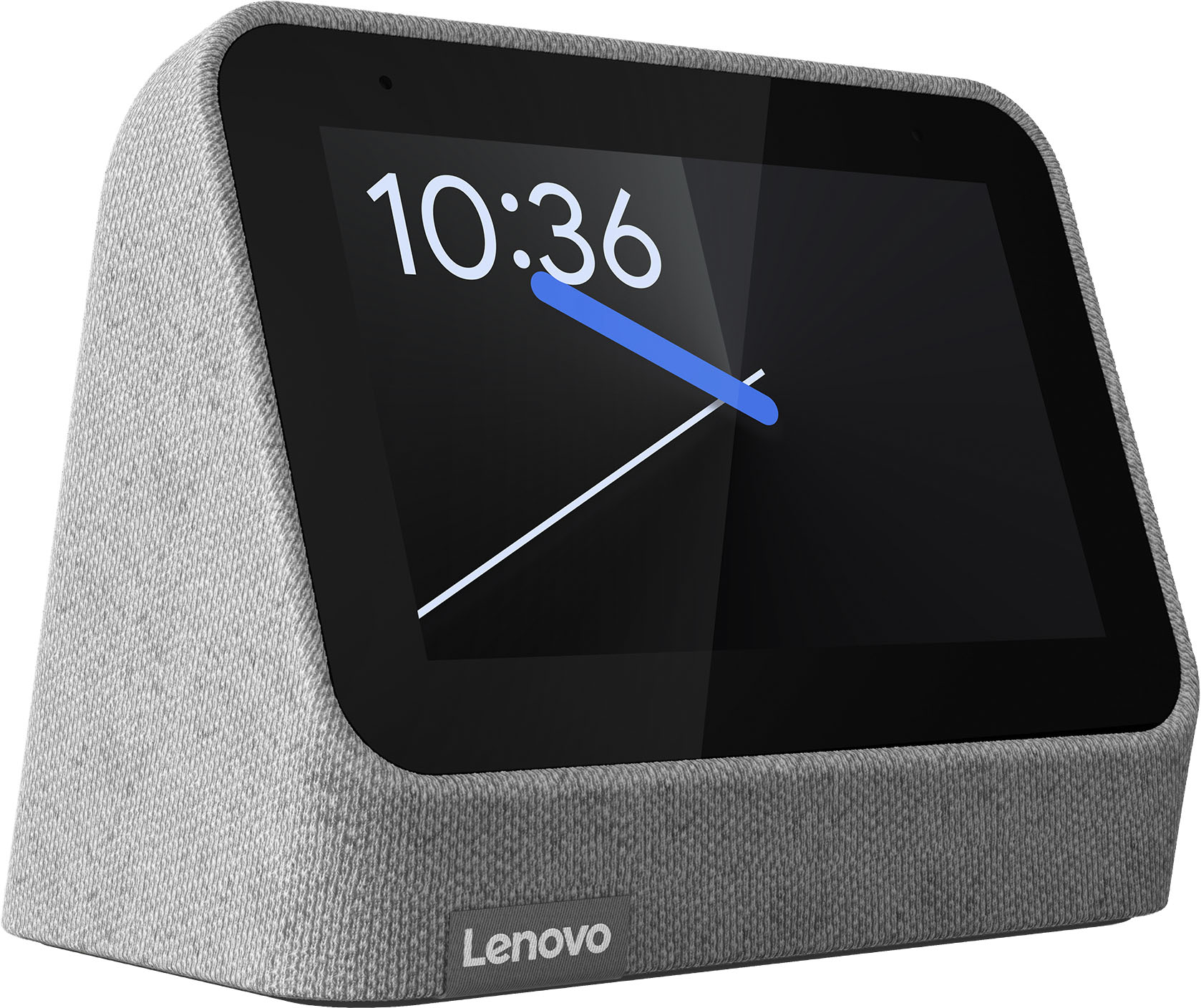
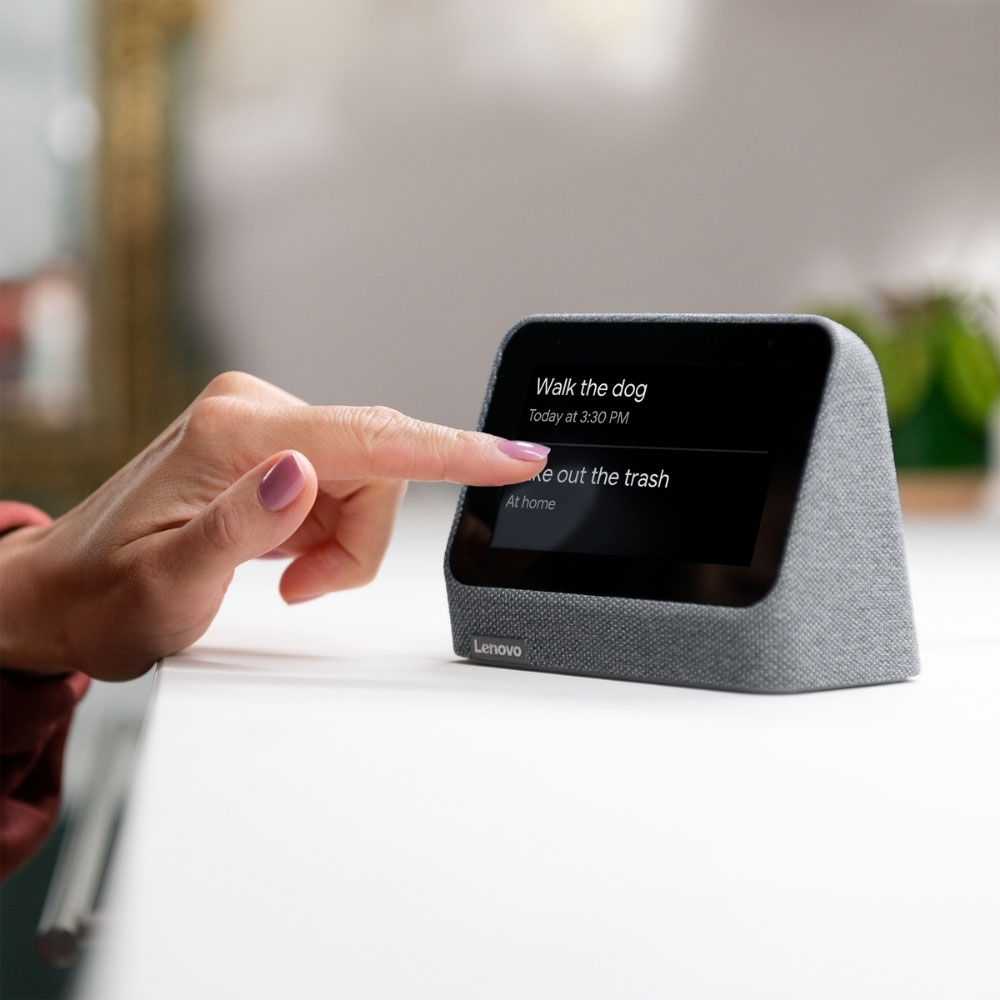
A:AnswerHere is a link to a YouTube video that demonstrates the features and functions of the Lenovo Smart Clock 2 with Google Assistant, Voice Command capabilities: https://www.youtube.com/watch?v=i9EGOZJSlTI&t=270s. If you have questions about your Lenovo Smart Clock 2, we recommend you contact Lenovo Tech Support for Smart Devices at: 866-426-0911.
A:AnswerThis may work with the *wired* nest doorbell (undetermined what version is shown in that video), but myself and others cannot get it to work with the *wireless*. As confirmed by Lenovo support: https://forums.lenovo.com/t5/Lenovo-Smart-Display-Lenovo-Smart-Clock-with-Google-Assistant/Why-is-there-no-support-for-Nest-Doorbell-Battery-on-Smart-Clock-2/m-p/5144427
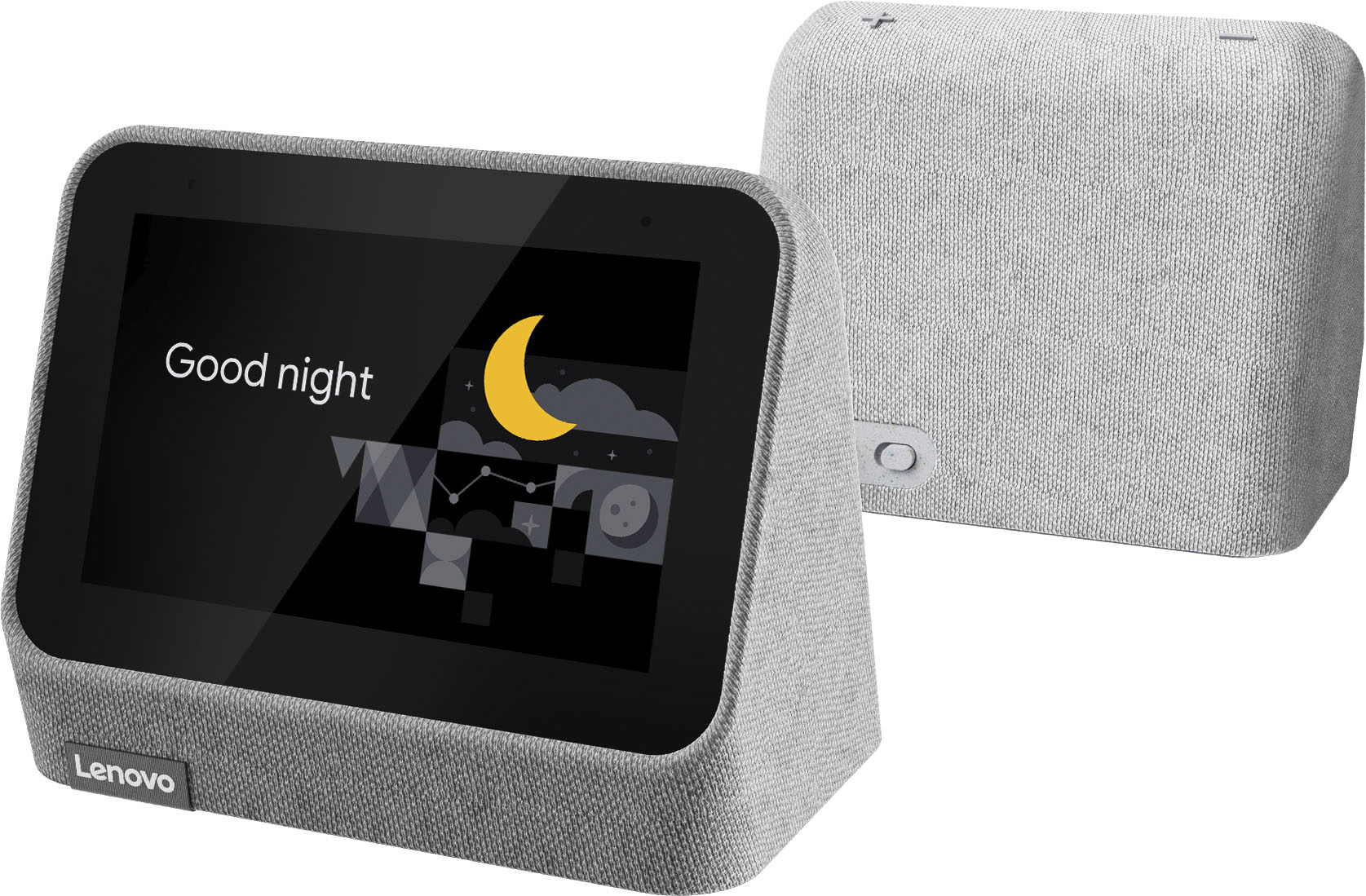
A:AnswerHere is this Lenovo Smart Clock 2 bundled with its Wireless Charging Base included: https://www.bestbuy.com/site/lenovo-smart-clock-2-with-wireless-charging-dock-heather-grey/6470547.p?skuId=6470547
A:AnswerYou can pair content sources that are compatible with Google Home through the Google Home APP you use for the initial setup of your Smart Clock 2. Be sure to use the same Google Account to setup the Smart Clock 2 as you use for the devices you want to pair with the Smart Clock 2 You can cast media content from other Google Home compatible devices, that use the Same Google Account to the Smart Clock 2 so long was the media source is compatible with Google Assistant.
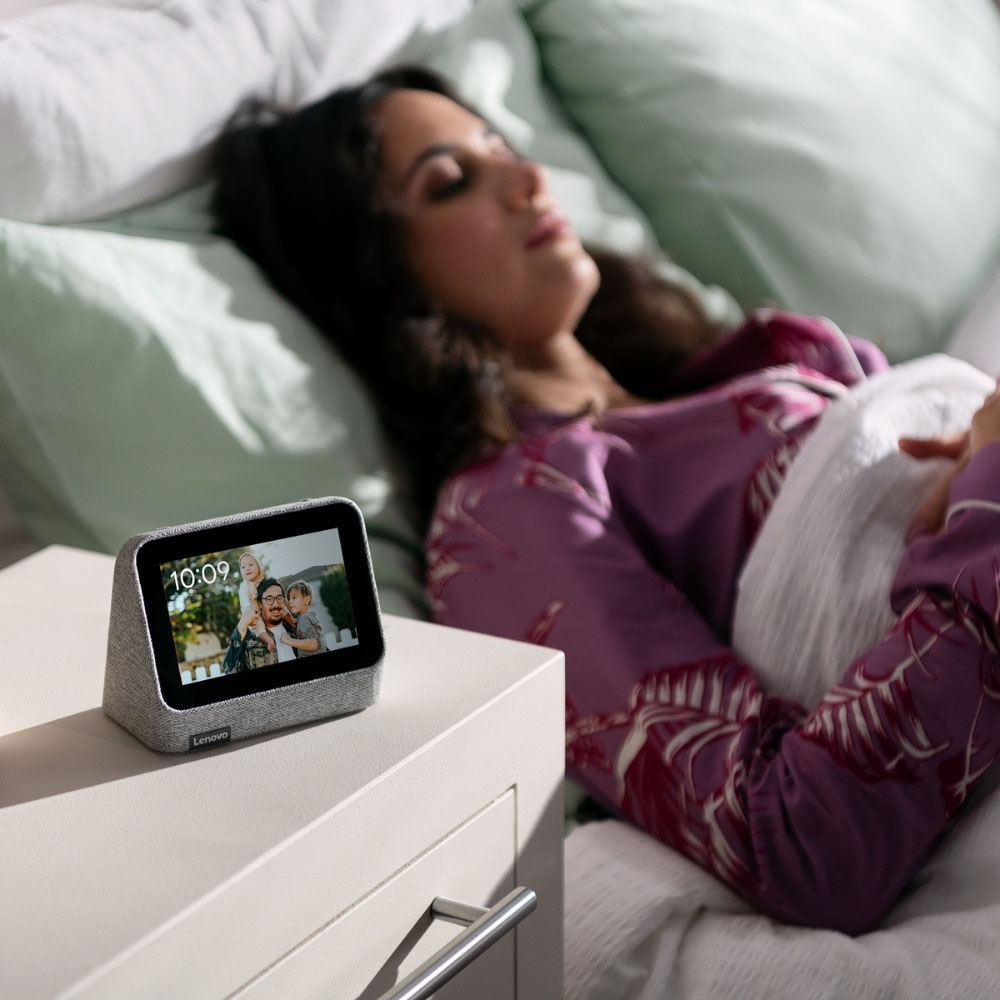
A:AnswerWithin the Google Home APP that you used for the initial setup of your Lenovo Smart Clock 2, the first screen you will see when you open the Smart Clock 2 Device is the media volume control. You can set the volume of any streaming media like music, to zero. You will see an alert on the Smart Clock 2 screen that says - Media Volume Set to Mute. You will still be able to use a Voice Command with the Google Assistant to ask a question. Google Assistant will still respond, but at a reduced volume of approximately 5 Percent of volume. If the Google Assistant volume is still too loud for night time, the other option is to turn off the microphone to prevent any Voice Command use. Your pre-set alarms will still sound at your preset alarm alert volume but no Voice Commands will be heard by the Google Assistant. If you have questions about your Lenovo Smart Clock 2 we recommend you contact lenovo Tech Support for Smart Devices at: 866-426-0911.