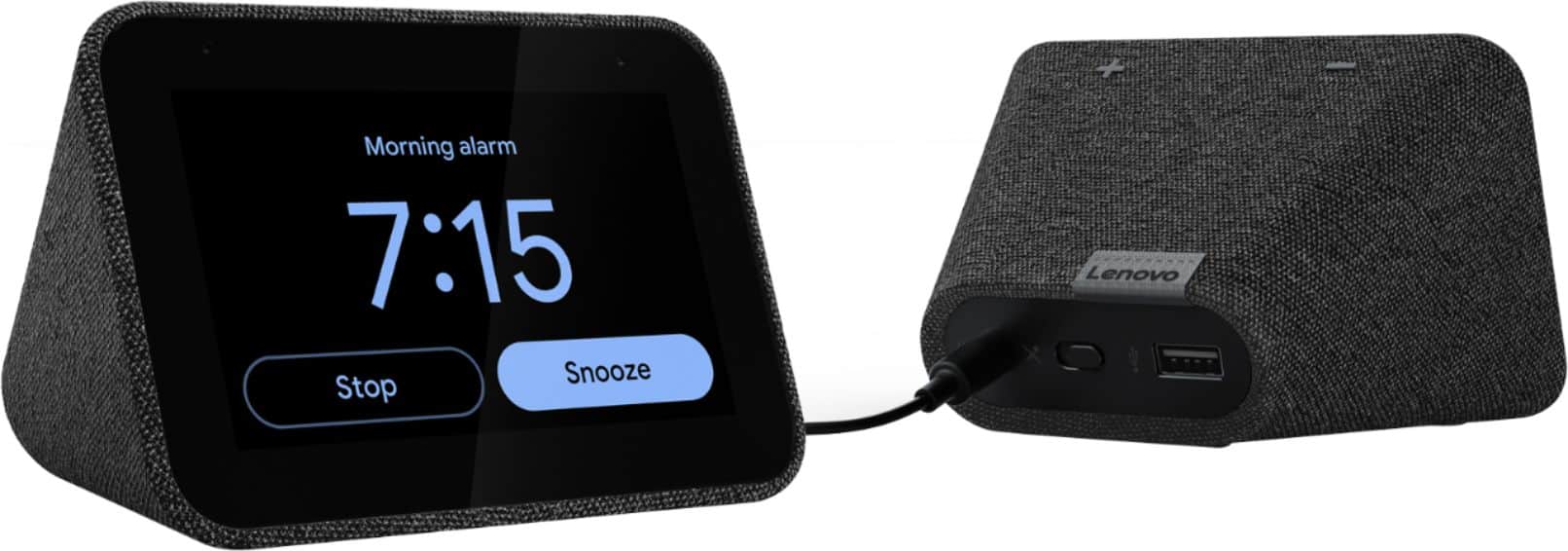
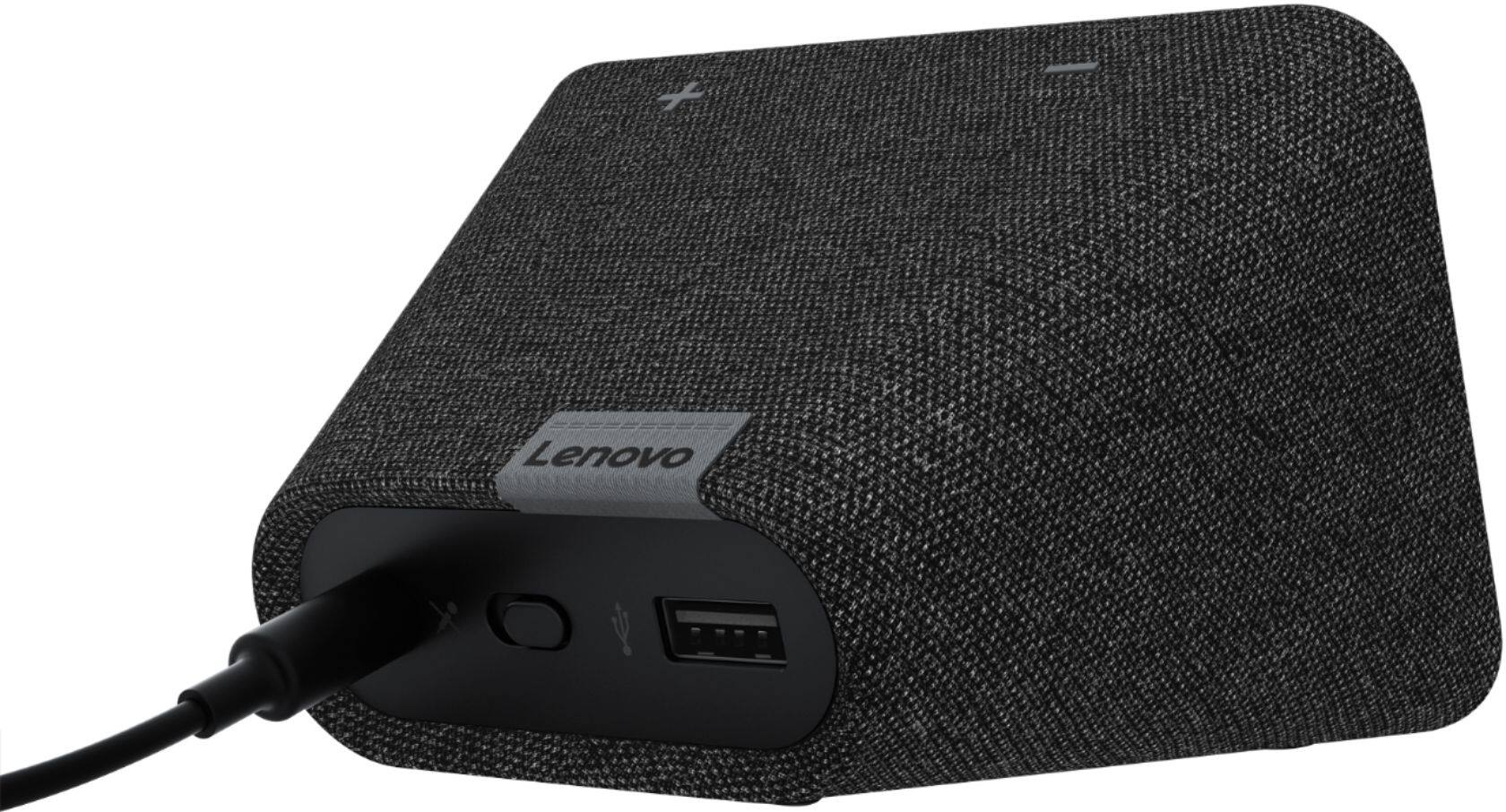
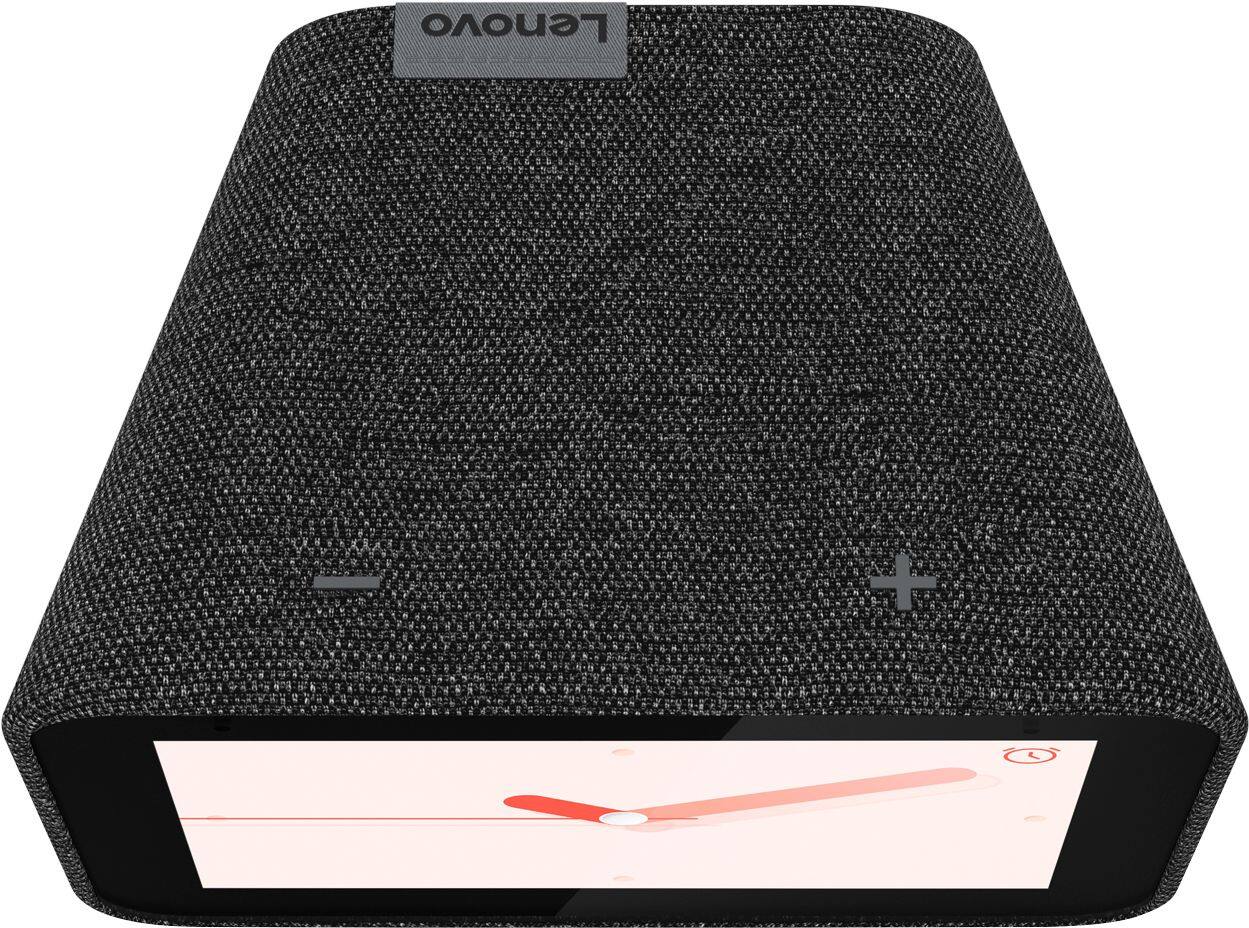
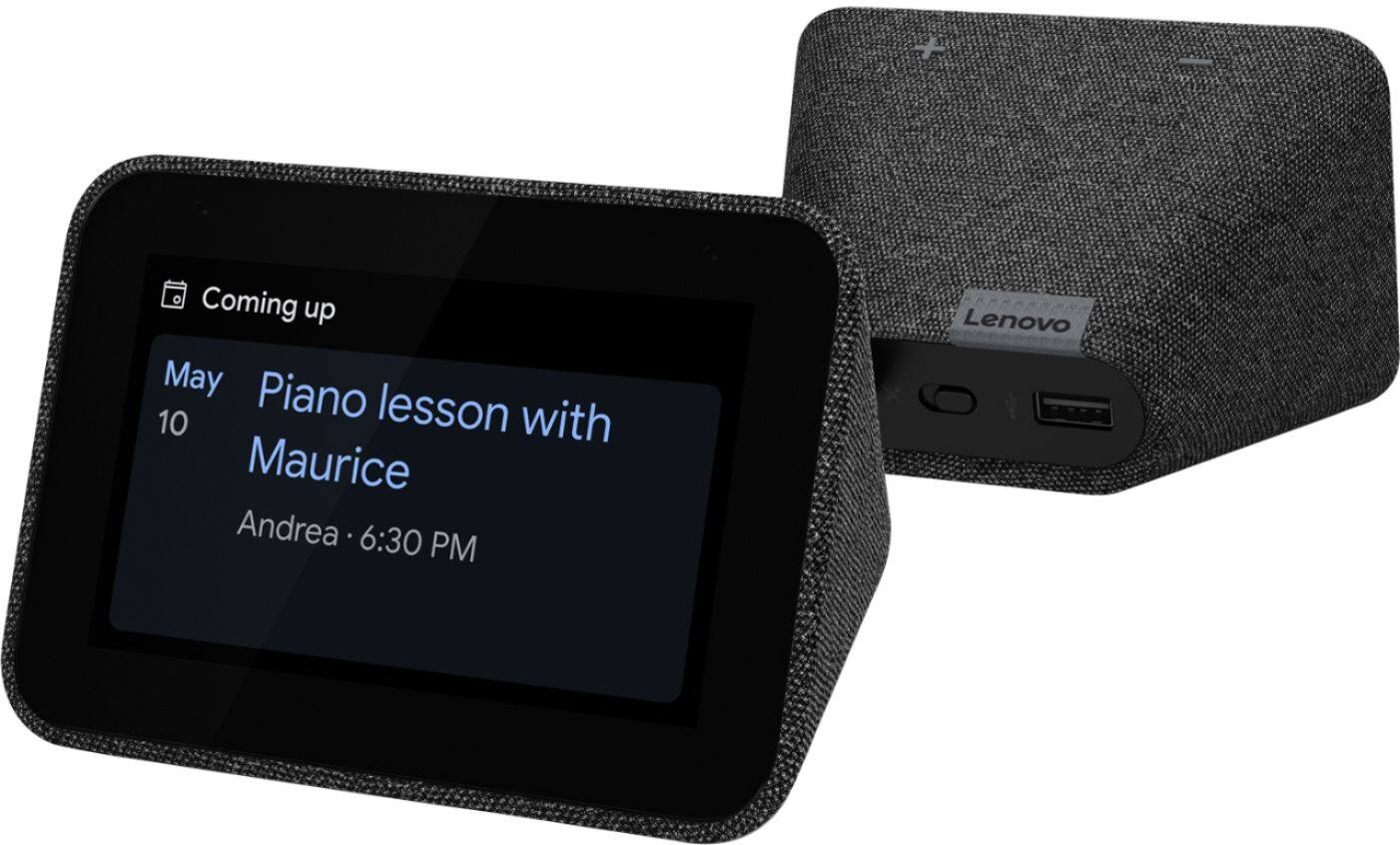
A:AnswerHello, please try power cycling your device by unplugging it for 10 seconds, plugging it back in, and allowing it to power back on. Please perform the same steps for your wireless router. If the issue persists please a factory reset by holding down the “Volume + and – ” buttons on top of your device for 8 Seconds. If the issue still remains, please contact our customer support team at 866-426-0911
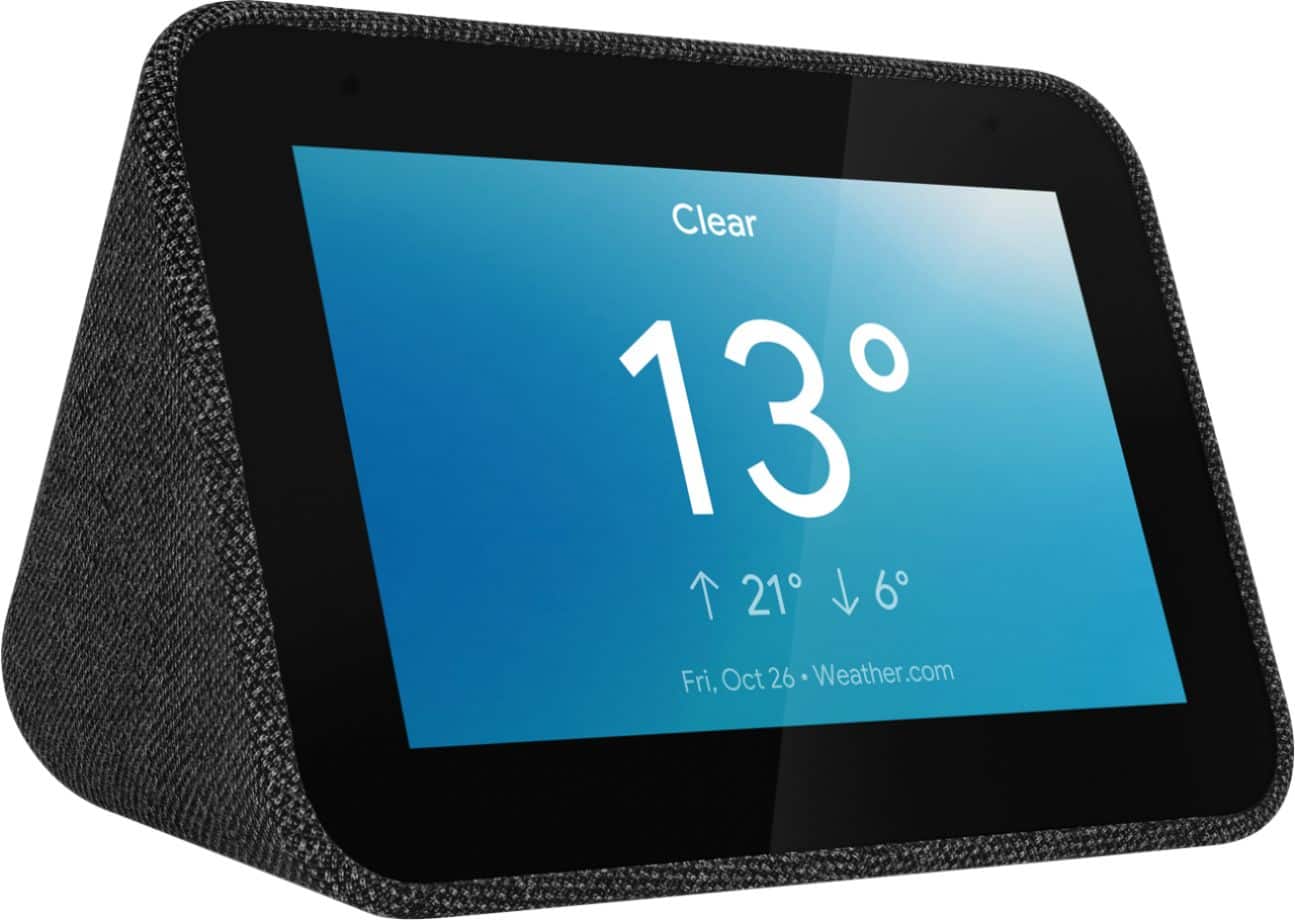
A:AnswerHello. Yes, the Lenovo Smart Clock with Google Assistant can function at night and used as a night light. The clock has a 4” color screen that has an ambient light sensor. If you swipe up on the Clock you can set the brightness between 1 and 10 depending on your preference, or select "Auto" for the clock to automatically adjust the brightness of the screen.
A:AnswerThere isn't really a way. Ring is more meant for integration with Amazon Echo devices while Nest Hello would be the product for Google Assistant products
A:AnswerPart 2 of my answer - of sorts.
This morning one of my C by GE lights isn't responding to commands. At first it was slow in responding and then it quit altogether; staying in On mode.
I mentioned that I had two bedside lights. Each has a different 'name'. One responds just fine, but the other one will not.
So I'm thinking it is either a defective GE Smart Light, or the Lenovo Smart Clock is failing someway.
I plan on getting another new bulb and syncing it with Google Home App and see what happens. If it chokes, then it must be the Lenovo Clock,
or perhaps the lamp itself.
Just thought I'd pass this along. Misery loves company ;- }
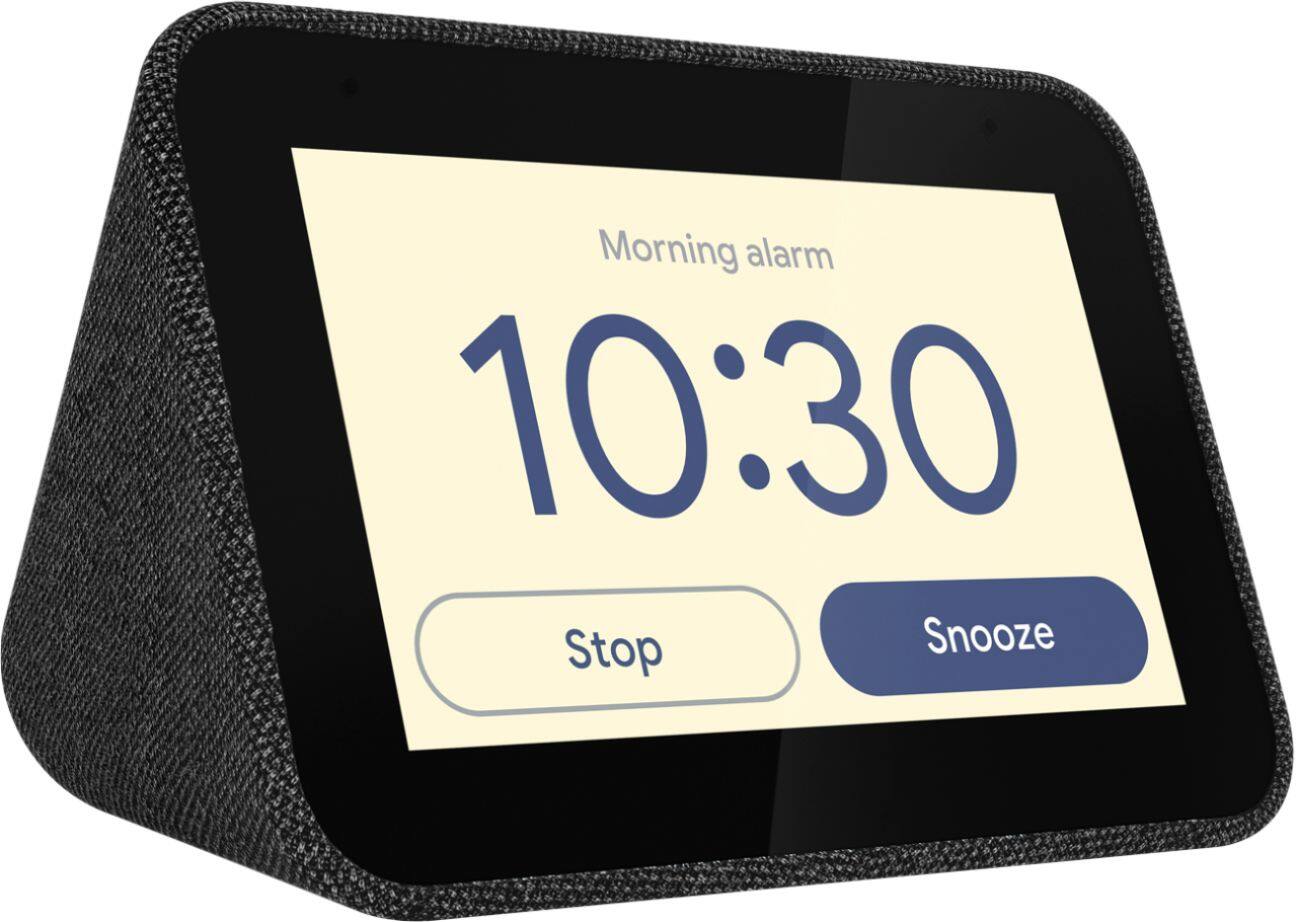
A:AnswerA tap on the top snoozes the alarm. There's not a button, you just smack it on top. There is also a snooze button and alarm off button on screen like the alarm app on the phone.
A:AnswerHi Mitch! We are sorry to hear you are experiencing this issue with your Lenovo Smart Clock with Google Assistant. First please try to reboot the device by unplugging, and plugging it back in. If this issue persists, please factory reset the device by pressing VOL+ and VOL- for 8 Seconds. After you do this you will need to setup the device again through the google home app. If you are still experiencing this issue after the reboot and factory reset, please contact Lenovo Smart Device technical support at 866-426-0911
A:AnswerHi Terri! Thanks for your question. No, this function is not supported as the time is automatically set based on your location. You can setup the clock from your smartphone with the google home app. For a more detailed list of the device’s capabilities please check out support.lenovo.com or call 866-426-0911.
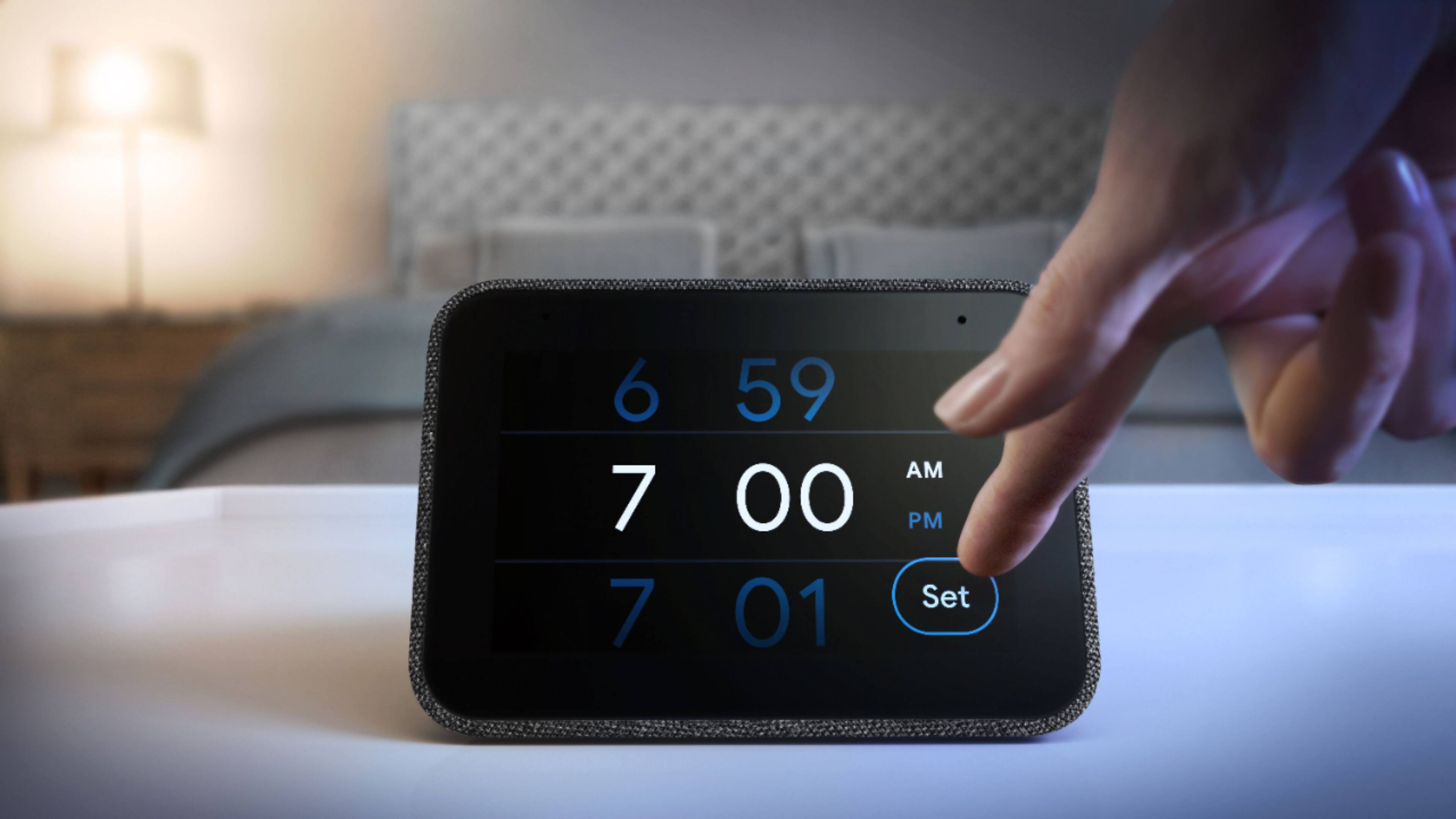
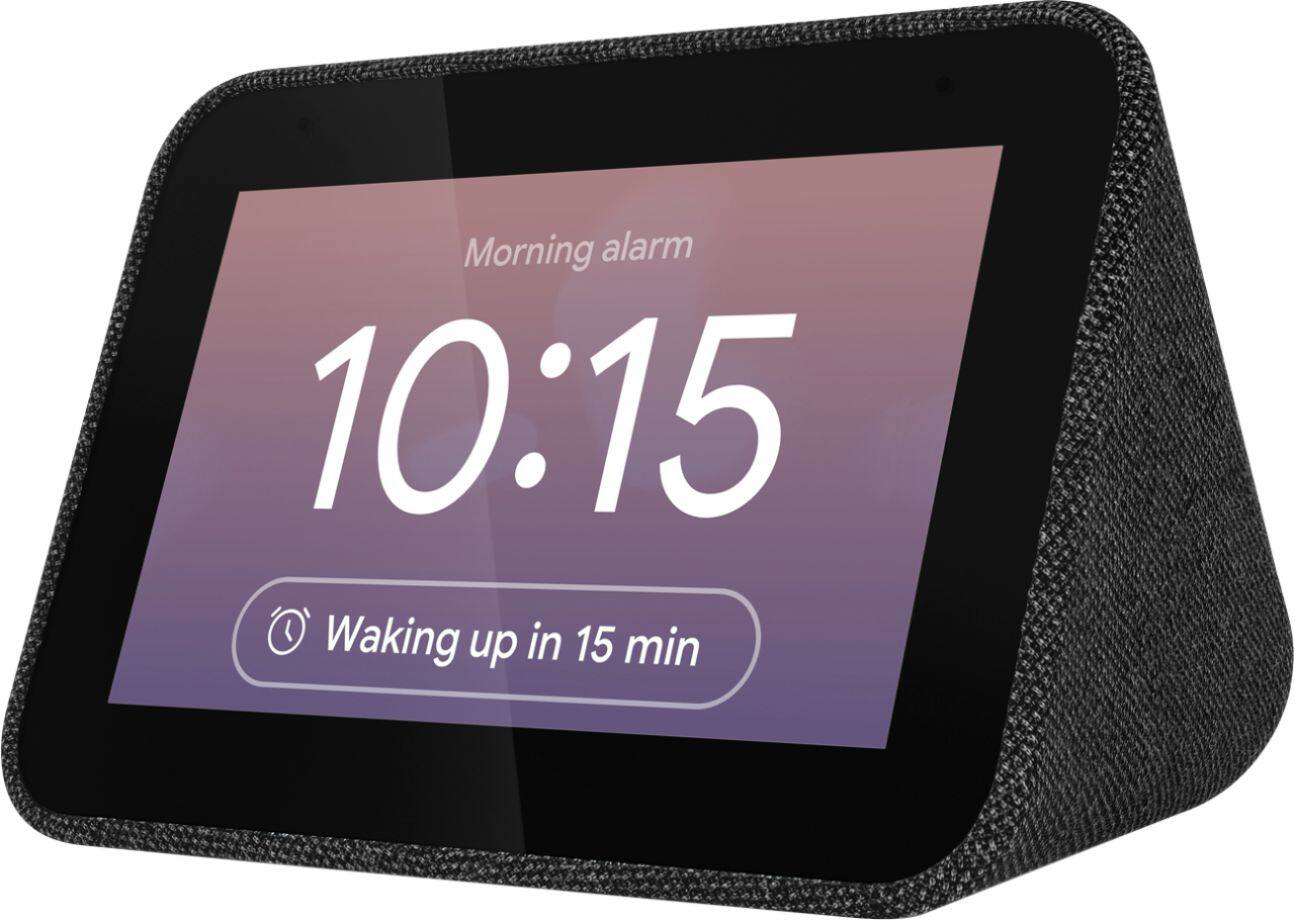
A:AnswerHi Jeremy, I’m happy to answer this question for you. Currently there are only two methods for setting an alarm on the Lenovo Smart Clock with Google Assistant.
• Method 1: Talk to the Lenovo Smart Clock. Say something like: “Hey Google, set an alarm for 8 a.m.”
• Method 2:Swipe left on the home screen, then tap Create an alarm.
A:AnswerHi Taylor. Yes, the display can be turned off! Simply say “Okay Google turn off my screen”. You can also have your Lenovo Smart Clock automatically turn off the screen by adjusting its "Low Light" settings.
A:AnswerHello and thank you for your question. We are sorry to hear you are having this issue. Alarms and timers still work when Do Not Disturb is on. To disable Do Not Disturb swipe up, then tap Do Not Disturb. If your device still isn’t functioning the way you would like, try re-booting the system by unplugging it and plugging it back in. Alternatively you can do a factory reset by holding down the “volume + and –“ buttons for 8 seconds. If the issue persists please reach out to customer support at support.lenovo.com or call 866-426-0911.