A:AnswerHi Sam, No your Smart Clock will not ring in the middle of the night if someone calls you. Furthermore you can easily disable notifications at night with the "Do Not Disturb" mode feature. This can be enabled by swiping up on the home screen and selecting the "Do not Disturb Icon". You can also set DND to turn on atomically at night from within the Google Home App.
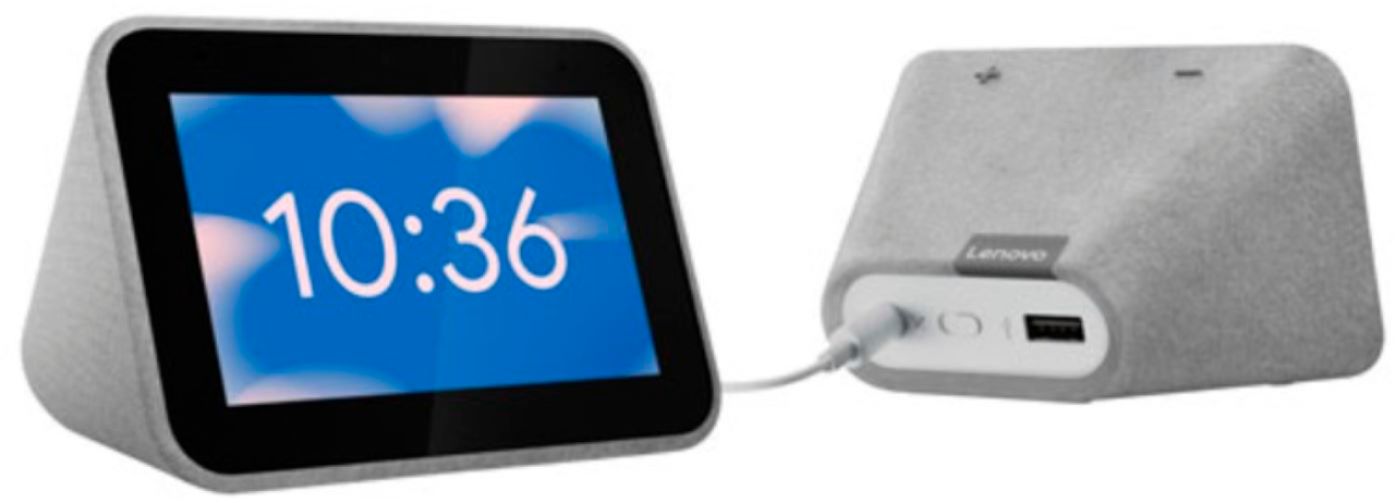
A:AnswerHi Marc, there is currently no battery backup on the Lenovo Smart Clock with Google Assistant. In the event of a brief power outage your repeating alarm information will be retained and the alarm will still sound when power is restored.
A:AnswerHello, a "Gong" is not one of the stock alarm sounds. You can set music alarms from your favorite streaming platform like Pandora, Spotify, YouTube Music and more. The 6 stock sounds on the Lenovo Smart Clock with Google Assistant are Default, Modern Times, Beautiful Mind, Little Sunshine, Touch of Zen, About Time, and Impromptu by Google AI.
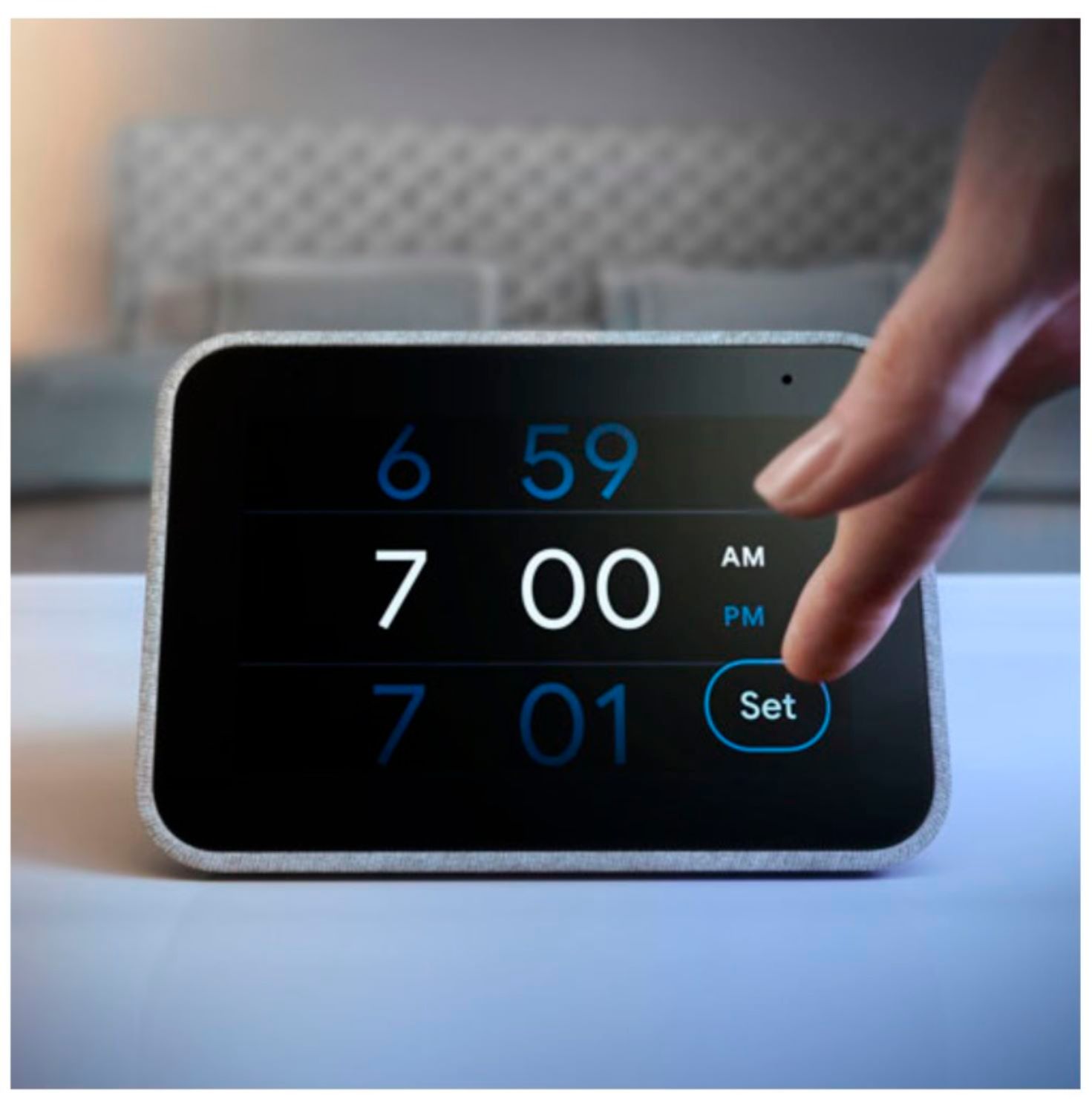
A:AnswerHi Jason! Yes ,you may set multiple alarms from the device directly or set multiple reminders to be displayed on the clock with an audible alert from any Google Assistant device or device with the Google Assistant app installed that is linked to the same account or that is on the same WiFi network.
A:AnswerYou might be able to publish a short audio recording of what you want to hear from the alarm on Youtube and then set the alarm to that file?
I ordered my lenovo but haven't received it yet.
A:AnswerHello, Thanks for your question. Yes to both. You can set multiple and repeating alarms for a certain time and day of the week. Once you have your alarms set you may mute the mic by sliding the switch on the back of the Lenovo Smart Clock with Google Assistant.