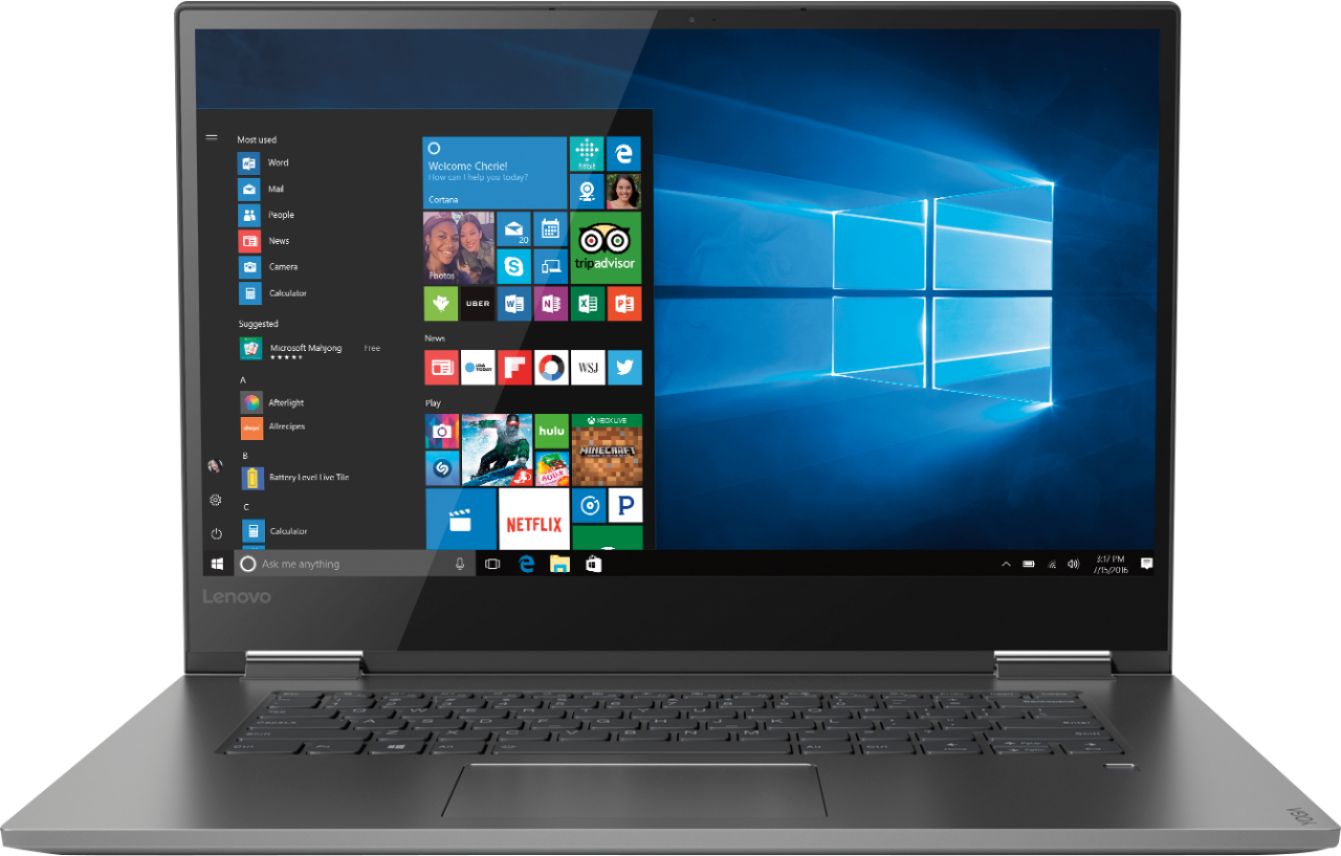
A:AnswerHere is a link to a Wacom active pen that will work with the Yoga 730-15: https://www.bestbuy.com/site/wacom-bamboo-ink-smart-stylus-black/5731102.p?skuId=5731102
A:AnswerYes, model number 81CU0009US, has a Thunderbolt port. This model is not user upgradable. A certified technician must do all of the work, so as to not void the warranty. There is one RAM memory slot available in addition to the 8GB RAM soldered to the motherboard, so your certified technician can add an additional 8GB of RAM. This model does not have Gorilla Glass on the screen.
A:AnswerI bought my Yoga 730 1.5 years ago and I am definitely having the screen flickering issue. Not sure if that is the new model or not. But this is a known problem and Lenovo is not doing anything about it. Terrible.
A:AnswerYes, the Lenovo Yoga 730-15 is compatible with the Bamboo active pen. Here is a link to an example of a compatible active/digital pen for the Yoga 730-15: https://www.bestbuy.com/site/wacom-bamboo-ink-smart-stylus-black/5731102.p?skuId=5731102
A:AnswerSince a Lenovo Product Expert said that "This model number 81CU0009US, has Thunderbolt 3.0 at 40Gb/s." I would assume that it has four lanes because according to the website down below, if it had two lanes, it would be running at roughly 16Gbps. Four lanes runs at roughly 40Gbps.
Information found here: https://www.notebookcheck.net/eGPU-Two-PCI-e-lanes-no-problem.266658.0.html
A:AnswerI had mine upgraded to one terabyte NVME drive from Corsair and it works perfectly.
The technician just cloned the old drive onto the new one and installed it and booted it up.
A:AnswerThe Intel® Core™ i7-7700HQ Processor is a Quad-Core/Eight-Thread processor with a base speed of 2.8GHz and a Turbo Boost speed of up to 3.8GHz. Intel® Core™ i7-8550U Processor is a Quad-Core/Eight-Thread processor with a base speed of 1.8GHz and a Turbo Boost speed of up to 4.0GHz. The Intel® Core™ i7-8550U Processor uses a lower base speed for better/longer battery life. The Turbo Boost speed of the Intel® Core™ i7-8550U Processor is up to 5% faster at maximum output than the Intel® Core™ i7-7700HQ Processor.
A:AnswerInstall operating software that is specifically created for your computer configuration. You can do this by updating your operating software by using the Lenovo Utility software installed on your computer. This system has Lenovo utilities installed to help maintain the health of the device and keep the operating system software up to date. Type "Lenovo Vantage" in the Cortana Search window (if Lenovo Vantage is not installed on your device, you can download the APP and install it now). Select Lenovo Vantage from the list. In the window that opens, click on "Health and Support". In the expanded menu, select "Hardware Scan" In the window that opens, select "Run Quick Tests". This will scan your entire system for errors. Follow any directions that may pop up. If the problem continues after this scan, now click on "System Update". First select Windows update from the menu. Scan your system to be sure you have the latest version of Windows 10. Once that scan is complete, select "Additional Updates". This will scan your device to be sure there are no new BIOS/Driver updates needed. Follow any instructions that may pop up. If the issue still continues after these updates, we recommend you call Lenovo Tech Support at: 877-453-6686 for additional help.