A:AnswerThe computer will feel warmer when it is charging and/or when the workload is at the maximum. This is normal so long as the temperature does not become extreme. If you feel the temperature is getting too high, you can scan the computer with the Lenovo Utility software available on this computer. You can easily accomplish this by scanning the computer with the Lenovo Utility software available on this computer. This system has Lenovo utilities installed to help maintain the health of the device and keep the operating system software up to date. Type "Lenovo Vantage" in the Cortana Search window (if Lenovo Vantage is not installed on your device, you can download the APP and install it now). Select Lenovo Vantage from the list. In the window that opens, click on "Health and Support". In the expanded menu, select "Hardware Scan" In the window that opens, select "Run Quick Tests". This will scan your entire system for errors. Follow any directions that may pop up. If the problem continues after this scan, now click on "System Update". First select Windows update from the menu. Scan your system to be sure you have the latest version of Windows 10. Once that scan is complete, select "Additional Updates". This will scan your device to be sure there are no new BIOS/Driver updates needed. Follow any instructions that may pop up. If the issue still continues after these updates, we recommend you call Lenovo Tech Support at: 877-453-6686 for additional help.
A:AnswerJust use the 25-digit Product Activation Code that came with your copy of Microsoft Office to activate the software already installed on the computer.
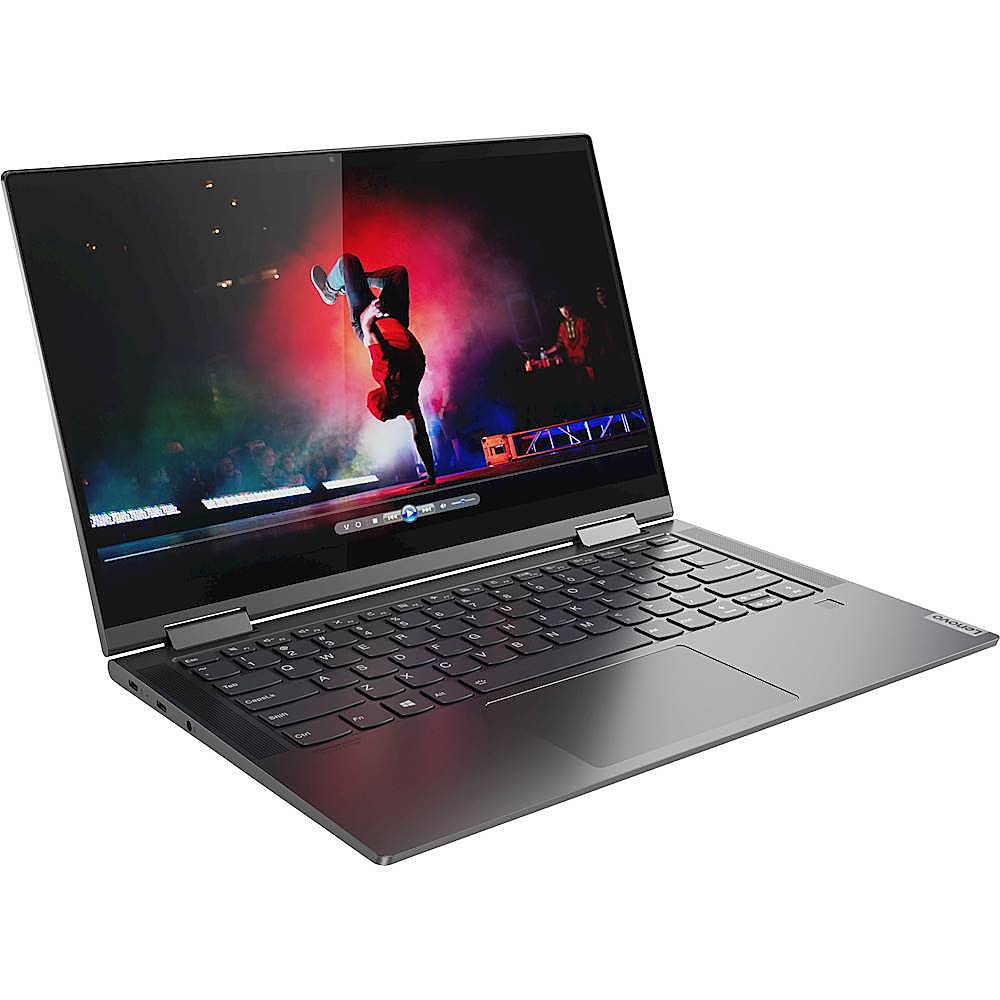
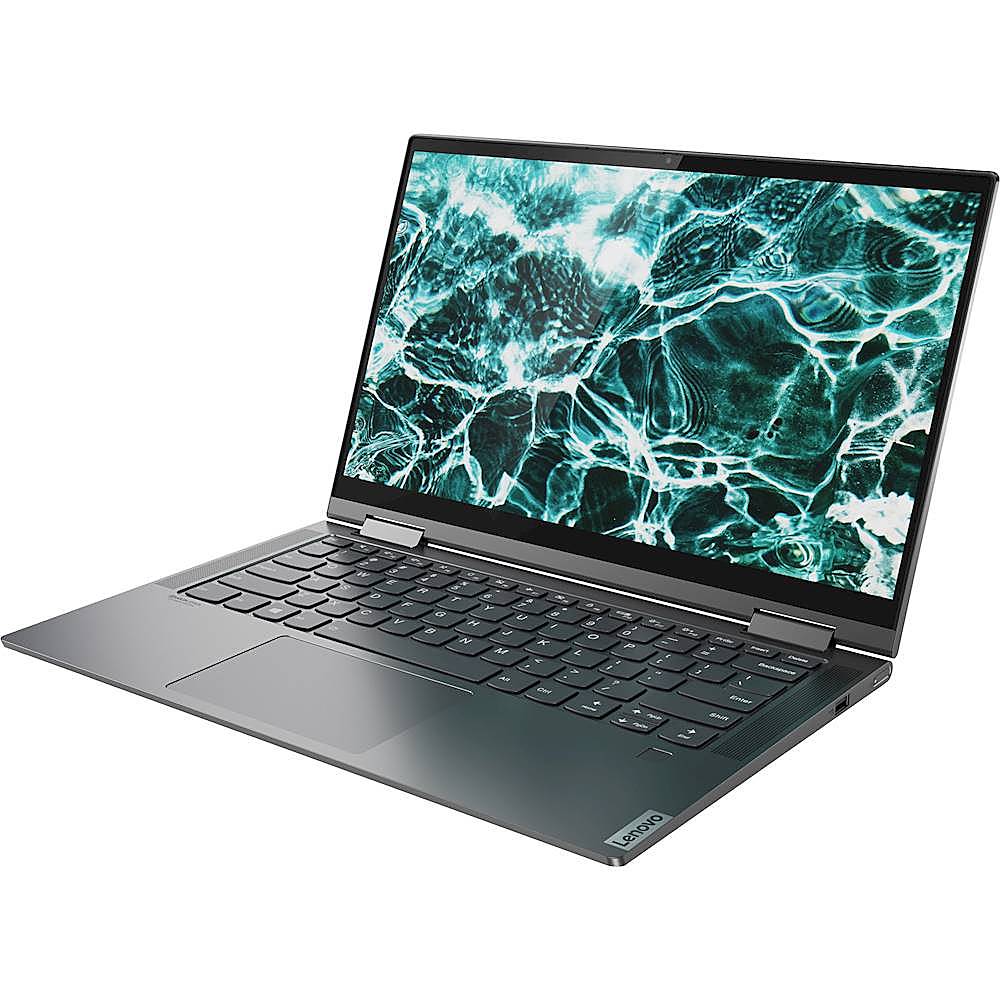
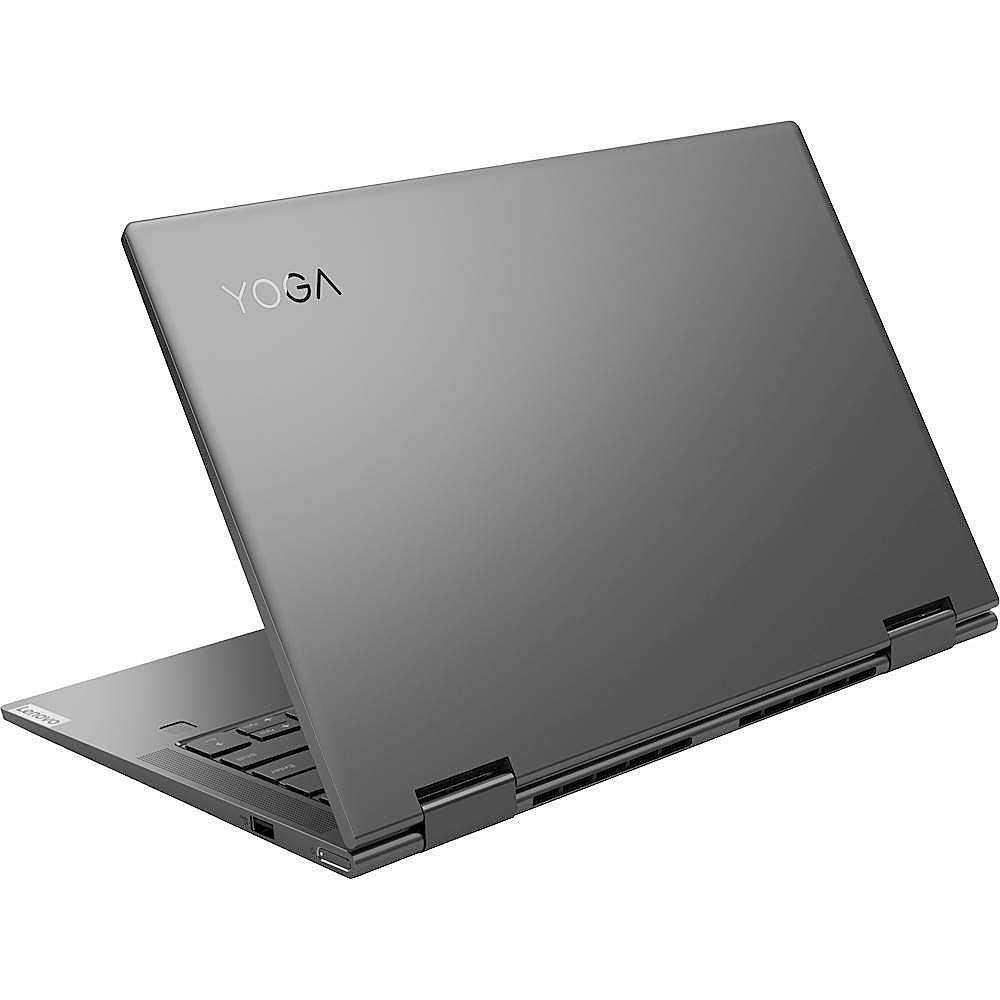
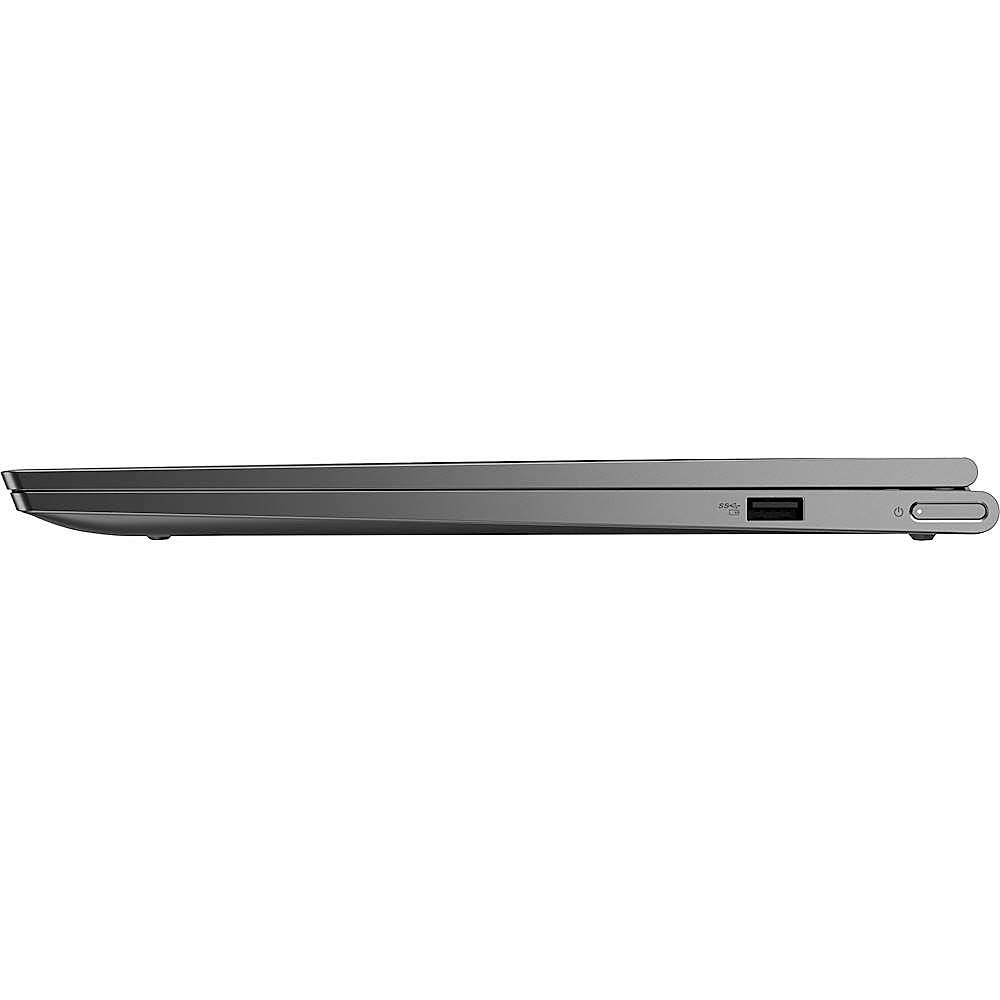
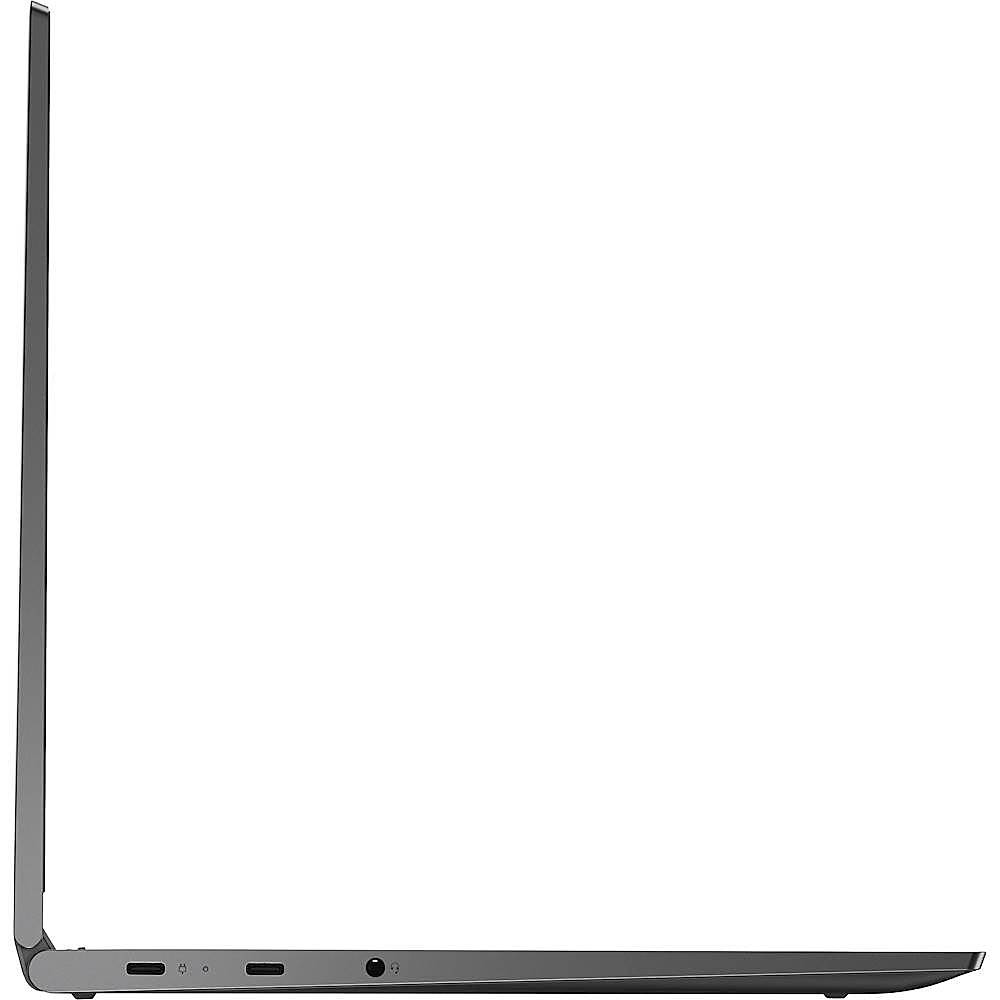
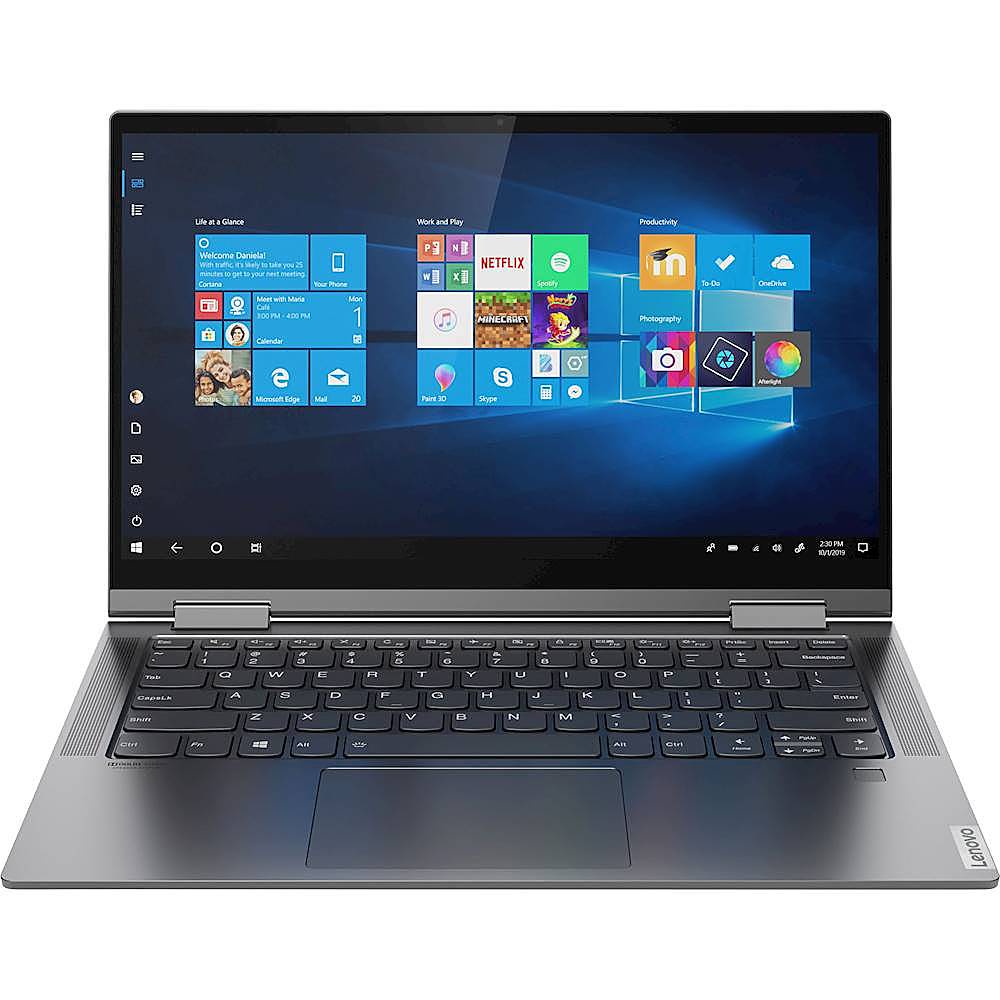
A:AnswerThe Lenovo Yoga C740-14 is a 110V device. It does come with a USB-c type Dual voltage AC adapter/charger. The Lenovo Yoga C740-14 ships with 5G, Wide-Range, 2x2 802.11AC frequency WiFi.
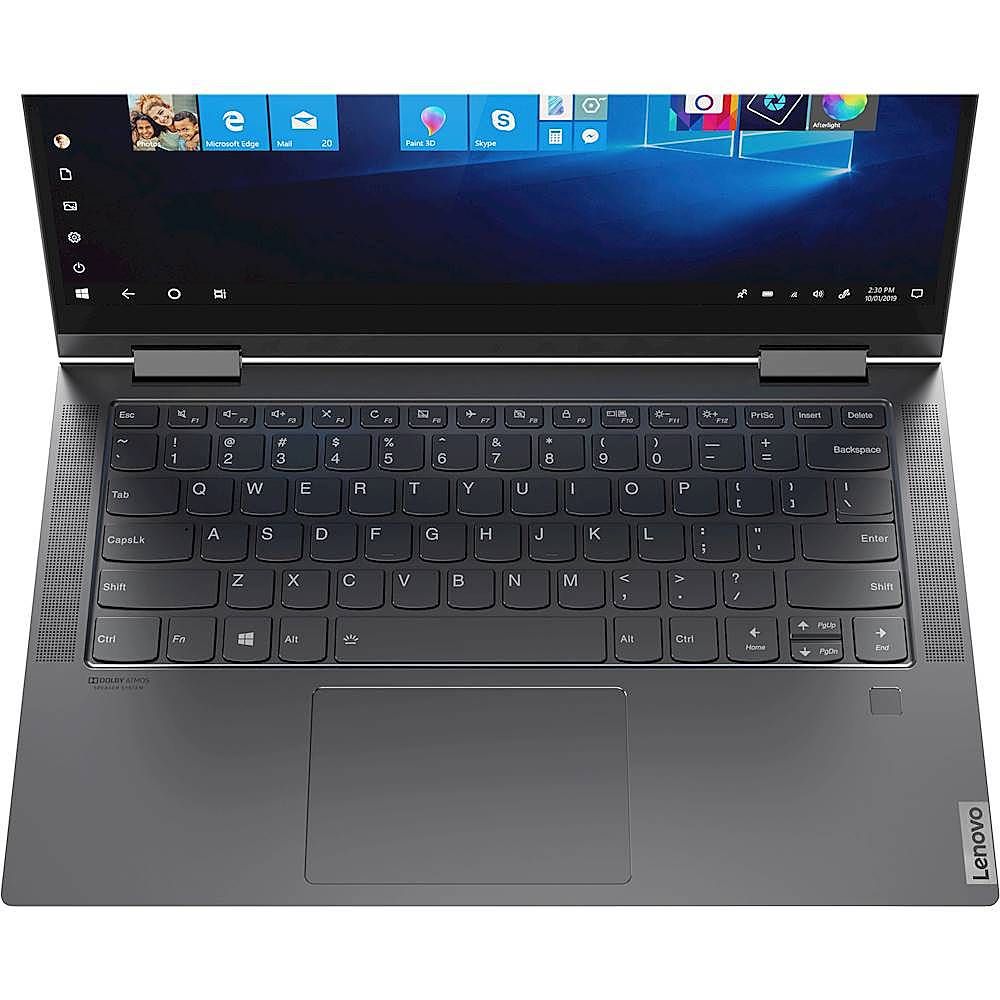
A:AnswerYes. The Lenovo Yoga C740-14, model number 81TC000JUS, ships with the Dolby Atmos Speaker System. This model ships with a 4CELL_51WH_INTERNAL, Lithium Polymer Battery, with a battery life of up to 13 hours, depending on the work the device is performing.
A:AnswerThe latest version of Windows is version 10. When you activate Windows 10 for the first time on the Lenovo Yoga C740-14, you will load the latest version of Windows 10 on the computer.
A:AnswerThat will depend on the requirements and compatibility of R Language. We recommend you check with the software publisher's web site for their compatibility with Windows 10 Home 64-bit operating system and the minimum/recommended hardware requirements (Is a Graphics card required, the processor speed and the minimum required system RAM and the minimum available hard drive space) to run their program, then compare those requirements to this system's configuration.
A:AnswerYes. Using Alexa is as simple as asking a question. Just ask to check the weather, set a reminder, listen to your favorite playlist and more. With Yoga C740’s far field mics, you can talk more and type less. With access above the lock screen, you can talk to Alexa even when you’re not actively using your PC.
A:AnswerThe Lenovo Yoga C740-14 uses a 65W USB-c AC adapter/charger like this one: https://www.bestbuy.com/site/insignia-65w-usb-c-wall-charger-black/6362822.p?skuId=6362822
A:AnswerThe Lenovo Yoga C740-14, model number 81TC000JUS ships with integrated graphics processing within the 10th. Generation Intel Core i5-10210U processor. It is the integrated Intel UHD Graphics version.
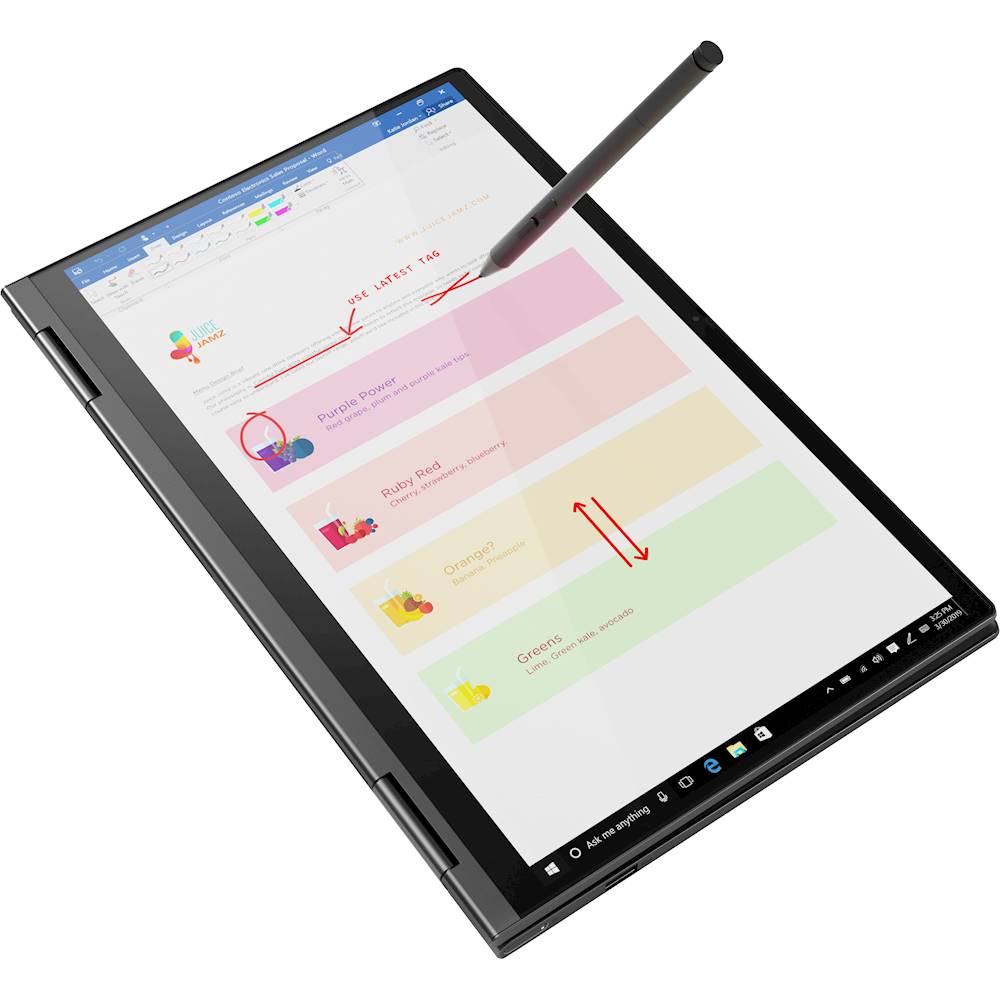
A:AnswerHere is a link to a compatible active pen for the Lenovo Yoga C740-14: https://www.bestbuy.com/site/wacom-bamboo-ink-smart-stylus-for-windows-ink-2nd-generation-gray/6374981.p?skuId=6374981
A:AnswerNo, the Lenovo Yoga C740-14 is not compatible with the ThinkPad Pro Docking Station, model number 40AH0135US. You can use a universal USB-c 3.1 dock like this one, there are many varieties available, this is just one example: https://www.bestbuy.com/site/kensington-usb-c-and-usb-3-0-universal-docking-station/6259403.p?skuId=6259403