“How do I transfer all of the photos and old texts from my old Smart2 (still working) to my brand new Smart2 phone? Or how do I transfer just the photos to my PC computer? Can't find any help online...I need detailed instructions please.”
Answer This Question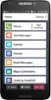
1-3 of 3 Answers
I only have experience with part of your question since I owned the flip phone and not the old Smart2. The Jitterbug Smart2 is just an android phone with additional apps to give the appearance of easier to use. If you choose, advance install on startup, it installs the basic android and does not start up the Greatcall apps. I believe they are still accessible. The easiest way I found to copy photos was to plug the phones USB connector into the PC. The phone will put up a notification about USB connection and will ask the type of connection. The PC should prompt you for how you want to open the volume, I'd suggest the folder view. It will appear as a hard drive that you can navigate. You can get photos and most folders by selecting Transfer Files (MTP) or Transfer Photos (PTP). You should be able to drag and drop the files you want. I tried the Microsoft "Your Phone" app but never got it working. There are apps like Dr.Fone which will transfer from one android phone to another but I've never used it. Photos are in a folder called DCIM (Digital Camera Images).
Sorry, there was a problem. Please try again later.When I purchased my phone, I asked my Best Buy Agent to transfer all of my information to my new phone. For additional help, I contact my Great Call Representative.
Sorry, there was a problem. Please try again later.Hi Woody, if you were signed into a Google account when taking your photos, they should be available on your new Jitterbug Smart2 once you sign into your Google account, under the photo icon in All Apps. You can transfer your photos to your PC using the USB charging cable and following the prompts. If you need assistance, please call us (800) 733-6632, between 6am and 6pm Pacific time.
Sorry, there was a problem. Please try again later.