A:AnswerHello, we recommend using a 5G connection to ensure a better experience while using the headset. If you need additional help with your device, you can contact our Support team directly from the official Meta Quest website anytime and they’ll be happy to help you.
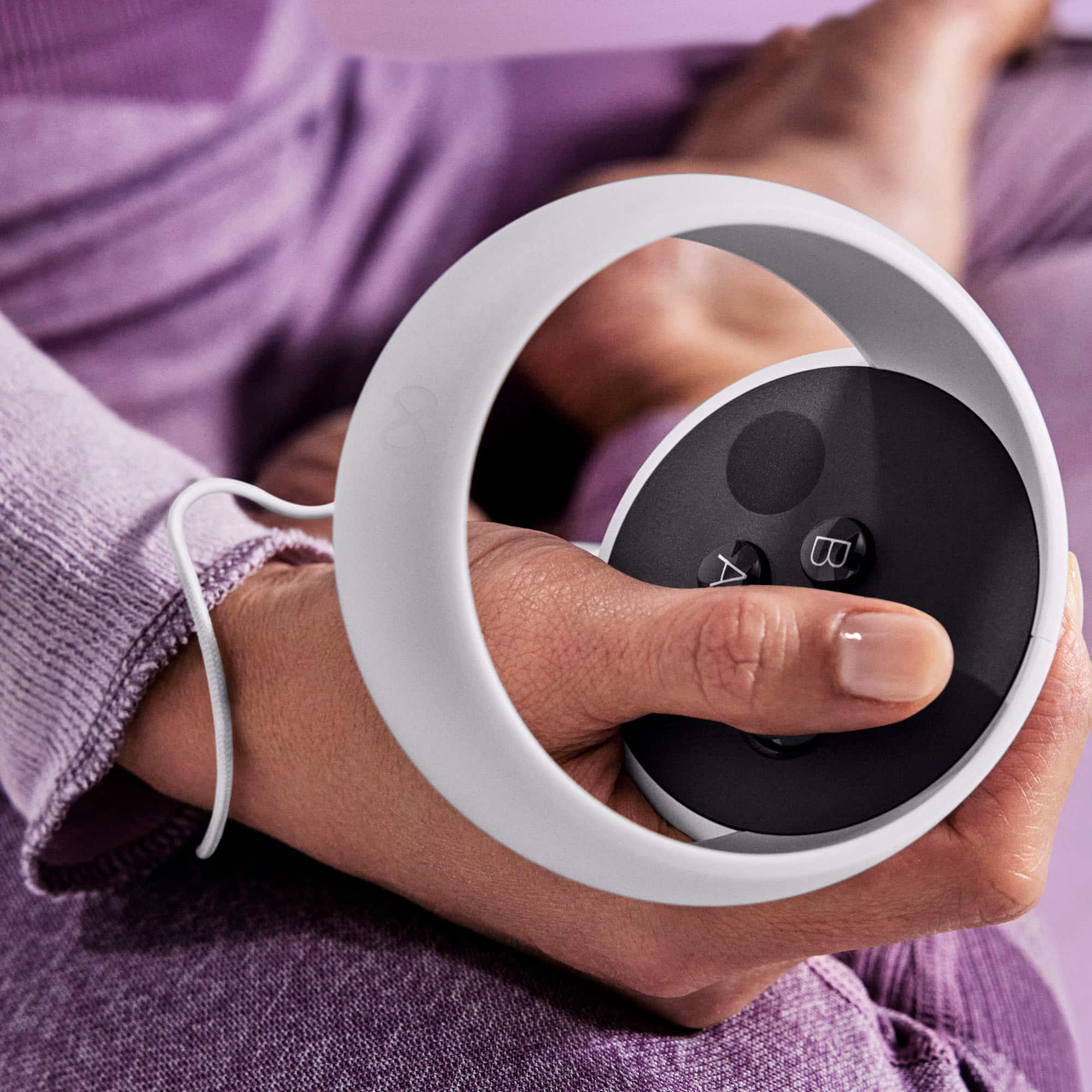
A:AnswerI'm having the same issue. The right controller stopped working out of the blue. I purchased in December 2021. I changed batteries but nothing happens.
A:AnswerSo I only have the quest 2, but from what I know if you have a wiring cord your capable of playing steam games if not other games from your computer with the headset
A:AnswerHello,
Thank you for your interest and welcome to the Meta Quest VR experience.
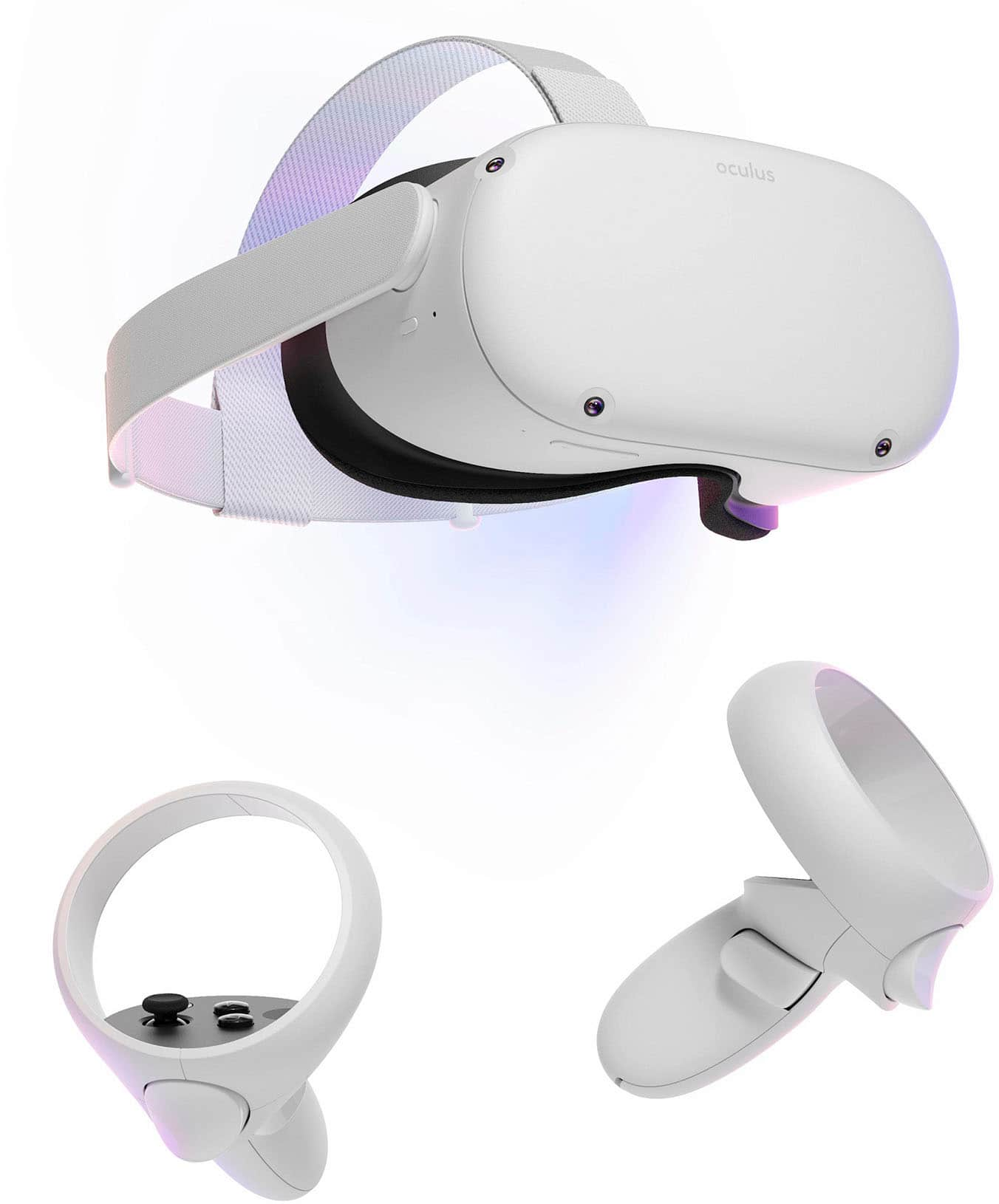
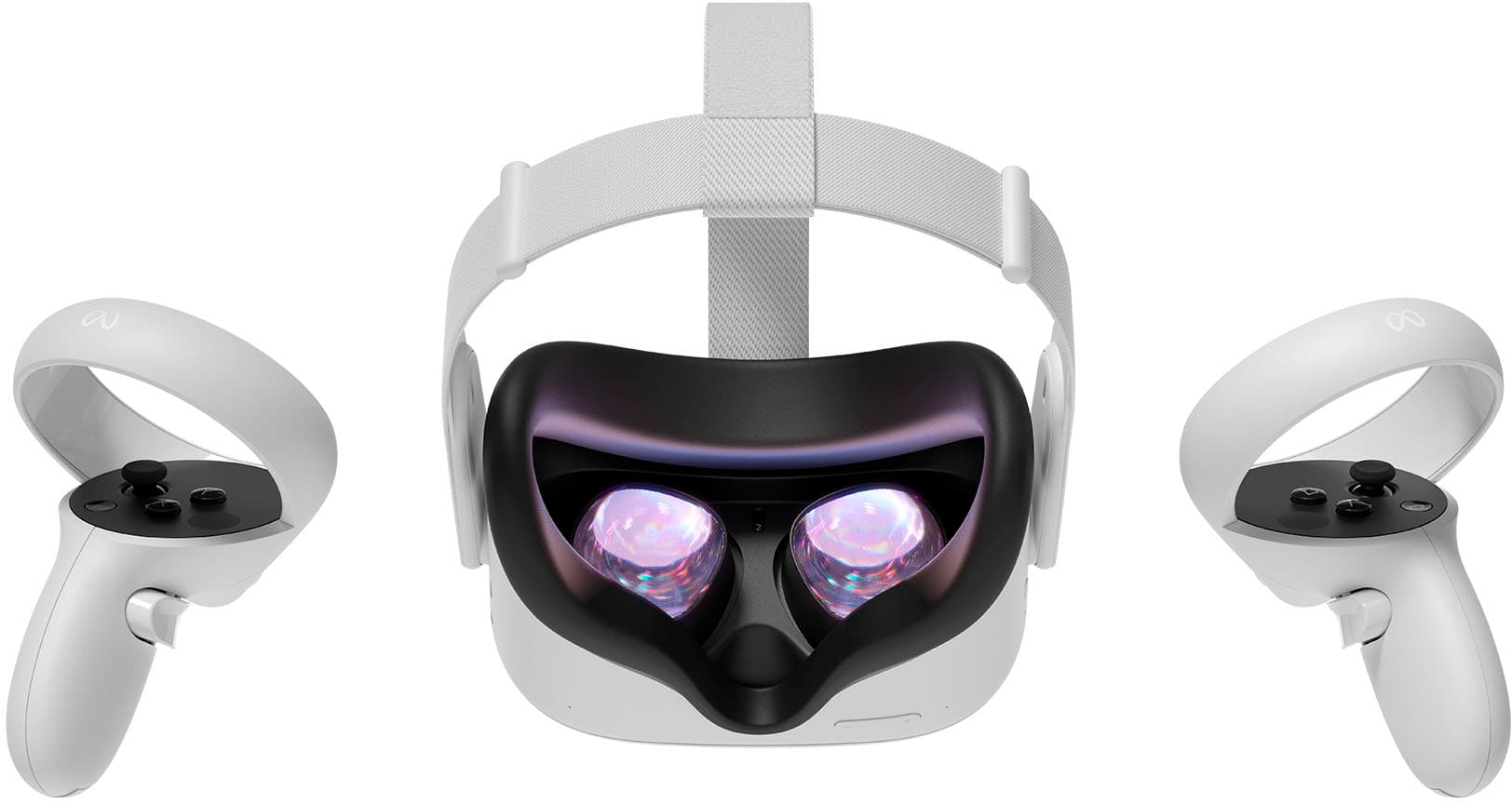
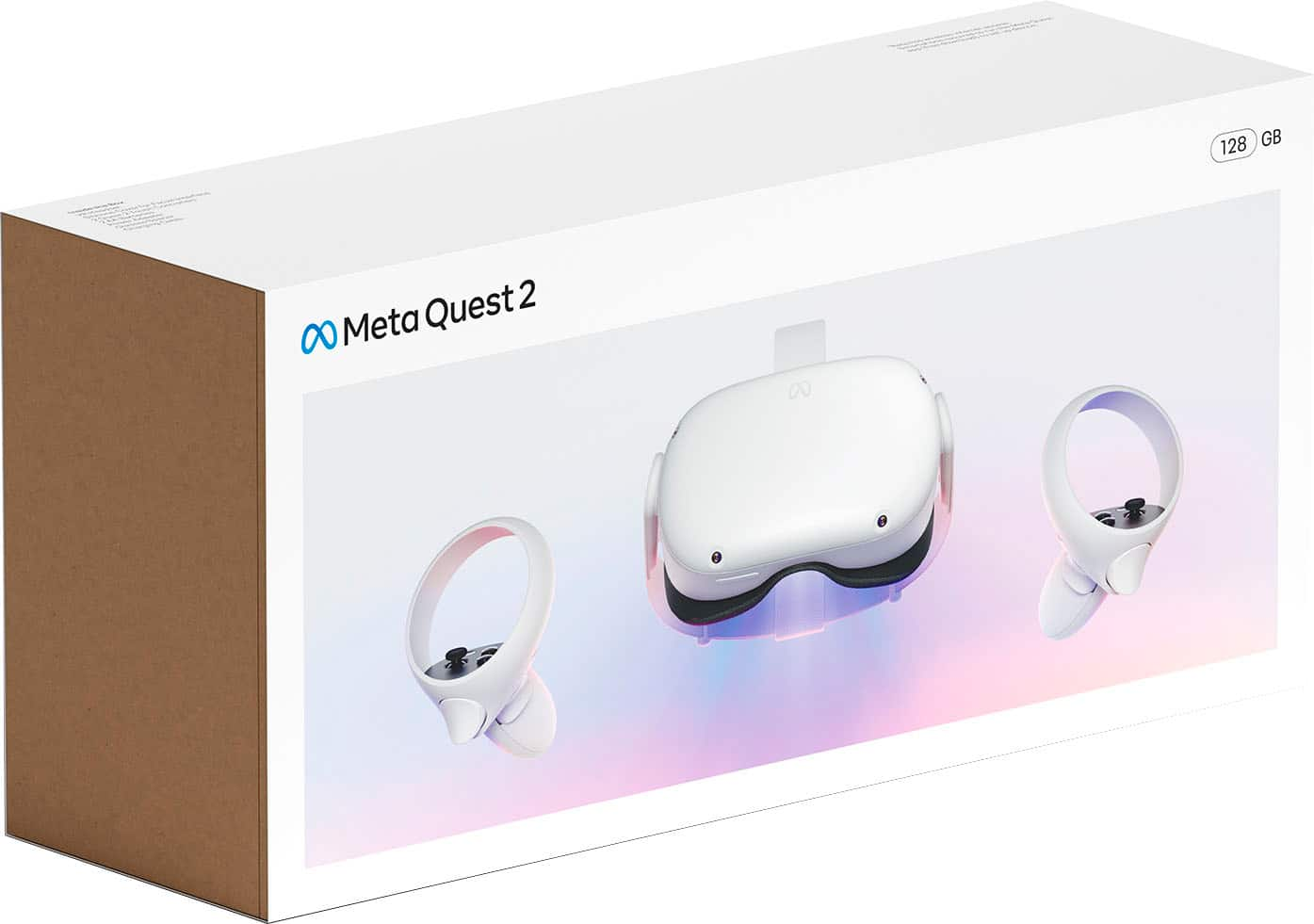
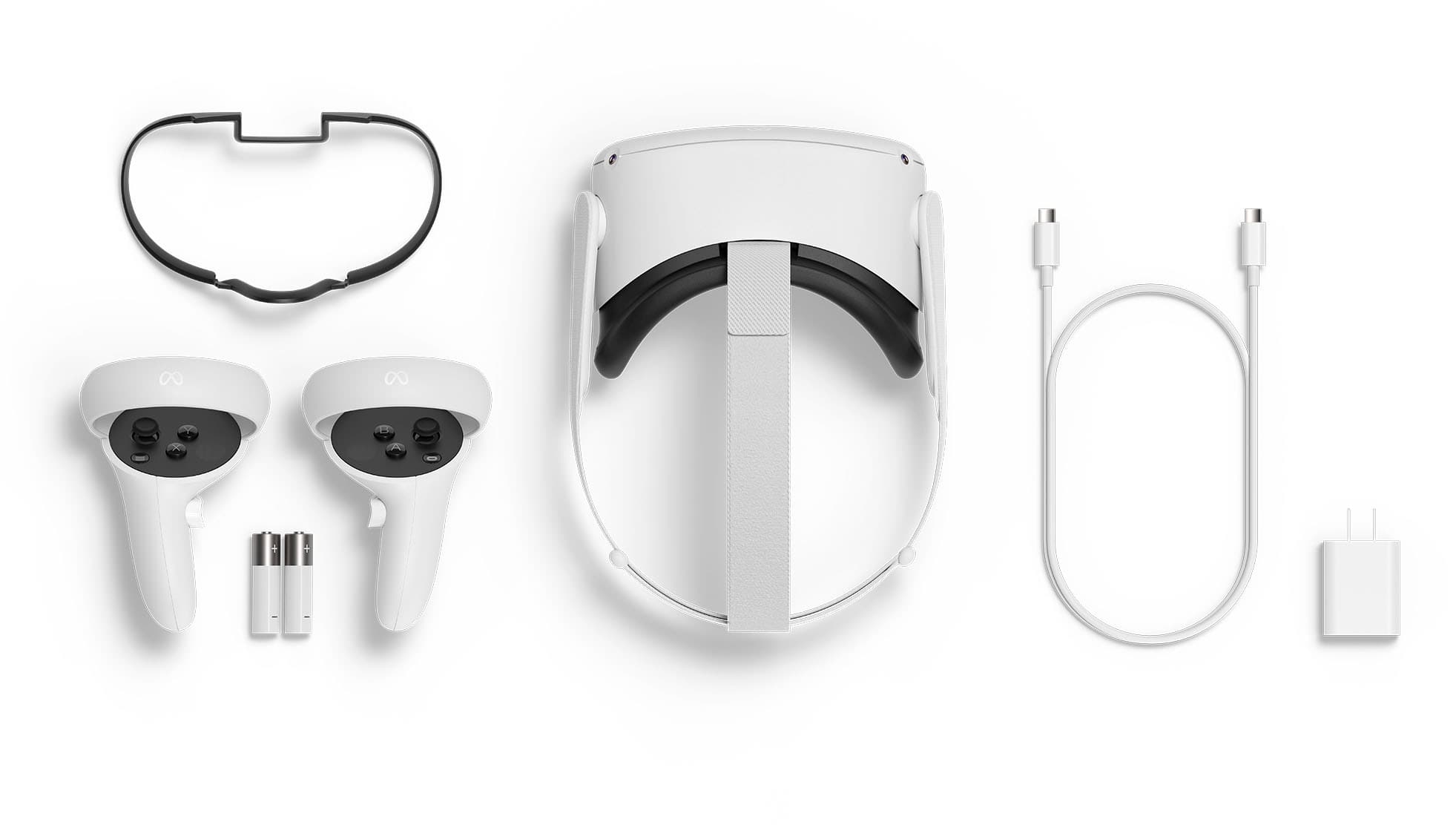
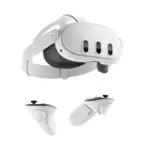
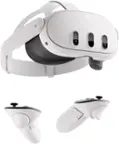
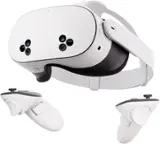
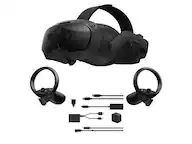
You have all the accessories included in this package to enjoy the full and outstanding VR experience!
Should you have any additional question or doubt, feel free to reach us over [here](https://store.facebook.com/help/support/quest).
Kindly,
A:AnswerNo, there is no way to add storage after you purchase a model so it’s best to choose wisely. If you plan on downloading a lot of games, apps, and other content, I would get the higher capacity model to play it safe.
A:AnswerPossibly. But try this method first. Since the Oculus Quest runs Android OS, you can reset it from the boot menu.
To perform a factory reset using the headset:
1. Turn off your headset.
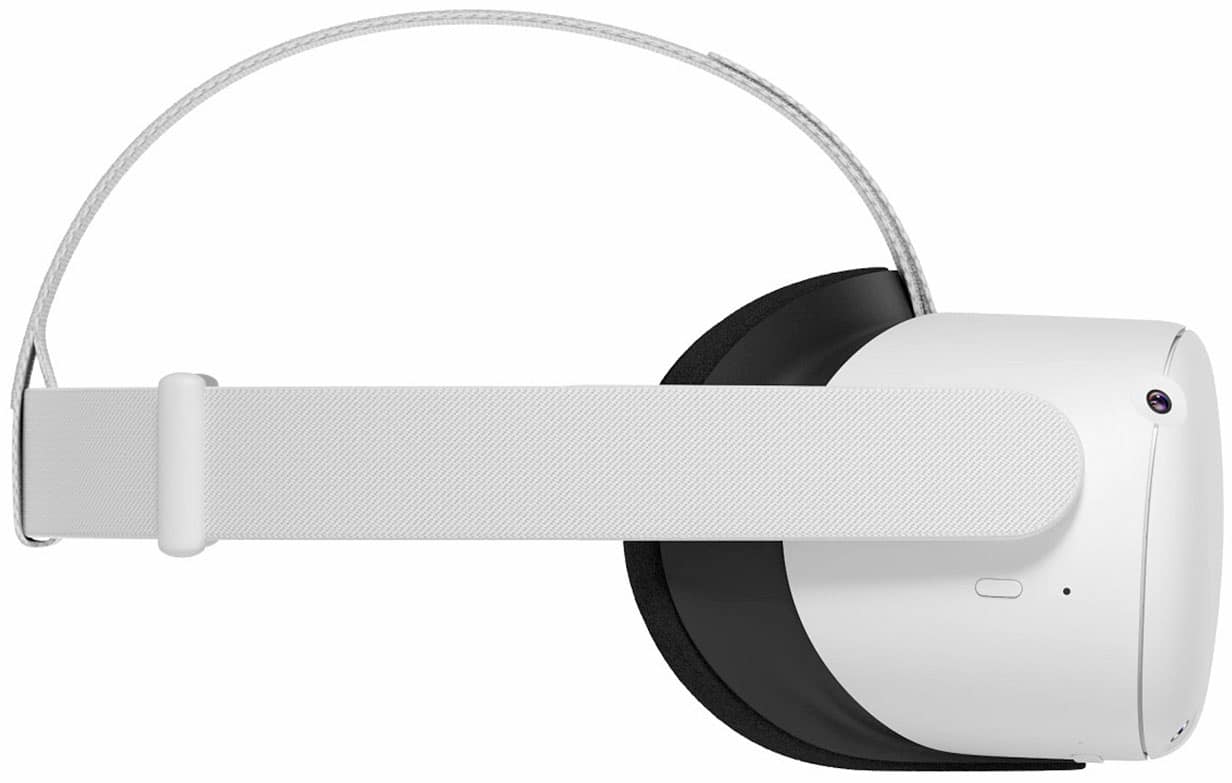
2. Hold the power and volume down (-) button on your headset down simultaneously until the boot screen loads on your headset.
3.Use the volume buttons on your headset to highlight Factory Reset and press the power button.
4.Use the volume buttons on your headset to highlight Yes and press the power button.
Hope this helps.