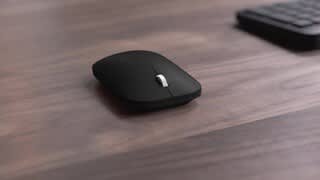
A:Answer When first connecting your Microsoft Modern Mobile Wireless BlueTrack Mouse, press and hold the button on the bottom of the mouse until the LED light starts to flash (about 5 seconds). On your device, select Connect if a notification appears for your mouse, then wait for it to get set up. If there is no notification, visit your the Settings menu, select Devices, then select Bluetooth Connections. You should see your mouse appear here as an option for pairing. For a full outline and further guidance, visit here: https://support.microsoft.com/en-us/surface/set-up-surface-mobile-mouse-or-microsoft-modern-mobile-mouse-ba8c5200-202b-b093-fd4a-b3b71acc917e