A:AnswerI have seen 17 hours of battery life from this machine under normal use... normal meaning business productivity. The moment you start using high performance software like the Adobe Suite and or playing video games, as with any computer, the battery life goes down. I am running three monitors through a docking station daily with this machine, and it performs excellently and stays cool. In fact, you never hear the fan in it, it is super quiet. Great device for the money. Also, Thunderbolt is Apple...
A:AnswerHello,
I have been using this laptop with my wacom Intuos Pro paper Edition tablet and with the softwares photoshop and Corel Painter 2019. I am not experiencing any lag time with my wacom pen or my surface pro pen. The computer CPU is great and allows it to give me great responses to my painting and drawing stokes. I am very pleased with it. I am painting and drawing all day long, and writing at the same time (even watching YouTube tutorials while painting). The computer never freezes! That said, I do not know anything about Adobe Illustrator and Manga Studio. But, wouln't they be as powerful as Corel Painter? Finally, I will admit that the only time I use my surface pro pen is when I use the laptop as a tablet. I use my wacom pen 90 % of the time.
Hope this helps a little.
Good luck with your creations!
A:AnswerHi Lee,
For the student discount portion of your question, you will need to check with Best Buy support directly. However, yes! The 13.5" i7 model does have 8th Gen Intel Core 1.7 Quad-Core Processor. Hope this helps!
Kindly,
Victoria
Surface Customer Care
A:AnswerI did download it. I also Unloaded it. Did not function well, plus there is a monthly/yearly charge to subscribe.
My opinion, if you need a Windows product, buy a windows laptop. I did.
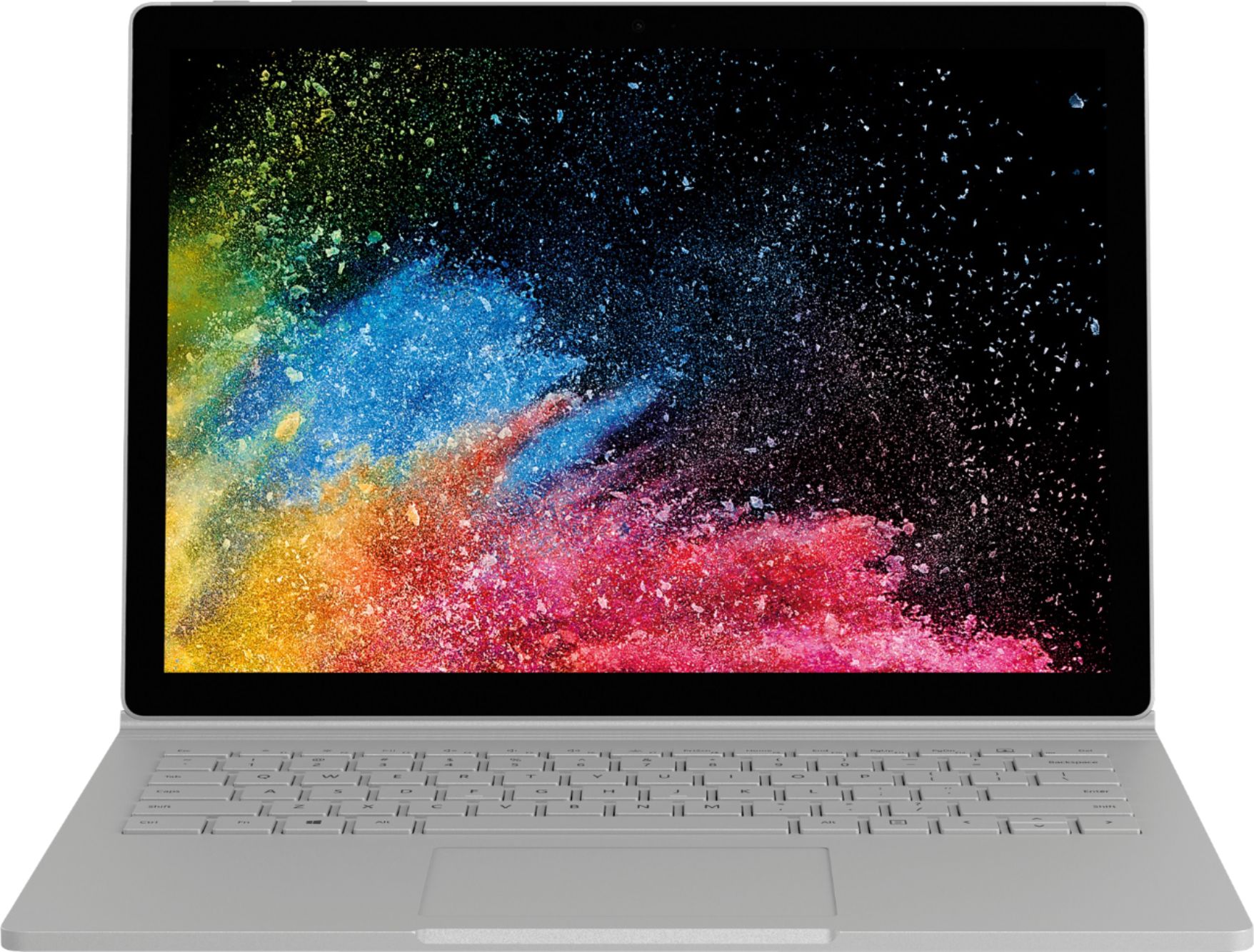
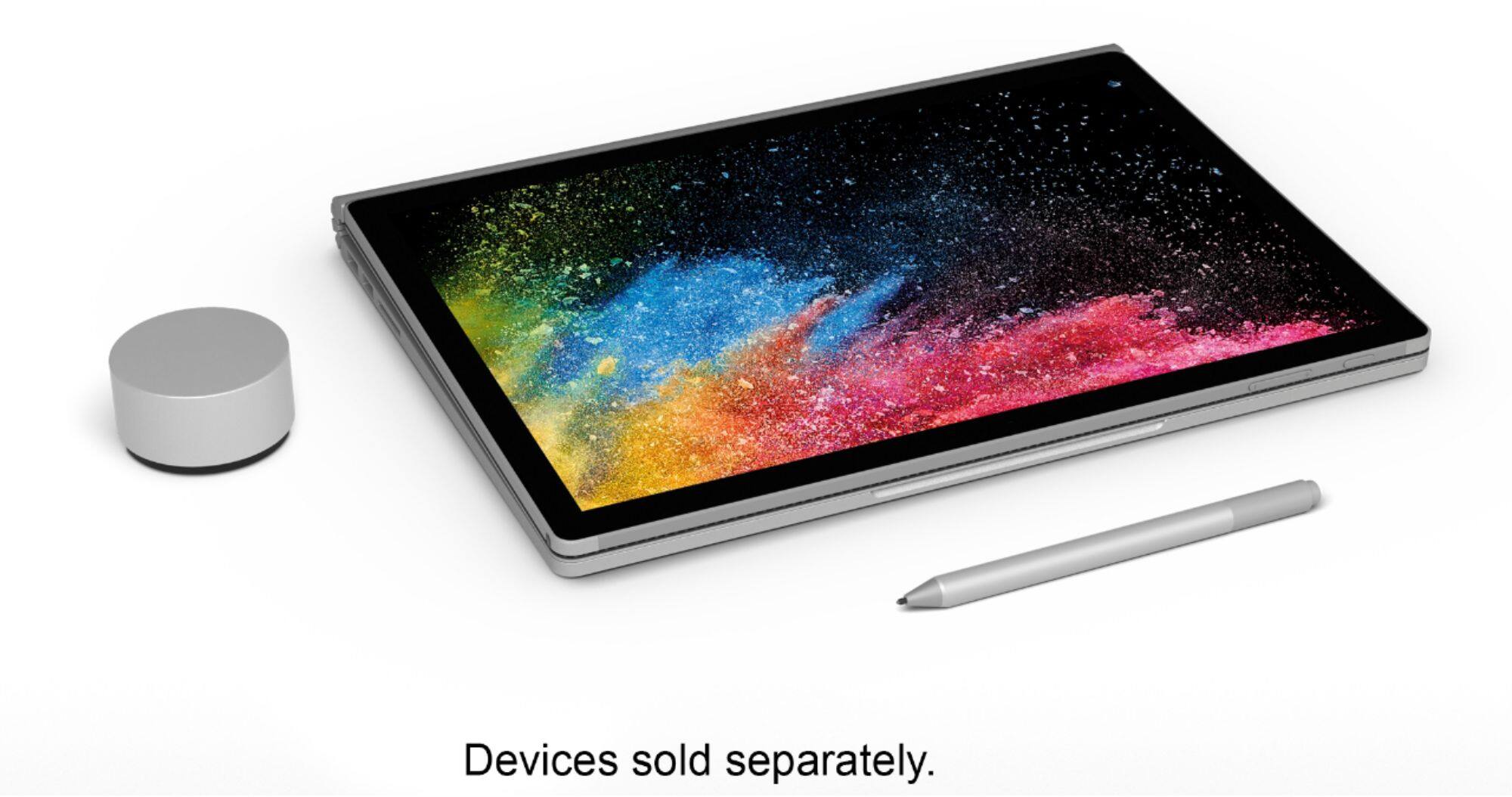
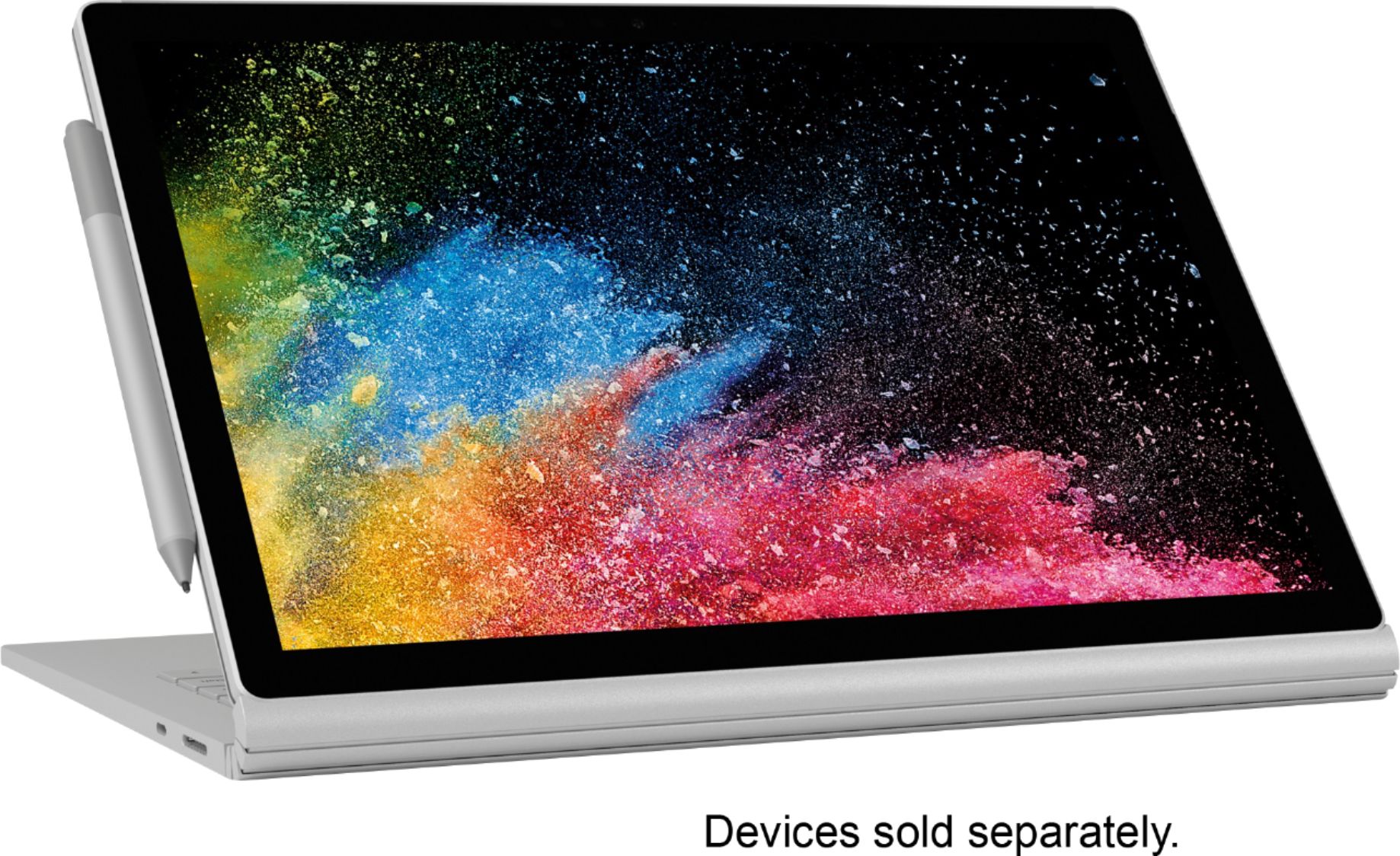
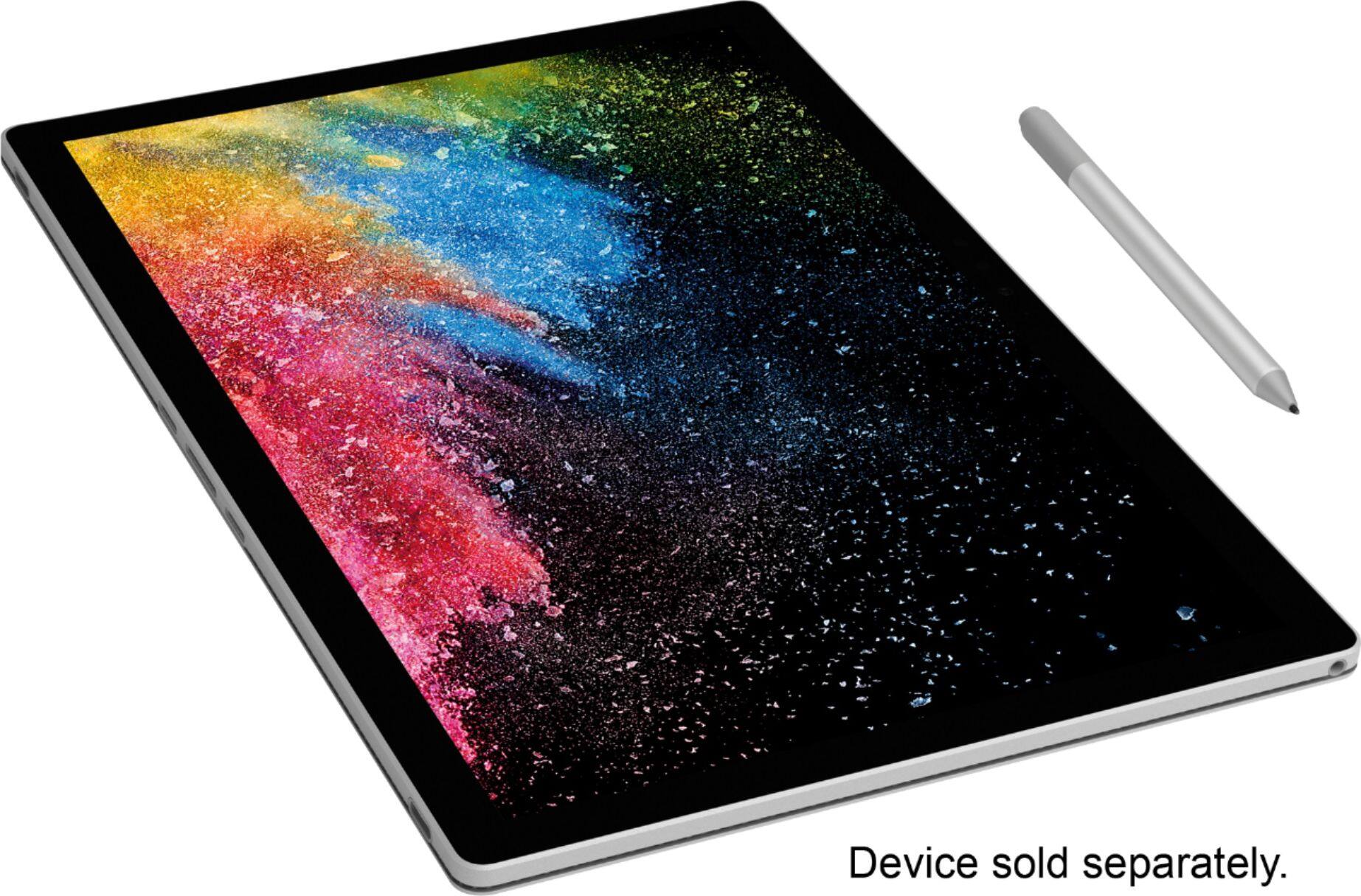
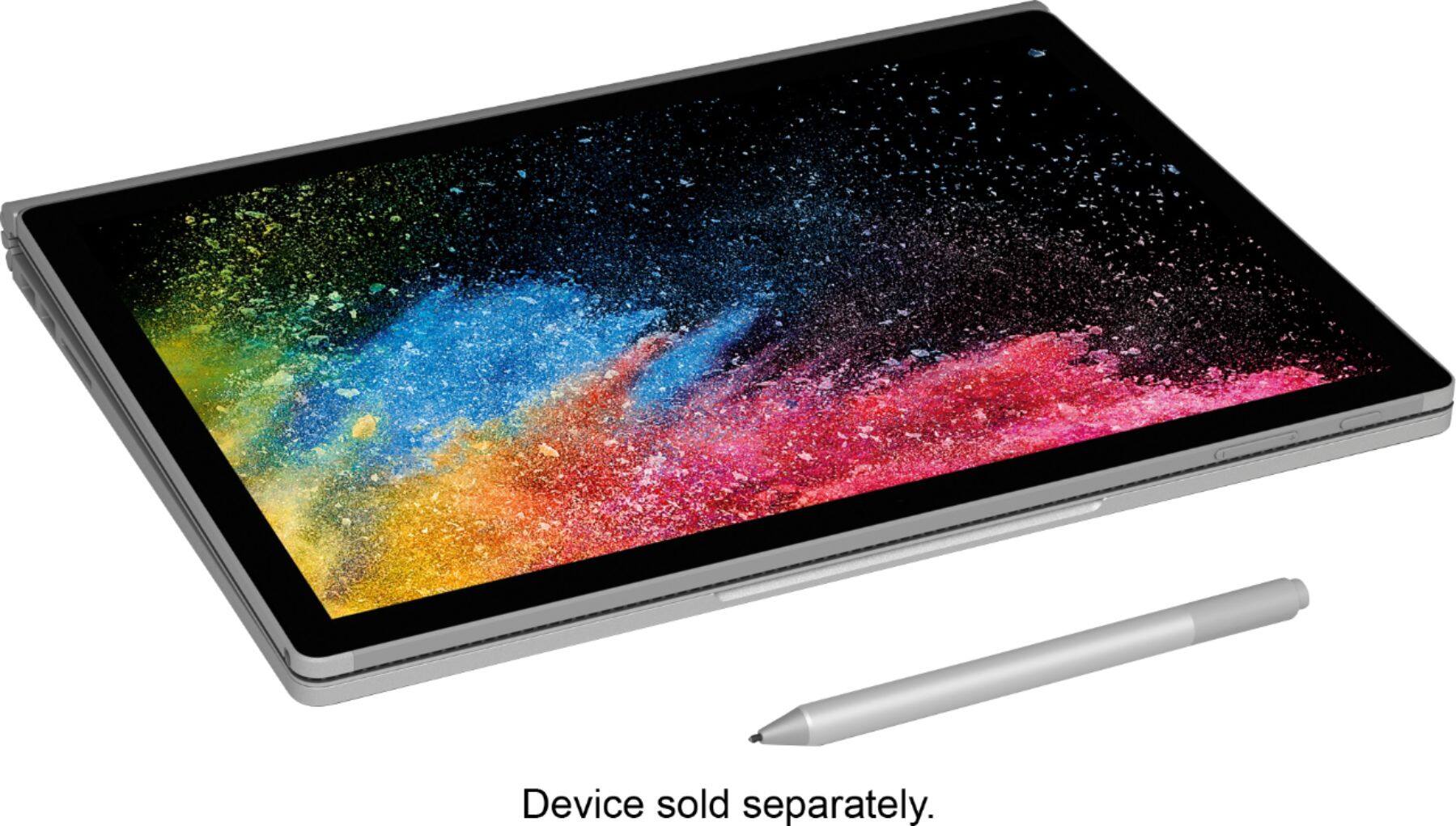
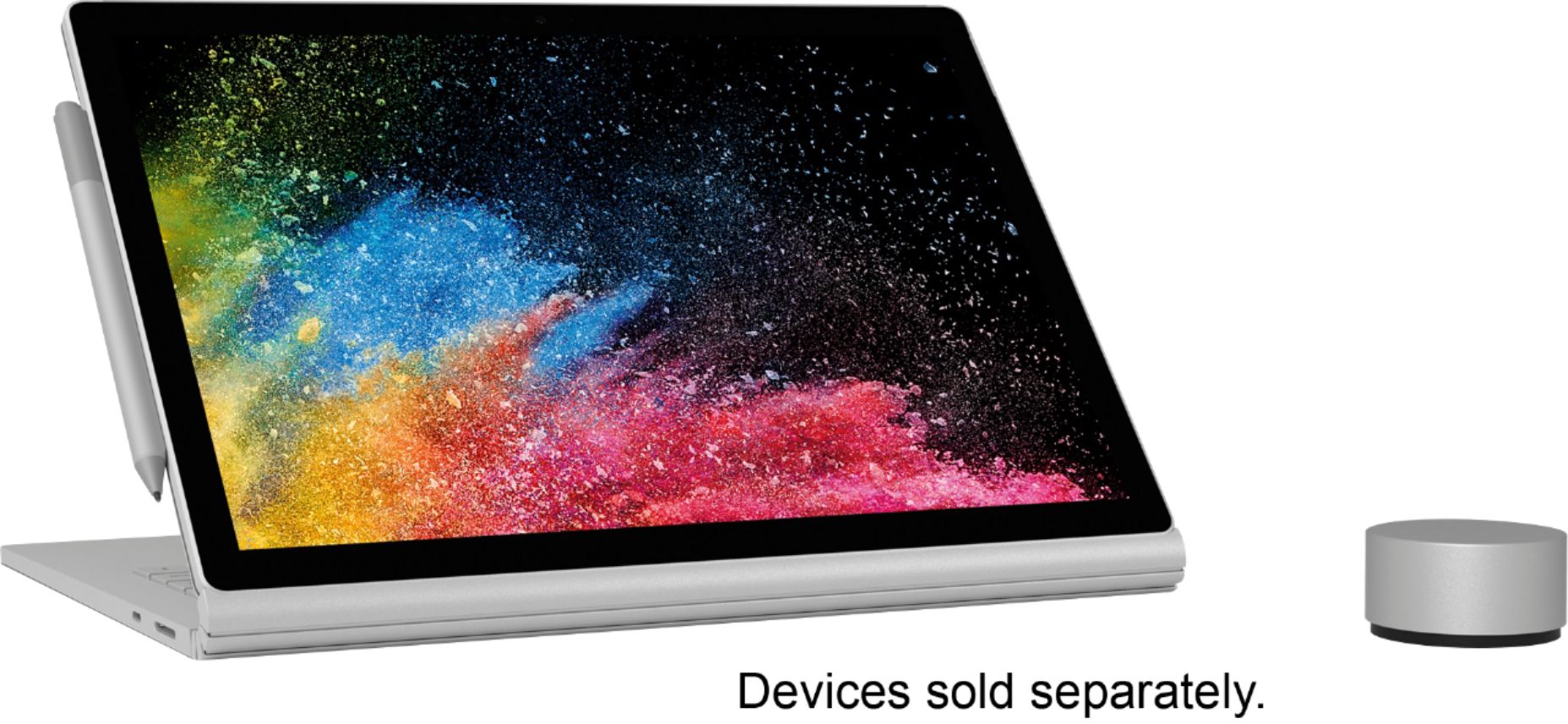
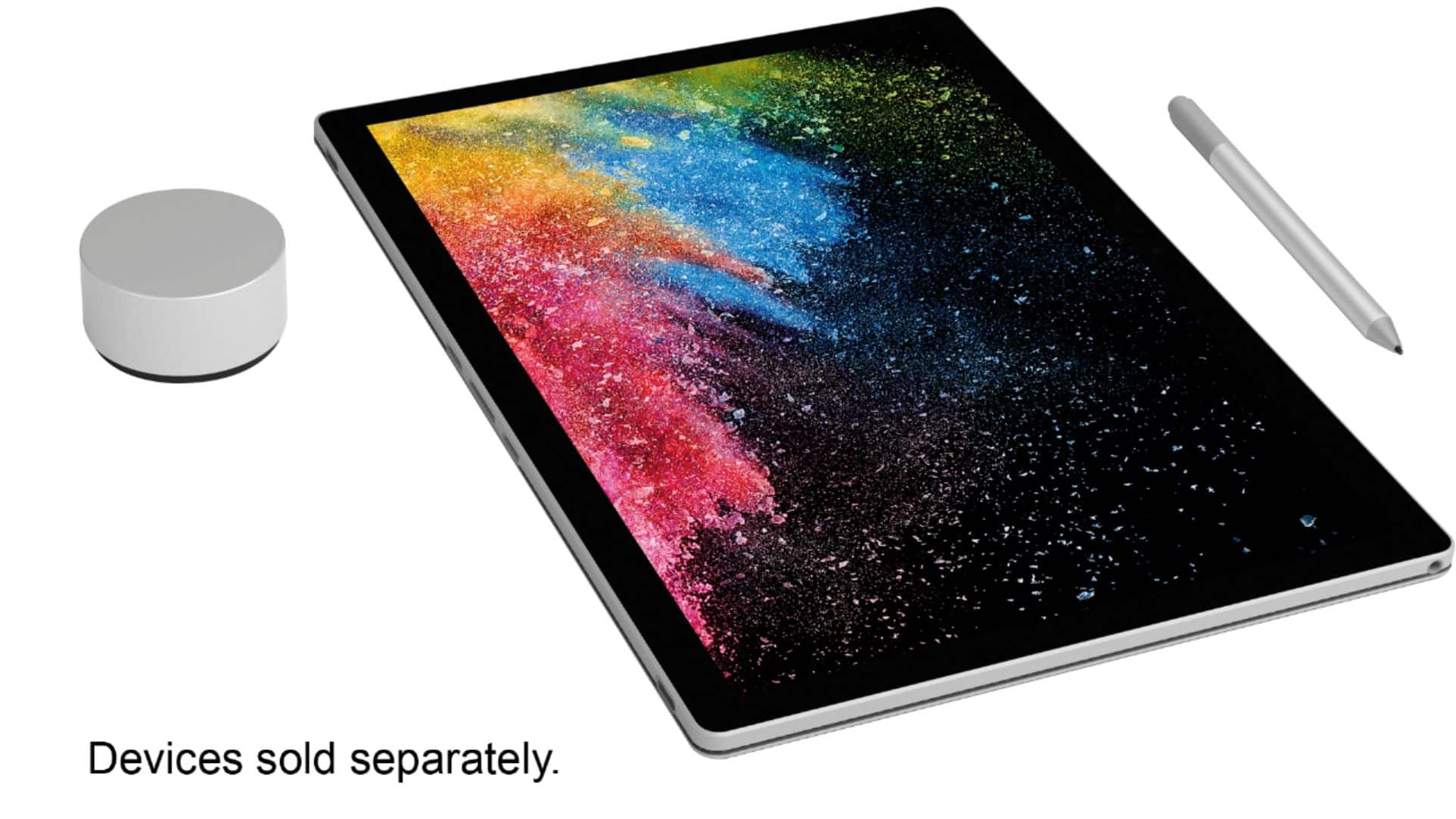
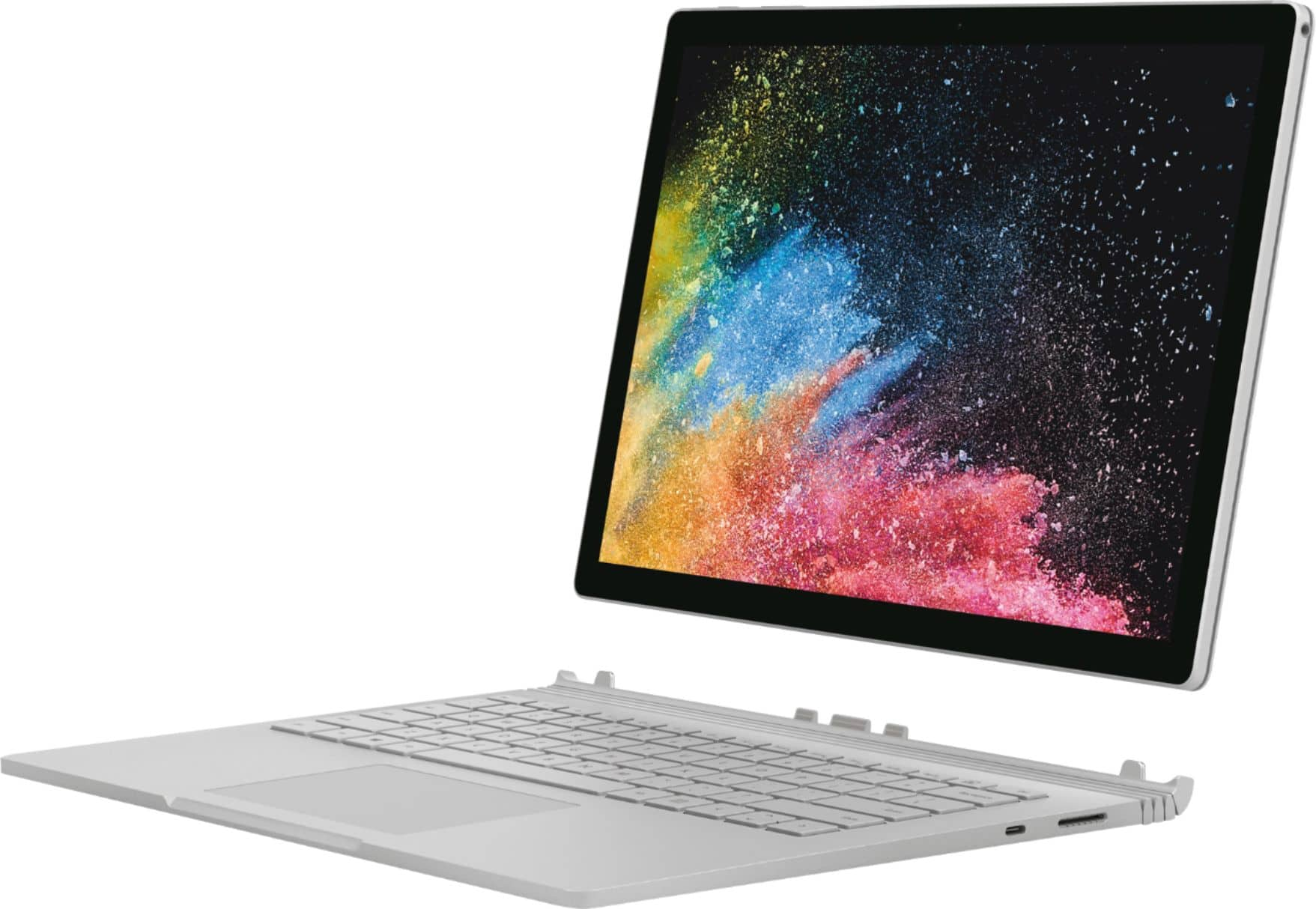
A:AnswerYes, the Surface Book 2 has 10 point multi-touch G5. In addition, the Surface Pen that can be paired with the Surface Book 2. With 4,096 pressure points, and tilt functionality, you can write, draw, and shade naturally like you would on paper.
A:AnswerWe do not recommend attempting to upgrade the RAM of any of our Surface devices. However, there are ways to optimize your experience with any Surface device by following these instructions: https://support.microsoft.com/en-us/help/4023507/surface-what-to-do-if-surface-is-running-slower.
A:AnswerThis computer has significant processing power and capabilities. It also works as a tablet as well as a laptop. I bought this for my son who is starting college for engineering this fall. It has great graphics and would be excellent for watching videos, internet surfing, and MS Office work. However, if that is the extent of what you want to do, a lower cost machine could do the same.
A:AnswerI recently purchased the Surface book 2.
I downloaded the Lumion program... The program boots up but has a lag, it does not meet the system min requirements after install and running the system preference requirements yet works ..but in perspective of Specs I would purchase the upgraded model of the surface book 2 or if possible go Surface Studio highest model
A:AnswerI think the one answer I saw isn't as helpful as it could have been - it would be a great gift for anyone! I believe you are asking what attributes it has for your son. Age of your son, whether he is using this for simple homework or needs a lot of graphics power. If you have a Best Buy near you, and you have the time, stopping in to talk with someone in the computer department may help you determine what type might be good for him. I was on here looking for reviews to compare the Surface Book 2 with the Surface Pro 4.
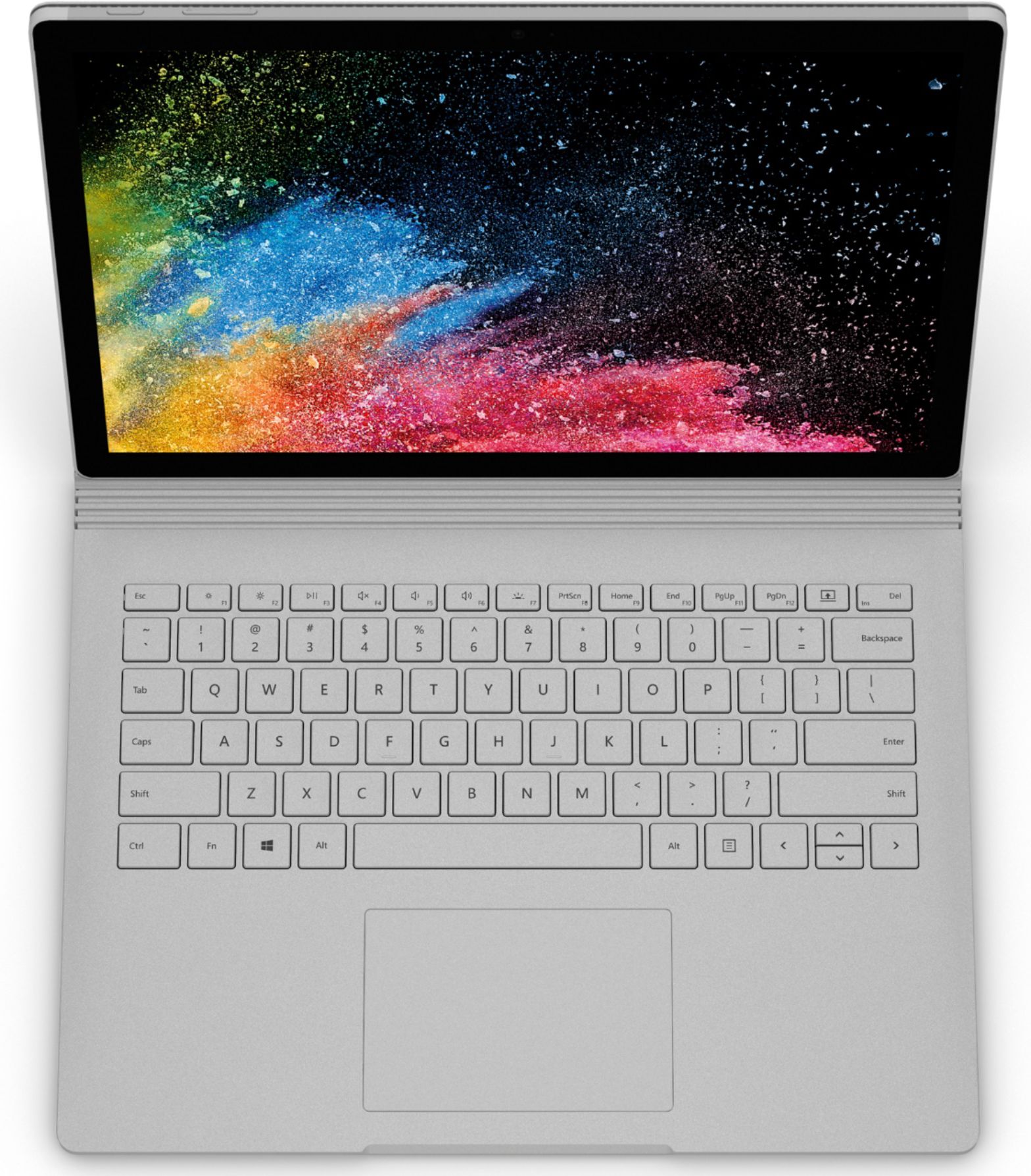
A:AnswerI got same problem. Mine is a little over a year old, the keyboard does not work. I searched on Google, could not find the replacement keyboard
A:AnswerThe Ntrig technology used in the surface line of products is some of the best in the industry for palm rejection when compared to competing active area touch displays. I use my surface book for graphic illustrations and have no problems seamlessly switching between touch with my left hand and pen with my right, no more weird artists' glove! Handwriting and application gestures (pen gestures) are just as smooth as when using photoshop or clip studio for my line of work, as it is in Onenote.
I have, however, ran into some oddities when using my left hand to draw when the default is set to using my right hand (can be changed in settings), but I might place the blame there on the fact I am usually at an awkward angle doing some rather unorthodox movements, probably hitting multiple parts of my hand on different sections on the screen at the same time when its expecting the reject towards the right side of my pen input. Don't really assume everyone is going to be using the pen ambidextrously as I sometimes do -- just something worth nothing.