A:Answer It should, yes. Here are instructions as found on TurtleBeach website:
https://support.turtlebeach.com/hc/en-us/articles/115000234734-Stealth-600-for-Xbox-One-Quick-Start-Guide%20?mobile_site=true
Headset volume is controlled through Windows when used on a PC.
Volume controls on the headset have no effect.
On your PC, go to Settings >> Devices >> Connected Devices.
Choose "Add A Device". Windows will search for the headset.
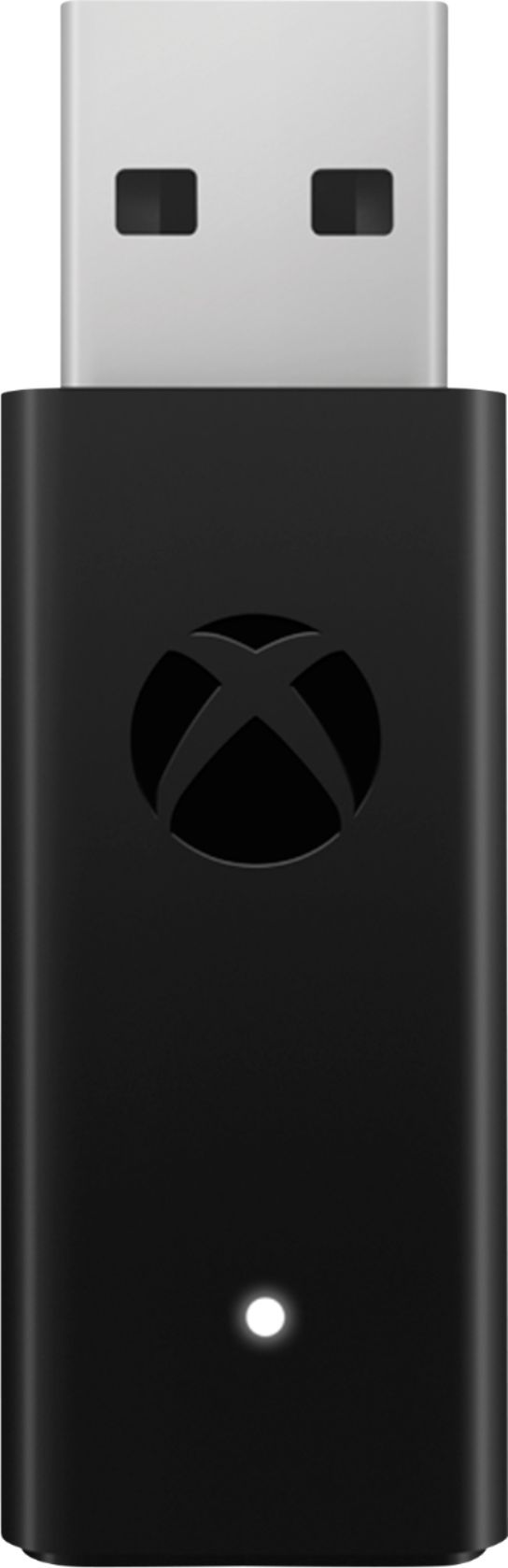
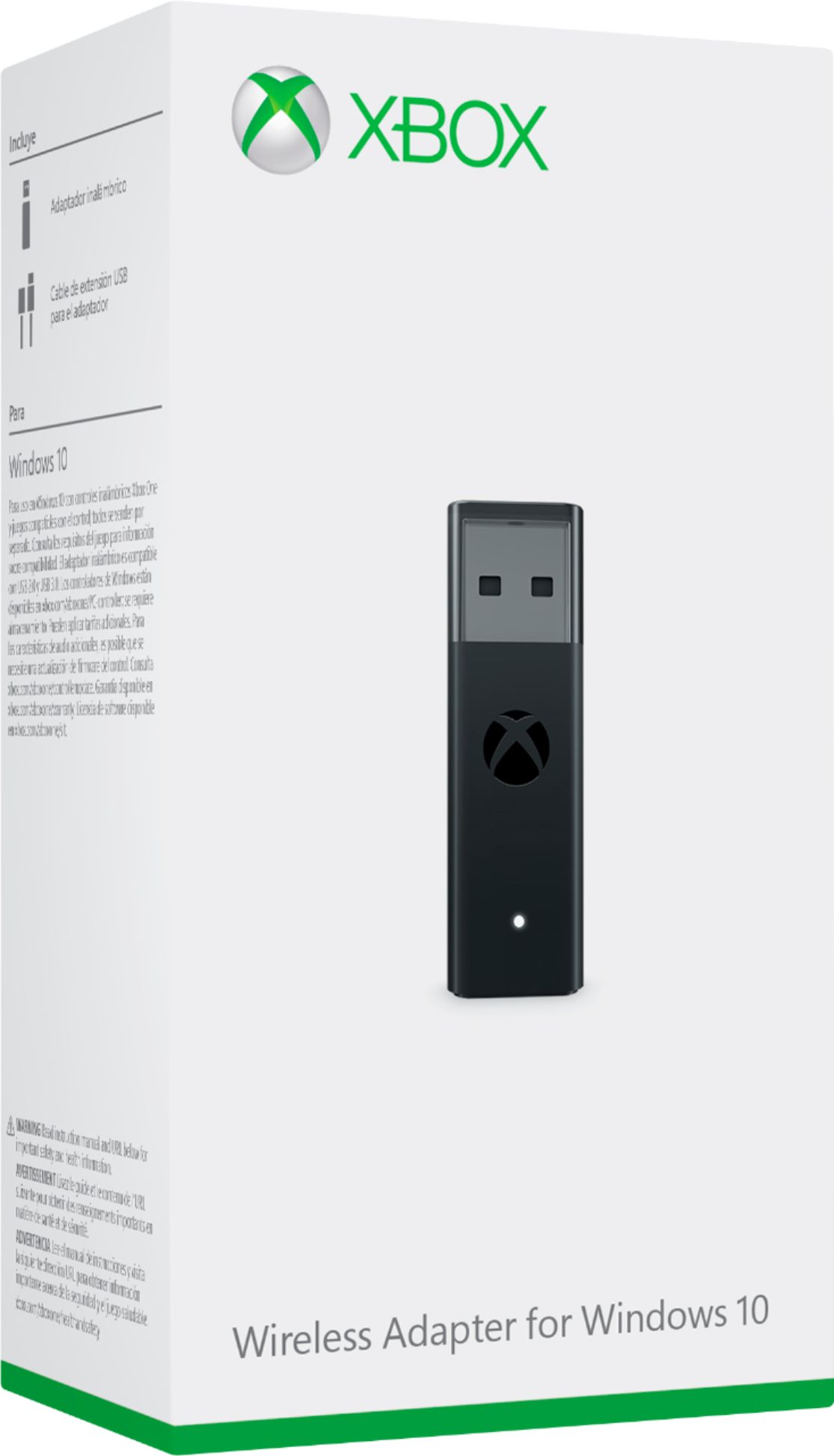
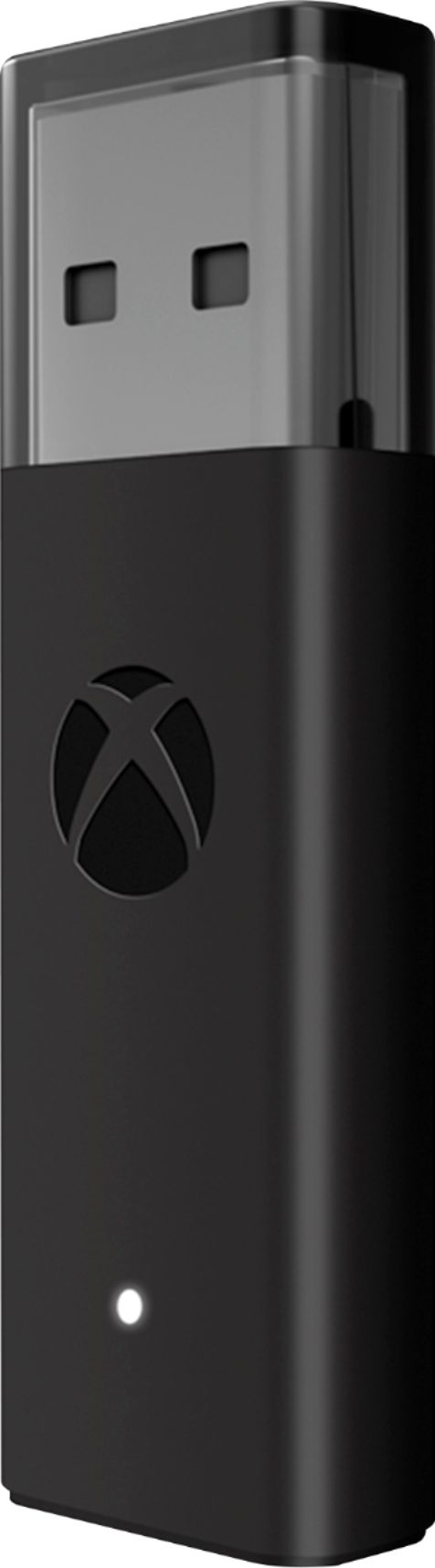
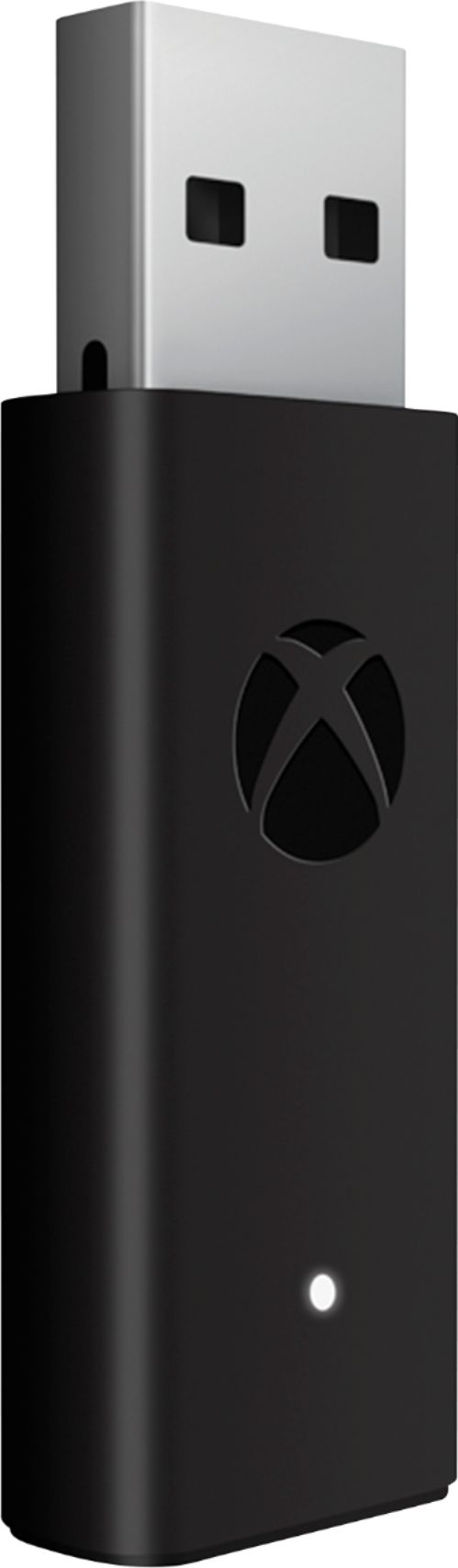
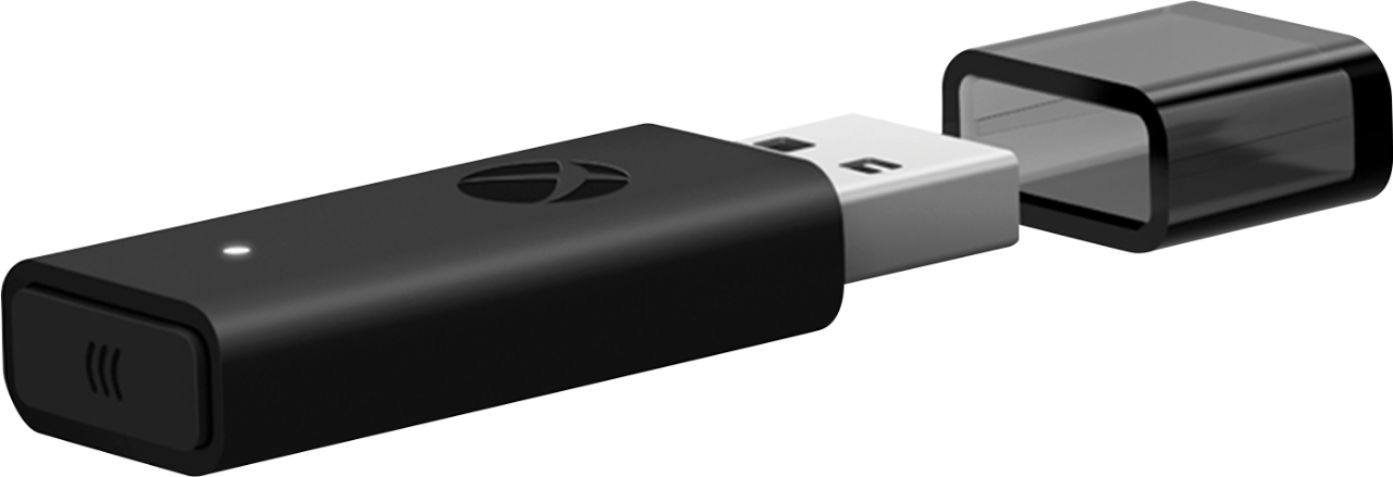
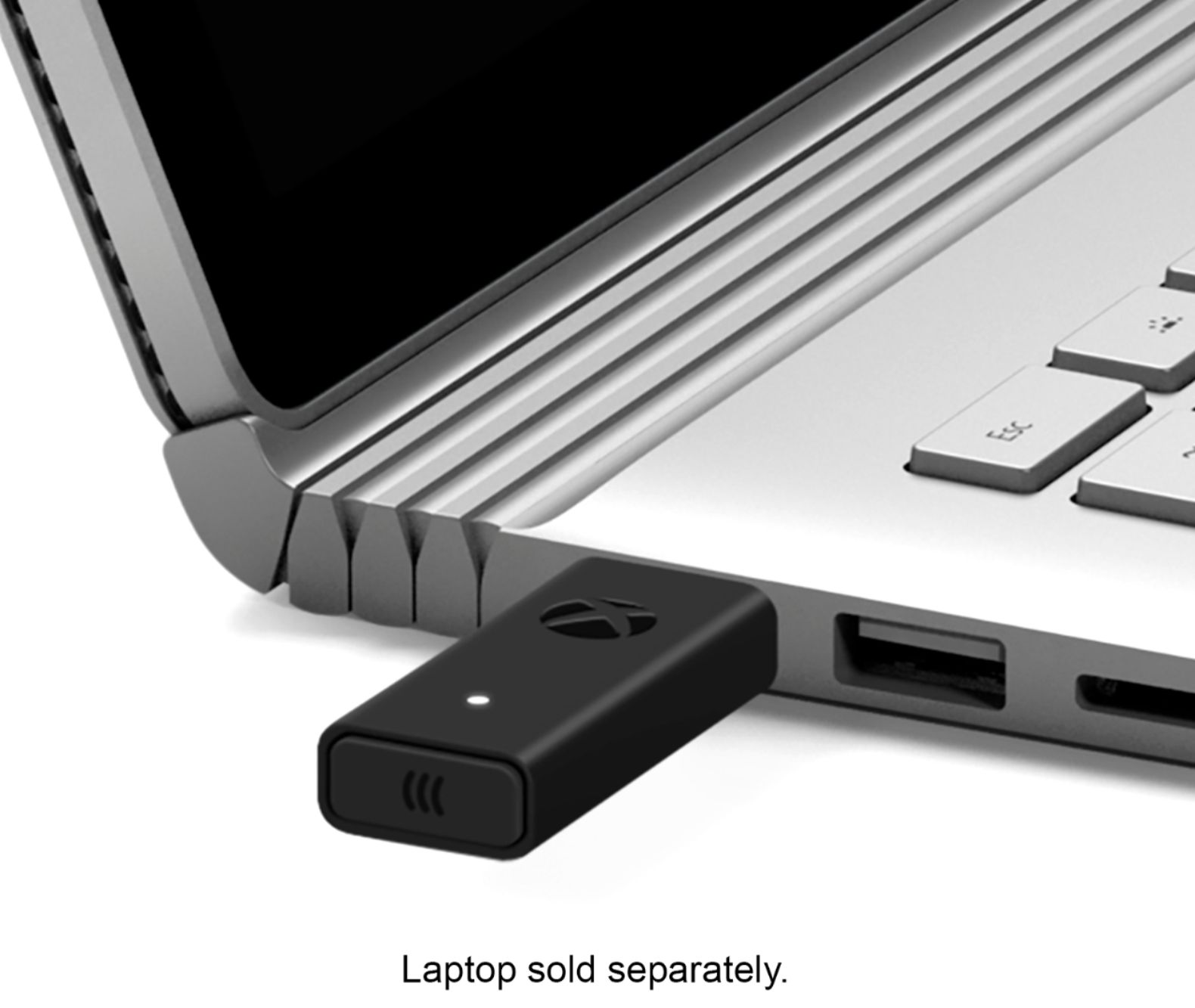
Press the connect button on the end of the Xbox Wireless USB adapter. Press the Connect Button on your headset. Windows will find and add the headset.
When your Stealth 600 for Xbox One headset appears in the list under Other Devices, it is ready to use.
Configure your settings. On the Windows Taskbar, right-click the Speaker Icon.
Select Playback Devices.
Set Turtle Beach Stealth 600 as your Default Device.
Select Recording Devices
Set Turtle Beach Stealth 600 as your Default Device.
FIRMWARE UPDATE & CUSTOMIZATION
Make sure to update to the newest firmware for the best audio experience. Connect to the Turtle Beach Audio Hub for Windows or Mac to update firmware and customize your sound further.